menu

Smart Tools That Make Transcription Easy

accurate speech recognition

Accurate Speech Recognition

Our audio & video transcription tool uses advanced technology to capture spoken words clearly and convert them into written text with high accuracy. It supports different accents and tones, making audio & video transcription simple and reliable for everyday use.

It also reduces common errors by learning from speech patterns. This helps you get clean and readable text without spending extra time fixing mistakes.

Fast Processing Speed

You can quickly transcribe video to text without long waiting times, even for large files. The system runs smoothly in the background, so you can continue your tasks while transcription completes.

This makes it useful for busy users who need quick results. You get your text faster, helping you stay productive and save valuable time.

fast processing speed
supports multiple formats

Supports Multiple Formats

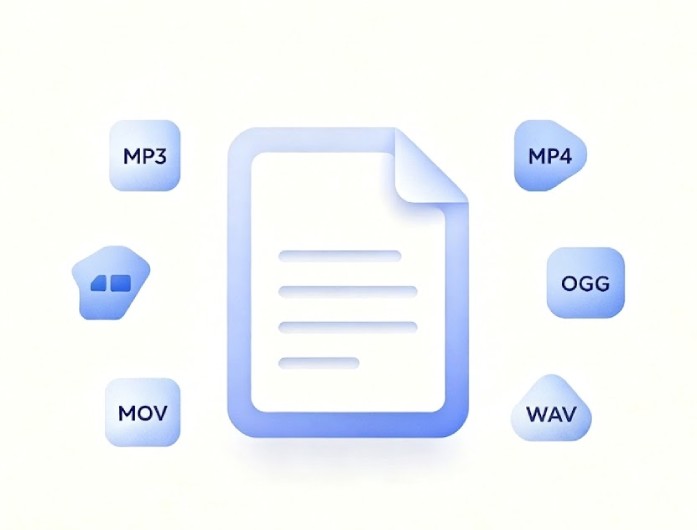
The tool allows you to convert audio and video to text from many file types, including MP3, MP4, MOV, OGG, and WAV, as well as other video or audio formats. This flexibility means you can upload different files without worrying about format issues.

It keeps the process simple and smooth. You can switch between formats easily, making it convenient for a range of projects and daily use.

Turn Audio and Video Into Readable Text

students

Students

They can use this tool to turn lectures, discussions, and study recordings into clear notes. It helps them understand lessons better and makes it easier to review content.

business professionals

Business Professionals

Professionals can use transcription to keep accurate records of meetings, interviews, and calls. This helps improve communication and ensures they do not miss important details.

researchers

Researchers

They can save time by converting interviews, focus groups, or recorded data into text. This makes it easier to organize information and analyze results.

Transcribe Audio & Video Online with Ease

add file
start transcription
save the transcript
  • 01
    Add File

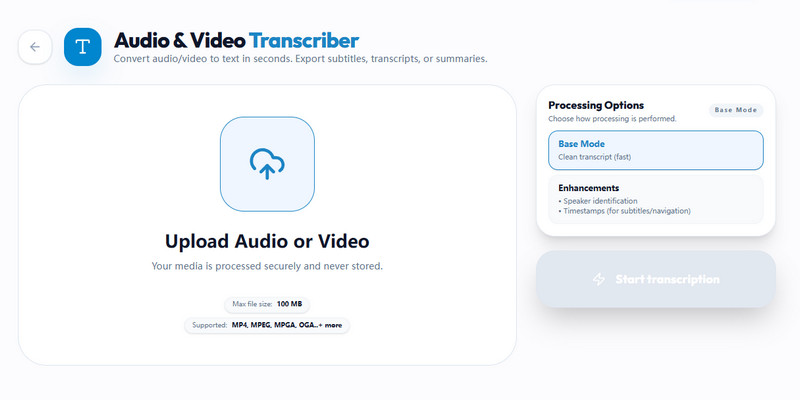
    Start by adding your media file. You can either drag and drop it into the designated area or upload it directly from your device or cloud storage.

  • 02
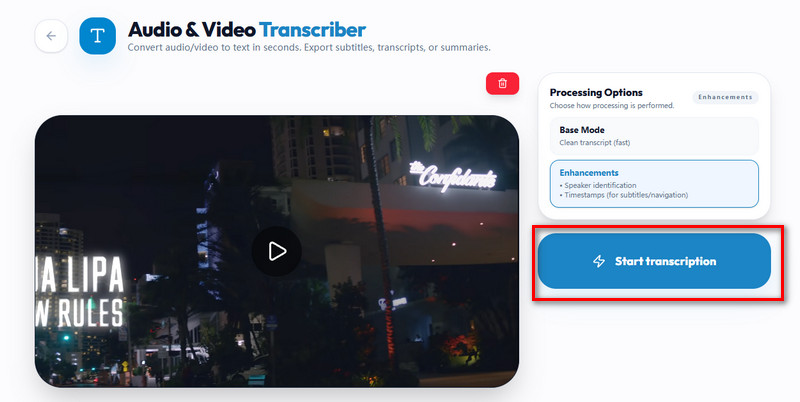
    Start Transcription

    Once the media file is uploaded, choose the processing options. You can select from the "Base Mode" and "Enhancements" options. Then, hit the "Start Transcription."

  • 03
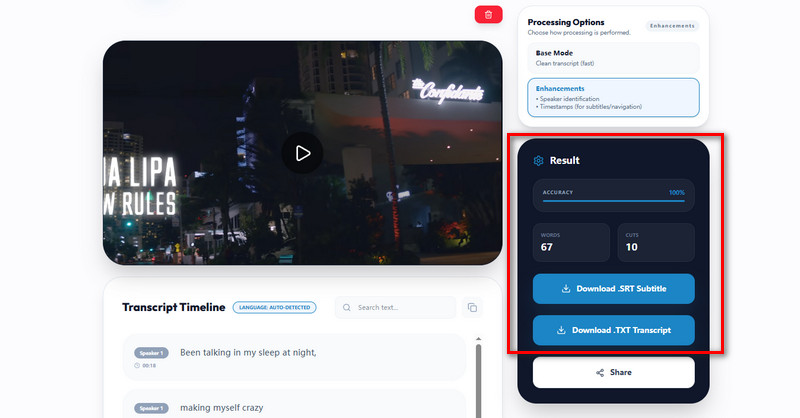
    Save the Transcript

    After the transcription is complete, you will see the transcribed text. Then, scroll down to download it on your device. You can save it in SRT and TXT formats.

Frequently Asked Questions

How accurate is the audio & video transcriber?

This transcription tool is designed to deliver high accuracy by using smart speech recognition technology. It can understand different accents and speaking styles in most recordings. However, the final result may still depend on audio quality and background noise. Clear audio usually yields better, more accurate text.

What formats can I save my transcripts in?

You can download your transcripts in simple, useful formats such as STR and TXT. These formats are easy to open, edit, and share across different devices. They are also widely supported by most text editors and platforms. This makes it convenient to use your transcripts for work, study, or content creation. You can pick the format that serves your needs.

How long does it take to transcribe a typical audio or video file?

The transcription process usually takes only a short time, depending on the length of your file. Smaller files can be completed quickly, while longer recordings may take a bit more time. The system processes your content efficiently, avoiding long delays. You can continue other tasks while waiting.

What is the maximum file size or duration supported by the transcriber?

The tool supports files up to 100 MB, which works well for most audio and video needs. This allows you to upload recordings like interviews, lectures, or meetings. If your file is larger, you may need to split it into smaller parts. This keeps the process smooth and avoids upload issues. It also helps maintain stable performance.

Is it safe to use this AI video transcription?

Yes, this AI video transcription tool is built with security in mind to keep your files safe during processing. Your data is handled carefully and is not shared with others. Files are only used for transcription and are not stored permanently. This helps protect your privacy and sensitive content.

product icon AceThinker Wind Cut

Smart AI Audio & Video Editing Tool

wind cut banner
Back to Top
Contact Us
Learning Center