menu

Organize Business PDFs with Batch Control and Structured File Management

Reorder pages, merge reports, split large files, and standardize document sets across contracts, invoices, and internal records. Handle multi-file workflows with batch processing, consistent file structure, and organized outputs designed for efficient business operations and document control.
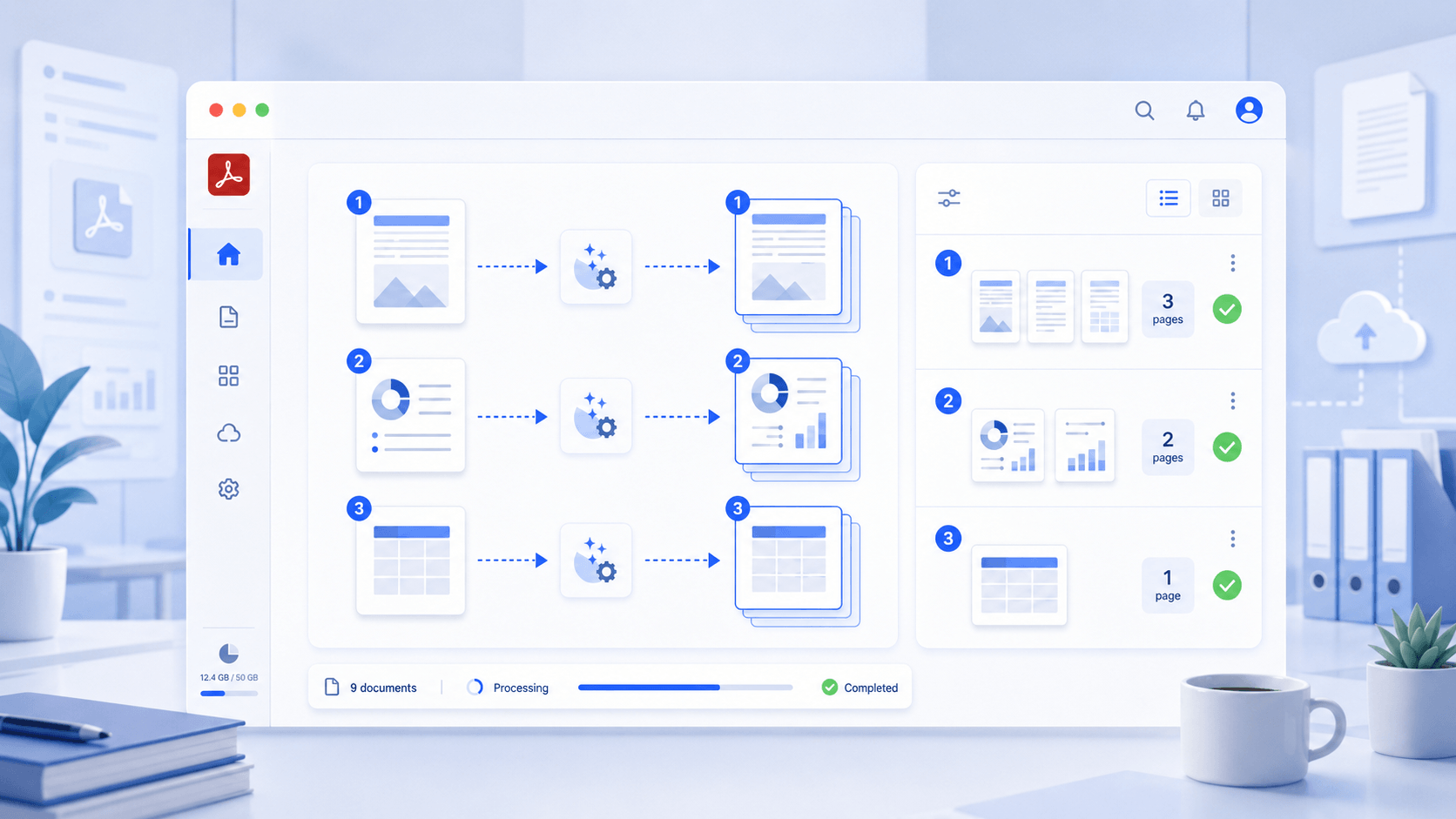
Secure Processing • Different Compression Level • High Quality
organize pdf for work
star
star
star
star
star_half
4.7/ 5
StackSocial Verified Buyers (10k+ Copies Sold)

Prepare Work PDFs for Structured Organization

Professional PDF Organization with 1:1 Structural Integrity

assignment

Organize PDFs Without Breaking Layout or Structure

Reorder, merge, or split pages while keeping every layout element exactly where it belongs. Unlike standard tools that distort tables, shift fonts, or break bookmarks, our engine preserves full document hierarchy using Vector-Level Rendering and Structure-Aware Page Processing. Your reorganized PDFs retain print-ready clarity at 300+ DPI, with intact pagination, consistent headers/footers, and fully preserved bookmarks across all pages.

bar_chart_4_bars

Techinical Metrics

Every action follows measurable, industry-recognized integrity and security benchmarks.

  • check_circle
    Layout Integrity: 1:1 Preservation through vector-level rendering across all reorganized pages.
  • check_circle
    Bookmark Accuracy: 99.8% retention of hierarchical bookmark structure after merge/split operations.
  • check_circle
    OCR Precision: 99.8% multi-language accuracy across 20+ languages.
  • check_circle
    Security: AES-256 encrypted processing with full local-buffer handling

Common Issues in Organizing PDFs

Managing many files can be confusing without proper tools.

file_copy

Disorganized Reports and Files

Work documents are often scattered across folders and systems, making it difficult to maintain a clear structure. It reduces efficiency and increases time spent locating essential files.

auto_awesome_motion

Lack of Document Structure

PDF files without proper organization lead to confusion in workflows and slower document handling. This can negatively impact productivity and overall operational clarity.

web_stories

Duplicate or Outdated Versions

Multiple versions of the same document create inconsistencies and increase the risk of using incorrect information. This leads to errors in reporting and decision-making processes.

gesture_select

Difficulty Managing Multiple PDFs

Handling large volumes of PDF files manually becomes inefficient and time-consuming in business environments. It results in reduced workflow efficiency and increases workload.

Common Work Scenarios for PDF Organization

Organize PDF files easily for better work efficiency.

  • Organize Business Reports
  • Manage Contract Documents
  • Structure Project Files
  • Clean and Sort Archived PDFs
The Challenge

Business reports are often stored across multiple files and locations, making it difficult to maintain a consistent structure. This reduces visibility and slows down access to critical information.

Business Reports

What you can do:

  • check
    Consolidate and arrange reports into a clear, structured document flow
  • check
    Reorder and manage pages to improve readability and navigation
  • check
    Maintain organized files for faster access and better decision-making
The Challenge

Contracts are frequently stored in inconsistent formats and locations, making tracking and retrieval inefficient. This increases the risk of mismanagement and a lack of document control.
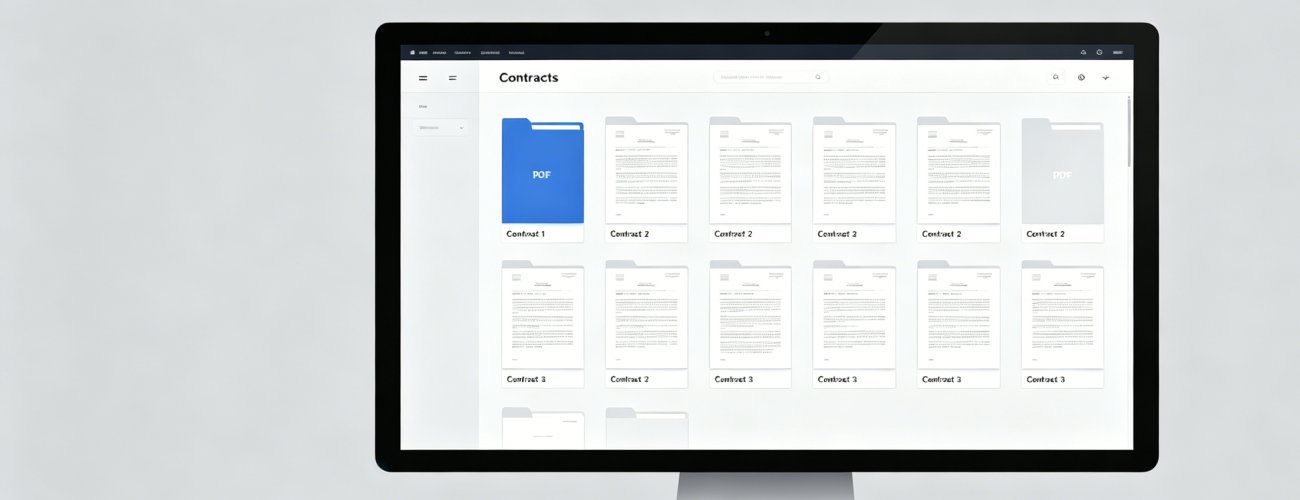
Contract

What you can do:

  • check
    Organize contracts into structured, easy-to-navigate PDF files
  • check
    Standardize document order for consistent review and handling
  • check
    Improve control and accessibility across contract workflows
The Challenge

Project-related documents are often fragmented and lack a unified structure, causing confusion across teams. This makes collaboration harder and slows down the workflow.
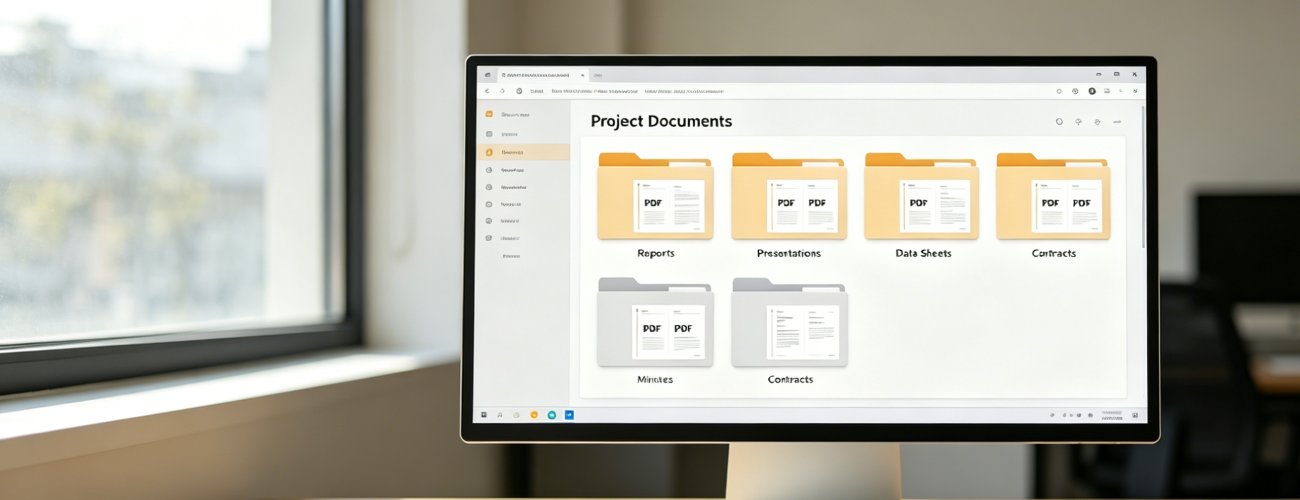
Project-related document

What you can do:

  • check
    Combine and organize project files into a logical document structure
  • check
    Arrange content to align with project workflows and milestones
  • check
    Ensure clarity and consistency for team-wide document access
The Challenge

Archived PDF files often contain redundant, outdated, or disorganized content, making them difficult to manage. This can take up storage space and make retrieval inefficient.
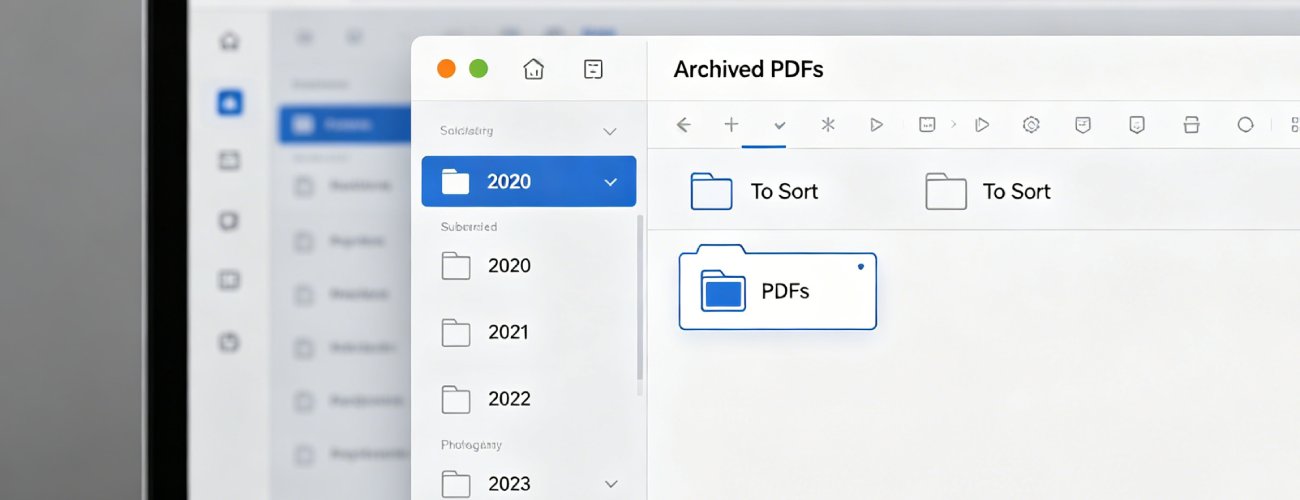
Archived PDF

What you can do:

  • check
    Remove unnecessary pages and clean up outdated document content
  • check
    Sort and reorganize files for better long-term storage structure
  • check
    Improve document control and retrieval efficiency for archived files

Configure - Restructure - Audit - Export

Upload PDF files or multi-document sets and organize them into structured, easy-to-navigate documents that improve workflow efficiency and ensure business-ready file management.

  • 1

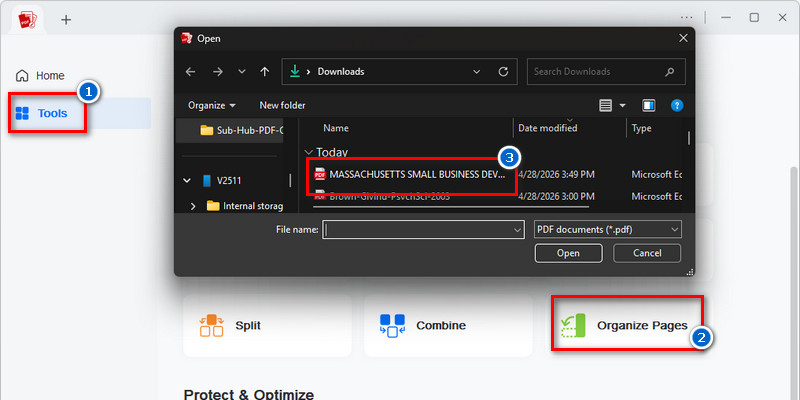
    Configure PDF Intake Through the ‘Organize Pages’ Workspace

    Launch the Organize Pages workspace from the Tools panel to initialize the document intake workflow for business PDFs, contracts, and operational reports. This process enables the PDF engine to interpret page-level structure, classify document segments, and prepare indexed content for downstream organization workflows.

  • 2

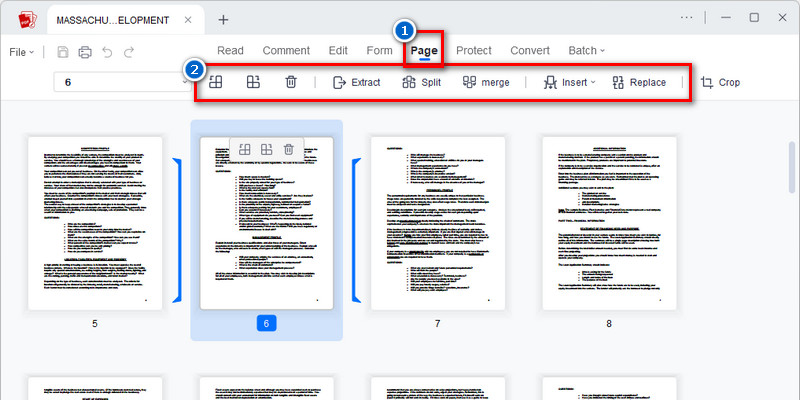
    Restructure Document Flow to Align with Professional Workflows

    Use the Page Management Toolbar to reconstruct the document hierarchy by reorganizing pages according to operational sequence, reporting logic, or approval flow rather than static page numbering. This restructuring process standardizes document architecture for improved navigation consistency across professional teams and business review cycles.

  • 3

    Audit Page Sequence to Guarantee Structural Integrity

    Activate Read Mode to perform a structural validation audit on the reorganized PDF file set, verifying page continuity, section alignment, and document completeness before distribution. This review stage identifies sequencing conflicts, duplicated pages, or missing content that may compromise workflow accuracy or record reliability.

  • 4

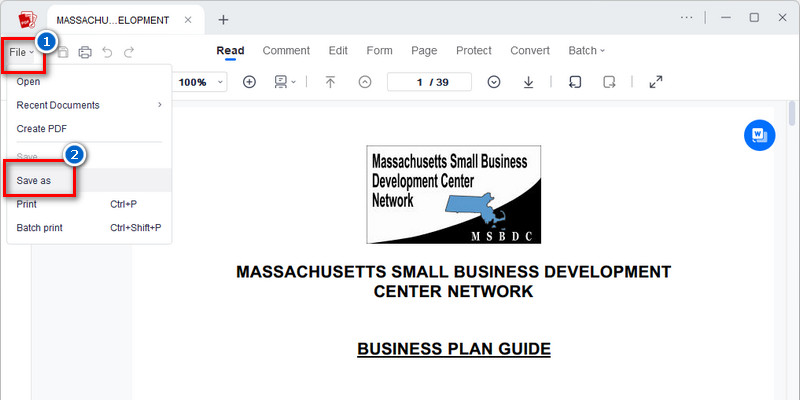
    Export Finalized PDF with Preserved Navigation Structure

    Complete the organization workflow by executing the Save As export command to preserve the finalized page hierarchy and embedded navigation structure. This export process maintains document organization metadata for long-term archival, controlled business distribution, and repeatable access across operational environments.

Enter Organize PDF
Organize pdf page
audit page sequence
export finalized pdf

Free PDF Templates

Get instance to professionally designed free PDF templates to help you keep organized and save time.

  • Business
  • Birthday Cards
  • Welcome Messages
  • Holiday Cards
FREE

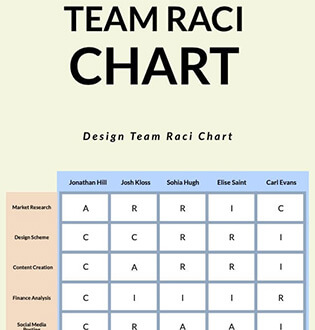
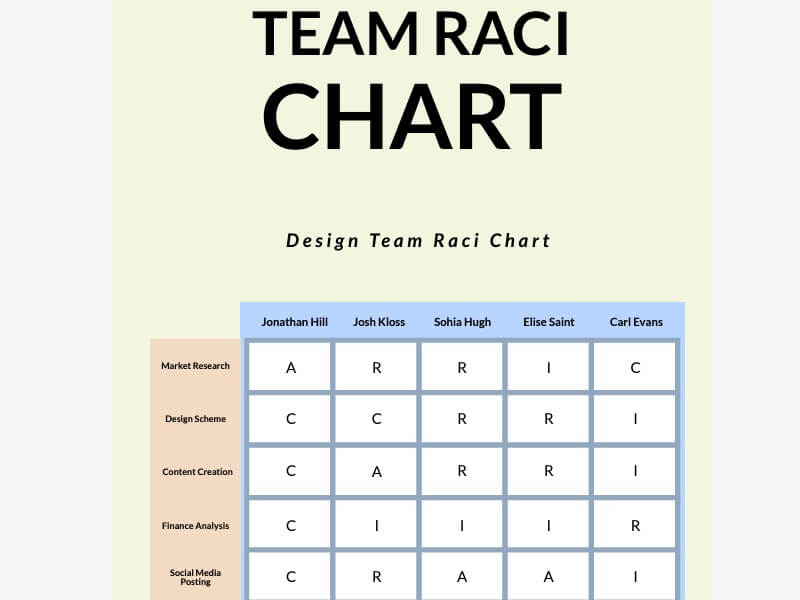
Team Collaboration Template
FREE

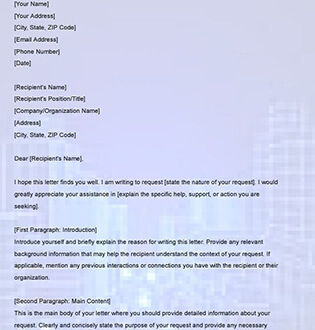
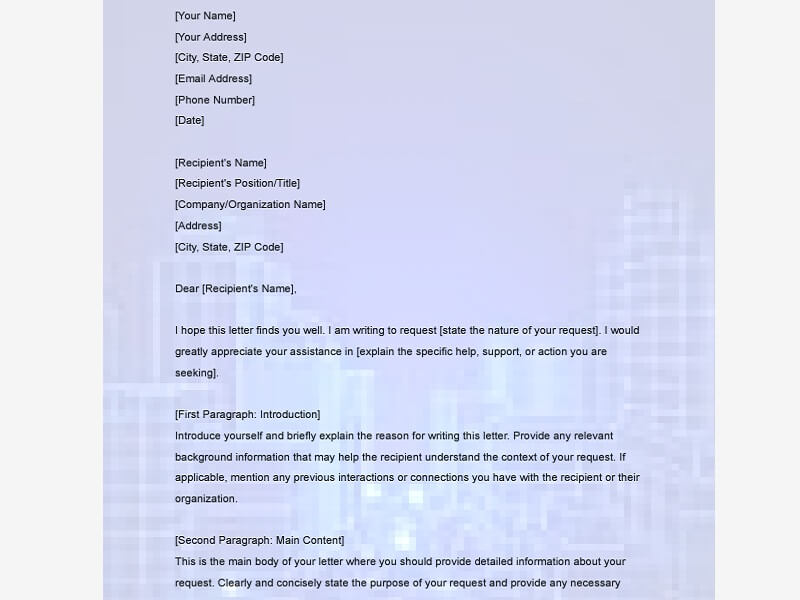
Request Letter Template
FREE

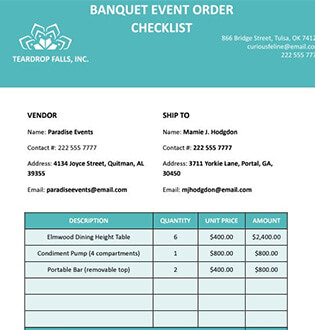
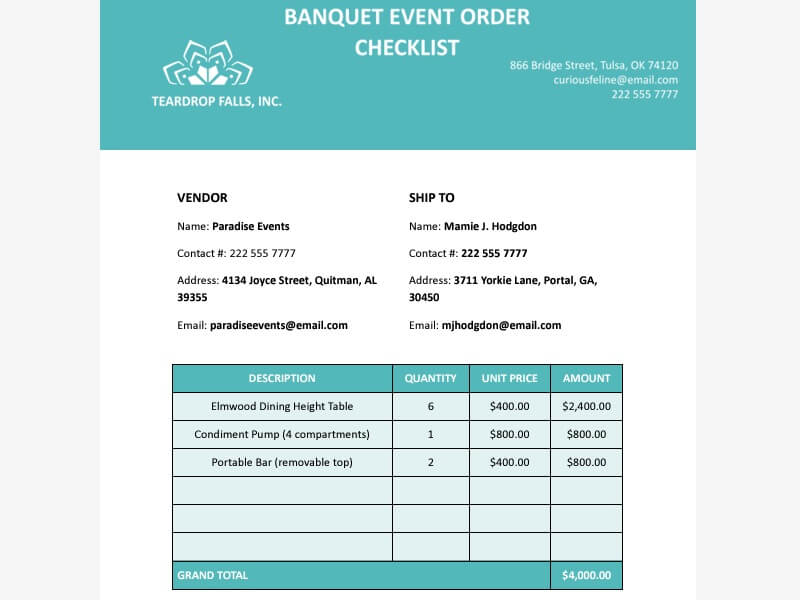
Event Planner Template
FREE

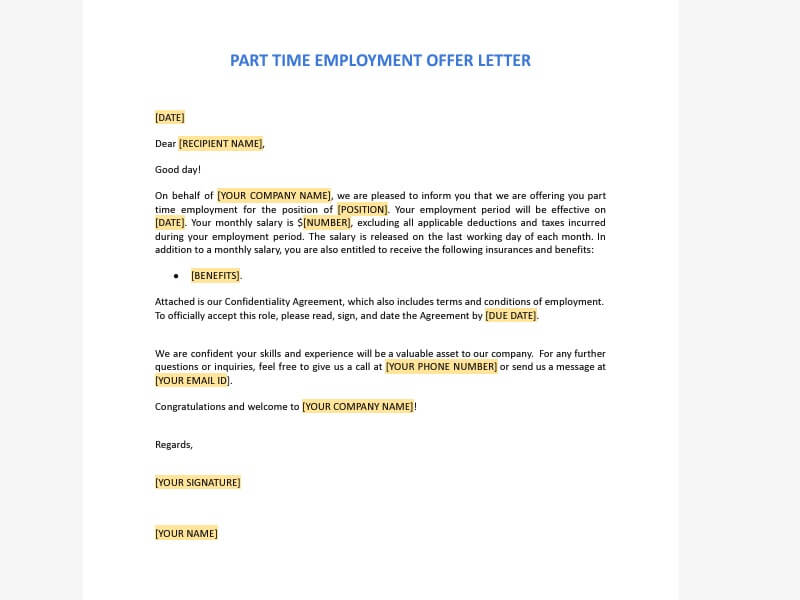
Offer Letter Template
FREE

Birthday Greeting for Grandma
FREE

Birthday Wishes for Granddaughter
FREE

Birthday Wishes for Ex Boss
FREE

Birthday Wishes for Husband
FREE

Welcome Breakfast Invitation
FREE

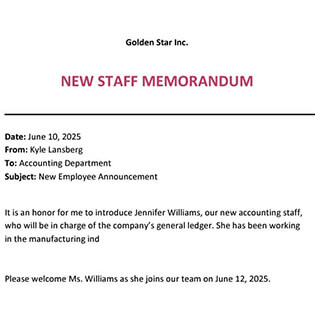
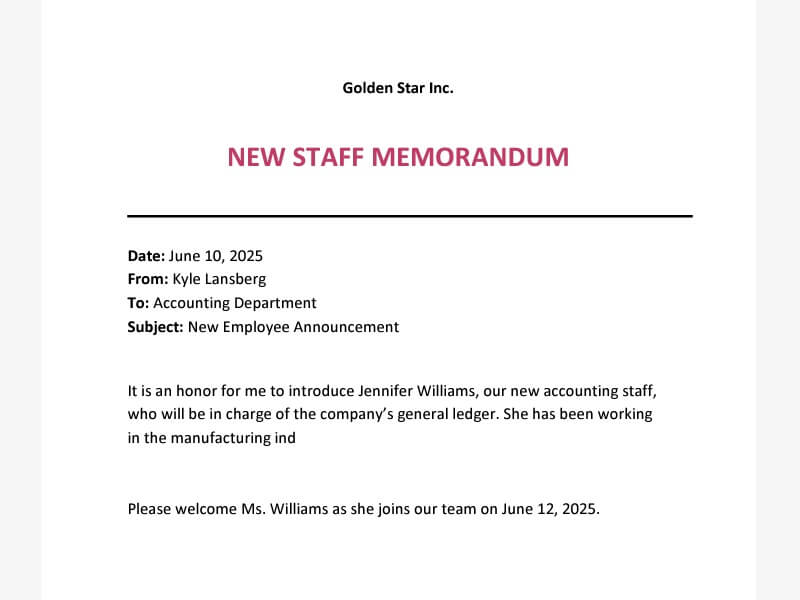
Welcome New Staff
FREE

Welcome Sign Digital Signage
FREE

Welcome Countdown Flyer
FREE

Happy Labor Day
FREE

Merry Christmas Card
FREE

Digital Holiday Photo Card
FREE

Season's Greeting Card
star
star
star
star
star_half
4.7/ 5
StackSocial Verified Buyers (10k+ Copies Sold)

Why Professionals Trust PDF Organization Tools

batch_prediction

Batch PDF Organization

Organize large volumes of PDF files in a single workflow without manual sorting. It maintains a consistent structure and improves efficiency when handling multiple business documents.

format_image_left

Smart File Structuring

Automatically arrange and structure document pages for clear, logical organization. It ensures bettpy-20 px-8t control and improved readability across business files.

arrow_forward

Quick Navigation Tools

Navigate complex and multi-page PDFs with enhanced speed and precision. Improve access to key sections and streamline document handling workflows.

delete_sweep

Document Cleanup Tools

Remove redundant pages and refine document structure to maintain clean, organized files. Enhance clarity and ensure better control over archived and active documents.

AcePDF - An Intuitive PDF Editor for Any Use

Frequently Asked Questions

How do I reorder pages in a business PDF before sending it to a client?expand_more

Business PDFs can be reorganized before client delivery through the “Organize Pages” feature in AcePDF Editor. Open the document, go to “Tools,” then select “Organize Pages” to display all pages as thumbnails. From there, drag pages into the correct sequence so reports, proposals, invoices, or appendices appear in the intended order before exporting the updated PDF. After saving the reorganized file, review the page numbering, charts, and attachments to confirm that the final presentation still looks professional. This is especially important for client-facing reports with multiple sections or supporting documents.

How do I combine reports, invoices, or contracts into one organized PDF?expand_more

Multiple business documents can be merged into a single PDF package using the “Combine” feature in AcePDF Editor. Open AcePDF, select “Tools,” then choose “Combine” and upload the reports, invoices, contracts, or supporting files you want to include. Arrange the documents in the correct business order before clicking “Merge” to generate one organized PDF. After exporting the file, check headers, signatures, tables, and page order to ensure nothing shifted during the merge process. If some pages are scanned copies, running OCR first may improve searchability and internal document review.

How can I split a large work PDF into separate sections or attachments?expand_more

Large business PDFs can be divided into smaller attachments using the “Split” option in AcePDF Editor. Open the work PDF, access “Tools,” then choose “Organize Pages” followed by “Split.” You can split the document by page count to create smaller files for email attachments, department reviews, or client-specific sections. Once the files are exported, rename each PDF clearly so teams can easily identify the correct document version. Before sharing the split files, review the charts, appendices, and signature pages to ensure important content was not split incorrectly.

When should I use AcePDF Pro for document organization instead of online conversion?expand_more

AcePDF Editor is more suitable when your workflow involves reorganizing pages, merging business documents, splitting files, running OCR, compressing PDFs, or reviewing large reports before sharing. Unlike basic online conversion workflows, AcePDF allows you to manage multiple document tasks within the same workspace without repeatedly exporting and reuploading files. This is especially helpful for contracts, financial reports, internal approval documents, and scanned business records that require page-level organization. For confidential work files, review your company’s document handling policies before uploading or sharing sensitive materials externally.

How do I prepare an organized PDF package for internal review or approval?expand_more

Internal review packages can be prepared more efficiently using AcePDF Editor. Start by merging related reports, invoices, spreadsheets, and supporting PDFs into one document using the “Combine” feature. Then, reorganize the pages into the correct review order, remove unnecessary sections, and compress the file if it will be shared through email or approval systems with upload limits. Before distributing the final PDF, confirm that signatures, charts, comments, and page references still appear correctly after reorganization. If scanned pages are included, OCR can help reviewers find information faster.

Enhance Business Productivity with
Structured PDFs

Start Free Trial

No Learning Curve • Start in Seconds

Back to Top
Contact Us
Learning Center