menu
Updated Version

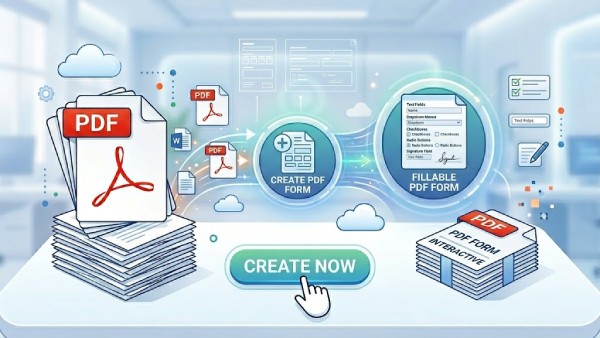
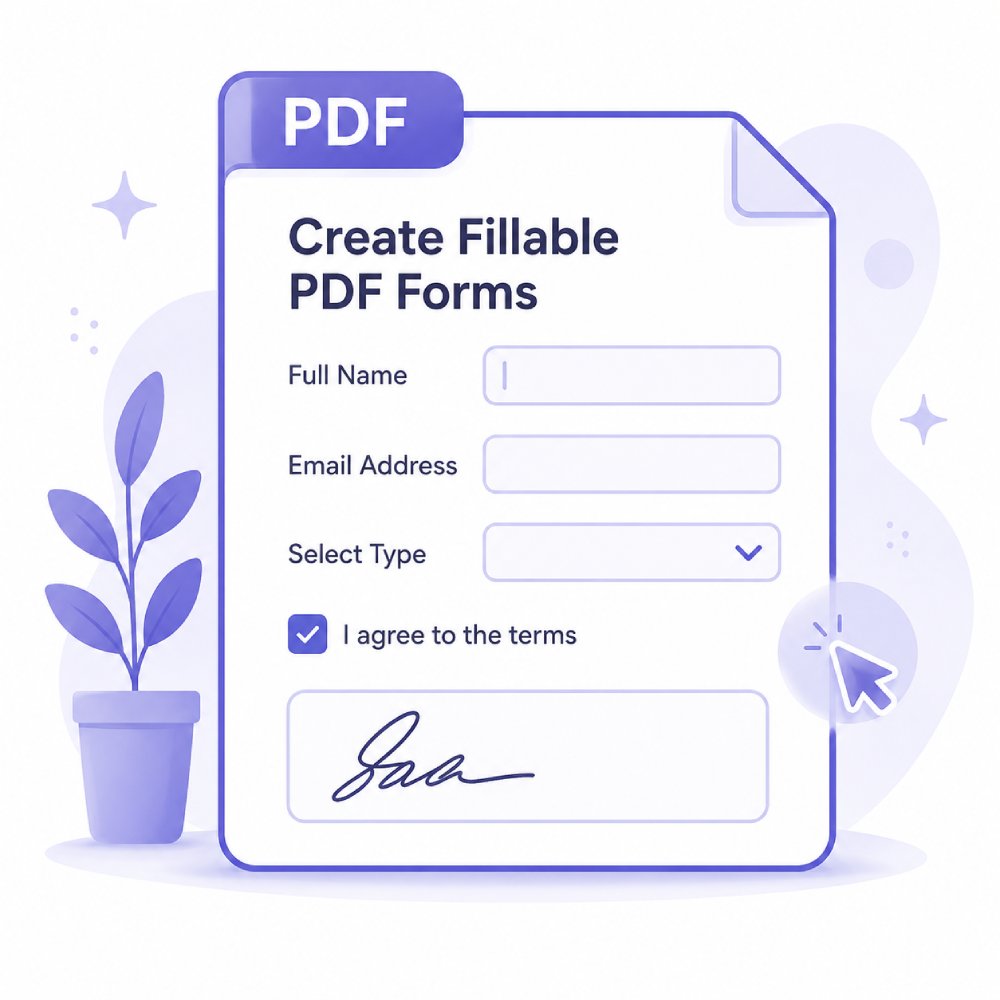
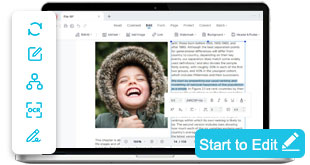
Create PDF from Scratch or Documents

Turn documents, images, or text into professional PDFs in minutes. You can keep formatting intact, combine files, and save or share them quickly, making document management simple, fast, and reliable for everyday use.

What You Can Do When Creating PDFs

Create polished, structured PDFs for reports, presentations, handouts, and day-to-day document workflows.

  • add_circle

    Build Documents Your Way

    Start with clean pages and shape your PDF from the ground up—ideal for reports, worksheets, proposals, and customized layouts.

  • article_shortcut

    Prepare Files for Universal Sharing

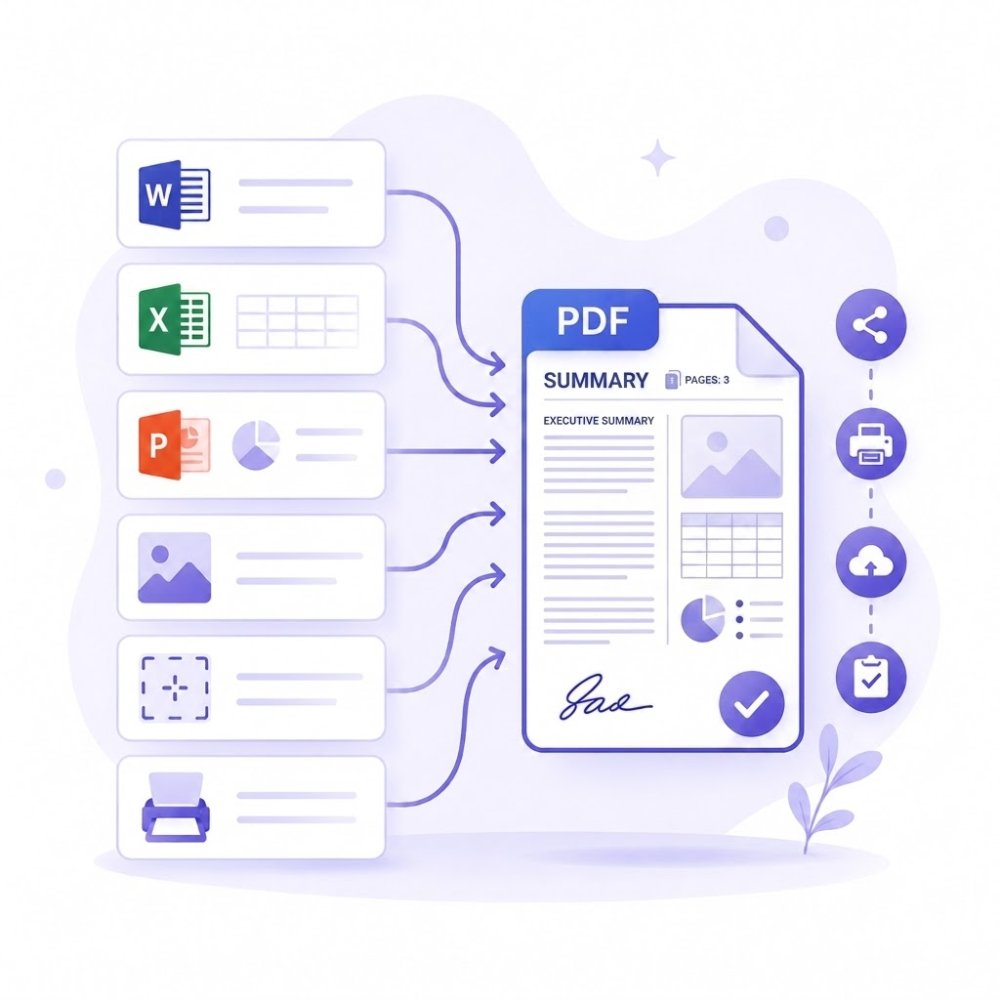
    Turn office documents into stable, presentation-ready PDFs that keep your content consistent across devices and platforms.

  • devices

    Work Seamlessly Without Internet

    Create and organize PDFs entirely offline, supporting secure, uninterrupted work for travel, classrooms, or restricted environments.

  • file_save

    Keep Layouts Clean and Consistent

    Ensure text, tables, and visuals stay perfectly aligned when turning files into PDFs—preserving the structure needed for professional delivery.

  • filter

    Turn Visual Materials into Organized PDFs

    Combine images, scans, and photos into clear, well-ordered PDF documents for archiving, submissions, or printing.

  • picture_as_pdf

    Handle Multiple Document Tasks Efficiently

    Manage several PDF workflows together to streamline batch processing, content preparation, and document organization tasks.

Simple Steps to Create PDF Files

Create PDFs smoothly with a clear, step-by-step workflow anyone can follow.

1

add_comment

Create PDF

First, open the PDF Creator on your device. Then, click the "Create" button and select whether you want to create from a file or with a blank file.

2

edit_document

Edit the File

After creating your PDF, you can add text, images, or pages. You can also rearrange or adjust content to ensure your document is organized and ready for use.

3

file_save

Save the Created PDF

When you're done, go to the "File" tab and click the "Save As" option. Lastly, choose a folder, rename the PDF if needed, and click the "Save" button again.

Create Professional PDF Document in Seconds

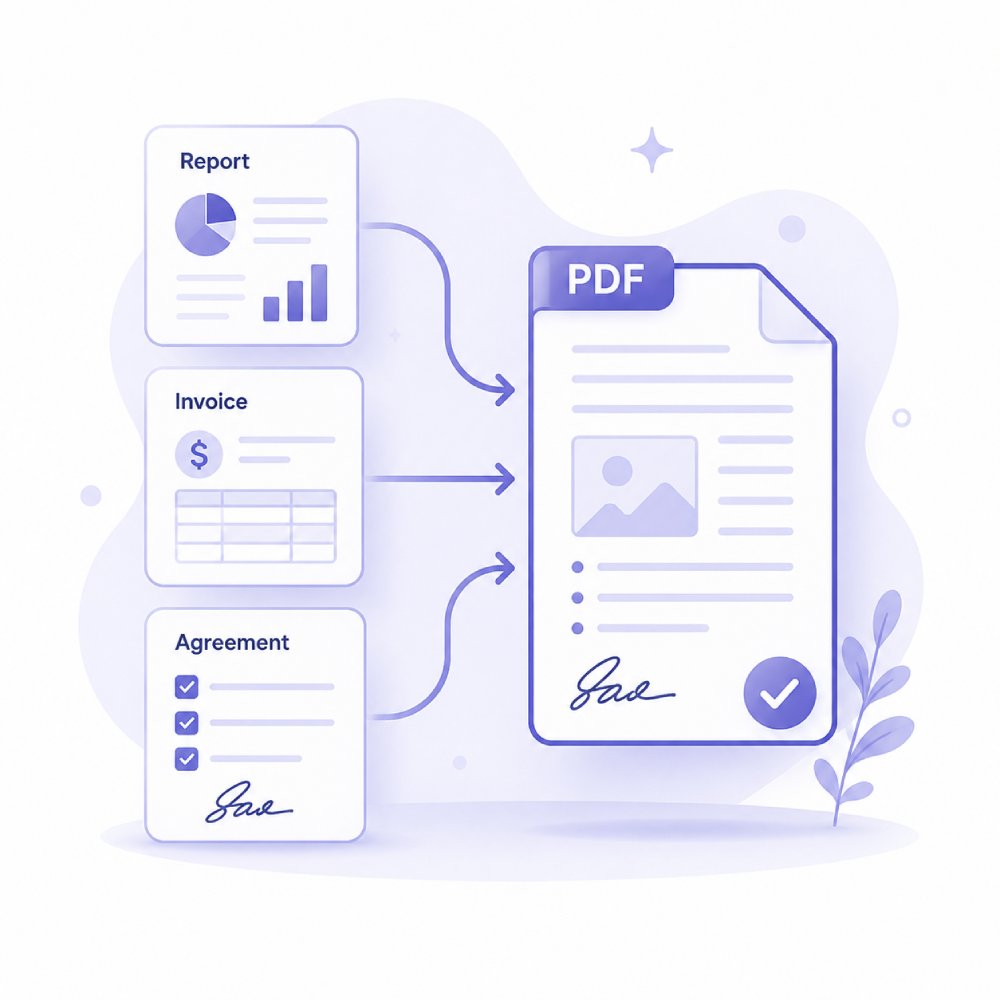
Generate polished PDF documents for contracts, reports, invoices, legal documents and more.

  • Share Business Reports with Clients
  • Prepare Invoices and Receipts
  • Compile Contracts and Legal Documents
  • Create Project Proposals or Plans

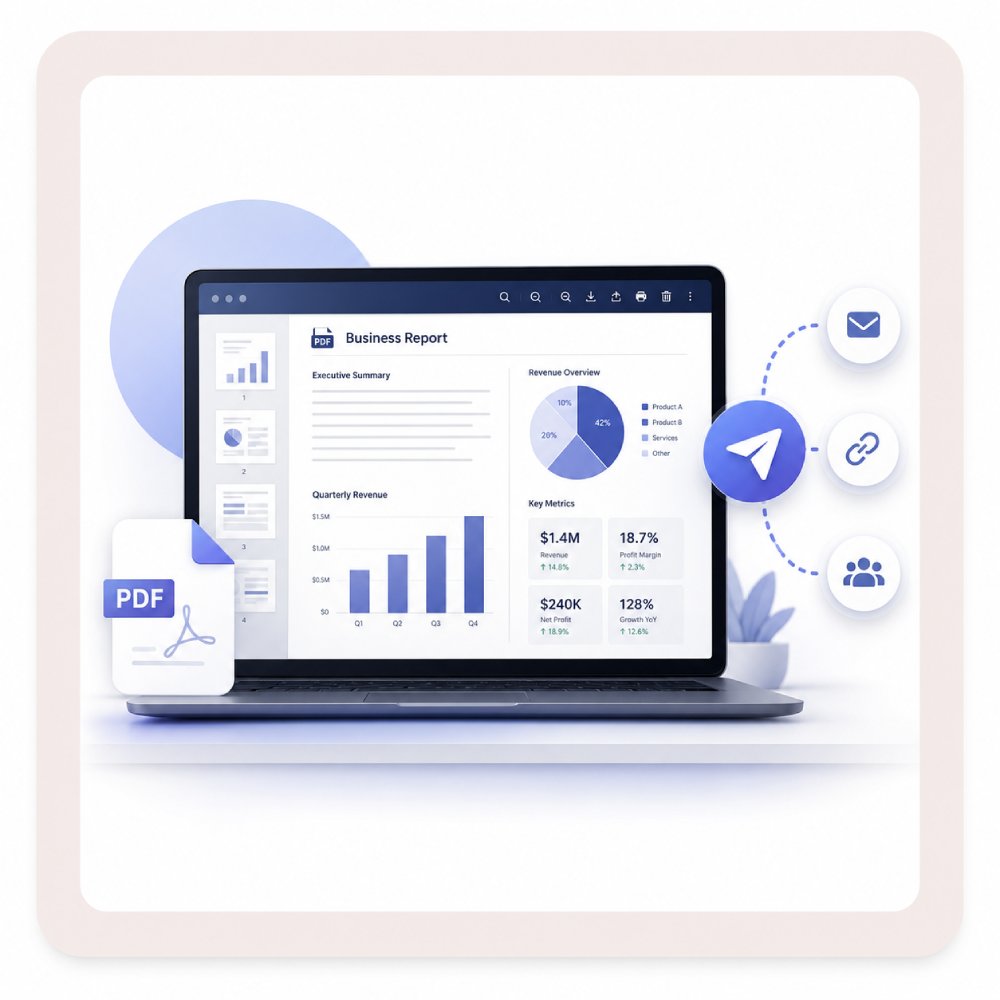
Share Business Reports with Clients

When sharing business reports with clients, PDFs keep your reports looking clean and professional. They preserve your formatting, charts, and layout, so clients can easily view, print, and understand your insights without worrying about distortion or compatibility problems.
Share Business Reports with Clients

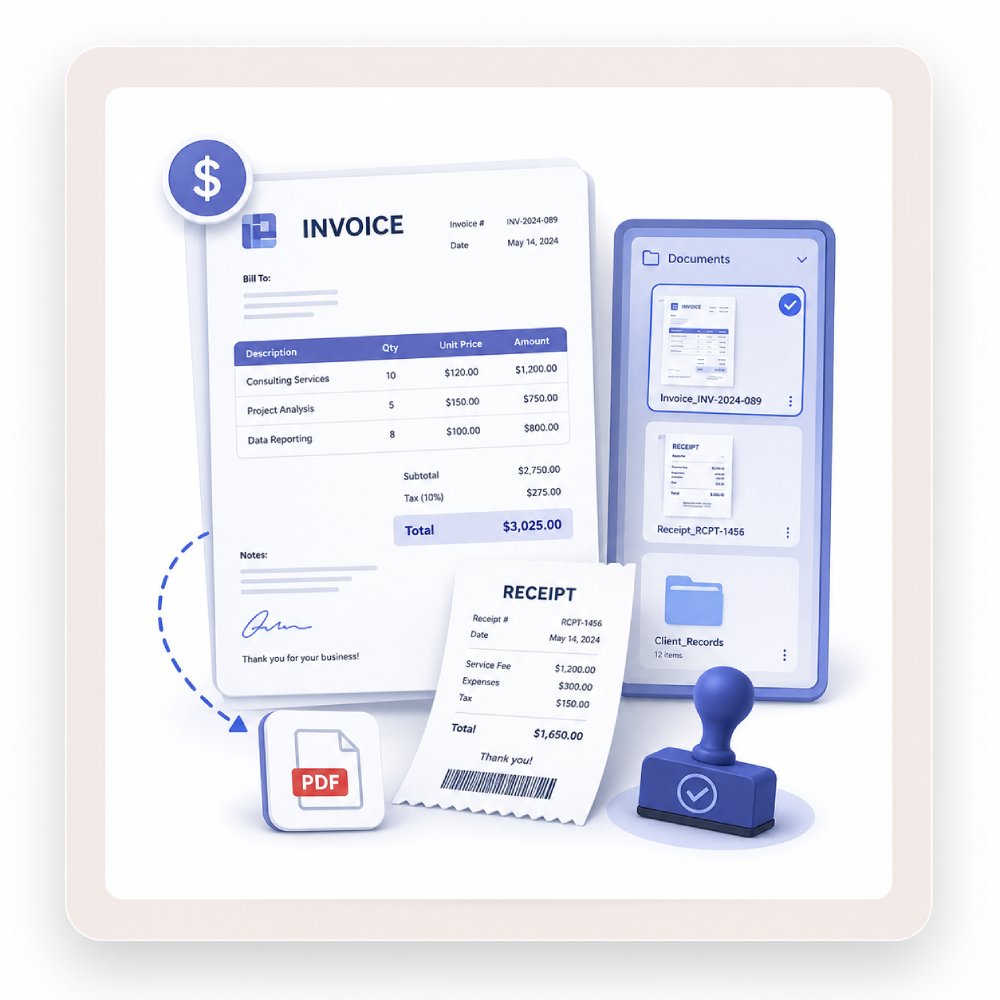
Prepare Invoices and Receipts

PDFs keep invoices and receipts consistent and professional by locking in the formatting and preventing unwanted changes. They are easy to share, store, and manage, making it easier and more reliable to track finances, keep records, and communicate with clients.
Prepare Invoices and Receipts

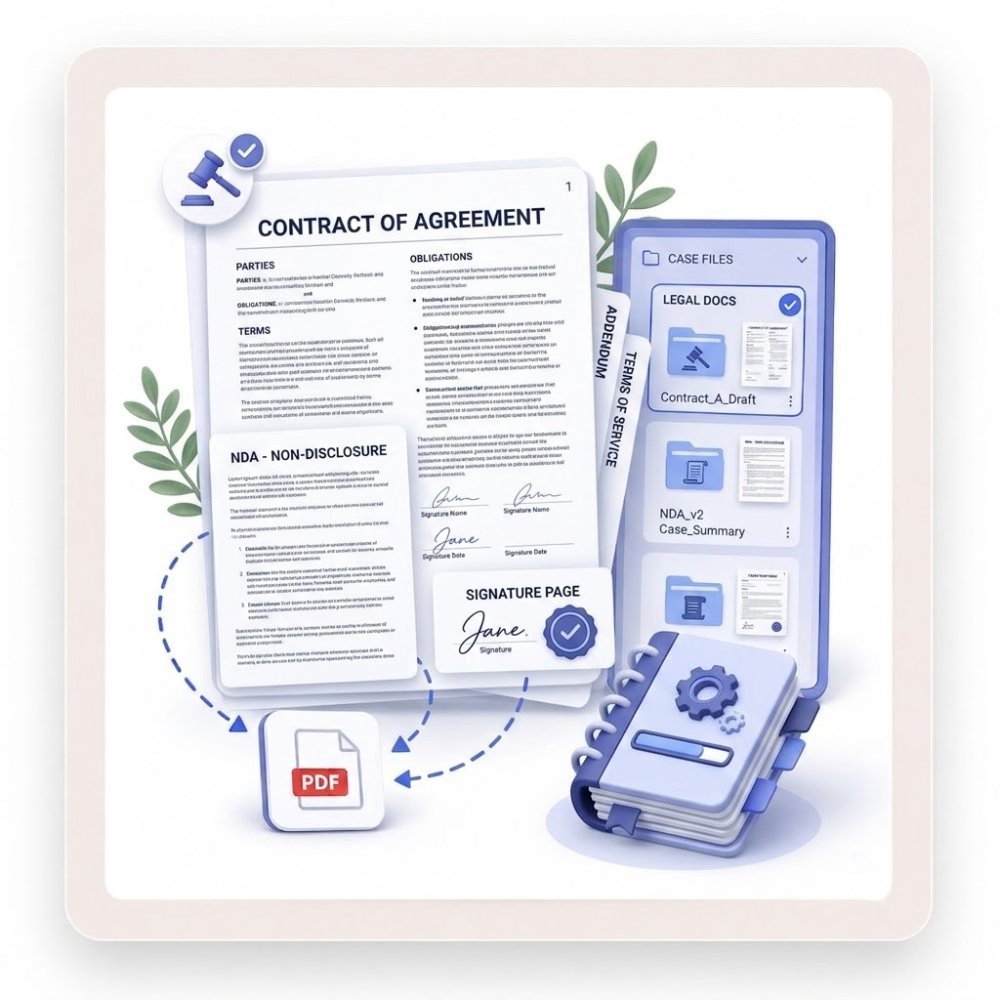
Compile Contracts and Legal Documents

PDFs are important for contracts and legal documents because they preserve their structure and content. This makes it easier to review, securely share, and store these documents, helping maintain accuracy, professionalism, and trust in your agreements.
Compile Contracts and Legal Documents

Create Project Proposals or Plans

Turning your proposals or plans into PDFs keeps your layout, visuals, and content consistent across devices. This helps you present your ideas clearly, so teams or clients can review everything without worrying about formatting issues or missing parts.
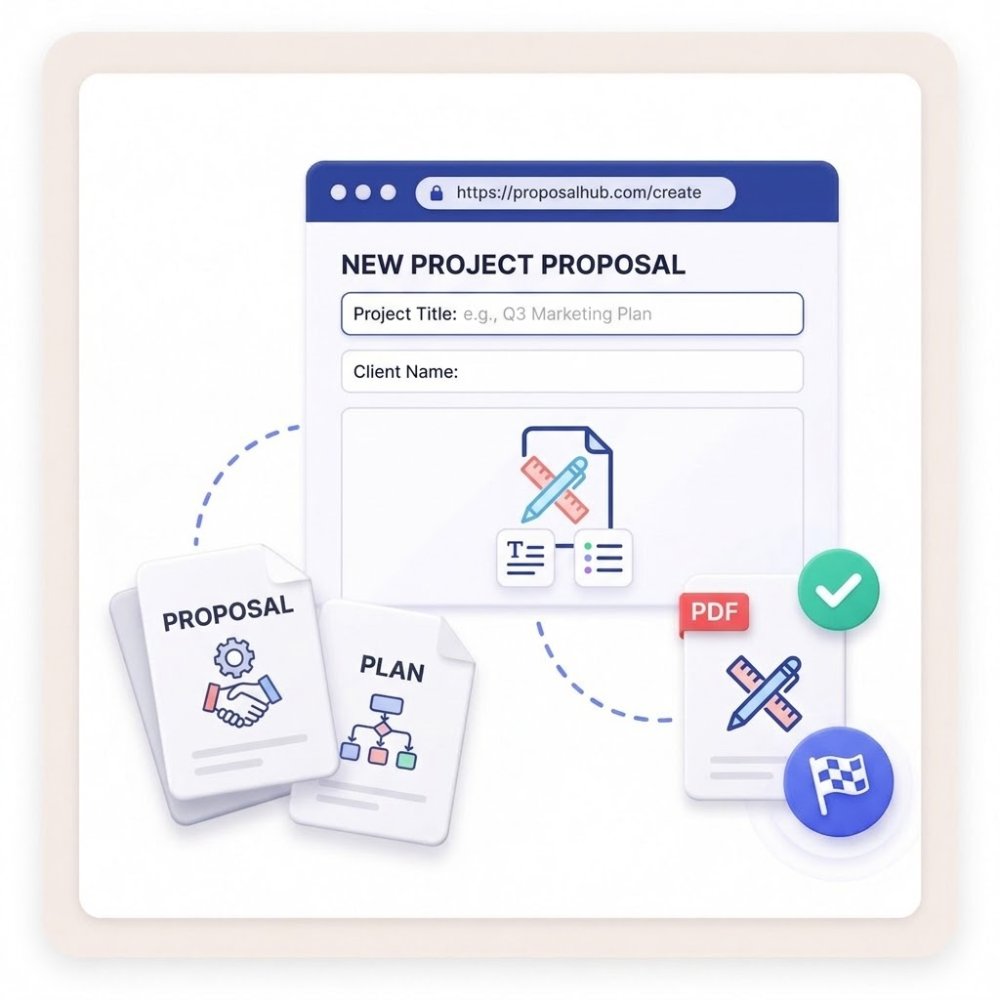
Create Project Proposals

Frequently Asked Questions

How do I create a PDF from Word, Excel, PowerPoint, or image files?

You can quickly create a PDF using an Online PDF Converter. Simply open it in any browser you have, and upload your Word, Excel, PowerPoint, or image file. Then choose PDF format for the output and download the PDF after the conversion. After that, if you need to edit or check the converted document, use AcePDF. Using this tool, you can combine multiple files into a single PDF, adjust the page order, remove or rotate pages, or edit content before saving. It helps you create a more polished and organized final PDF, especially for reports, presentations, or client-ready documents.

Can I create a PDF from scanned documents or images and make the text searchable?

Yes, you can create a PDF from scanned documents or images and make the text searchable using OCR (Optical Character Recognition), which converts image-based text into machine-readable, searchable text within the PDF. The Onine OCR Tool is best for quick browser-based conversion of simple or single files. The OCR feature in AcePDF is more advanced, handling larger or multi-page documents and combining OCR with editing, reordering, and cleanup in a single desktop workflow, with Standard and Enhanced (higher-accuracy but slower) recognition modes. However, OCR quality in both tools still depends on scan clarity, resolution, language support, and layout complexity, with clearer high-resolution scans giving better results.

How do I create a professional PDF packet from several source files?

To create a professional PDF packet from several source files, you can start by using the Online PDF Converter to quickly convert your Word, Excel, PowerPoint, or image files into individual PDF documents. Once all your files are converted, move to AcePDF to build a polished final packet by combining the PDFs into a single document, arranging the pages in the correct order, and removing any unnecessary or duplicate pages. You can also use AcePDF to edit content, add annotations for review, and apply protection settings if needed before final export. This two-step workflow ensures that you first handle fast conversion online, then refine and organize everything in a desktop environment for a clean, professional, and presentation-ready PDF packet.

What should I check before converting a business document into PDF?

Before converting a business document to PDF with the Online PDF Converter or refining it in AcePDF, check the layout to ensure everything is consistent and properly aligned, including margins and spacing. Make sure all fonts are embedded or displayed correctly so the formatting does not change after conversion. Verify that images are high-quality and correctly placed, without distortion or overlap. Check page breaks to ensure sections are not cut off or split awkwardly across pages. If your document contains hyperlinks, confirm they are still active and correctly formatted after conversion. Finally, always review the document thoroughly before sharing to catch any formatting or content issues that may arise after conversion. If the converted PDF needs adjustments, such as text edits, image corrections, or annotations, AcePDF is the better option because it lets you refine and polish the file before final distribution.

When should I choose AcePDF instead of an online PDF creator?

Choose AcePDF instead of the Online PDF Converter when you need more than simple file conversion. The Online PDF Converter is best for quick, browser-based tasks such as converting a single Word, Excel, PPT, or image file into a PDF without making changes. It’s ideal when you just need a fast output and don’t need to adjust the structure or content. In contrast, AcePDF is better suited for desktop workflows where you are working with larger files, multiple documents, or business packets that need organization. Additionally, when you need to combine multiple files, reorder pages, edit text or images, run OCR, or add annotations, signatures, or protection, AcePDF is well-suited for these tasks. In short, use the Online PDF Converter for quick, single-step conversions, and choose AcePDF when you need full control over editing, structure, and final presentation quality.

Create PDFs Today!

Download this PDF Creator now to turn documents, images, and text into professional PDFs. Save time, keep formatting intact, and effortlessly streamline your work or school projects.

Free trial. No credit card required.

Back to Top
Contact Us
Learning Center