










Organize PDFs for Clearer, Faster Workflows
Merge, split, reorder, and delete pages to structure your documents exactly how you need them. Use our quick online organizer for simple edits or AcePDF Pro for advanced multi-document management and full page control.
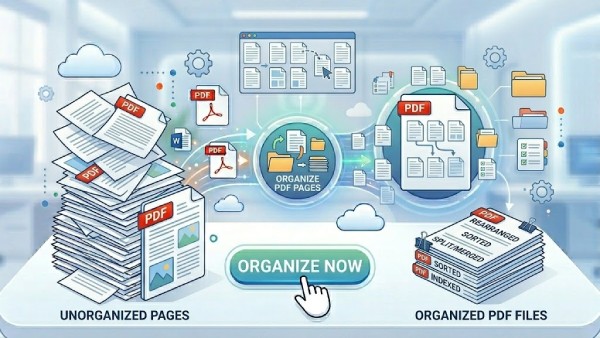


Overview of the PDF Organization Capabilities
Rearrange, split, extract, and clean up your PDF files to keep your documents neat, structured, and ready for any business or personal project.
Convert PDFs Directly in Your Browser Online
Choose Your PDF Organization Workflow
Organize and prepare PDF files for structured access, study, and sharing. Streamline document arrangement and cleanup for better usability and workflow efficiency.
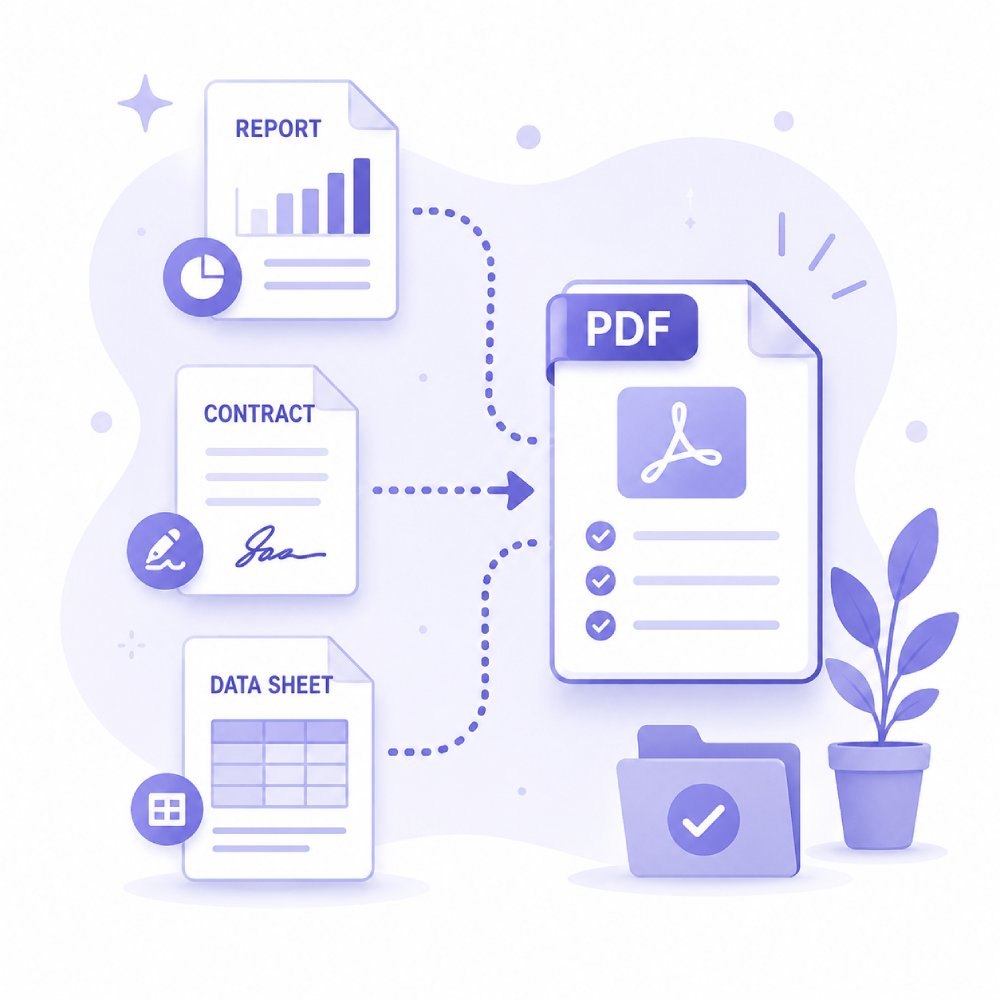
Organize business PDFs by rearranging pages, merging files, and structuring documents for clearer workflows. Ideal for managing reports, contracts, and internal work files efficiently.
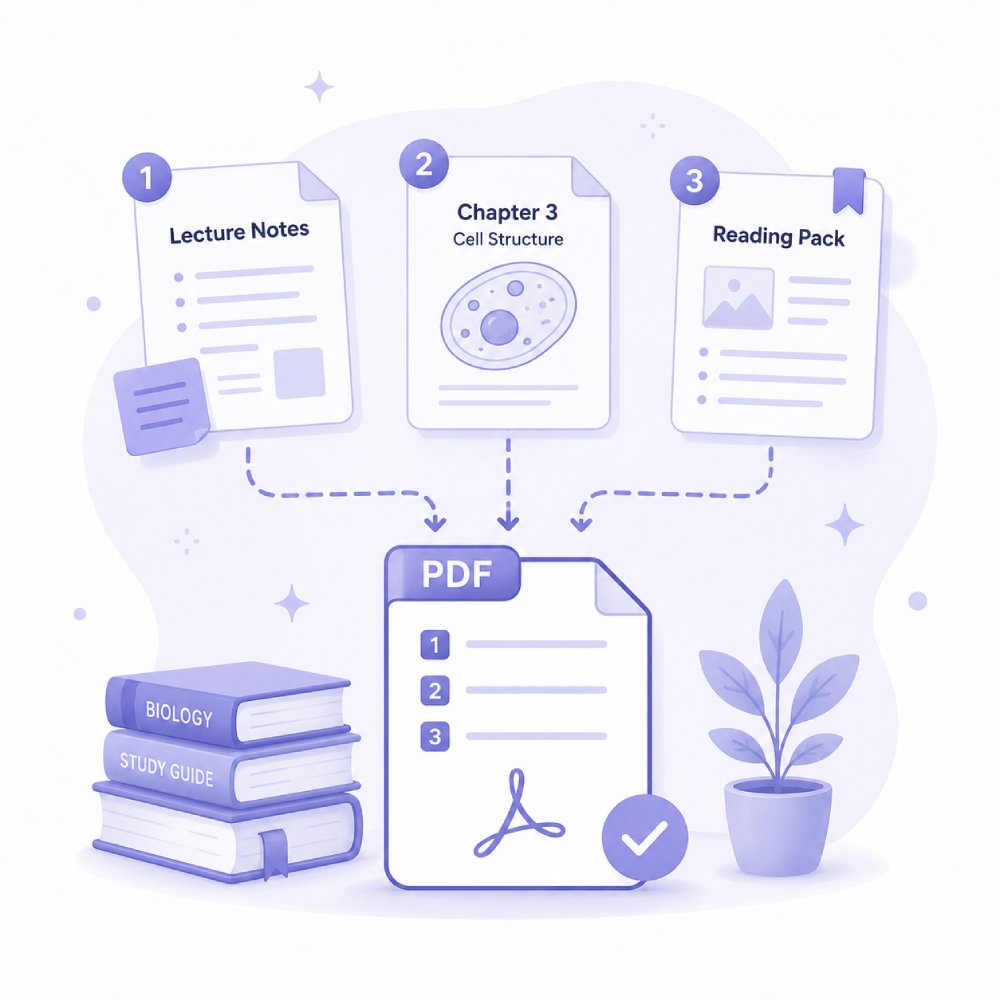
Structure academic PDFs like notes, modules, and research materials for efficient study and revision. Helps students keep learning materials well-organized and easy to review.
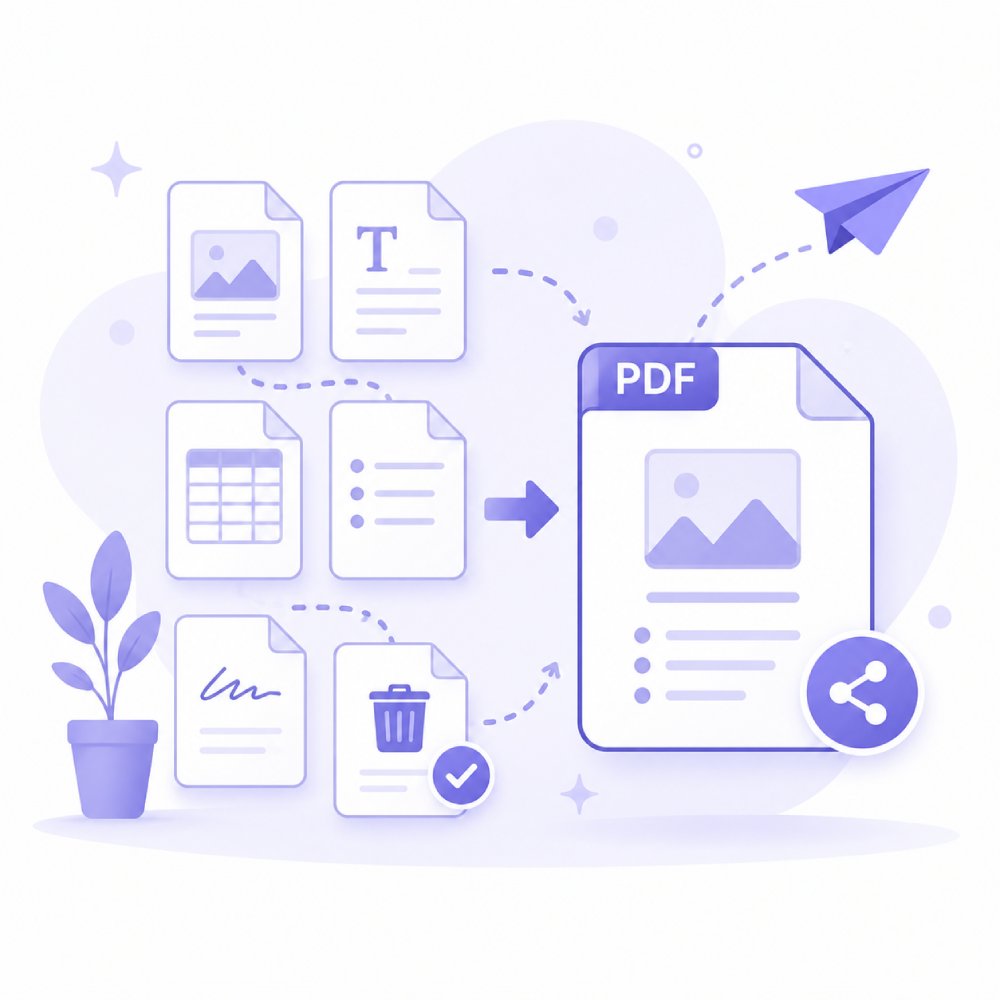
Optimize and arrange PDF files for smooth sharing via email, cloud storage, or messaging platforms. Ensures documents are clean, properly structured, and ready for distribution.
How to Structure Your PDF More Effectively
Select the organization workflow that helps arrange your documents for easier use.
Review How Your PDF Needs to Be Organized
Start by identifying the changes you want to make. You may need to rearrange pages, combine multiple PDFs, split large documents, rotate pages, or remove unnecessary content.
Select the Organization Tool That Fits Your Task
Select the organization method that best fits your task. Use page management tools to reorder content, merge files into a single document, or split PDFs into smaller, easier-to-manage files.
Finalize Your Document Structure
After organizing your PDF, review the page order and document layout. Save the updated file and prepare it for sharing, archiving, printing, or further editing.
Why Organize PDF Documents?
Transform chaos into clarity with PDF organizer for every situation.
Prepare Files for Printing or Submission
Organizing your PDFs before printing or submitting makes sure the pages are in the right order and properly formatted. This helps you avoid mistakes, save time, and present documents that look professional and are easy to read.

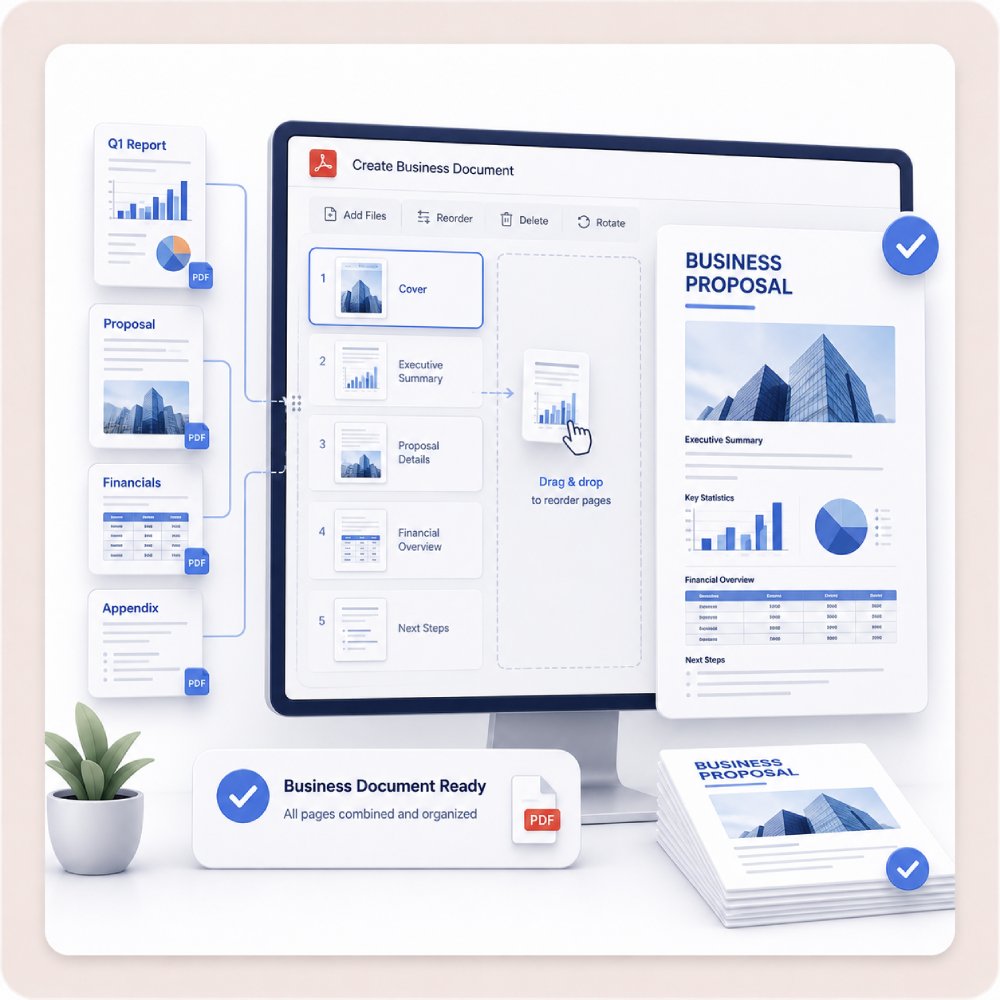
Create Structured Business Documents
When you organize PDFs, you can arrange reports, proposals, or contracts in a clear way. Well-structured business documents are easier to review, share, and manage. This helps your team stay productive and makes it easier for clients to understand the information.
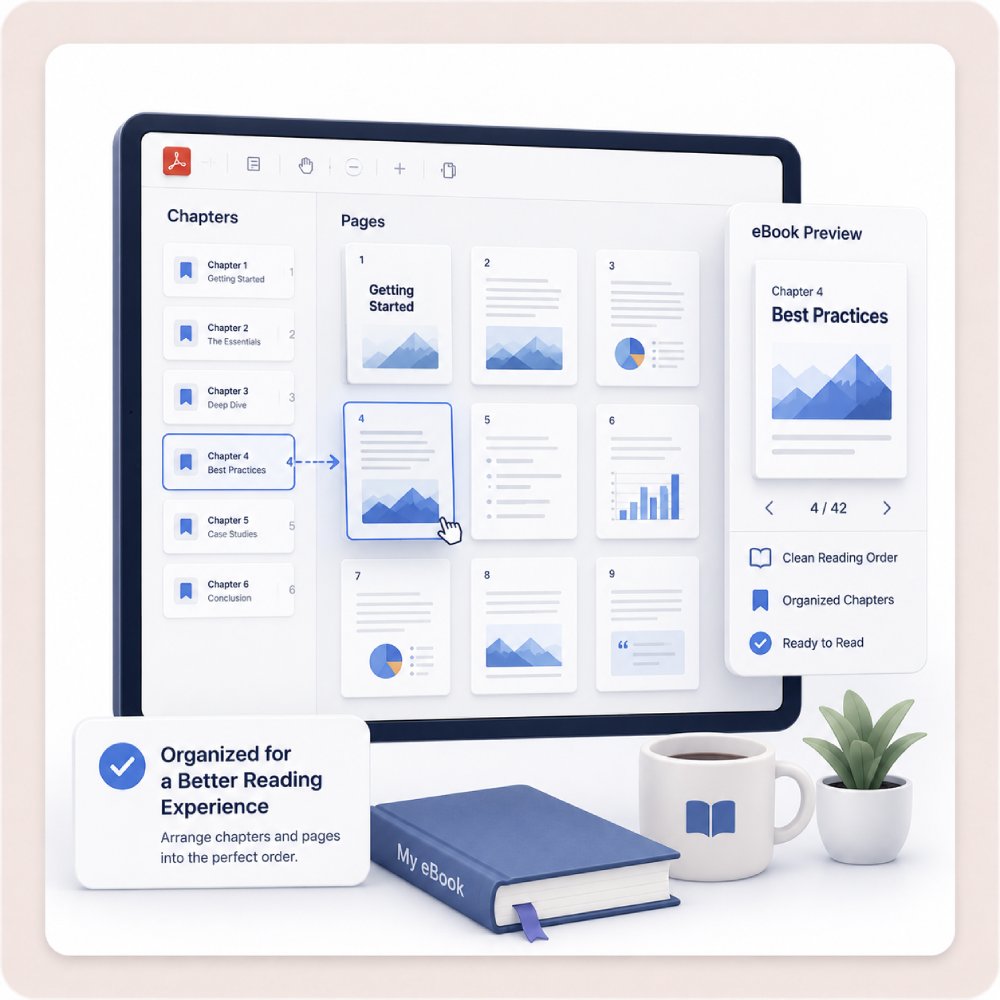
Organize eBooks or Digital Reading Files
Sort, merge, or split your PDFs to keep your eBooks and reading materials organized. This makes it easier to find chapters, read in the right order, and manage your digital library.
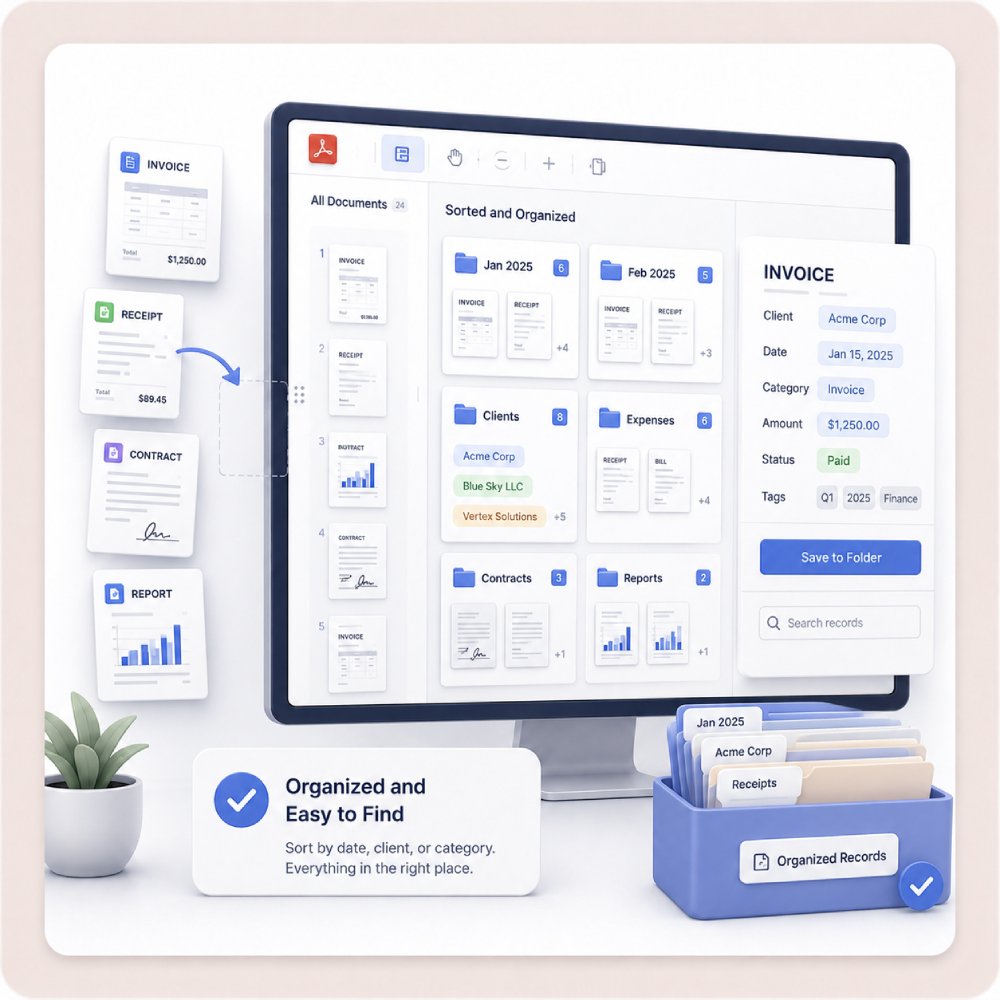
Sort Invoices and Financial Records
When you organize your PDF invoices and financial documents, it becomes easier to track expenses, reconcile accounts, and quickly find records. This reduces confusion and keeps your important data secure and easy to access.
Additional PDF Tools
A full suite of tools to handle any document task.
Frequently Asked Questions
How can I reorder, delete, or rotate pages without rebuilding the whole document?expand_more
What should I use if I need to merge several PDFs into one clean document?expand_more
Can I split a large PDF into smaller files by chapter, client, or document section?expand_more
How can I prepare a messy PDF packet for review or approval?expand_more
What mistakes should I avoid before sending an organized PDF to others?expand_more
Ready to Organize Your PDF?
Get the PDF organizer to manage complex documents, restructure pages effortlessly, and streamline your workflow. Organize, merge, and edit PDFs faster for professional results every time.
Free trial. No credit card required.