

menu

verifiedTrusted by 50,000+ YouTubers

Convert Videos for TikTok, Instagram Reels, and YouTube Shorts

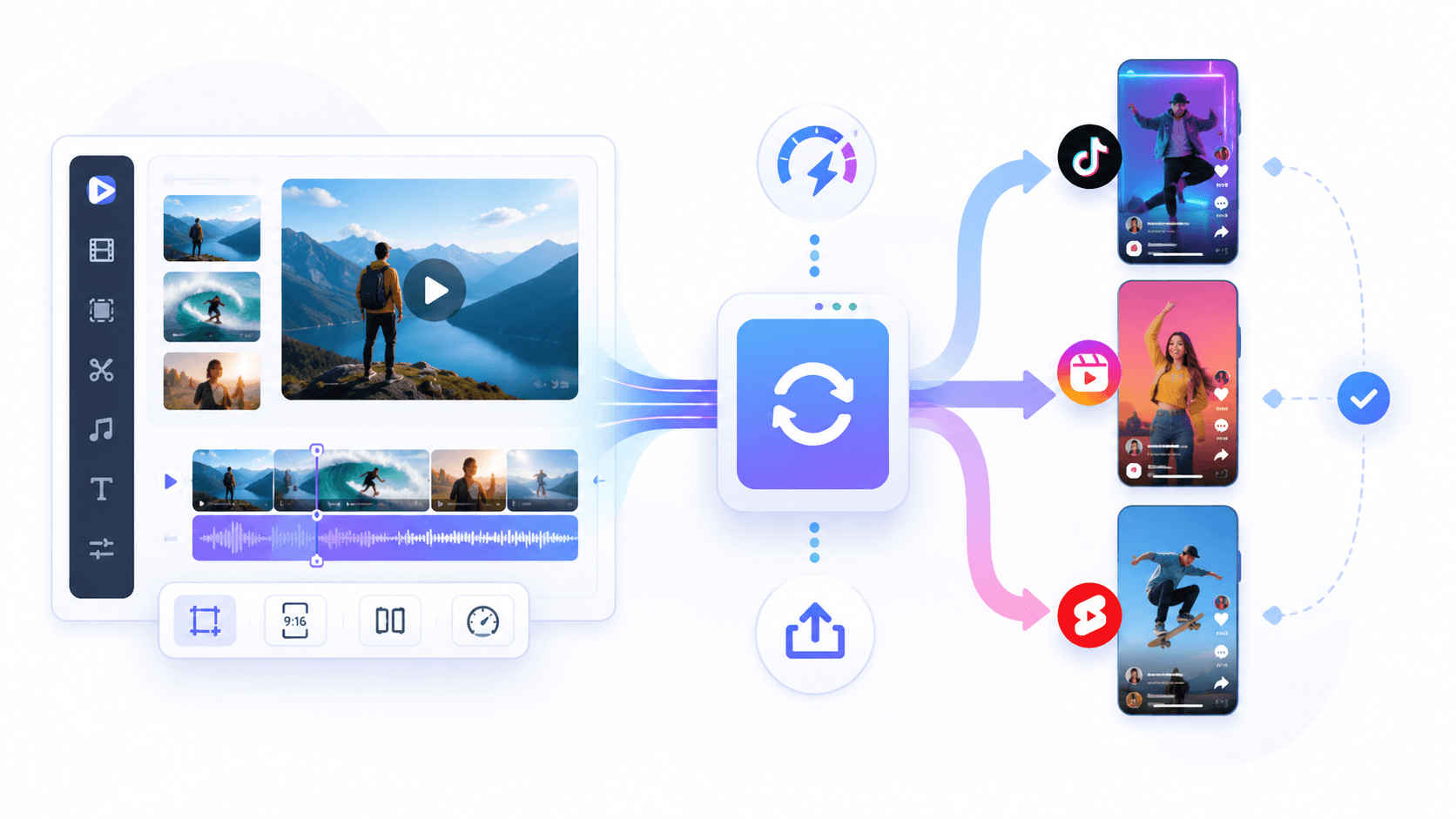
Prepare videos for each platform by adjusting format, aspect ratio, and compression settings. Convert landscape or raw footage into 9:16 vertical format, optimize file size, and ensure smooth playback across TikTok, Reels, and Shorts.
Convert Your Videos Online Instantly

Convert Video for Sharing Anywhere

Discover situations to convert videos online for social media websites.
Fixing Upload Failures on Mobile and Social Apps

Uploading a video to Instagram or sending it via Messenger, but it either fails, takes too long, or ends up looking blurry after automatic compression. This usually happens when the file is too large or not optimized for mobile-first platforms. To reduce the video file size without sacrificing visual quality, use Video Converter to adjust the format for compatibility, and the Video Compressor to reduce file size for faster posting and sharing.

arrow_upload_progress

content_cut

Turning Long Videos into Short-Form Social Content

Cut a full-length video into engaging enough for TikTok, Reels, or Shorts. Posting the entire clip reduces watch time and makes viewers scroll past the key moment. The goal is to extract the most impactful segment and reshape it into a short-form video that fits platform behavior. Utilize Video Cutter to trim the exact highlight, and the Video Converter to prepare it for smooth playback as an MP4 clip.

Converting Clips into Shareable Loops and Reaction Content

Some moments, like reactions, funny clips, or highlights—perform better as looping visuals rather than standard videos. However, uploading them as regular video files can reduce their replay value or make them feel less native in chats and comment threads. Turn these moments into lightweight, loopable formats that encourage repeat viewing and quick sharing. Use the Video to GIF tool to convert the clip into a seamless looping GIF optimized for social engagement.

Social Media Export: Format Conversion & Platform-Ready Sizing

graphic_eq

Prepare Videos for Multi-Platform Sharing

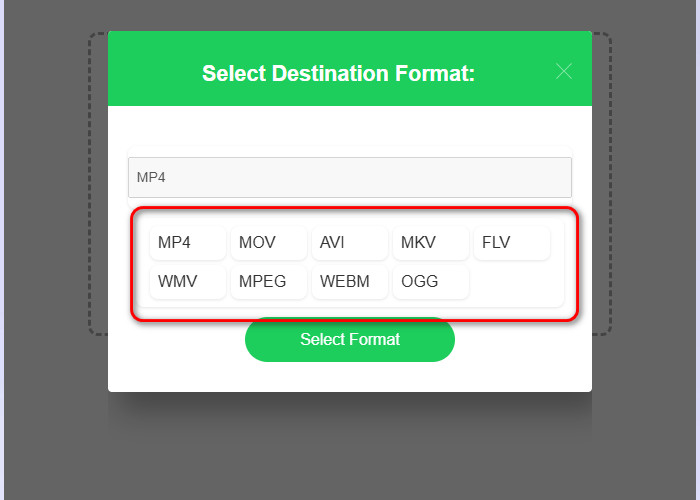
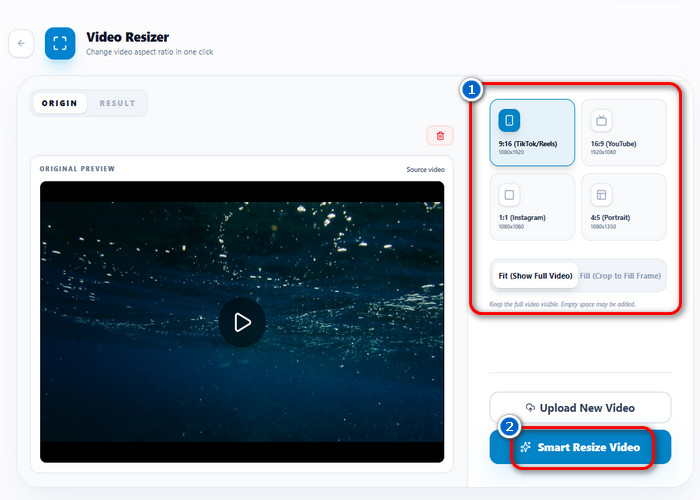
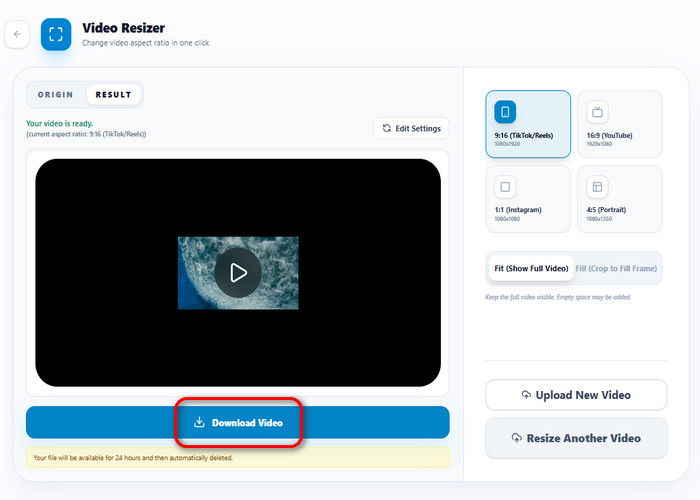
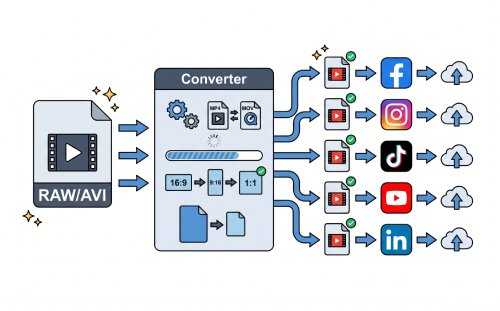
Convert videos to social media upload formats, such as MP4, MOV, and WEBM. Selecting an aspect ratio preset, such as 9:16 or 1:1, triggers the tool to reposition the video within a new frame to meet specific display requirements. The "Fit" setting maintains the original frame visibility, while "Fill" crops the image to match the selected orientation. The tool then generates a new downloadable file with the updated dimensions and the applied file extension.

bar_chart_4_bars

Technical Metrics

Defines the supported export formats and aspect-ratio presets used to prepare videos for consistent playback and display across social media platforms.

  • check_circle
    Output Formats: MP4, MOV, AVI, MKV, FLV, WMV, MPEG, WEBM
  • check_circle
    Aspect Ratios: 9:16, 16:9, 1:1, 4:5
  • check_circle
    Fit Modes: Fit (Full Visibility), Fill (Crop to Frame)
  • check_circle
    Processing: Real-time frame adjustment and re-encoding

Get Social Media Videos Ready Fast

Convert videos for social media, improving quality, size, and format for smooth uploads.
01

Upload the Video You Plan to Publish

Start with the video intended for publishing, such as a product clip, vlog, or short highlight. This prepares a stable source for processing while preserving original quality before any edits or conversions.

Upload the Video You Plan to Publish

02

Convert to a Platform-Compatible Format

Video files are standardized into MP4 (H.264) to prevent upload errors, playback issues, or forced compression. The Video Converter ensures consistent encoding and universal device compatibility.

Convert to a Platform-Compatible Format

03

Resize for Layout Requirements

Videos are adjusted to match different aspect ratios to avoid cropping or misalignment during playback. The Video Resizer converts the video to formats such as 1080×1920, 1080×1350, or 1:1, depending on layout needs.

Resize for Layout Requirements

04

Export with Optimized Quality

The final video is exported with balanced compression to ensure smooth playback and stable upload performance. This reduces quality loss while keeping file size optimized for fast delivery.

Export with Optimized Quality

Features for Social Media Video Conversion

  • syncEasy Conversion
  • collapse_allReduce Video Size
  • settings_cinematic_blurOptimized Settings
  • uploadReady for Upload
convert video for social media

Social-Ready Video Format (Universal Compatibility)

After conversion, videos are delivered in MP4 (H.264), ensuring they play smoothly across all social platforms without errors or playback issues. The output is fully standardized, so it can be uploaded instantly without additional editing or reformatting.

reduce video size

Optimized File Size for Fast Upload

Converted videos are compressed into a lightweight format that reduces upload time while preserving visual clarity. This ensures faster sharing across mobile networks and prevents quality loss caused by automatic platform compression.
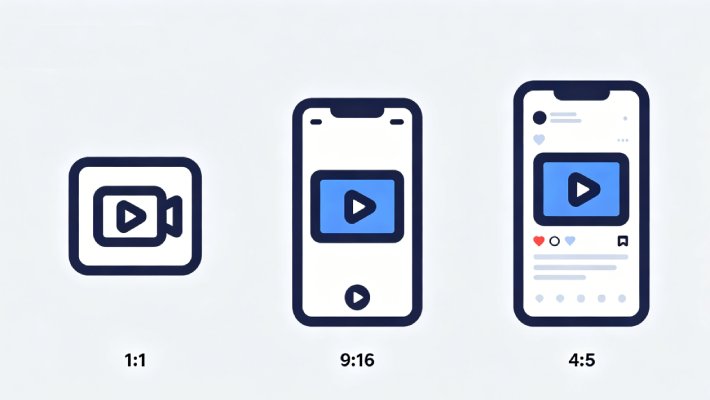
optimized aspect ratio

Platform-Correct Video Framing

Final videos are delivered in properly adjusted aspect ratios such as 9:16, 1:1, or 4:5, ensuring they display correctly on social feeds. This prevents cropping issues and keeps important visual elements centered and visible.
ready to upload video

Ready-to-Upload Social Media File

Each converted video is exported as a finished file that can be uploaded immediately without further adjustments. The output is optimized for smooth playback, stable quality, and consistent performance across social platforms.

Related Tools

hangout_video

Video Editor

Refine raw or unoptimized videos before converting them to social media formats. This ensures the content is clean and ready for resizing, compression, and platform standardization.

  • check_circle
    No installation required
  • check_circle
    Works on any device
  • check_circle
    Quick export & share

Benny's Pick

Web-Based Editor

compress

Video Compressor

Reduce file size after processing for faster uploads and smoother sharing. Maintain visual quality while optimizing for mobile networks and platform limits.

  • check_circle
    No installation required
  • check_circle
    Works on any device
  • check_circle
    Quick export & share

Aisha's Choice

Desktop App

headphones

Audio Converter

Convert and align audio formats to match the video structure for proper playback. Ensure compatibility and prevent audio sync or format issues.

  • check_circle
    No installation required
  • check_circle
    Works on any device
  • check_circle
    Quick export & share

Lara's Must-Have

Mobile Quick-Edit

download

Video Downloader

Download video content from external sources for reuse in the social media conversion workflow. This allows existing online videos to be reformatted and optimized for new platform requirements.

  • check_circle
    No installation required
  • check_circle
    Works on any device
  • check_circle
    Quick export & share

Viral Pick

AI Script-to-Video

Frequently Asked Questions

Why does my video look blurry after uploading to social media platforms?expand_more

This usually happens because the video is compressed during upload or exported in a resolution or aspect ratio that does not match the platform’s requirements. When the aspect ratio is incorrect, the platform may stretch, crop, or compress the video, which reduces visual quality. If your video is not in the correct format, use the Video Resizer and adjust it to 9:16 (1080x1920) for TikTok/Reels, 16:9 (1920x1080) for YouTube, or 1:1 (1080x1080) for Instagram to improve display clarity.

How do I resize a horizontal video into 9:16 without cutting off the subject?expand_more

Open the Video Resizer and upload your horizontal video. Select the 9:16 (1080x1920) format for TikTok or Reels, then choose Fit (Show Full Video) to keep the entire frame visible, or Fill (Crop to Frame) to fill the screen. After that, start the process to generate the resized output.

Can I turn a short clip into a GIF or emoji for social sharing?expand_more

Yes, you can use the Video to GIF/Emoji Converter to turn short clips into looping animations for social sharing. Before converting, you can adjust the settings to control quality and file size: choose Medium (10 FPS) for smooth motion or High (15 FPS) for faster or more detailed movement, set the output size to 75% or 100% for better clarity (50% for smaller files), and set GIF quality to around 80% for the best balance between sharpness and file size. This setup keeps the GIF smooth, clear, and easy to share without making the file too large.

What format and codec should I export for short-form social videos?expand_more

Short-form platforms work best with widely supported formats, so MP4 is the standard for short-form platforms like TikTok, Instagram, and YouTube Shorts. It helps ensure smoother playback and better upload handling than with less-supported formats. However, final quality may still depend on the platform’s own compression after upload.

What can I do if a platform still compresses the video after upload?expand_more

This usually happens when the video resolution, aspect ratio, or file size does not match the platform’s recommended settings, which triggers automatic reprocessing and compression. First, use Video Converter to standardize the format, then use Video Resizer to set the correct aspect ratio (e.g., 9:16, 16:9, or 1:1) depending on where you can upload the video to reduce excessive compression and improve upload quality.

Start Converting Videos for Social Media

Convert and optimize videos for social media sharing with high quality output.

Back to Top
Contact Us
Learning Center