menu

verifiedTrusted by 50,000+ YouTubers

Convert Videos for Smooth Video Editing Workflows

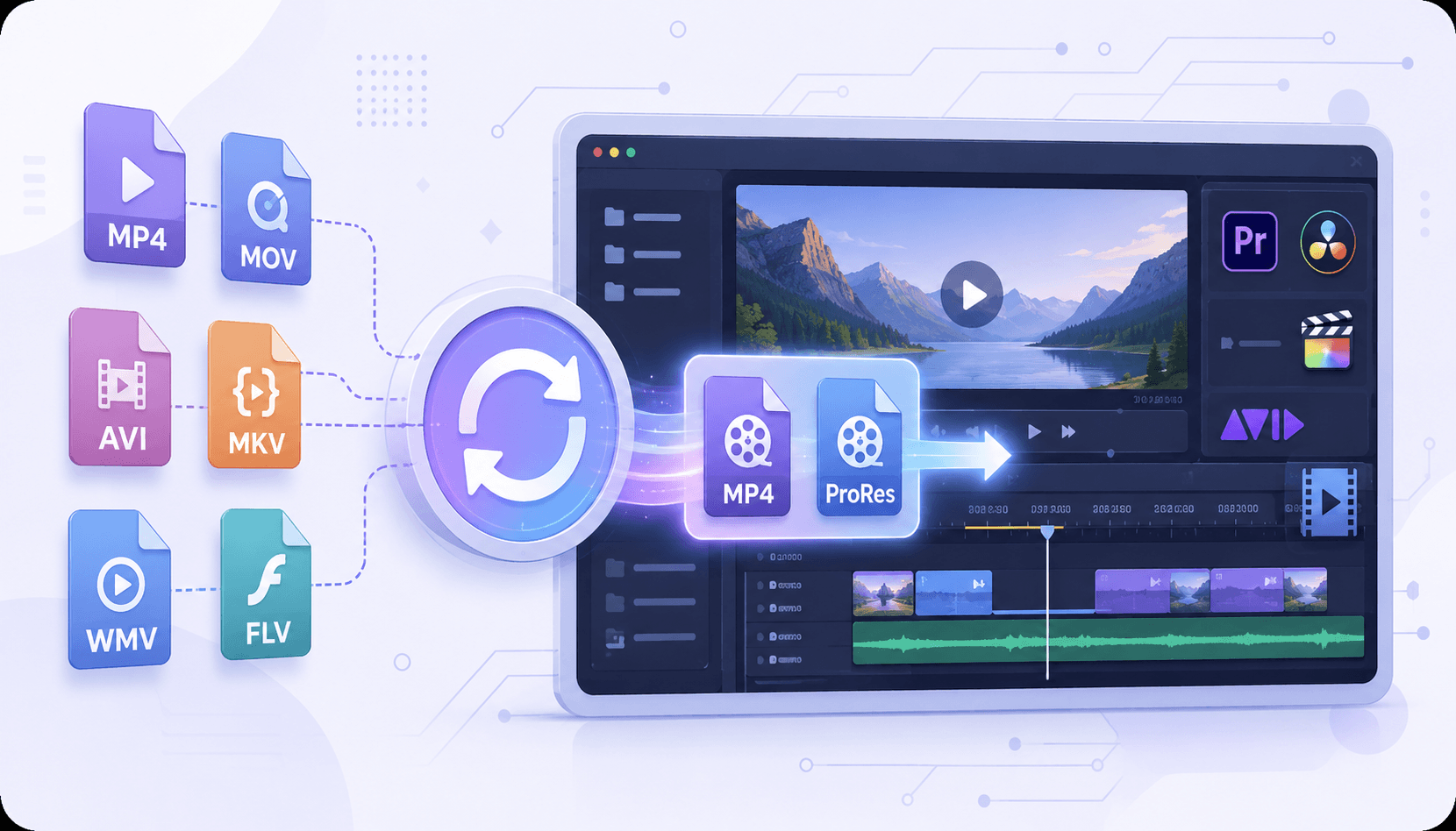
Convert MOV, MKV, AVI, and mobile-recorded videos into editing-friendly formats that work smoothly in professional editing software. This ensures better timeline playback, faster rendering, and fewer import or codec compatibility issues during post-production.
Convert Your Videos Online Instantly

Where Video Conversion Solves Real Editing Problems

Real situations where converting videos is required before editing in professional or social workflows.
Video Editor Handling Client Footage

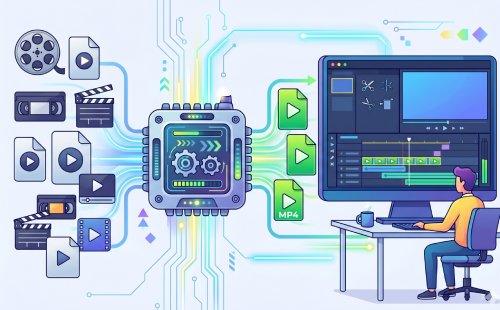
Editors receive mixed formats such as MOV, AVI, and MP4 from different cameras, which often causes timeline lag, sync issues, and slow rendering in Premiere Pro or DaVinci Resolve. Standardizing files to ProRes MOV or H.264 MP4 with a 24/30 fps constant frame rate improves editing performance with a video converter and frame rate tool.

swap_horizontal_circle

mobile

Mobile Content Editor Working on Phone Footage

High-resolution 4K phone videos in HEVC format often lag or freeze during mobile editing. Converting them into compressed H.264 MP4s at 1080p, optimized for bitrate, makes editing smoother and prevents app crashes.

Marketing Editor Creating Campaign Videos

Marketing editors deal with inconsistent raw footage, which causes slow editing, incorrect aspect ratios, and export errors for ads and social content. Converting everything into MP4 H.264, 1080p web-optimized format ensures fast editing and consistent output using conversion and resizing tools.

Video Converter: Switch File Formats Online

graphic_eq

Correct File Format Before Editing

The tool converts uploaded video files to various container formats via a web-based interface. Selecting an option such as MP4, MOV, or AVI begins the re-encoding process, which changes the file's extension. The tool generates a separate downloadable file in the chosen format while maintaining the visual data of the original upload.

bar_chart_4_bars

Technical Metrics

We outline the available file extensions and processing limits that determine the format, resolution, and audio behavior of the generated video output.

  • check_circle
    Output Formats: MP4, MOV, AVI, MKV, FLV, WMV, MPEG, WEBM
  • check_circle
    Resolution: Matches the source file dimensions
  • check_circle
    File Limit: Up to 100MB per session for online processing

How to Convert Videos for Editing in 4 Structured Steps

Follow this workflow to prepare videos for professional editing by ensuring correct format, codec, and timeline compatibility before importing into your editing software.
01

Upload and Inspect Video Source

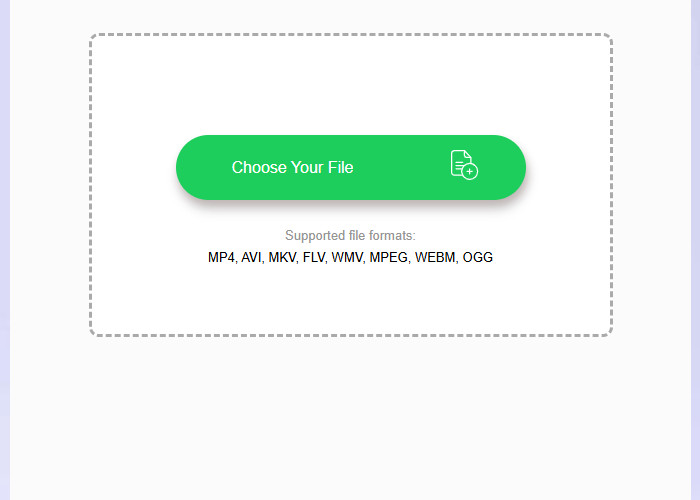
Start by uploading your raw footage into a Video Converter tool. This step identifies the current format (e.g., HEVC, MKV, AVI) and highlights compatibility issues that may affect editing performance.

Upload and Inspect Video Source

02

Select Editing-Compatible Format

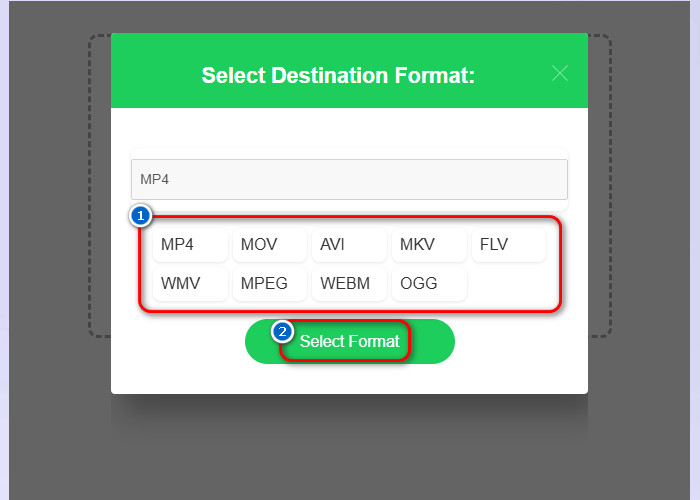
Choose an editing-friendly output format based on your workflow. For professional editing, formats such as MP4 (H.264) or MOV (ProRes) are recommended,, depending on the software requirements.

Select Editing-Compatible Format

03

Convert the Video File

After selecting the format, proceed with the conversion process where the video is encoded and optimized for editing.

Convert the Video File

04

Download and Import into Editing Software

Once conversion is complete, download the file and import it into your editing tool. The optimized format ensures smoother playback, faster rendering, and fewer timeline errors.

Download and Import into Editing Software

How Video Conversion Supports Editing Workflows

  • format_image_leftMixed Format Compatibility
  • edit_squareFast Editing Preparation
  • change_circleMulti-Clip Conversion Workflow
  • devicesCross-Device Video Support
convert multiple video formats

Handling Mixed Video Formats from Different Sources

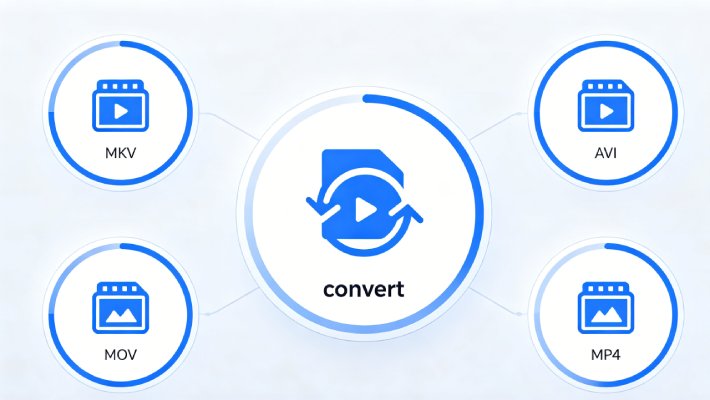
When preparing footage for editing, users often work with videos from phones, cameras, screen recordings, or downloaded content, which often use different formats such as MKV, AVI, MOV, or MP4. This creates compatibility issues when importing into editing software such as Premiere Pro or DaVinci Resolve. The conversion process standardizes these files into MP4 (H.264) or MOV (ProRes), ensuring all clips can be used together in a stable editing timeline without errors or playback issues.
convert video fast

Preparing Videos for Fast Editing Workflows

In fast-paced editing environments, large or unsupported video files can slow preview rendering and cause timeline playback to become unstable. This is common with high-resolution or compressed formats such as HEVC. Converting these files to optimized MP4 (H.264) with 1080p resolution and a balanced bitrate ensures smoother editing performance, faster scrubbing, and reduced lag during post-production.
batch video conversion

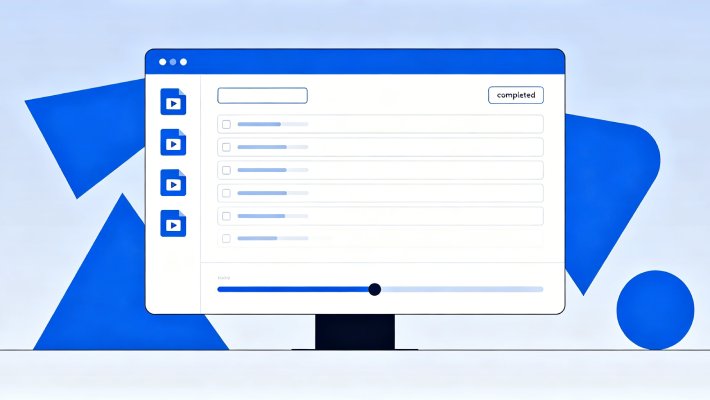
Managing Multiple Clips in Editing Projects

For projects involving multiple video clips, inconsistent formats and settings can disrupt timeline consistency and increase rendering time. Batch conversion allows all clips to be standardized into a single, editing-friendly format, such as MP4 (H.264), with a constant frame rate of 24 or 30 fps, ensuring uniform behavior across all files. This helps maintain synchronization and stability when working on multi-clip editing sequences.
convert video from different sources

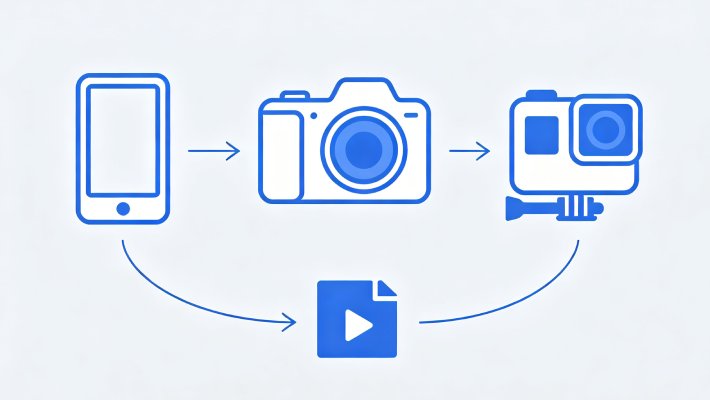
Preparing Multi-Device Footage for Editing

Video files captured from different devices, such as smartphones, DSLRs, and action cameras, often vary in resolution, codec, and frame rate, making them difficult to edit together directly. Conversion resolves this by transforming all footage into a unified format, such as MP4 (H.264), 1080p, or 4K, with consistent frame rates, ensuring seamless integration with editing software and eliminating compatibility issues across devices.

Tools for Editing-Ready Videos After Conversion

resize

Video Resizer

Convert videos to editing-ready aspect ratios, such as 16:9, 1:1, or 9:16, for better compatibility with editing software and social media platforms.

  • check_circle
    No installation required
  • check_circle
    Works on any device
  • check_circle
    Quick export & share

Benny's Pick

Web-Based Editor

movie_speaker

Video to Audio Converter

Extract audio from converted video files for voiceovers, podcast editing, subtitle syncing, or separate sound editing workflows.

  • check_circle
    No installation required
  • check_circle
    Works on any device
  • check_circle
    Quick export & share

Aisha's Choice

Desktop App

subtitles

Video Subtitle Translator

Translate or localize subtitles from converted videos to prepare multilingual content for editing, captioning, or international publishing workflows.

  • check_circle
    No installation required
  • check_circle
    Works on any device
  • check_circle
    Quick export & share

Lara's Must-Have

Mobile Quick-Edit

music_video

Audio & Video Transcription

Generate text transcripts from converted video files to help with caption creation, script editing, and dialogue-based editing workflows.

  • check_circle
    No installation required
  • check_circle
    Works on any device
  • check_circle
    Quick export & share

Viral Pick

AI Script-to-Video

Frequently Asked Questions

Why does my video fail to import into Premiere Pro or CapCut?expand_more

This usually happens when the video format from a phone, screen recorder, or downloaded file is not fully compatible with the editing software. Use Video Converter and convert the unsupported video into MP4 or MOV before importing it again into Premiere Pro, DaVinci Resolve, or CapCut. Still, MP4 is commonly used as an export format in Video Converter to improve compatibility when importing footage into editing platforms. Some damaged or incomplete recordings may still fail to import if the original file itself is corrupted.

How to convert phone or screen-recorded videos into editing-friendly format?expand_more

Phone and screen recordings sometimes use formats that cause timeline lag, audio sync issues, or failed imports during editing. Open Video Converter and convert the recording into MP4 or MOV format before adding it to your editing project. Though MP4 is usually the safer option for sharing and editing across different devices and software. If the original recording is blurry or low quality, converting the file cannot restore missing details.

What settings should I use when editing clips from different devices?expand_more

Videos from phones, cameras, and screen recorders can use different formats, which may cause playback or import issues in a single timeline. First, use Video Converter to convert the clips to the same output format, such as MP4, before editing them into a single project. Using the same format across all clips can help improve compatibility during editing and exporting. After editing, use Video Resizer to export platform-ready versions, such as 9:16 for TikTok Reels/Shorts, 16:9 for YouTube, and 1:1 for Instagram. However, visual differences such as lighting, sharpness, or color may still persist because they depend on the original recordings.

What problems cannot be fully fixed by converting the file?expand_more

Some video problems come from the original recording itself, not from the file format. For example, converting cannot fully fix blurry footage from low camera quality, pixelated videos caused by heavy compression, frozen frames from recording lag, missing audio sections, distorted sound from microphone problems, or corrupted files from interrupted downloads. If those issues are already present in the original video, they will usually still appear after conversion.

How do I prepare a downloaded or recorded video before editing?expand_more

Downloaded or recorded videos may use formats that are not stable for editing, especially when coming from phones, screen recorders, or online sources. First, use a Video Converter to convert the video to MP4 or MOV before trimming clips or adding effects in your editing software. Using a more compatible format can help reduce import issues and improve playback during editing. Still, if the original video is low-resolution, contains blurry sections, or has recording glitches, those issues may persist after conversion.

Get Your Videos Ready for Editing

Convert your videos quickly into editing-friendly formats and improve your workflow for faster, smoother project results.

Back to Top
Contact Us
Learning Center