menu

Video to Audio – Extract Audio with Ease

The tool helps users quickly separate audio from videos without complicated steps or technical skills. It is ideal for students, content creators, professionals, and everyday users who want to save music, lectures, podcasts, or voice recordings for convenient listening.

Keep the Sound, Skip the Video

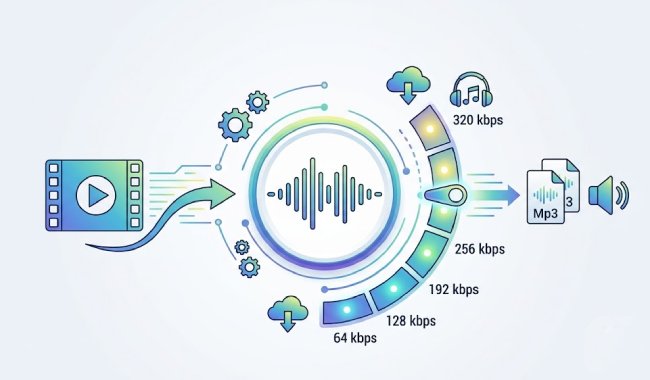
customize audio bitrate settings

Customize Audio Bitrate Settings

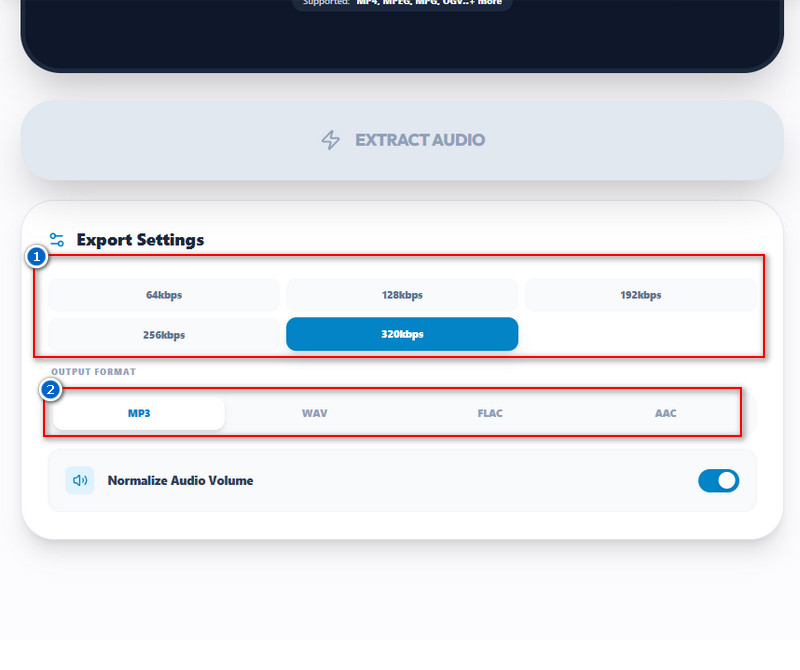
Get more control over your audio output with customizable bitrate settings that match your specific needs. This tool allows you to choose bitrates from 64 kbps to 320 kbps, giving you the flexibility to prioritize either smaller file sizes or better audio quality. Lower bitrates are ideal for saving storage space and sharing files quickly, while higher bitrates help preserve more audio details for music, podcasts, and professional recordings. Whether you need a lightweight audio file or a high-quality listening experience, our tool helps you free convert video to audio with the settings that work best for you.

Export Audio in High-Quality Formats

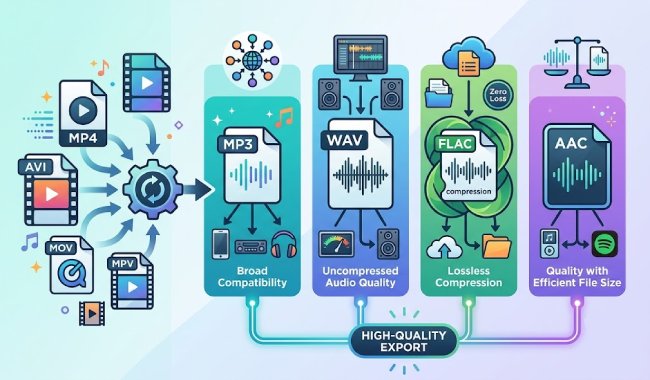
Enjoy greater compatibility and audio quality with support for multiple high-quality output formats. Our Video to Audio converter lets you export audio files in high-quality formats such as MP3, WAV, FLAC, and AAC, making it easy to use your converted files on different devices and applications. MP3 offers broad support, WAV delivers uncompressed audio quality, FLAC provides lossless compression, and AAC balances quality with efficient file sizes. Having multiple output options ensures that you can choose the format that best matches your listening, editing, or sharing needs. No matter which format you select, the tool helps maintain clear and reliable audio output for everyday and professional use.

export audio in high quality format
Start Audio Extraction

Extract Audio from Any Video File

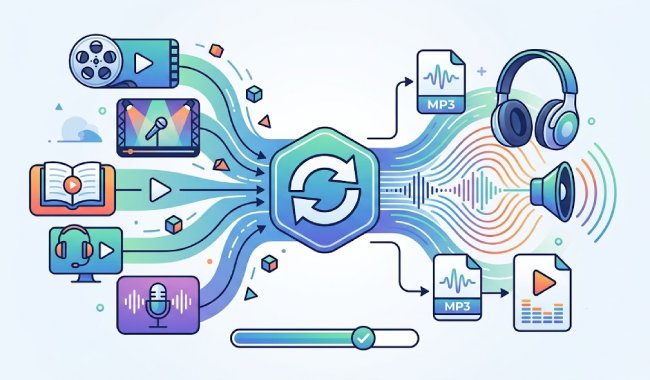
Turn your videos into audio files quickly and conveniently with support for a wide range of video content. You can extract audio from movies, music videos, tutorials, webinars, interviews, recorded presentations, online lectures, podcasts, and many other video formats. This makes it easy to save only the audio you need for listening on the go, studying, or creating content. Instead of replaying an entire video to hear a specific soundtrack or discussion, you can simply convert it into an audio file for faster access. Whether for work, education, or entertainment, our tool helps you extract audio from video in just a few simple steps.

Upload Videos in Multiple Formats

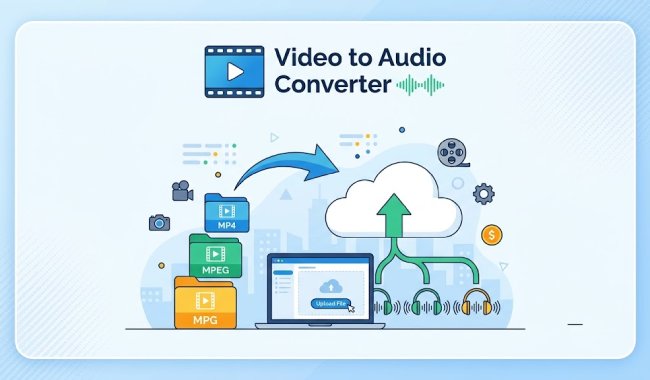
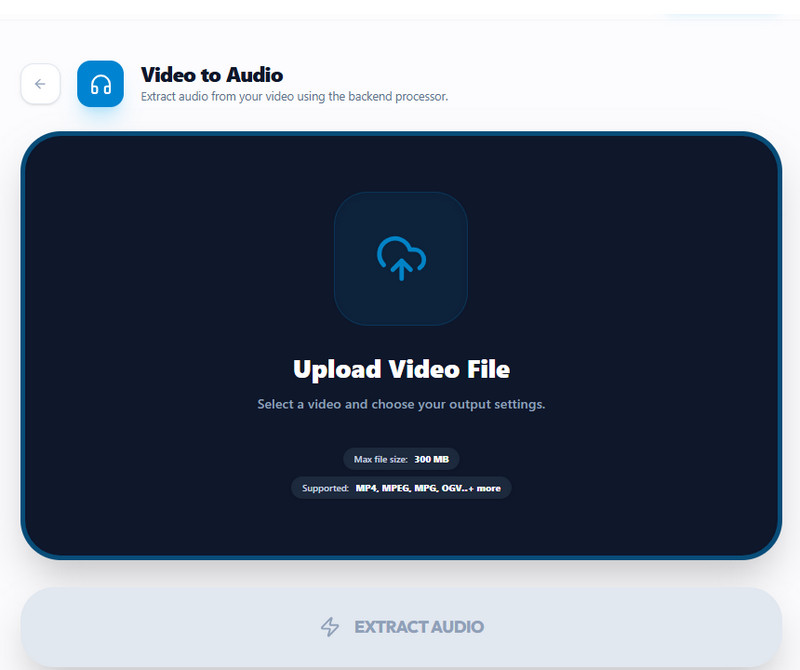
Upload videos with confidence thanks to broad format compatibility designed for convenience. The tool supports video formats, including MP4, MPEG, MPG, OGV, and many more, allowing you to work with files from different devices, cameras, editing software, and online sources. This means you can convert your videos without spending extra time searching for separate format conversion tools. The streamlined upload process helps you start extracting audio faster while reducing compatibility concerns. Simply upload your video file, choose your preferred settings, and let our tool handle the rest.

upload videos in multiple formats

How to Save Audio from Videos Effortlessly

  • 01
    Upload Your Video File
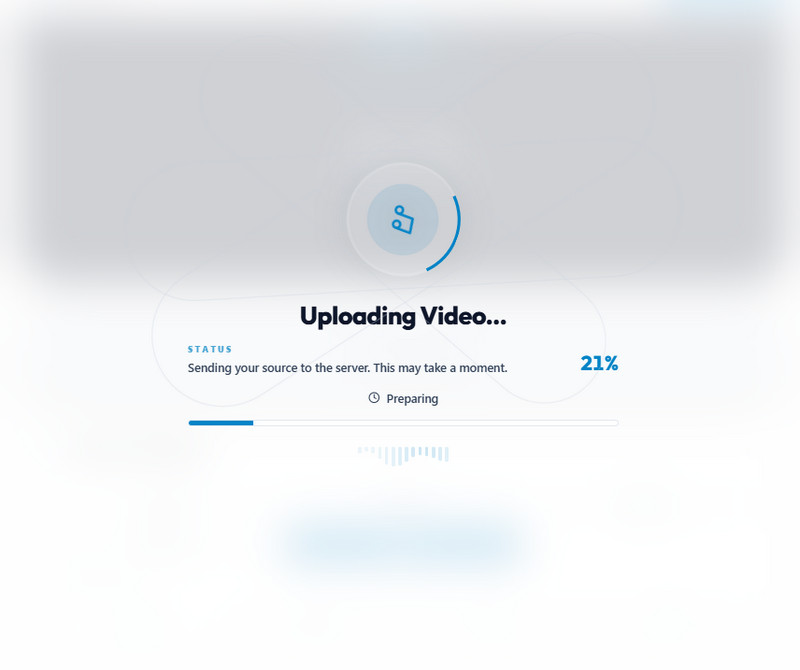
    Open the Video to Audio Converter Online Free in your browser and upload the video file you want to convert. The tool supports various video formats, making it easy to get started with your files.
  • 02
    Choose Export Settings
    Select the audio bitrate that best fits your needs, ranging from 64 kbps to 320 kbps. Then, choose your preferred output format, such as MP3, WAV, FLAC, or AAC.
  • 03
    Convert Video to Audio
    Click the "Extract Audio" button to convert your video to an audio file. The tool will quickly process your file while preserving audio quality based on your selected settings.
  • 04
    Download the Extracted Audio
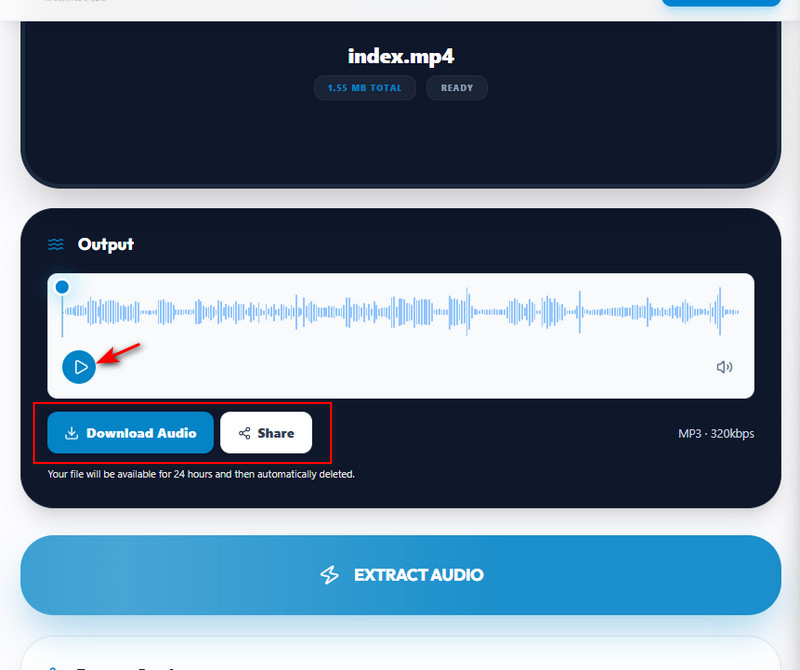
    Once the conversion is complete, play the extracted audio and download it to your device. You can then listen, share, or use the audio wherever you need it.
upload your video file
choose export settings
convert video to audio
download the extracted audio

Other Useful Tools You Can Try

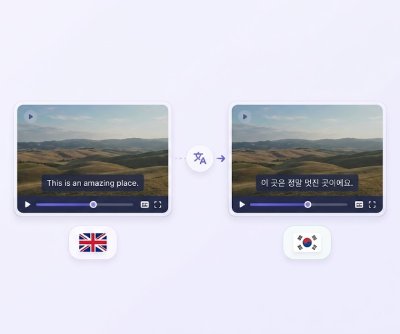
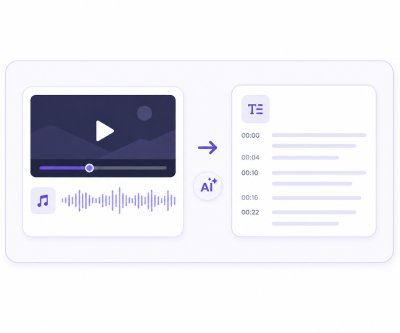
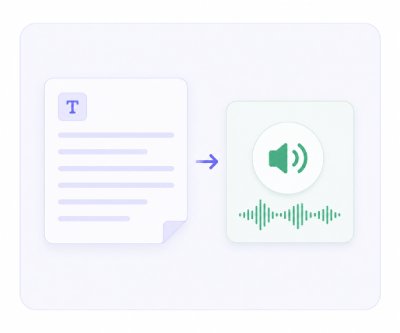
These tools let you quickly work with audio, video, and text, whether you need to translate, transcribe, convert, or merge files. They are made to save time and make things easier for students, creators, and professionals who deal with media. In short, they help you process content faster and with less hassle.
"I use this tool to turn video lessons into audio files for my students' listening practice. It helps them improve comprehension anywhere and is very easy to use."
Erika Mendoza, ESL Teacher
2026-03-15
iiiii
iiiii

"Use this tool to extract audio from video content for reposting on different platforms. It helps reuse content without extra editing steps. Very helpful for daily content workflow."
Lon Santos, Content Creator
2026-01-28
iiiii
iiiii

"This tool converts reference videos into audio for quick sampling and idea generation. It makes it easier to focus on sound details. The audio quality stays usable after conversion."
Joshua Dela Cruz, Music Producer
2026-06-02
iiiii
iiiii

"This tool is used to extract audio from language videos for repeated listening practice. It helps improve student comprehension. It supports effective learning methods. "
Eileen Castro, Language Coach
2026-02-22
iiiii
iiiii

"I extract audio from video interviews to use as a reference for my blog posts. It makes content research easier. The tool is simple and reliable."
Lean Aquino, Blogger
2026-04-25
iiiii
iiiii

"This tool allows me to pull audio from promotional videos for short content posts. It’s quick and easy to use. It helps me create more content variations."
Mari Reyes, Social Media Manager
2026-03-01

iiiii
iiiii

Why Choose Us

Frequently Asked Questions

How do I choose the best audio bitrate for my needs?

The best audio bitrate depends on how you plan to use the audio file after conversion. Lower bitrates, like 64 kbps, are good when you want smaller file sizes and do not need great detail. Medium bitrates such as 128 kbps or 192 kbps offer a balance between quality and file size for everyday use. Moreover, choose 256 kbps or 320 kbps for clearer, more detailed sound. If the audio is for music or professional use, a higher bitrate is usually recommended. For basic listening or storage saving, a lower bitrate is usually enough.

Is it possible to extract audio from online videos or just uploaded files?

Right now, the tool only supports extracting audio from uploaded video files. You need to download the video first before uploading it to the tool. If you want to extract audio directly from online videos, you can use our Video Downloader tool instead. That tool works online and helps you save videos from supported platforms. After downloading, you can then upload the video file here for audio extraction. This keeps the process simple and stable for now.

Can I convert multiple videos to audio at the same time?

For now, the tool supports converting only one video at a time. This helps ensure stable performance and consistent audio output for each file. Since the conversion process is fast, you can quickly process multiple videos one after another. Each file is handled separately to avoid errors or quality issues. This setup also makes it easier to manage and download each audio file. We focus on speed, so batch conversion is not needed at the moment.
Will the tool keep the background music and voice clear during conversion?

Yes, the tool is designed to keep both voice and background music clear during conversion. You can also choose your preferred bitrate and format to control the final audio quality. Higher bitrates help preserve more detail in both speech and music. Supported formats like MP3, WAV, FLAC, and AAC also help maintain good sound quality. The conversion process does not remove background elements unless the original video is of low quality. Overall, the output stays close to the original audio.

Can I convert large video files into audio without errors or crashes?

Yes, the tool supports video files up to 300 MB for conversion. Any file within this limit can be processed smoothly without errors or performance issues. If your video exceeds 300 MB, you will need to compress or reduce its size before uploading. The system is designed to handle heavy processing while maintaining stable, reliable conversion. This helps prevent crashes and ensures a better experience for most users. It is a good idea to check your file size before uploading to avoid any issues.

acethinker videlement logo AceThinker VidElement

One Tool for Every Video Conversion Need

videlement banner
Back to Top
Contact Us
Learning Center