menu

verifiedTrusted by 50,000+ YouTubers

Download Educational Videos for Offline Study & Review

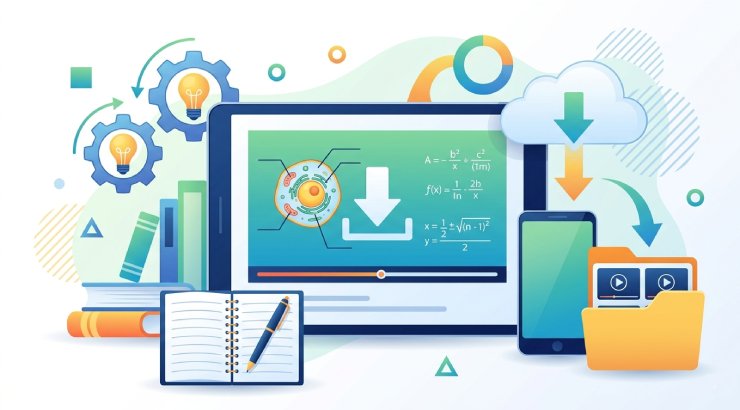
Save educational videos for offline study so you can review lessons anytime, without interruptions from an unstable internet connection. Turn long lectures into focused learning clips and use subtitles to better understand complex topics and improve retention.
Download Any Video In Your Browser

Real Learning Scenarios for Offline Study

See how students, language learners, and professionals save lessons, break down complex videos, and study offline even with limited or unstable internet.
Subtitle-Assisted Language Learning

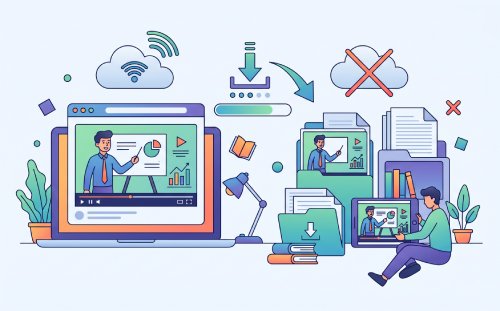
Language learners often struggle with fast speech, unfamiliar accents, or unclear phrasing in real conversations. Downloading subtitled lessons allows them to revisit content offline without interruptions or buffering issues. When meaning is difficult to grasp, translated subtitles help clarify context and support direct comparison between languages. Repeated review of short dialogue segments strengthens listening comprehension, vocabulary retention, and long-term fluency.

subtitles

edit

Skill Practice for Creative and Technical Workflows

Tutorials for design, editing, or programming are most effective when followed step by step, but switching between streaming and practice can disrupt concentration. Saving lessons in MP4 format allows uninterrupted offline playback while working hands-on. Longer tutorials can also be divided into structured segments, such as setup, execution, and refinement, for easier navigation. This helps learners stay focused, practice more efficiently, and complete workflows without having to restart the entire lesson.

Studying in Low-Connectivity or Shared Network Environments

In low-connectivity or shared network environments, streaming educational videos often leads to buffering, reduced quality, or interruptions. Downloading lessons in advance ensures stable and continuous access regardless of internet conditions. For complex topics, subtitle translation can further improve clarity and reduce misunderstanding during review. This creates a reliable offline learning setup that supports consistent study across different devices and environments.

Educational Video Download - Easy and Fast Process

graphic_eq

Multi-Stage Processing for Learning Use

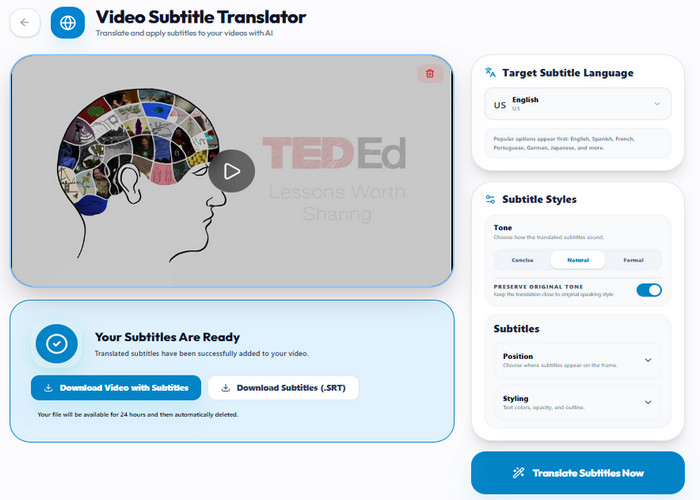
The tool extracts video data from a pasted URL and saves the file in MP4 format with embedded AAC audio. Once you have the file locally, use the trimming tool to select specific timestamps and isolate video segments. Export video segments as MP4, WEBM, or GIF. Then, use the subtitle tool to process the audio track and generate text overlays in languages such as English, Spanish, or German. The tool then creates a standalone SRT file or produces a new video file with the translated captions embedded into the stream.

bar_chart_4_bars

Technical Metrics

This section shows the supported file types and language settings for editing video length and creating subtitle files.

  • check_circle
    Download Format: MP4 (H.264) with AAC audio
  • check_circle
    Edit Formats: MP4, WEBM, GIF
  • check_circle
    Subtitle Languages: English, Spanish, French, Portuguese, German, etc.
  • check_circle
    Subtitle Output: SRT file or video with hardcoded subtitles

How to Get Educational Videos Quickly

Turn online videos into offline learning materials for smoother and more flexible study anywhere.
01

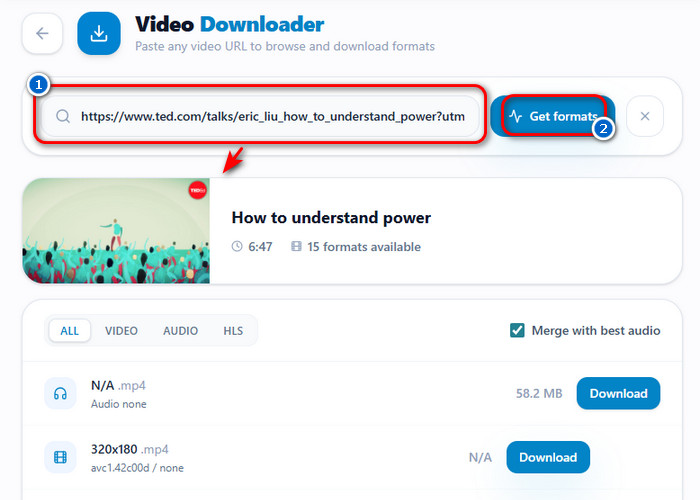
Copy the Lesson Link and Prepare for Download

Copy the link of your lecture, tutorial, or class recording and paste it into an Online Video Downloader. This prepares the video for offline access and ensures stable, usable sources for later viewing.

Copy the Lesson Link and Prepare for Download

02

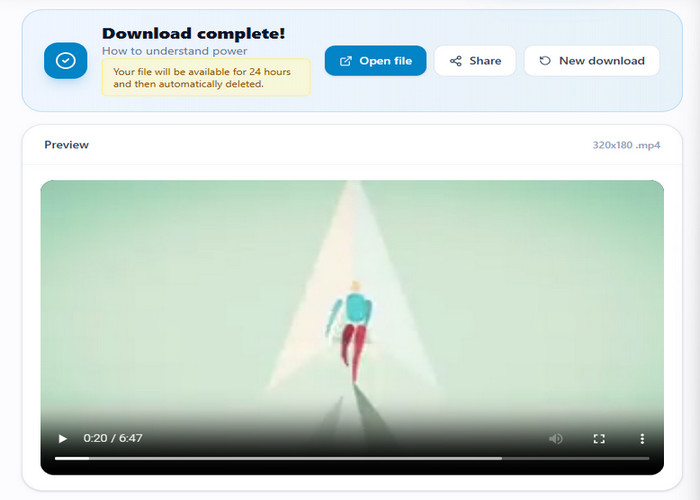
Choose the Right Format and Quality

Download the video in MP4 (H.264) for compatibility across all devices. Use 720p for a smaller file size, or 1080p for clearer visuals, such as diagrams and slides. Avoid 4K unless necessary, since it increases file size without improving learning quality.

Choose the Right Format and Quality

03

Break Lectures into Study Segments

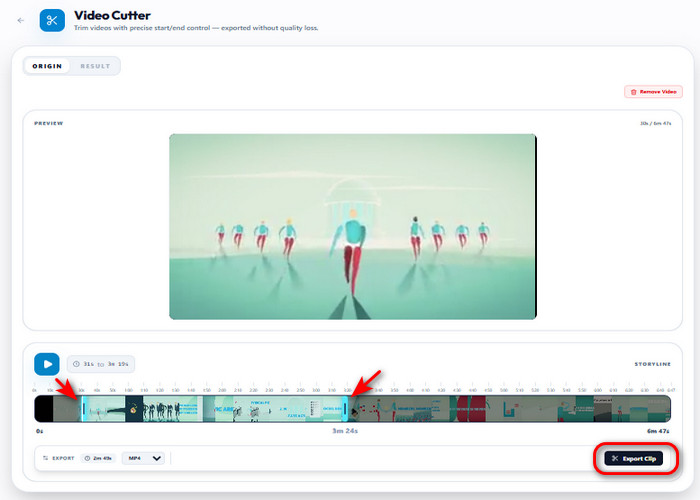
Open the downloaded video in a Video Cutter and split it into short sections based on key topics like definitions, examples, or problem-solving steps. This speeds up revision and eliminates the need to rewatch full lectures.

Break Lectures into Study Segments

04

Improve Clarity with Subtitles or Translation

If a lesson is difficult to follow, use a Video Subtitle Translator to convert captions into your preferred language. This helps clarify fast or complex explanations and improves overall understanding during review.

Improve Clarity with Subtitles or Translation

Features That Make Learning Flexible

  • categoryOrganize Study Materials
  • high_qualityHigh Quality Lessons
  • android_cell_4_bar_offOffline Learning
  • upgradeImprove Focus
download study video

Organize Study Materials for Faster Revision

Downloaded lessons can be grouped by subject or topic to make revision more structured. This helps learners quickly locate key concepts without having to scroll through long recordings. As a result, study sessions become more focused and time-efficient during exam preparation.
download 720p or 1080p video

Keep Video Clarity for Repeated Study

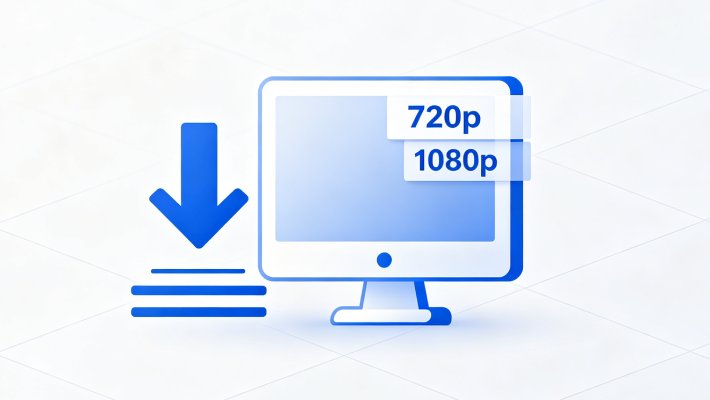
Using the right resolution, such as 720p or 1080p, ensures that visuals, including diagrams, text, and explanations, remain clear. This is important when reviewing lessons multiple times to better understand them. Clear video quality helps improve retention, especially for technical subjects.

download video to learn offline

Study Anywhere Without Internet Limits

Saving lessons locally allows learners to access them without an internet connection. This makes it possible to study while traveling, during commuting, or in low-signal areas. It ensures uninterrupted learning regardless of location or network stability.

Improve Focus by Reducing Cognitive Load

Improve Focus by Reducing Cognitive Load

Breaking long lectures into shorter segments helps learners concentrate on one concept at a time. This reduces mental overload during revision and makes complex topics easier to process. It also improves retention when reviewing multiple lessons under exam pressure.

Must-Have Media Tools for You

download

Video Downloader

Download full lectures in MP4 format for stable offline playback across all devices. Choose 720p for smaller files or 1080p for clearer visuals like text and diagrams.

  • check_circle
    No installation required
  • check_circle
    Works on any device
  • check_circle
    Quick export & share

Benny's Pick

Web-Based Editor

content_cut

Video Cutter

Trim long lectures into 3–10 minute clips focused on key topics for faster review. This helps you avoid rewatching entire videos and improves exam preparation efficiency.

  • check_circle
    No installation required
  • check_circle
    Works on any device
  • check_circle
    Quick export & share

Aisha's Choice

Desktop App

subtitles

Video Subtitle Translator

Translate subtitles into your preferred language to better understand fast or complex explanations. This is especially useful for technical lessons or unfamiliar terminology.

  • check_circle
    No installation required
  • check_circle
    Works on any device
  • check_circle
    Quick export & share

Lara's Must-Have

Mobile Quick-Edit

autorenew

Video Converter

Convert videos into MP4 (H.264) for smooth compatibility across mobile and desktop devices. You can also compress files to reduce storage while keeping clear playback quality.

  • check_circle
    No installation required
  • check_circle
    Works on any device
  • check_circle
    Quick export & share

Viral Pick

AI Script-to-Video

Frequently Asked Questions

How can teachers save or prepare short video clips for classroom use?expand_more

Classroom videos often contain long sections that are unnecessary for discussion or activities. Download the lesson using Video Downloader and save the final clip as MP4 in 720p, which usually works better for classroom projectors, laptops, and tablets. Then, trim only the needed segment with Video Cutter by setting clear start and end points.

How do I trim a long educational video into a shorter lesson segment?expand_more

Long educational recordings can slow down lessons when students only need a specific topic or explanation. To trim a long educational video, upload the file to Video Cutter, select the required section, and export the shorter lesson clip. Keeping the export in the same resolution and MP4 format helps avoid playback issues during presentations. Trimming removes unwanted sections but does not improve blurry or low-resolution source videos.

Can I create subtitles or transcripts from an educational video?expand_more

There are times when students may miss spoken details when the classroom audio is unclear or when they need translated support materials. Generate a transcript using Audio & Video Transcription, then download it in SRT format for easier editing and embedding in the video. After that, if you need to share the video with students who speak different languages, you can translate the subtitles using the Video Subtitle Translator for better understanding. However, subtitle accuracy can still vary if the original recording contains background noise or overlapping voices.

How do I convert educational videos for playback on school devices?expand_more

Some school devices cannot play certain video codecs or oversized media files properly. Convert the lesson using Video Converter and save it as MP4 for wider compatibility across projectors, laptops, and tablets. If needed, Video Resizer can also be useful for correcting the video's aspect ratio across different school devices to avoid compression, such as 9:16 (TikTok/Reels) 1080x1920, 16:9 (YouTube) 1920x1080, 1:1 (Instagram) 1080x1080, and 4:5 (Portrait) 1080x1350. Still, if the video is of lower resolution, expect the quality to remain the same after resizing.

What permission should be stated for educational video downloads?expand_more

Educational video downloads should be used only for personal study, classroom reference, or content licensed for educational reuse. Users should avoid redistributing, reposting, or commercially using copyrighted videos without permission from the original creator or platform. Video Downloader should only be used for content you own, have permission to access, or are clearly licensed for classroom use.

Save Learning Videos for Offline Study

Download educational videos easily and organize your learning content for flexible viewing offline.

Back to Top
Contact Us
Learning Center