menu

verifiedTrusted by 50,000+ YouTubers

Convert Videos for Mobile Devices (iPhone & Android Ready)

Convert large or unsupported videos into mobile-friendly MP4 files for smooth playback on iPhone, Android, and tablets. Reduce storage usage, fix compatibility issues, and optimize resolution for different mobile devices.
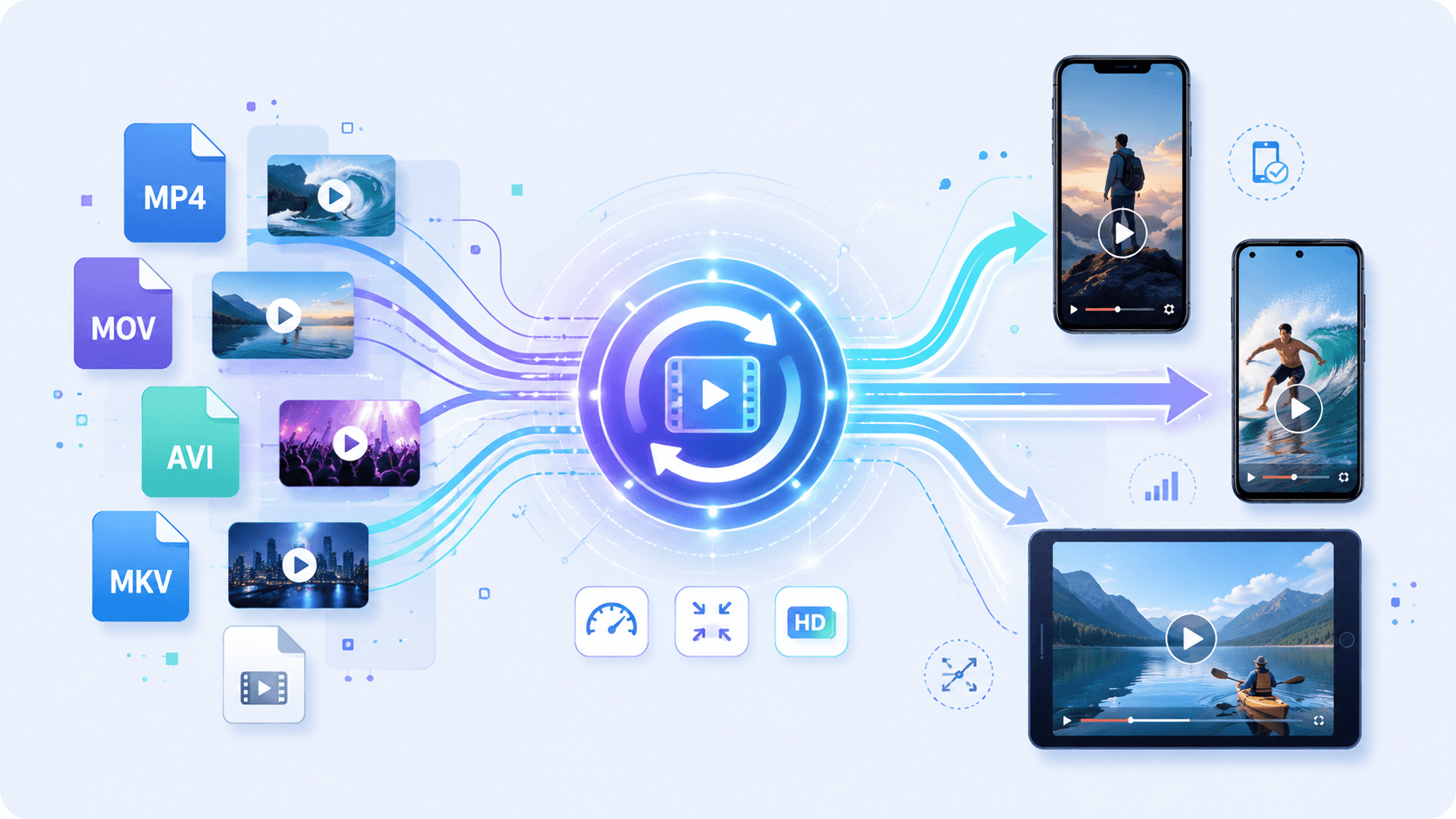
Convert Your Videos Online Instantly

Real Mobile Video Conversion Scenarios

Convert videos for smooth playback, offline viewing, and storage efficiency across iPhone and Android devices.
Students Saving Lecture Videos on Phones

For students storing long lecture recordings on mobile devices, convert videos to MP4 and reduce resolution to 480p or 720p to save storage space without making lessons unreadable. Video Resizer and Video Compressor help reduce large file sizes, resulting in lightweight lecture videos optimized for offline review during commuting or study sessions.

school

mobile

Parents Sharing Videos Across iPhone and Android

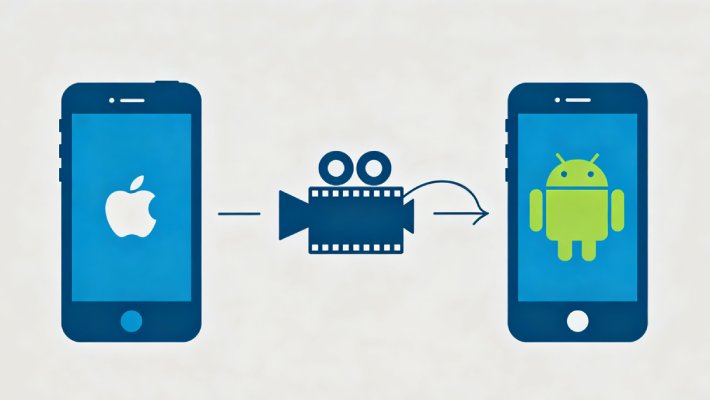
For families sharing videos between iPhone and Android devices, convert HEVC, MOV, or unsupported formats into MP4 (H.264) to prevent playback errors and unsupported file warnings. Video Converter ensures smooth, cross-platform playback on various mobile devices, resulting in MP4 videos that play correctly on iPhone and Android devices.

Employees Watching Training Videos on Low-End Phones
For field employees using older Android devices with limited RAM and processing power, convert videos into lightweight MP4 files and reduce bitrate to improve playback stability. Video Converter and Video Compressor minimize lag and buffering, resulting in mobile-friendly training videos optimized for low-spec Android devices and unstable network conditions.

Mobile Optimization: Multi-Format Video Re-encoding

graphic_eq

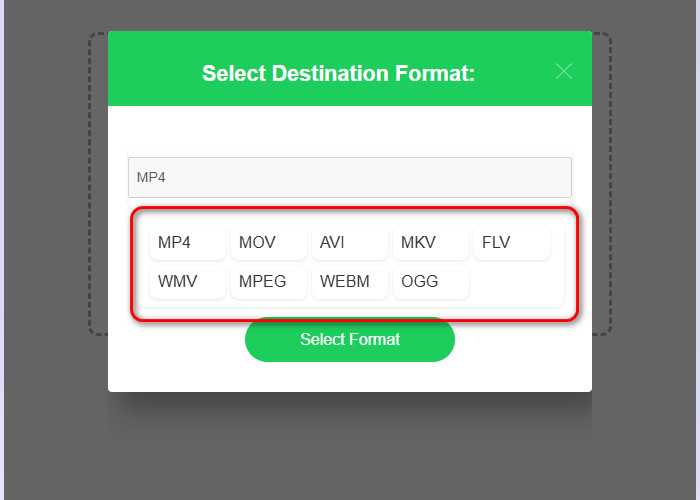
Choose Output Format for Mobile Playback

Selecting an output extension from the available list converts the uploaded video into a compatible container format for mobile playback. The tool processes the file into formats such as MP4 or WEBM by applying a new container structure while preserving the original resolution and visual quality. Once processing is complete, a separate downloadable version is generated using the selected format.

bar_chart_4_bars

Technical Metrics

Defines output parameters for file conversion, including supported formats, upload limits, and resolution preservation during re-encoding.

  • check_circle
    File Limit: 100MB per upload session
  • check_circle
    Compatibility: iOS / Android devices
  • check_circle
    Output Formats: MP4, MOV, AVI, MKV, FLV, WMV, MPEG, WEBM
  • check_circle
    Resolution: Matches source file dimensions

Convert Videos for Mobile Playback

Convert any video into a mobile-friendly format for smooth playback on your phone.
01

Upload Unsupported or Large Video Files

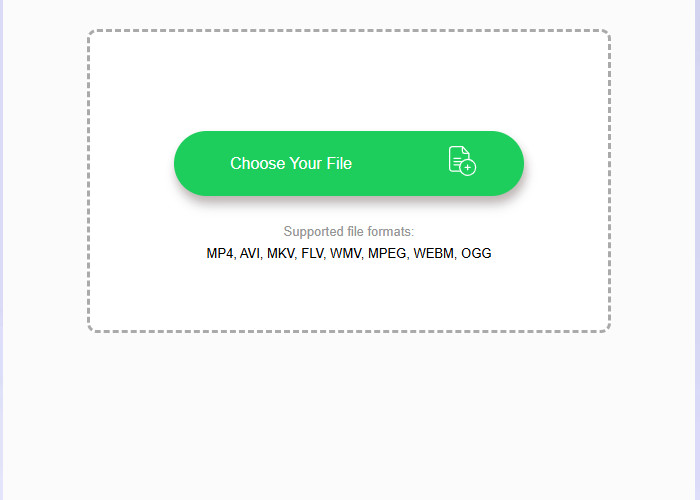
Upload a video (MKV, AVI, or MP4) to Video Converter Online. The tool analyzes the file to detect format or codec issues that may prevent proper playback on mobile devices.

Upload Unsupported or Large Video Files

02

Choose Mobile-Compatible Format

Choose MP4 or HEVC, both of which are widely supported on iPhone and Android. This ensures the video plays without codec errors across most mobile devices.

Choose Mobile-Compatible Format

03

Convert Video to Mobile Standard

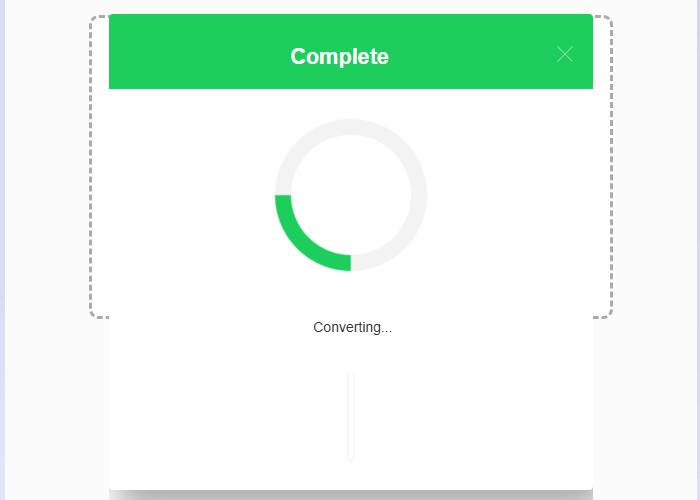
Start the conversion process to generate a mobile-ready MP4 output. The system re-encodes the video into a cross-device compatible format optimized for smartphone playback.

Convert Video to Mobile Standard

04

Download Optimized Mobile Video

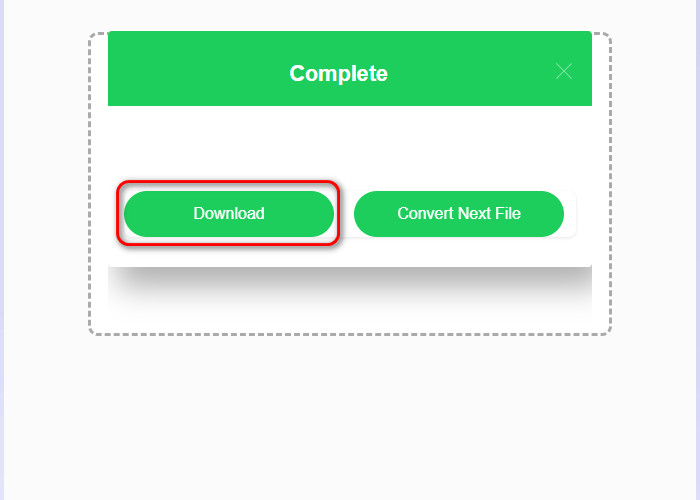
Download the converted MP4, optionally trim with Video Cutter, then use Video Compressor to reduce file size for smoother mobile playback. The final output is a lightweight MP4 optimized for iPhone and Android devices.

Download Optimized Mobile Video

Common Mobile Video Problems Solved

  • syncEasy Conversion
  • collapse_allSmooth Video Playback
  • settings_cinematic_blurReduce Video Size
  • uploadReady for Upload
Convert Videos to Mobile

Convert Videos to Mobile-Compatible Formats Easily

Convert videos to formats that work on mobile devices like iPhones and Android devices. This video converter for phone supports formats such as MP4, making files playable across phones and tablets. It helps avoid compatibility issues and prepares your videos for viewing anytime without needing extra apps or complex adjustments.
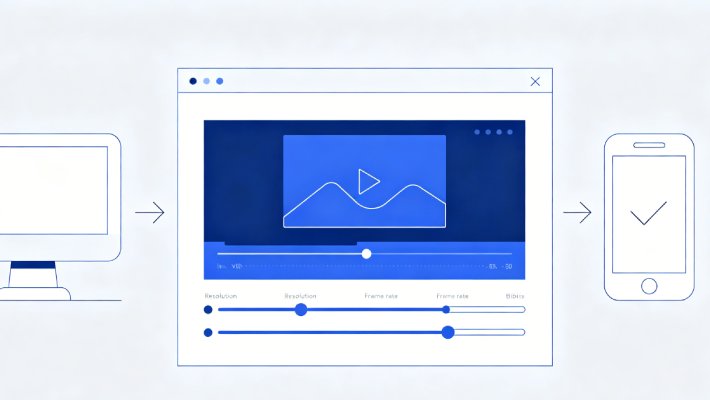
Smooth Video Playback on All Mobile Device

Ensure Smooth Video Playback on All Mobile Devices

Watch videos without lag or playback errors on your phone. The tool adjusts video settings during conversion to match mobile requirements. This helps create a stable and consistent viewing experience across Android, iPhone, and other portable devices without playback problems.
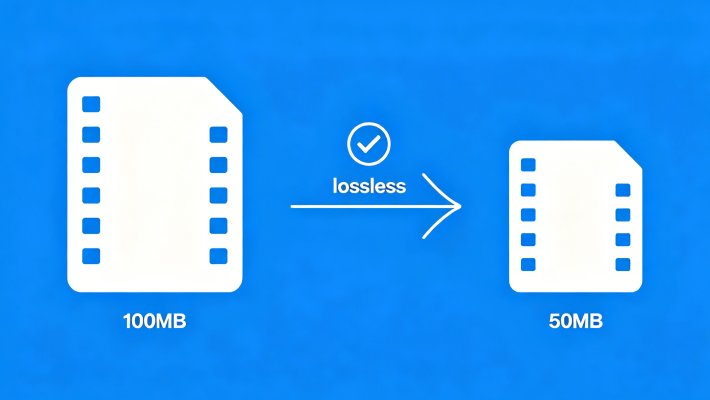
Reduce Video Size

Reduce Video Size Without Losing Quality

Make video files smaller to save storage on your phone. The converter keeps visuals clear while reducing file size efficiently. This allows you to store more videos and share them faster without noticeable loss in video quality or important details.
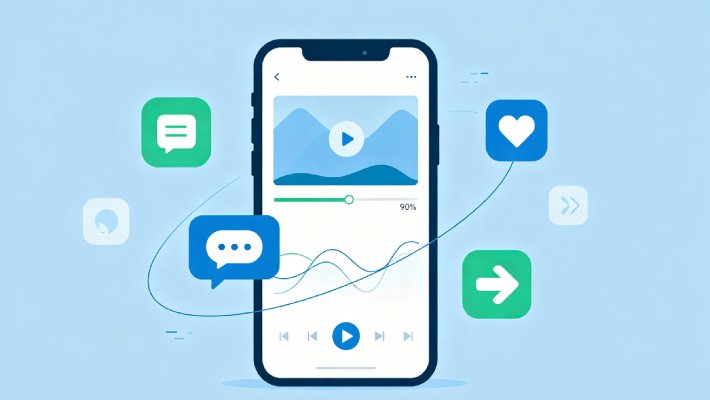
Optimize Videos for Mobile Sharing

Optimize Videos for Mobile Sharing and Use

Prepare videos for sharing on mobile apps and platforms. Converted videos upload faster and play smoothly on messaging apps and social media. This makes it easier to send, share, or post videos directly from your phone without extra steps.

Related Tools

headphones

Video Converter

Convert video files into formats like MP4 or WebM to ensure they work smoothly across editing tools and devices. This helps prevent import errors or compatibility issues when moving footage into software like Premiere Pro or CapCut.

  • check_circle
    No installation required
  • check_circle
    Works on any device
  • check_circle
    Quick export & share

Benny's Pick

Web-Based Editor

hangout_video

Video Editor

Edit videos by trimming, cutting, and enhancing clips to improve pacing, structure, and visual quality. It is used when you need full control over storytelling, transitions, and final output refinement.

  • check_circle
    No installation required
  • check_circle
    Works on any device
  • check_circle
    Quick export & share

Aisha's Choice

Desktop App

compress

Video Compressor

Reduce video file size efficiently with the Video Compressor when files are too large for mobile storage or app upload limits, maintaining acceptable visual quality for sharing and playback.

  • check_circle
    No installation required
  • check_circle
    Works on any device
  • check_circle
    Quick export & share

Lara's Must-Have

Mobile Quick-Edit

download

Video Downloader

Retrieve video content from online sources with the Video Downloader before editing or conversion, providing usable input files for later optimization in mobile-focused workflows.

  • check_circle
    No installation required
  • check_circle
    Works on any device
  • check_circle
    Quick export & share

Viral Pick

AI Script-to-Video

Frequently Asked Questions

Why does a 4K video stutter or fail to play on an older Android phone?expand_more

Older Android phones may not handle large 4K videos smoothly because 4K contains more visual data, which requires higher processing power and decoding capabilities. Use Video Converter to convert the video to MP4 before transferring it to the phone, as MP4 is optimized for smoother decoding on phones and tablets. If the file is still large, lowering the resolution can improve playback, but older devices may still struggle due to hardware limits.

Which video format is safer for sharing across iPhones, Androids, and tablets?expand_more

The safer video format for sharing across iPhones, Androids, and tablets is MP4 because it is widely supported and can be played on most built-in video players without compatibility issues. If your video does not open correctly on another device, use Video Converter to convert it to MP4 before sharing, as this reduces playback errors on mobile devices. However, playback quality may still depend on the receiving device or app used.

Can I extract audio from a video when mobile playback is not needed?expand_more

This usually happens when you only need the voice, music, or recorded sound, rather than the full video file. Use Video to Audio Converter to convert the video to an audio format, such as MP3, before saving or sharing it. This reduces file size and produces an MP3 file that is easier to store and play on mobile audio apps. If the original video has background noise or distorted sound, the extracted audio will retain those issues.

What should I check if the converted video still does not play smoothly?expand_more

If the converted video still does not play smoothly, check whether the original recording already has issues such as stuttering, missing frames, or corruption, as these cannot be fixed by conversion. You should also check whether the video is too large or high-resolution for your device to handle, and whether your phone has enough storage and a compatible video player. At this point, the issue is usually not the conversion but the source file quality or device limitations.

What resolution should I choose for low-end phones without making the video too blurry?expand_more

For low-end phones, the best balance between smooth playback and clear quality is 720p (1280x720), as higher resolutions like 1080p or 4K can overload weaker processors and cause lag or stuttering. It keeps the file light enough for older devices while still maintaining acceptable clarity on mobile screens. If 480p is the only alternative, it may improve performance but can look noticeably blurry. To keep playback smooth, also ensure the video uses a standard 16:9 aspect ratio to avoid extra processing from cropping or stretching. You can use a Video Resizer for this aspect ratio.

Start Converting Videos for Mobile Playback

Convert unsupported or oversized videos into mobile-friendly MP4 files with high quality.

Back to Top
Contact Us
Learning Center