menu

Edit PDF DocumentsWithout Breaking Original Formatting

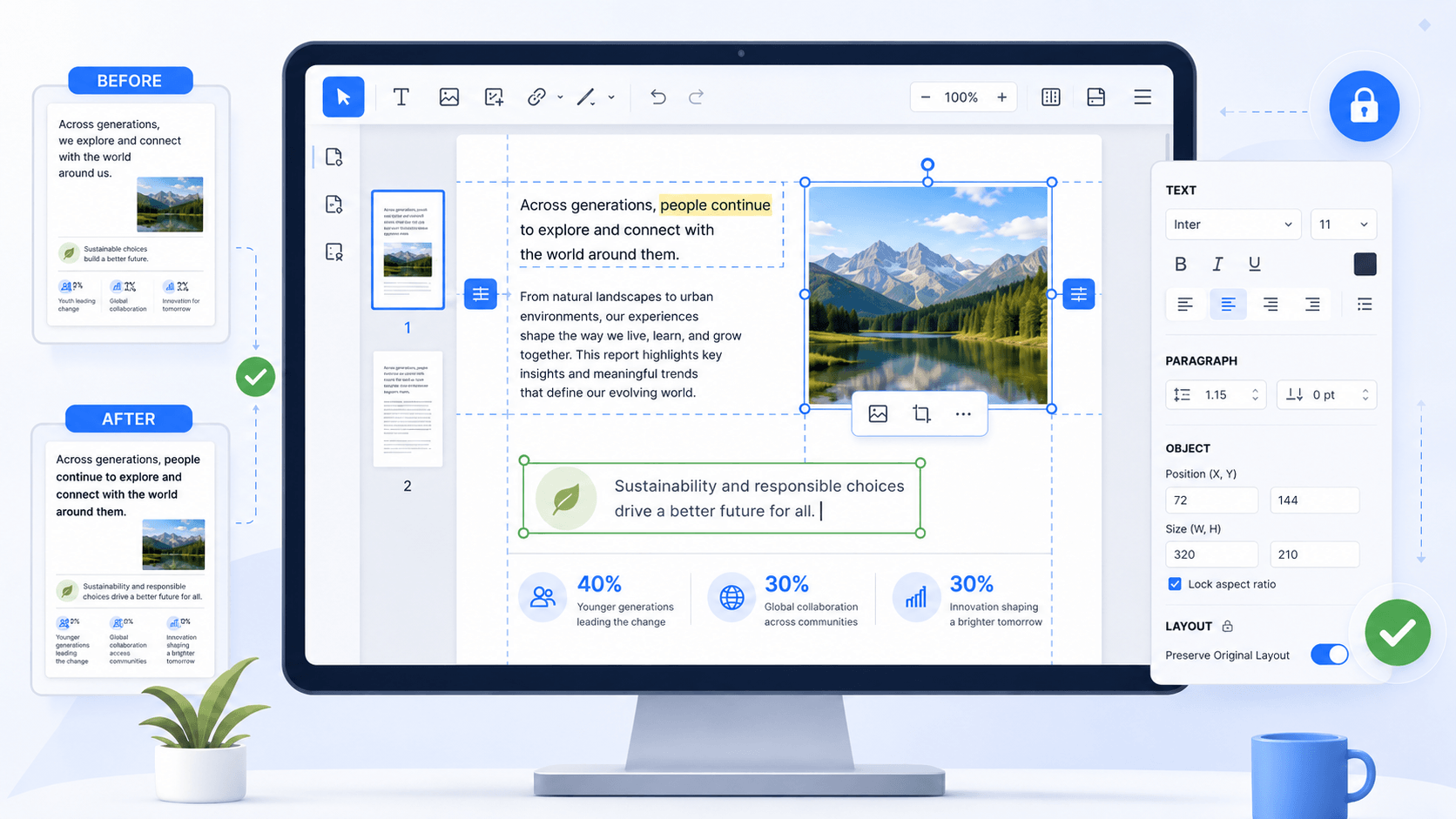
Modify text, images, and form fields directly inside your PDF without disrupting fonts, margins, table alignment, or page structure. Update contracts, reports, and business files while keeping every document ready for professional reuse, printing, or sharing.
Clause Revision • Version Control • Approval-Ready Contracts
edit pdf document
star
star
star
star
star_half
4.7/ 5
StackSocial Verified Buyers (10k+ Copies Sold)

Get Your Documents Ready for Deeper PDF Editing

Edit PDFs with 1:1 Layout Integrity and Vector-Level Precision

edit_document

Edit PDFs Without Breaking Layout, Fonts, or Structure

Alter text, update forms, or annotate complex documents without disturbing layout fidelity. Our editor uses Vector-Level Rendering to maintain precise typographic alignment, accurate character spacing, and clean graphic edges. Multi-layer PDFs—such as blueprints, financial statements, or technical manuals—retain their original hierarchy and visual clarity after every edit.

bar_chart_4_bars

Techinical Metrics

Every edit meets measurable, industry-standard benchmarks to ensure that your document stays professional, accurate, and secure.

  • check_circle
    1:1 Layout Preservation — zero shift in vector elements after editing
  • check_circle
    99.8% OCR Accuracy — precise extraction for 20+ languages
  • check_circle
    AES-256 Encryption — secure, session-scoped document handling
  • check_circle
    300 DPI+ Image Preservation — print-ready clarity maintained

Common PDF Editing Failures

Generic editors often break your files. See why layout-aware editing matters.

format_indent_decrease

Shifting Paragraphs and Spacing

Most editors cause text to overlap or jump to the next page when you add a single sentence. We ensure your alignment remains fixed exactly where you want it.

edit_off

Inability to Edit Tables

Fixing a number inside a PDF table shouldn't break the cell borders. Adjust data, rows, and columns without corrupting the table’s visual integrity.

file_copy

Font Incompatibility Issues

Adding text often results in mismatched fonts that look unprofessional. Our tool identifies the existing typeface to make your edits look like original text.

indeterminate_question_box

Complex Object Distortion

Moving a signature or logo often leaves behind white boxes or blurry edges. Experience clean object manipulation for every image and graphic element.

Real-World Editing Scenarios

Practical solutions for high-stakes document revisions.

  • Edit Contract Terms Safely
  • Refresh Monthly Reports
  • Update Team Policy Files
  • Finalize Client Proposals
The Challenge

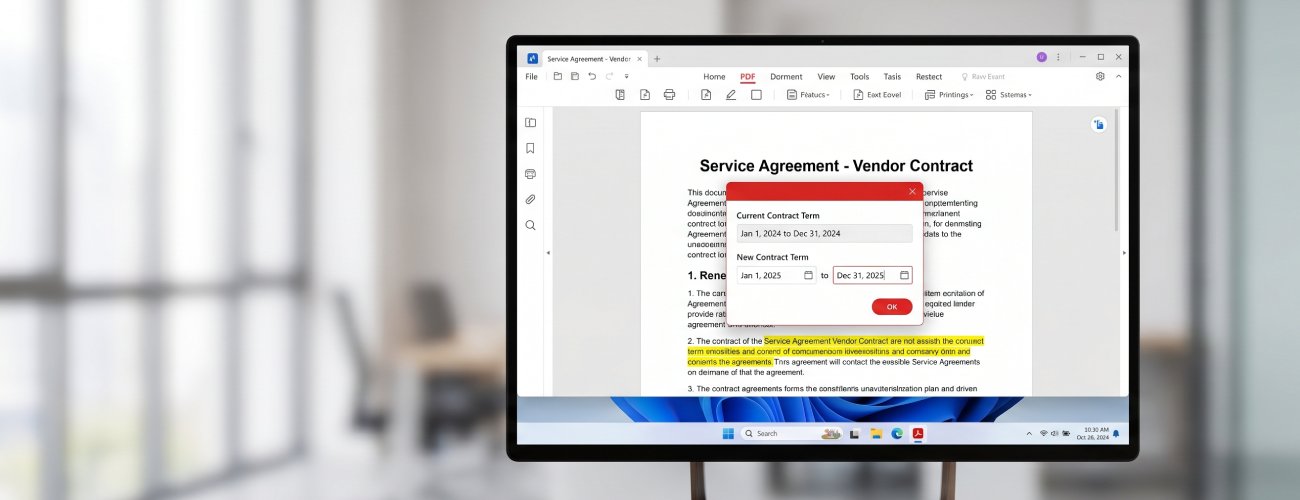
Modifying legal contract PDF files often causes text to overlap or signature lines to jump to the next page. These formatting errors can invalidate a document's professional look and delay signing.
edit contract terms

What you can do:

  • check
    Update clauses in contracts while maintaining original font properties.
  • check
    Use paragraph reflow to ensure text wraps naturally without breaking layouts.
  • check
    Add Bates numbering or review marks to keep legal files organized.
The Challenge

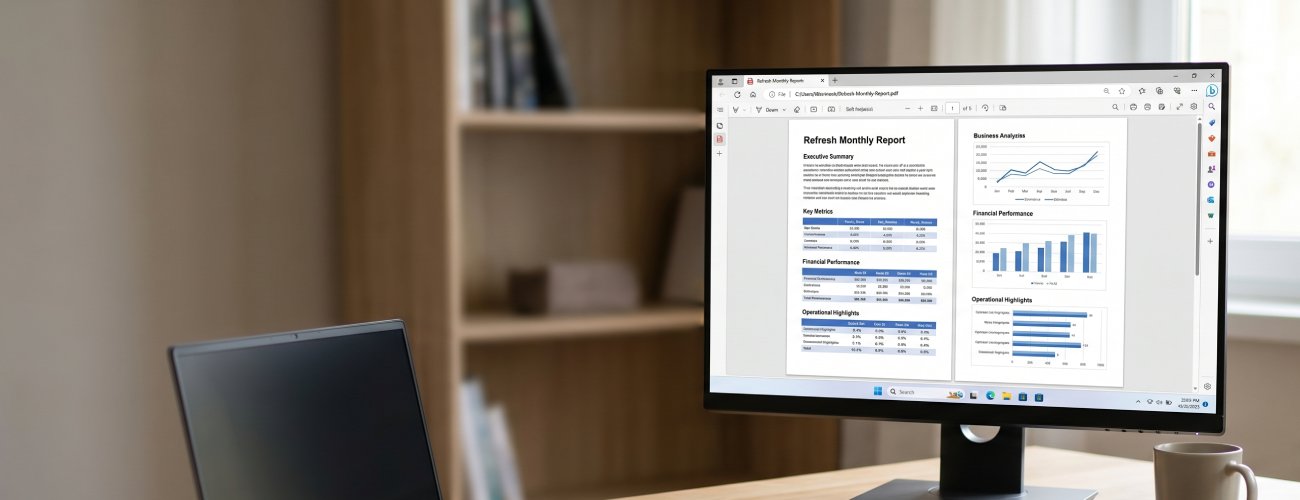
Business reports require frequent data updates that often break the alignment of tables and charts. Manually fixing these spacing issues is time-consuming and leads to unprofessional data presentation.
update report pdf

What you can do:

  • check
    Revise monthly report figures directly inside existing PDF tables.
  • check
    Adjust column borders and cell alignment to keep data clear and readable.
  • check
    Update headers and footers to reflect the latest reporting period.
The Challenge

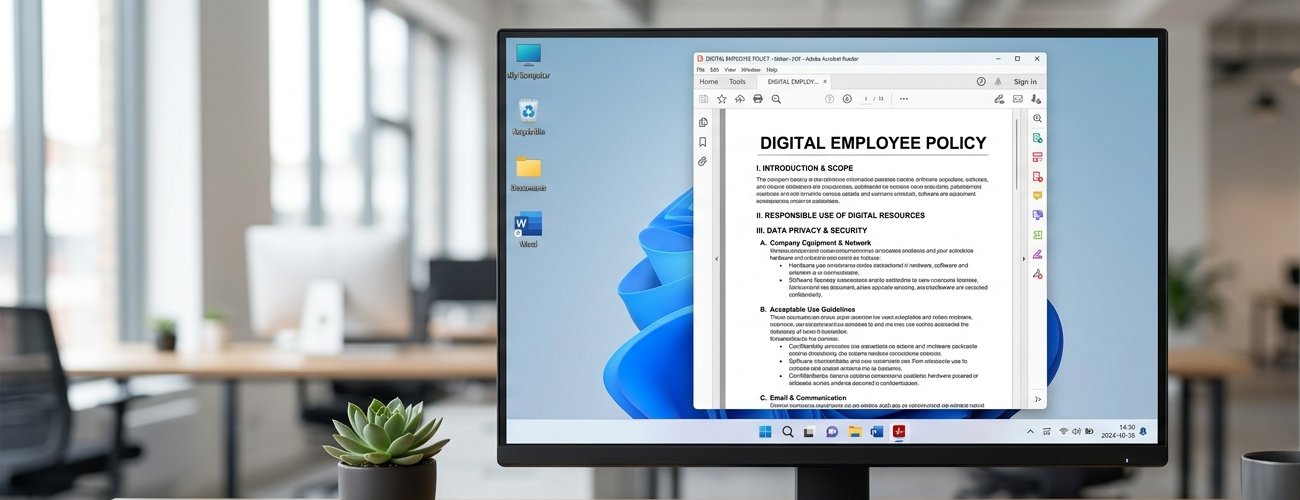
Internal policy documents often become disorganized when different departments try to add content or update sections. This lack of control results in inconsistent fonts and messy formatting across the entire manual.
edit internal policy pdf

What you can do:

  • check
    Correct employee policy PDFs while keeping section numbering intact.
  • check
    Use font matching to ensure new text blends perfectly with the old manual.
  • check
    Add annotation comments for team review before finalizing the file.
The Challenge

Proposals sent to clients often require last-minute logo changes or pricing updates that can ruin the visual balance. Incorrectly placed images or text blocks can make the entire presentation look unprofessional to a prospect.

finalize proposal pdf

What you can do:

  • check
    Replace outdated logos in proposals while keeping layout integrity.
  • check
    Finalize client-ready files by adjusting margins and visual alignments.
  • check
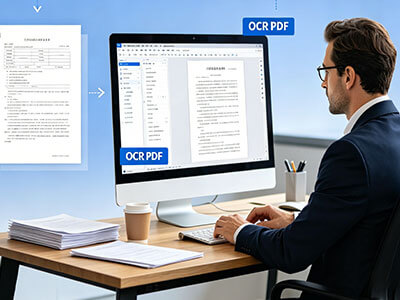
    Use OCR editable PDF tools to modify text from scanned assets.

Easy Steps to Edit Your Documents

Upload PDF documents, apply precise content edits, and export structured, fully updated files while preserving layout and formatting integrity.

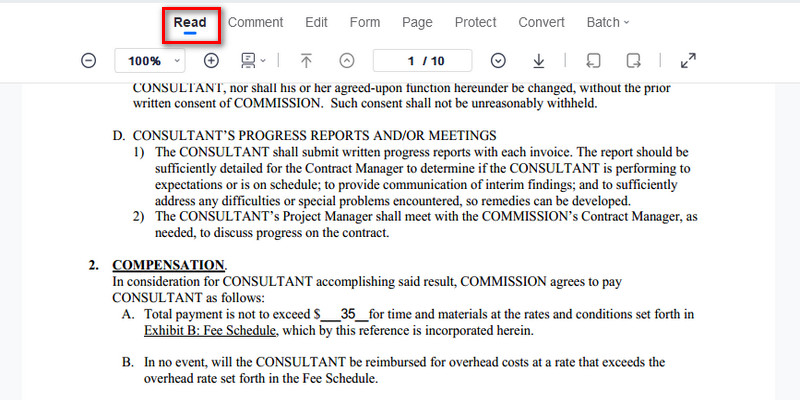
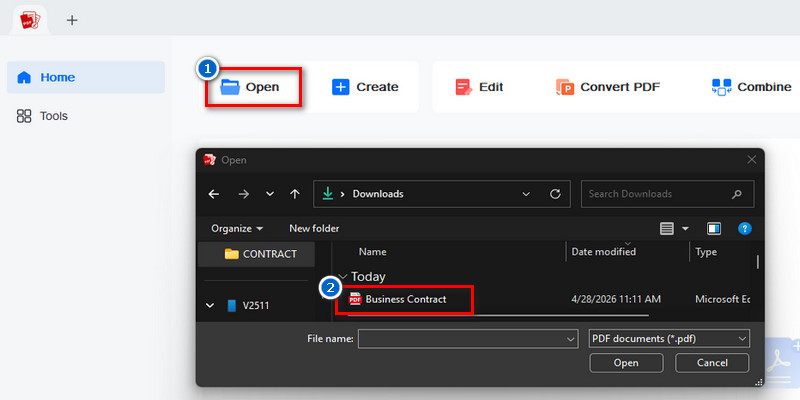
  • 1

    Import Business Agreement for Structured Editing

    Upload business contracts into the PDF editing workspace to prepare them for structure-safe modification. The file is processed to retain tables, clauses, and professional formatting during editing.

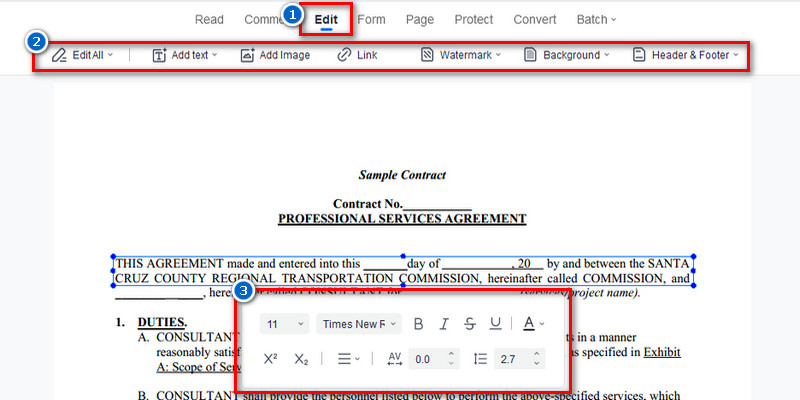
  • 2

    Apply Precision Updates to Contract Content

    Modify legal text, payment terms, approval sections, and contract tables directly within the document. All changes are applied while maintaining consistent formatting across pages.

  • 3

    Review Agreement Layout & Compliance Structure

    Review edited sections to verify spacing, alignment, clause formatting, and signature field placement remain professionally organized. This validation step helps preserve contract readability and business document integrity before finalization.

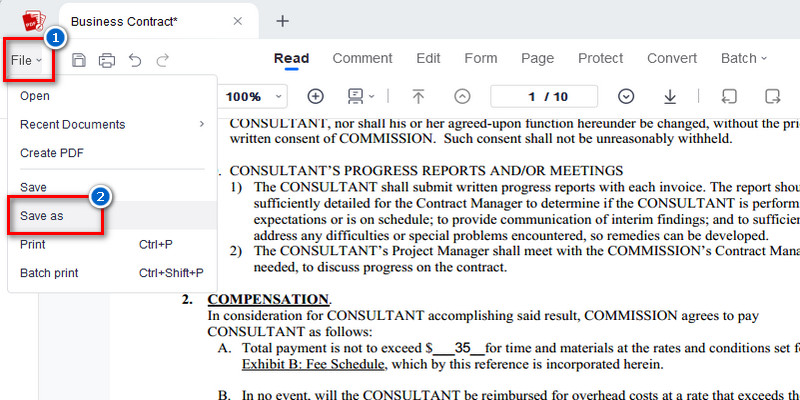
  • 4

    Export Production-Ready Business PDFs

    Save the finalized contract as a structured PDF document optimized for professional distribution, digital approval workflows, and secure file sharing. The export process preserves the original document layout and formatting accuracy.
import PDF
Apply Precision Update
Review edited sections
export pdf

Free PDF Templates

Get instance to professionally designed free PDF templates to help you keep organized and save time.

  • Business
  • Birthday Cards
  • Welcome Messages
  • Holiday Cards
FREE

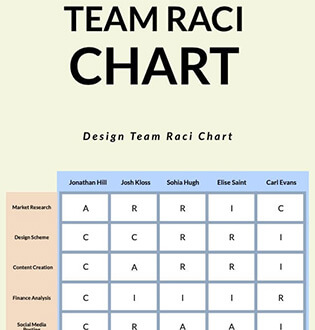
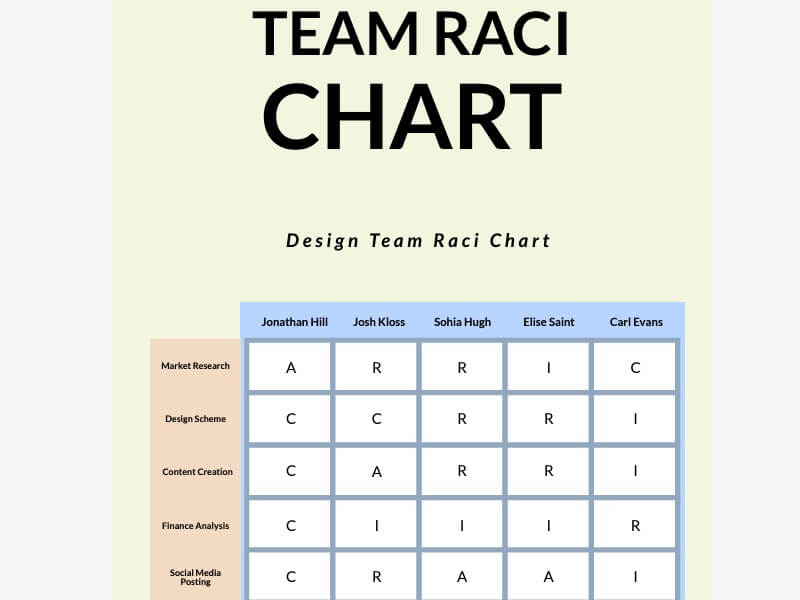
Team Collaboration Template
FREE

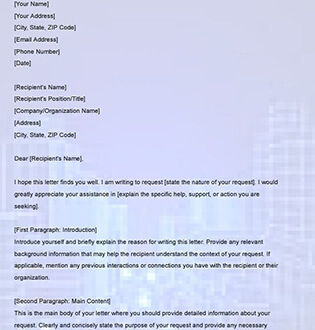
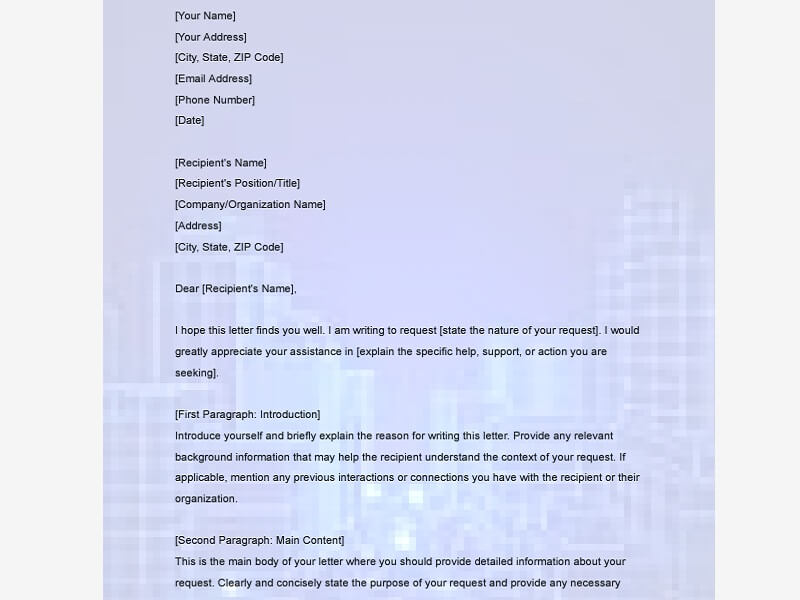
Request Letter Template
FREE

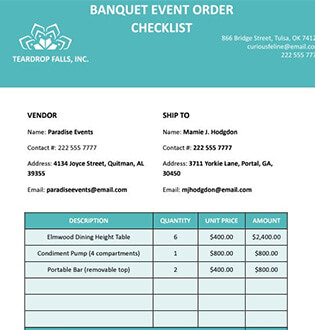
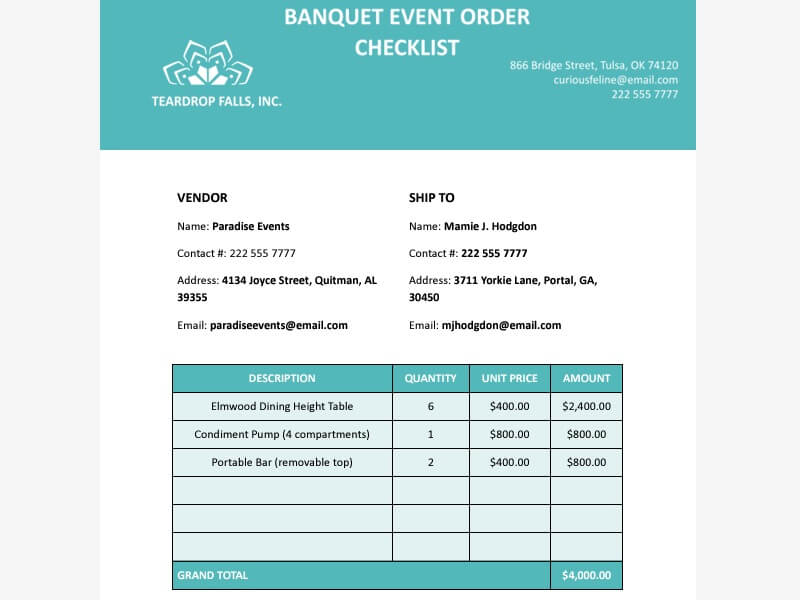
Event Planner Template
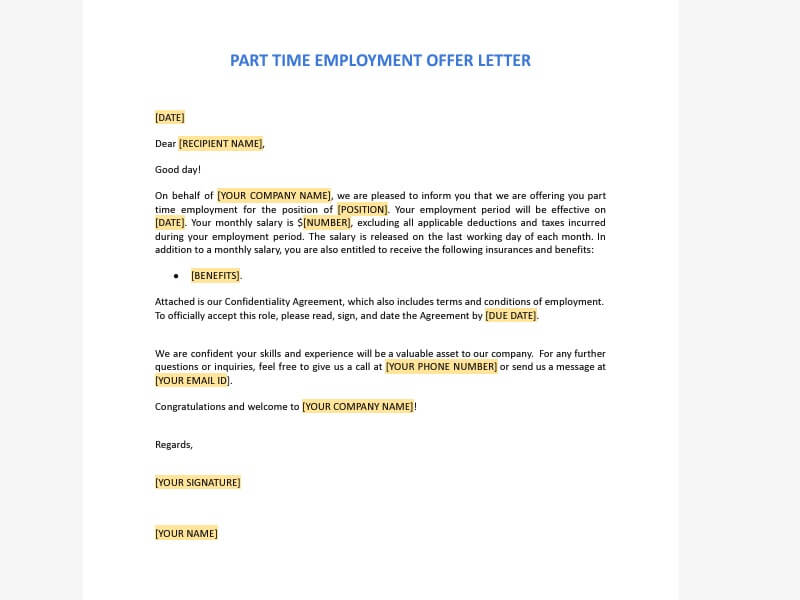
FREE

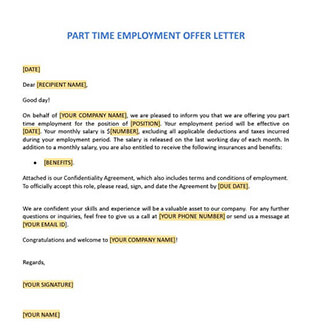
Offer Letter Template
FREE

Birthday Greeting for Grandma
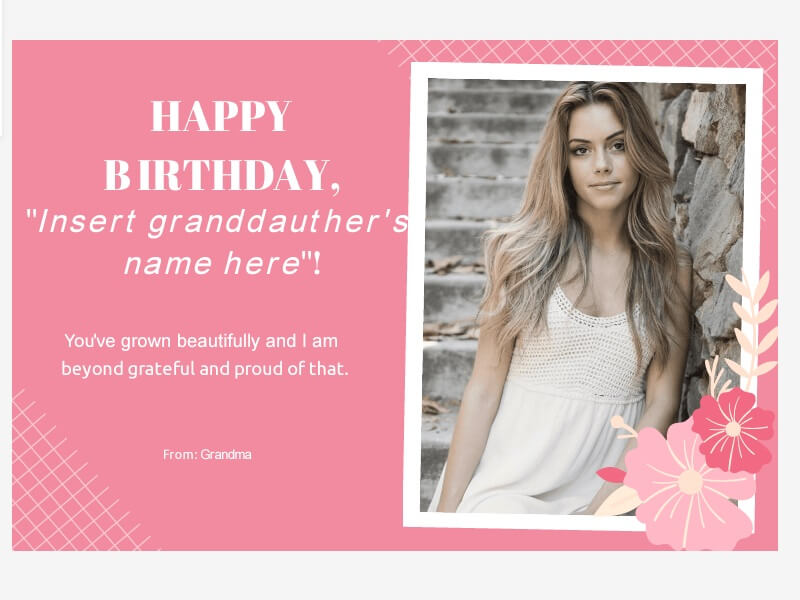
FREE

Birthday Wishes for Granddaughter
FREE

Birthday Wishes for Ex Boss
FREE

Birthday Wishes for Husband
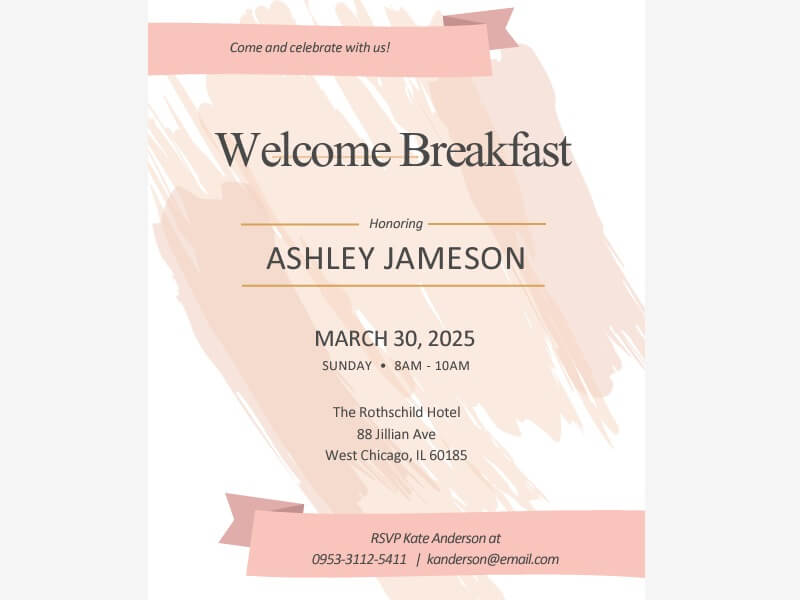
FREE

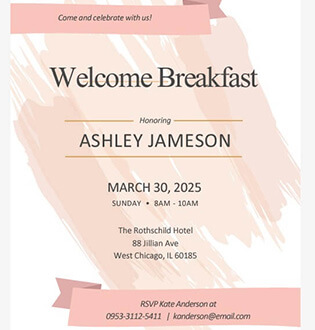
Welcome Breakfast Invitation
FREE

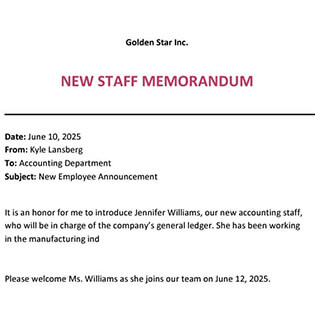
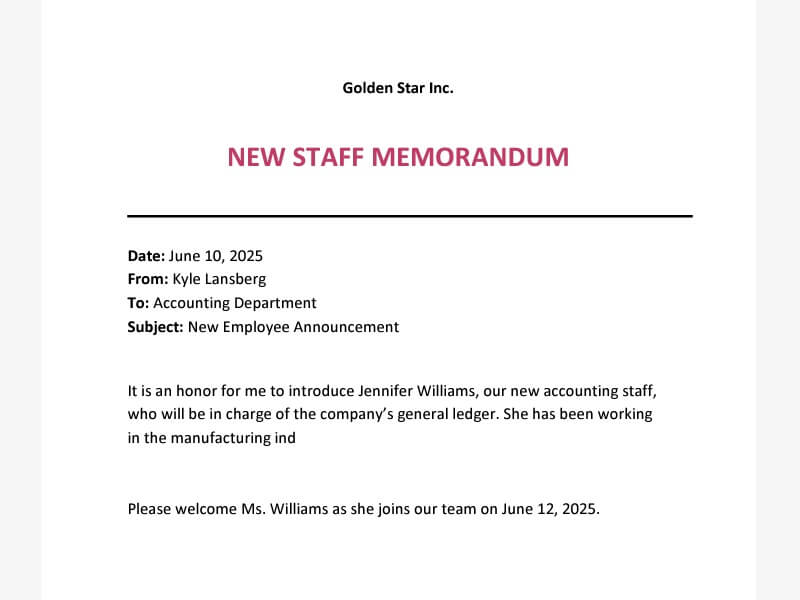
Welcome New Staff
FREE

Welcome Sign Digital Signage
FREE

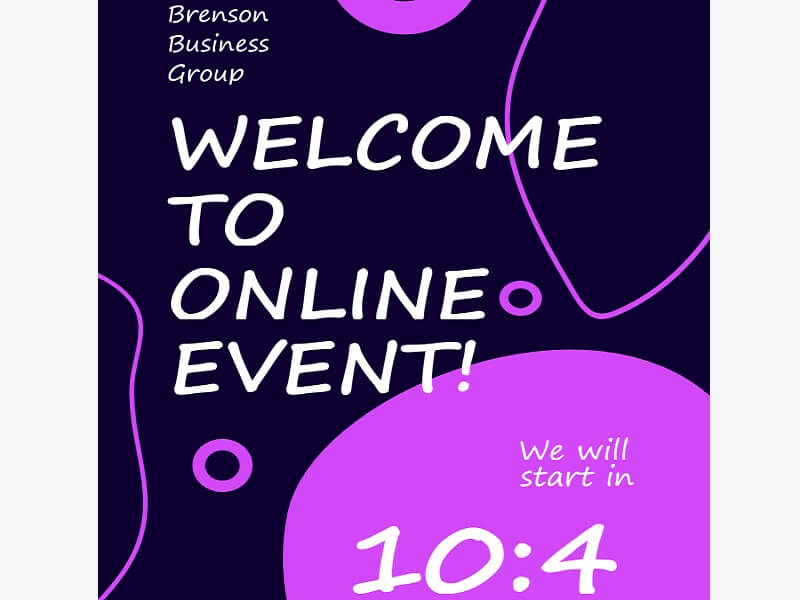
Welcome Countdown Flyer
FREE

Happy Labor Day
FREE

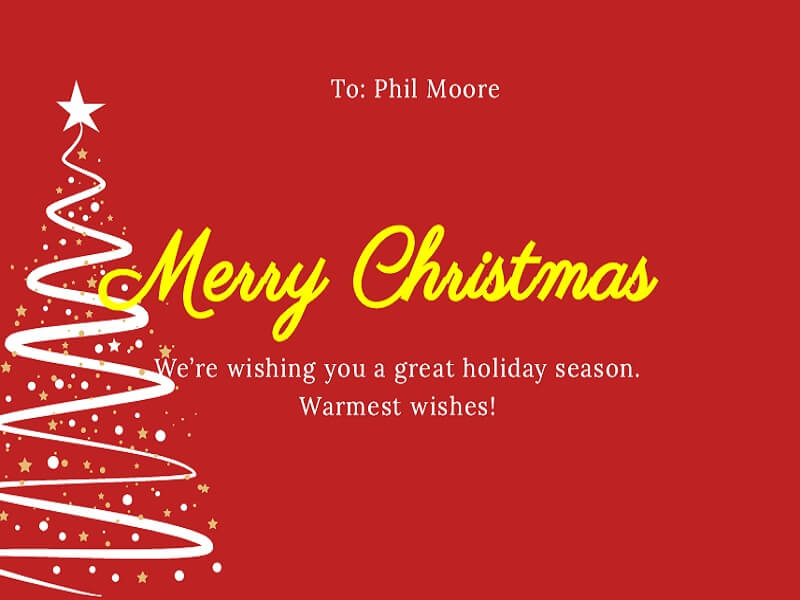
Merry Christmas Card
FREE

Digital Holiday Photo Card
FREE

Season's Greeting Card
star
star
star
star
star_half
4.7/ 5
StackSocial Verified Buyers (10k+ Copies Sold)

Why You Should Use This Tool to Edit Documents

format_line_spacing

Precision Layout Control

Edit structured documents while preserving fonts, spacing, and overall layout consistency. Ensure every update maintains the original document design across contracts, reports, and official files.

edit_document

Accurate Document Editing

Modify text, tables, and structured elements with precision across complex PDF documents. Keep content aligned and consistent while making targeted updates to business and internal files.

controller_gen

Controlled Content Updates

Make precise edits to specific sections of a document without affecting the overall structure. Maintain document integrity while updating information across multi-section files.

responsive_layout

Consistent Format Retention

Edit documents while retaining formatting consistency across pages, sections, and layouts. Ensure professional output quality is preserved throughout every revision.
AcePDF - An Intuitive PDF Editor for Any Use

Frequently Asked Questions

Why can’t I click or edit text inside my PDF?expand_more

If you cannot click, highlight, search, or edit the text in a PDF, the file is usually scanned or image-based rather than text-based. This means the content is stored as an image rather than editable text, so normal PDF editing tools cannot directly modify the document. Password protection, flattened forms, or restricted editing permissions can also prevent text editing in some PDF files.

How do I edit a scanned PDF document?expand_more

Scanned PDFs usually need OCR processing before text editing becomes possible. Open AcePDF Editor, go to the “Tools” section, then select the OCR feature and choose the scanned PDF from your device. After uploading the file, select the recognition mode that matches your document type before starting the OCR process. Once the OCR conversion finishes, open the searchable PDF and begin editing names, text, numbers, or other content directly inside the document. Review the converted text carefully, as scanned pages, unclear printing, complex tables, or handwritten notes may not be recognized perfectly and may require manual cleanup afterward.

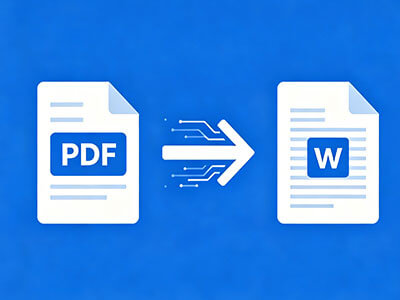
Will the layout stay the same after converting the PDF to Word?expand_more

Converting a PDF to Word with AcePDF can preserve much of the original formatting, but some layout changes may still occur depending on the document's complexity. Open the PDF in AcePDF, go to the “Convert” section, choose the “Convert to Word” option, then start the conversion process and download the exported DOC file. After conversion, review the Word document carefully to check fonts, tables, spacing, images, page breaks, and embedded elements, as these elements may shift slightly during conversion. Contracts, reports, forms, and image-heavy PDFs are more likely to require manual formatting adjustments. Before sharing or printing the edited file, compare it against the original PDF to confirm the layout and content remain accurate.

Can I add text, images, annotations, or page edits to a PDF?expand_more

Text, images, annotations, and page-level modifications can be added directly in AcePDF Editor. Open the PDF file, access the “Edit” feature, and insert or modify text and images as needed within the document layout. To add review notes, highlights, or feedback, switch to the “Comment” option and apply annotations such as highlights, sticky notes, or marked sections directly on the content. After saving the edited file, review the updated PDF carefully to ensure all changes, annotations, and page adjustments appear correctly and align with the original layout. For large PDFs or documents with complex formatting, additional manual adjustments may be required to maintain consistent spacing, structure, and visual alignment.

What should I do if online editing is not enough for my document?expand_more

Some PDFs require more advanced editing features than browser-based tools can provide, especially when handling contracts, scanned files, forms, page restructuring, signatures, or protected documents. In these cases, continue editing the file in AcePDF by opening the document directly inside the desktop software. This workflow provides deeper control over layouts, OCR processing, annotations, form fields, security settings, page organization, and document protection. After completing the edits, save the updated PDF and review formatting, signatures, and permissions carefully before distribution.

Edit PDFs
with Full Control

Free Download

Layout-safe Editing • Ready-to-Share Document Output

Back to Top
Contact Us
Learning Center