









OCR PDF for Scans, Images, and Unsearchable Documents
Turn scanned papers, photos, and locked PDFs into fully editable and searchable text. Choose our online OCR tool for quick extractions or AcePDF Pro for batch processing, multi-language recognition, and advanced layout preservation.
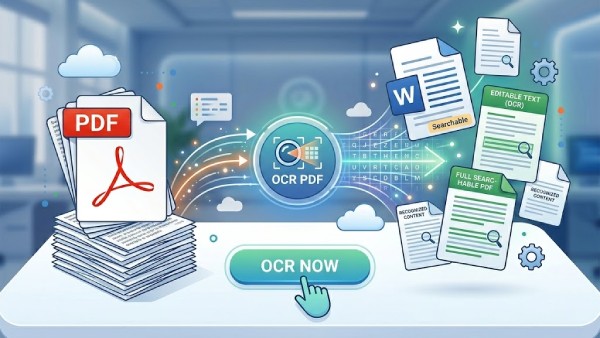


PDF OCR Capabilities Overview
Extract, convert, and recognize text from scanned materials, images, and unselectable documents, then prepare them for editing, searching, archiving, or business workflows.
Recognize and Extract Text from Image with OCR Online
Choose Your PDF OCR Workflow
Convert scanned PDFs and images into searchable, editable text using OCR. Ideal for digitizing documents for study, work, and record-keeping.
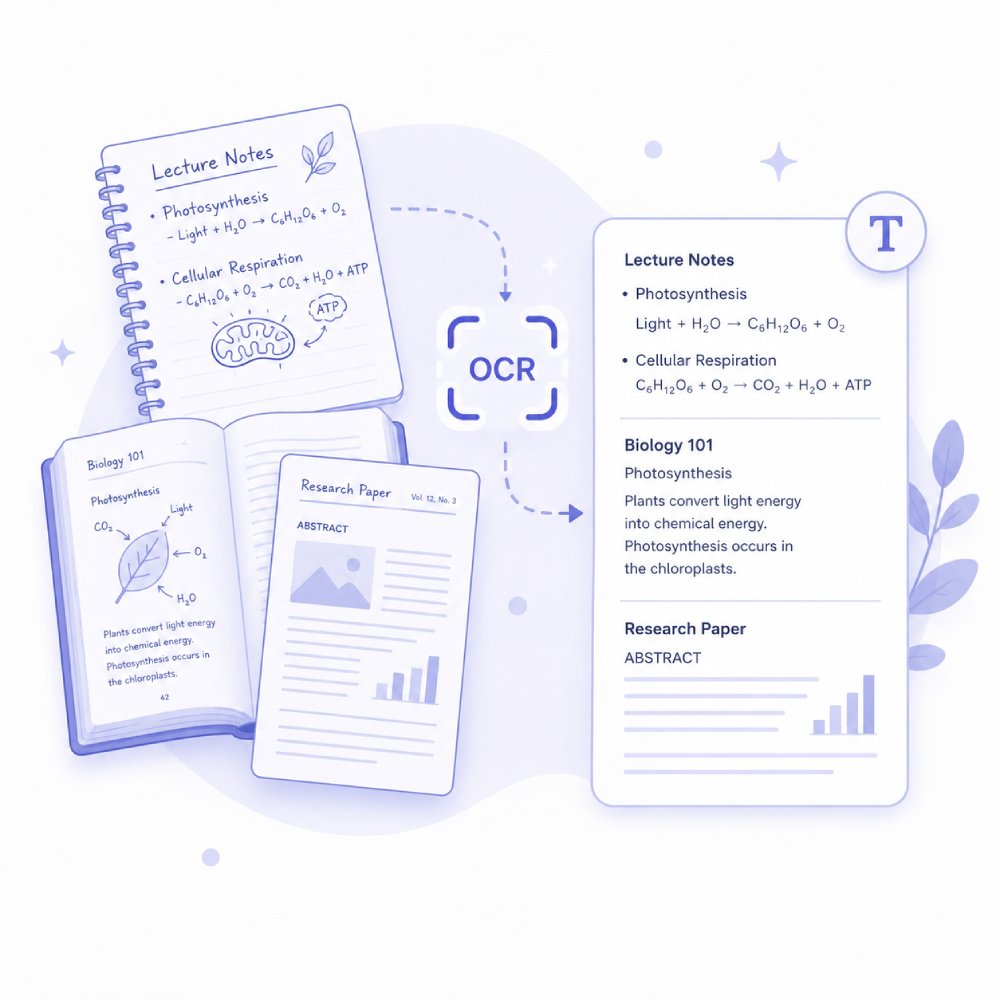
Convert lecture notes, textbooks, and research materials from scanned PDFs into editable text. Helps students and researchers quickly search, copy, and organize study content.
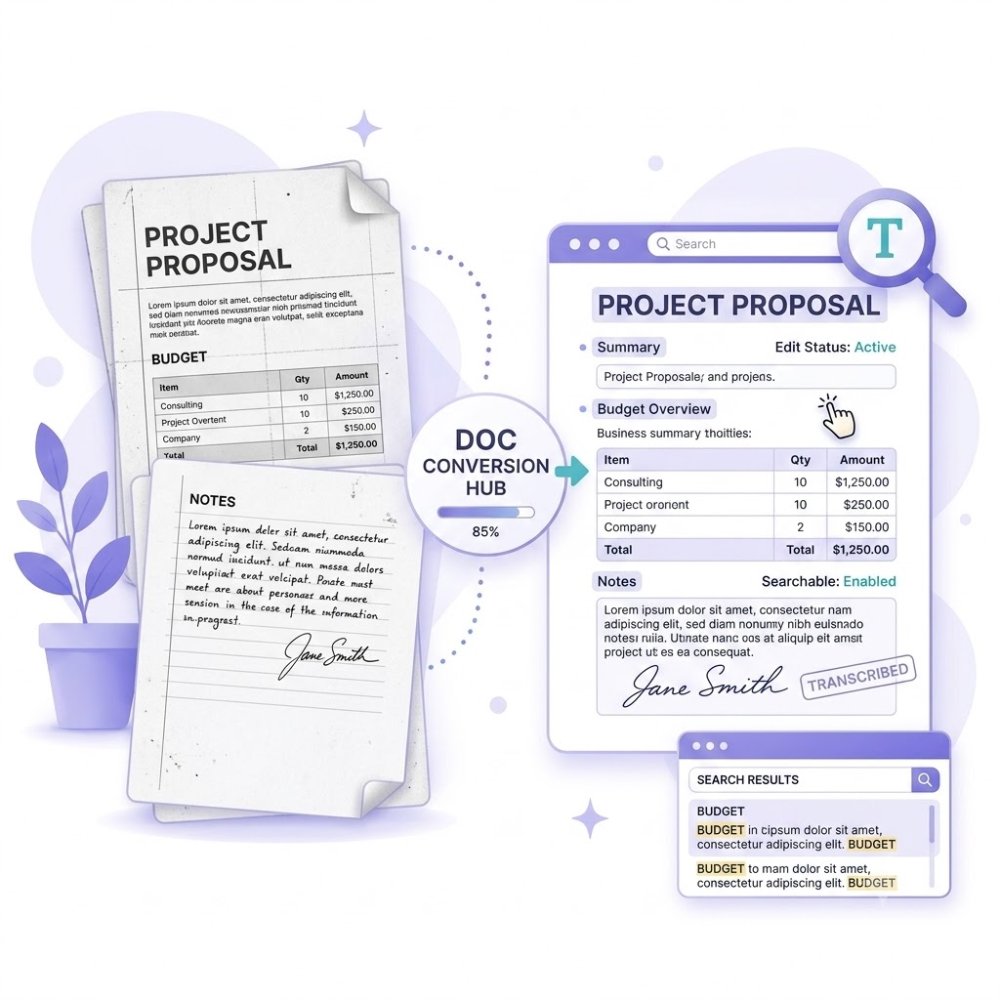
Convert scanned work documents into editable, searchable files for easy updates and reuse. Ideal for reports, memos, and internal documentation digitization.
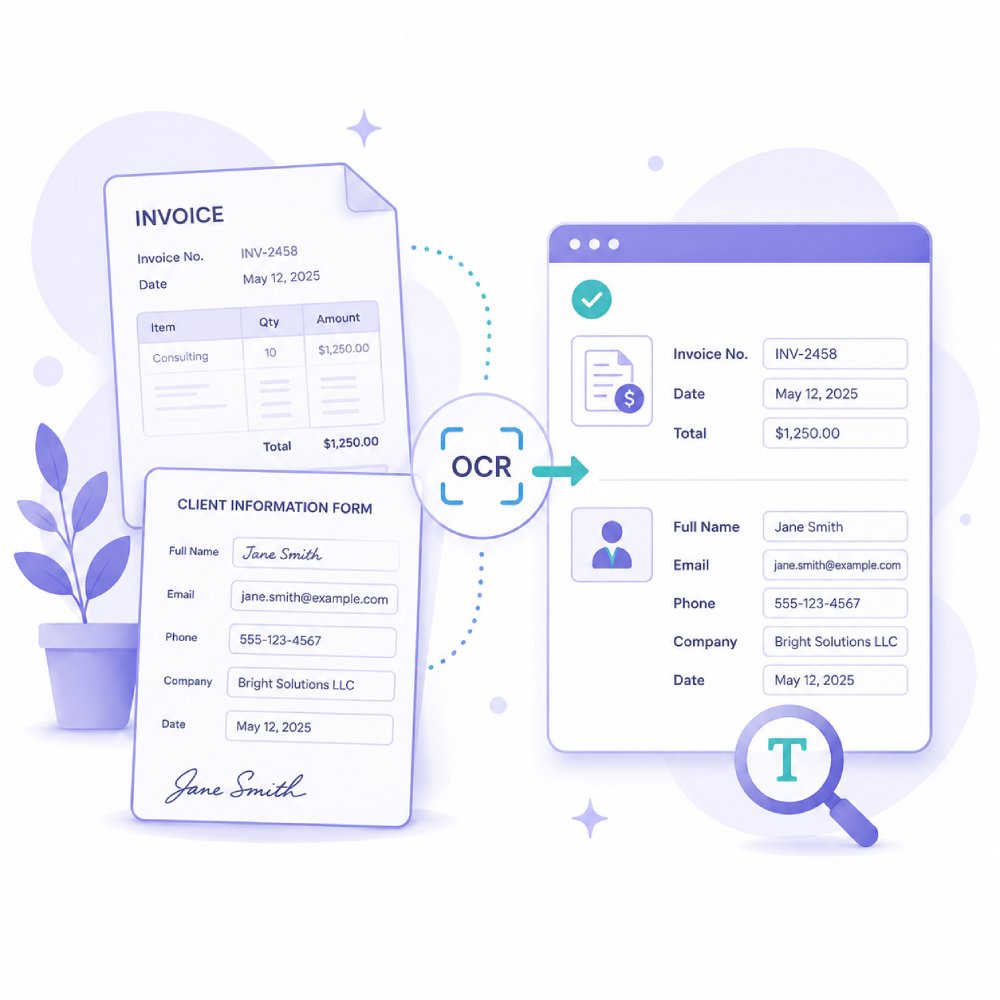
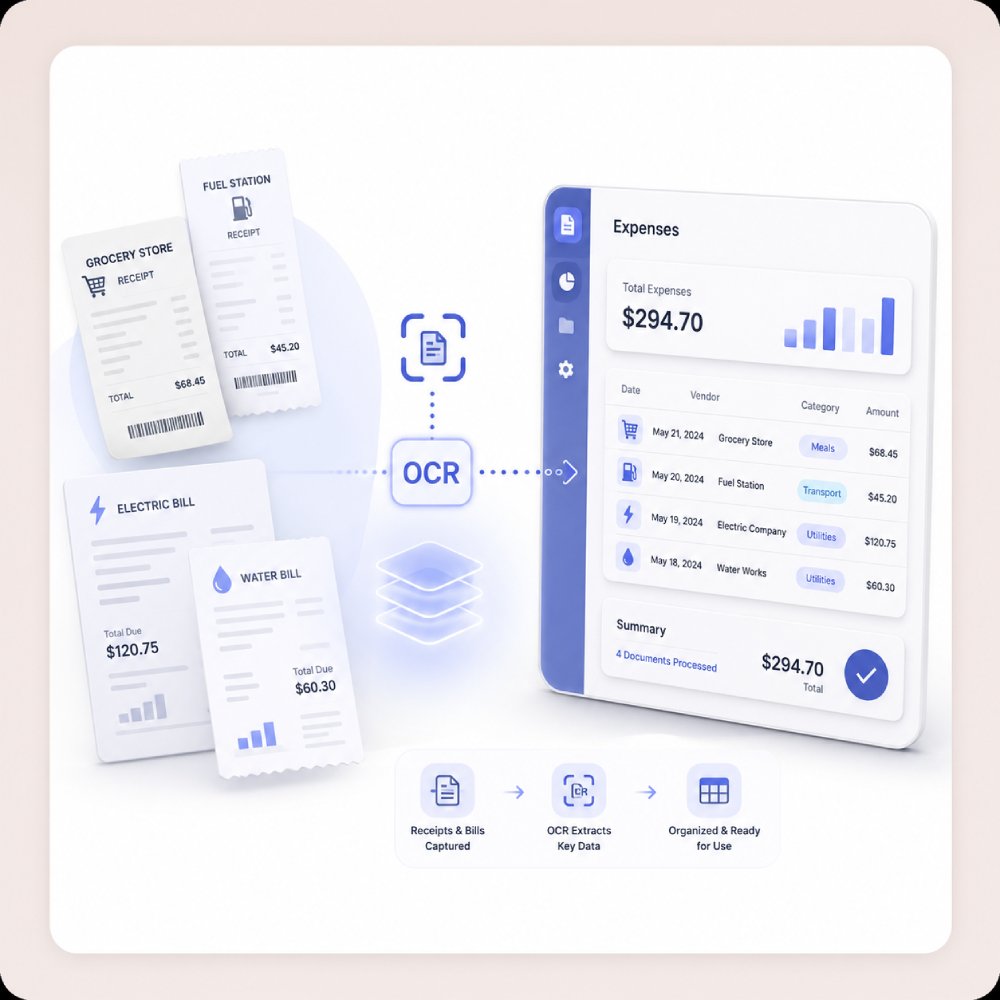
Use OCR to convert receipts and invoices into editable text for tracking and record-keeping. Simplifies expense management and the digitization of financial documents.
How to Turn Scanned PDFs into Usable Content
Choose the OCR workflow that helps you unlock and work with text inside scanned documents.
Select the File You Need to Read
Start with a scanned PDF, image-based document, or photo containing text. OCR works best when the content is clear and readable.
Choose the OCR Workflow That Fits Your Needs
Use online OCR for quick text extraction from individual images, or choose the Pro workflow for advanced editing, batch processing, or greater control over the output.
Continue with Editing or Conversion
Once the text has been recognized, review the results and decide what to do next. You can edit the content, search within the document, convert it to another format, or save it for sharing and archiving.
Why Use OCR for Your PDF?
Apply OCR whenever you need to unlock text from scanned pages or image-based PDFs.
Digitize Printed Documents
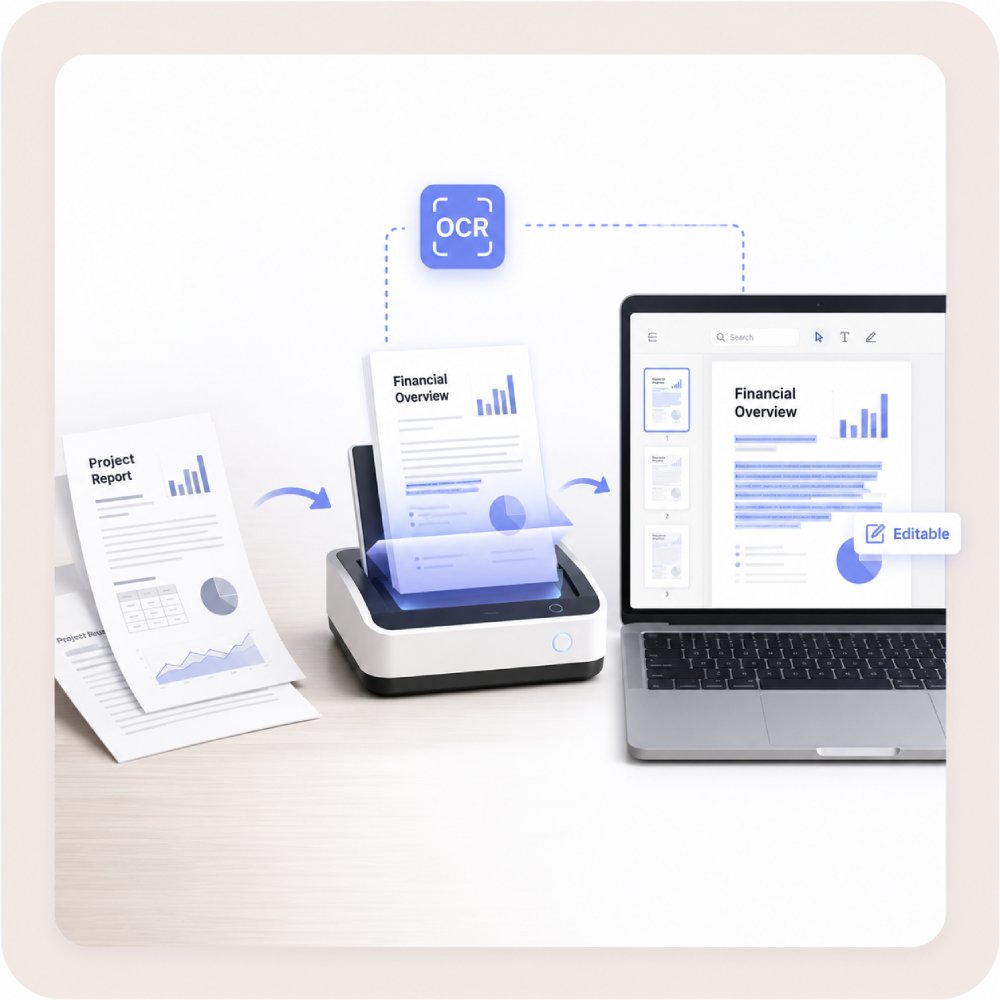
PDF OCR lets you turn paper documents into editable digital files. This makes it easy to store, search, and share important information without keeping physical copies. You can organize your documents better and access them whenever you need.
Edit Scanned Contracts
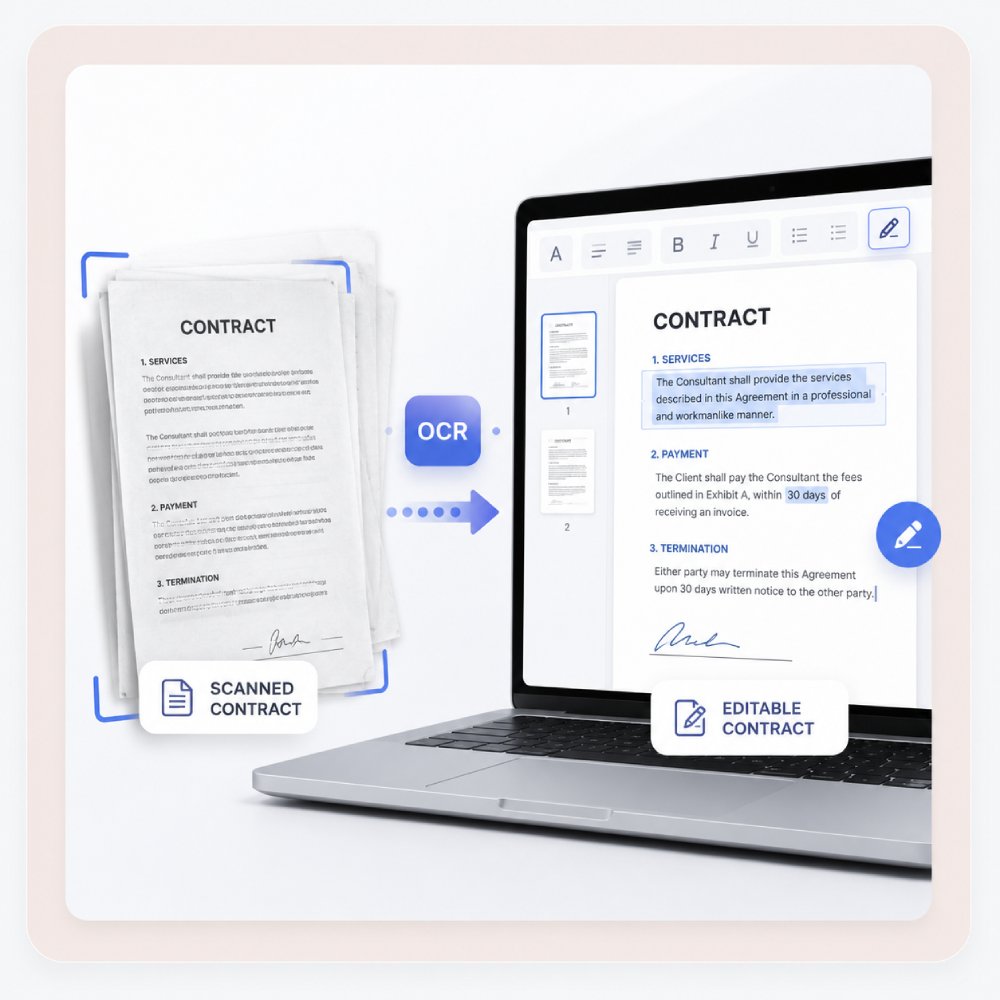
If you have scanned contracts that need editing, convert them into editable text. This allows you to update terms, fix details, or reuse content easily. It saves time and removes the need to retype long legal documents from scratch.
Extract Data from Forms
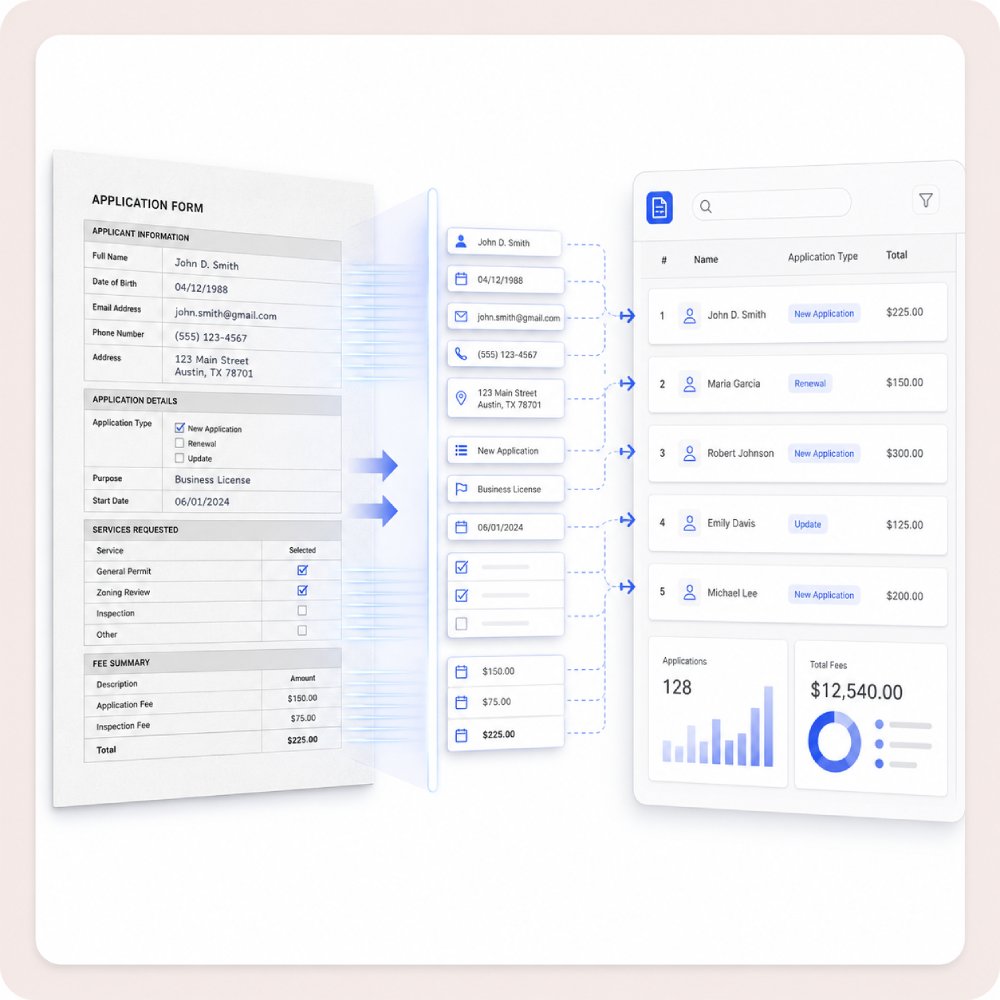
PDF OCR can extract information from scanned forms, such as names, dates, and other details. This makes data entry and recordkeeping easier and reduces manual work in the office.
Process Receipts and Bills
PDF OCR lets you turn receipts and bills into digital text. This helps you track expenses, organize your financial records, and store important information without piles of paper. It simplifies and improves the accuracy of budgeting and accounting.
Explore More PDF Tools
Check more specialized PDF functions to help you organize, edit and secure PDFs.
Frequently Asked Questions
How do I know whether my PDF needs OCR?expand_more
What should I do if OCR misses words or breaks the layout?expand_more
Can OCR handle invoices, receipts, forms, or contracts?expand_more
How do I OCR a PDF before converting it to Word or Excel?expand_more
What language or quality limitations should editors mention for online OCR?expand_more
Extract Text from PDFs with OCR
Get AcePDF editor to instantly convert scanned PDF into editable PDF for faster and more efficient workflows.
Free trial. No credit card required.