menu

Annotate PDFs with Comments, Highlights, and Markups for Structured Review

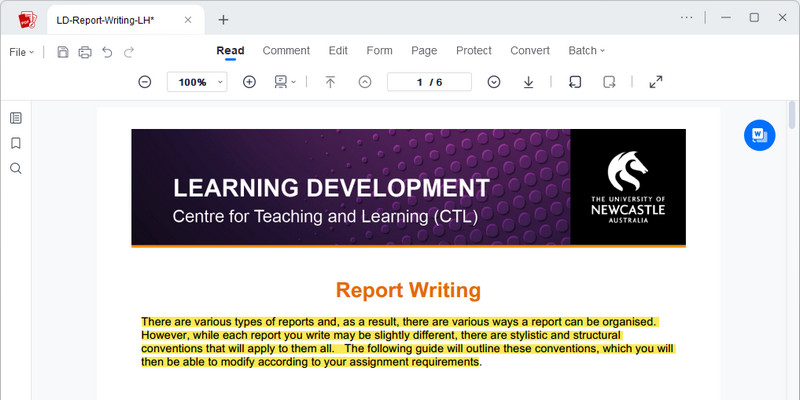
Add comments, highlight sections, and apply markups directly on PDFs to collect structured feedback from reviewers. Every annotation stays connected to the document so teams can review, revise, and approve content without losing context across versions.
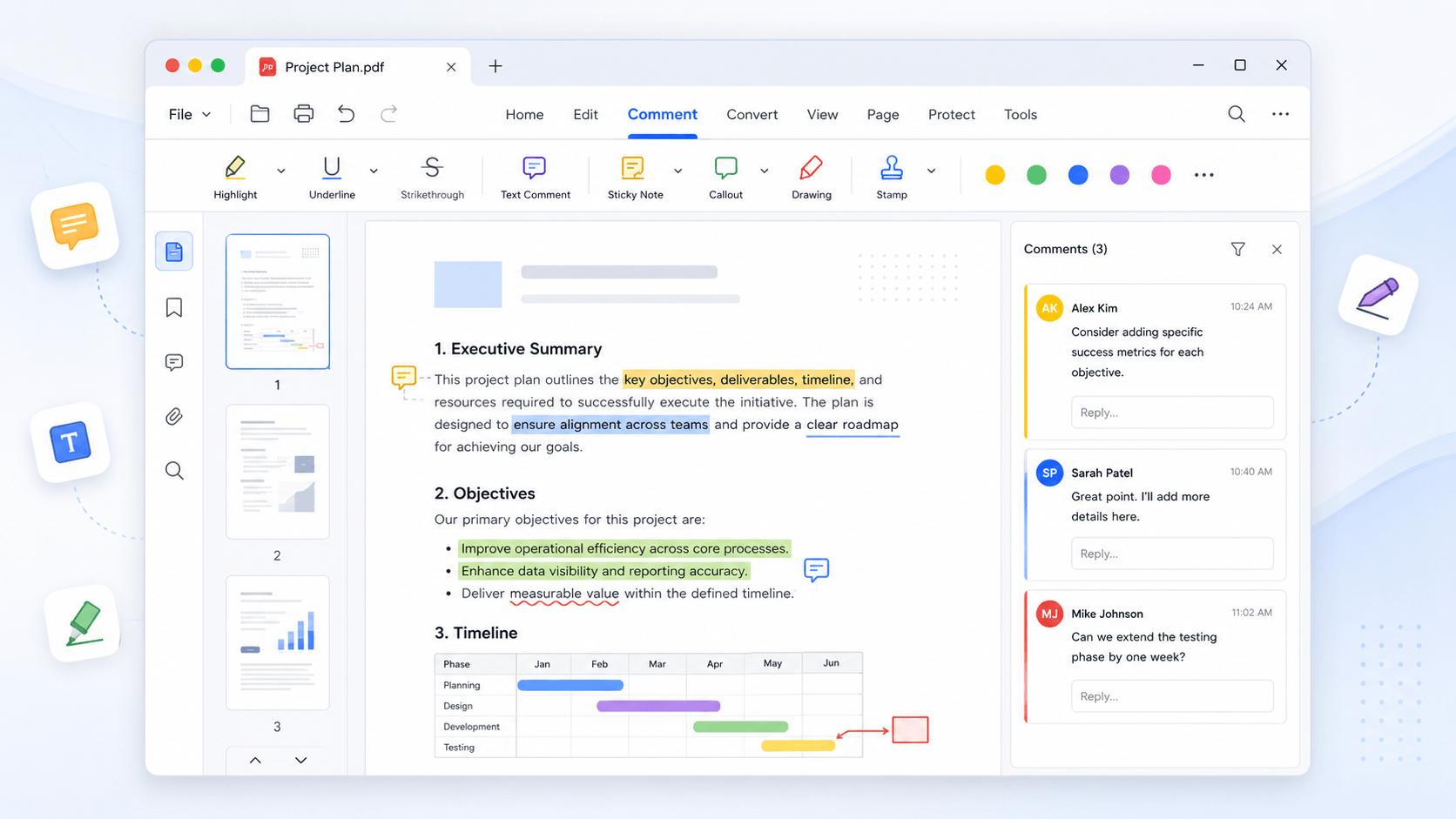
Add Comments • Highlight Sections • Track Feedback
review and annotate pdf
star
star
star
star
star_half
4.7/ 5
StackSocial Verified Buyers (10k+ Copies Sold)

Preview and Prepare PDFs Before Detailed Reviewing

Accurate PDF Annotations With Zero Layout Shift

add_notes

Review and Annotate Without Compromising Document Integrity

Every markup—highlight, underline, note, stamp, or freehand drawing—is applied at the vector layer, ensuring precision down to individual glyph boundaries. Our system preserves original PDF geometry and text flow, preventing the artifacts, blurring, or layout drift commonly found in raster-based annotation tools. Whether collaborating with teams or reviewing versions across devices, your annotations remain sharp, reversible, and structurally consistent.

bar_chart_4_bars

Technical Metrics

Our annotation framework is built on quantifiable rendering standards to ensure accuracy, legibility, and long-term reliability.

  • check_circle
    ±0.2 pt Annotation Accuracy — scientific alignment across all text and vector elements
  • check_circle
    True Vector-Level Processing — annotations never rasterize underlying content
  • check_circle
    99.8% OCR Extraction Accuracy — ideal for review workflows requiring text search

Common Challenges in PDF Annotation

Though annotating PDFs can streamline the document review, it often comes with some problems.

schedule

Feedback Is Split Across Multiple Review Channels

Reviewers leave comments in emails, chat threads, and separate files instead of directly on the PDF. Feedback becomes fragmented and difficult to apply consistently during revision.

design_services

Review Comments Are Lost Between Document Versions

Different stakeholders annotate different copies of the same file, leading to duplicate or lost feedback. Important review decisions get missed when versions are not synchronized.

grid_layout_side

Changes Cannot Be Tracked Across Multiple Reviewers

Multiple people annotate the same document without a unified feedback layer. Teams struggle to identify which comments have been resolved, updated, or ignored.

security_update_warning

Revisions Require Repeated Manual Rechecking

Without structured annotation tracking, reviewers must re-read entire documents after each update. This slows down the feedback cycle and delays approval.

Review and Annotate PDFs by Scenario

Review and mark up your PDF documents tailored to different uses.

  • Mark Up Reports
  • Annotate Proposals
  • Collaborate on Academic Papers
  • Review Design Documents
The Challenge

Internal reviewers add feedback through separate channels rather than directly on the report. This makes it difficult to consolidate decisions during revision.
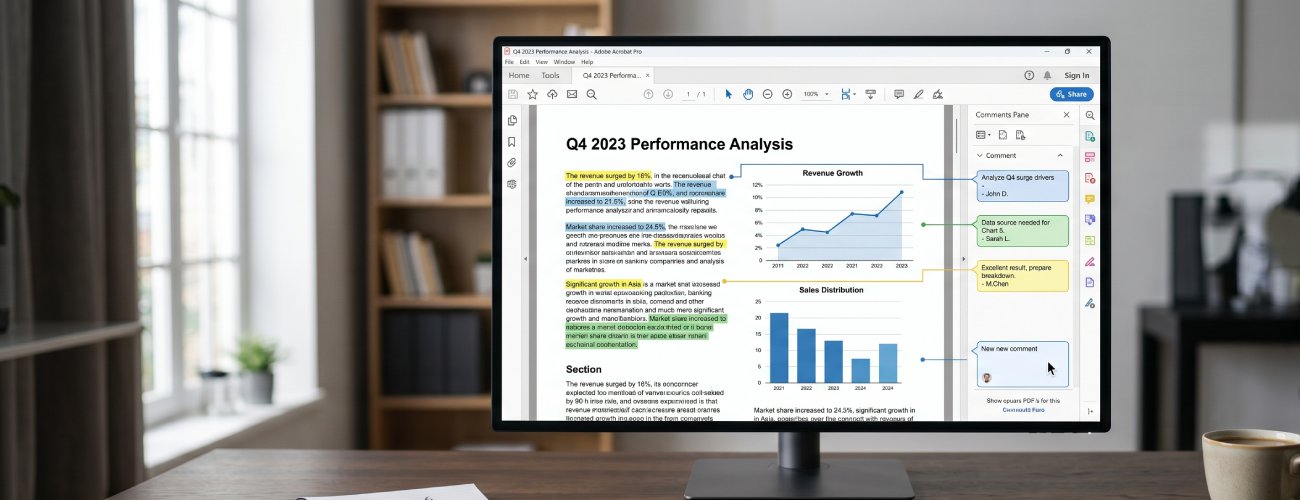
Mark Up Reports

What you can do:

  • check
    Add comments and highlights directly on the report sections.
  • check
    Mark key data points using annotation tools.
  • check
    Keep all reviewer feedback in a single PDF layer.
The Challenge

Proposal feedback is often shared outside the document, making it unclear which changes are final. This leads to repeated rounds of revision before approval.
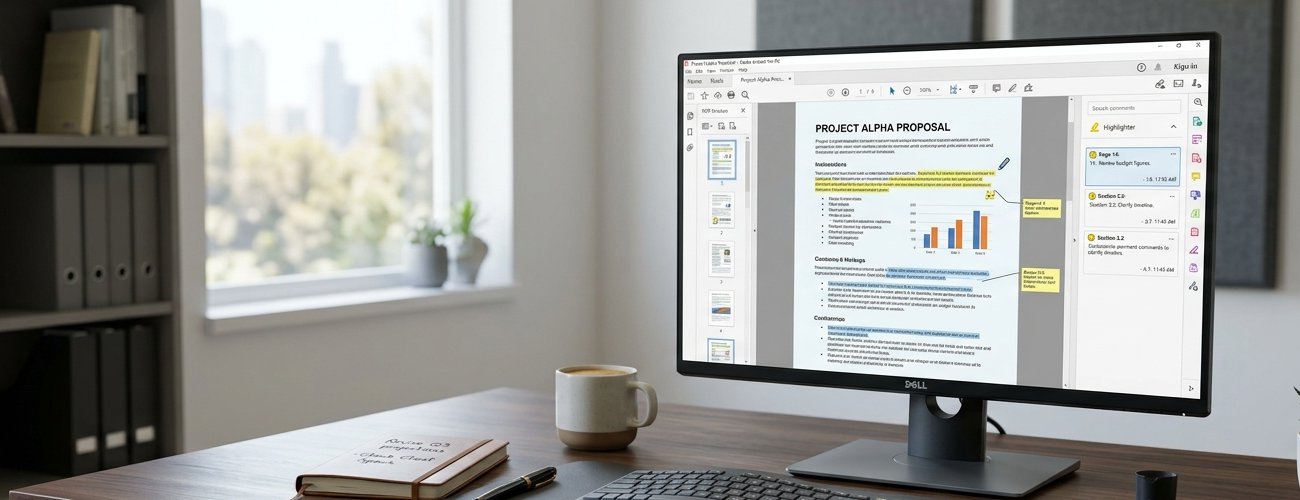
Annotate Proposals

What you can do:

  • check
    Add structured comments for approval or correction.
  • check
    Highlight sections that require revision before submission.
  • check
    Track all reviewer annotations in one document.
The Challenge

Academic revisions involve multiple authors and reviewers, often creating conflicting feedback across versions. This makes revision tracking difficult.
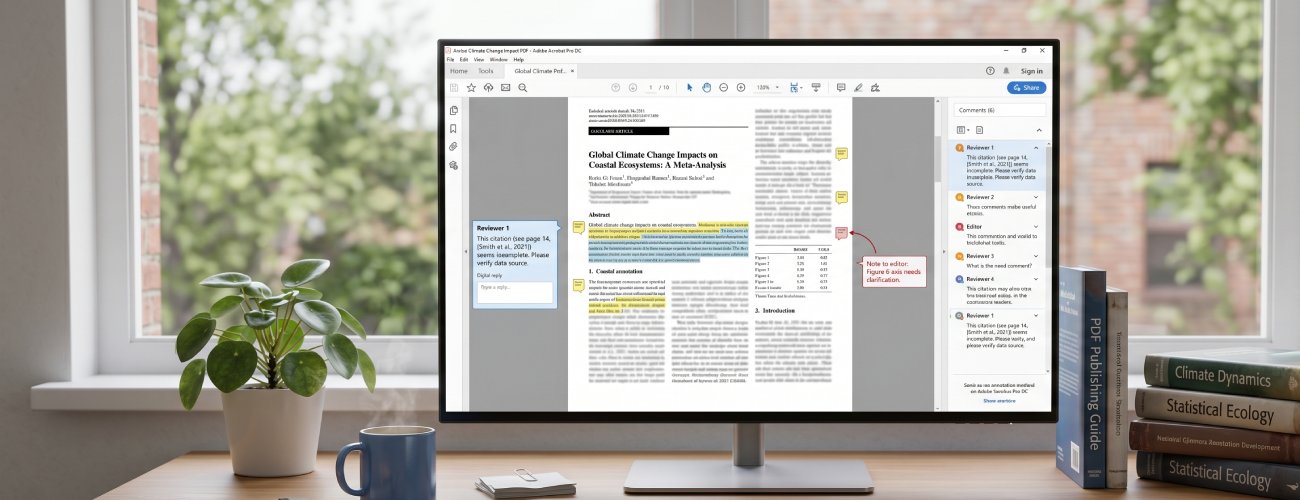
Collaborate on Academic Papers

What you can do:

  • check
    Add annotations, citations, and reviewer comments in one PDF.
  • check
    Highlight sections requiring revision or clarification.
  • check
    Consolidate all feedback into a single tracked version.
The Challenge

Design feedback is spread across screenshots, chats, and meetings rather than in the document itself. This causes misalignment during implementation.
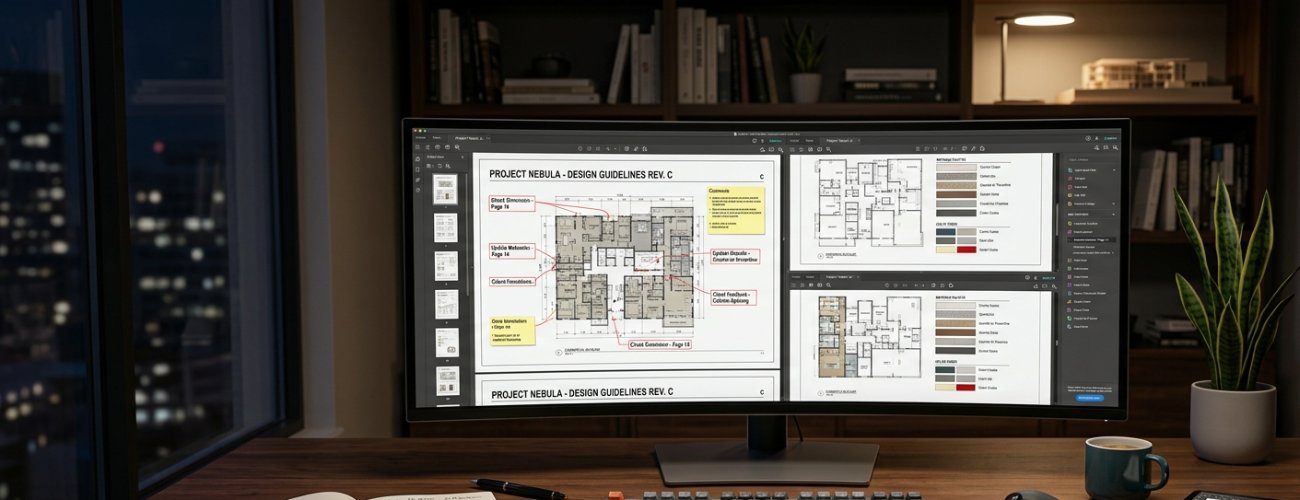
review design document

What you can do:

  • check
    Highlight UI elements and add visual markup directly on designs.
  • check
    Comment on required changes within the design file.
  • check
    Align feedback in a single annotated document.

How to Annotate Your PDF Freely

Upload PDFs, add comments and highlights, review feedback from multiple contributors, and share the finalized document.

  • 1

    Import Document for Review

    Upload PDFs into a structured review environment where feedback and annotations can be applied directly on the document.

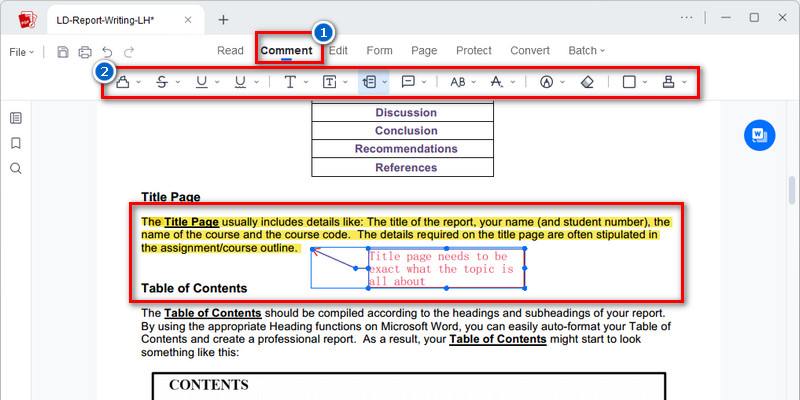
  • 2

    Add Annotations and Collect Feedback

    Reviewers add comments, highlights, and markups directly on the PDF to capture structured feedback in context.

  • 3

    Consolidate Review Feedback

    All annotations from multiple reviewers are gathered into a single view for revision analysis and update planning.

  • 4

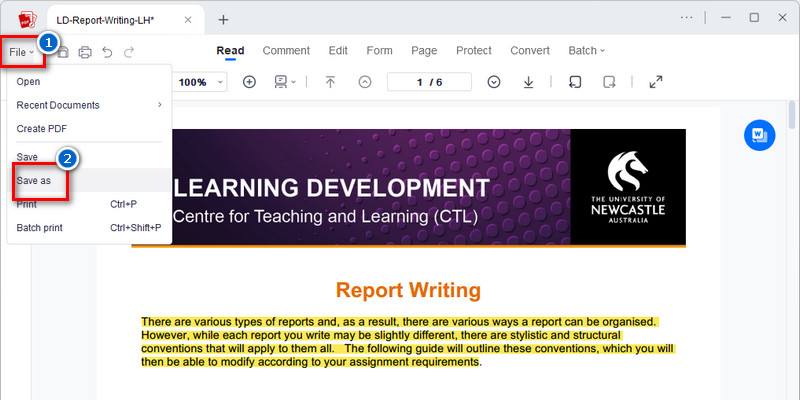
    Export or Share Final Reviewed Version

    Generate a finalized annotated PDF that can be shared for approval or re-entered into another review cycle if further changes are required.
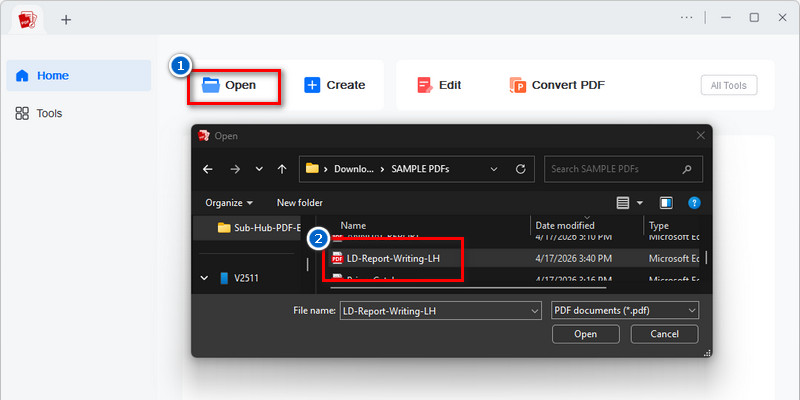
Upload PDFs
Add Annotations
Consolidate Review Feedback
Export Final Reviewed Version

Free PDF Templates

Get instance to professionally designed free PDF templates to help you keep organized and save time.

  • Business
  • Birthday Cards
  • Welcome Messages
  • Holiday Cards
FREE

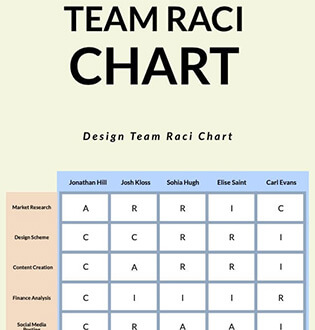
Team Collaboration Template
FREE

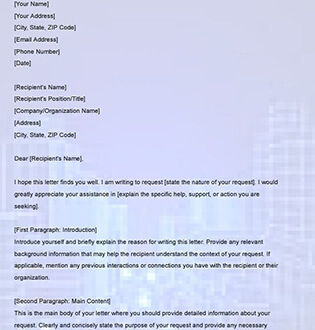
Request Letter Template
FREE

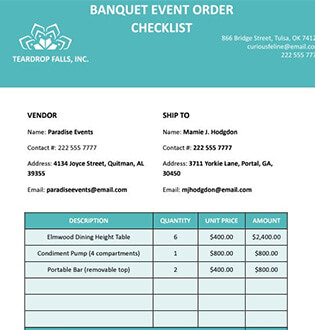
Event Planner Template
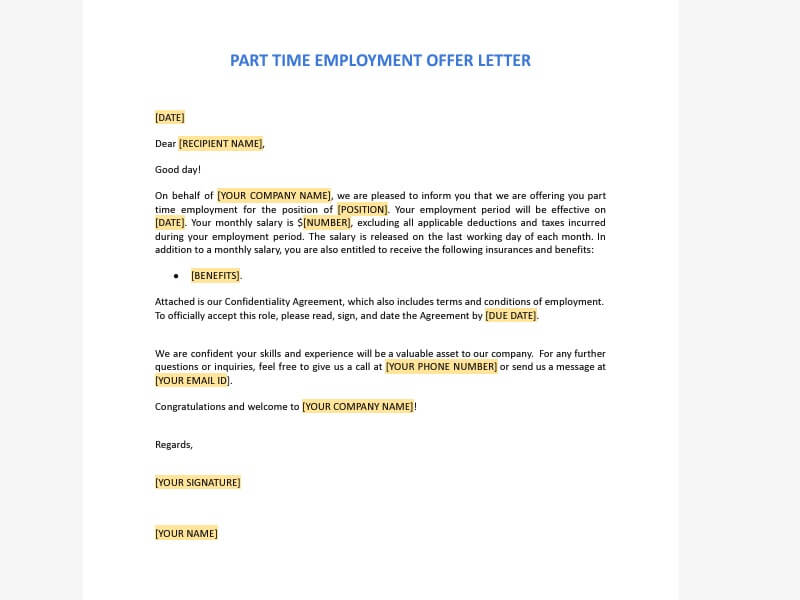
FREE

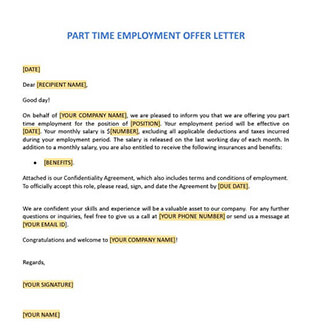
Offer Letter Template
FREE

Birthday Greeting for Grandma
FREE

Birthday Wishes for Granddaughter
FREE

Birthday Wishes for Ex Boss
FREE

Birthday Wishes for Husband
FREE

Welcome Breakfast Invitation
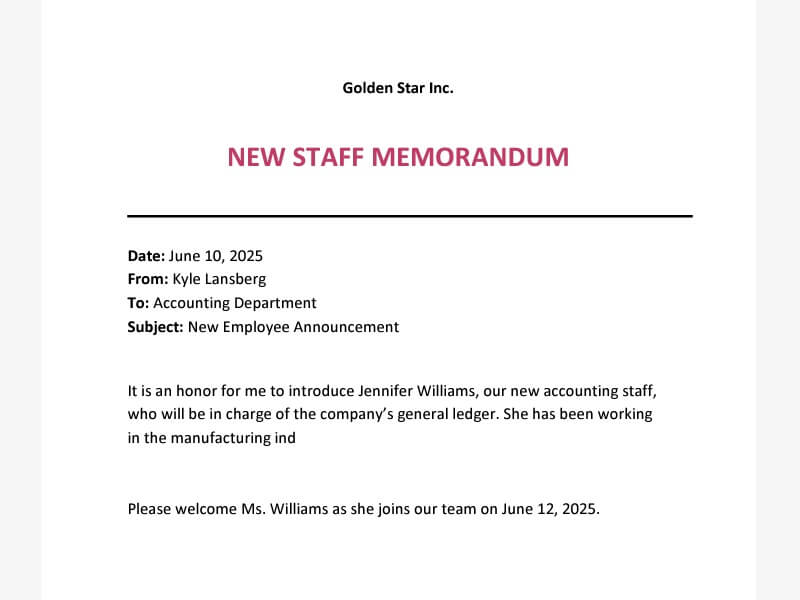
FREE

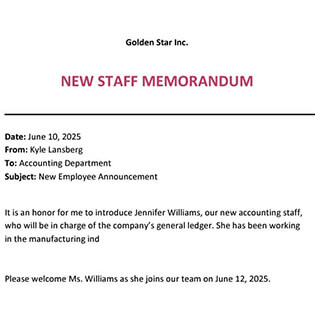
Welcome New Staff
FREE

Welcome Sign Digital Signage
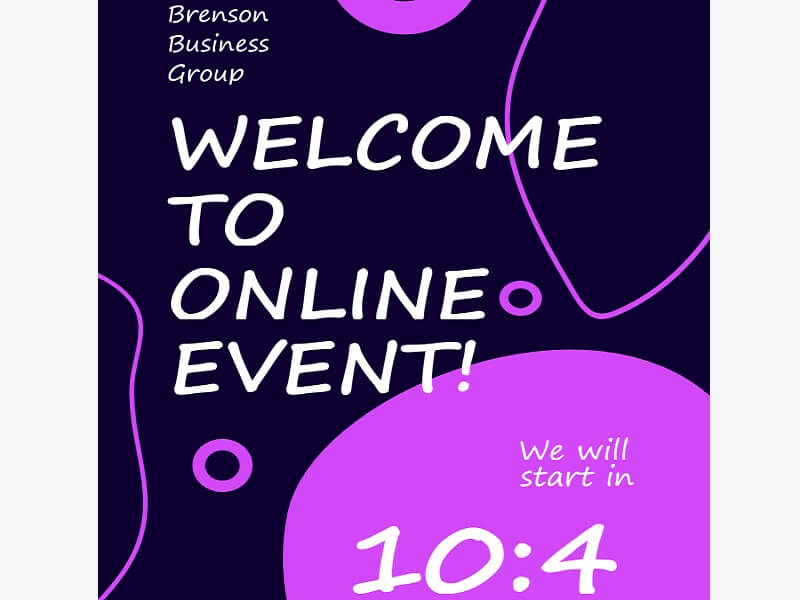
FREE

Welcome Countdown Flyer
FREE

Happy Labor Day
FREE

Merry Christmas Card
FREE

Digital Holiday Photo Card
FREE

Season's Greeting Card
star
star
star
star
star_half
4.7/ 5
StackSocial Verified Buyers (10k+ Copies Sold)

Annotation Features for Review Workflows

comment

Add Comments Directly on PDF Content

Place structured comments on specific sections of the PDF to capture reviewer feedback. Comments stay attached to content for precise revision tracking.

highlight

Highlight Key Sections for Review

Mark important text, figures, or data using highlights to guide the reviewer's focus. Highlights create clear reference points during feedback discussions.

category

Apply Shapes and Freehand Markups

Use shapes, arrows, and freehand tools to visually indicate changes or corrections. Markups help communicate revision intent more clearly across teams.

award_star

Track Feedback Across Review Cycles

Monitor all annotations across multiple review rounds within a single document. Feedback history stays visible to support ongoing revision cycles.

AcePDF - An Intuitive PDF Editor for Any Use
Frequently Asked Questions

How do I add comments, highlights, or markup to a PDF for review?expand_more

You can review and annotate documents directly in AcePDF Editor without printing or rewriting the file manually. Open the PDF in the editor, then access the “Comment” tools to add highlights, underlines, text boxes, callouts, stamps, or sticky note comments throughout the document. These markup tools are useful for reviewing reports, assignments, contracts, or collaborative drafts while keeping the original content visible. After saving the annotated PDF, reopen it to confirm that all comments and highlights appear correctly across different pages. If the document contains scanned pages, OCR may be needed first so text can be selected and reviewed more accurately.

How do I prepare a PDF for team feedback or client approval?expand_more

Preparing a PDF for review is easier when the document is organized and clearly annotated before sharing. In AcePDF Editor, you can add reviewer comments, highlight important sections, attach stamps, and reorganize pages before sending the file to clients or team members. Start by reviewing the document structure, then add notes or markup where needed for attention or approval. Once the annotations are complete, save a finalized review copy and test whether all comments remain visible after reopening the file. If the PDF is large, compressing it afterward may help speed up email sharing or uploading.

What should I do if the PDF is scanned and cannot be selected or searched?expand_more

If the PDF behaves like an image and the text cannot be highlighted or searched, you can process the document with AcePDF Editor's OCR feature before starting the review. Import the scanned file into AcePDF Editor, run OCR to recognize the text, then save the searchable version of the document for annotation. Once OCR is complete, you can highlight text, leave comments, and add markup more accurately because the content becomes selectable. Before sharing the reviewed file, carefully review the recognized text, as OCR accuracy may vary depending on scan quality and document clarity. Clear English text usually produces better OCR results than blurry scans or pages with heavy handwriting.

When should I use AcePDF Pro for annotation instead of converting the file?expand_more

AcePDF Editor is better suited when you only need to review, comment on, or mark up a document without altering the original file structure. Instead of converting the PDF into another editable format, you can keep the layout intact while adding highlights, comments, stamps, signatures, or review notes directly on the PDF pages. This workflow helps preserve formatting, charts, tables, and page alignment during the review process. Conversion may still be useful if the recipient needs to rewrite or heavily edit the content rather than just review it. For scanned files, OCR should be completed first to improve text selection during annotation.

How do I combine reviewed pages or attachments into one final PDF?expand_more

Reviewed pages, signed forms, and supporting attachments can be merged into a single, organized document using the “Combine” feature in AcePDF Editor. Add the reviewed PDFs, attachments, or approval pages into the editor, arrange them in the correct sequence, then run the merge process to create one finalized review package. After exporting the combined PDF, scroll through the entire document to verify that comments, signatures, and annotations still appear correctly. This process is useful for consolidating client feedback, approval records, or multi-review document versions into one file before archiving or distribution.

Review, Annotate, and Finalize PDFs
with Structured Feedback

Free Download

Add Comments • Review Feedback • Approve Faster

Back to Top
Contact Us
Learning Center