








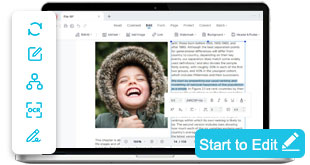

Edit PDFs for Text, Images, and Page Layouts
Modify text, adjust images, rearrange pages, and add annotations directly within your PDF files. Choose our online PDF editor for quick tweaks or AcePDF Pro for full-scale editing, OCR text modification, page merging, and absolute document control.
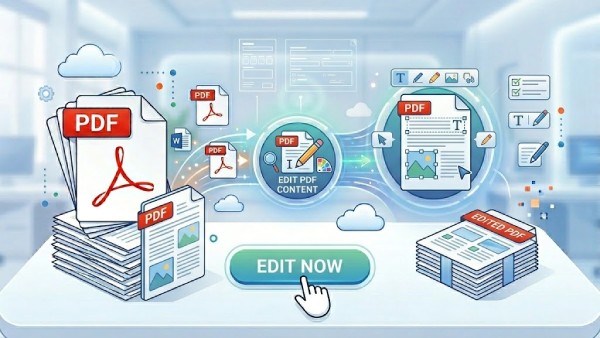


PDF Editing Capabilities Overview
Modify PDF content from text blocks, images, layouts, forms, and scanned materials, then prepare them for sharing, signing, archiving, or business use.
Convert PDF Files Online in Browser
Choose Your PDF Editing Workflow
Modify text, images, pages, and layouts in PDF files. Keep documents accurate, organized, and ready for sharing or printing.
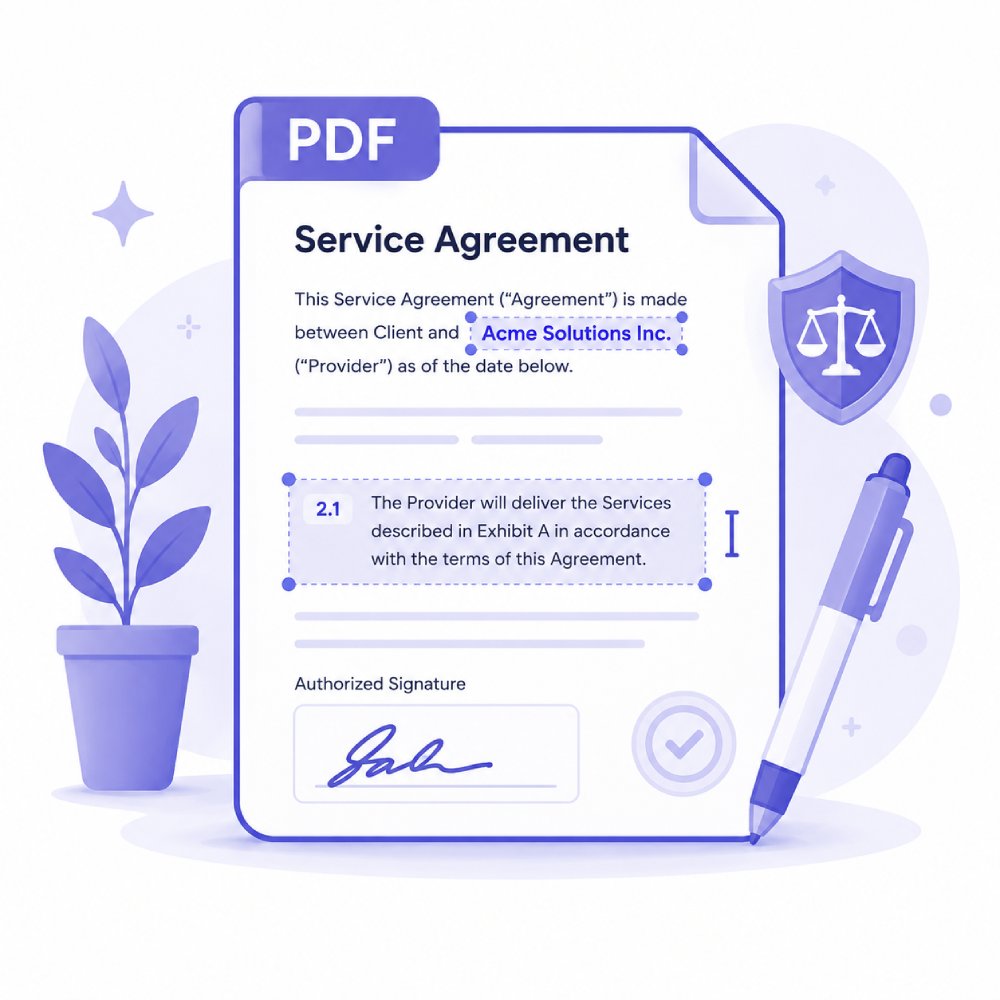
Edit and refine contract documents with precise text adjustments, clause updates, and formatting tools. Ideal for legal teams, HR departments, and business professionals managing agreements.
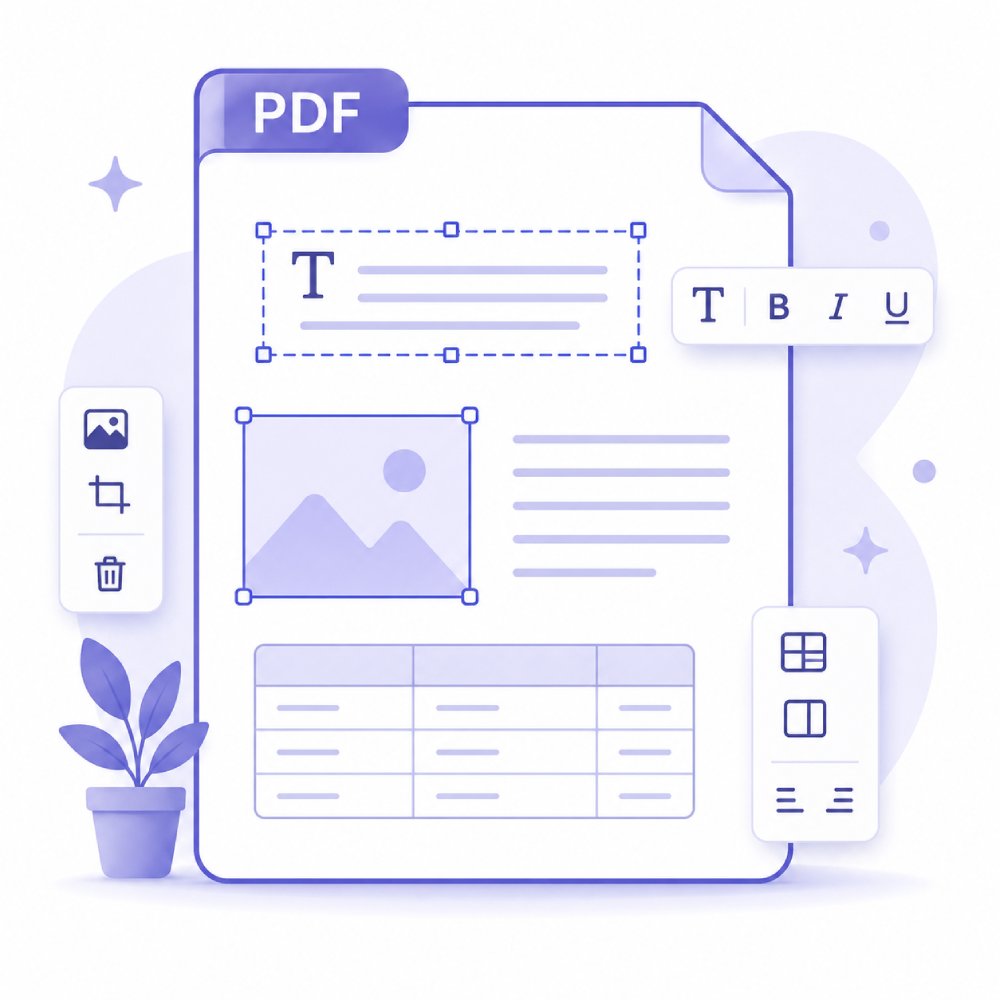
Modify and update business documents with flexible editing tools for text, images, and formatting. Suitable for reports, proposals, invoices, and everyday office documentation workflows across teams.
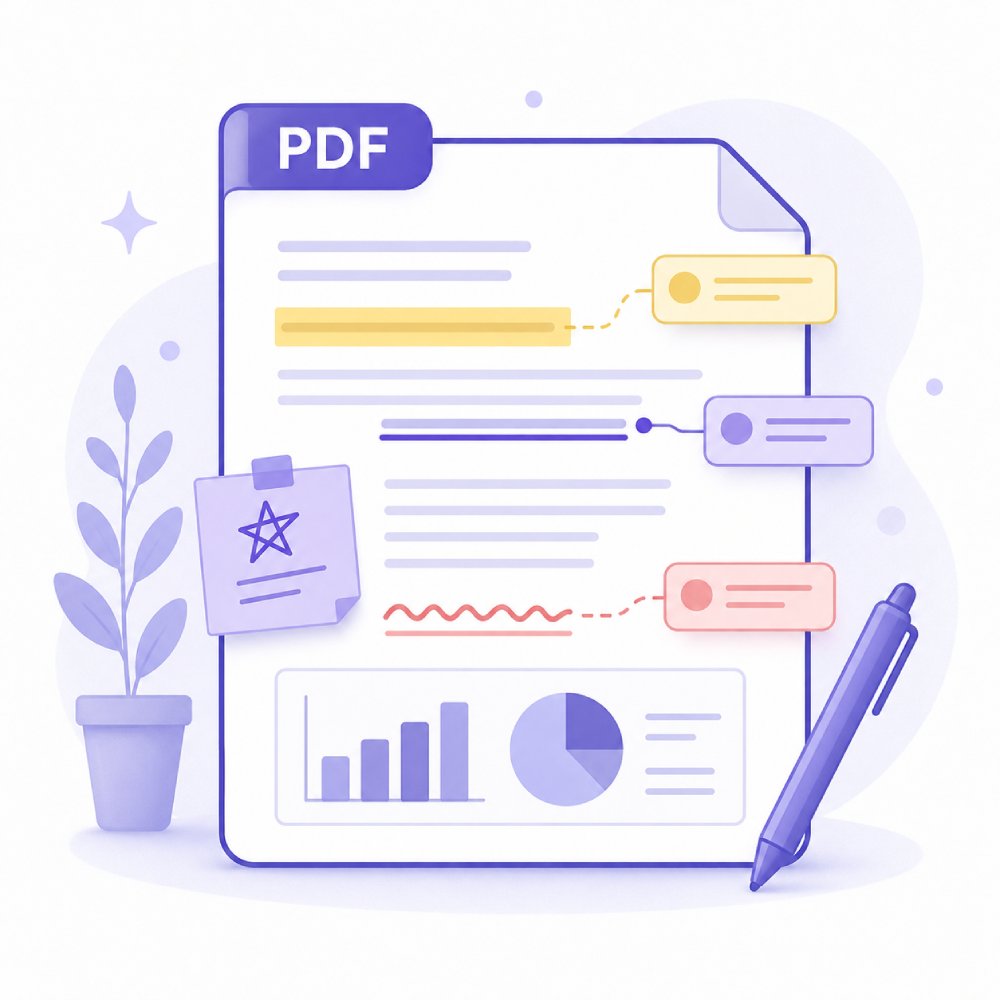
Enable collaborative PDF review with highlighting, comments, stamps, and markup tools. Perfect for feedback cycles, document approvals, and team collaboration in legal, academic, and business environments.
How to Plan Your PDF Editing Task
Choose the editing approach that best matches the changes you need to make.
Start with Your PDF File
Choose the PDF you want to work on. You can open a document from your device, cloud storage, or recently used files, depending on where your file is saved.
Pick the Editing Task You Need
Decide what you want to do with your PDF. You can edit text, replace or insert images, adjust layout elements, or make quick corrections depending on your goal.
Finish by Saving or Exporting Your File
After editing, choose how you want to complete your file. You can save changes, export in another format, compress the PDF, or prepare it for sharing, printing, or storage.
Smart PDF Editing for Every Scenario
Explore the most common user cases for PDF editing.
Update Marketing Materials
With our PDF editor, you can quickly edit brochures, flyers, and presentations by changing text, images, or layout. This helps your marketing materials look fresh and professional. This makes them ready to share with clients or use in campaigns.

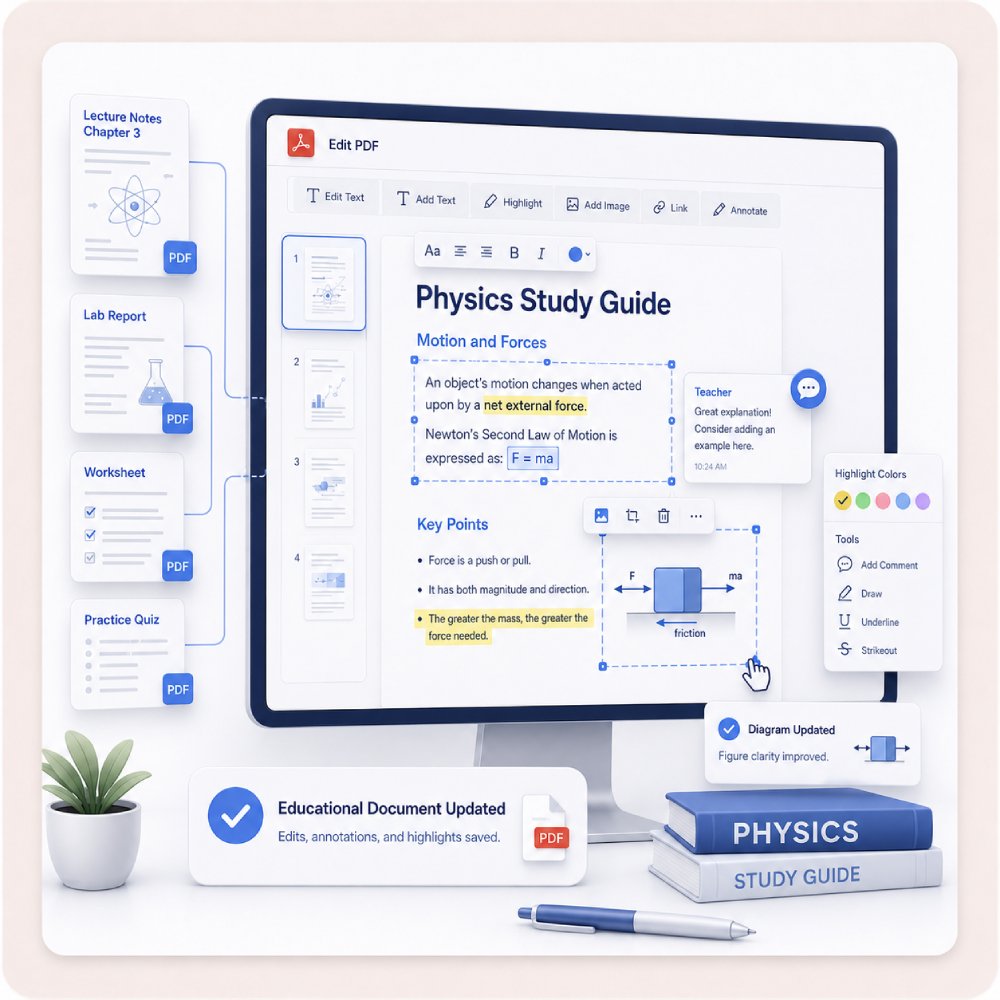
Edit Educational Documents
Easily modify worksheets, study guides, or reports by updating text and adjusting layouts. As a result, your documents are clear, organized, and easy to use, whether for teaching, learning, or submitting assignments on time.
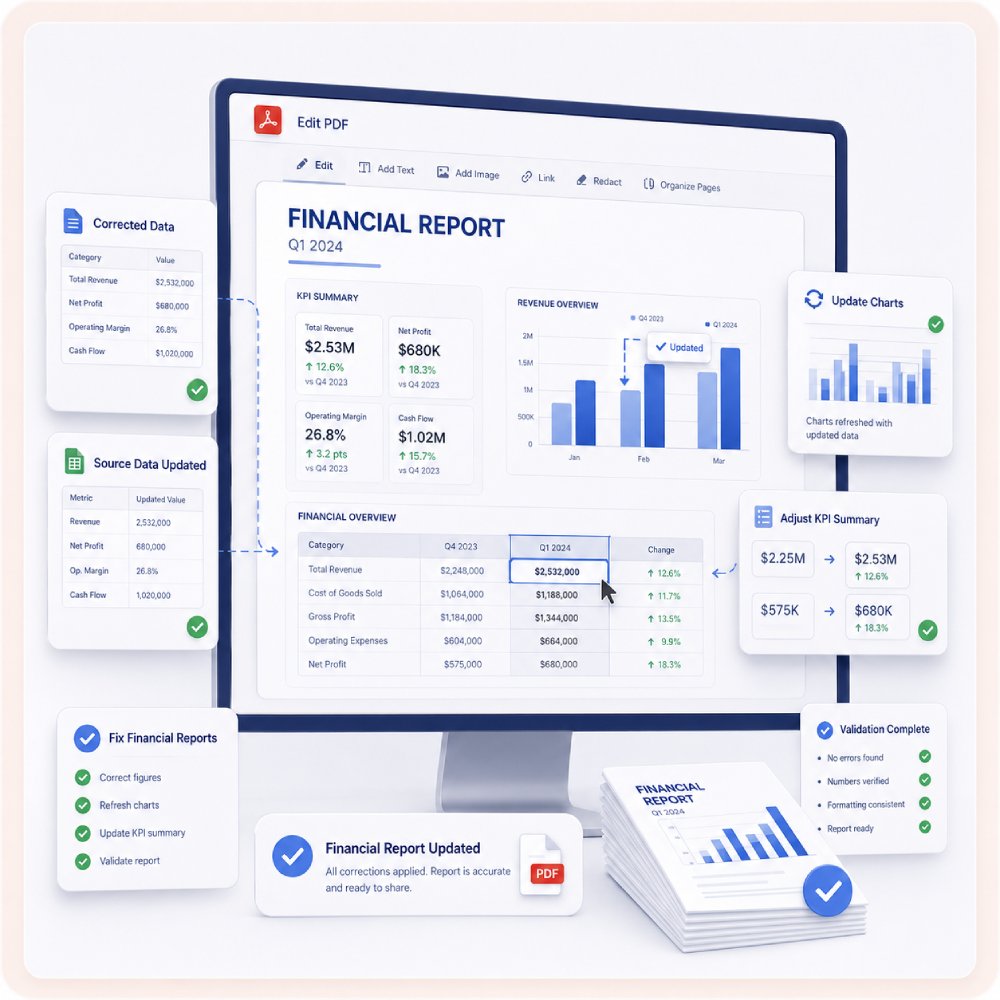
Fix Financial Reports
You can also edit invoices, budgets, or statements by adjusting text, tables, and layouts. This keeps your financial documents accurate, well-organized, and easy to read, helping you share them with colleagues or clients efficiently.
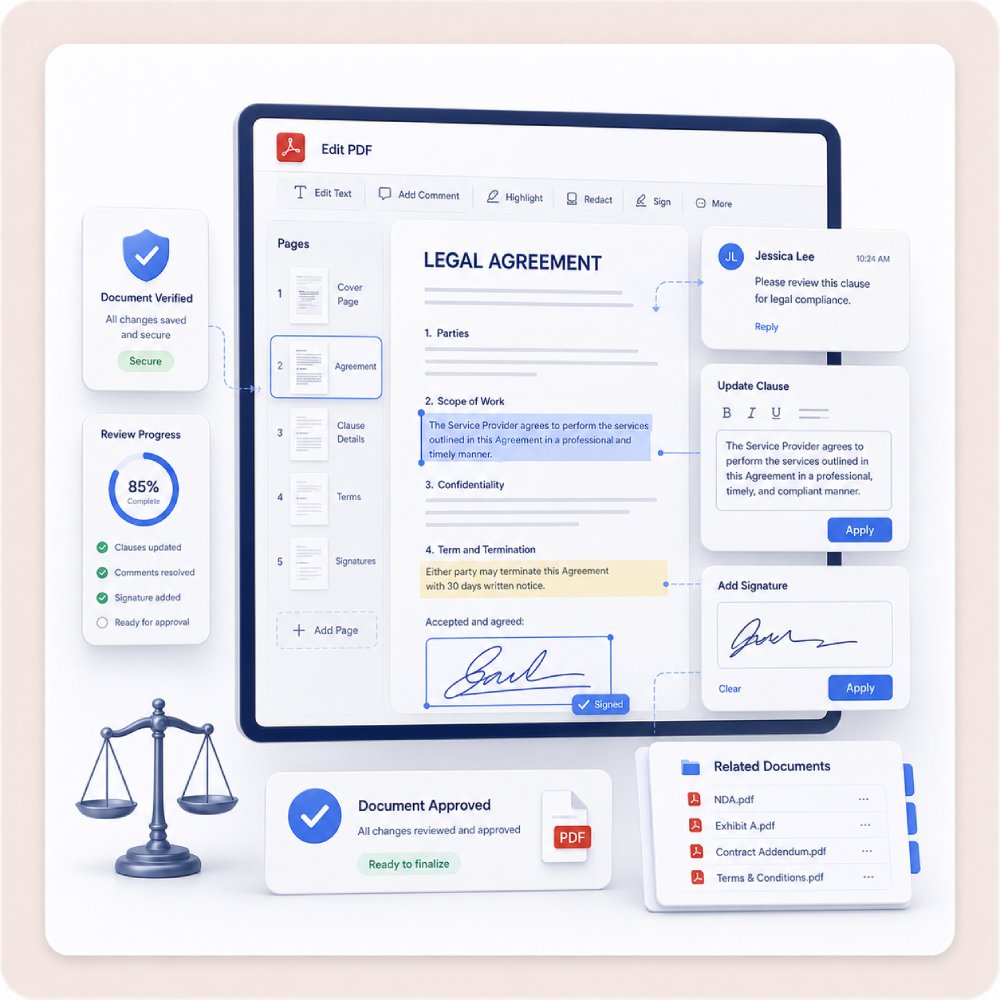
Manage Legal Papers
Quickly update contracts, agreements, or forms with precise text and layout changes. This ensures your legal documents remain professional, accurate, and ready for use in any official or business setting.
Other PDF Tools
Find the extra PDF utilities you need in one place.
Frequently Asked Questions
How can I edit text or images inside an existing PDF?expand_more
What should I do if my PDF is scanned and I cannot select the text?expand_more
Can I annotate, highlight, or comment on a PDF for review?expand_more
How do I edit a PDF contract, invoice, or business document safely?expand_more
Can I remove or replace text, images, or distracting elements in a PDF?expand_more
Unlock Full PDF Editing with AcePDF
Download AcePDF Editor to access complete editing tools, advanced workflow features, and professional-grade capabilities for text, images, layouts, and document management.
Free trial. No credit card required.