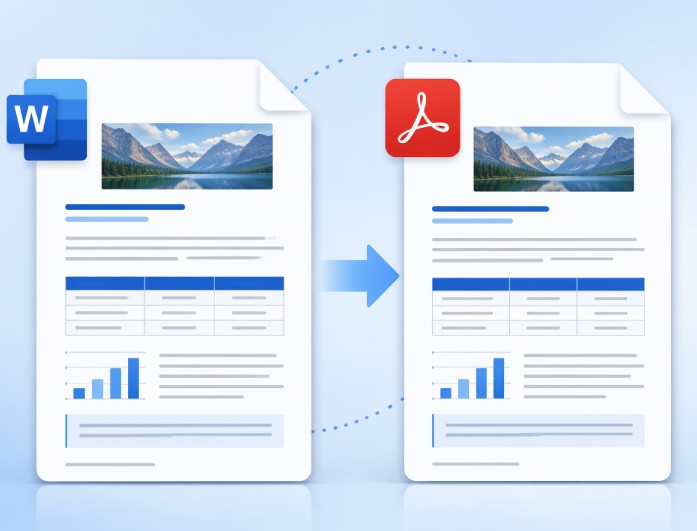
When you convert DOCX to PDF, the tool keeps the original layout as consistent as possible. Headings, paragraphs, tables, images, and page spacing are carried over into the PDF. This helps your document look organized after conversion.
The feature is useful for resumes, reports, business proposals, and school assignments. You can share or print the PDF without having to recreate the document. While the tool preserves most formatting, the final result may vary slightly if the original file uses unsupported fonts or complex formatting.
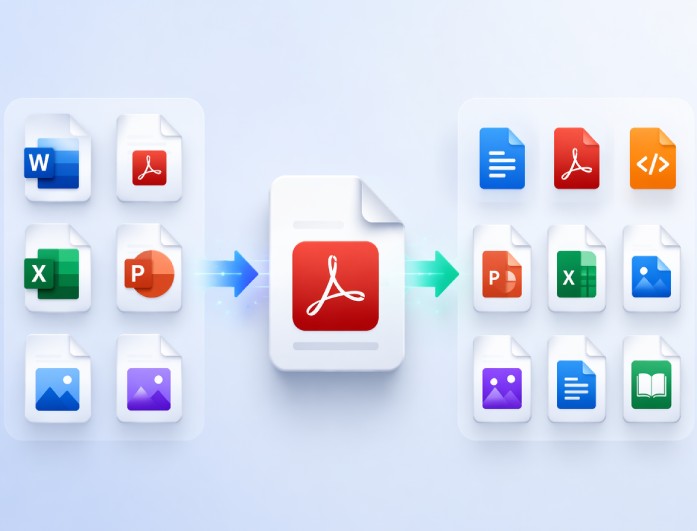
The DOCX to PDF converter supports more than just Word documents. You can upload files in PDF, Word, Excel, PowerPoint, JPG, or PNG formats depending on your workflow. This gives you more flexibility when working with different types of documents and images.
After processing, you can export your file in several formats, including TXT, PDF, HTML, PPTX, XLSX, JPG, PNG, RTF, and EPUB. For example, you can convert a Word document into PDF for sharing or export it as HTML for web publishing. This makes the converter useful for an expansive range of document conversion tasks.


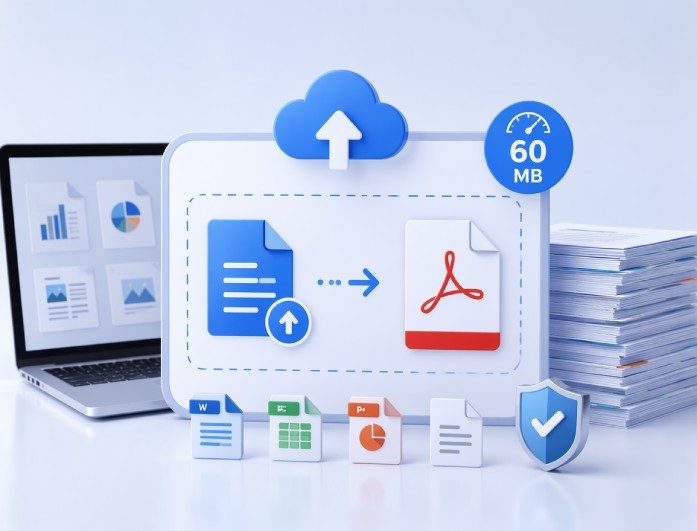
The Word-to-PDF online converter allows document uploads of up to 60 MB per file. This gives you enough space to convert common documents such as reports, presentations, business proposals, manuals, and school projects. Simply upload your file and start the conversion process.
The 60 MB file limit is suitable for most everyday document conversion tasks. Whether you need to convert DOCX to PDF or work with another supported format, you can upload your file without splitting it into smaller parts. Once the conversion is complete, you can download the file in your selected output format.
Students can convert assignments, research papers, and project reports into PDF format before submitting them. This helps preserve the document layout and ensures the file can be opened consistently by teachers and classmates.
Business professionals can create PDFs from proposals, contracts, invoices, and meeting documents. This makes it more manageable to share files with clients and colleagues while keeping the content in a fixed, professional format.
Job seekers can convert resumes, cover letters, and portfolios into PDF files before applying for jobs. This helps maintain the original formatting and provides a document format that employers commonly request.



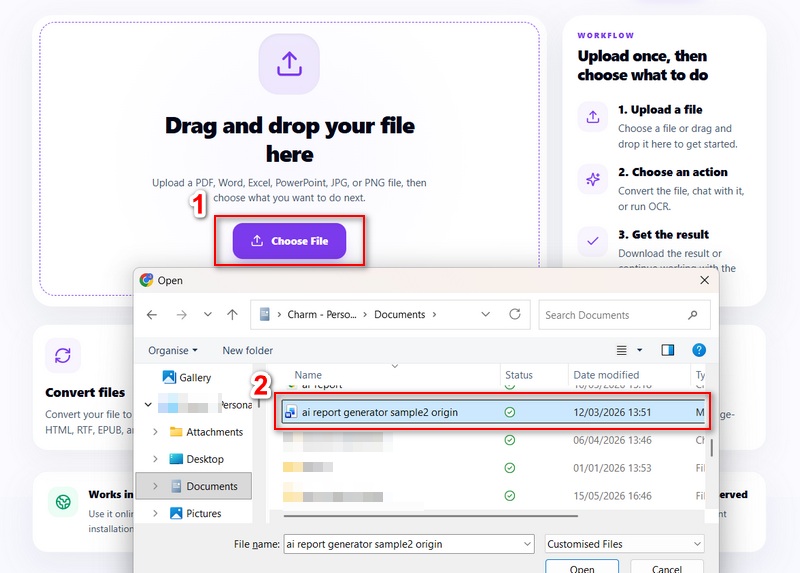
To begin, hit the “Choose File” button and select the DOCX document you want to convert. Wait for the DOCX file to finish uploading before moving to the next step.
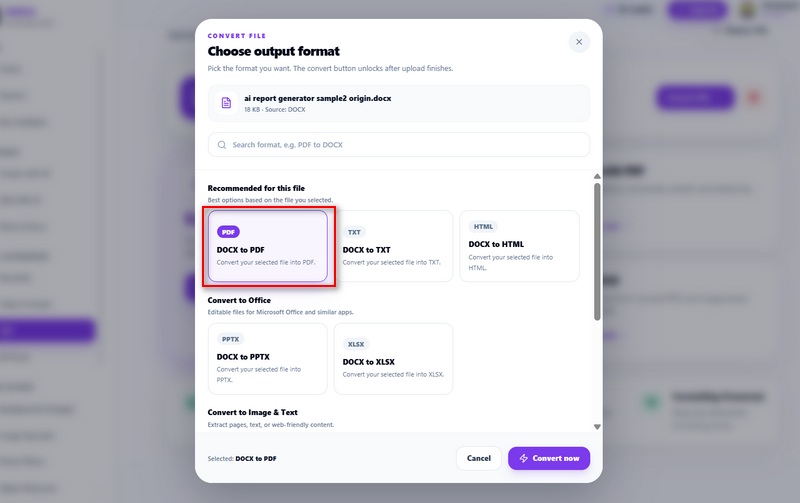
After the upload is complete, click the “Choose Format” option. A format selection window will open where you can choose PDF as the output format for your document.
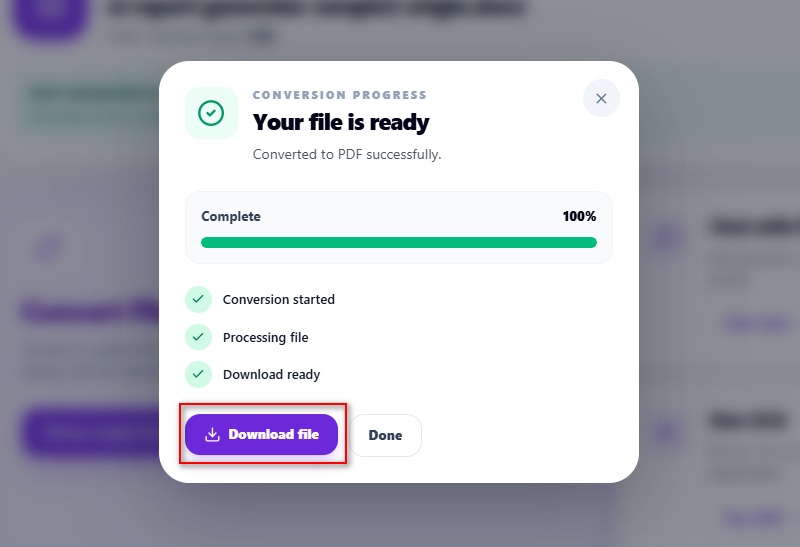
After that, click the “Convert Now” option to start the conversion and wait for the process to complete. Once your PDF is ready, click “Download File” to save the converted document to your device.
Discover more online tools to convert files, extract information, edit documents, and enhance images for different personal, academic, and professional tasks.
Transform PDF tables into editable Excel spreadsheets while preserving rows and columns whenever possible.
Extract searchable and editable text from scanned PDF documents using optical character recognition.
Convert JPG images into other popular file formats for sharing, editing, or document creation.
Ask questions about PDF or document files and receive AI-generated answers based on their content.
Turn PDF pages into high-quality photo files such as JPG or PNG for presentations and sharing.
Add text, arrows, highlights, shapes, and other visual markers to images for clear communication.
Remove unwanted areas from an image to improve composition or prepare it for specific dimensions.
The Online DOCX to PDF Converter uses a document rendering engine to interpret the structure of your DOCX file before generating the PDF. It processes headings, paragraphs, tables, images, page breaks, and text alignment, then recreates them in a fixed PDF layout. For example, a five-page project report with tables and images will generally keep the same page order and formatting after conversion. After downloading the PDF, review the document to confirm that fonts, spacing, images, and page breaks appear correctly. Documents that use custom fonts, advanced Word features, or complex layouts may have minor formatting differences.
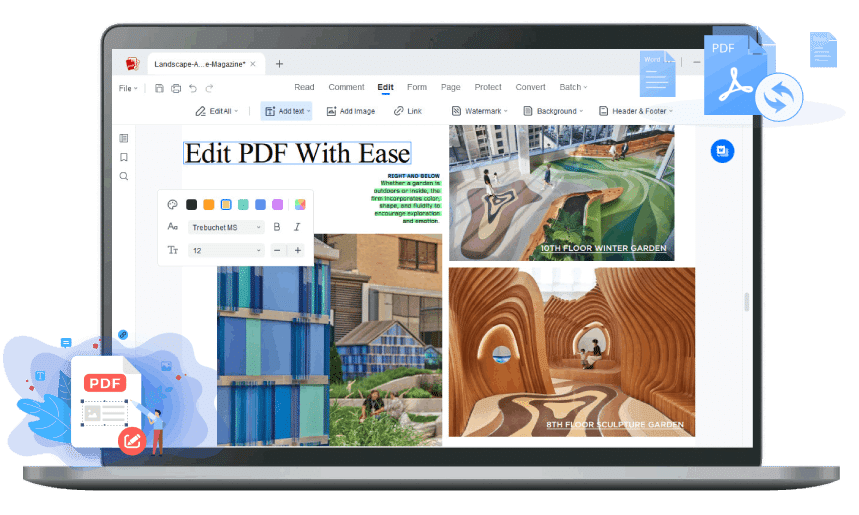
Yes. The Online DOCX to PDF Converter accepts Word documents, PDFs, Excel spreadsheets, PowerPoint presentations, JPG images, and PNG images as input. Depending on the selected workflow, you can also convert supported files to formats such as PDF, TXT, HTML, PPTX, XLSX, JPG, PNG, RTF, and EPUB. For example, you can upload a PowerPoint presentation and export it as a PDF for distribution or convert a JPG image into a PDF for easier sharing. If you regularly work with large files, multiple documents, or batch conversions, AcePDF Editor offers additional options tailored to those workflows.
Upload failures usually occur because the file exceeds the 60 MB limit, is damaged, password-protected, or uses an unsupported format. If the document cannot be processed, the conversion will not begin. To improve compatibility, save your document again in Microsoft Word or another compatible editor, then try uploading the new copy. For example, if a document was only partially downloaded or became corrupted during transfer, creating a fresh copy often resolves the issue. Also, confirm that the file uses the .docx extension rather than an unsupported format.
The Online DOCX to PDF Converter works best with documents that use standard Word formatting, such as resumes, contracts, invoices, research papers, manuals, letters, and business reports. These documents usually contain standard text, tables, images, and page layouts that convert reliably to PDF. For example, you can convert a resume into PDF before applying for a job so employers receive a document with a fixed layout. Businesses can also convert proposals or invoices into PDFs before sharing them with clients. If you need to convert larger documents, process multiple files, or perform additional tasks such as editing, merging, or organizing PDFs after conversion, AcePDF Editor is a practical option.
The Online DOCX to PDF Converter is designed for converting one document at a time, with a maximum upload size of 60 MB per file. Simply upload your DOCX file, select PDF as the output format, and save the converted document once the process is complete. This workflow is suitable for everyday tasks such as converting reports, resumes, or school assignments. For example, if you only need to convert a single project proposal before emailing it to a client, the online tool is a convenient option. However, if you need to convert multiple Word documents at once or work with larger files on a regular basis, AcePDF provides batch conversion and supports more advanced document workflows without requiring you to process each file individually.