menu

verifiedTrusted by 50,000+ YouTubers

Edit Videos for YouTube That Keep Viewers Watching

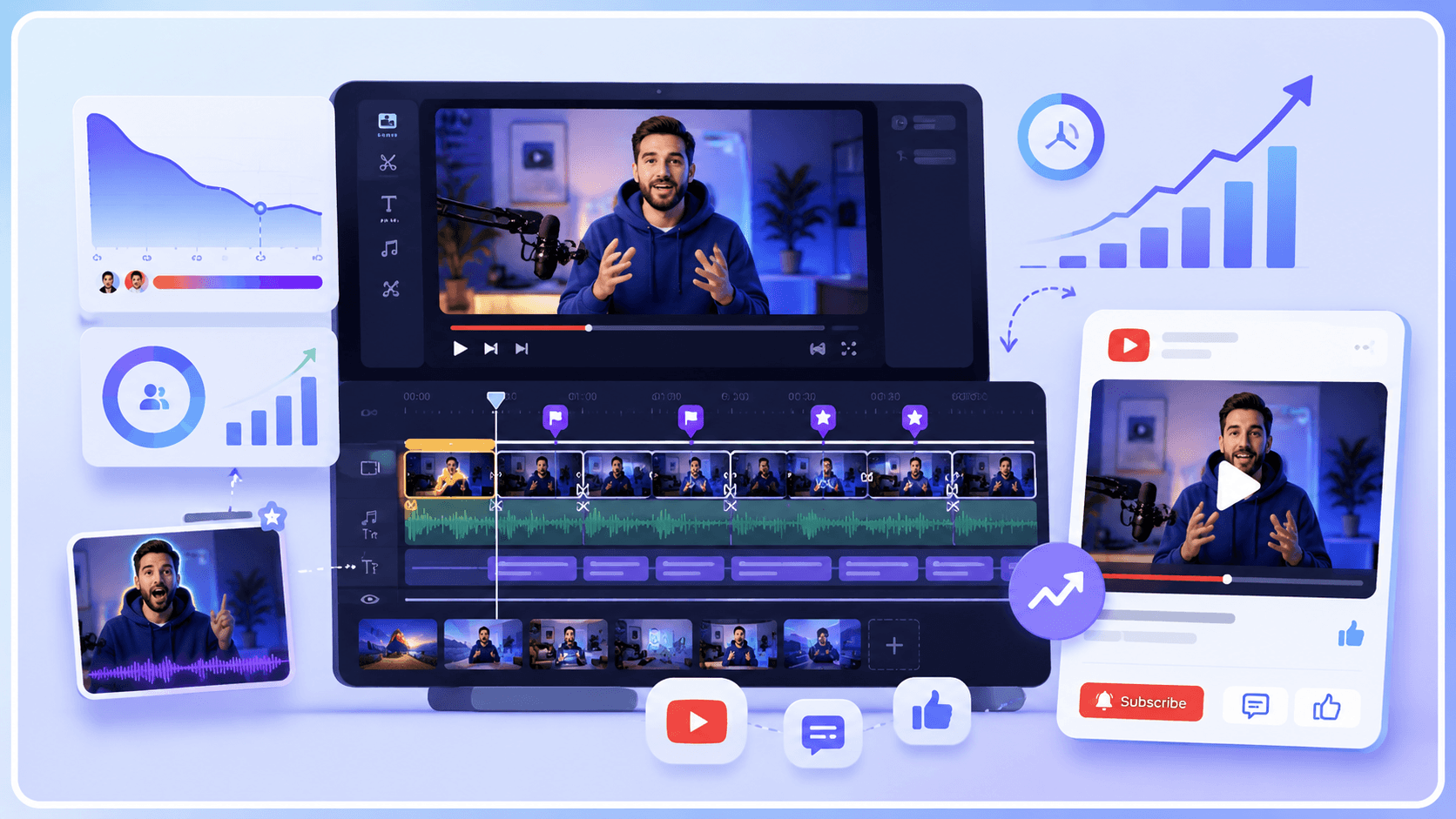
Trim long footage, add captions, improve pacing, and optimize visuals for higher watch time and audience retention. Create YouTube videos that are easier to edit, faster to publish, and better optimized for channel growth.
Start to Edit Your Videos Online

Edit YouTube Videos for Better Viewer Retention

Improve pacing, remove distractions, add captions, and structure videos more effectively for tutorials, gaming content, vlogs, Shorts, and product reviews.
Make Gaming Videos More Engaging

Raw gameplay recordings often include loading screens, grinding, and low-action segments that reduce watch time. Use Video Editor to cut long recordings into 10–20-minute highlight-focused videos, emphasizing reactions, key moments, and competitive plays. Adding captions and zoom effects improves clarity on mobile viewing and increases engagement in both standard videos and YouTube Shorts previews.

stadia_controller

video_camera_front

Help Viewers Follow Vlogs on Mobile

Lifestyle and travel vlogs are frequently watched without sound, especially on mobile devices. To add burned-in captions, use the Video Transcription tool and the Voice Isolate tool for reducing background noise from outdoor or crowded environments. This ensures dialogue remains clear in 1080p uploads and helps maintain viewer retention even when audio playback is limited.

Turn Long Videos into YouTube Shorts

Podcasts, interviews, and livestreams often contain short segments that perform better as vertical content. Use Video Cutter to extract clips between 15–60 seconds, then use Video Resizer to convert them into 9:16 format for YouTube Shorts. These short-form videos increase discoverability while driving traffic back to full-length content.

YouTube Video Editing: Download and Trim for Upload

graphic_eq

Prepare Videos for YouTube Publishing

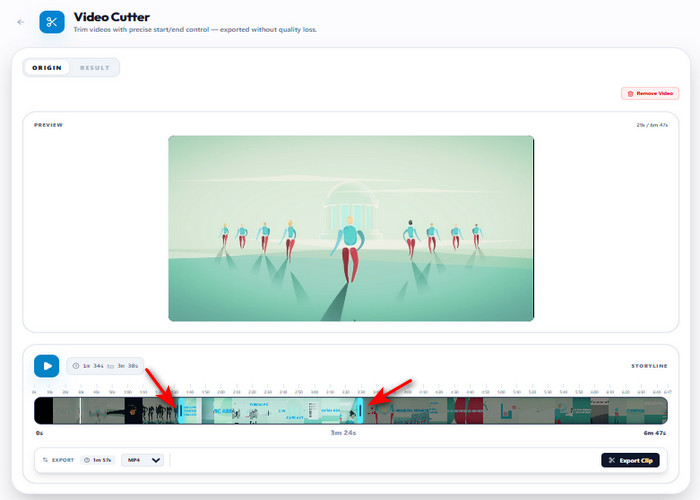
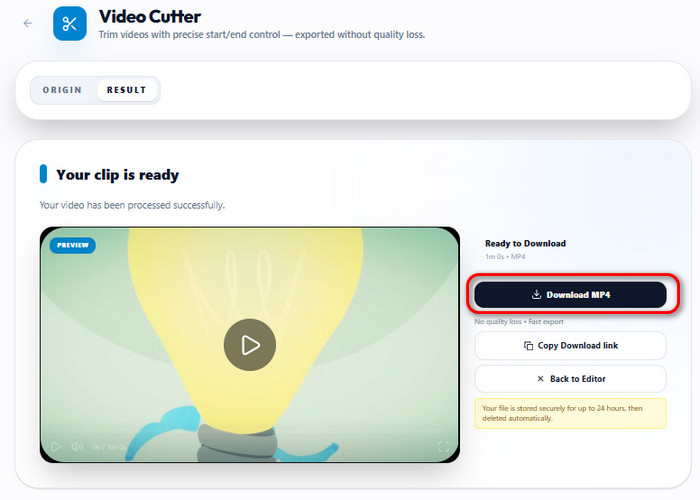
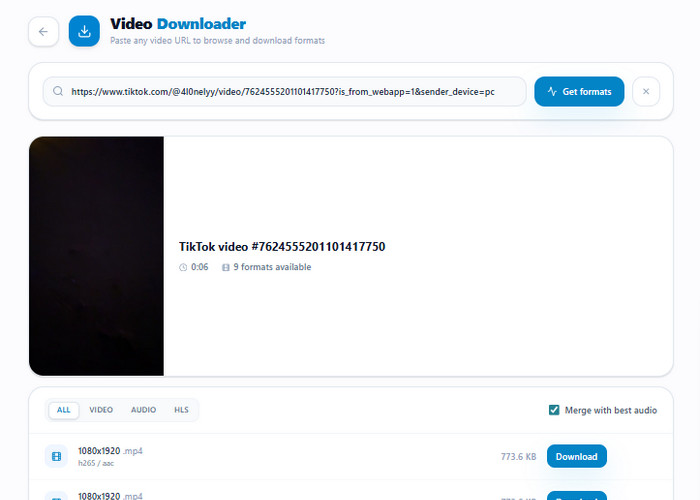
Get video content ready for YouTube by downloading clips from supported platforms and refining them into shorter segments for upload. The downloader saves the video as an MP4 file with AAC audio, making it suitable for standard playback and editing. Unwanted parts can be removed by trimming the start and end points, producing a shorter clip that keeps only the selected content and can be exported in MP4, WEBM, or GIF format.

bar_chart_4_bars

Technical Metrics

Shows supported formats and trimming actions used to prepare videos for YouTube.

  • check_circle
    Download Format: MP4 (H.264) with AAC audio
  • check_circle
    Editing Actions: Trim (start/end selection)
  • check_circle
    Output Type: Trimmed video clip
  • check_circle
    Export Formats: MP4, WEBM, GIF

Edit Your YouTube Videos with Ease

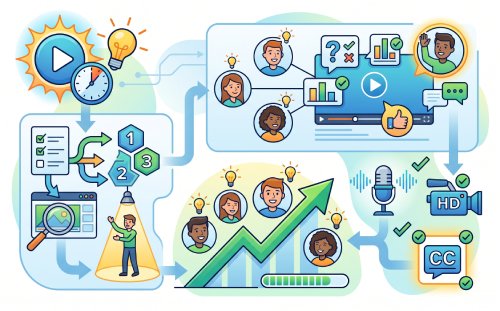
Quickly turn raw footage into polished YouTube videos with a clear, step-by-step workflow.
01

Collect Source Video

Use your own recorded footage or download videos with Video Downloader to get clean, high-quality source files. This ensures your clips are ready for editing, free of watermarks and formatting issues.

Collect Source Video

02

Build Retention-Focused Edit

Import your footage into Video Cutter and remove long pauses, repeated parts, and unnecessary scenes. Keep only the moments that deliver value quickly to improve viewer retention and pacing.

Build Retention-Focused Edit

03

Create Short-Form Highlights

Use Video Cutter to extract the most engaging 15–60 second moments from your main video. Then use Video Resizer to convert them to the vertical format for YouTube Shorts.

Create Short-Form Highlights

04

Export YouTube-Ready Video

Export your final video using Video Converter in MP4 (H.264) format at 1080p or 4K resolution. Use a balanced bitrate to ensure good quality while keeping the file optimized for YouTube upload and playback.

Export YouTube-Ready Video

Features Designed for YouTube Editing

  • settings_night_sightOptimized for YouTube Growth
  • add_adAdd Captions and Effects
  • edit_arrow_upImprove Video Flow
  • file_exportExport YouTube-Ready Video
Optimized for YouTube Growth

Edit Videos Optimized for YouTube Performance

Viewers often leave when videos take too long to reach the main point or include unnecessary pauses. Using Video Cutter, you can tighten pacing by removing slow segments and keeping only the parts that deliver value early in the video. This is especially important for 8–15-minute content, where the first few seconds strongly influence watch time and retention.
Add Captions and Effects

Add Captions and Visual Enhancements

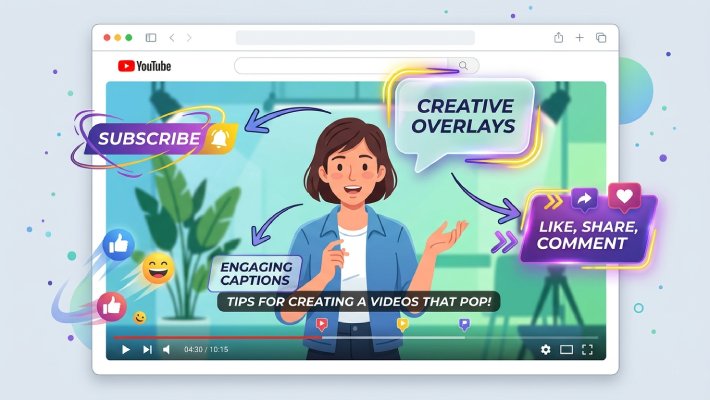
A large portion of YouTube viewers watch without sound, particularly on mobile or during quick scrolling sessions. Captions help maintain clarity in those situations, while subtle visual highlights guide attention to important moments without overwhelming the viewer. Together, they make content easier to follow across silent playback and Shorts previews.
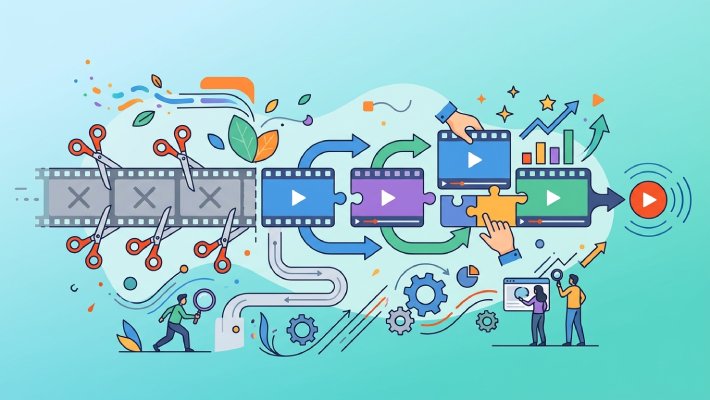
Improve Video Flow

Improve Video Structure and Flow

Even good footage can feel disconnected when scenes are out of order or ideas repeat unnecessarily. Rearranging clips with Video Cutter helps the video feel more intentional, guiding viewers through a clearer progression of ideas. When the flow is easier to follow, people are less likely to stop watching halfway through.

Export YouTube-Ready Video

Export Videos Ready for YouTube Upload

Before publishing, videos need to match YouTube’s playback expectations to avoid quality loss during compression. Exporting in MP4 (H.264) at 1080p with a balanced bitrate (around 8–12 Mbps) helps maintain clarity while keeping file sizes manageable. This ensures smoother playback across devices and reduces the need for post-upload adjustments.

Additional Editing Tools

headphones

Video Converter

Convert videos to MP4 or WebM for editing and YouTube upload compatibility. Prevent import errors and ensure smooth workflow from raw footage to editing.

  • check_circle
    Browser-based
  • check_circle
    Fast conversion
  • check_circle
    Editing-ready output

Benny's Pick

Web-Based Editor

genres

Audio Editor

Clean voice, remove noise, and balance audio levels for clearer YouTube playback. Improves speech clarity for tutorials, vlogs, and talking videos.

  • check_circle
    No installation required
  • check_circle
    Noise removal
  • check_circle
    Quick audio fix

Aisha's Choice

Desktop App

screen_record

Screen Recorder

Record tutorials, gameplay, or presentations directly from your screen. Produces clean source footage ready for editing or Shorts creation.

  • check_circle
    Instant capture
  • check_circle
    High-quality recording
  • check_circle
    Edit-ready output

Lara's Must-Have

Mobile Quick-Edit

compress

Video Compressor

Reduce video file size while maintaining stable quality for faster YouTube uploads. Helps avoid delays and heavy compression loss during publishing.

  • check_circle
    Smaller files
  • check_circle
    Quality preserved
  • check_circle
    Upload optimized

Viral Pick

AI Script-to-Video

Frequently Asked Questions

How do I resize or repurpose a YouTube video into Shorts?expand_more

Landscape YouTube videos often don't fit properly in vertical Shorts feeds. If you want to share your YouTube video on YouTube Shorts, use Video Resizer to convert the frame to 9:16 (1080x1920). Then choose the “Fit” mode to keep the full scene visible, which adds extra edges, or the “Fill” mode to focus on the main subject, which crops the video. After resizing, trim a shorter highlight segment with Video Cutter to capture the viewer's attention in the first few seconds.

Can I create subtitles or translated captions for a YouTube video?expand_more

Subtitles help make videos more accessible and understandable across different audiences. First, generate captions using Audio & Video Transcription to convert speech into text. Then, use Video Subtitle Translator to translate or embed subtitles before publishing. Use SRT files for flexible editing and corrections, or burn-in subtitles for permanent on-screen display across all devices. However, fast speech, strong accents, or overlapping dialogue can still affect subtitle accuracy.

How do I extract audio from a YouTube-style video for podcast or transcript use?expand_more

To create an audio-only version of your YouTube videos for podcast publishing or transcript use, start by using Video to Audio Converter to turn the video into an MP3 file. This makes it easier to reuse the content in audio platforms or editing tools. After that, you can use Audio & Video Transcription to convert the speech into text for captions, blog posts, or episode scripts. Nonetheless, background music and noisy recordings can still affect transcript accuracy.

How can I turn a highlight clip into a GIF for community posts or social sharing?expand_more

Short reactions or highlights are easier to share when converted into lightweight animated clips. Use Video to GIF / Emoji to capture a brief section from the original video and export it as a looping GIF. With the tool, you can also adjust the GIF settings to your preferences, including frame rate (Low (5 FPS), Medium (10 FPS), High (15 FPS)), Output Size/Resolution %, and GIF Quality/Animation Clarity. Remember, cut the video to only the most engaging moment, usually a few seconds, to keep the GIF lightweight and clear. Avoid including unnecessary frames to keep the animation smooth and easy to share across messaging apps and social platforms.

What should I check before downloading or reusing YouTube videos?expand_more

Before downloading or reusing YouTube videos that are not yours, check the copyright status, license type (such as Creative Commons), and whether the creator allows reuse. Also, review YouTube’s Terms of Service, since downloading is often only allowed through official offline features. Make sure the content is not restricted for redistribution or commercial use unless you have explicit authorization.

Start Editing Your YouTube Videos Now

Edit videos for YouTube and create engaging content faster with smart tools.

Back to Top
Contact Us
Learning Center