








Record Webcam Videos Instantly for Tutorials, Presentations, and Social Media
Capture high-definition camera video, microphone audio, system sound, and screen overlays for business communication, educational videos, vlogs, and content channels.
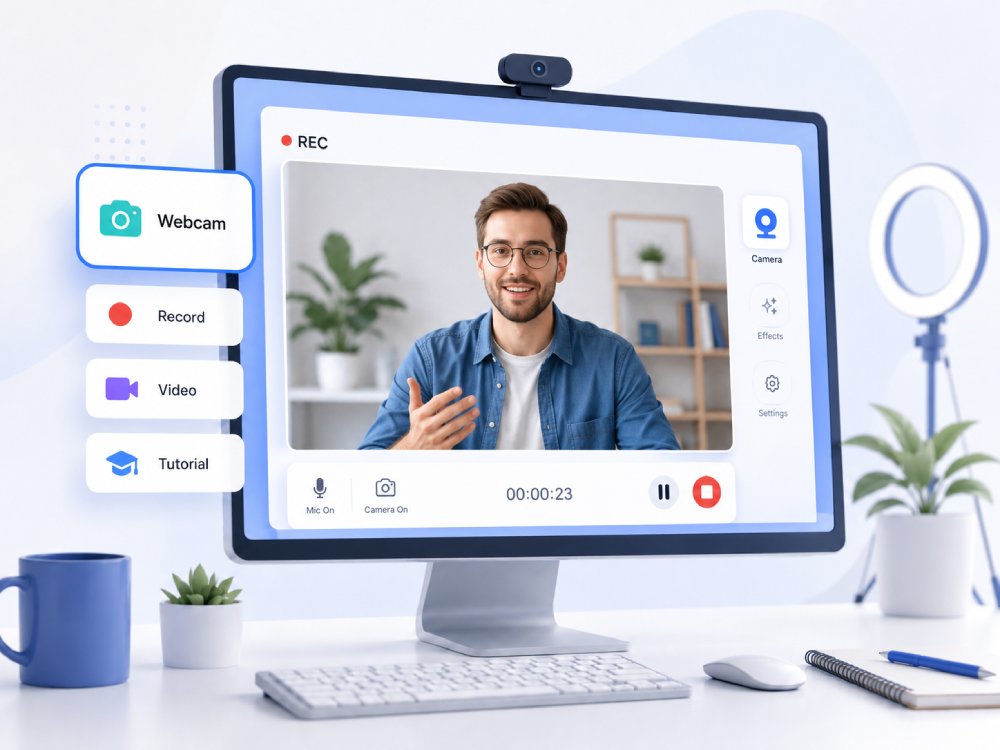


Webcam Recorder Capacity Overview
Record webcam lectures, presentations, interviews and more with one click.
Create Online Video Content from Webcam
Record high-quality webcam videos for YouTube, social media, tutorials, reviews, or livestreams without needing external equipment. Built-in tools often support basic editing like trimming and captions before upload.
Conduct Remote Interviews and Meetings
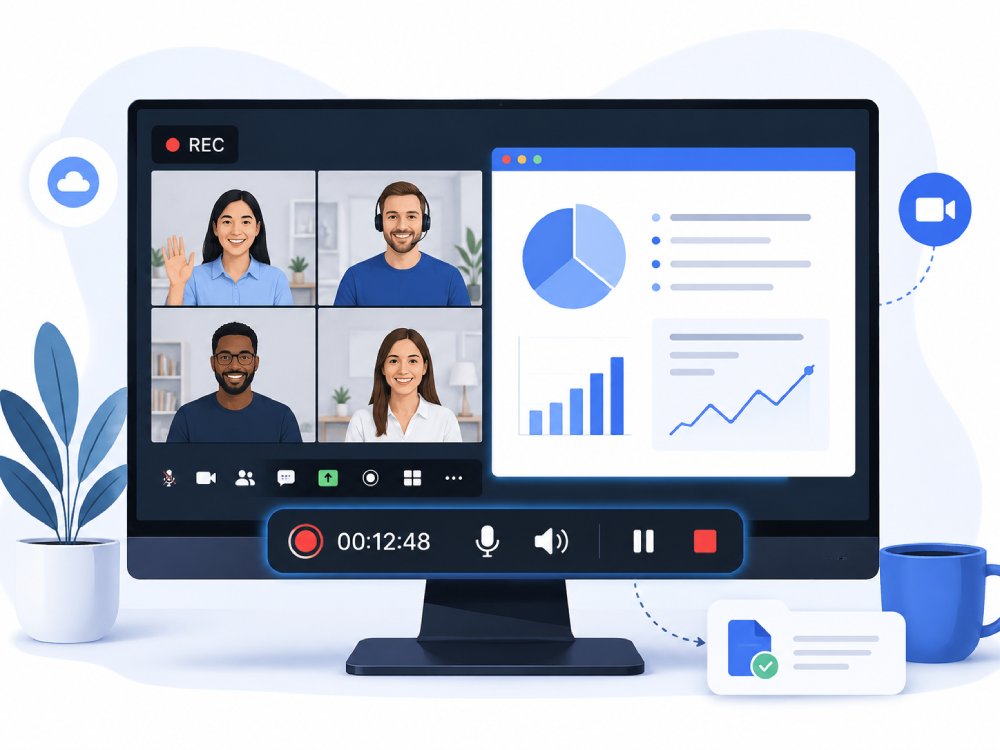
This webcam recorder lets users capture video calls and meetings for later review, sharing, or training. It’s useful for interviews, client meetings, team collaboration, and webinars.
Record Personal Messages & Video Journals
Send video messages instead of text or maintain a video diary to document daily thoughts, memories, or milestones, often with date-based organization and auto-save features.
Monitor and Capture Activities for Security or Proof
Use your webcam as a basic monitoring tool to record rooms, workspaces, or entry points for security, pet/child monitoring, or as evidence for incidents, with timestamped recordings.
Choose Your Webcam Recording Workflow
Pick the recording setup by matching your device, presentation style, and goals.
-
camera_video
Record HD Webcam Video
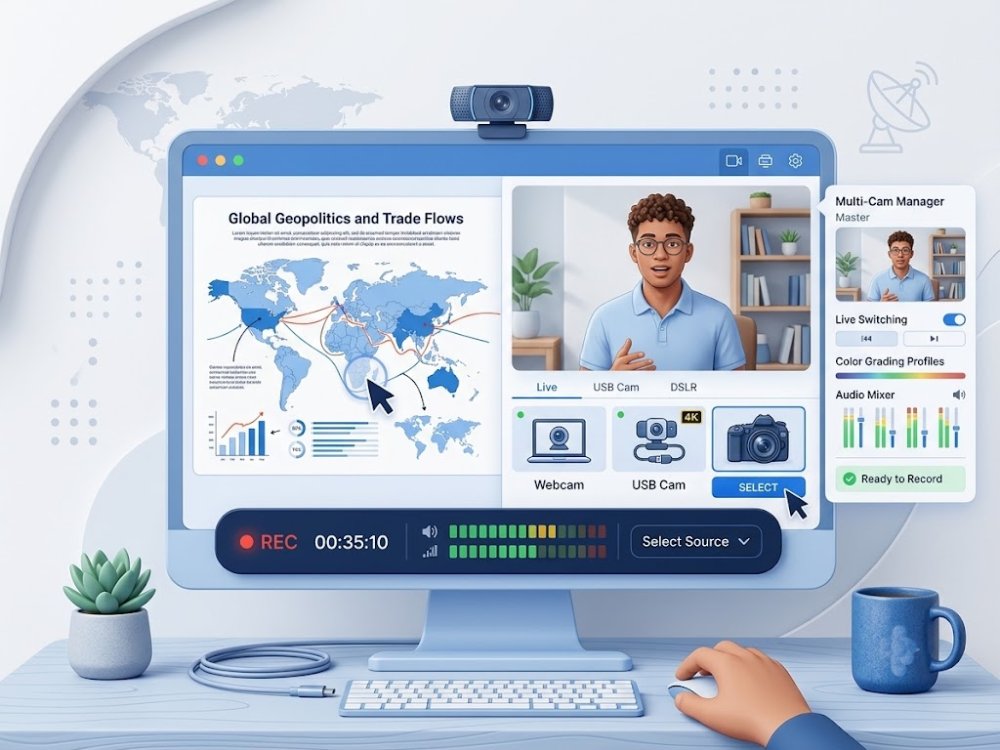
Capture high-quality video from built-in webcams, external USB cameras, and professional DSLR setups. Create crystal-clear video clips for personal vlogs, presentation videos, and social media.
-
video_camera_back_add
Record Screen and Webcam Together
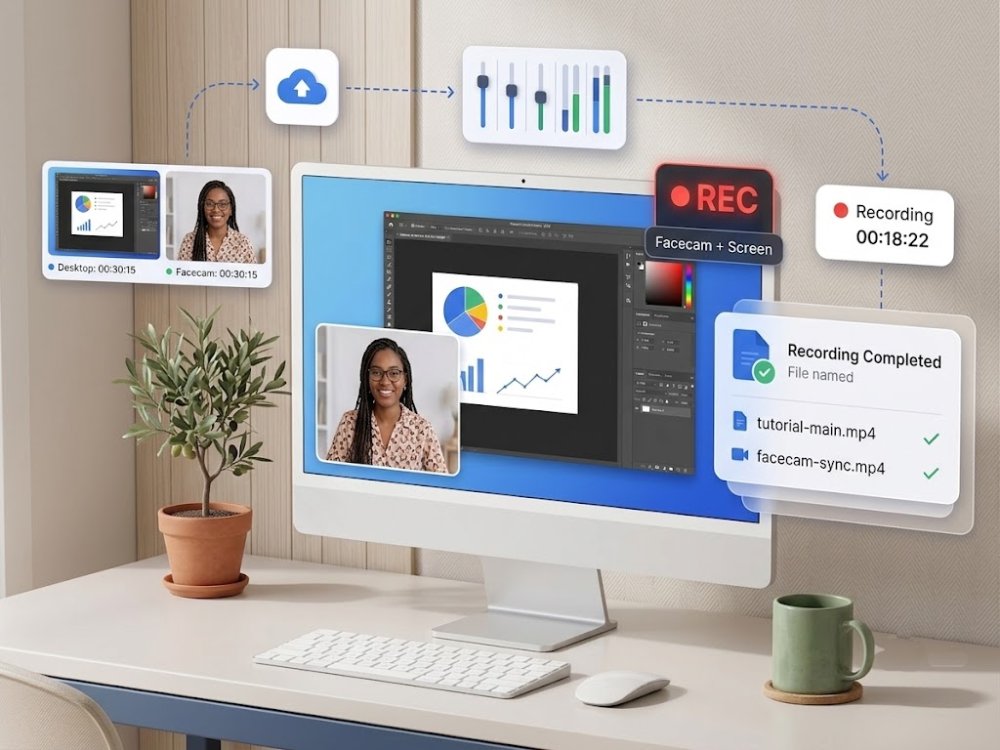
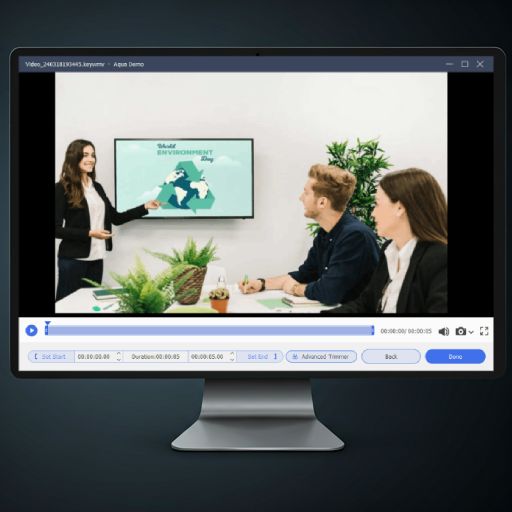
Simultaneously capture your desktop screen and facecam footage for interactive tutorials or product walkthroughs. Perfect for delivering engaging presentations that keep your audience connected to the speaker.
-
play_lesson
Create Online Meetings & Lectures
Record business presentations, virtual conferences, corporate training, and online classroom lectures effortlessly. Save and share high-definition video archives with teammates or students instantly.
-
settings_voice
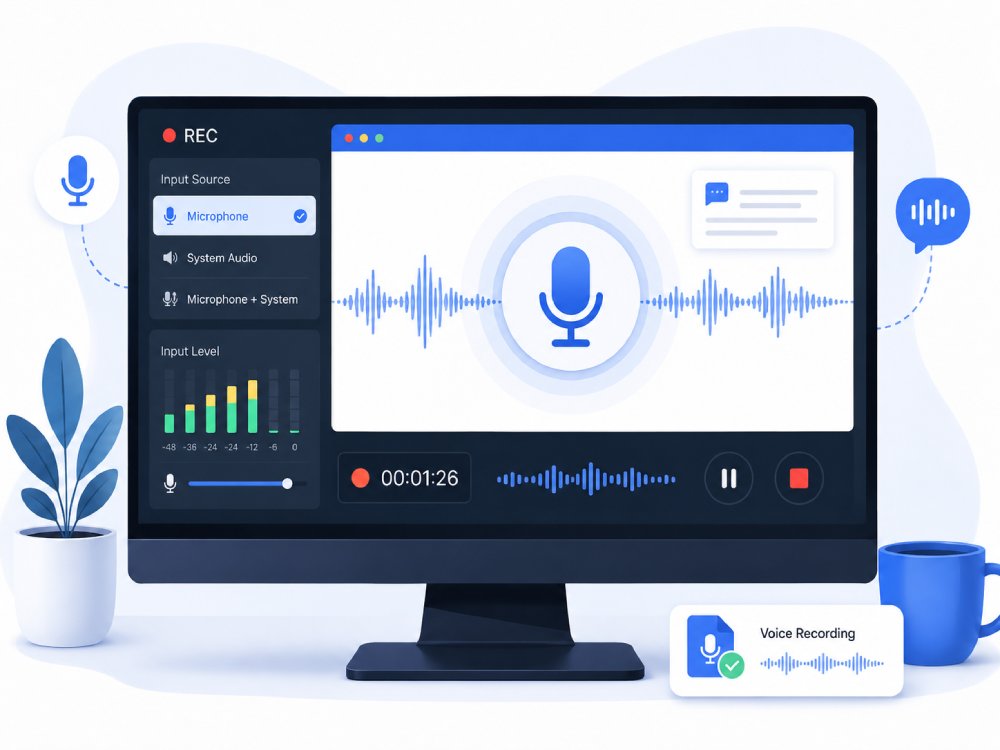
Set Up External Audio and Microphones
Capture studio-quality sound, external microphone narration, and system audio simultaneously for professional voice clarity. Ensure your vocals sound clean, crisp, and perfectly synced with your webcam footage.
4K Webcam Capture With Frame-Perfect Stability
Record Webcam Video with Zero Frame Drop
Capture your webcam feed with uncompromising visual integrity. AceThinker’s Webcam Recorder preserves every pixel in 4K UHD clarity, ensuring facial details, on-screen text, and fine textures remain sharp even under variable lighting. AceThinker preserves true 4K UHD detail, keeping facial textures, text, and edges crisp even under motion.
Technical Metrics
Our encoding pipeline is validated against industry standards for professional video capture. Each metric below quantifies the stability, clarity, and fidelity of your webcam footage.
Upgrade to Pro Webcam Recorder with More Features
Unlock the webcam recorder's complete set of features and capabilities on your desktop. Record videos with even higher quality and resolution, and customize the recording settings to your specific needs.
- check_circle Higher recording resolution
- check_circle Trim and edit recording
- check_circle Schedule recording tasks
Online Webcam Recorder VS. Desktop Webcam Recorder
| Features | Online Webcam Recorder | Desktop Screen Recorder (Pro) | VEED Webcam Recorder |
|---|---|---|---|
| Video Quality | Good quality up to 720p | High-quality, supports HD and 4K | Supports HD recording up to 1080p |
| Recording Scope | Screen, webcam, and system audio | Screen, webcam, and system audio | Webcam-only recording or webcam + screen |
| Recording Duration | Up to 30 minutes long | Supports long, uninterrupted recording | Up to 30 minutes for free version |
| Advanced Features | Basic recording tools | Hotkeys, editing, overlays, scheduling | Background removal, auto-subtitles, noise reduction |
| File Export Options | Limited formats like MP4 | Multiple formats and quality settings | MP4 |
| Start Recording | Free Download | Learn More |
Frequently Asked Questions
How do I record myself with a webcam and microphone online?expand_more
Can I record webcam video together with my screen for tutorials or presentations?expand_more
Why is my webcam recording blurry, dark, or out of sync with audio?expand_more
What should I check if the browser does not detect my camera or microphone?expand_more
Can I add screen annotations or cursor highlights while recording with a webcam?expand_more
Other Tools You May Like
Capture Webcam Video Right Now
Record videos directly from your browser anytime, anywhere. Capture clear webcam footage, and unlock the Pro version for longer recordings, extra features, and more control over your videos.