








Record Microsoft Teams Meetings Online Easily
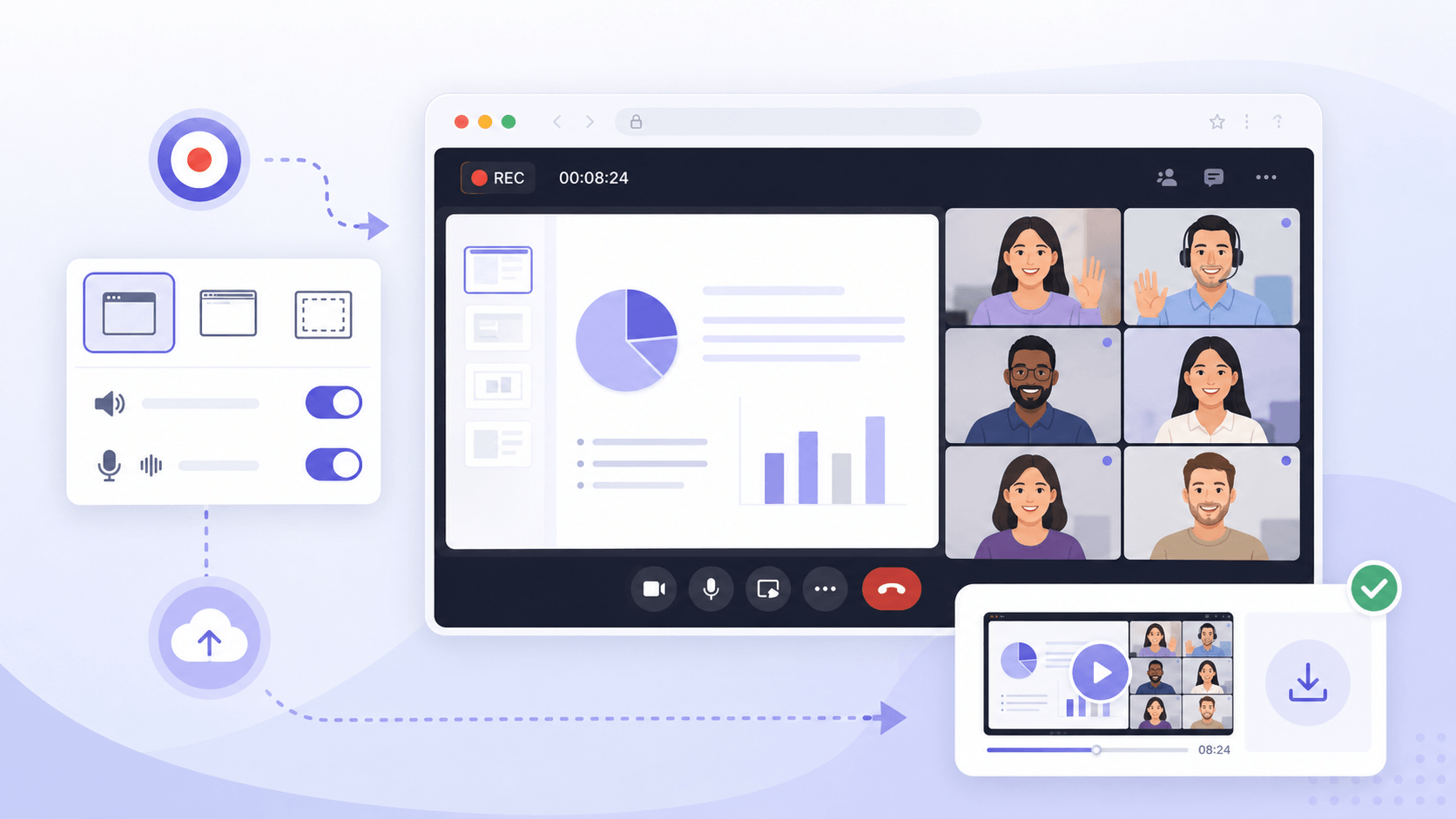
Record Teams meetings and video calls effortlessly using a browser-based tool. No installation needed—enjoy smooth, high-quality recording anytime for work, study, or collaboration.


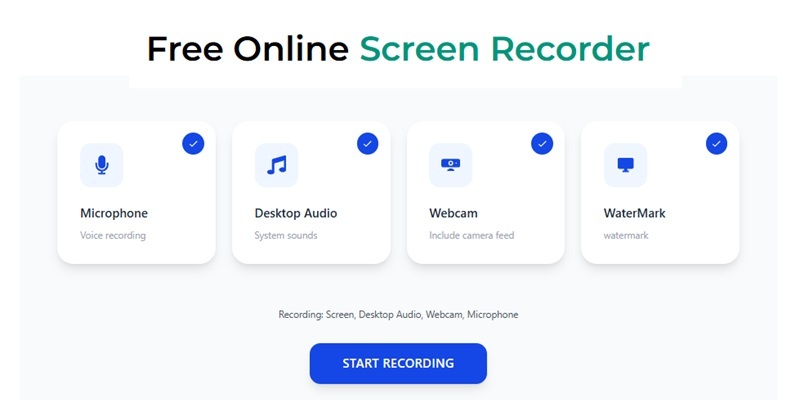
Start Recording Instantly
Configure your session and record with one click.
Popular Ways to Use This Teams Meeting Recorder
Discover the powerful features of the Microsoft Teams Meeting Recorder to help you capture high quality video calls.
How to Record Teams Meetings in Your Browser
Check the step-by-step guide to capture your Teams meeting.
-
1
Prepare the Browser Recording Environment
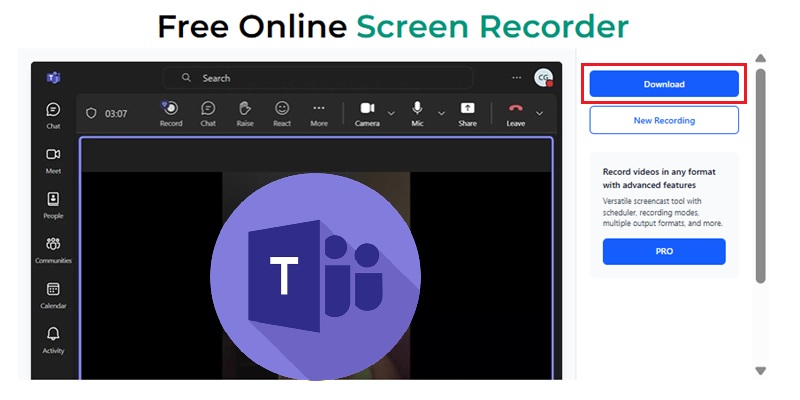
Load the online recorder in your browser to establish capture readiness before or during your session. This sets up audio and screen pipelines without requiring installation or system configuration.
-
2
Sync with Your Microsoft Teams Session
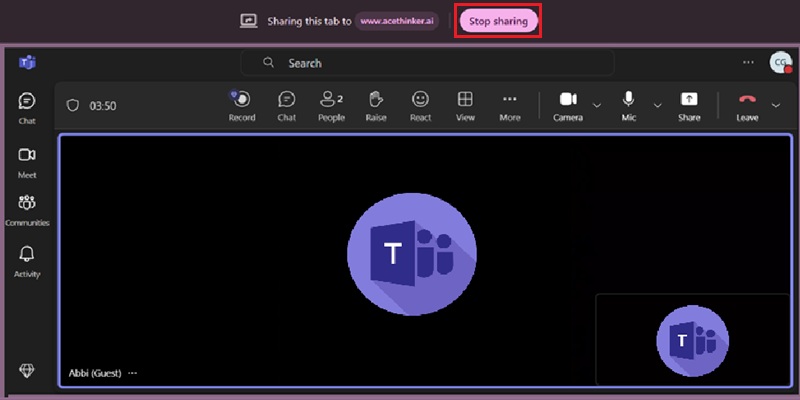
Join your Microsoft Teams call as usual while keeping the recording interface open in parallel. This ensures continuous participation while background capture remains stable.
-
3
Capture Live Meeting Streams in Real Time
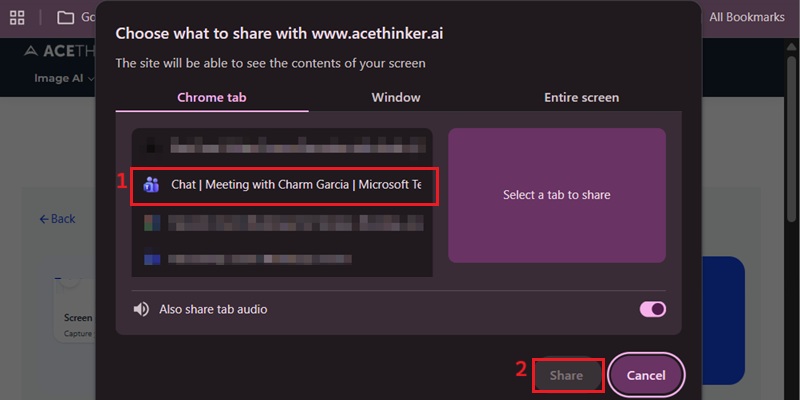
Select the active Teams window and initiate recording to record voice, video, and shared content simultaneously. This preserves the meeting flow and presentation context while maintaining aligned playback timing.
-
4
Finalize the Recording File
Conclude the session and process the recording into a downloadable file for internal review or external sharing. The output is structured for reuse in reporting, collaboration, or documentation workflows.
Why Use This Teams Meeting Recorder
Explore scenarios where Teams meeting recordings are necessary and how the recording enhances productivity.
Securely Record Meetings Without Losing Control of Your Data
Capture meetings from Microsoft Teams and store recordings locally, avoiding reliance on cloud uploads. This helps protect sensitive business discussions and client information.
Stay Focused During Meetings Instead of Taking Notes
Rather than splitting attention between listening and writing, you can fully engage in the discussion. Every detail is saved so you can review decisions and action points later with accuracy.
Capture Full Meetings Even in Long or Complex Sessions
From daily standups to long strategy meetings, everything is recorded smoothly without interruptions. This ensures no part of the conversation is missed, even in extended sessions.
Capture, Edit, and Share Meetings in Minutes
After the meeting ends, you can quickly remove pauses, off-topic sections, or waiting time using the built-in Trimmer. This creates a clean version, ready for teammates or clients, without additional editing tools.
Crystal-Clear Teams Recording in 4K UHD at 60 FPS
Record Microsoft Teams Sessions with Precision
AceThinker ensures that every Microsoft Teams meeting—presentation screens, shared documents, webcam feeds, and motion transitions—is captured with broadcast-grade clarity. No frame drops, no compression smearing, no text blurring. Using hardware-accelerated H.265/HEVC encoding, the engine preserves pixel geometry and stabilizes motion through zero-latency frame buffering.
Technical Metrics
The recorder maintains lossless vocal integrity, allowing meeting replays where every tonal nuance, consonant detail, and background layer is preserved—even in multi-speaker discussions. We uses a bit-perfect local buffer engine that retains harmonic overtones up to 22kHz, preventing mid-frequency flattening that typically occurs in low-grade screen recorders.
Comparison Chart
| Feature | Online Meeting Recorder | Microsoft Teams Recording | VEED.io Online Call Recorder |
|---|---|---|---|
| Access | Works across browsers and platforms | Limited to Microsoft Teams environment | Fully browser-based |
| Flexibility | Record any online meeting or application | Only records Teams sessions | Record screen, webcam, and audio from any web-based session |
| Setup | No installation required | Requires Teams setup and permissions | No installation required |
| Control | User-controlled start/stop recording | Platform-controlled recording process | Basic user control |
| Best For | Cross-platform work, hybrid teams, flexible recording needs | Organizations fully operating within Teams | Quick recordings, tutorials, and basic content creation |
| Start Recording | Get Pro Version | Learn More |
Other Solutions You May Like
Record Teams Meetings Instantly in Your Browser
Record Teams meetings directly in your browser with no installation required. Capture video and audio effortlessly, keeping every session safe and accessible for review.
Frequently Asked Questions
How do I record a Microsoft Teams meeting with screen and audio?expand_more
Why does my Teams recording have video but no participant audio?expand_more
Should I record the full screen, Teams window, or browser tab?expand_more
Can I save a Teams meeting recording locally for notes or team review?expand_more
What should I do if the Teams recording file is too large to share?expand_more
Record Teams Meetings Instantly in Your Browser
Capture Microsoft Teams meetings, training sessions, and discussions directly as they happen, so every conversation is available when you need it later.