








iPhone Gameplay Recorder for Desktop PC
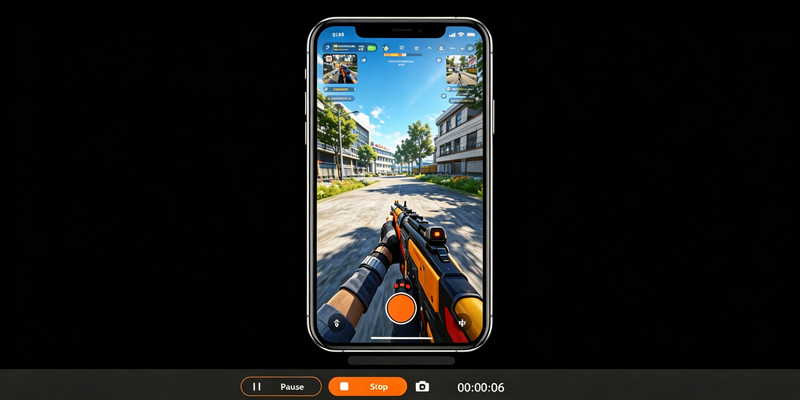
Record iPhone gameplay on PC with smooth performance and no lag. Capture clear videos easily for creators, gamers, and content sharing without a complicated setup.
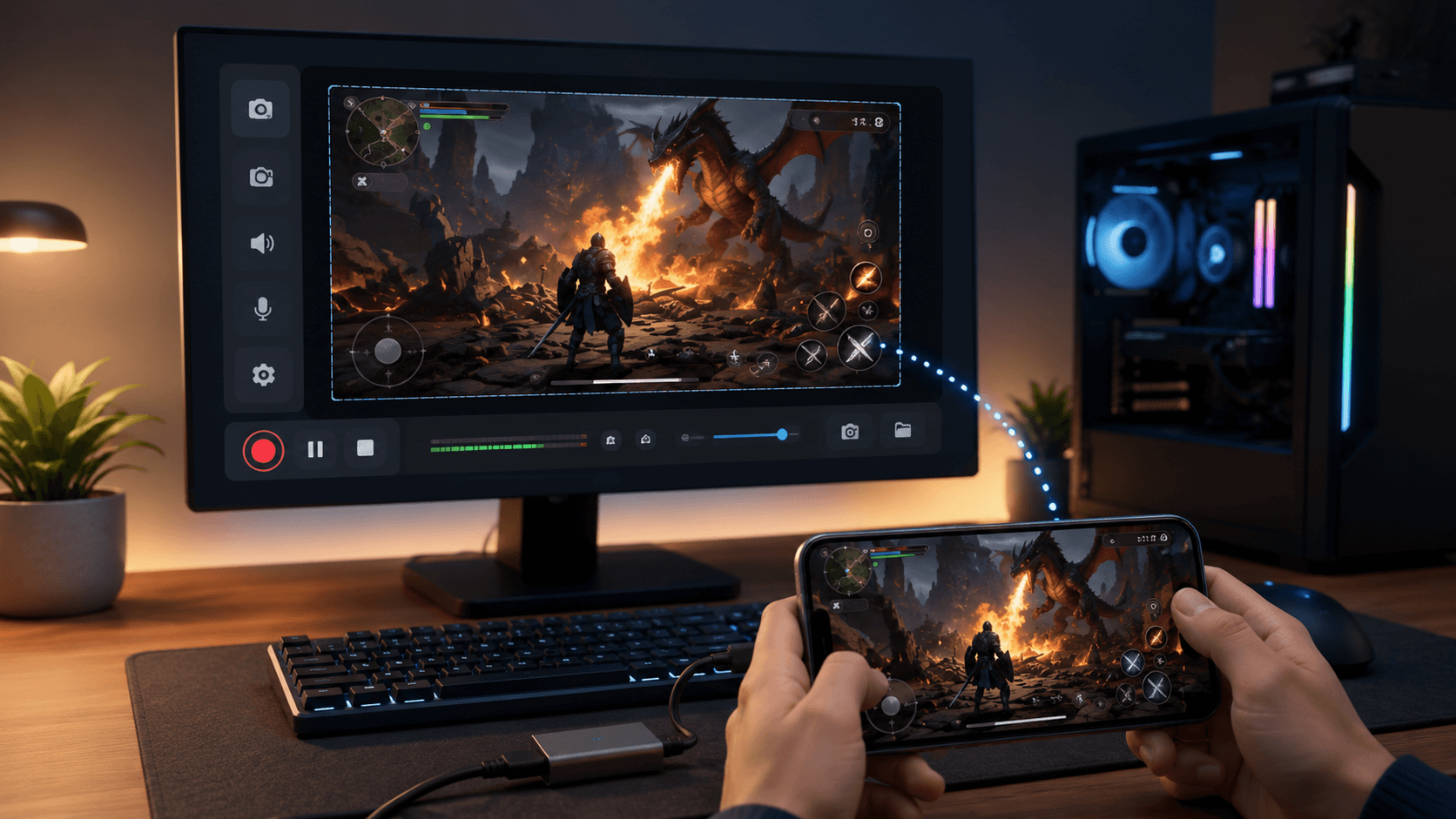


Start Recording Instantly
Configure your session and record with one click.
Why Use a PC for iPhone Gameplay Recording
Capture gameplay smoothly, records sound, and saves videos in high quality.
How to Record iPhone Gameplay on PC
Follow easy steps to start, record, and save gameplay videos for later use and sharing.
-
1
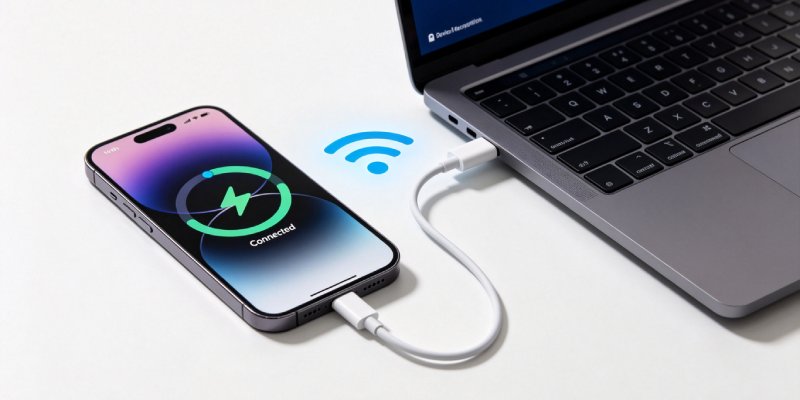
Establish iPhone Connection via USB or Wireless Link
Link your iPhone to the PC utilizing a USB cable or Wi-Fi pairing to initialize the device capture session. This enables stable input transfer for screen mirroring and recording synchronization.
-
2
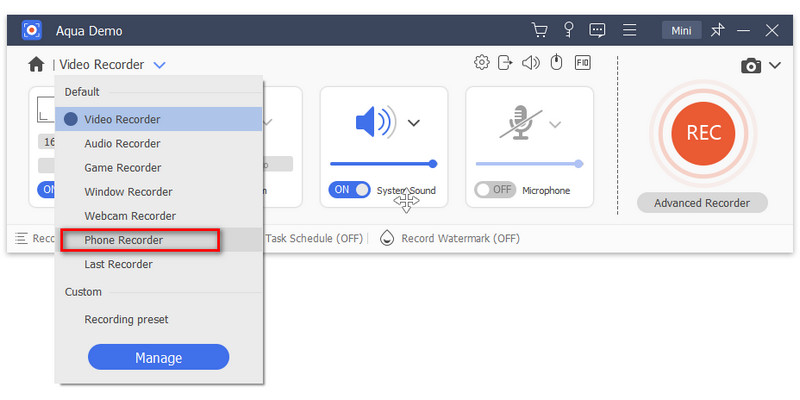
Mirror iPhone Display to Desktop Workspace
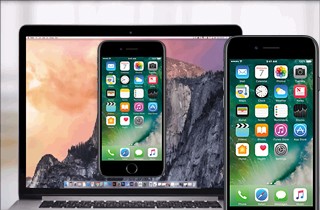
Project your iPhone screen onto the PC to enable larger-view gameplay monitoring and smoother control visibility. This mirrored setup allows accurate capture of mobile gameplay activity in real time.
-
3
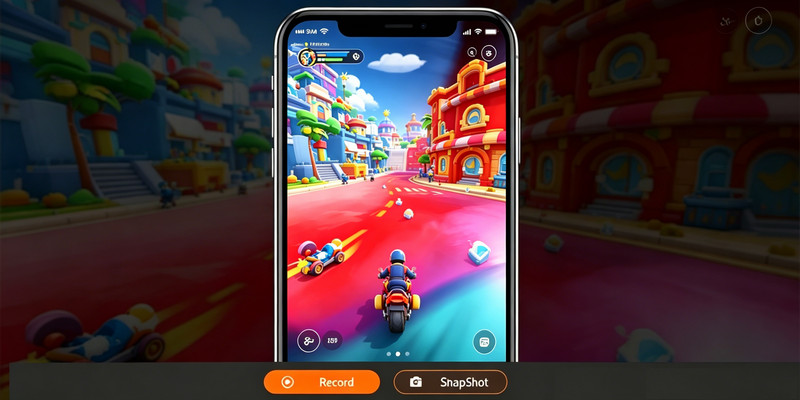
Capture Gameplay via PC Recording Engine
Launch your mobile game and begin recording through the PC recorder to ensure stable frame handling and consistent audio capture. This setup improves performance stability compared to on-device recording.
-
4
Finalize and Store Gameplay Recording File
Stop the session and review the mirrored gameplay for clarity, then save or process the recording directly on your PC. The file can be organized for editing, uploading, or cross-platform sharing.
Common Ways Creators Use iPhone Gameplay Recording
Let users capture gameplay highlights, share moments, and create simple videos for friends or social media.
Record Mobile Wins and Highlights
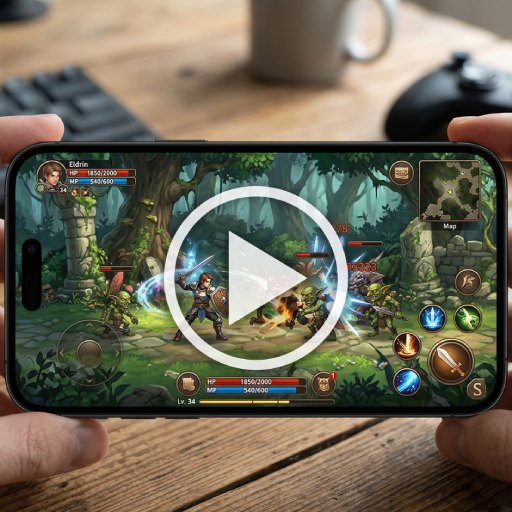
Capture your best kills, wins, and last-second saves directly from your iPhone. Turn standout gameplay moments into quick clips worth sharing or posting online.
Create Live Reaction Gameplay Videos
Record your gameplay with your voice at the same time for live reactions and commentary. This is useful for adding personality to mobile gameplay without extra editing steps.
Make Mobile Tips and Strategy Guides
Capture game mechanics, level layouts, and winning strategies clearly on-screen. Make mobile gameplay guides that are easier for viewers to follow and learn from.
Save Short Gameplay Clips for Socials
Record short mobile gameplay moments and save them for fast posting. Create quick iPhone gaming clips for YouTube Shorts, Reels, or other short-form platforms.
Record iPhone Gameplay With 4K Precision & Zero-Lag Stability
Capture Every Frame of Your Mobile Gameplay
Capture every movement, particle effect, and UI detail in full fidelity. Our recorder uses a Low-Latency Hardware Pipeline that synchronizes motion, graphics, and audio with surgical precision—even during effects-heavy or competitive gameplay. By combining HEVC compression, adaptive bitrate optimization, and real-time frame pacing, your footage remains clear, smooth, and creator-ready.
Technical Metrics
Every recording is validated through objective, video-industry metrics to guarantee creator-level output quality.
Comparison Chart
| Feature | Direct iPhone Recording | PC Recorder | Record it! Screen Recorder |
|---|---|---|---|
| Stability | Moderate, may drop frames | High, smooth and consistent | Stable for short to medium recordings on iPhone |
| FPS Performance | Limited during long sessions | Stable even for extended play | Good performance but depends on device limits |
| Recording Quality | Standard resolution | HD to 4K high-quality output | HD recording with basic editing tools |
| Control | Basic controls only | Advanced recording options | Simple on-screen controls with trimming and annotations |
| Best For | Quick, casual gameplay clips | YouTube, streaming, tutorials | Mobile gameplay clips, tutorials, and simple content creation |
| Start Recording | Get Pro Version | Learn More |
Other Solutions You May Like
Record iPhone Gameplay on PC Without Lag
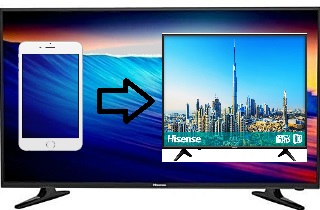
Mirror your iPhone to your PC and record smooth, high-quality gameplay with stable performance and clear audio in just a few seconds.
Learning Resources
Guides and simple articles to improve your mobile recording experience.


Frequently Asked Questions
What should I check before recording gameplay from an iPhone?expand_more
How do I record iPhone gameplay without jailbreaking or changing unsafe device settings?expand_more
Why is my iPhone gameplay recording missing game sound?expand_more
How do I record iPhone gameplay with microphone commentary?expand_more
What can cause delay, lag, or stutter when recording iPhone gameplay?expand_more
Capture and Share iPhone Gameplay Easily
Start recording your screen in seconds and keep your best gaming plays saved safely.