








Record Google Meet Meetings Easily Online
Record Google Meet meetings and video calls with clear audio and video using a browser-based tool. Capture, save, and review recordings anytime without installing any software.
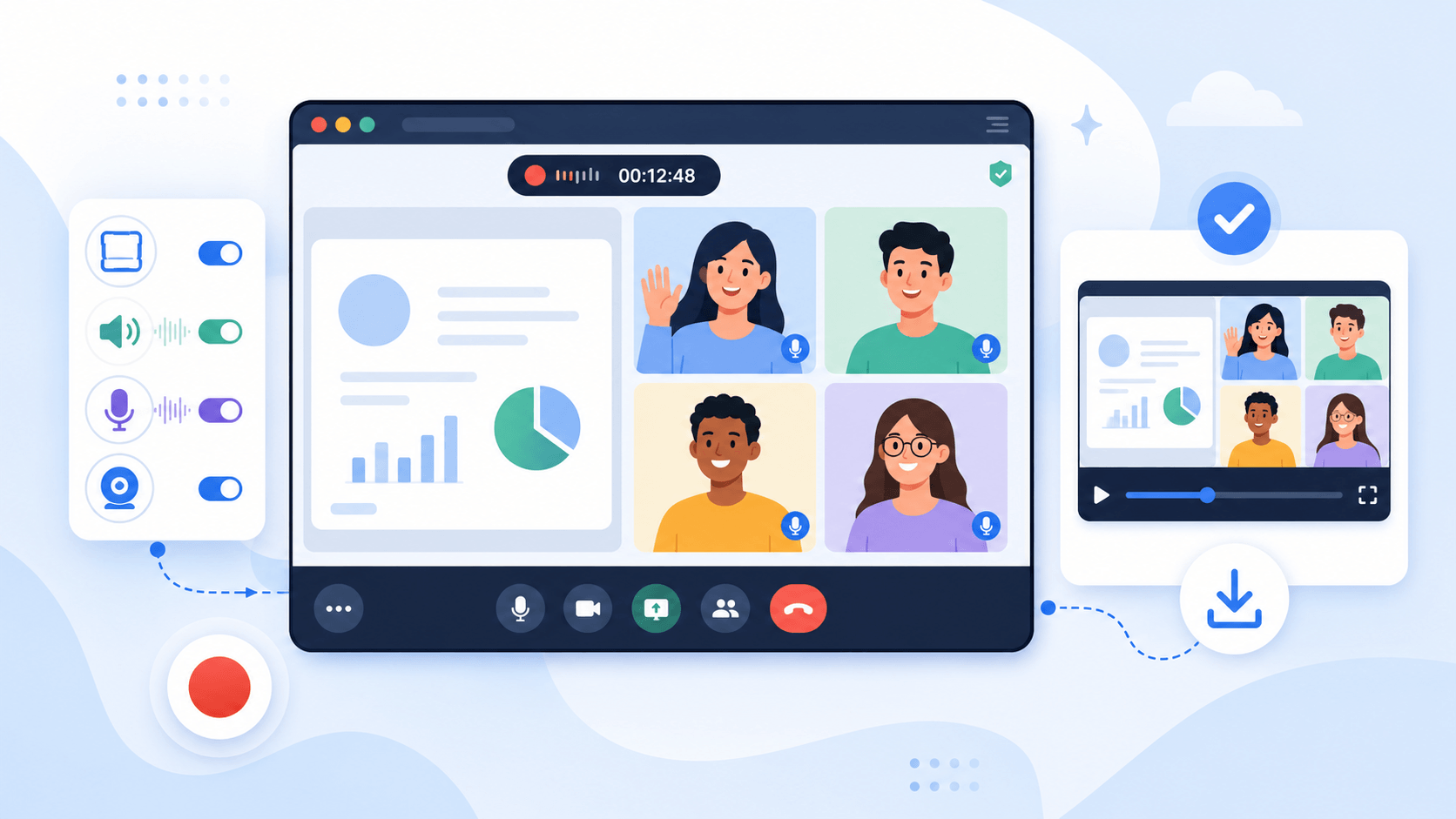


Start Recording Instantly
Configure your session and record with one click.
Popular Ways to Record Google Meet
Record your Google Meet calls with powerful features that will streamline productivity and enhance collaboration.
Capture Business Meetings and Team Discussions
Record internal meetings to review decisions, tasks, and project updates later. This helps teams stay aligned even if someone misses the live session.
Record Online Classes and Training Sessions
Capture virtual lessons, workshops, or training calls for later study. Students and trainees can revisit recordings to better understand complex topics.
Save Client Calls and Project Updates
Record client meetings to keep a clear record of requirements, feedback, and agreements. This helps avoid miscommunication and improves project execution.
Record Webinars and Online Presentations
Save webinars and live presentations for future viewing or sharing. This allows attendees to revisit key insights or distribute the content to others who missed it.
Simple Steps to Record in Google Meet
Follow the step-by-step guide to record your Google Meeting sessions.
-
1
Initialize Google Meet Capture Sources
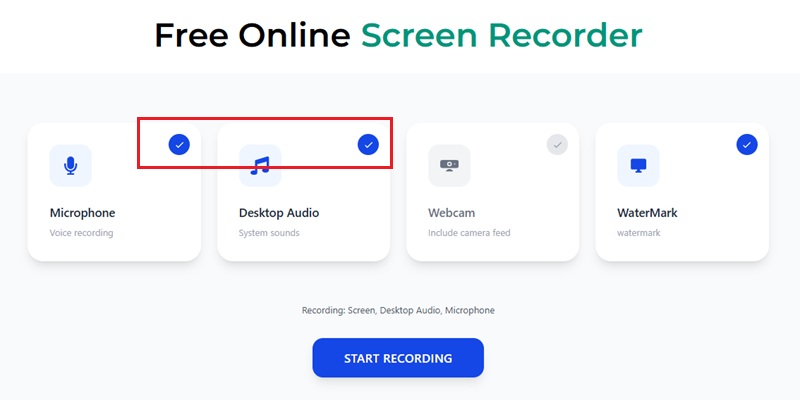
Enter your Google Meet room before the meeting starts and assign the microphone, system audio, and display inputs correctly. Proper source mapping helps prevent missing voices, muted presentations, or incomplete screen capture.
-
2
Record Meetings with Dual-Stream Sync
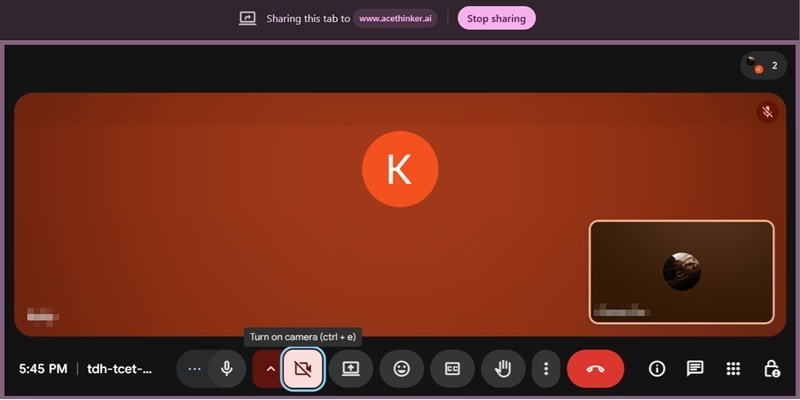
Capture live speaker audio, webcam video, and shared slides using synchronized real-time recording. This keeps conversations aligned with visuals, resulting in smoother playback and clearer meeting documentation.
-
3
Inspect Playback and Voice Fidelity
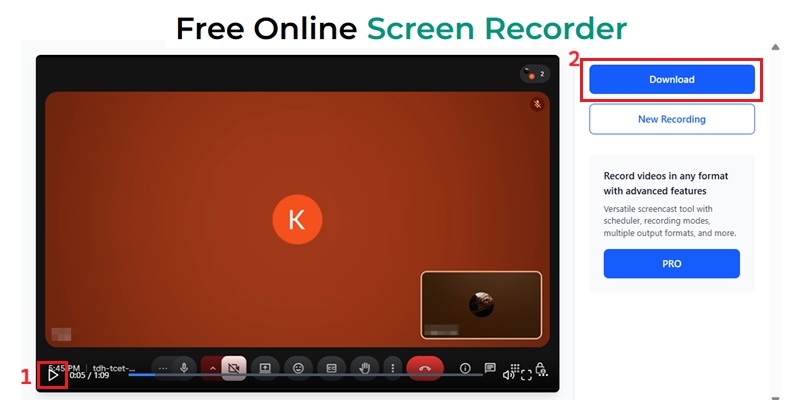
Replay the recorded session and verify dialogue clarity, readable screen shares, and stable frame movement. Reviewing the file early helps catch audio dropouts or blurred presentation content before sharing.
-
4
Export Meeting Archives for Distribution
Save the completed recording in MP4 format for training libraries, client recaps, or internal reference use. Exported files are easier to store, upload, and distribute across business workflows.
Why Use a Google Meet Recorder
Record your Google Meet session with high quality audio and screen.
Secure Meeting Recording with Local Processing
Record Google Meet sessions with more privacy using local browser-based processing. Your meeting data stays on your device, helping protect sensitive discussions from unnecessary server uploads.
Clear Video and Audio for Every Meeting
Capture Google Meet calls in high resolution with synchronized meeting audio for easier playback later. Keep presentations, screen shares, and discussions clear enough for review, reporting, and documentation.
Record and Review in One Workflow
Save full Google Meet sessions and quickly revisit important discussions without relying on scattered notes. This gives teams a faster way to record, review, and keep track of decisions in one place.
Stable Recording for Long Meetings
Record extended Google Meet sessions with smooth performance and consistent output. It helps maintain reliable video and audio capture during interviews, webinars, training, and longer team calls.
Capture Google Meet in 4K UHD at 60 FPS With Zero Frame Loss
Record Google Meet Sessions Without Visual Compression
Our Google Meet recording engine utilizes GPU-accelerated H.265/HEVC encoding with zero-latency buffer optimization, ensuring that motion, text, and speaker tiles remain crystal-clear even under high CPU loads. While common recorders rely on software H.264 encoding, resulting in motion blur and dropped frames, AceThinker maintains frame integrity and motion stability through real-time hardware rendering.
Technical Metrics
We provide pixel-accurate Google Meet captures even during rapid screen transitions, screen sharing, or multi-speaker layouts—far exceeding the compression-heavy output of standard browser-based recorders.
Comparison Chart
| Features | Online Goggle Meet Recorder | Desktop Recorder | Vmaker(Online Meeting Recorder) |
|---|---|---|---|
| Installation | Browser-based, no installation needed | Requires software installation | Works via browser or optional extension |
| Access | Works directly during Google Meet sessions | Limited to installed device | Accessible through browser after logging into account |
| Setup Time | Quick setup within browser | Longer setup and configuration required | Quick access after account login |
| Audio Support | Records meeting audio and microphone | Supports system and microphone audio | No limit; long sessions supported |
| Best For | Recording Google Meet sessions easily | Professional editing and full control workflows | Online meeting recording, sharing, and storage |
| Start Recording | Get Pro Version | Learn More |
Other Solutions You May Like
Start Recording Google Meet Instantly
Record Google Meet meetings directly in your browser with no installation required, making it easy to capture video calls anytime with clear audio and video.
Frequently Asked Questions
How do I record a Google Meet session with screen and audio?expand_more
Why does my Google Meet recording have video but no participant audio?expand_more
What browser audio option should I enable before recording Google Meet?expand_more
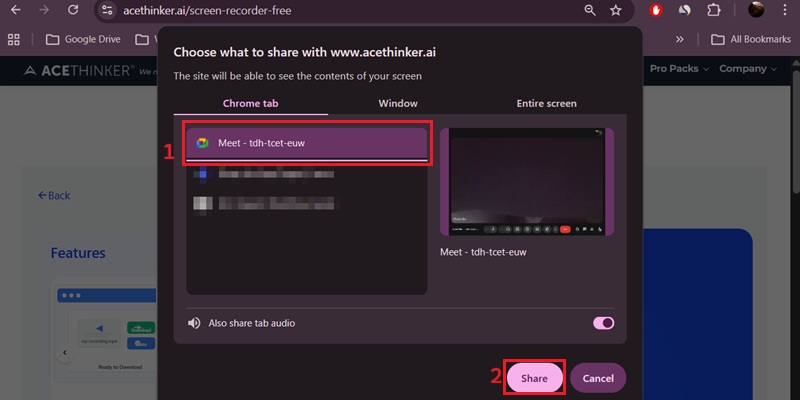
Should I record the Meet tab, app window, or full screen?expand_more
Can I save a Google Meet recording locally for personal notes or internal review?expand_more
Start Recording Your Next Google Meet Session
Get the recorder to record any Google Meet video and audio call to keep everyone aligned easily.