menu

Online Voice Recorder for Daily Recording Needs

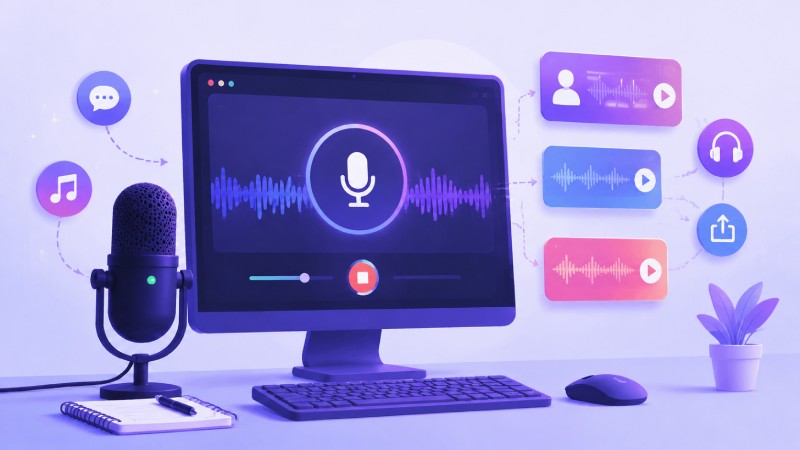
Record clear audio instantly with this online voice recorder. No downloads needed—just start, capture your voice, and save recordings easily for podcasts, notes, or messages.
Start Recording Instantly

Configure your session and record with one click.

Popular Ways People Use This Voice Recorder

Check out basic functions for capturing and managing audio anytime.

volume_up

Create Voiceovers for Videos and Presentations

Record narration for tutorials, slides, or explainer videos. It helps make content easier to follow and more engaging for viewers.
frame_person_mic

Practice Speaking or Language Skills

Use it to record speeches, pronunciation practice, or reading exercises. Listening back makes it easier to improve clarity and confidence.
share_windows

Record Podcasts or Personal Audio Content

RCapture spoken content for podcasts, storytelling, or short audio messages. The high-quality recording keeps your voice sounding consistent.
share

Save Ideas and Quick Voice Notes

Record thoughts or reminders the moment they come to mind. It’s a simple way to capture ideas without stopping to type.

How to Record Voice Online in Seconds

A simple process for recording and saving audio whenever you need it.

  • 1

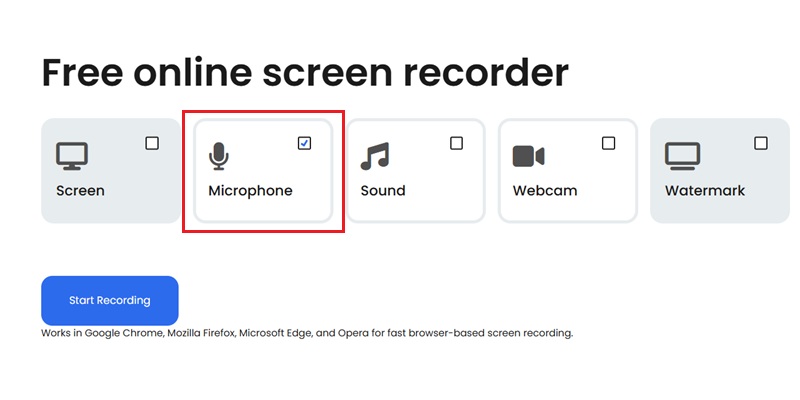
    Authorize Microphone Input for Browser Capture

    Grant microphone permissions in your browser to activate real-time voice input processing. This ensures your system is ready for uninterrupted audio capture without additional software setup.No installation required

  • 2

    Initiate Live Voice Capture Session

    Start recording and deliver speech into the microphone for immediate digital audio encoding. This enables fast capture for notes, narration, meetings, or content workflows.No installation required

  • 3

    Validate Audio Clarity Through Playback Review

    Play back the recorded audio to evaluate voice clarity, background noise levels, and overall signal quality. This step ensures usable output before saving or sharing.No installation required

  • 4

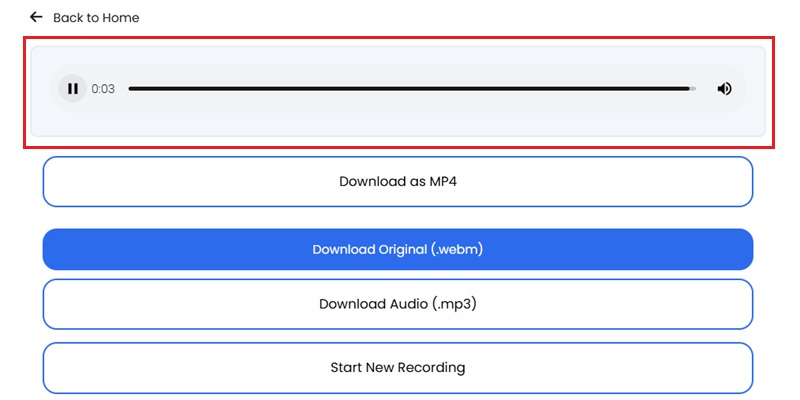
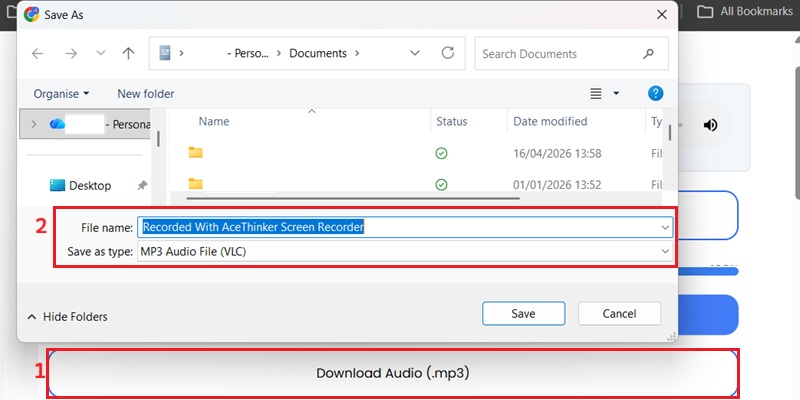
    Store or Download Processed Audio Output

    Save the finalized recording or download it locally for reuse across meetings, projects, or content production. The file remains ready for distribution or editing workflows.No installation required
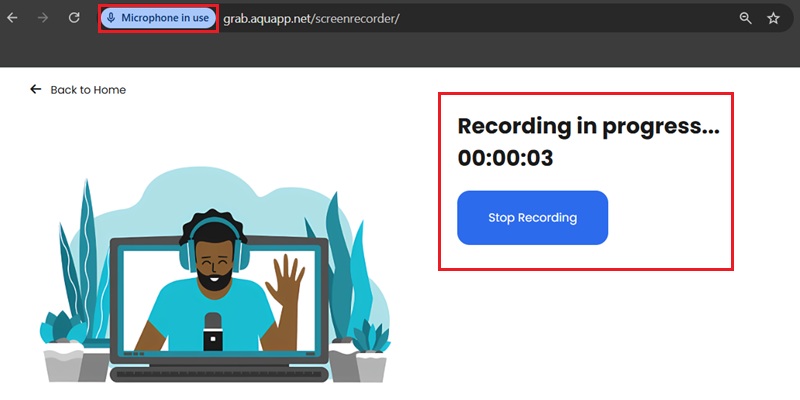
Authorize Microphone Input
Initiate Live Voice Capture Session
Validate Audio Clarity
Download Processed Audio Output

Why Use This Online Voice Recorder

Record audio anytime to save ideas, conversations, and important moments with clear sound.

podcasts

Record Clear Voice Audio with Studio-Level Quality

Capture your voice at up to 320 kbps with a 48kHz sampling rate, keeping speech clear and natural. It works well for narration, content creation, or everyday voice recording.

speaker_notes

Start Recording Voice Instantly Without Setup

You can begin recording straight from your browser. No installation is needed, so it’s easy to capture voice ideas the moment they come up.

interpreter_mode

Keep Your Audio Private While You Record

Your recordings are processed locally in the browser rather than uploaded online. This gives you more control over your voice data and privacy.

hangout_video

Quickly Clean Up Your Recordings Afterward

Once you finish recording, you can remove pauses or mistakes using the tool's built-in trimmer. It helps you turn raw recordings into cleaner, usable audio recordings.

Studio-Clear Voice Recording: 48kHz Audio Precision & Noise Stability

graphic_eq

Capture Voice Audio with Broadcast-Level Clarity

Online Voice Recorder maintains full-spectrum clarity by capturing at 48kHz/320kbps, preserving harmonics up to 22kHz, which typical 128kbps browser tools aggressively cut. The result is studio-grade transient accuracy and near-zero spectral distortion, ideal for vocals, narration, and acoustic demos.

bar_chart_4_bars

Technical Metrics

Through precise PCM buffer alignment and optimized in-browser encoding, Online Voice Recorder produces clean, full-spectrum frequency response suitable for vocal editing, music sampling, and podcast-quality recordings.

  • check_circle
    320kbps constant bitrate output
  • check_circle
    22kHz harmonic overtones preserved
  • check_circle
    <0.02% waveform distortion rate compared to source input

Comparison Chart

Feature Online Voice Recorder Desktop Voice Recorder Vocaroo (Online Voice Recorder)
Installation No install needed Requires software Works in browser
Access Instant browser access More setup required Browser-based access
Start Time Record instantly Takes time to set up Record starts quickly with minimal steps
Ease of Use Easy on any device Better for advanced editing Simple interface with basic recording tools
Best For Best for notes & quick voice clips Better for studio workflows Quick voice recordings and easy sharing
Start Recording Get Pro Version Learn More

Record Your Voice Instantly Online

Use this online voice recorder with playback, no downloads required. Perfect for podcasts, lectures, or quick voice notes.
Frequently Asked Questions

Why can’t the recorder access my microphone?expand_more

This usually happens when microphone permission is blocked in your browser or system settings. If access is not allowed, the recorder will not be able to detect or use your mic during recording. Or, if the microphone is not plugged in correctly, loose, or not detected by the system, it will also not appear in the recorder options. To fix this, make sure microphone permission is enabled for the recording site in your browser settings. Also, check that the correct microphone device is selected in the recorder and that it is not in use by another app, such as Zoom or Teams. Additionally, try reconnecting the microphone or using a different USB port or audio jack. Restarting the browser or app can also help refresh the device connection.

How do I reduce background noise before recording voice?expand_more

Background noise can come from fans, keyboards, open windows, or nearby devices during recording. You can reduce background noise before recording by preparing your environment and adjusting your audio setup. Choose a quiet room and close windows, doors, and anything that can let in external sounds, such as fans, traffic, or people talking. Additionally, use an external headset or microphone with noise cancellation for better sound isolation. On the other hand, enable the Microphone Noise Cancellation and Microphone Enhancement on the Sound Settings of the Aqua Demo to further clean your voice audio. Also, make sure your microphone is close to your mouth, so it captures your voice more clearly and reduces pickup of surrounding noise.

What should I test before recording narration, voice notes, or a voiceover?expand_more

Before recording narration, voice notes, or a voiceover, check your microphone, audio settings, and recording environment to ensure your voice is captured clearly. First, test your microphone by recording a short sample and listening back to check whether your voice sounds clear and well-balanced. Make sure the correct microphone device is selected in Aqua Demo, and that features such as microphone enhancement and noise cancellation are enabled. Also, check your input volume so your voice isn't too quiet or distorted. Finally, make sure you are in a quiet environment with minimal background noise, and close any apps that might interfere with audio capture. A quick test recording helps confirm that everything is working before you start your full narration or voiceover.

How can I avoid recording system sounds when I only need my voice?expand_more

If you only need a voice recording and do not want system sound, you can easily disable it. In Aqua Demo or the Online Screen Recorder turn off the system sound/speaker audio option before starting the recording. This ensures that only your microphone input will be captured. Another option is to close music apps, browsers, and notification sounds before recording to avoid any unwanted background audio. You should also check that your microphone is properly selected as the active input device in the settings. For better accuracy, do a short test recording first to confirm that only your voice is being captured clearly without any system sounds.

What should I do if the voice recording is too quiet or uneven?expand_more

After doing a voice recording test and noticing that the recording is too quiet or uneven, first check your microphone input level in the Aqua Demo's sound settings. You can adjust it to 100% level to maximize input volume and make your voice clearer. Then make sure the microphone is positioned close to your mouth so your voice is captured consistently without dropping in volume. You can also enable microphone enhancement or noise cancellation features to improve clarity and balance. Also, take note to avoid speaking too far from the mic or changing distance while recording, as this can cause uneven audio levels. Lastly, doing another short test recording after adjustments helps confirm that the voice level is now stable before the actual recording.

Start Recording in Seconds

Capture voice recordings directly in your browser, no downloads, no installation, and no setup required.

Back to Top
Contact Us
Learning Center