menu

Record Zoom Meetings Online Easily

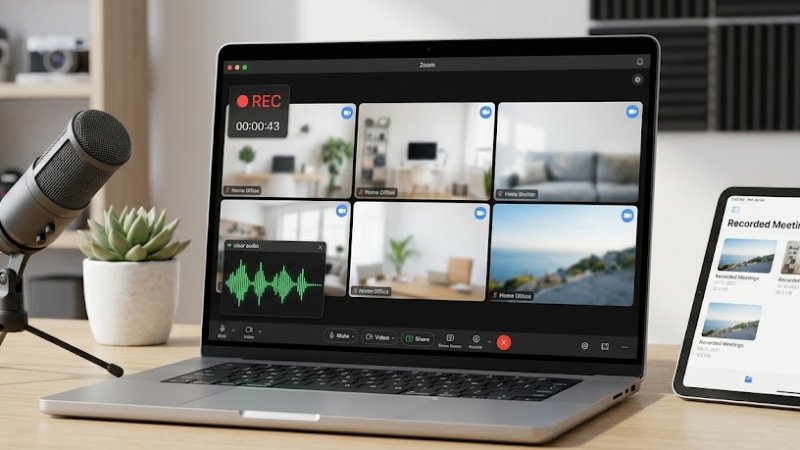
Save Zoom video calls and recordings easily. It lets you capture important discussions, meetings, and sessions for later review and sharing.
Start Recording Instantly

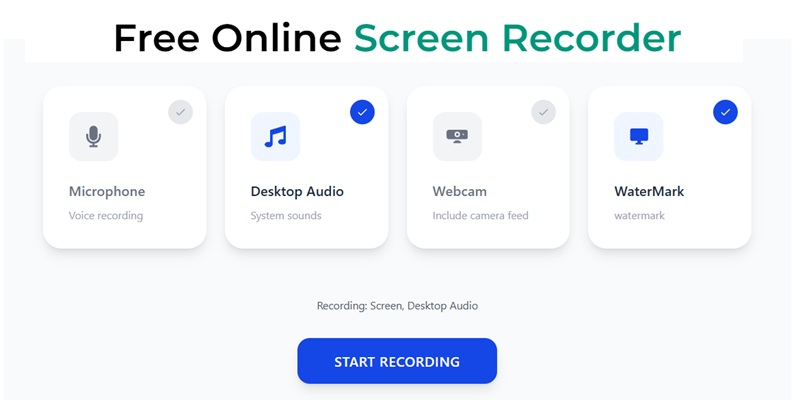
Configure your session and record with one click.

Why Use This Zoom Meeting Recorder

Discover the essential features that make Zoom recording effortless.

approval

Record Meetings Privately Without Uploading Data

Your recordings stay on your device instead of being sent to external servers. This gives you more control when handling client calls, internal discussions, or sensitive information.
interpreter_mode

Capture Clear Audio and Video for Accurate Playback

Every detail matters in meetings. Record in high-quality video with synchronized audio so you can revisit discussions exactly as they happened.
share

Record, Trim, and Share Without Switching Tools

Once your meeting ends, you can immediately remove waiting time or irrelevant parts using the built-in Trimmer. It keeps your recordings clean and ready to share without extra editing software.
block

Flexible Recording for Different Meeting Setups

Whether it’s a one-on-one call, webinar, or group session, you can capture everything from your screen with ease. It adapts to different meeting formats without a complicated setup.

How to Record Zoom Meetings Online

Check the steps to record any Zoom meeting in high quality.

  • 1

    Initialize the Zoom Capture Workspace

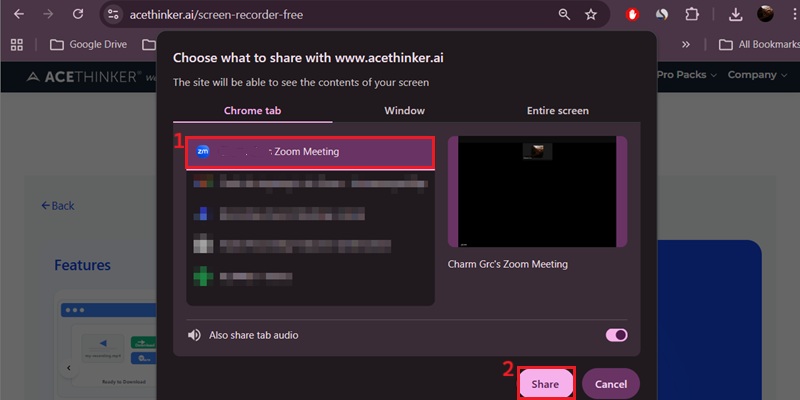
    Access the browser-based recorder before the meeting or during a live session. This prepares the screen and audio channels early for uninterrupted meeting capture.

  • 2

    Enter the Live Zoom Meeting Environment

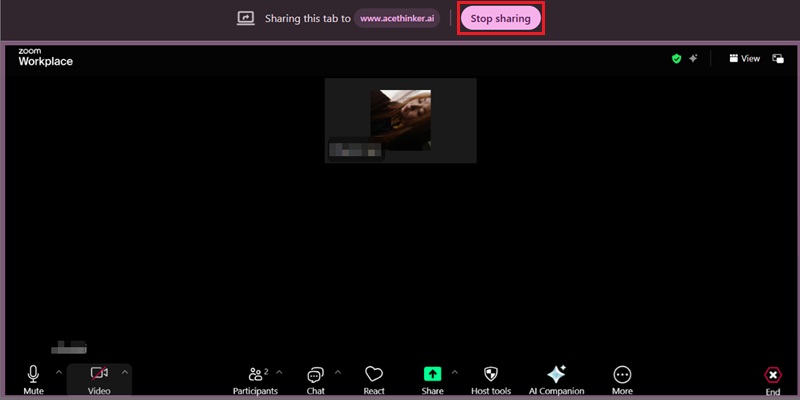
    Join or host your Zoom session while keeping the recorder active in a separate tab. This ensures recording readiness without disrupting the call flow.

  • 3

    Execute Real-Time Meeting Capture

    Start recording to capture speech, shared screens, and presentation visuals in a synchronized format. This preserves accurate playback for reviews and internal documentation.

  • 4

    Generate Share-Ready Meeting File

    Finalize the recording and produce a downloadable MP4 version for distribution. The saved file can be used for training, meeting recaps, or client reporting.
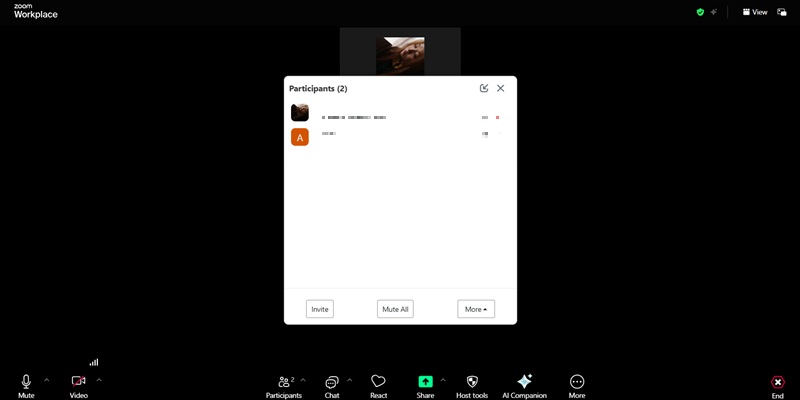
Initialize the Zoom Capture
Enter the Live Zoom Meeting
Real-Time Meeting Capture
Finalize the recording

Popular Ways to Use This Zoom Meeting Recorder

Choose how you want to record your Zoom meetings. Start quickly and save what matters.

video_chat

Save Client Meetings and Important Discussions

Keep a reliable record of agreements, feedback, and project updates. You can review conversations later or share them with team members who couldn’t attend.

school

Record Online Classes and Training Sessions

Capture lessons, workshops, or onboarding sessions for future reference. After recording, trim long sessions into shorter segments using the built-in Trimmer for easier viewing.

missed_video_call

Keep Copies of Webinars and Virtual Events

Record live presentations so they can be reused or shared later. This is useful for turning one session into long-term learning or training material.

diversity_1

Capture Interviews and Remote Conversations

Record interviews, hiring discussions, or remote calls with clear audio and visuals. It helps when reviewing responses or comparing candidates.

4K Meeting Recording: Stable Screen & Audio Synchronization

capture

Capture Zoom Meetings with Presentation-Grade Clarity

AceThinker utilizes a Low-Latency H.265/HEVC Capture Engine to preserve shared-screen detail, participant windows, and presentation playback in full 4K UHD quality. Our visual verification confirms that spreadsheets, slide text, and live annotations remain sharp during screen sharing and rapid window transitions. This ensures that recorded Zoom meetings maintain enterprise-grade clarity for training, documentation, and remote collaboration workflows.

bar_chart_4_bars

Technical Metrics

We validate meeting recording performance using frame-stability benchmarks and audiovisual synchronization analysis. Every recording session is optimized for professional conference playback with hardware-accelerated processing and low-latency capture.

  • check_circle
    Recording Resolution: Up to 4K UHD
  • check_circle
    Audio Synchronization: 48kHz Conference Audio Capture
  • check_circle
    Capture Latency: <10ms System Response

Comparison Chart

Feature Online Recorder Desktop Recorder Krisp (Zoom Meeting Recorder)
Installation No installation needed Requires download and setup Desktop app available, optional setup for Zoom integration
Access Open in any browser Limited to installed device Works with Zoom meetings across supported devices
Convenience Start recording instantly Takes time to set up Auto-record or manual start during meetings
Recording quality High-quality meeting audio and video for everyday use More control over quality settings Clear meeting audio
Best For Quick Zoom recording anytime Professional or advanced use Recording and managing online meetings
Start Recording Get Pro Version Learn More

Record Zoom Meetings Online Instantly

Learn how to record Zoom meeting directly in your browser with no installation required, capturing every discussion smoothly and easily.
Frequently Asked Questions

How do I record a Zoom meeting with both screen and audio?expand_more

You can record your Zoom meeting in two ways, depending on its length. For short meetings, you can use the Online Screen Recorder. Simply open it in any browser and enable the necessary options, such as screen, microphone, audio, and system audio. Then, the recording will automatically start once the Zoom window is selected and shared. On the other hand, for longer or more stable Zoom recording sessions, you can use the Aqua Demo instead. Here, you can record the meeting's duration. Same as the online recorder, enable the necessary options, select the Zoom window, and start the recording. Apart from that, the tool includes Task Scheduler, which is useful for scheduled meetings. With that, you don’t need to set up the recorder again; once the meeting starts, the recording will start too. Remember, always follow meeting consent rules and organization recording policies before recording Zoom calls.

Why does my Zoom recording miss participant voices?expand_more

Zoom recordings usually miss participant voices because the wrong audio source was selected before the recording started. If you are recording in the browser, ensure the browser permissions for system audio and microphone access are enabled before joining the meeting. After that, when using Online Screen Recorder, make sure you enable both the participant's system sound and your microphone audio, so the recorder captures all speakers during the call. In the Aqua Demo tool, enable the System Sound option and select the correct audio source before starting the recording session. If the wrong speaker device is selected, the software may only capture your microphone, not the participant's voices from Zoom.

What should I enable to record both the microphone and system audio in Zoom?expand_more

To record both your microphone and Zoom meeting audio, you need to enable both the microphone input and system sound capture before starting the recording. In Online Screen Recorder, enable both Microphone and System Sound options. So the recorder can capture your voice together with participant audio from Zoom. If the browser asks for permissions, make sure to allow microphone access; otherwise, the meeting sound may not be included in the recording. After that, before sharing the Zoom meeting screen to the recorder, make sure the “Share tab audio” checkbox is checked before clicking Share. On the other hand, in Aqua Demo, as in online, enable both Microphone input and System Sound. Then, check if the source of both audio inputs is correctly selected before recording starts.

What should I test before recording a long Zoom session?expand_more

Before recording a long Zoom session, test both the video and audio to ensure everything is captured properly during the meeting. In Online Screen Recorder, check if the correct screen, browser tab, microphone, and system sound options are enabled before starting the recording. If you are using Aqua Demo, confirm that the microphone source, speaker output, and recording resolution are correctly selected to avoid missing audio or blurry video. You should also record a short test and replay the file to verify that participant voices, webcam video, and shared screens are captured smoothly, without lag or distortion. Before the meeting starts, close unnecessary apps and browser tabs, as background programs can reduce recording performance during long sessions.

What should I do after recording if the Zoom video has unwanted start/end sections or a large file size?expand_more

After recording a Zoom session, review the video first and remove the unnecessary start and end parts before sharing or uploading the file. In Aqua Demo, you can trim unwanted sections directly from the preview panel, so you do not need to open a separate editing tool for simple cleanup. If the recorded meeting file is too large, use the built-in Video Compressor in the same preview panel to reduce its size, making it easier to upload, store, or share online. While in the Online Screen Recorder, you can still review the file before saving. However, you need separate tools like Video Cutter and Video Compressor to trim and compress the recorded Zoom meeting if needed, since the tool doesn't have these features.

Record Zoom Meetings Online Instantly

Start capturing meetings, classes, or discussions without any setup or installation.

Back to Top
Contact Us
Learning Center