
menu

verifiedTrusted by 50,000+ YouTubers

Download Videos for Editing (No Watermark, High Quality Source Files)

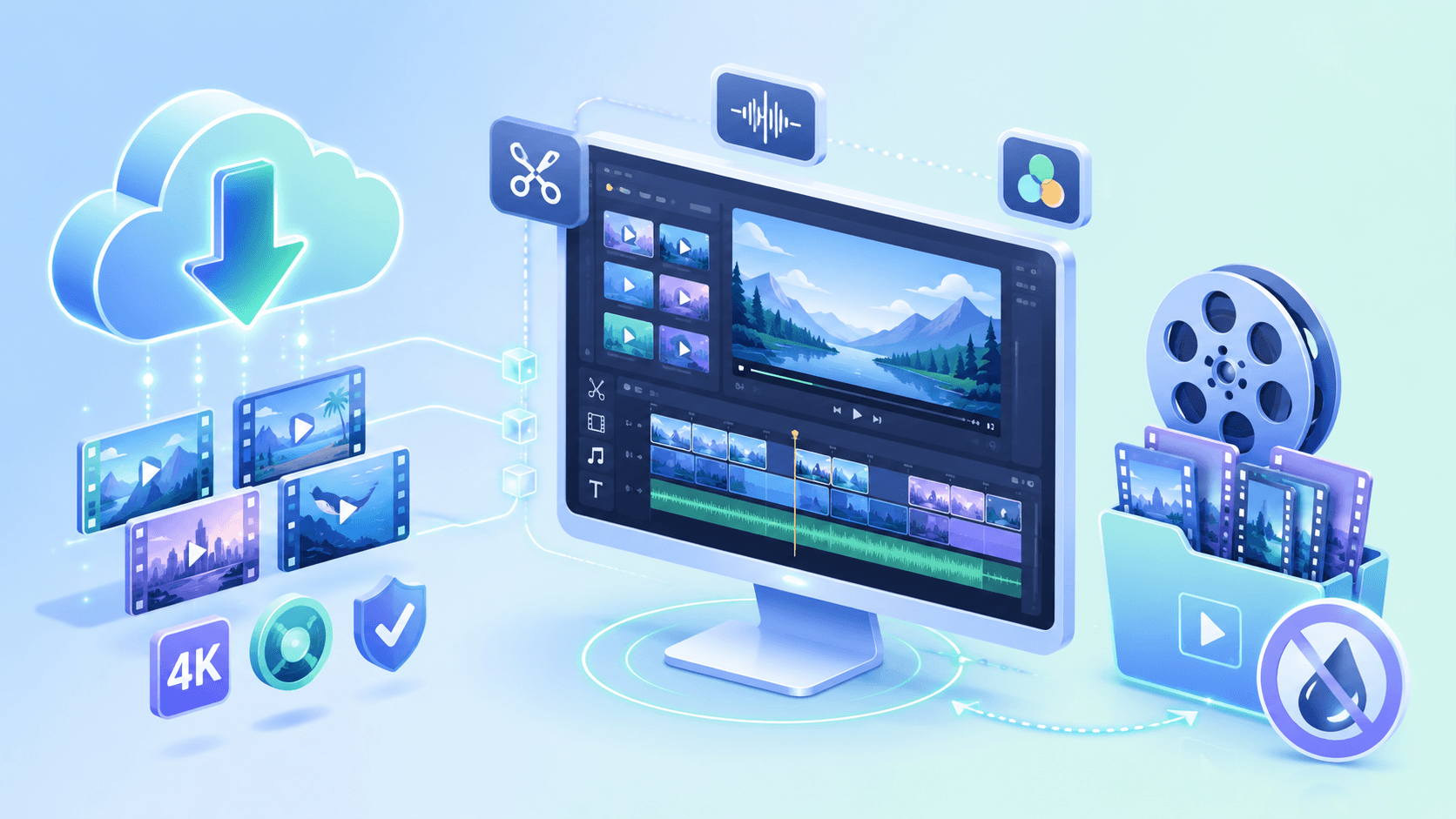
Get clean, watermark-free, high-resolution videos for editing in CapCut, Premiere Pro, or mobile apps. Ideal for creating social media content, marketing clips, and short-form edits.
Download Any Video In Your Browser

Edit Smarter with Real Use Cases

See how it helps you download videos for editing across different projects.
Edit Educational and Tutorial Content with Clean Structure

Instructional videos often lose clarity when sourced from low-quality or compressed downloads, making them harder to repurpose for learning. Using the Video Downloader, creators save stable, high-resolution footage that can be trimmed and reorganized without losing text readability or screen detail. This is especially important when adding overlays, annotations, or step-by-step breakdowns during editing. The final output becomes structured educational content that is easier to follow and visually consistent.

school

save_as

Repurpose Content for Multi-platform Editing Workflows

One of the biggest challenges for marketers is adapting a single video into multiple formats without quality degradation. The Video Downloader helps preserve the original file before any compression, so editors can safely resize and reformat for different platforms. Without this, repeated downloads often introduce artifacts that reduce clarity after re-encoding. The final result is platform-specific content optimized for Instagram, TikTok, and YouTube without losing visual quality.

Create Short-form Content for Reels, TikTok, and Shorts
Short-form creators often work with compressed source videos that break down when cropped for fast-paced vertical edits. The Video Downloader ensures clean, high-bitrate footage is available before trimming, so every frame stays sharp during transitions and zoom effects. This prevents common issues like pixelation or subtitle distortion during rapid cuts. The final clips are optimized for vertical mobile viewing with smooth playback and consistent visual quality.

Video Acquisition: MP4 Export & Resolution Selection

graphic_eq

Get High-Quality Videos for Editing

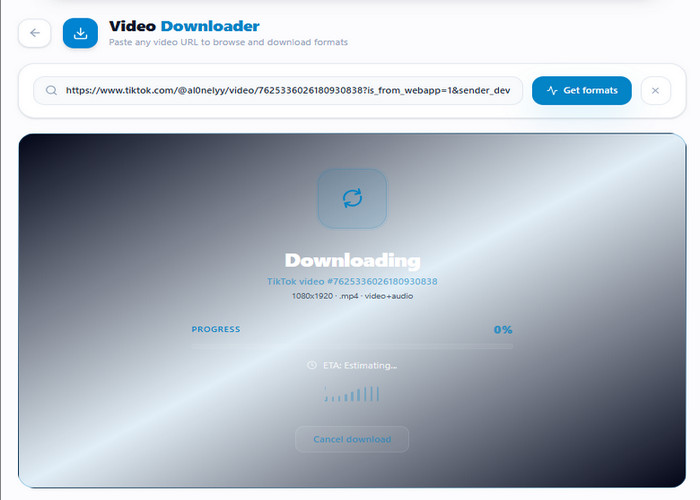
The tool extracts video data from a pasted URL and displays available download versions based on the source file. Once a resolution is selected, the tool processes the stream to generate a local MP4 file with embedded AAC audio. The tool saves the video directly to your storage in the chosen resolution, such as 720p or 1080p, ensuring the file is ready for local playback or further tool-based actions.

bar_chart_4_bars

Technical Metrics

Understand the key technical settings that ensure your downloaded videos are fully compatible with editing tools and preserve high visual quality from source to final output.

  • check_circle
    Format: MP4 (H.264)
  • check_circle
    Resolution: 720p, 1080p (based on source availability)
  • check_circle
    Audio: MP3, AAC

Start Downloading Videos for Editing Easily

Follow simple steps to quickly download videos for editing and improve your workflow with better quality and format compatibility.
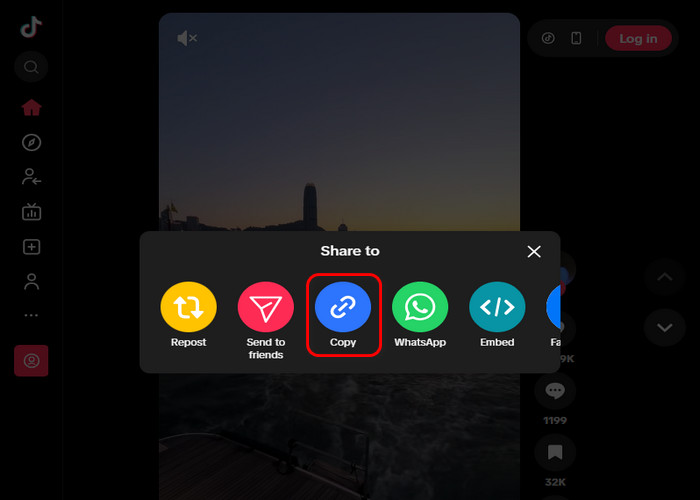
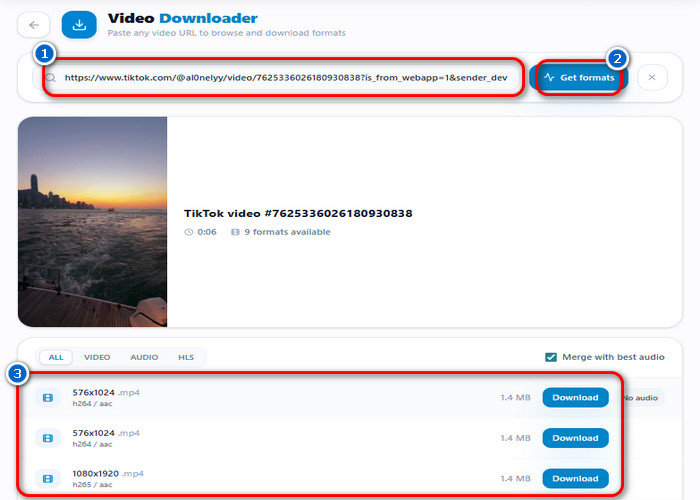
01

Find a Video that Matches Your Editing Goal

Start by selecting a video that fits the content you want to create, such as YouTube videos, social media clips, or marketing materials. Choosing the right source early helps avoid wasting time on footage that won’t match your final output. This ensures your editing process begins with relevant and usable material.

Find a Video that Matches Your Editing Goal

02

Prepare the Video for Editing Quality

Choose high-resolution sources (1080p or 4K) so details remain sharp when you cut, zoom, or apply effects. This helps prevent issues like pixelation, blurry overlays, or distorted visuals during editing. Starting with high-quality sources makes the entire workflow more stable and flexible.

Prepare the Video for Editing Quality

03

Download a Clean Editing-Ready Copy

Use a Video Downloader to save the video in an editing-friendly format, such as MP4, with stable quality and an intact bitrate. This reduces problems such as compression artifacts, playback errors, and import issues in editing software. The result is a clean source file that is ready for production use.

Download a Clean Editing-Ready Copy

04

Cut, Refine, and Import for Editing

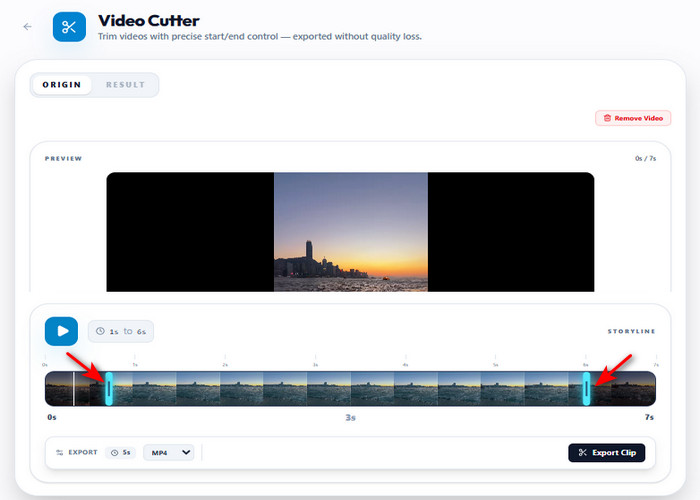
Use a Video Cutter to remove unnecessary sections, keeping only the usable parts of the footage. This turns raw video into structured clips that are easier to arrange into a final story. Once ready, import the clips into tools like Premiere Pro, Final Cut, or CapCut to complete the editing process.

Cut, Refine, and Import for Editing

Features That Fit Your Workflow

  • downloadBatch Download
  • outputMultiple Output Format
  • high_qualityHigh Quality
  • download_doneMetadata Preservation
batch video download

Batch Video Downloads for Faster Editing Preparation

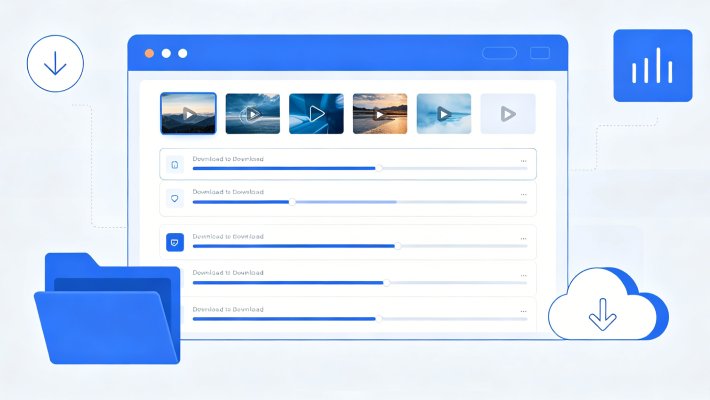
Editing projects often require multiple video sources before any real cutting or sequencing can begin. Instead of saving files one by one, multiple videos can be collected in a single batch to speed up the setup process. This is especially helpful when building compilations, tutorials, or content series that require multiple clips. It keeps the early stage of editing focused on structure rather than repetitive downloading tasks.
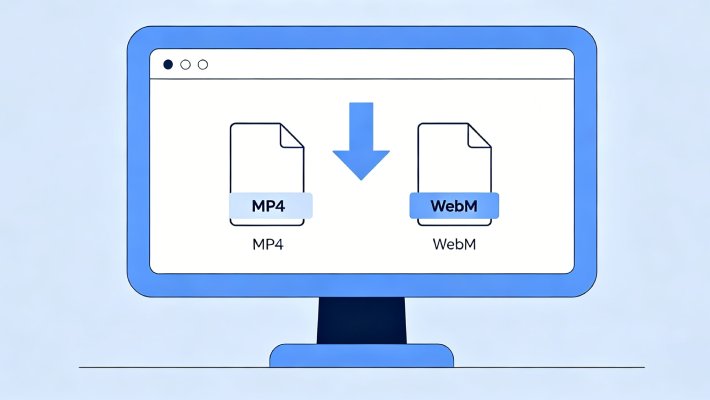
download video in MP4 and WebM

Editing-ready Formats for Smoother Workflow Integration

One of the most common delays in editing comes from files that need conversion before they can be used. Videos downloaded in widely supported formats like MP4 and WebM remove that extra step and fit directly into tools such as Premiere Pro, Final Cut, or CapCut. This helps keep the workflow uninterrupted and avoids unnecessary format issues during production. Editors can move straight to arranging and refining content rather than fixing compatibility problems.
download video in High-Resolution

High-Resolution Downloads for Clean Editing Outputs

When source quality is low, even simple edits like zooming or cropping can reduce clarity. Supporting up to 4K resolution helps preserve detail throughout the editing process, even when multiple effects or layers are applied. This matters most for content that relies on visual precision, such as tutorials, product showcases, or cinematic clips. The footage stays sharp from the first cut to the final export.
download video with metadata

Organized File Structure Through Preserved Video Details

Large editing projects can quickly become difficult to manage when files lose their original context. Keeping key details such as titles, durations, and source information makes it easier to track and organize assets during production. Instead of searching through unnamed clips, editors can quickly identify what each file contains. This keeps project management more structured and reduces friction during editing.

All-in-One Tools for Video Creation

headphones

Video Converter

Convert video files into formats like MP4 or WebM to ensure they work smoothly across editing tools and devices. This helps prevent import errors or compatibility issues when moving footage into software like Premiere Pro or CapCut.

  • check_circle
    No installation required
  • check_circle
    Works on any device
  • check_circle
    Quick export & share

Benny's Pick

Web-Based Editor

hangout_video

Video Editor

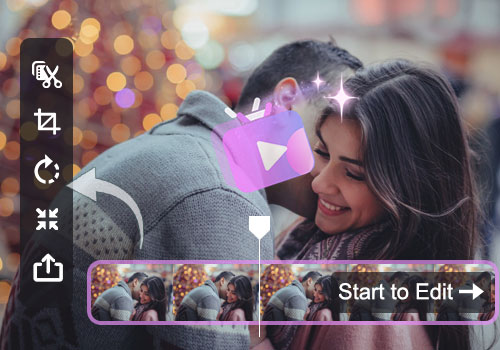
Edit videos by trimming, cutting, and enhancing clips to improve pacing, structure, and visual quality. It is used when you need full control over storytelling, transitions, and final output refinement.

  • check_circle
    No installation required
  • check_circle
    Works on any device
  • check_circle
    Quick export & share

Aisha's Choice

Desktop App

insert_page_break

Video Cutter

Remove unwanted sections from long footage and isolate only the usable parts for your project. This helps turn raw video into clean, focused clips that are easier to arrange during editing.

  • check_circle
    No installation required
  • check_circle
    Works on any device
  • check_circle
    Quick export & share

Lara's Must-Have

Mobile Quick-Edit

resize

Video Resizer

Adjust video dimensions to match platform requirements, such as 9:16 for TikTok or 1:1 for Instagram. This ensures your content fits correctly without cropping important visual elements or losing composition quality.

  • check_circle
    No installation required
  • check_circle
    Works on any device
  • check_circle
    Quick export & share

Viral Pick

AI Script-to-Video

Frequently Asked Questions

What should I check before downloading a video for an editing project?expand_more

Editing issues often occur when downloaded videos are under copyright restrictions, low-resolution, or in unsupported formats. Before downloading, make sure the video is free to use, licensed for editing, or permitted by the owner, especially for commercial projects or personal use. Use the Video Downloader tool to save the video in MP4 format and choose the highest available resolution for better editing compatibility. Remember, even if a video is downloadable, platform restrictions or copyright limits may still apply to how it can be used.

How do I trim a downloaded clip before adding it to a project timeline?expand_more

If the downloaded clip contains unnecessary sections, use the Video Cutter tool to trim the video before importing it into your editor. Upload the file, then set the start and end points to keep only the needed segment. Export the trimmed clip in MP4 format for standard editing compatibility. Still, the final quality depends on the original downloaded file, and the tool currently supports trimming one video at a time.

How do I avoid quality loss when re-editing downloaded clips?expand_more

Quality loss usually happens after repeated exporting or heavy compression during editing. To avoid quality loss, always work with the highest available version of the downloaded video and avoid repeatedly re-exporting or compressing the file. Keeping the original resolution and using consistent formats during editing helps maintain clarity, especially when combining multiple clips into a single project.

Why do some downloaded videos fail to import into editing software?expand_more

Some downloaded videos fail to import because of incompatible formats, codecs, or corrupted files. In this case, use Video Converter to convert the video to a more compatible format, such as MP4, before importing it into your editing software. However, files that are damaged or incomplete downloads may still fail even after conversion.

What legal or source-quality limits should I mention when using downloaded videos?expand_more

Downloaded videos may have copyright restrictions, so you should only use content that is free to use, licensed for editing, or properly permitted by the owner. Even if a video is downloadable, it does not always mean it is safe for commercial or public use. Also, the final quality depends on the original source; low-quality downloads cannot be fully improved through editing or conversion.

Start Downloading Videos for Editing

Get high-quality videos ready for editing anytime, anywhere.

Back to Top
Contact Us
Learning Center