










Organize Study Materials for Faster Revision and Clear Understanding
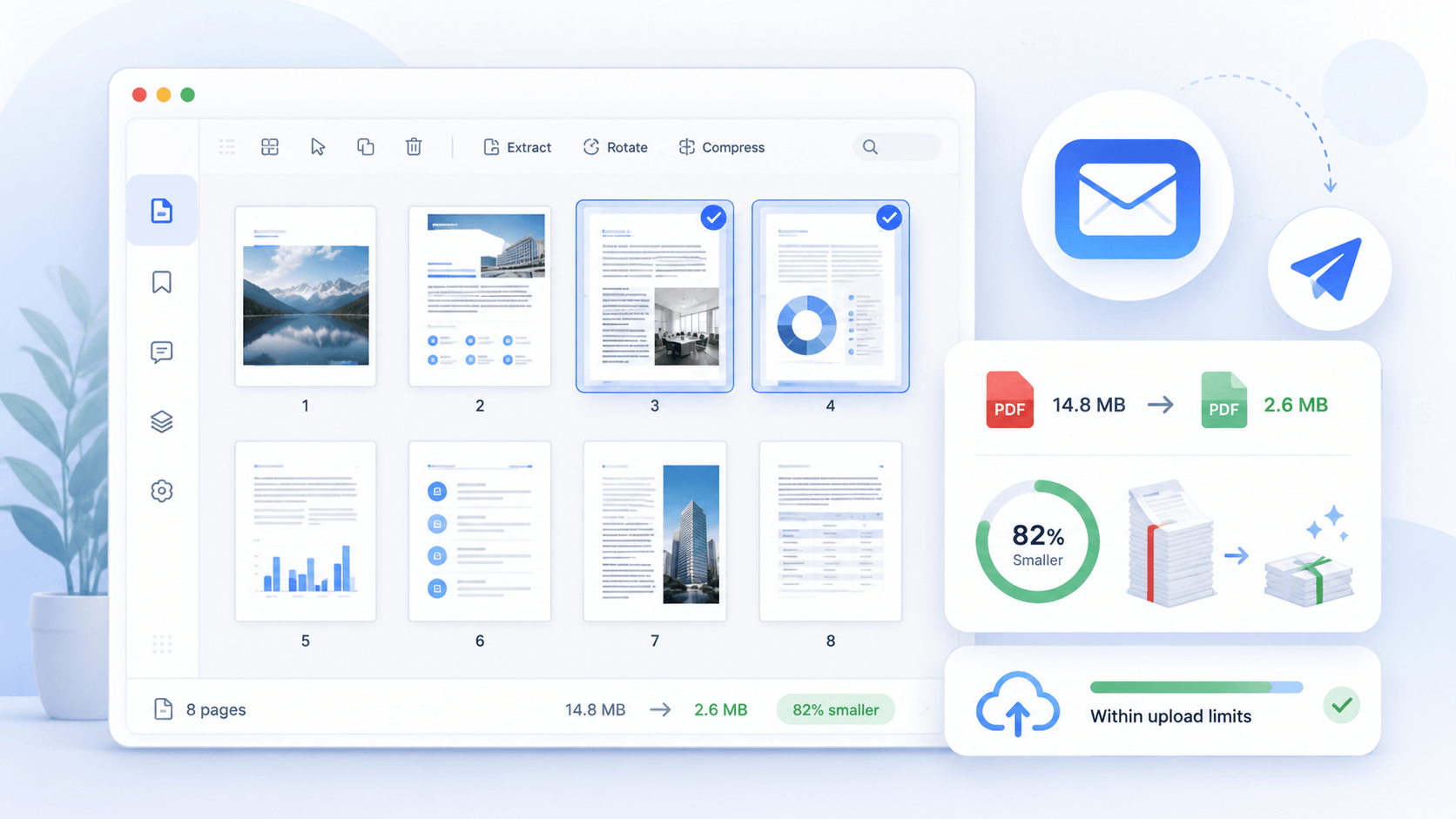
Structure your lecture notes, class materials, textbooks, and reviewers into a clear study system to help you understand topics faster and revise more efficiently. Organize everything by topic so you can quickly locate lessons, review key ideas, and prepare for exams without wasting time searching through scattered materials.
star
star
star
star_half

Prepare Study PDFs Before Full Organization Workflows
Study-Ready PDFs with 1:1 Structural Integrity
Organize PDFs Without Breaking Academic Structure
Academic PDFs often contain multi-level headings, figure indexes, footnotes, and cross-references that become disordered after standard reorganization tools. Our Organize engine preserves the exact scholarly hierarchy using Vector-Level Rendering and Structure-Aware Parsing, ensuring that all elements—section headers, captioned figures, margin notes, mathematical formulas, and bibliography entries—remain intact after merging, splitting, or rearranging pages.
Technical Metrics
We validate PDF organization using quantifiable industry standards essential for research and academic workflows.
Problems When Organizing PDFs
See why study PDFs get messy and learn easy ways to sort and manage them.
Lecture Notes Are Hard to Review as One Complete Topic
Students often study from multiple sources, such as notes, slides, and handouts, which makes it difficult to understand a single topic clearly. This breaks the learning flow and slows down comprehension during revision.
Finding Key Lessons During Revision Takes Too Long
Important topics are often buried in long study materials, making them hard to find quickly. This reduces focus during revision and increases time spent searching instead of studying.
Important Concepts Get Lost in Long Study Materials
Key ideas, definitions, and explanations are easily overlooked inside large sets of notes and readings. Students end up missing important points needed for exams.
Students End Up Re-reading Instead of Reviewing Strategically
Without structure, students reread entire lessons instead of focusing on specific topics they need. This makes exam preparation less efficient and more time-consuming.
Organize Your Learning by Activity
See real study situations where organizing PDFs helps keep notes clear, sorted, and easy to review.
- Organize Lecture & Class Notes
- Structure Textbooks
- Group Study Materials
- Manage Key Notes
Lecture slides and class notes are often scattered across different materials, making it difficult to understand a topic as a single lesson. This interrupts the flow of learning during revision.

What you can do:
Textbook content and readings are usually long and dense, making it hard to focus on specific lessons. Students often lose track of what they have already studied.

What you can do:
Study materials from different subjects can become mixed together, making revision confusing and unfocused. This reduces efficiency during exam preparation.

What you can do:
Important points are often buried inside long notes and readings, making them difficult to revisit. Students waste time re-reading entire lessons instead of focusing on the essentials.

What you can do:
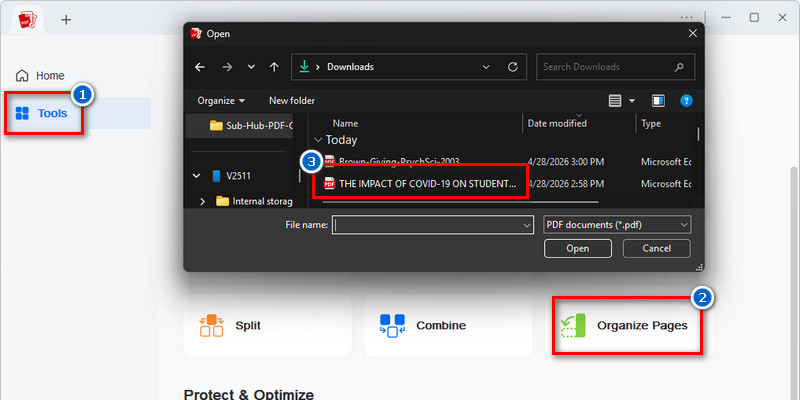
Upload → Organize → Keep → Save
Organize your study materials into structured PDFs for easier reading, note-taking, and revision.
-
1
Upload Your Lecture Notes and Study Materials
Gather your lecture slides, class notes, textbooks, and reviewers in one place to start organizing your study content. Having everything together makes it easier to see what needs to be reviewed and what needs to be structured.
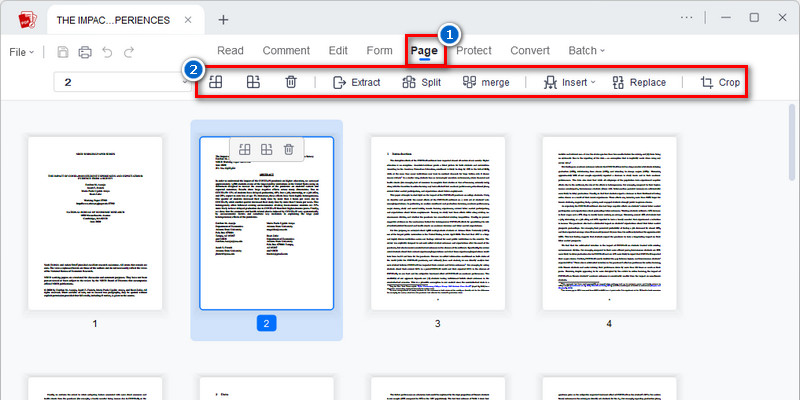
-
2
Organize Your Content by Topic or Subject
Organize your materials by topic or subject so they align with how you study in class. A clear structure helps you understand lessons in order and improves the flow of learning.
-
3
Keep Only Important Study Content
Remove duplicate pages, unrelated sections, and unnecessary information from your materials. Focusing on key content helps you study faster and retain important ideas more effectively.
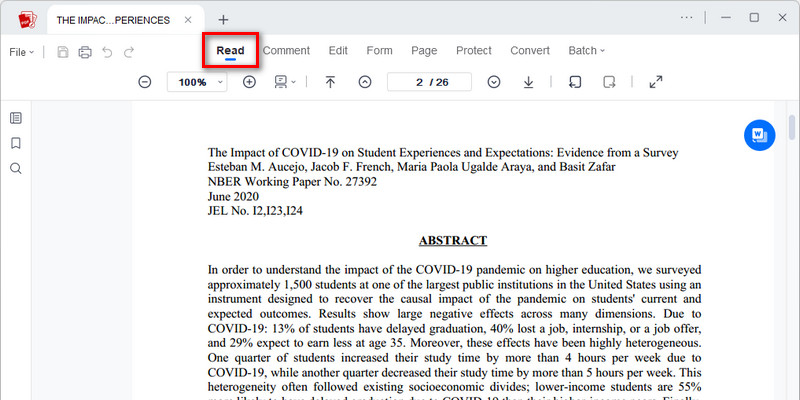
-
4
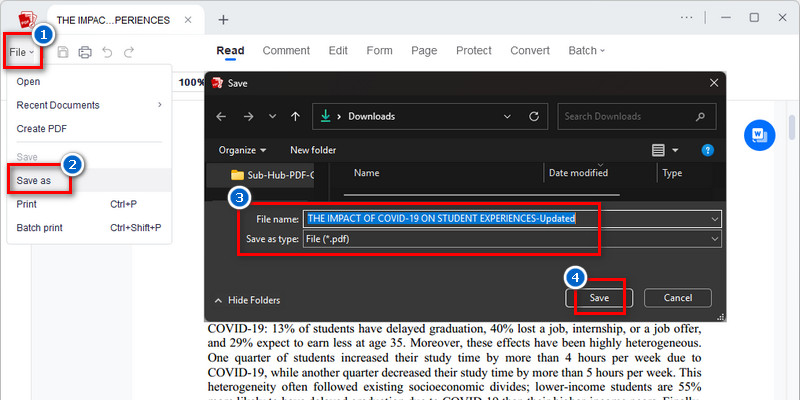
Save Your Study File for Revision and Exams
Save your organized materials so you can easily use them during revision or exam preparation. A structured file helps you quickly find topics and review key lessons when needed.












star
star
star
star_half
Trusted Study PDF Organization Features
Merge Lecture Notes into One Study File
Combine lecture slides, class notes, and textbook excerpts so all related content is in one place. Understanding improves when topics are studied as a complete lesson instead of scattered materials.
Bookmark Key Topics for Faster Revision
Mark important chapters, definitions, and concepts so you can return to them instantly during study sessions. Quick access to key topics helps reduce time spent searching during revision.
Extract Important Sections for Focused Study
Pull out essential parts of your notes, reviewers, or textbooks into a focused study set. Studying only what matters improves concentration and reduces unnecessary review time.
Highlight Key Points for Exam Preparation
Mark important definitions, formulas, and explanations while studying to strengthen recall. Clear highlights make it easier to review and remember key information before exams.
AcePDF - An Intuitive PDF Editor for Any Use















Frequently Asked Questions
How do I merge lecture slides, readings, and notes into one study PDF?expand_more
How do I split a large textbook PDF into smaller study sections?expand_more
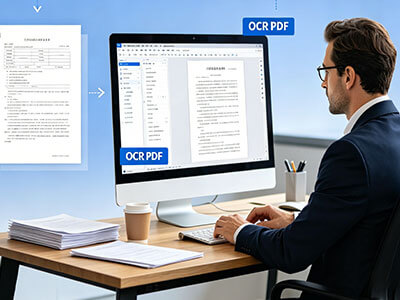
What should I do if scanned class notes are not searchable?expand_more
How do I remove blank, duplicate, or irrelevant pages from study materials?expand_more
Which tool should I use first: OCR, merge, split, convert, or compress?expand_more
Make Studying Faster, Clearer, and More Organized
No Learning Curve • Start in Seconds