










Extract Structured Data from Business PDFs Using OCR Technology
Convert scanned contracts, invoices, and reports into searchable and structured text for accounting, compliance, and operational workflows. Reduce manual data entry by digitizing paper documents into process-ready business records with accurate text recognition.
star
star
star
star_half

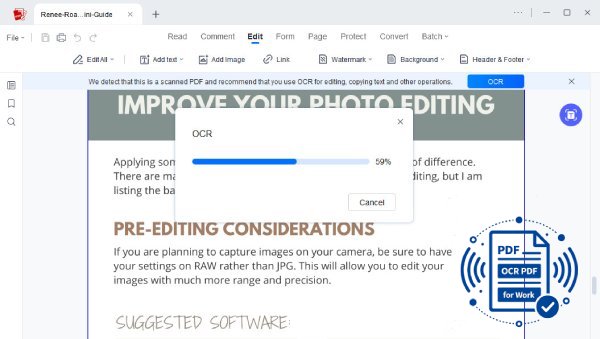
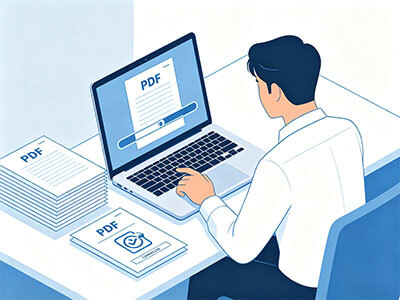
Quick PDF Preparation Before Professional OCR Processing
OCR Work Documents with 99.8% Text Recognition Precision
Extract Text from Complex Work Documents with Pixel-Level Accuracy
Stop wasting time fixing broken characters, misread tables, and distorted document structures. Our OCR engine is engineered to read work documents with professional-grade precision, even when dealing with low-contrast scans, multi-column layouts, or mixed languages. Leveraging Vector-Level Glyph Reconstruction and Adaptive Character Modeling, the system rebuilds each character based on its geometric shape rather than the raw pixels alone.
Technical Metrics
We measure OCR performance using enterprise-grade benchmarks. Every processed work document must meet or exceed these standards before delivery.
Common OCR Challenges for Work Documents
These are common issues when using OCR software. Errors can occur in text, numbers, or handwritten sections, affecting overall accuracy.
Contracts with Inconsistent Formatting
Irregular formatting leads to extraction errors and requires time-consuming manual correction.
Invoices with Complex Layouts
Invoices with multi-layered layouts reduce data accuracy and slow down financial processing workflows.
Forms with Structured Fields
Forms with predefined fields are difficult to digitize accurately, leading to fragmented data and manual-entry inefficiencies.
Signatures & Compliance Issues
Documents requiring signature validation and compliance checks increase the risk of missed details and regulatory issues.
Solve OCR Tasks by Scenario
Explore various scenarios where OCR is useful, including handling invoices, contracts, legal agreements, and tax forms to make work faster, more accurate, and organized.
- Process Invoices and Receipts
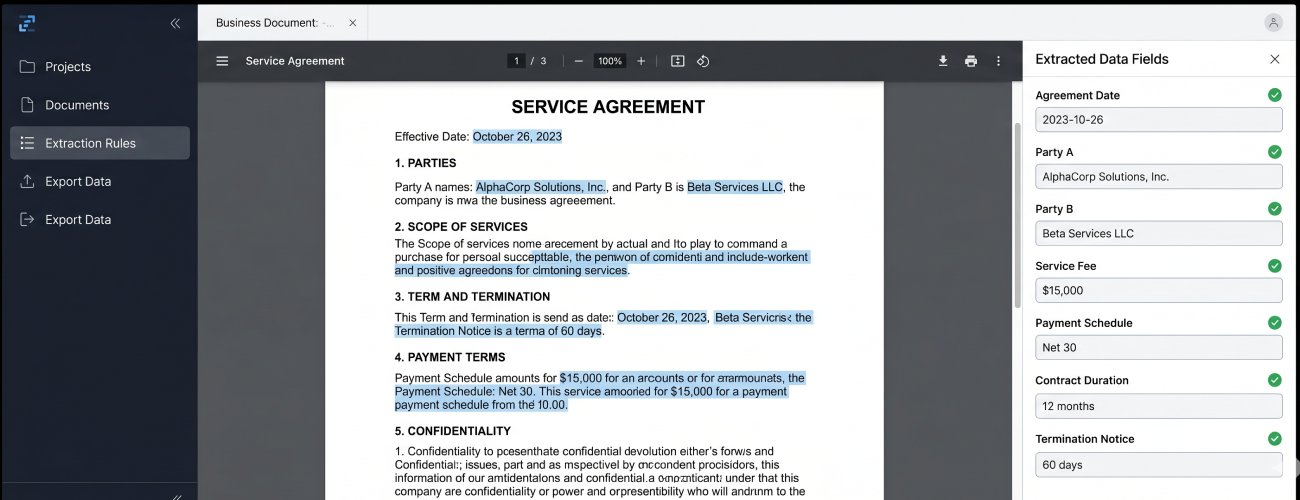
- Extract Data from Contracts
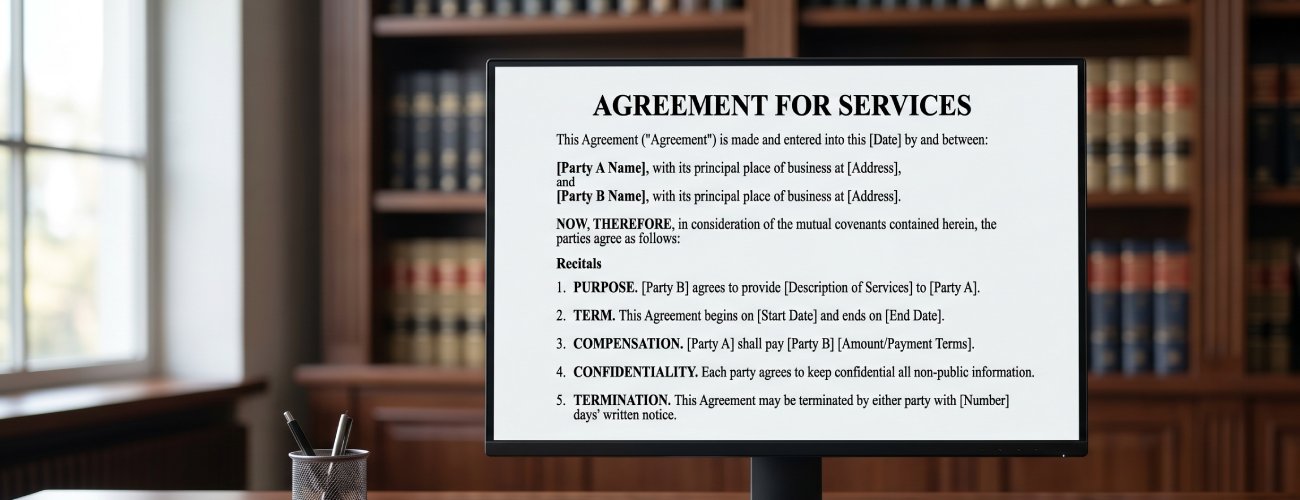
- Digitize Legal Agreements
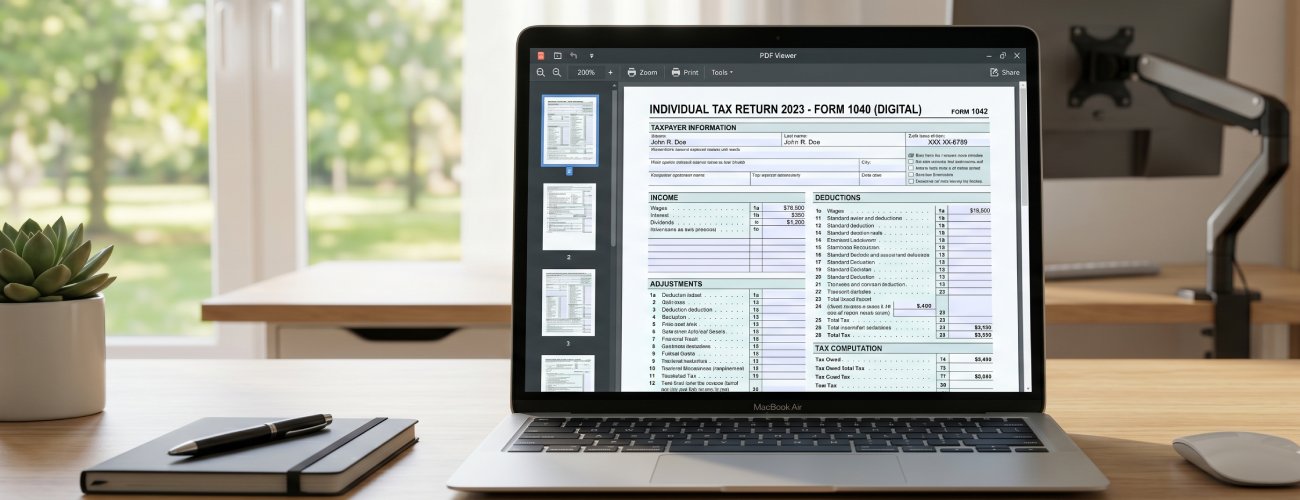
- Convert Tax and Financial Forms
Manual entry of invoice and receipt data from varied layouts slows down processing and creates processing delays in accounts payable. Inconsistent data capture also increases the risk of financial errors and record mismatches.

What you can do:
Unstructured contract formats make it difficult to consistently locate and extract critical terms. This leads to slower review cycles and increases the risk of missing important clauses.
What you can do:
Legal agreements stored in non-editable formats limit accessibility and slow down document handling. Manual transcription or review introduces risks of errors and inconsistencies in critical content.
What you can do:
Field-based tax and financial forms are complex and prone to data misalignment during manual processing. Errors in data entry can delay reporting and create compliance risks.
What you can do:
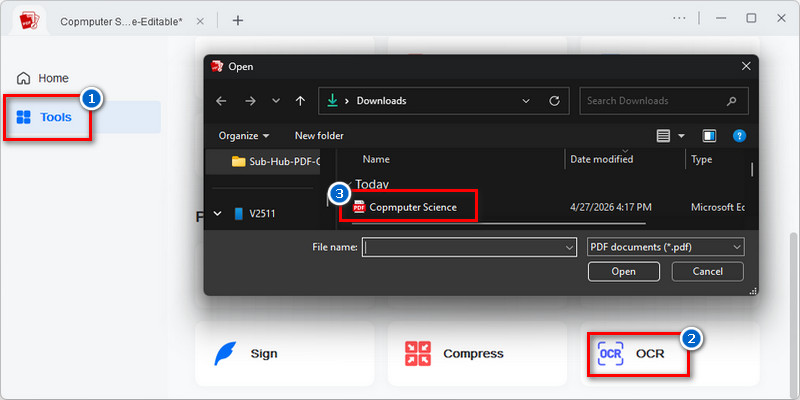
Import → Configure → Convert → Review
Import PDFs, scanned documents, and image files, then convert them into editable Word, Excel, or searchable PDF formats to support efficient editing, structured archiving, and compliant business workflows.
-
1
Import Business Documents for OCR Processing
Upload contracts, invoices, reports, or administrative files into the OCR workflow to prepare them for structured business data extraction. Batch upload support enables efficient handling of high-volume operational documents.
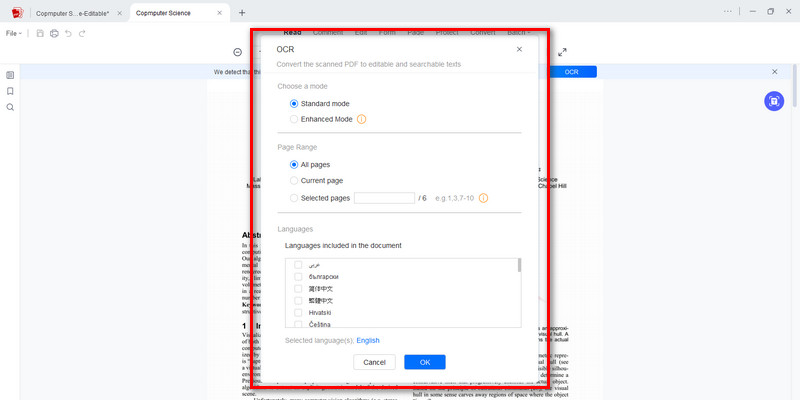
-
2
Configure Recognition Settings for Business Data
Adjust language, format, and recognition parameters based on document type and business workflow requirements. This ensures accurate extraction of operational data, including financial records, client details, and structured reports.
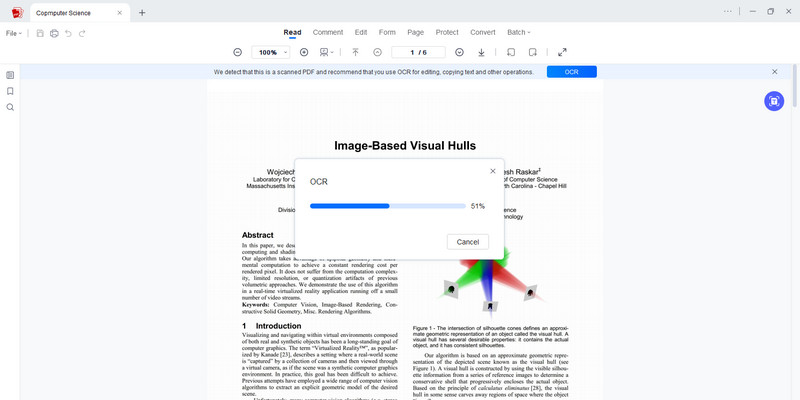
-
3
Convert Scanned Business Files into Structured Digital Output
Execute OCR processing to transform scanned documents into machine-readable business text. This enables efficient data handling for reporting, documentation, and internal workflow systems.
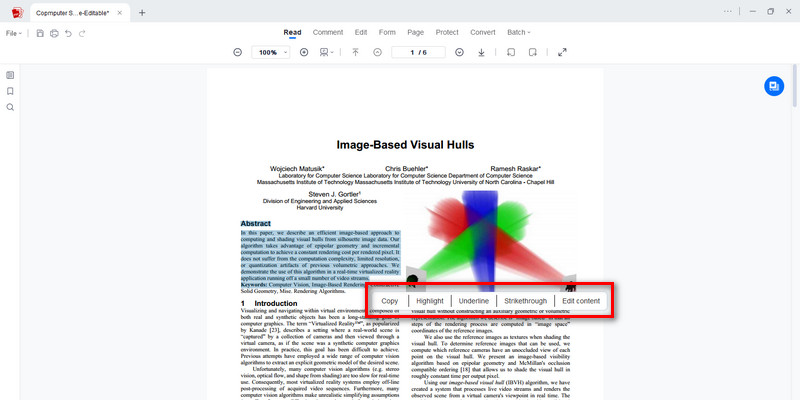
-
4
Review and Prepare Business Documents for Use
Review extracted business content to ensure accuracy in financial data, records, and operational information. Finalized documents are ready for internal systems, reporting workflows, or professional distribution.









star
star
star
star_half
Features of OCR for Work Documents
Extract Text for Faster Documentation
Convert scanned reports, contracts, invoices, forms, and business PDFs into editable, searchable text. Quickly capture important information without manual data entry, improving productivity and reducing administrative workload.
Accurate Recognition of Business Data and Symbols
Reliably recognize numbers, tables, financial figures, technical terminology, and industry-specific symbols from work documents. This helps teams reuse critical information in reports, presentations, databases, and operational workflows.
Preserve Annotations and Marked Content
Process annotated documents while maintaining the context of highlights, comments, and marked sections. This makes it easier to review key information, track revisions, and retain important document insights.
Maintain Document Structure and Readability
Preserve headings, paragraphs, tables, and multi-column layouts when extracting content from professional documents. Keeping the original structure intact improves readability, document organization, and information retrieval for business use.
AcePDF - An Intuitive PDF Editor for Any Use

Frequently Asked Questions
Why can’t I search or copy text from a scanned work PDF?expand_more
How do I convert a scanned invoice, report, or contract into searchable text?expand_more
Can the OCR tool process non-business documents?expand_more
Should I run OCR before converting a scanned PDF to Word or Excel?expand_more
When should confidential work files be processed with AcePDF Pro instead of an online OCR tool?expand_more
Article Resources












Boost Productivity with Pro OCR
for Business Documents
No Learning Curve • Built for Professional Workflows