






 Working with scanned PDFs is often frustrating as we could not edit the text by default. Unlike other PDF files, scanned PDFs do not allow users to copy, search, or edit the text. Therefore, making even the smallest change to the text is inefficient. Scanned PDFs contain static text that cannot be edited. Luckily, there is a way to scan the entire PDF document and convert it to an editable format. With Optical Character Recognition (OCR), users can easily edit information without retyping it. This not only saves a lot of time but also provides consistent information. So, in this article, let's discuss the best ways to convert scanned PDF to Word.
AcePDF
If you are looking for an all-in-one scanned PDF to Word converter to manage and edit PDF files, AcePDF is the best choice. One of its most promising features is its advanced Optical Character Recognition (OCR) technology. With this, we can scan the PDF file and convert it to Word, making the document editable. Additionally, AcePDF ensures accurate conversion while preserving the original layout and formatting. This is possible as it supports full alphanumeric character recognition. Aside from OCR, AcePDF also lets you convert the PDF to a Word file directly. After that, you can add, delete, or copy and paste text or images in the PDF without any hassle.
How to Convert Scanned PDF to Word using AcePDF
Try it for Free
Free DownloadMac OS X 10.10 and above
Step 1 Download and Install the PDF Converter
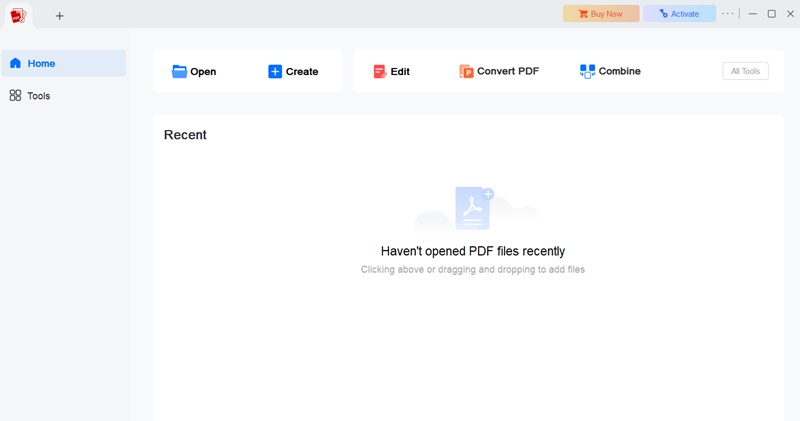
To start, click any of the "Download" buttons located above to save its installer file. Once downloaded, open it and the installation window will appear. Follow through the guide until it is installed successfully. After that, launch AcePDF to access its main interface.
Step 2 Upload the PDF File
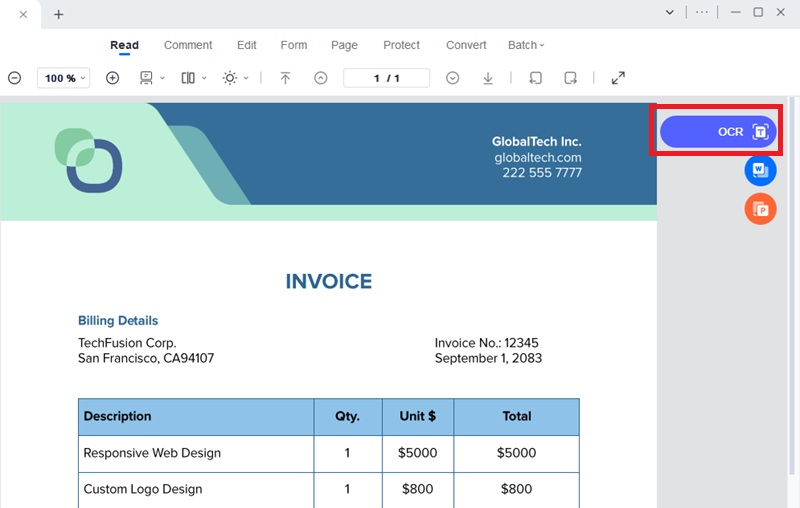
From its interface, hit "Open" and browse through your file to locate the PDF you want to edit. Upload it then click the "OCR" button found on the top-right corner of the PDF page.
Step 3 Scan the PDF
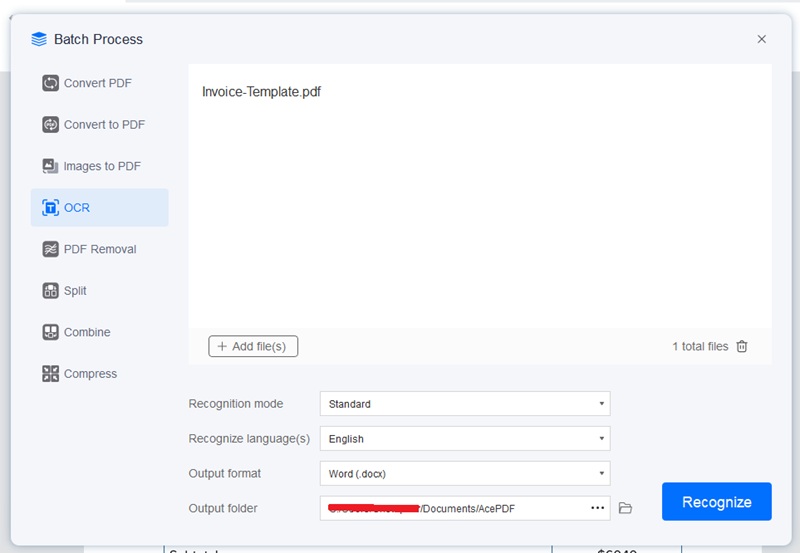
Next, set up the "Recognition mode," languages, and the output folder. For the outpupt format, make sure it is set to "Word .docx" to convert it to a Word file. Once set up, click the "Recognize" button to activate OCR.
Step 4 Edit/Save the Word File
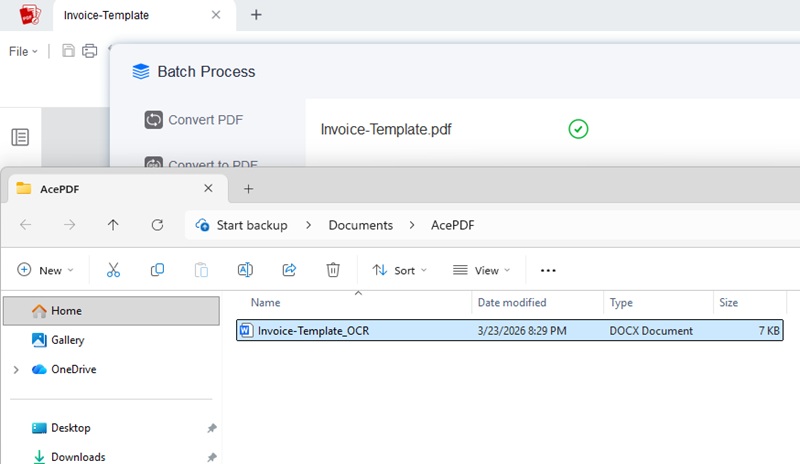
Wait and let AcePDF scan the PDF file. Once finished, the output folder will automatically open. From here, launch the newly converted Word file and start editing the document. Don’t forget to save the changes you applied.
Adobe Acrobat
Adobe Acrobat remains one of the most trusted solutions for managing PDFs. Its built-in PDF to Word OCR technology is a standout feature for detecting and converting text from image-based or scanned PDFs. Furthermore, it can recognize texts with high precision, including tables and complex layouts. The OCR engine converts characters and images into fully searchable, editable content. Plus, Adobe Acrobat lets you export a scanned PDF to a Word document while preserving its original format. In addition, Acrobat supports batch processing and multiple language recognition. Aside from OCR, Adobe Acrobat offers several premium features, including AI Assistant, PDF creation, and more. However, its premium subscription (starting at $14.99/month) is higher than most PDF tools.
How to Convert Scanned PDF to Editable Word with Adobe Acrobat
Step 1 Download and Install Adobe Acrobat
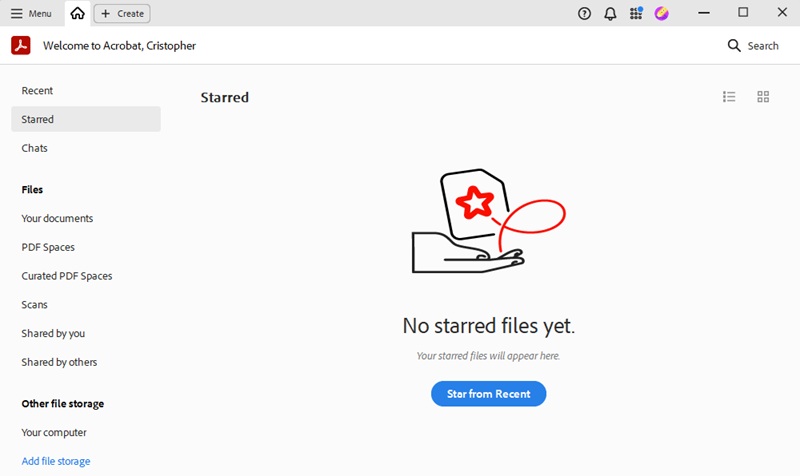
First, go to the download page of Adobe Acrobat and save its file installer. Then, launch it and follow the installation process. Once done, launch it to access its main interface.
Step 2 Convert PDF to Word
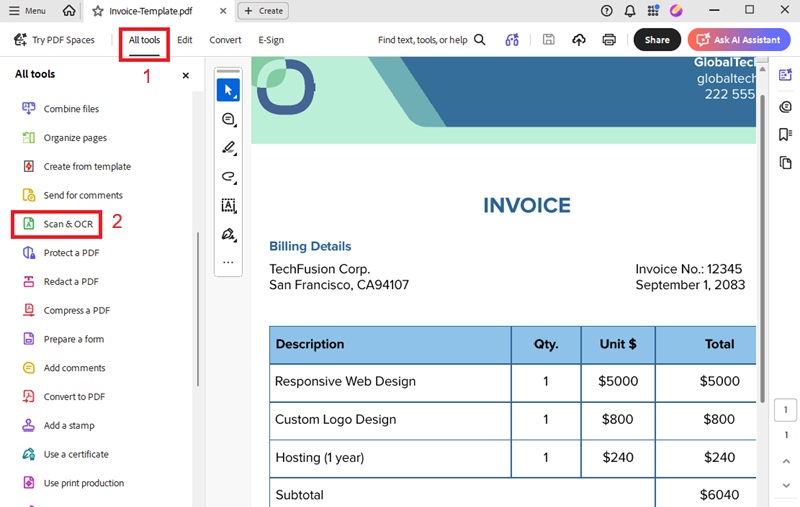
From its main interface, upload the PDF file. Next, go to the "All tools" tab and find "Scan & OCR." Click it and wait until it finished scanning the product.
Step 3 Save the Changes
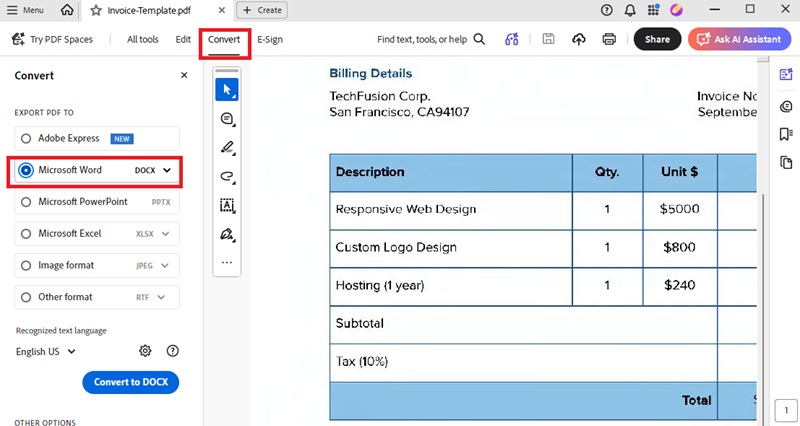
After that, you can now edit the file, go to "Convert" and pick Word as the output format. Wait and let Adobe Acrobat convert the file. Next, open the converted Word file and start editing the document. Finally, save the changes made.
DocHub
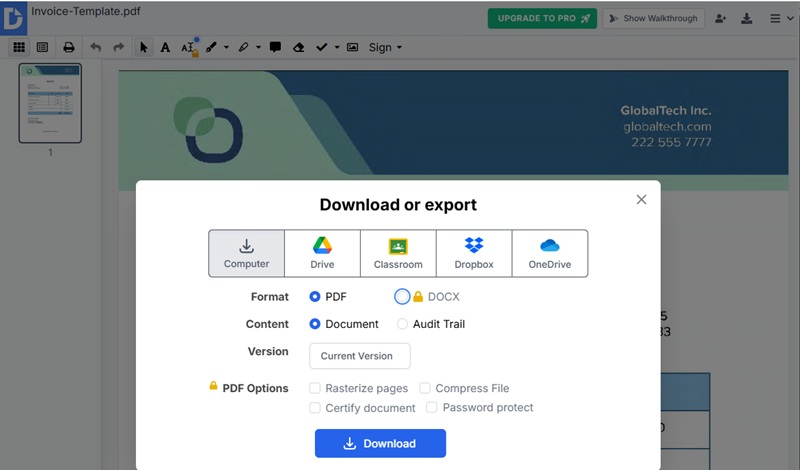
DocHub is a cloud-based document platform that can convert PDF to editable Word documents in your web browser. Its OCR feature allows it to recognize text within scanned or image-based PDFs and convert it into editable content. Furthermore, it offers a straightforward process as users only need to upload the file and export it as a Word document. The good thing is that you can save the converted file to your local drive, Google Drive, OneDrive, or Dropbox. However, offers an easy way to convert the PDF file to Word, it could not match the advanced OCR accuracy of Adobe Acrobat and AcePDF.
- Go to the official page of DocHub and upload the PDF file you want to convert.
- Next, hit the "Edit PDF Text" button, and it will activate the OCR feature, scanning the entire document.
- Then, click the hamburger menu at the top-right corner of its page. From here, select "Export," choose "DOCX," and download the converted document.
- Now, you can edit the file and apply the changes. Once done, save it to your local folder.
Tips for Best Results
To achieve the most accurate and reliable results when you convert image PDF to Word, it’s important to optimize both your source document and OCR settings. Below are the key best practices to follow:
1. Use High-Resolution Scans
The quality of your scan directly impacts OCR accuracy. Low-resolution images can result in blurred or distorted characters. Aim for at least 300 DPI (dots per inch) to ensure clear, sharp text that can be accurately processed. This will ensure to convert scanned PDF to Word without losing formatting.
2. Ensure Pages Are Straight and Legible
Skewed or misaligned pages can confuse OCR engines, leading to errors in text recognition. Before conversion, ensure your document is aligned, and the text is clearly visible.
3. Check and Correct OCR Errors After Conversion
Even with advanced PDF to DOCX converter with OCR, errors can still occur, especially with complex layouts or unusual fonts. Always review the converted Word document and correct any spelling and formatting issues.
4. Use the Correct Language Setting for OCR
OCR tools rely on language settings to interpret characters accurately. Selecting the wrong language reduces recognition accuracy. Ensure the OCR is set to the correct language before processing your document.
Frequently Asked Questions
How can I convert a scanned PDF to Word?
To convert a scanned PDF to Word, you need to use a PDF tool with OCR (Optical Character Recognition) technology. First, upload your scanned PDF into the tool, enable OCR, and export the file as a Word document. The OCR process extracts text from images and converts it into editable content.

Will formatting be preserved when I convert scanned PDF to Word?
Most modern OCR tools can preserve basic formatting such as paragraphs, fonts, and tables. However, the accuracy depends on the quality of the scan and the software used. High-end tools like Adobe Acrobat or AcePDF typically deliver better formatting retention compared to basic online converters.
Is it possible to convert scanned PDFs with handwritten text to Word?
Yes, some advanced OCR-enabled scanned PDF to Word converters can recognize handwritten text. However, accuracy may vary depending on handwriting clarity and scan quality. For best results, ensure the document is clear, high-resolution, and properly aligned before conversion.
Conclusion
Now, it is essential to learn on how to convert scanned PDF to Word. As highlighted throughout this guide, scanned PDFs are typically static and uneditable. But with the help of OCR technology, we can now convert them into editable files. With several tools available, users can choose the method that best suits their workflow, accuracy requirements, and budget. By selecting the right tool and following best practices, you can efficiently convert scanned PDFs to Word and take full control of your documents.