








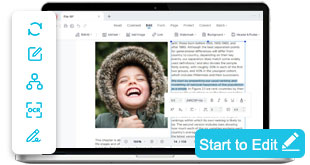

Convert PDF to Word, Images, and Editable Formats
Transform PDFs into Word, Excel, PowerPoint, and high-quality images without losing your layout. Choose our online PDF converter for quick file swaps or AcePDF Pro for batch conversions, OCR text recognition, and flawless formatting control.
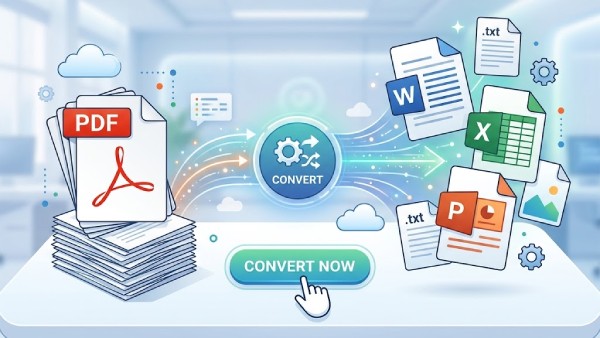


Overview of PDF Conversion Capabilities
Convert PDF files into editable formats, extract assets, and change document types for seamless editing, data analysis, or universal sharing.
Convert PDF Documents Online Instantly
Choose Your PDF Conversion Workflow
Start with the right conversion path based on what you want to change your PDF into: a Word document, an Excel sheet, a PowerPoint deck, or an image file.
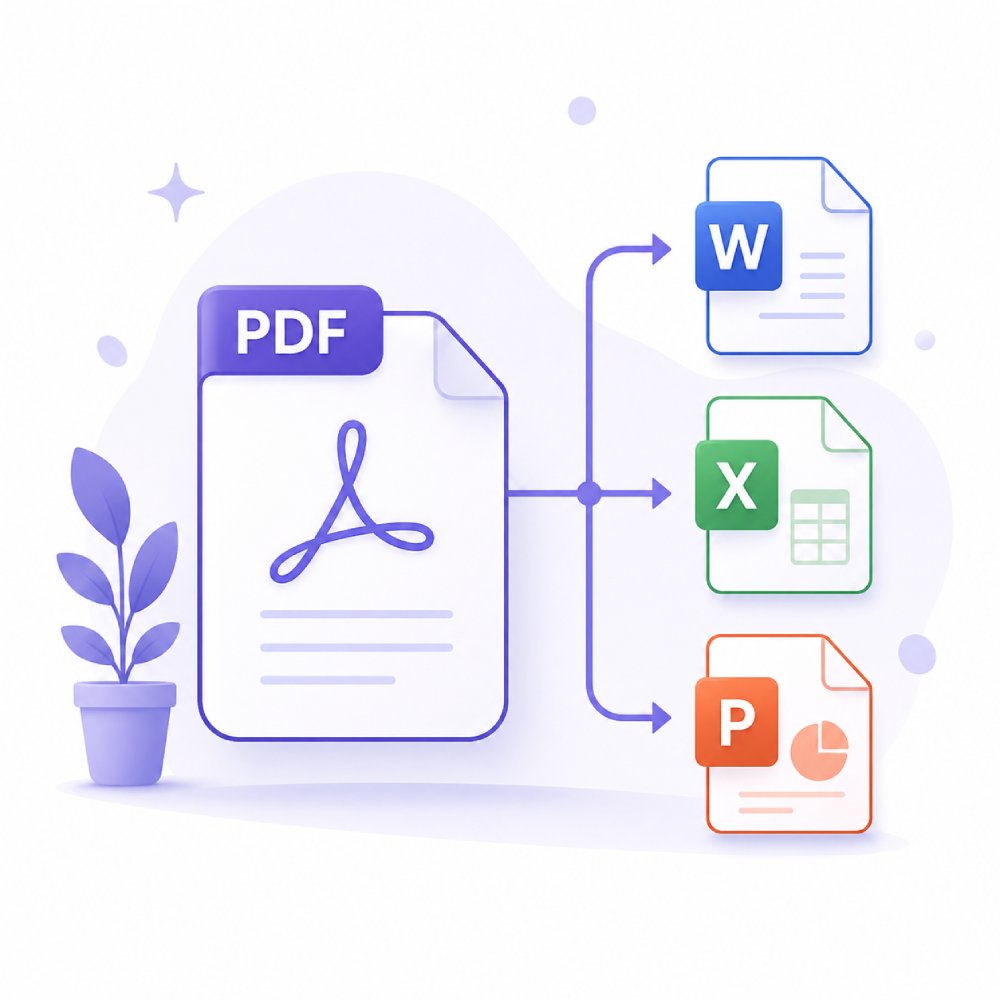
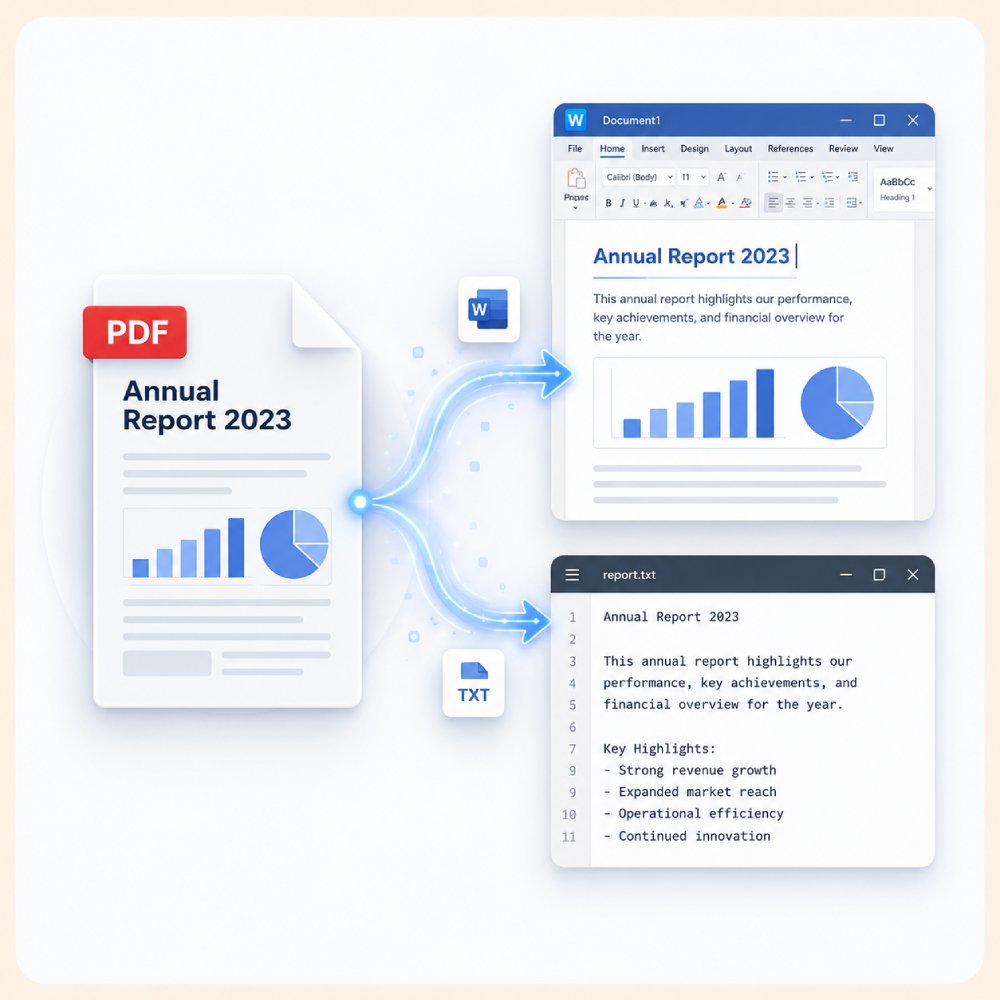
Convert PDF files into editable formats, such as Word or text documents, for easy updates. Ideal for professionals needing to revise contracts, reports, and structured business documents efficiently.
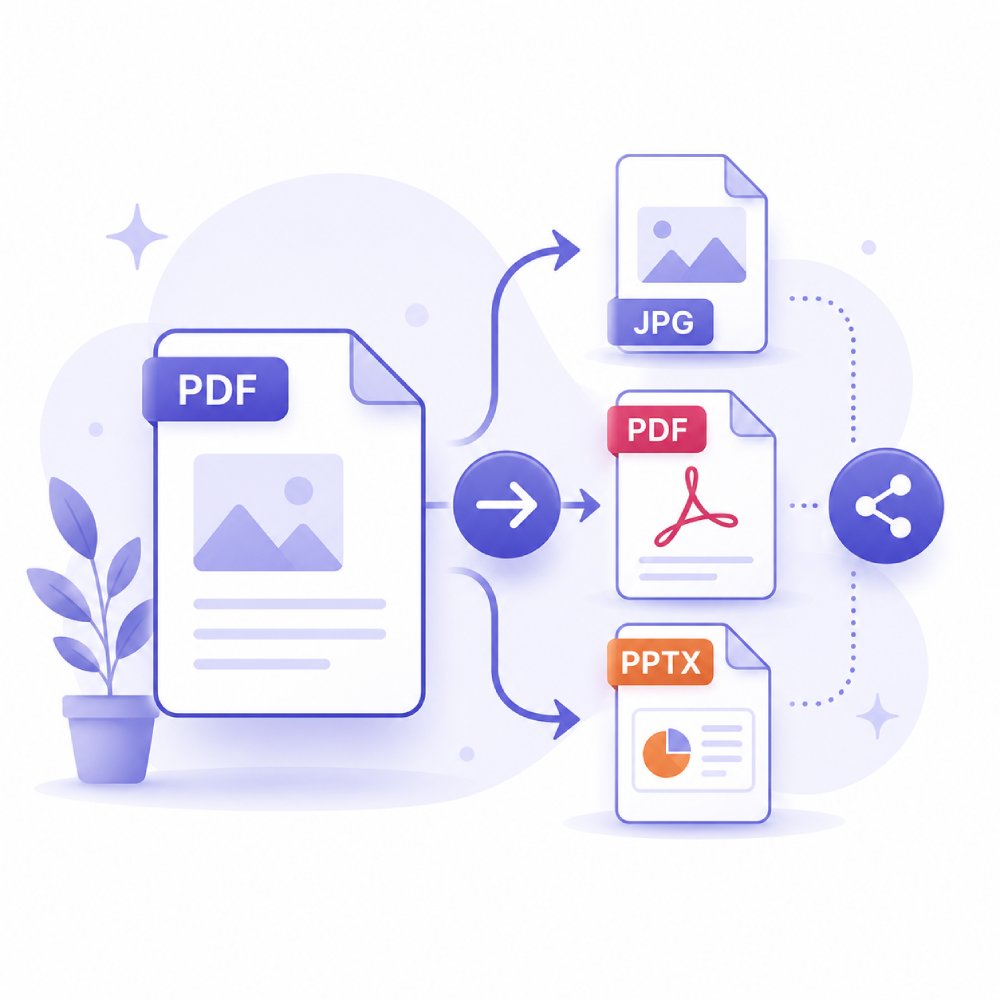
Transform PDFs into lightweight or universally accessible formats for easy sharing across email, messaging, or cloud platforms. Ensures compatibility and faster distribution in professional workflows.
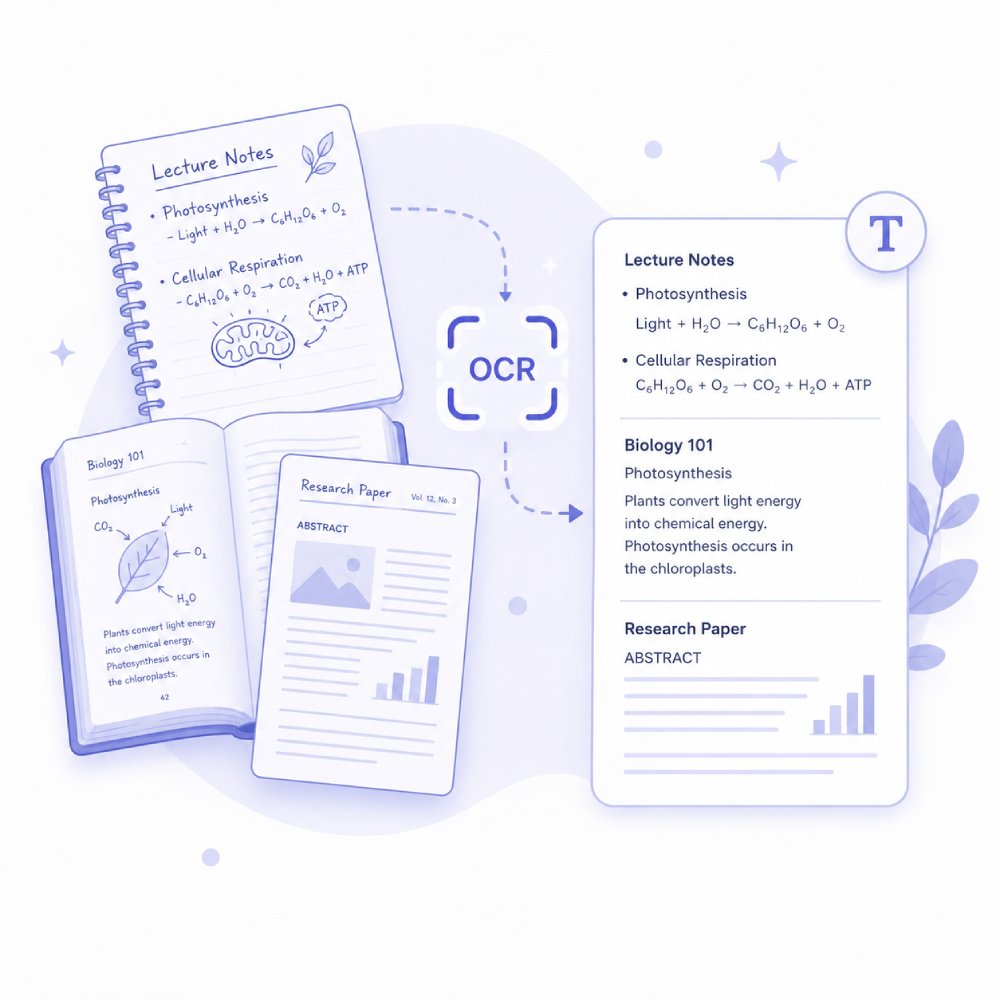
Turn scanned or image-based PDFs into searchable and editable documents using advanced OCR technology. Perfect for digitizing printed documents, receipts, and archived records.
How to Choose the Right PDF Conversion Option
Determine the most effective way to transform your files while preserving content quality.
Identify the File and Result You Need
Start by selecting the file you want to convert and the format you need. Whether you're turning documents into PDFs or converting PDFs into editable files, knowing the desired output helps you choose the right tool.
Choose the Conversion Workflow
Use the online converter for quick, browser-based tasks, or select the Pro workflow when you need advanced features, batch processing, or greater control over converted files.
Continue with Editing, Sharing, or Storage
After conversion, decide how to use your new file. You can edit the content, share it with others, save it for future use, or include it in reports, presentations, and business workflows.
PDF Conversion Use Cases & Scenarios
Improve your workflow by converting PDFs into formats that are easier to edit, analyze, and share.
Share PDF in Editable Format
When PDFs are locked or difficult to edit, converting them into editable formats—such as Word or text—makes collaboration simple. This ensures that teammates or clients can revise content without technical barriers.
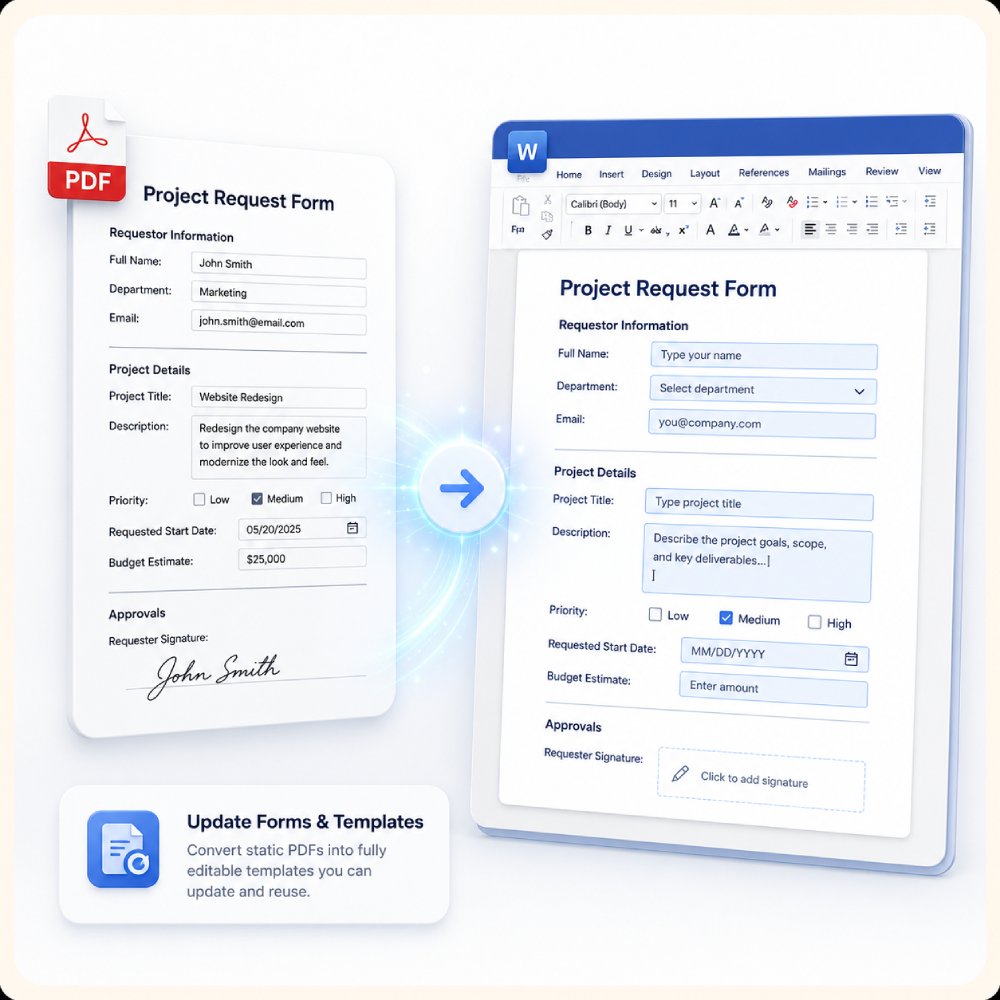
Update Forms and Templates
Need to adjust fields, rearrange sections, or refresh an existing template? Converting PDFs allows you to modify forms, applications, surveys, and standardized documents without rebuilding them from scratch.
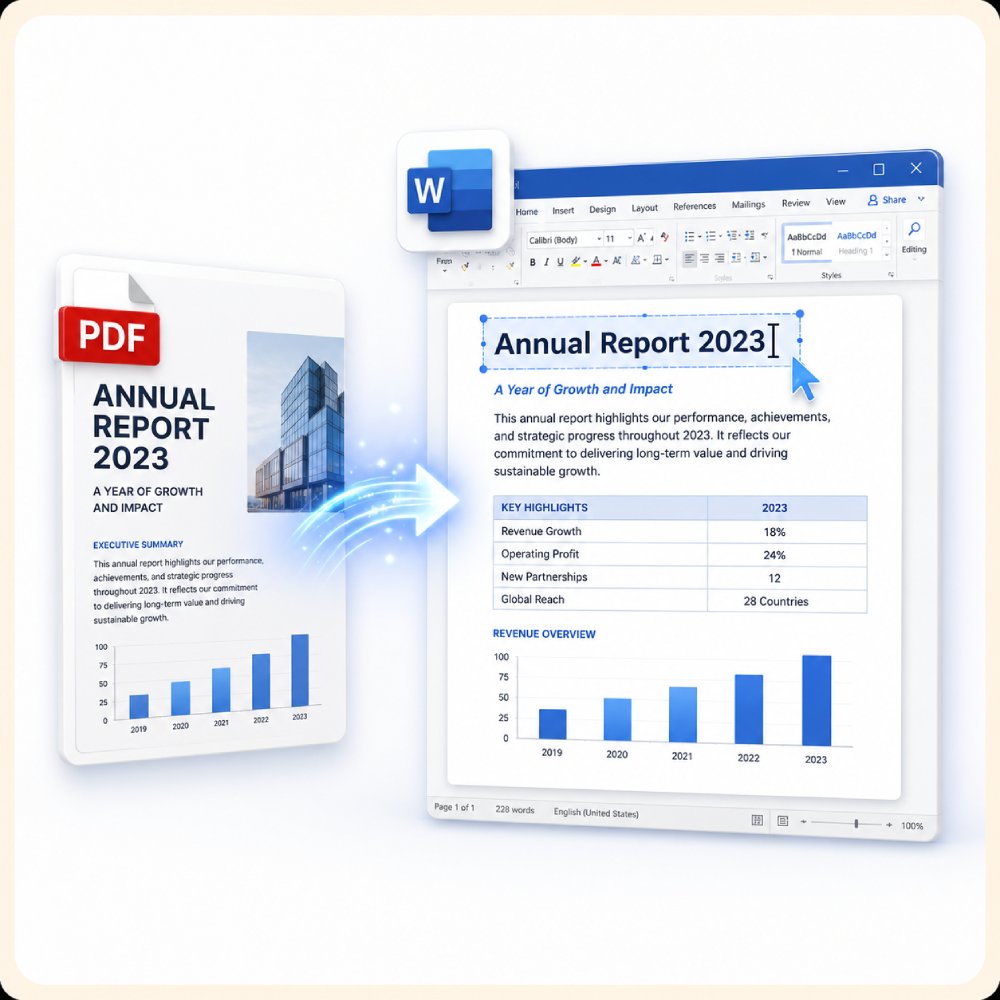
Edit Reports in Word
Transforming PDF reports into Word documents makes it easy to refine text, insert visuals, update data, or reformat content. This keeps your reports presentation-ready and ensures consistency across revisions.
Extract Data to Excel
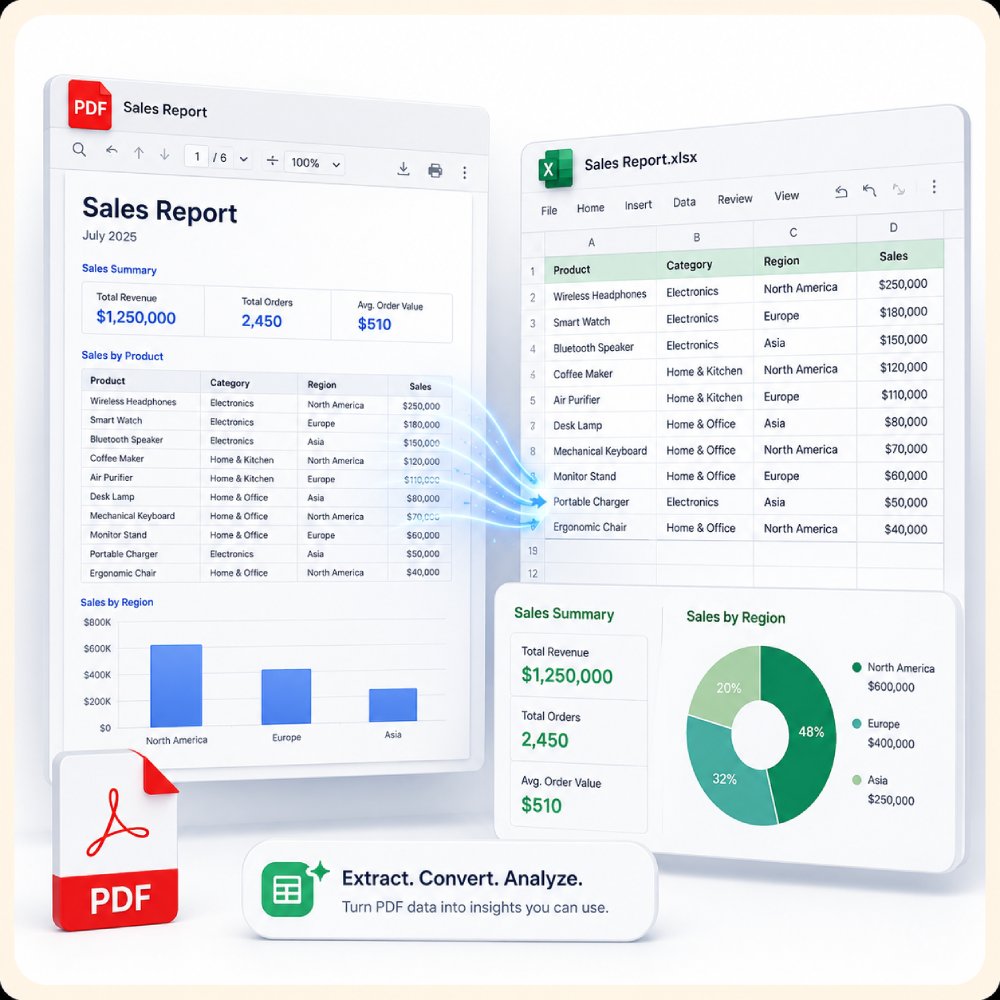
When PDFs contain tables, figures, or financial information, converting them to Excel helps you quickly analyze, sort, and calculate data. This eliminates manual retyping and reduces the risk of errors.
Other PDF Tools You Might Need
Find more PDF solutions to take full control of your PDF documents.
Frequently Asked Questions
Which format should I convert my PDF to for editing in Word, Excel, or PowerPoint?expand_more
Why does a converted PDF sometimes lose formatting, tables, or fonts?expand_more
How should I convert a PDF when I only need images or specific pages?expand_more
What should I do if my converted file is too large or hard to share?expand_more
When should I use AcePDF instead of the online converter?expand_more
Try the PDF Converter Today!
Convert your PDFs quickly and easily with the online tool. For batch conversions and advanced features, try the Pro desktop PDF converter to handle multiple files efficiently.
Free trial. No credit card required.