








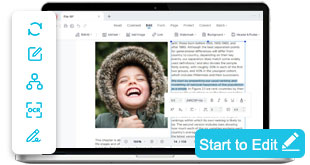

Compress PDF for Emails, Storage, and Fast Sharing
Reduce PDF file sizes while maintaining document quality. Optimize reports, presentations, contracts, and forms for easier storage, faster uploads, and seamless sharing across teams and devices.
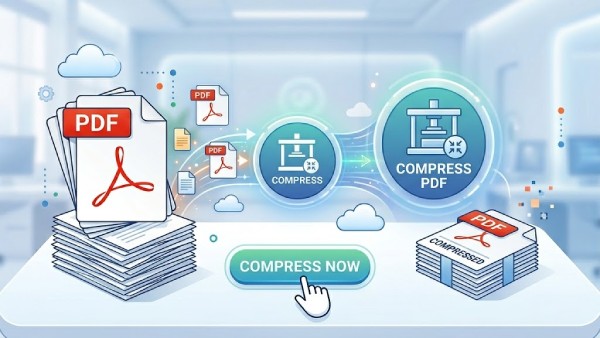


PDF Compression Capabilities Overview
Reduce PDF file sizes for effortless sharing, emailing, and storage optimization while perfectly balancing file weight and visual quality.
Convert PDFs to Other Formats Online Instantly
Choose Your PDF Compression Workflow
Reduce PDF file sizes while preserving quality for sharing, printing, and work use. Optimize documents for faster upload, easier distribution, and efficient storage.
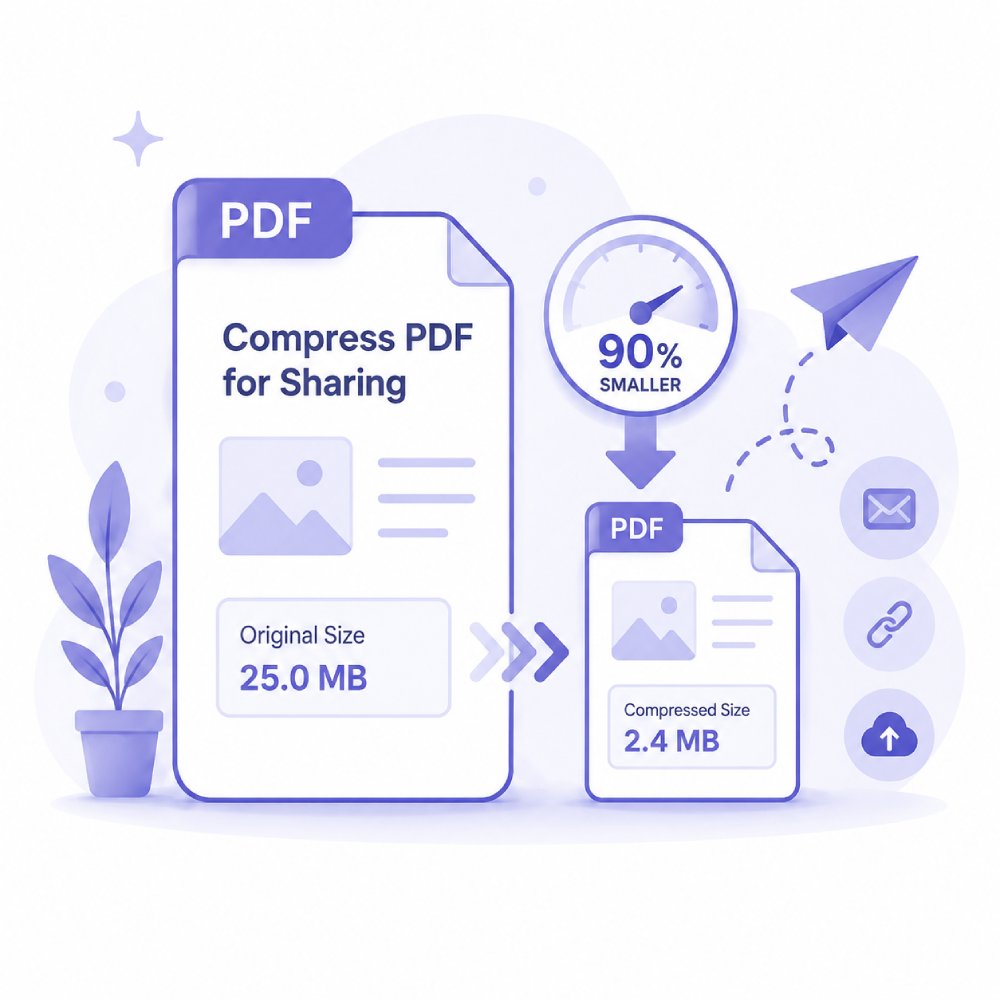
Shrink heavy documents, portfolios, and media-rich presentations to meet strict email attachment size limits. Easily downsize your files without losing text clarity, making them instant to send via email, WhatsApp, or chat apps.
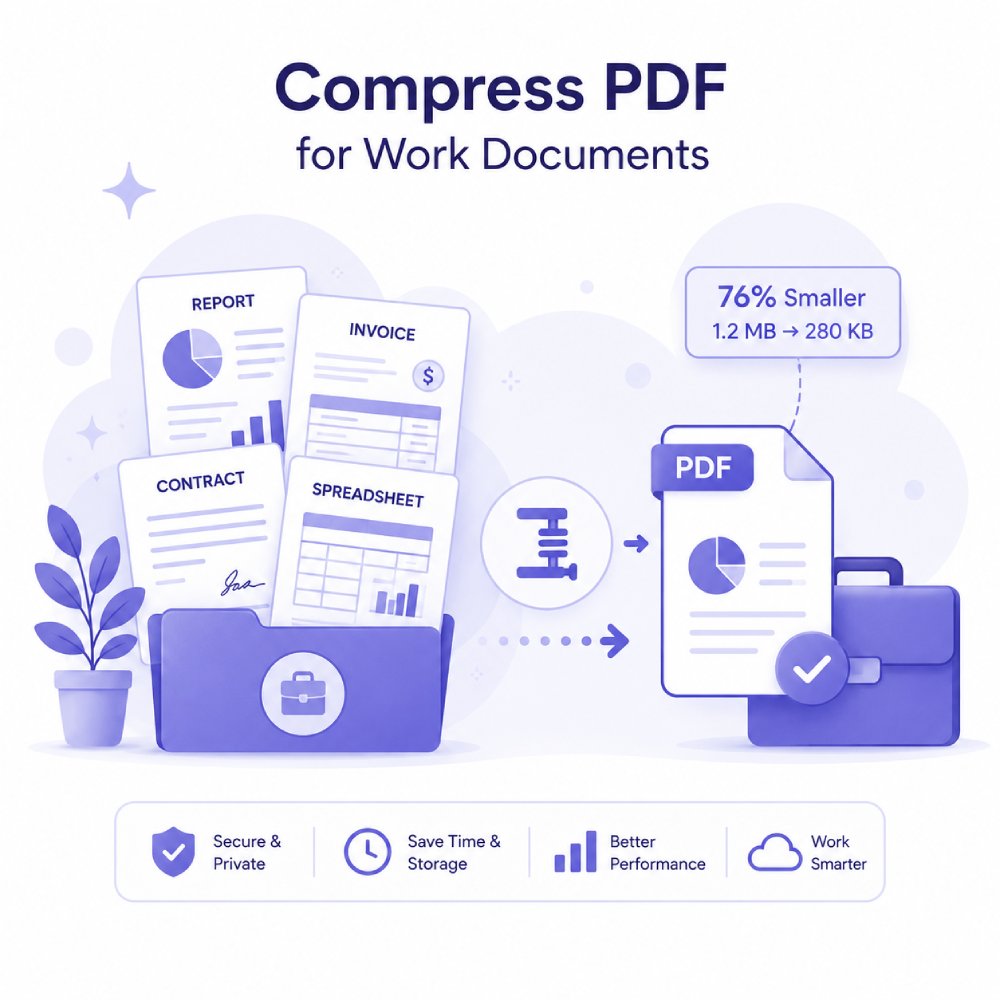
Optimize official contracts, scanned reports, and multi-page corporate files for quick internal distribution and client reviews. Speed up teamwork and eliminate slow loading speeds when uploading documents to company HR or project portals.
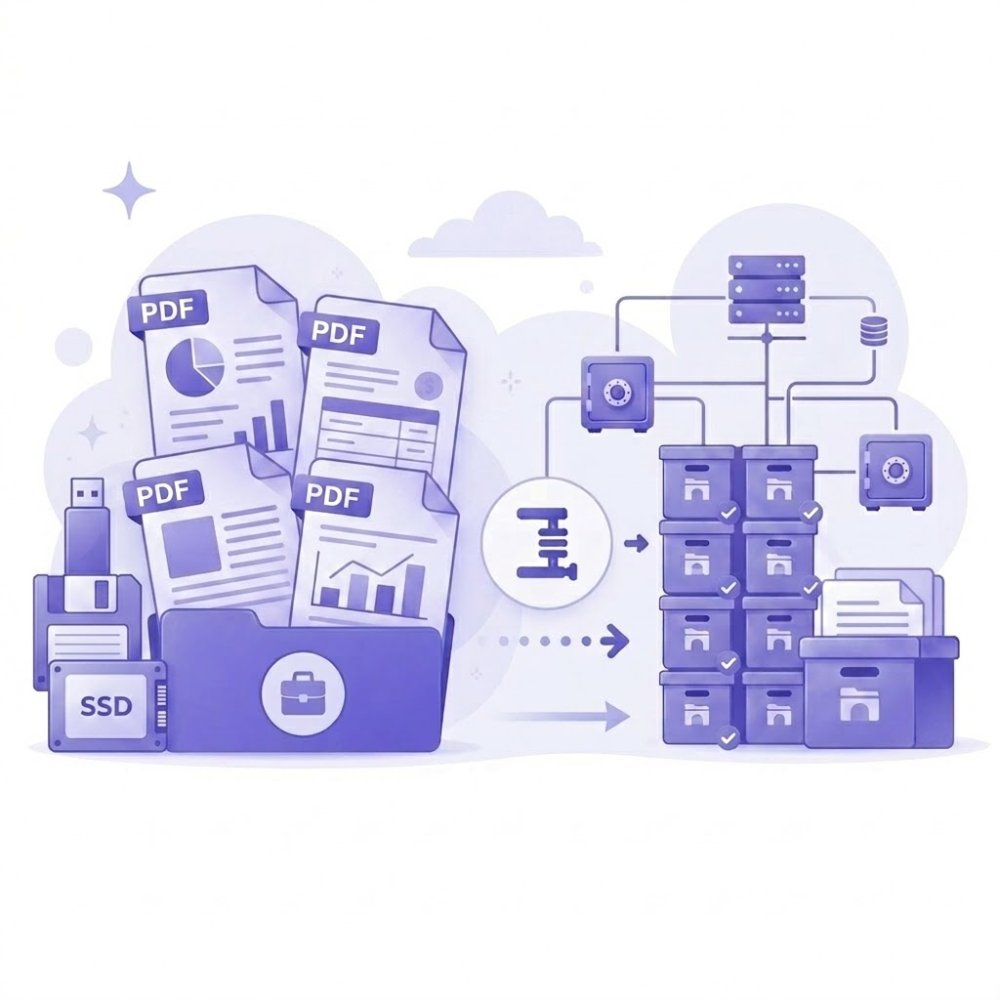
Reduce the storage footprint of large file libraries, multi-page scanned books, and historical document archives. Free up valuable local and cloud storage space while keeping your records organized, accessible, and easy to manage.
How to Optimize PDF File Size
Choose a compression strategy that balances file size reduction with document quality.
Assess Your PDF Size Requirements
Start by determining why you need to compress the file. You may want to reduce storage usage, meet upload limits, speed up file sharing, or optimize documents for email and web use.
Select the Compression Level That Fits Your Needs
Determine the compression level that best supports your intended use. Apply higher compression for smaller file sizes, or use balanced compression to maintain better image and document quality.
Review and Use the Optimized PDF
After compression, check the file size and document quality to ensure they meet your requirements. Save the optimized PDF for sharing, uploading, archiving, or distribution.
Why Compress Your PDF?
Compress to make your PDFs lighter and more convenient to upload, share and store.
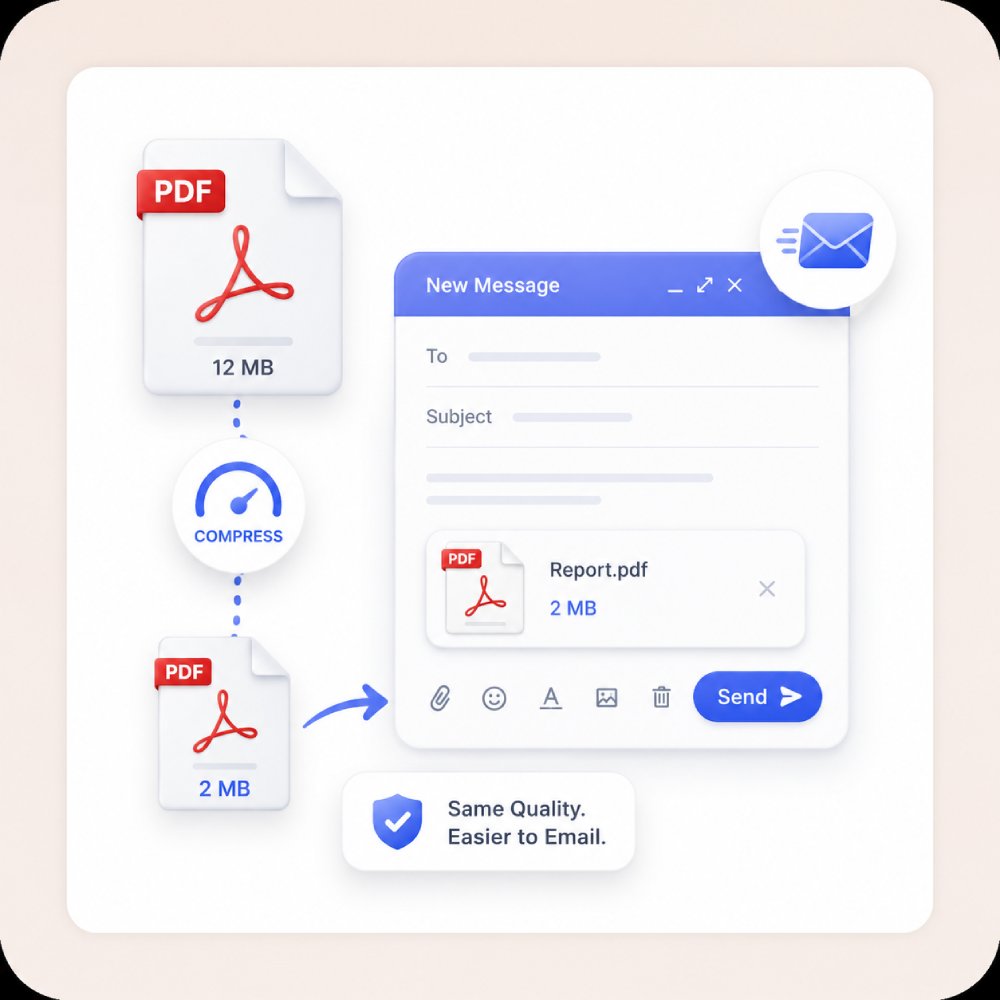
Compress PDF File for Email
Make your PDFs easier to email by reducing their file size. This PDF compressor tool compresses large documents without compromising readability or layout, ensuring your recipients can access and download attachments quickly and without hassle.
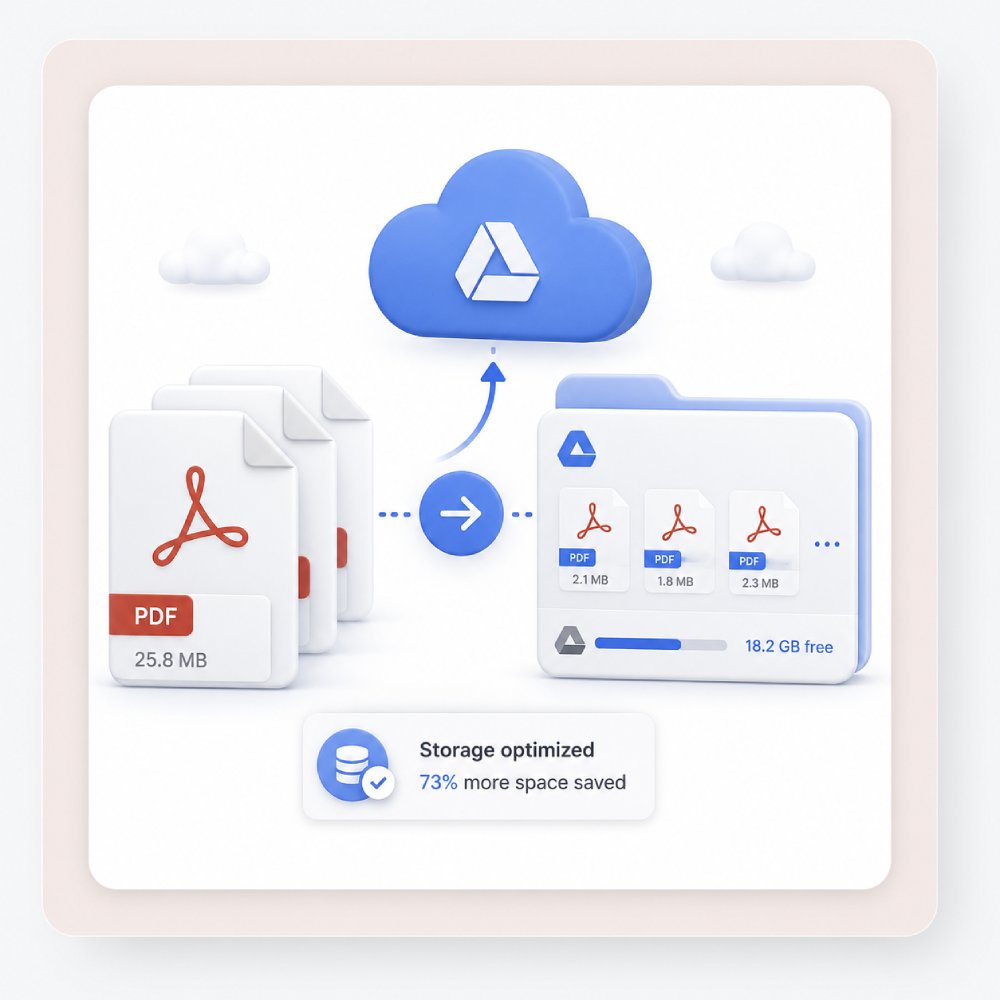
Optimized Cloud Storage
Compressing your PDF files helps you save space on your device or in the cloud. You can keep your documents looking good and your storage tidy, making it easier to store more files and find them when you need them.
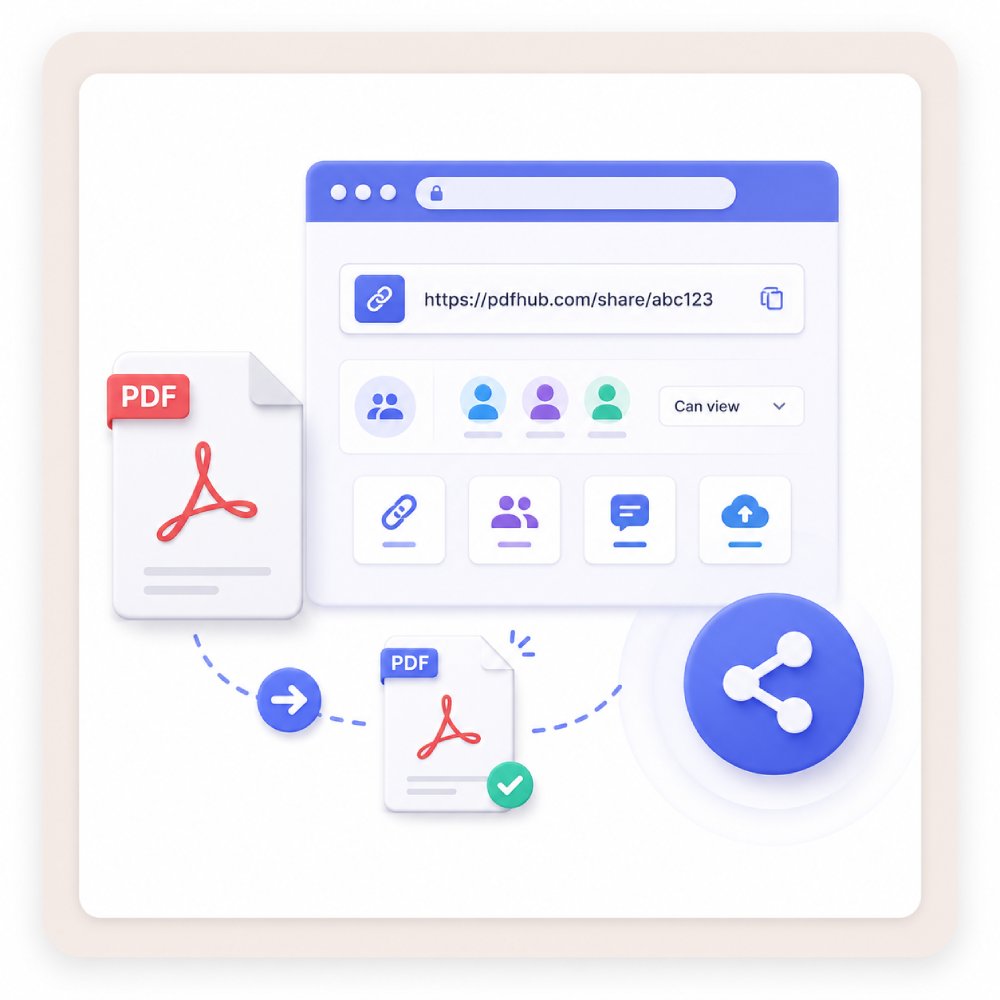
Seamless Sharing Online
Get your PDFs ready to share on websites, messaging apps, or social media. Smaller files upload faster and are easier for others to download, while still keeping images sharp, text clear, and the format looking professional.
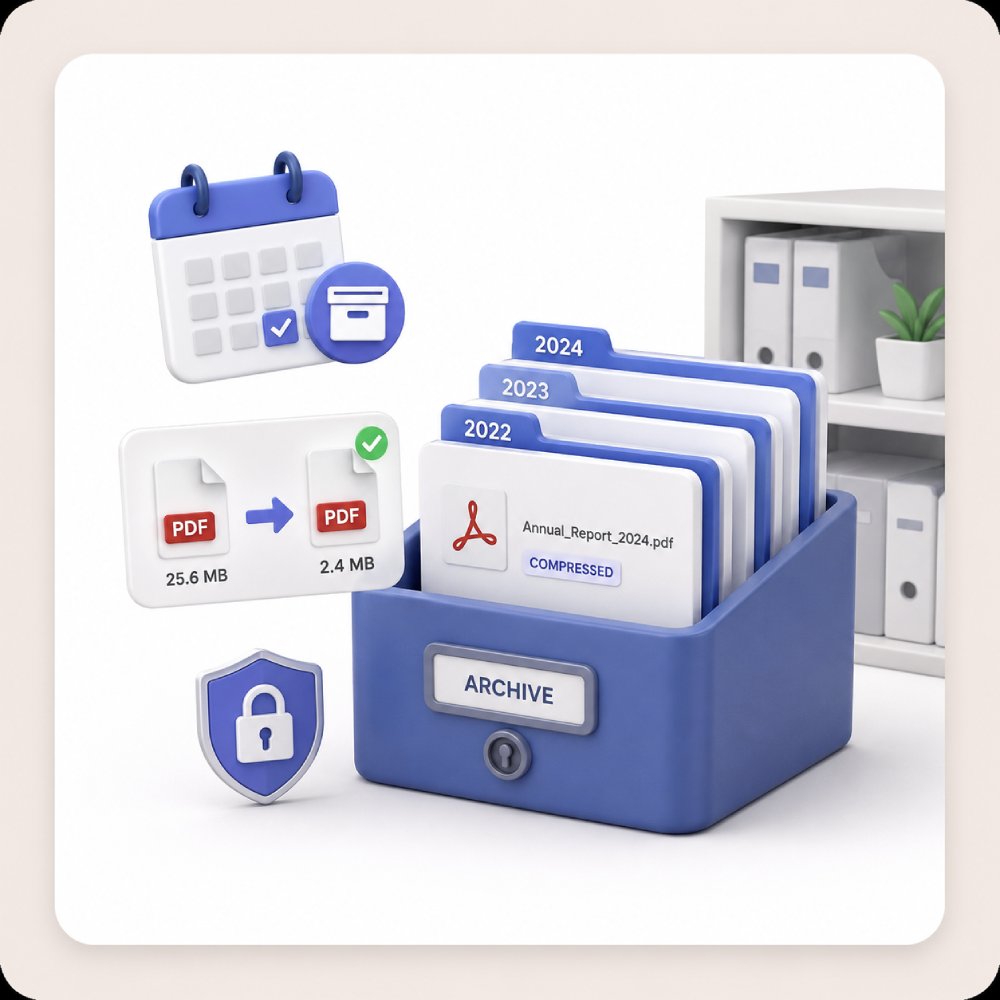
Archive-Ready PDFs
Shrink your PDF files for long-term storage or archiving. This tool helps you keep documents easy to find and use, saves storage space, and keeps your files clear, safe, and looking professional.
Explore More PDF Tools
Discover more PDF tools to edit and organize your PDF documents.
Frequently Asked Questions
How can I reduce the size of a large PDF before emailing or uploading it?expand_more
Why is my PDF still large after I convert it or remove pages?expand_more
How do I compress a scanned PDF without making the text unreadable?expand_more
Can I compress a PDF and still keep images clear enough for presentations?expand_more
When is converting a PDF to another format a better choice than compression?expand_more
Smaller PDFs, Faster Workflows
Download AcePDF to access full PDF compression features. Reduce file sizes quickly, preserve quality, and manage documents efficiently on your desktop with ease.
Free trial. No credit card required.