menu

Generate Structured PDFs from Templates with Form Field Precision

Create reusable documents with text fields, checkboxes, dropdowns, and signature inputs while maintaining fixed layouts and consistent field placement across pages. Eliminate manual data entry and produce mobile-ready, fillable PDFs with aligned formatting and standardized document structure.
Professional Templates • Consistent Formatting • Advanced Editing Tools
create pdf from template
star
star
star
star
star_half
4.7/ 5
StackSocial Verified Buyers (10k+ Copies Sold)

Preview and Prepare Template-Based PDFs Online

Professional PDFs from Templates with 1:1 Layout Fidelity

assignment_add

Generate Professionally Structured PDFs With Ease

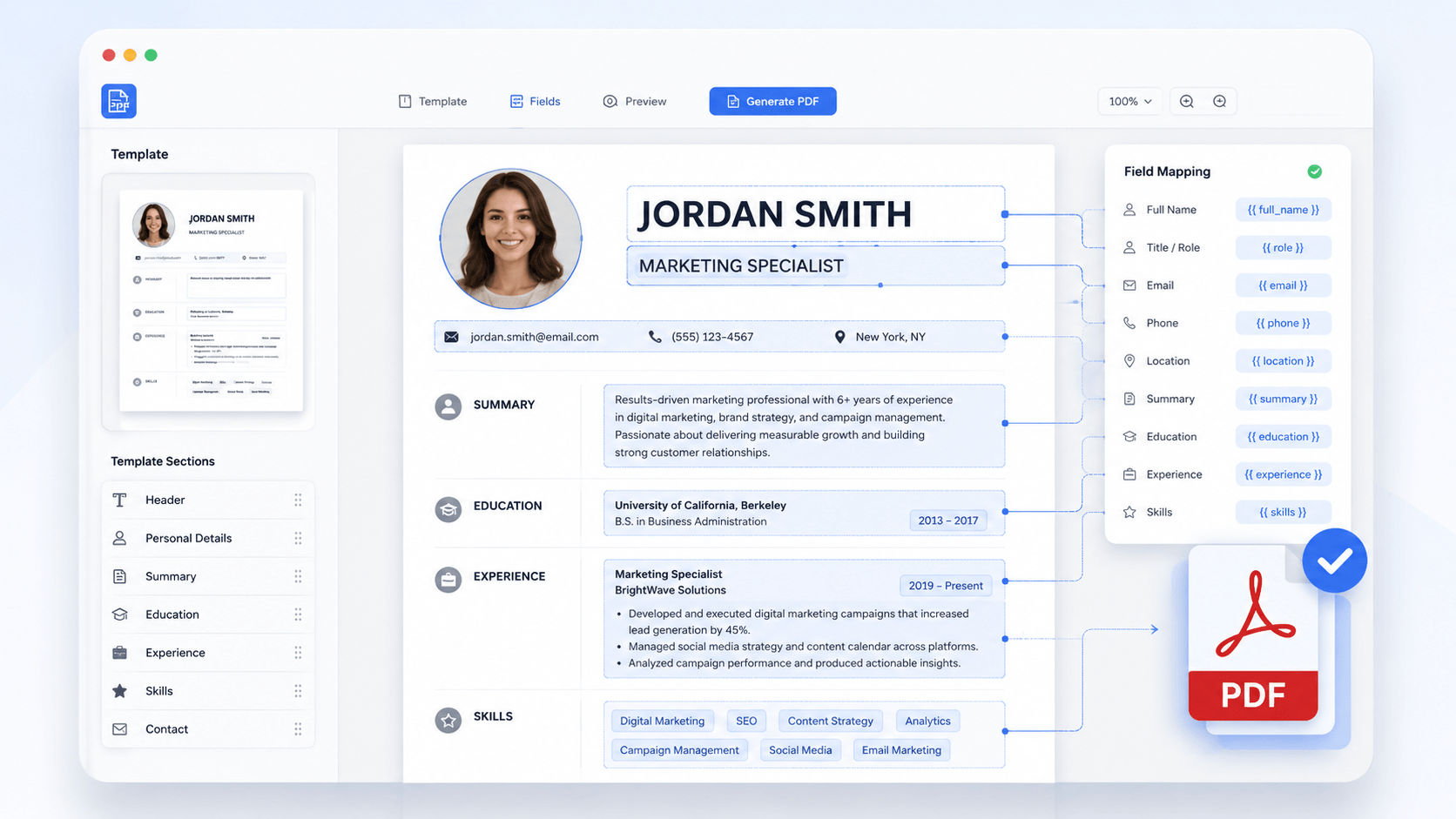
Generate perfectly structured PDFs from any template without layout shifts, font substitutions, or broken tables. Our rendering engine applies Vector-Level Formatting to maintain exact alignment, spacing, and geometry—even in complex templates with multi-column layouts, branded headers, legal-style tables, and embedded graphics. Every exported PDF replicates the original template down to the pixel, ensuring professional consistency across devices, printers, and archival systems.

bar_chart_4_bars

Technical Metrics

Our PDF template generator follows strict technical benchmarks to guarantee document accuracy and professional output quality.

  • check_circle
    Layout: Exact 1:1 structure and styling.
  • check_circle
    Rendering: Vector-sharp output, no artifacts.
  • check_circle
    Print: 300+ DPI graphics preserved.
  • check_circle
    OCR: Up to 99.8% recognition accuracy.
  • check_circle
    Security: AES-256 encrypted exports.

Challenges You May Encounter

Learn why creating and updating PDF templates can take extra time.

history_toggle_off

HR Request Forms Submitted with Missing Fields

Incomplete internal forms force HR teams into constant manual follow-ups to gather missing data. This cycle causes significant delays in payroll processing and official internal approvals.

build_circle

Teams Manually Rewrite the Same Approval Forms Monthly

Using static documents requires employees to re-type or re-format the same basic information for every new request. This repetitive administrative work distracts staff from high-value project analysis and decision-making.

grid_layout_side

Users Abandon Forms That Are Hard to Complete on Mobile

Static layouts often shift or become unreadable on smaller screens, making it nearly impossible for users to tap specific fields. These alignment errors lead to high abandonment rates and incomplete registration packets.

format_image_left

Form Responses Arrive Inconsistent and Difficult to Track

When users are not guided by dropdowns or required fields, the data received is often unorganized and unprofessional. This inconsistency slows down the entire document lifecycle and increases the risk of version confusion.

Where Templates Are Helpful

Discover situations where using templates improves speed and document quality.

  • Create Resume
  • Create Billing with Invoice
  • Manage Contract Agreement
  • Build Business Report
The Challenge

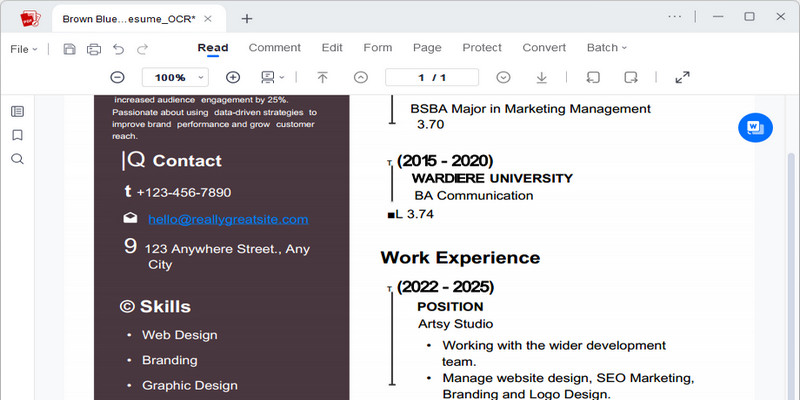
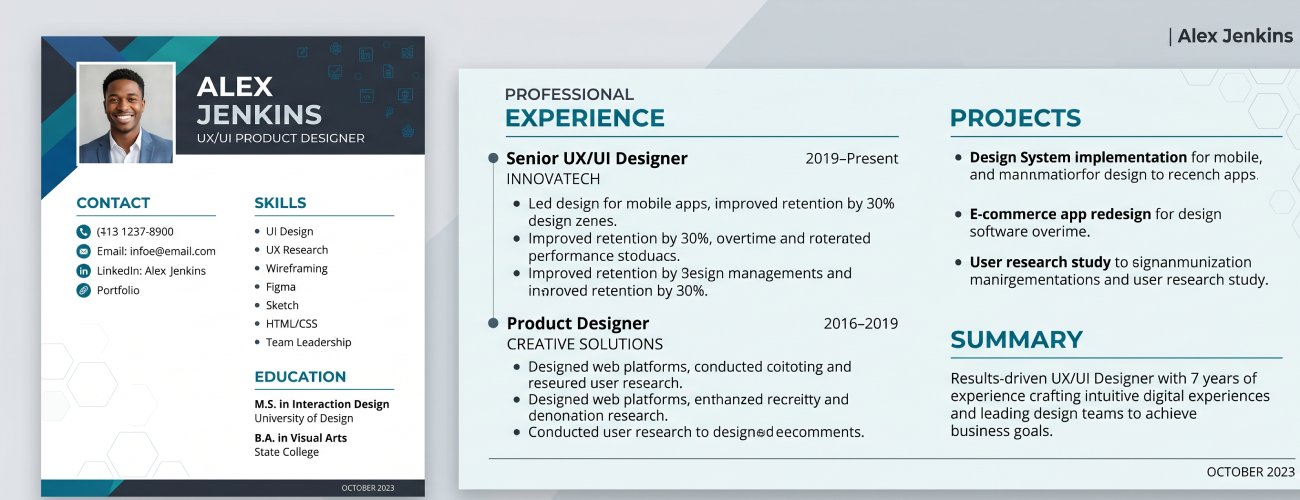
Job seekers often need multiple resume versions for different roles, applications, and industries. Creating resumes from scratch can lead to inconsistent formatting, misaligned sections, and time-consuming layout adjustments that slow down the application process.
pdf resume

What you can do:

  • check
    Create resumes using structured PDF templates for different job roles
  • check
    Maintain consistent formatting across all versions
  • check
    Update content without adjusting layout manually
  • check
    Generate professional PDF resumes ready for submission and sharing
The Challenge

Freelancers, agencies, and finance teams regularly create invoices for recurring clients and projects. Manually rebuilding invoices increases the risk of formatting inconsistencies, missing billing details, and repetitive administrative work, slowing payment workflows.

invoice

What you can do:

  • check
    Create PDF invoices using reusable templates
  • check
    Maintain consistent structure across all billing documents
  • check
    Add client, pricing, and payment details efficiently
  • check
    Generate professional invoices ready for distribution
The Challenge

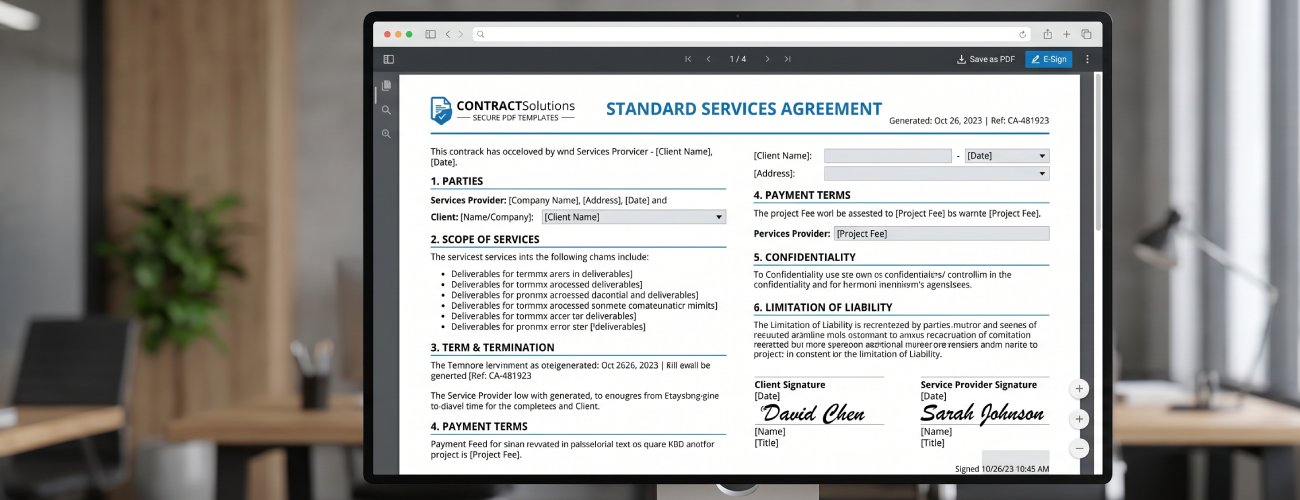
Legal teams, HR departments, and business owners often prepare contracts for employees, vendors, and clients. Recreating agreements manually can lead to inconsistent clauses, formatting issues, and version confusion, increasing review time and document risk.
pdf contract

What you can do:

  • check
    Create contracts using standardized PDF templates
  • check
    Maintain consistent clauses and document structure
  • check
    Edit agreement details without affecting layout formatting
  • check
    Generate structured PDFs for secure sharing
The Challenge

Operations teams, managers, and analysts frequently prepare recurring reports for stakeholders and internal reviews. Without structured templates, reports can become inconsistent, harder to review, and time-consuming to format across departments and reporting cycles.

business form

What you can do:

  • check
    Create reports using structured PDF templates
  • check
    Maintain consistent layouts across all documents
  • check
    Update report data while preserving formatting structure
  • check
    Generate professional PDFs ready for distribution

Initialize → Configure → Review → Export

Choose a template, customize your content, and generate a professionally formatted PDF with consistent structure and layout.

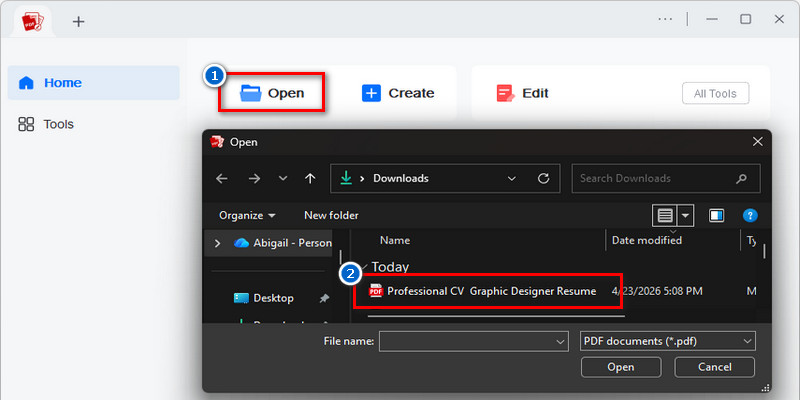
  • 1

    Initialize Structured Document Templates

    Import invoice, resume, proposal, or reporting templates to accelerate professional PDF creation workflows. Template-based layouts preserve structured grids, content hierarchy, and branded formatting from the initial setup stage.

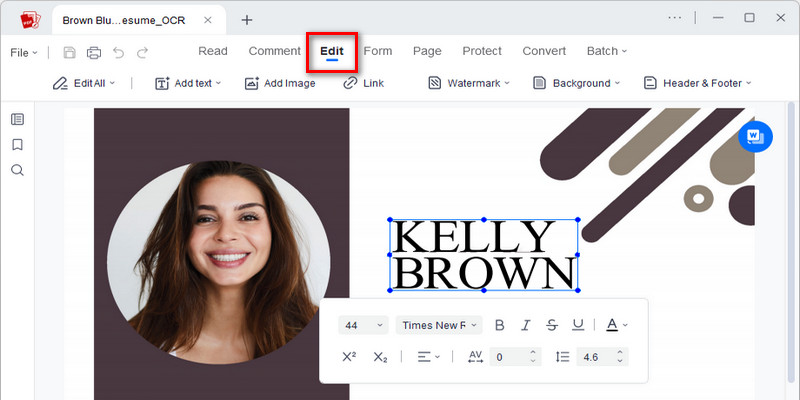
  • 2

    Configure Template Fields and Document Data

    Add and edit structured fields for client details, pricing sections, service descriptions, and branded elements within the template framework. This ensures consistent alignment across tables, headers, and multi-column layouts.

  • 3

    Review Formatting and Layout Consistency

    Preview the document to verify margin alignment, font hierarchy, and structural consistency across all sections. This validation step helps maintain readability across both digital and print outputs.

  • 4

    Export Production-Ready PDF Document

    Generate a finalized PDF optimized for business use, including client delivery, proposals, contracts, and branded communications. The output preserves template structure for reliable sharing across devices and formats.
Initialize Structured Document Templates
Configure Template Fields and Document Data
Review Formatting and Layout Consistency
Export Production-Ready PDF Document

Free PDF Templates

Get instance to professionally designed free PDF templates to help you keep organized and save time.

  • Business
  • Birthday Cards
  • Welcome Messages
  • Holiday Cards
FREE

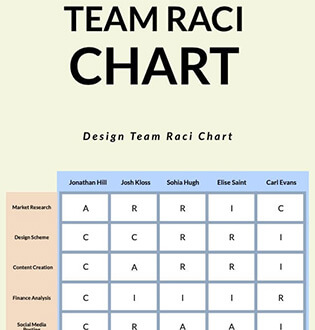
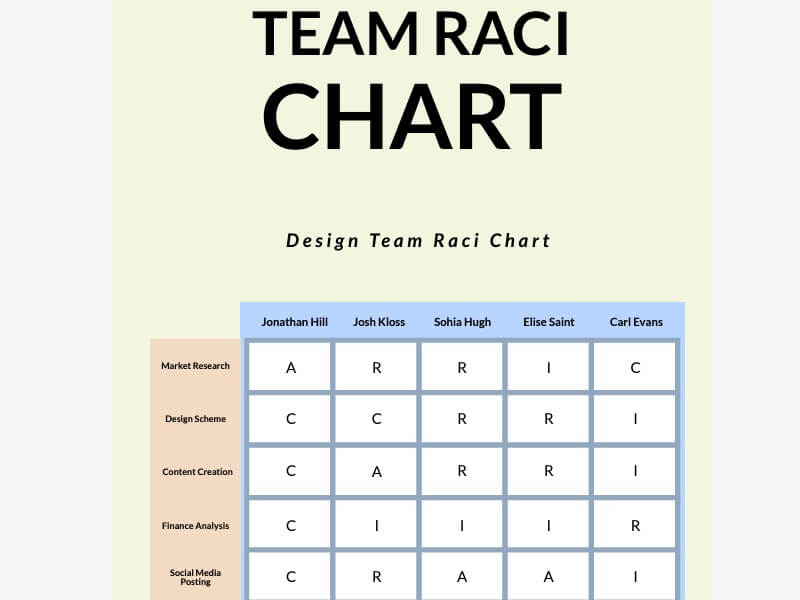
Team Collaboration Template
FREE

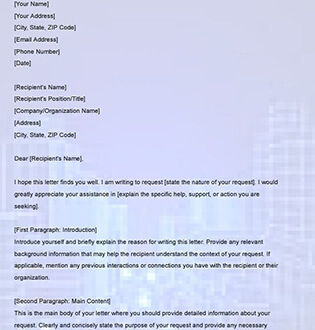
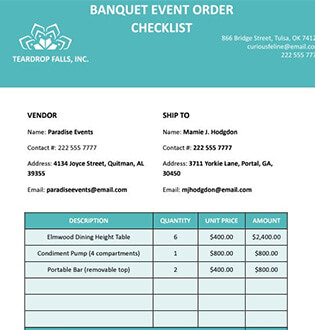
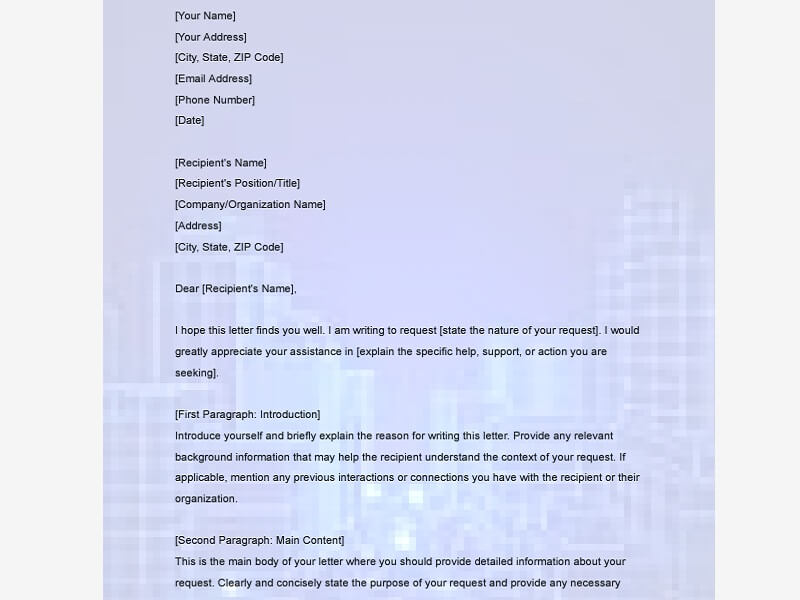
Request Letter Template
FREE

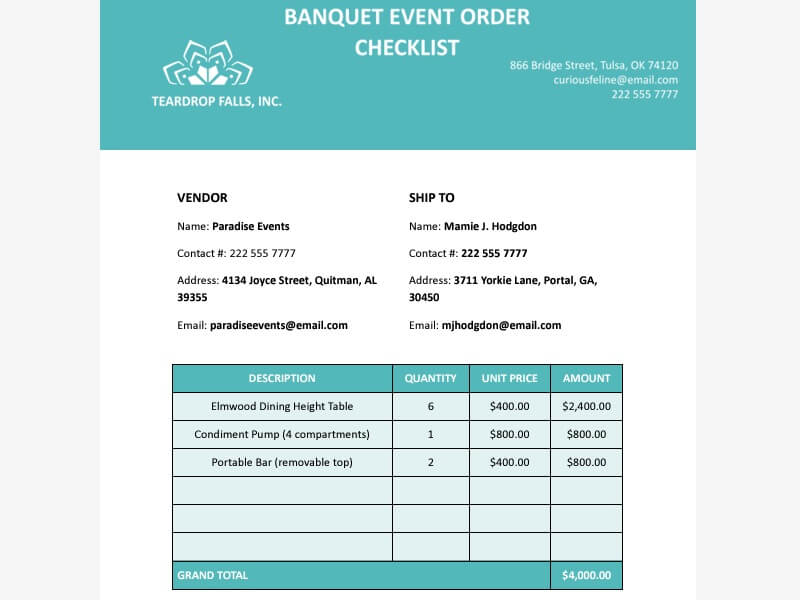
Event Planner Template
FREE

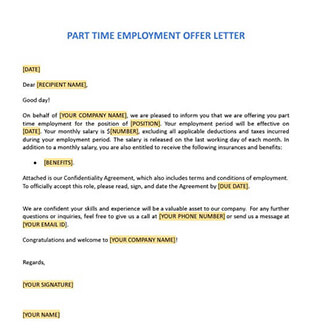
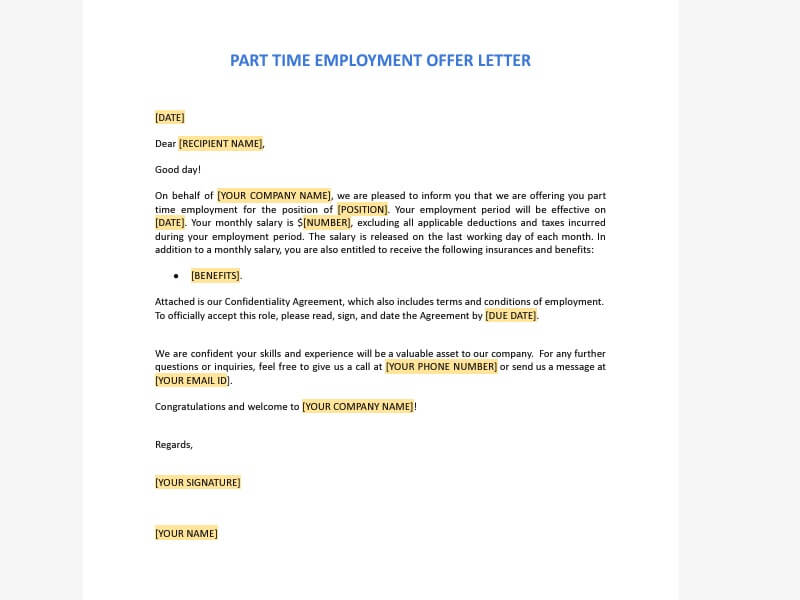
Offer Letter Template
FREE

Birthday Greeting for Grandma
FREE

Birthday Wishes for Granddaughter
FREE

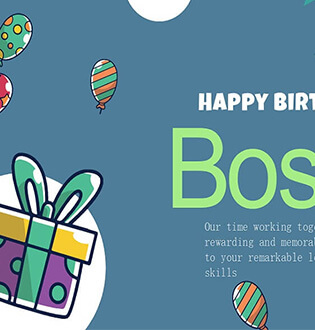
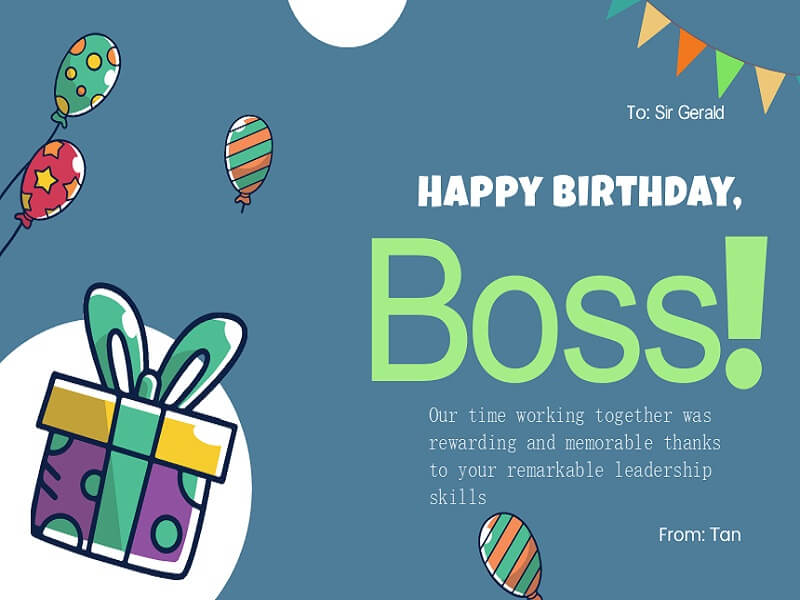
Birthday Wishes for Ex Boss
FREE

Birthday Wishes for Husband
FREE

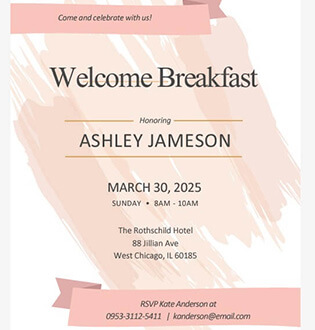
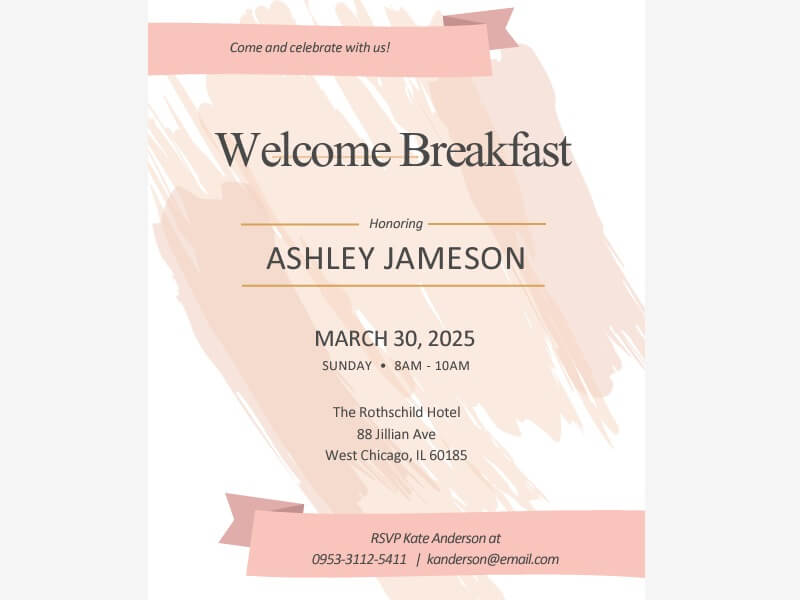
Welcome Breakfast Invitation
FREE

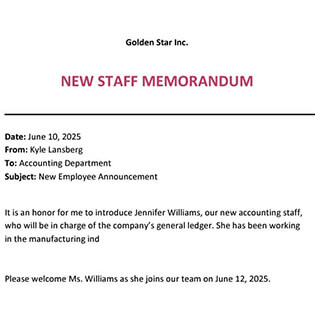
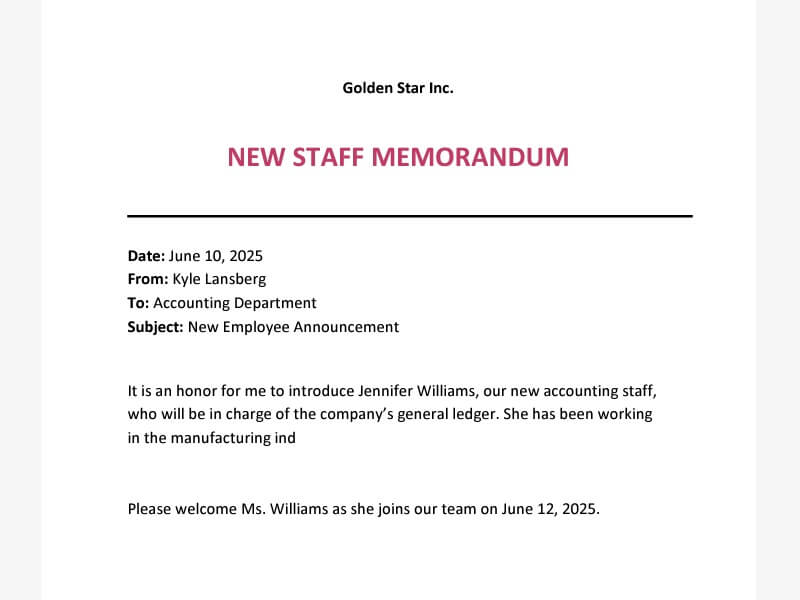
Welcome New Staff
FREE

Welcome Sign Digital Signage
FREE

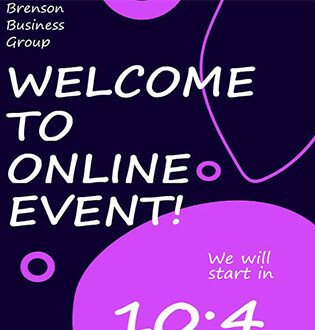
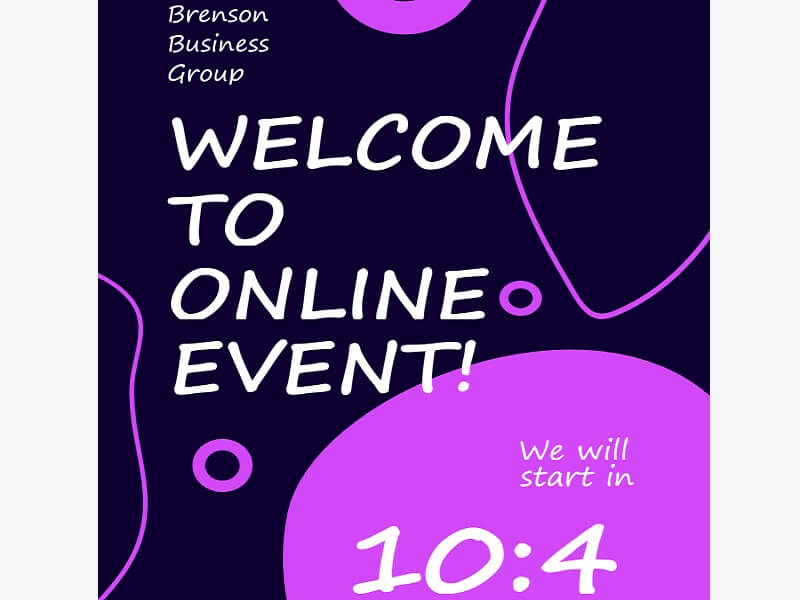
Welcome Countdown Flyer
FREE

Happy Labor Day
FREE

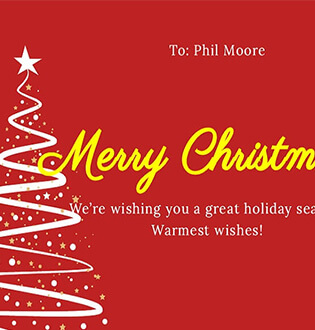
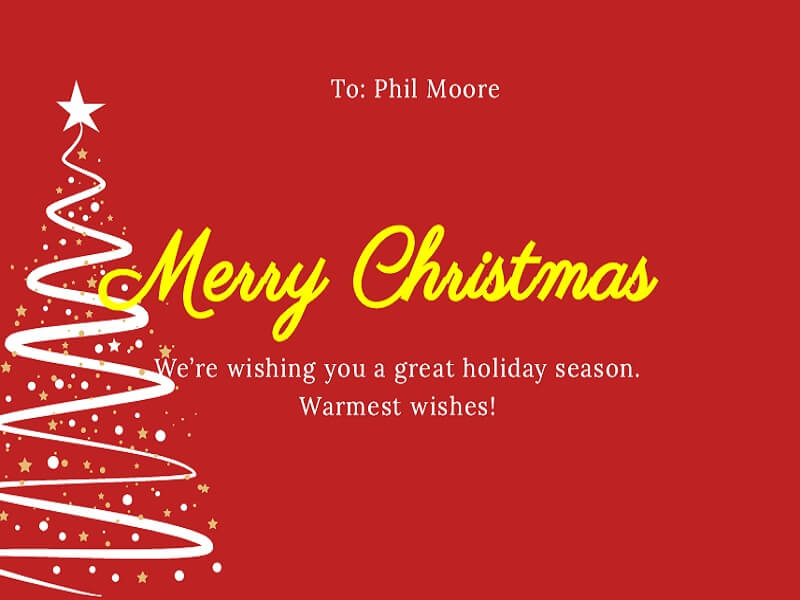
Merry Christmas Card
FREE

Digital Holiday Photo Card
FREE

Season's Greeting Card
star
star
star
star
star_half
4.7/ 5
StackSocial Verified Buyers (10k+ Copies Sold)

Why Choose to Create PDFs Using Templates

security

Professional Template Workflows

Create complex business documents using reusable templates for recurring business projects. This workflow ensures that every file you produce uses fixed-position data entry, meaning text never bleeds into margins or requires a start from scratch.

format_image_left

Consistent Template Formatting

Keep document layouts aligned when generating PDFs from templates, even with multiple sections. This prevents you from fixing formatting issues after the file is created.

format_align_justify

Structural Layout Protection

Edit and update content within your PDF templates without accidentally changing the overall document design. This capability lets you refresh text or images while the editor automatically preserves the original spacing and alignment.

picture_as_pdf

Standardized Business Output

Generate professional PDFs for resumes, invoices, and contracts that meet company standards. Template-driven workflows make every document look identical, whether you make one or a hundred.
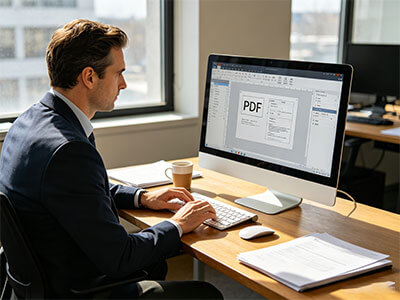
AcePDF - An Intuitive PDF Editor for Any Use

Frequently Asked Questions

How do I turn a Word, image, or spreadsheet template into a PDF?expand_more

Use the Online Document Converter to convert templates to PDFs directly in your browser. Upload your DOC, DOCX, JPG, PNG, or XLSX template file, select the matching conversion option (e.g., DOCX to PDF, JPG to PDF, PNG to PDF, or XLSX to PDF), then start the conversion and download the exported PDF. After downloading, review page alignment, table spacing, images, and fonts to confirm the template layout was exported correctly. Image-based templates may lose editable text functionality because the output becomes a static PDF page. If you need to continue editing the PDF structure, forms, or layout after conversion, open the file in AcePDF Pro.

Which template format should I prepare before converting it to PDF?expand_more

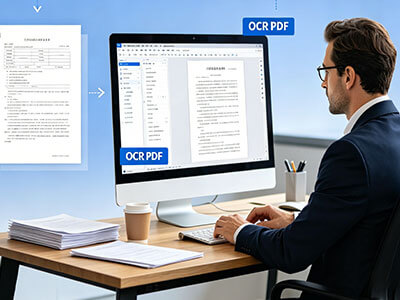
Prepare the template in the format that best matches the type of document you are creating before converting it through the Online Document Converter. You can use DOC or DOCX for contracts, letters, reusable reports, and text-heavy forms, as Word files usually preserve editable formatting better during PDF export. Use XLSX for invoice templates, financial reports, schedules, or spreadsheet-based layouts that contain tables and calculations. Before conversion, check margins, page size, fonts, headers, and image placement in the original file because these elements affect the exported PDF's appearance. JPG and PNG templates work best for static visual layouts, but they are not ideal for editable text workflows. If the template includes scanned pages or image-only text, process the file first with the OCR PDF tool before attempting advanced edits.

How can I keep a template layout consistent when exporting to PDF?expand_more

Keeping a template layout consistent during PDF export starts with preparing the original file carefully before conversion. Open the Online Document Converter, upload the source template, select the correct PDF conversion option, convert the file, and download the generated PDF. After exporting, compare the PDF against the original template to review font alignment, page breaks, headers, tables, and spacing consistency. To reduce formatting changes, keep page dimensions consistent, avoid overlapping text boxes, and use standard fonts that are commonly supported across devices. Complex spreadsheet tables, unsupported fonts, or image-heavy layouts may still shift slightly after export and require manual adjustment. If you need to reorganize pages, correct formatting issues, or update form fields after conversion, continue editing the file in AcePDF Editor.

What should I check if the converted template has spacing or font changes?expand_more

If the exported PDF looks different from the original template, first review the source file before reconverting it with the Online Document Converter. Upload the updated file again, convert it to PDF, and compare the new result with the original version. Check for missing fonts, shifted tables, incorrect page margins, line-spacing changes, image resizing, or page-break issues. Formatting differences usually happen when the original template uses unsupported fonts, overlapping objects, or complex spreadsheet structures. Replacing decorative fonts with standard fonts and simplifying layouts can improve consistency. If the PDF still requires manual cleanup after conversion, edit it directly in AcePDF Pro.

When should I use AcePDF Pro to edit a template after conversion?expand_more

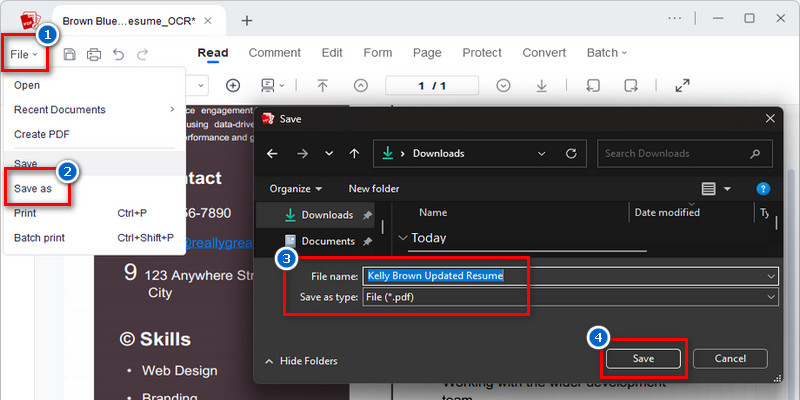
AcePDF Editor is recommended when the converted PDF requires changes that basic online conversion cannot fully handle. Open the PDF in AcePDF by clicking the “Open” option and selecting your file. From there, you can adjust layout alignment, update text, reorganize pages, add annotations, insert signatures, create fillable form fields, or apply document security settings after conversion. This workflow works well for reusable business templates such as contracts, invoices, reports, and fillable forms. After editing, save or export the updated PDF and review fonts, spacing, tables, and page formatting before distribution. If the template is scanned or image-based, OCR may still be required first, as image-only PDFs are not directly editable without text recognition.

Create Registration and Approval PDFs Fast

Free Download

No Learning Curve • Start in Seconds

Back to Top
Contact Us
Learning Center