










Create Fillable PDF Forms with Input Validation and Structured Fields
Configure text fields, checkboxes, dropdowns, and required inputs to collect accurate data while enforcing consistent form completion. Build submission-ready PDFs designed for data capture, processing workflows, and organized record storage.
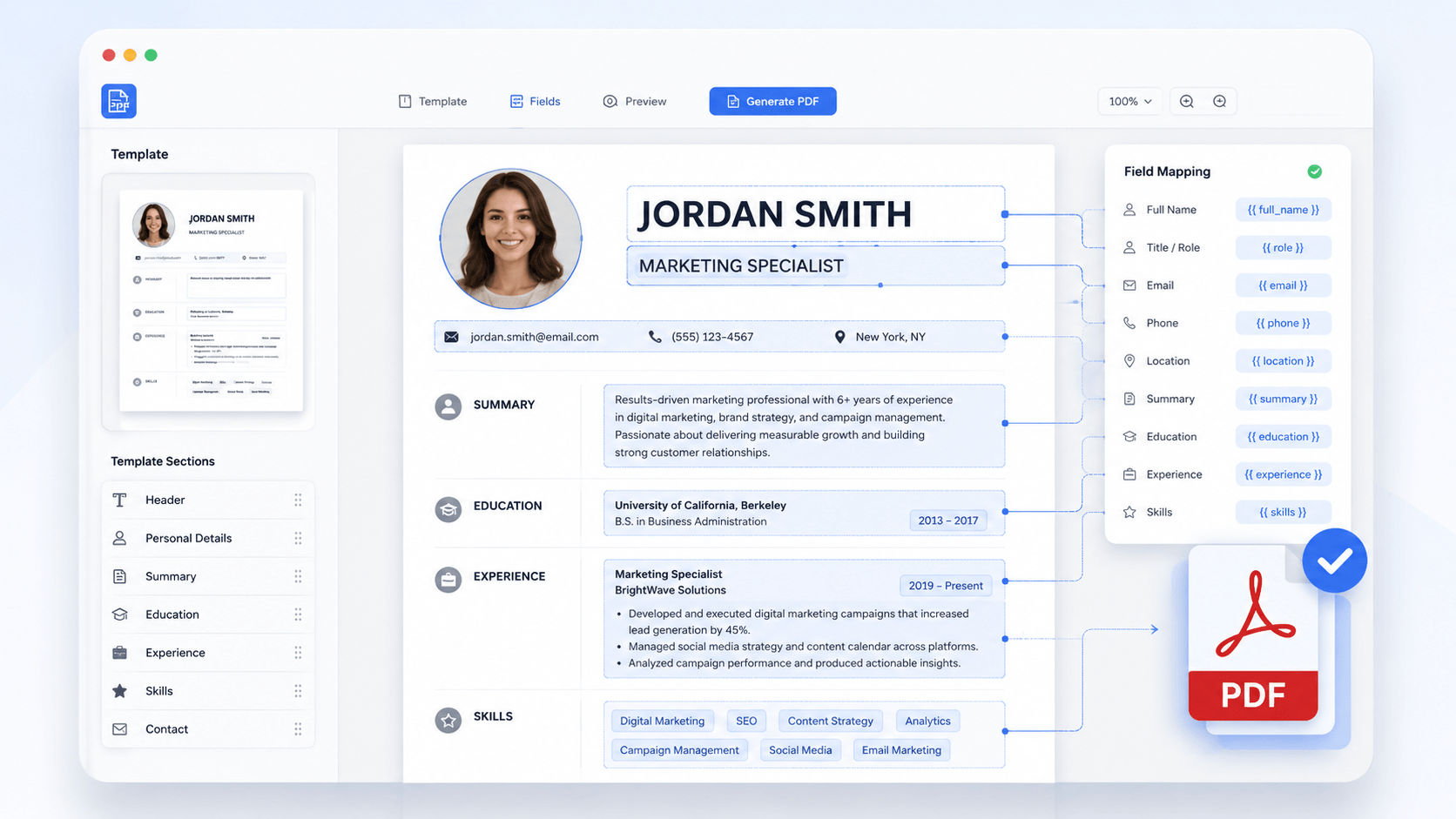
star
star
star
star_half

Prepare Your Form PDFs Before Editing
Create Fillable PDF Forms with Precision
Generate Interactive PDF Forms with 1:1 Structural Integrity
Transform any static PDF into a fully interactive, professionally structured form—without breaking the original layout. Our form-generation engine operates at the vector-rendering level, ensuring that every added field (text boxes, checkboxes, dropdowns, signatures) aligns exactly with underlying document geometry. This guarantees that multi-page forms, government templates, and financial documents remain compliant and visually consistent across all devices.
Technical Metrics
Our form-creation engine is validated through industry-standard metrics to ensure absolute accuracy, reliability, and document integrity.
Challenges in Creating Fillable PDF Forms
Designing fillable forms can be tricky due to layout, compatibility, and formatting issues.
Difficulty Creating and Managing Input Fields
Building fillable PDF forms often requires manually placing and adjusting multiple input fields across documents. Managing text fields, checkboxes, and signature areas can slow down form preparation workflows.
Inconsistent Layouts Across Fillable Forms
Creating fillable PDF forms from different document formats can lead to inconsistent spacing and field alignment. This will lead to an inconsistent layout, reducing readability and affecting the overall professionalism of the form.
Complicated Form Completion for End Users
Some fillable PDF forms are difficult for users to complete because fields are unclear or poorly organized. Complicated form structures can reduce completion accuracy and slow down information submission.
Unstructured Data Collection from PDF Forms
Collecting information through non-standardized PDF forms can result in incomplete or inconsistent responses. This makes it harder to review data submissions and manage business records efficiently.
Create Fillable PDF Forms for Every Scenario
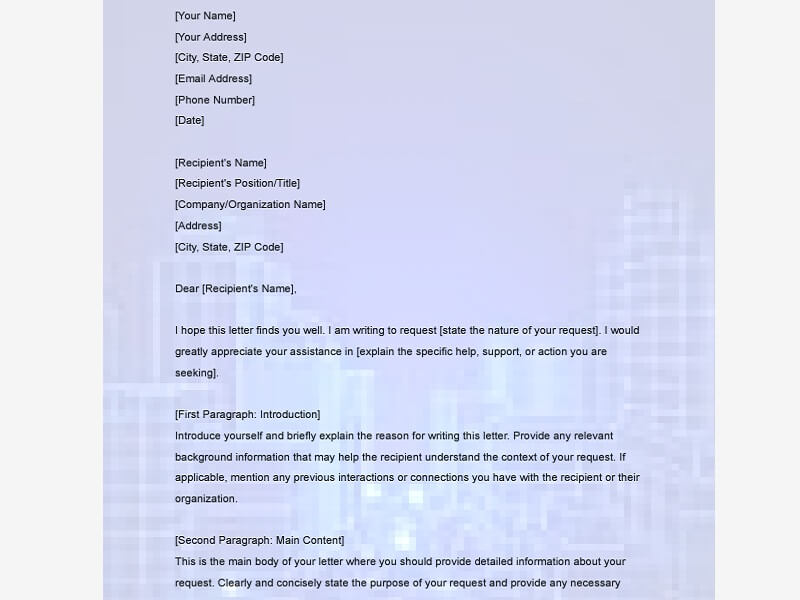
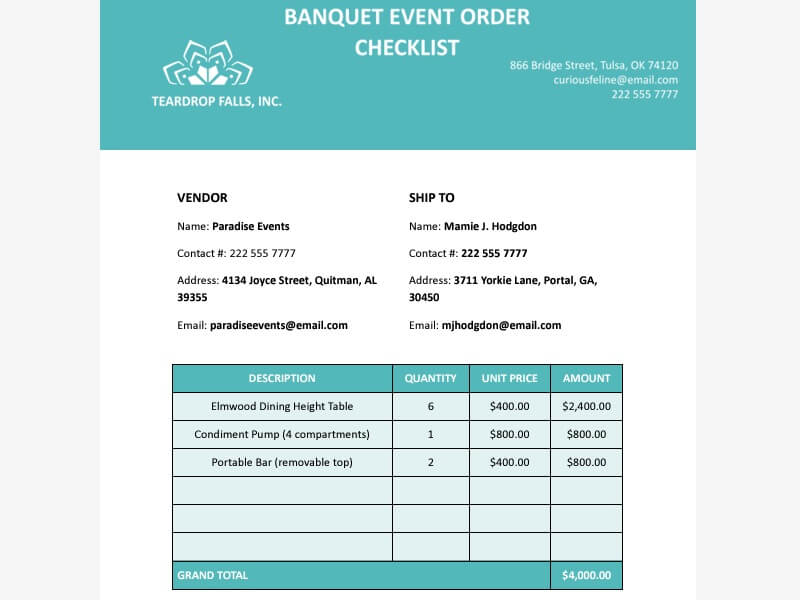
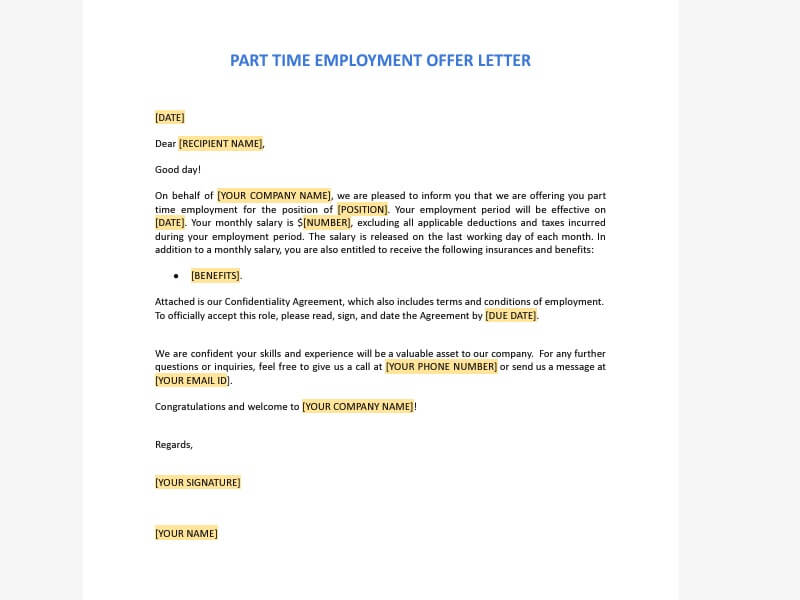
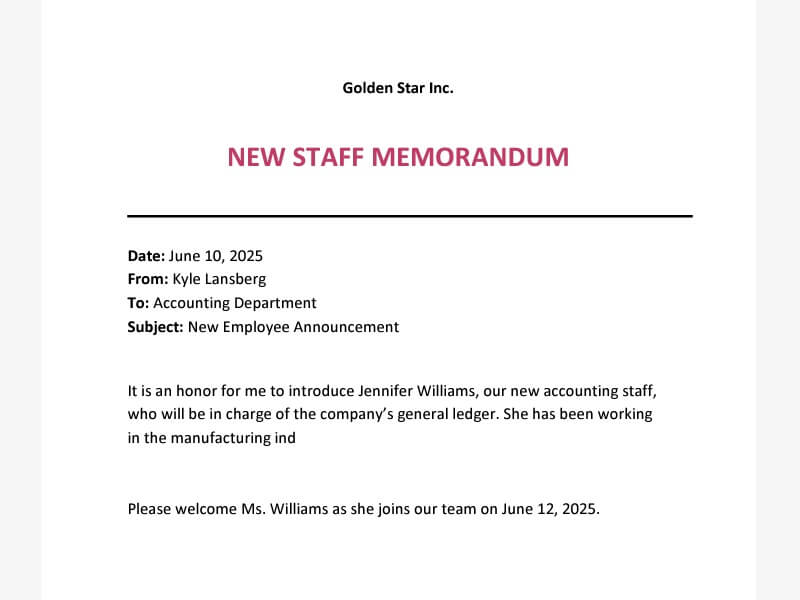
Easily built fillable PDF forms from templates for work, school, or personal use anytime.
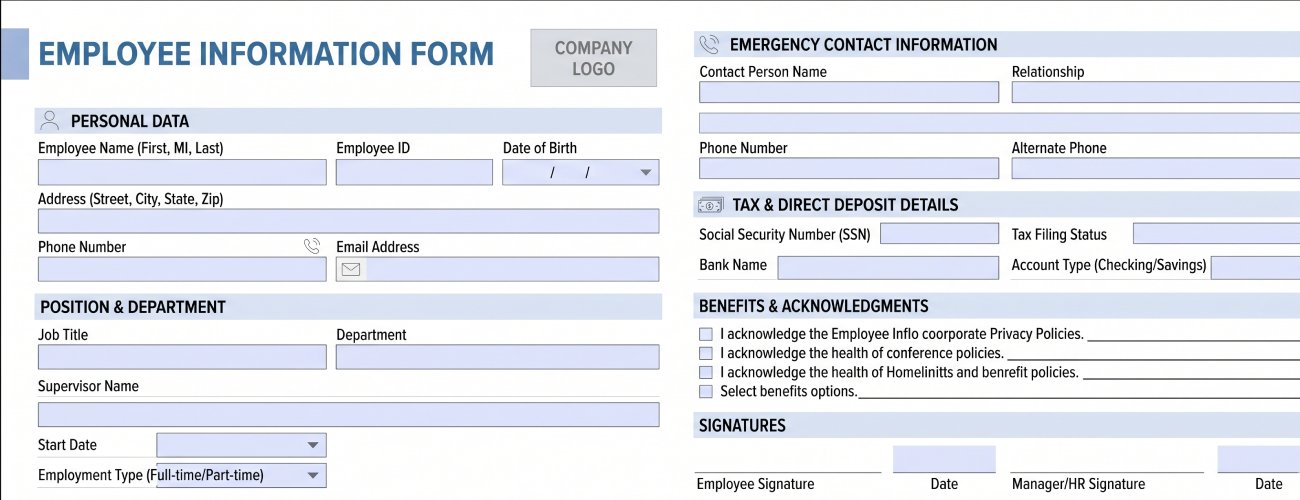
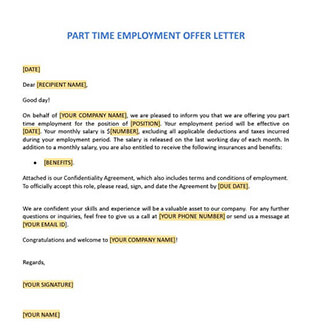
- HR and Employee Forms
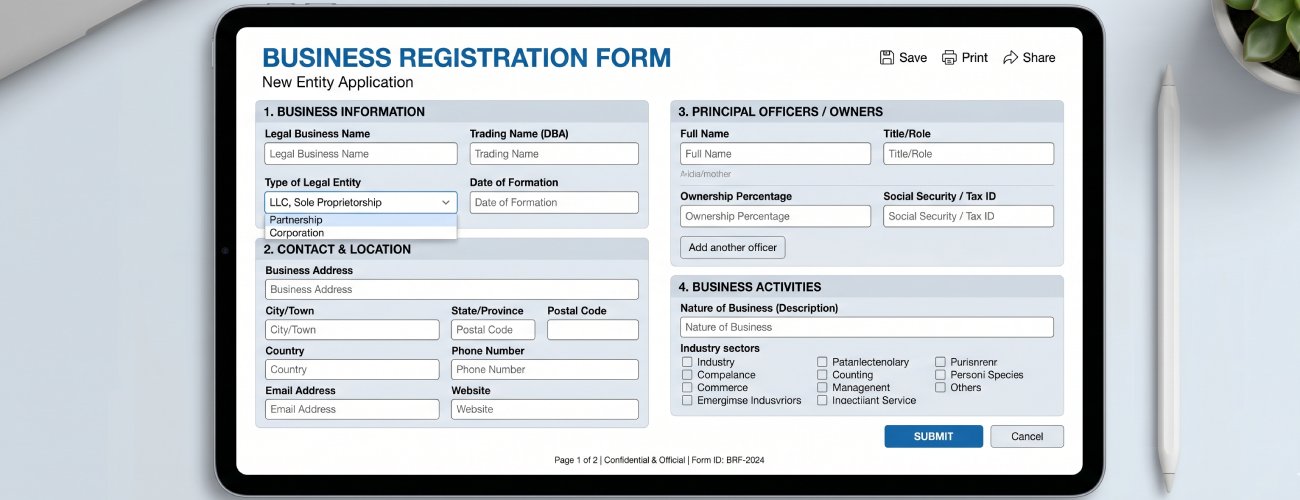
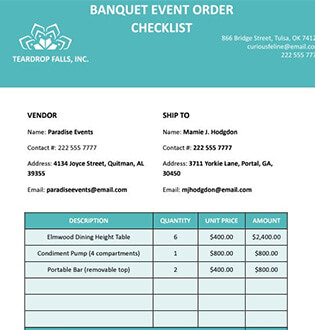
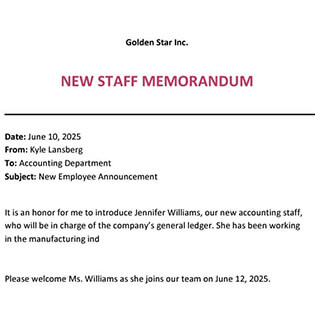
- Business Registration Forms
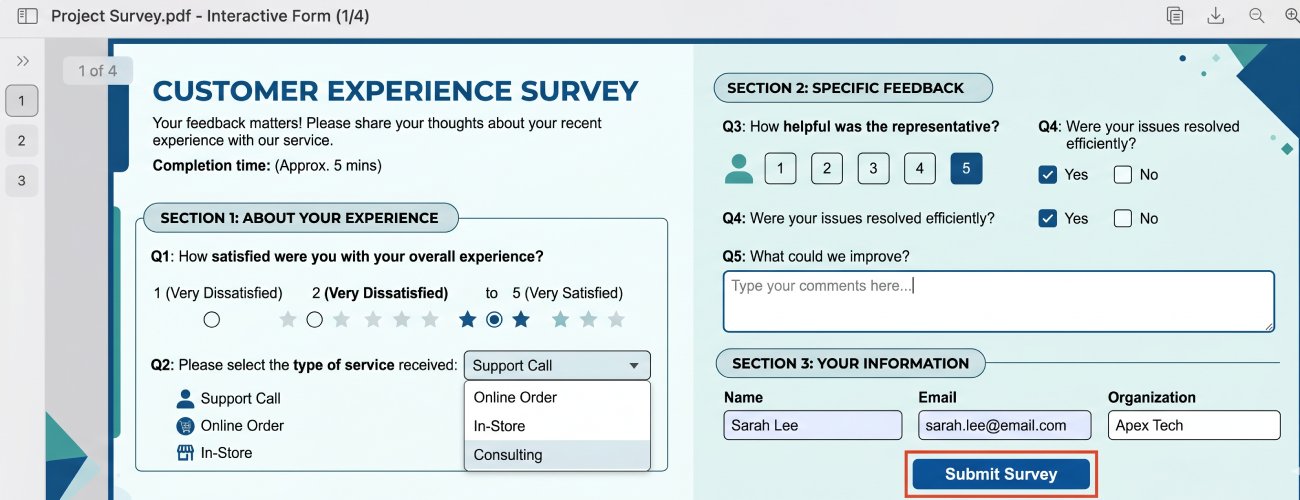
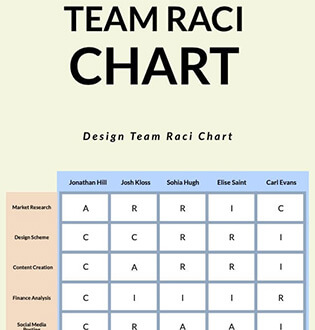
- Surveys and Feedback Forms
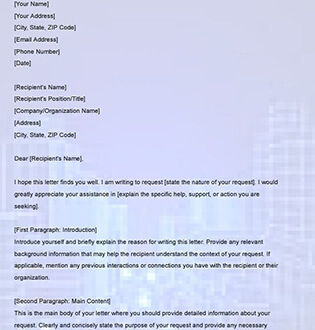
- Interactive Intake Forms
Creating fillable PDF forms for onboarding, employee requests, and internal documentation often requires consistent field structures across departments. Poorly organized forms can lead to incomplete submissions and inefficient data collection.
What you can do:
Registration and application forms must be easy for users to complete across devices and PDF readers. Unclear field placement and inconsistent form structures can reduce submission accuracy.
What you can do:
Collecting feedback through static PDF documents can make responses difficult to organize and review. Forms without interactive fields often reduce completion efficiency and response quality.
What you can do:
Internal approval processes often rely on documents that lack editable fields for reviews, signatures, and status updates. Inconsistent workflow forms can slow down approvals and document handling.
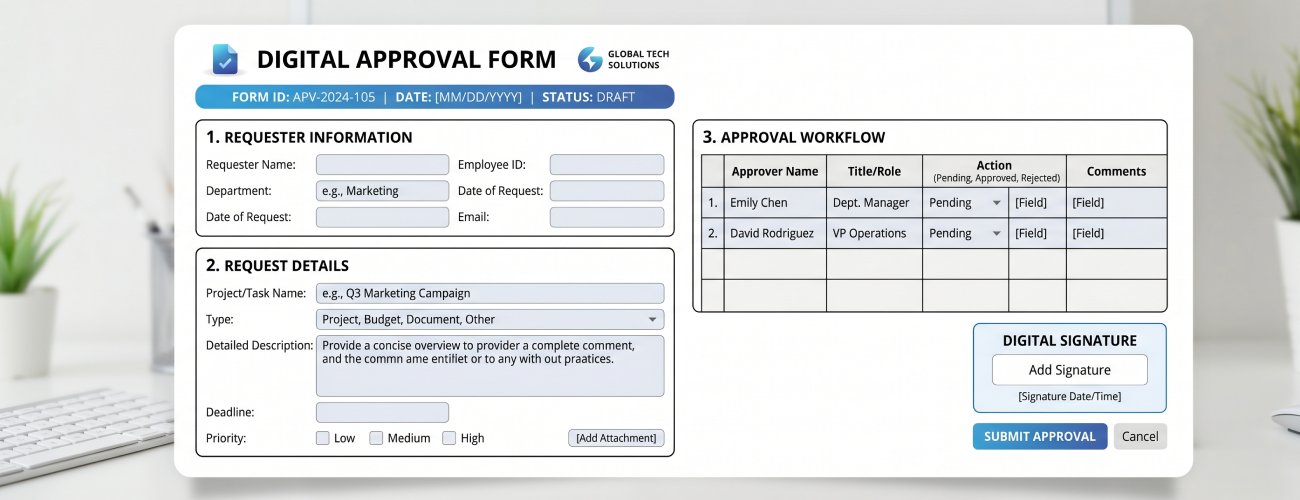
What you can do:
How to Create Fillable PDF Forms
Create a fillable PDF form by adding interactive fields, organizing form layouts, and exporting a ready-to-use document for structured data collection.
-
1
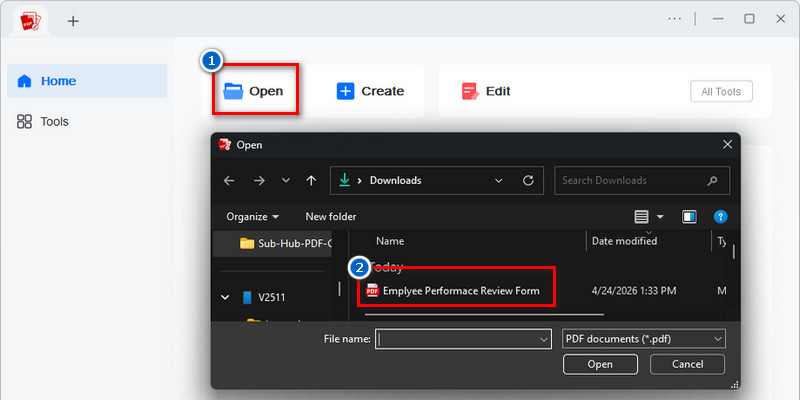
Import Registration and Intake Documents
Process HR forms, client intake sheets, registration documents, and approval paperwork into the PDF form builder while preserving layout structure, tables, and alignment integrity.
-
2
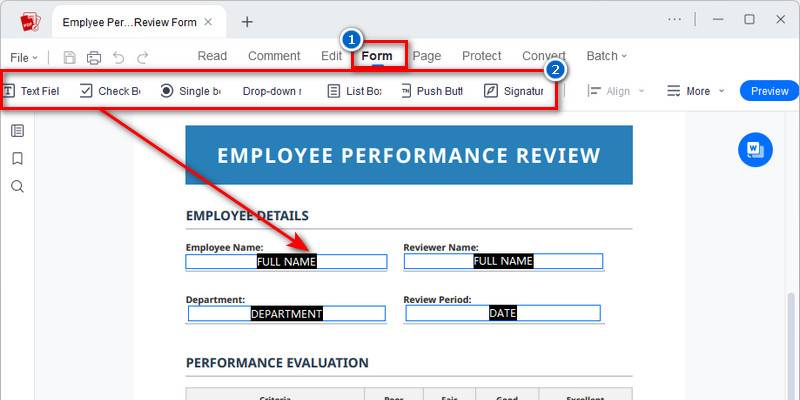
Add Interactive Form and Signature Fields
Embed input fields such as text boxes, checkboxes, dropdown menus, date selectors, and digital signature areas directly into the document. This enables structured data collection without altering the original layout.
-
3
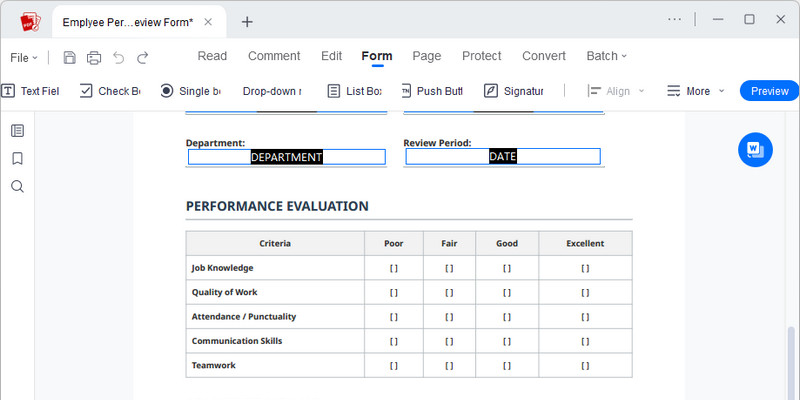
Optimize Form Layout and Completion Flow
Configure field spacing, tab order, and section grouping to improve navigation and reduce incomplete submissions. This ensures a consistent and intuitive completion experience across devices.
-
4
Export Submission-Ready Fillable PDF
Generate a fillable PDF optimized for onboarding and digital submission workflows while preserving interactive functionality and formatting consistency. The output is designed for reliable use across major PDF viewers and mobile platforms.











star
star
star
star_half
Why Choose Fillable PDF Form Tools
Custom Form Fields
Create fillable PDF forms with text fields, checkboxes, dropdown menus, and signature areas. Flexible field options help structure information clearly for different form types and workflows.
Structured Form Layouts
Organize fields and sections with consistent spacing and alignment across your PDF forms. Well-structured layouts improve readability and make forms easier to complete accurately.
Interactive User Input
Build interactive PDF forms that let users enter information directly in the document. Clear input areas improve usability and support faster form completion.
Consistent Data Collection
Standardize form structures to collect organized and reliable information from userspy-20 px-8ed fillable fields help simplify document reviews and data management processes.
AcePDF - An Intuitive PDF Editor for Any Use














Frequently Asked Questions
How do I create a fillable PDF form from an existing document?expand_more
Should I start from a Word document, a blank PDF, or an existing form?expand_more
How do I test whether a fillable form works before sending it to others?expand_more
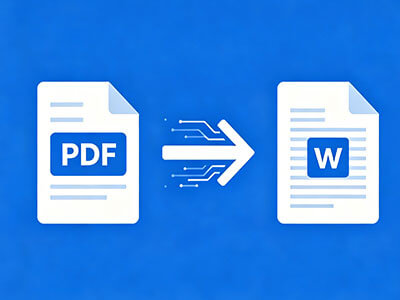
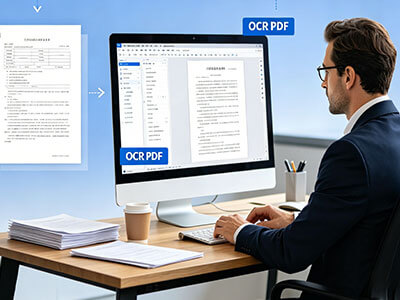
What should I do if a scanned form is not editable or fillable?expand_more
How do I protect or distribute a completed form for business use?expand_more
Create Structured PDF Forms
for Any Workflow
No Learning Curve • Start in Seconds