 Recording gameplay has become an integral part of gaming today. It is an essential way to share epic gaming moments, create a tutorial video, or establish yourself as a streamer. Additionally, most gamers record their gameplay to create walkthroughs, share highlights, stream their gameplay, or even record moments with their friends. With the rise of YouTube and Twitch, recording gameplay on a PC has become more important than ever. Luckily, you can now record gameplay on PC with minimal hassle. Also, there are lots of ways to do it, from built-in apps to third-party software. So in this article, let's discover the most effective way to record gameplay on a PC, including a range of user-friendly to advanced tools for gameplay recording.
Factors When Choosing a Gameplay Recorder
Selecting the right PC gameplay recorder is about finding the right balance between quality and performance. That's why it is important to know the key factors that can guide you in choosing the gameplay recorder for PC.
Supported Resolution and FPS
One of the first things to consider when choosing a game recording software for PC is the recording quality. Most software supports 1080p at 60 FPS, which is ideal for smooth, crisp gameplay videos. But if you are aiming for the highest-quality videos, you can look for recorders that offer 4K recording quality. However, it is worth noting that the higher the quality, the higher the system requirements for smooth recording.
Performance Impact on Gameplay
Recording gameplay can take a toll on PC performance, especially for games with demanding graphics. So it is essential to choose a screen recorder for gaming that has little or no impact on gameplay. Luckily, most devices now have built-in apps specifically designed for them that won't impact their performance.
Audio Recording Options
Audio is a significant part of game content creation. Ensure that the tool you use can record PC games with audio, such as:
- System sound (game sound)
- Microphone input (for commentaries)
- Mixed audio recording
Output Formats
The format your recorder supports is essential, as it determines both the size and compatibility of your output file. The common output formats include:
- MP4 - Most popular output with compression
- MOV - High-quality output, mostly used in video editing
- MKV - Suitable output when recording long videos, as it prevents file corruption
Editing and Annotation Features
Some PC gameplay capture tools include built-in features that let users edit their videos. These features enable users to edit their videos without needing other apps. While using other tools is better, having this feature can save users a lot of time.
Ease of Use and Accessibility
Not all users want to spend hours learning how to use a tool. As a beginner, it is essential to ensure that the tool is user-friendly. Apps like Xbox Game Bar are user-friendly, but tools like OBS Studio are not.
Hardware Requirements
- A powerful CPU or GPU (for encoding)
- At least 8GB RAM, but 16GB is recommended
- Enough storage space to store large files
Built-in Methods to Record Gameplay on PC
Windows Game Bar
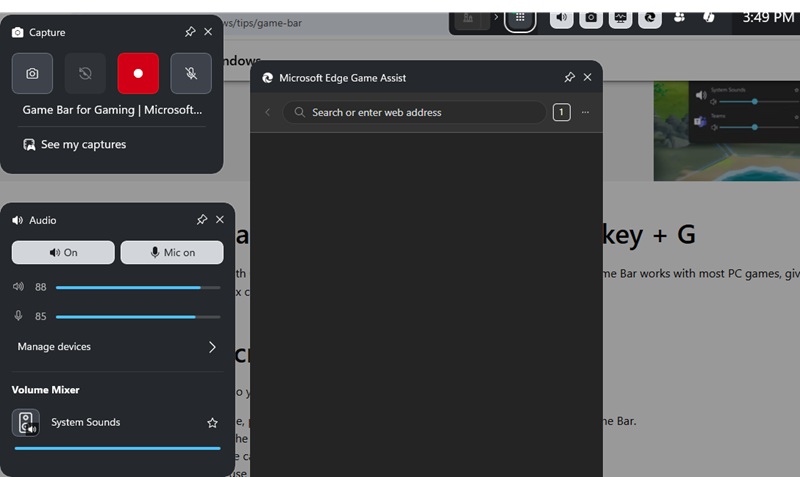
For Windows computers and laptops, there is a built-in recorder called the Game Bar. It is a customizable app overlay that works with most PC games. It gives you access to widgets for screen recording and capture, without leaving the game. Plus, this PC gameplay recorder lets you record the game in full-screen or in partial mode. Also, it can save recordings as MP4s and capture in full HD 1080p. Additionally, it has built-in editing tools on its "See my Captures" button. The good thing is that Windows users can use it for free without compromising their in-game performance.
NVIDIA ShadowPlay
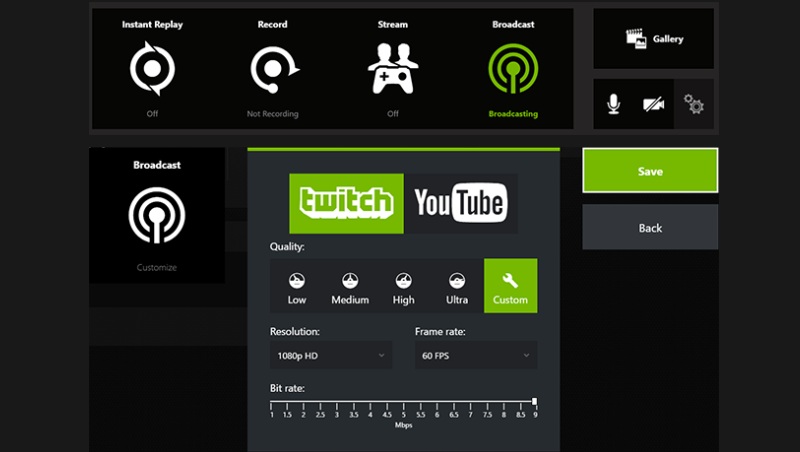
Another built-in game recording software for PC is NVIDIA ShadowPlay. Like the Windows Game Bar, it is also an overlay app that you can launch while playing a game. It can record for up to 4K resolution at 60 FPS. Furthermore, it lets you record games in full-screen or windowed modes. Aside from that, it offers an automatic record for the last 20 minutes with its "Instant Replay" feature. Also, NVIDIA ShadowPlay lets you broadcast and stream your gameplay to popular channels, including Twitch and YouTube. Lastly, the app also lets you take screenshots and upload them in 4K resolution.
AMD Radeon ReLive
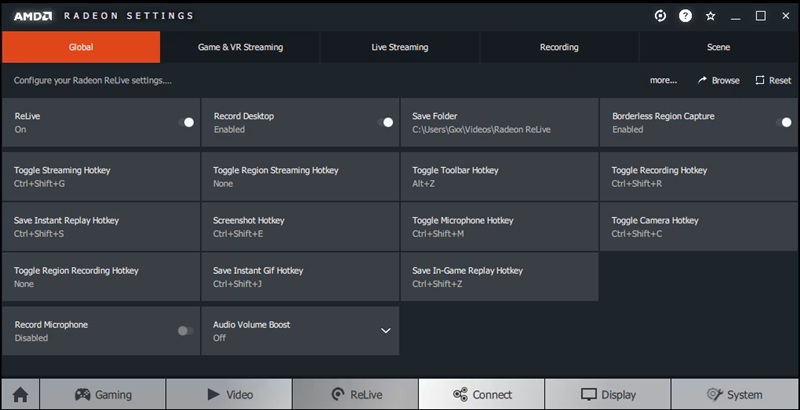
Next is AMD Radeon ReLive. It is also a screen recorder for gaming available on devices with AMD processors. The screen recorder is currently supported on devices with AMD GCN (Graphics Core Next) Architecture-based Desktop Graphics. AMD Radeon ReLive lets you capture gameplay audio alongside microphone audio. Meanwhile, the Borderless Region Capture option lets you record only the selected application. Furthermore, you can set up some hotkeys and activate them to record and save any gameplay videos quickly. Also, it can record gameplay videos at up to 1440p and audio at up to 192 kbps.
Online Gameplay Recording Solution
AceThinker Free Online Screen Recorder
AceThinker Free Online Screen Recorder is a lightweight online PC gameplay capture tool. It offers several recording options that let you record desktop audio and microphone audio, perfect for recording gameplay and sharing highlights. Additionally, it can detect your webcam and include it in the recording. Plus, it lets you record gameplay videos without any time limit or watermarks. Furthermore, it offers basic annotation tools that let you add notes, shapes, and texts, which is perfect for creating a gameplay tutorial. Lastly, it can record up to 1080p and save gameplay videos in MP4, WMV, MOV, and more.
How to Record Gameplay on PC using AceThinker Free Online Screen Recorder
- First, go to the official website of AceThinker Free Online Screen Recorder using any web browser you have.
- Then, set up the recorder and turn on the desktop audio, microphone, or webcam if you prefer.
- Next, hit the "Start Recording" button, and you can choose to record your entire screen or the game window itself.
- Once done, go back to the online screen recorder and hit "Stop Recording." From here, click the "Download" button to save and watch your gameplay recording.
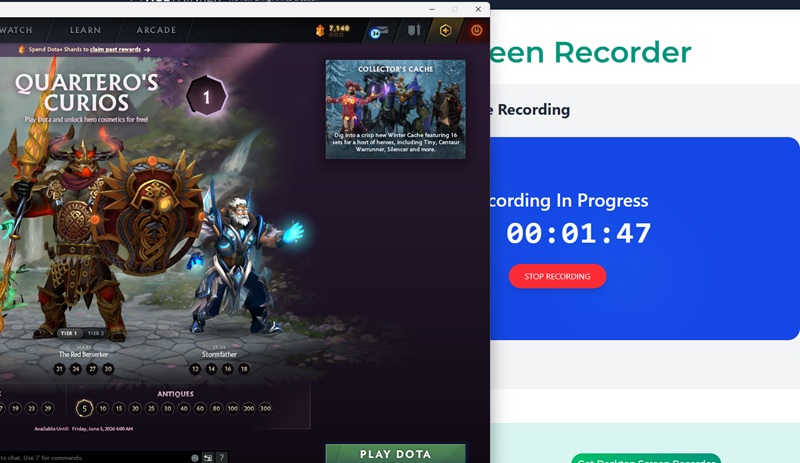
RecordCast
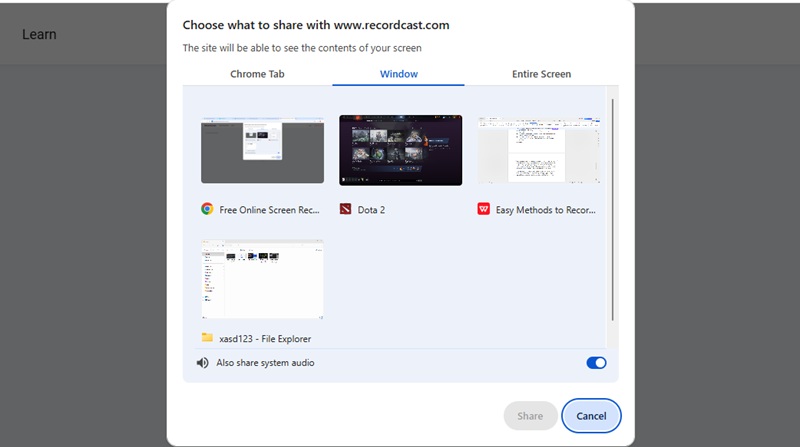
If you're looking for another PC gameplay recorder, try RecordCast. Here, you can record your gameplay with audio and webcam, perfect for capturing reactions and streaming. Additionally, this online recorder lets you capture your gameplay in 1080p resolution. Also, RecordCast is designed to run with minimal lag, so it won’t affect your gameplay while recording. Furthermore, it lets you share your gameplay video recording via link or upload it to their cloud storage.
- Using any browser, visit RecordCast and open the game you want to record.
- Go back to RecordCast, hit the "Record Free Now" button, and choose the recording mode from "Screen + Webcam," "Screen Only," or "Webcam Only."
- After that, choose whether to record system audio, microphone, or both. Then, hit the "Start Recording" button to begin.
- Finally, you can hit the "Stop" button to watch a preview of the recording. If satisfied, download the video to your PC.
Desktop Gameplay Recording Software
Aqua Demo
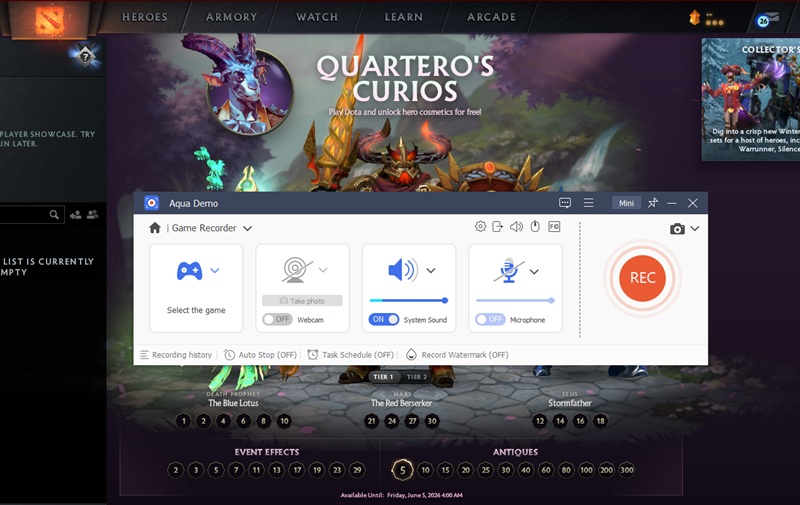
Aqua Demo is a powerful desktop gameplay recorder that can record PC games with audio. It offers a straightforward interface that lets you record your gameplay in just a few steps. Here, it lets you record the PC screen in full screen and also has the option to customize the recording area size. The good thing about Aqua Demo is its Game Recorder feature. This option is specifically designed to record gameplay. Additionally, it lets you record the game window only to avoid unnecessary clutter in your video. Plus, it lets you record the microphone, system sound, and webcam, which is necessary for game streamers to share tutorials, highlights, or walkthroughs. Furthermore, it can record at up to 4K Ultra HD resolution to capture your gameplay in the best possible quality.
How to Record Gameplay on PC with Aqua Demo
Try it for Free
Step 1 Download and Install the PC Gameplay Recorder
Click the download button for your operating system. Open the .exe file to start installing. Follow the prompts until Aqua Demo is installed.
Step 2 Set up the Gameplay Recorder
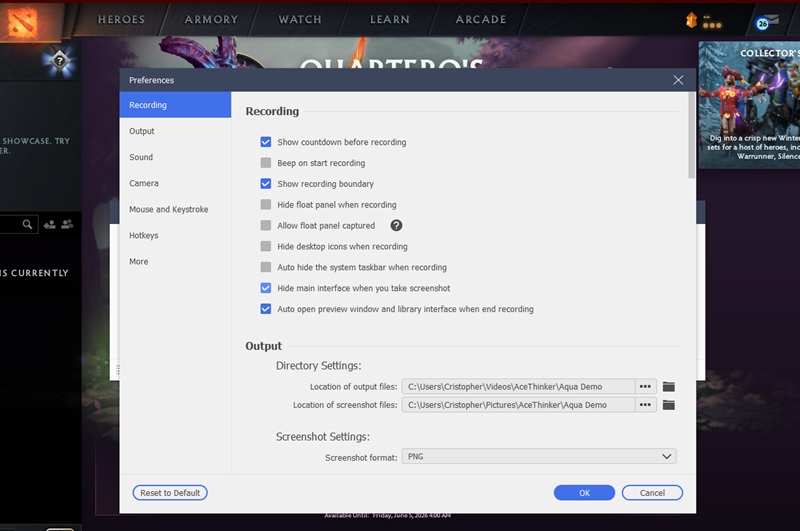
On its interface, click the hamburger menu (the 3 horizontal lines) located at the top-right corner of the app. From here, select "Preferences" to set options such as recording quality (the clarity of your audio/video), file format (the type of file your recording will be saved as), hotkeys (keyboard shortcuts to control the app), and more.
Step 3 Record your Game
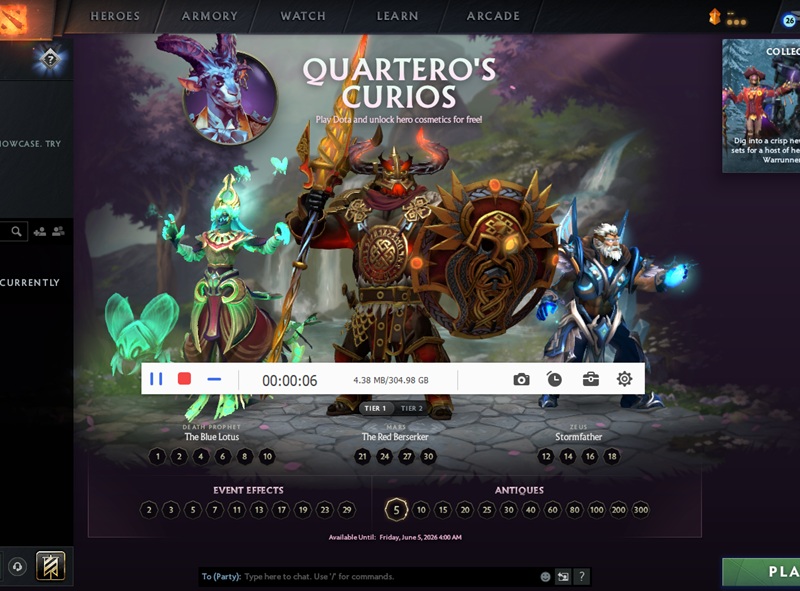
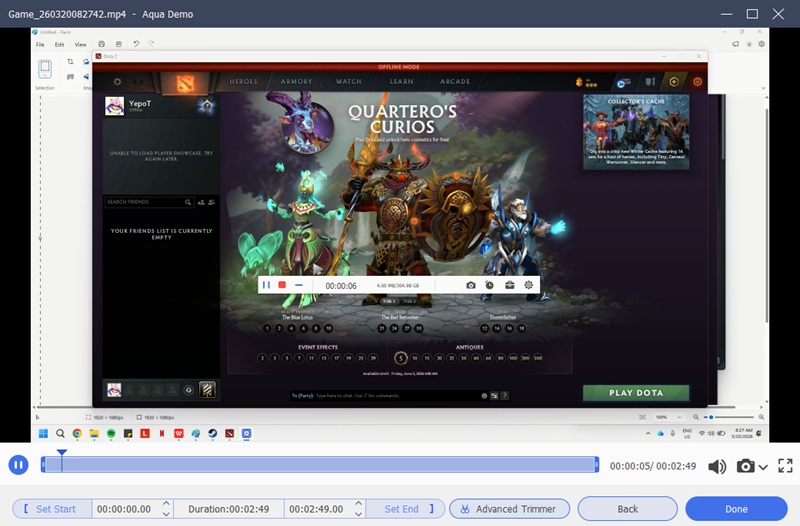
In the Game Recorder feature, you can choose to record system sound, microphone, and webcam. Once everything is set up, click the "Rec" button and go back to your game and play it as you like. When finished, click the red "Stop" button to launch the preview window, where you can watch the recording and edit it.
Step 4 Save the Gameplay Recording
Next, hit "Done" when you're satisfied with the recording. The file will save automatically in your download folder or the one you set up. Now, you can share your gameplay video on your preferred streaming platform, such as Twitch, YouTube, or Facebook.
Bandicam
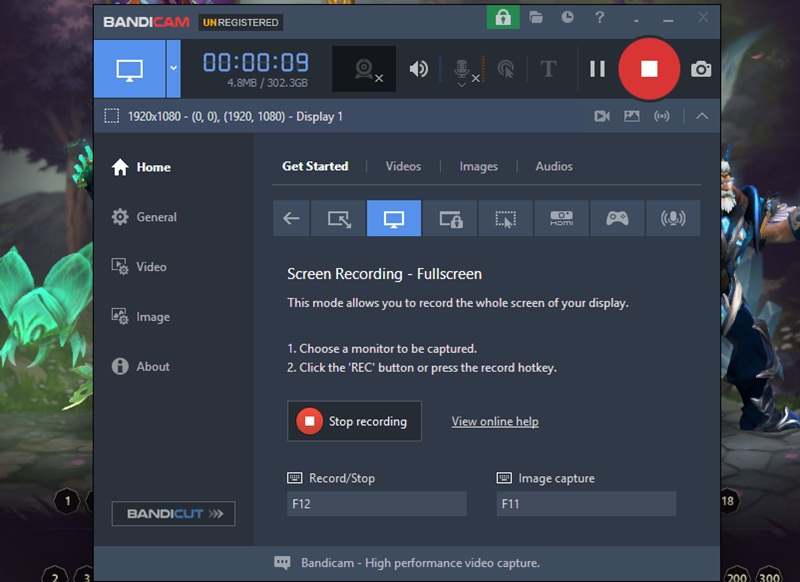
Another third-party app to record gameplay on PC is Bandicam. It also has a dedicated Game Recorder that captures 2D and 3D games in 4K UHD. In fact, it can even record your screen for up to 480 fps. Also, Bandicam lets you save gameplay recordings as MP4 and AVI files, making it easy to share and upload to various streaming platforms, including YouTube, Facebook, Twitch, etc. Additionally, Bandicam lets you add a webcam overlay, which is great for recording gameplay with commentary. Furthermore, the recorder can schedule your recording and start it within a specific time you set, which is essential for regular streamers.
Step 1 Download and Install Bandicam
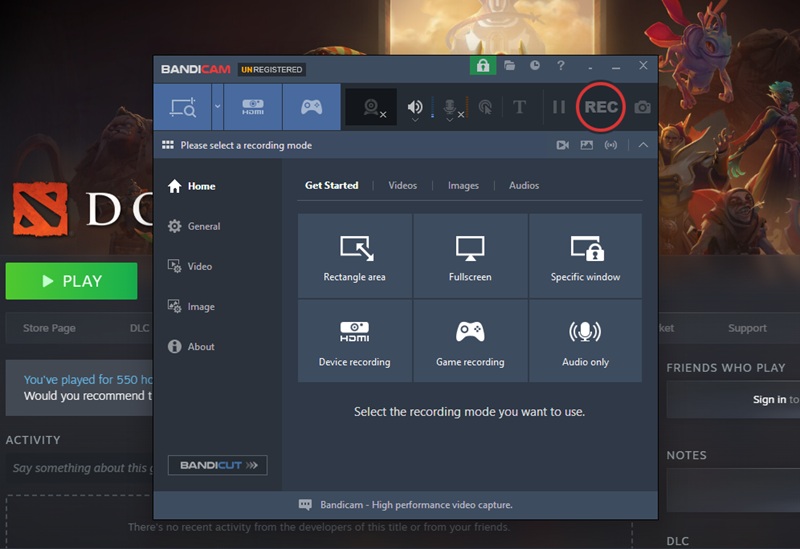
Visit the official download page of Bandicam and save its installer file. Launch it and run through the process until it is successfully installed. Then, launch Bandicam to access its main interface.
Step 2 Set up Bandicam
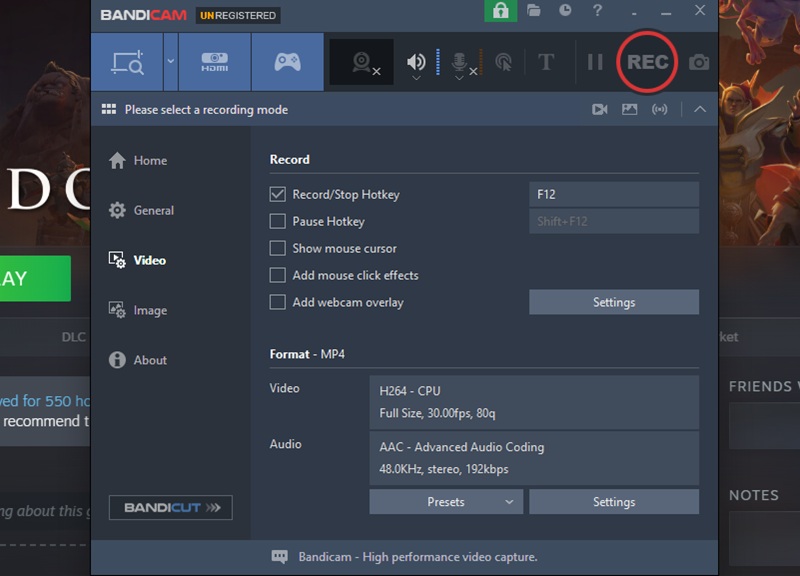
From its interface, go to the "General" and "Video" tab and set up the recording options you prefer. Here, you can set the hotkeys, download location, video and audio format, video and audio quality, and more.
Step 3 Record Gameplay with Bandicam
To start, click the "REC" button, and you can now play the game to record it. Once done, hit the "Stop" button, and it will be automatically saved to your preferred download folder. Open it and watch the recorded gameplay video.
Frequently Asked Questions
Does recording gameplay affect FPS?
Yes, it does affect FPS since it uses your PC's CPU, GPU, and RAM during gameplay. The effect of recording your gameplay depends on the recording software and your PC configuration. Simple recording tools like the Xbox Game Bar do not significantly affect FPS. More powerful tools like Bandicam require configuration to prevent lag. To prevent FPS drops when you record gameplay on PC, you can try reducing your screen resolution and closing unnecessary programs.

What’s the best free gameplay recorder?
The best free PC gameplay recorder depends on specific needs, but it is safe to say Aqua Demo is the best option. It can record in Ultra HD quality, has a Game Recorder feature, and offers many powerful features. If you are looking for something easier to use, Windows Game Bar is an excellent built-in option for Windows users to record gameplay. For users who want a mix of ease and power, Bandicam offers free versions with basic capabilities.
How to record gameplay with commentary?
If you're wondering how to record gameplay on PC while providing commentary, you need a recording device that supports both system and microphone recording. First, you need to open your recording application and turn on system recording to record in-game sound effects. Ensure to turn on your microphone and record your commentary, then begin recording before you start your game.
Conclusion
With various options available to record gameplay on PC, picking the suitable app is now the final step that you need to take. For quick and easier access, Windows Game Bar is the best option as it is already available on your PC. But if you prefer a dedicated game recorder, Aqua Demo is packed with the essential features you need. Now it’s time to start! Choose the tool that best fits your needs, and try a few to see what works for you.