menu

AI Image Extender - The Smarter Way to Fix Cropped Photos

The online AI image extender helps you turn cropped or limited photos into full, natural-looking images with smart background generation. It’s perfect for content creators, designers, marketers, or anyone who wants to fix framing or adapt images to different formats. You’ll save time and still get excellent results.

Turn cropped photos into complete visuals instantly

expand photos with ai ease

Expand Photos with AI Ease

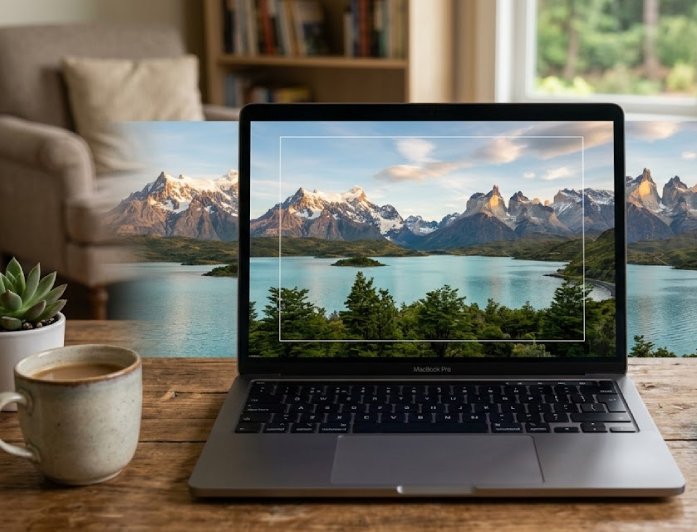
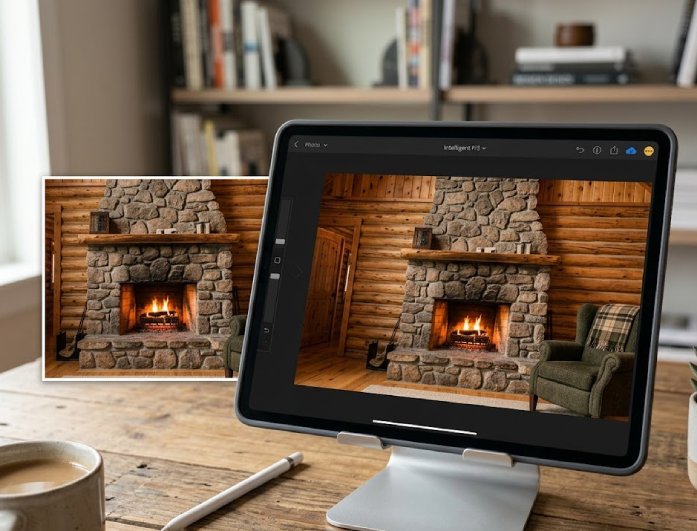
Our tool makes it easy to enhance photos without complicated editing steps. Using the online image extender, users can extend backgrounds, landscapes, and image edges in a smooth, natural way. The expanded sections blend well with the original photo, resulting in a clean, visually balanced final result. This feature works well for social media content, marketing visuals, banners, and personal photography that need extra space around the subject. It also allows users to improve framing without stretching important parts of the image. Since the process is handled automatically, even beginners can achieve polished results within seconds.

Customize Expansions with Prompts

With this tool, users can guide the image extension process by entering custom text instructions. The AI image extender online enables users to describe backgrounds, scenery, lighting, textures, or visual styles that should appear in the extended area. This provides greater control over the final output while maintaining the editing process simple and accessible. Creative projects become more flexible because the generated background can match a specific theme or mood. It also helps maintain consistency between the original photo and the newly added sections, resulting in a more natural appearance.

customize expansions with prompts
resize images for every platform

Resize Images for Every Platform

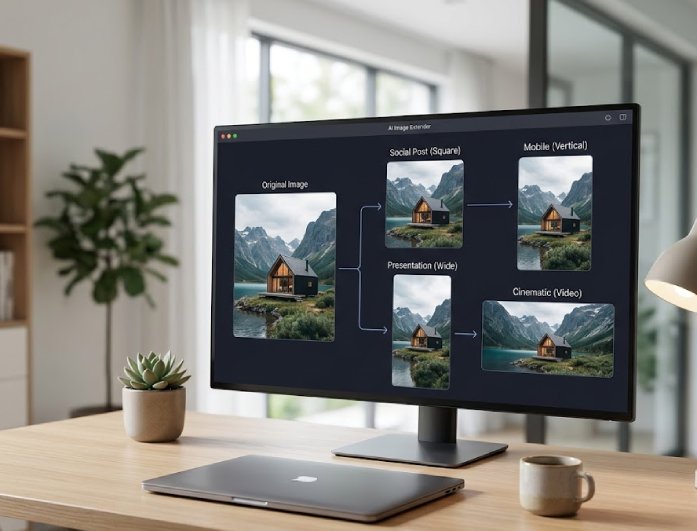
Our tool enables users to choose from multiple aspect ratios to better suit diverse screen sizes and content formats. The AI photo extender supports square, portrait, vertical, and cinematic layouts for social media posts, presentations, videos, and digital designs. This helps users prepare a single image for multiple platforms without having to repeat the editing process. Images remain balanced and properly aligned as they adapt to different dimensions. It also helps avoid awkward cropping that can remove important details from the original photo. The resizing process keeps the composition looking professional and visually appealing across different layouts.

Recover Missing Image Areas

This feature allows users to expand images online or restore cropped image edges while maintaining the original sharpness and consistency. With this feature, the tool intelligently fills empty areas by matching textures, lighting, and surrounding details naturally. It works especially well for correcting photos that were framed too closely or accidentally cropped during editing. The extended parts connect smoothly with the original image, helping the final result look complete and realistic. Users can also enlarge older or smaller photos to wider formats without compromising the complete composition. Since the image maintains its detail and clarity, the output avoids blurry or stretched-looking sections.

recover missing image areas

How to Expand Images Online

  • 01
    Access the Tool
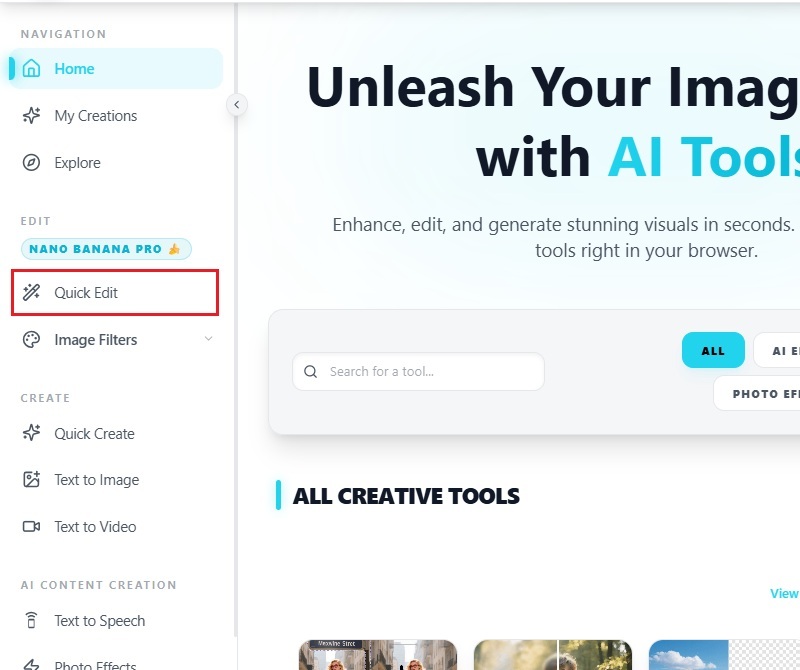
    To begin, open your web browser and go to the AI Image Generator & Editor. Next, log in using your account credentials to access the full features. After that, navigate to the “Quick Edit” option where the image extension tool is available.
  • 02
    Upload Image
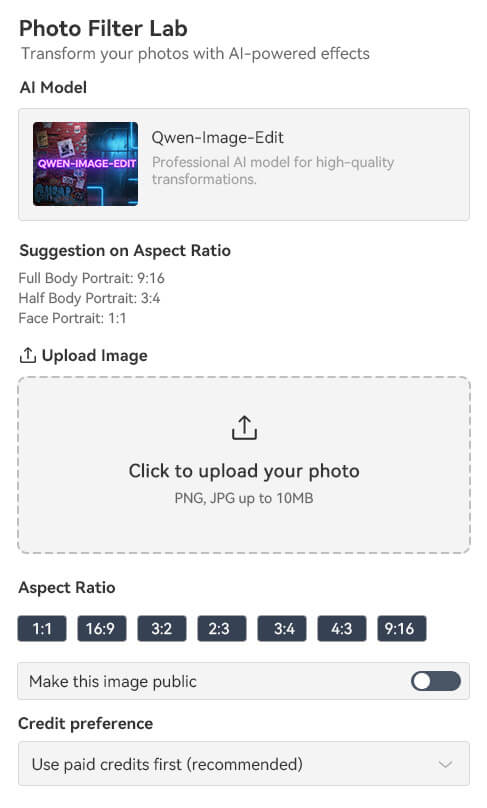
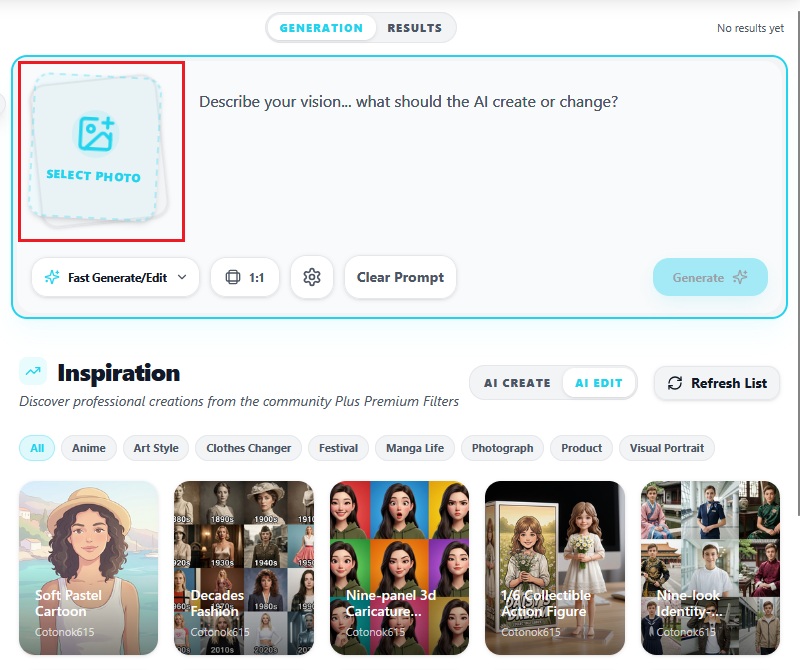
    Once inside the tool, click the “Select Photo” button to start the process. Then, choose the image you want to expand from your device or library. After selecting it, wait for the file to upload completely before moving forward.
  • 03
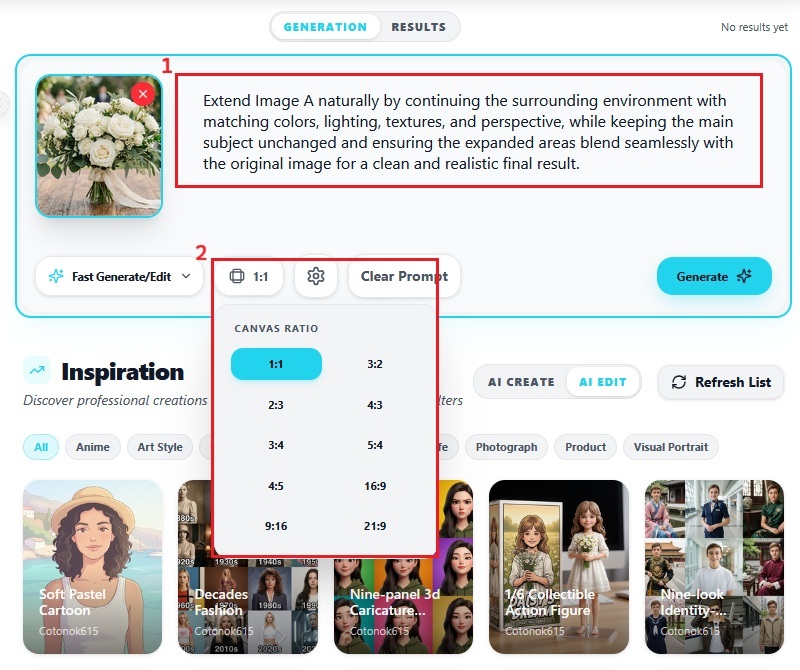
    Define the Prompt
    After the image is uploaded, enter a clear prompt describing how you want it expanded. In addition, select the aspect ratio that fits your intended output or platform. This step helps guide the AI to generate more accurate and natural-looking results.
  • 04
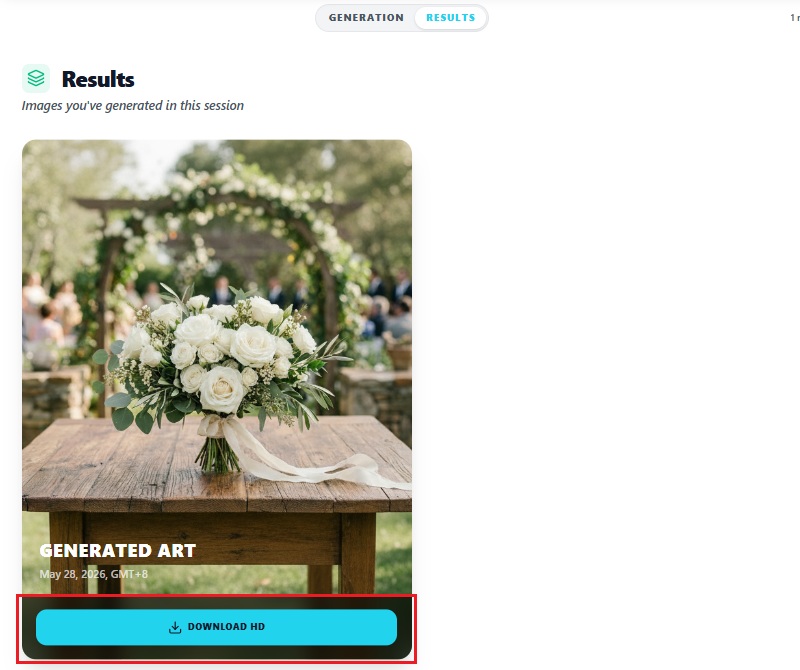
    Generate and Download Image
    Next, click the “Generate” button to start processing the image expansion. Then, wait for the AI to complete the enhancement and fill in the missing areas. Once finished, download the final image and save it to your device for use.
access the tool
upload image
define the prompt
generate and download image
"This AI image extender made it much easier to create banner images for different platforms. The backgrounds blended in naturally with the original photos, and it saved me time when preparing content for client posts."
Asa Tyler, Social Media Manager
2026-04-20
iiiii
iiiii

"I often need extra space in product photos for promotions or adding text. This tool smoothly extended the edges without making the pictures blurry. The results were great for my online shop listings and ads."
Annabella Haynes, Online Seller
2026-05-05
iiiii
iiiii

"For some class projects, I needed widescreen layouts, but many of my photos were cropped too tightly. This tool helped me adjust the composition while maintaining clear image quality. It was also easy to use, even for beginners."
Zaina Avila, Graphic Design Student
2026-05-18
iiiii
iiiii

"Some of my travel photos were too narrow for website headers and thumbnails. With the AI image extender, the scenery looked wider but still natural. The background blended in really well with the original image."
Effie Frost, Travel Blogger
2026-05-22
iiiii
iiiii

"Each social media platform needs different image sizes, so resizing can be tricky. This tool made it easier by expanding the photo naturally instead of cutting out important parts. The final images looked cleaner and more balanced."
Cian Hicks, Content Creator
2026-05-24
iiiii
iiiii

"Sometimes, property photos miss parts of the room due to tight framing. The image extension feature added space naturally and improved the overall presentation. The listings looked more professional after editing."
Mya Dodd, Real Estate Assistant
2026-05-27

iiiii
iiiii

Why Choose Us

Frequently Asked Questions

How can images be extended using AI tools online?

You start by uploading the image into the AI image extender tool. Then, select the extension size or aspect ratio that matches your needs. After that, you can add a simple prompt to guide how the new area should look. The system analyzes the visible pixels and understands the image's structure. It then generates new details in the surrounding area that match the original photo. You can preview the result and adjust the prompt if needed. This process helps you turn a cropped image into a complete visual without manual editing.

Is it possible to fix old or damaged photos using an AI image extender?

Yes, you can use the tool to improve the clarity of old or damaged photos. You upload the photo and choose a restoration or quick edit option before expanding it. The AI detects missing or unclear areas and tries to rebuild them based on surrounding details. You can also add a prompt to instruct the AI on how the restored parts should look. This helps in fixing faded edges, scratches, or incomplete areas in the image. The final output looks more complete and cleaner than the original version. It is useful when you want to preserve old memories in better quality.
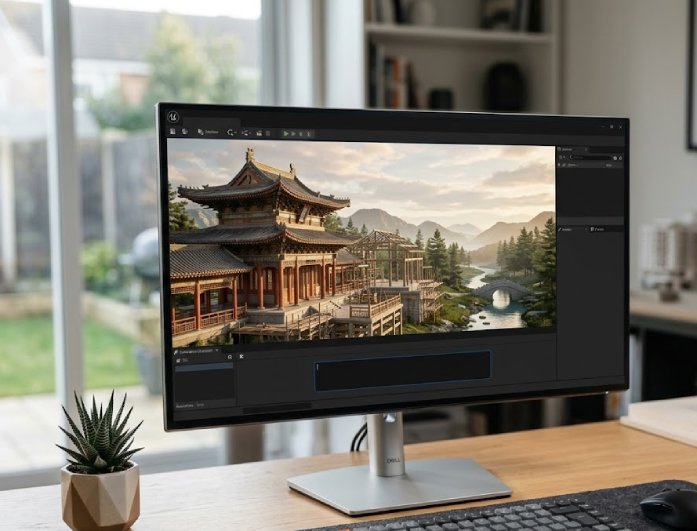
Can the background of a photo be expanded with AI?

Yes, you can extend the background of any photo using this tool. It analyzes the existing scene and continues it beyond the original frame. The AI fills empty areas with matching textures, colors, and lighting. You can also guide the result with a prompt if you want a specific style or setting. This helps when the original photo feels too tight or cropped. The extended background looks natural instead of stretched or copied. It is useful for social media, banners, and creative layouts.

Does it work well for improving product images?

The AI image extender works well for product images used in online stores or ads. You can expand the space around the product to add text or design elements later. The AI keeps the product clear and avoids distorting its shape or details. It also generates clean background extensions that fit commercial visuals. This helps make listings look more professional and organized. You can adjust the size for different platforms like marketplaces or social media. It saves time compared to manual editing in design software.

Does the image quality stay the same after expansion?

Yes, the tool is designed to keep image quality consistent after expansion. It analyzes surrounding pixels and builds new areas that match in detail and texture. You do not get stretched or blurry results like basic resizing tools. The edges stay sharp and the lighting remains balanced. This helps the image look natural even after it is extended. You can still edit or refine the output if needed. It is useful for both personal and professional use cases.

product iconAceThinker PicWish

Cut Out Images with Perfect Edge Accuracy

picwish banner
Back to Top
Contact Us
Learning Center