 PDF files are popular because they keep documents looking the same on any device. But sometimes they get too big, especially when they include images, graphics, or scanned pages. That said, large file sizes can make it hard to send documents through email due to attachment limits. In addition, they can quickly take up space in cloud storage, making file management more difficult. Many people think they need Adobe Acrobat to make their PDFs smaller. While Acrobat is well-known, it is not the only choice. There are easier, more affordable ways to compress PDF without Acrobat. In this article, you will find straightforward methods to reduce PDF file size with both online tools and desktop software. By the end, you will be able to pick the best method for your needs.
Methods to Reduce PDF File Size without Acrobat
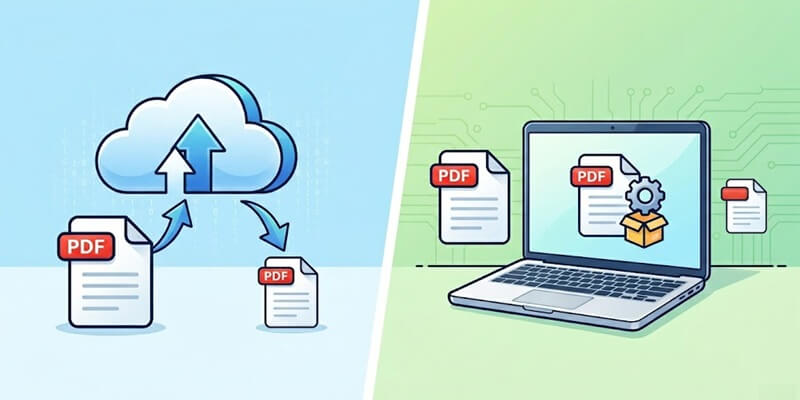
There are two common ways to shrink PDF file without Acrobat: using online tools or desktop software. Online PDF compressors are ideal for quick tasks and can be accessed instantly through a browser without installation. On the other hand, desktop PDF compression software offers more advanced features and better control over file quality. Both methods are practical, depending on your needs, workflow, and file sensitivity. Choosing the right option helps balance convenience, performance, and security.
1. Online PDF Compressors
- Online PDF compressors require no installation, making them convenient for users who need quick access anytime.
- You can utilize them anywhere as long as you have an internet connection.
- They work quickly and let you compress files fast without any complicated steps.
- They depend on a stable internet connection, which may affect performance and speed.
- Uploading sensitive files may raise privacy concerns for some users.
2. Desktop PDF Compression Software
- Desktop software gives you better control over how much you compress your files and the final settings.
- It works offline, so it’s a good choice for handling secure or large files.
- You can also compress multiple PDFs at once using batch processing.
- You need to install it, which can take time and use up storage space on your device.
- It can also use more of your computer’s resources, especially with large files.
Featured Solution for PDF Optimizer Without Acrobat
1. Smallpdf
Smallpdf is an online platform that presents a comprehensive set of tools for PDF management, including a compressor. It allows users to quickly reduce file size while retaining acceptable quality, making it ideal for sharing and storage. In addition, the compression process is simple and fast, requiring only a few clicks. The tool offers both basic and strong compression options. Basic compression reduces PDF files to a medium file size with standard resolution, suitable for everyday use. In contrast, strong compression significantly reduces file size at lower resolutions, but this option is available only through a subscription. Moreover, it works seamlessly across Mac, Windows, and mobile devices, enabling users to edit files anytime. It also supports formats like DOC, XLS, PPT, PNG, and JPG for flexible conversions. Below is a simple guide on how to reduce PDF file size without Adobe Acrobat.
Step 1 Access Compressor
On your preferred browser, access the main page of Smallpdf. From the main page, click the "Home" option, then navigate to the "Compress" option. Then click it to start the file upload.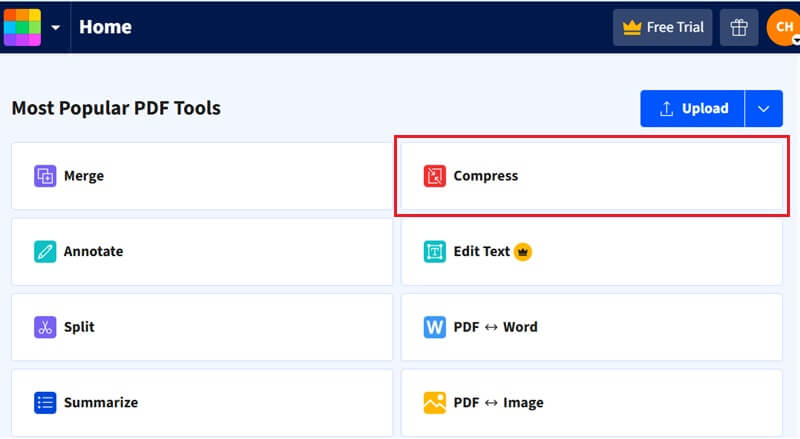
Step 2 Upload PDF File
Once you are on the compression page, drag and drop your PDF document into the upload area. You can also click the "Select Files" option to choose a file from your device. Then, wait for the file to upload and prepare for compression.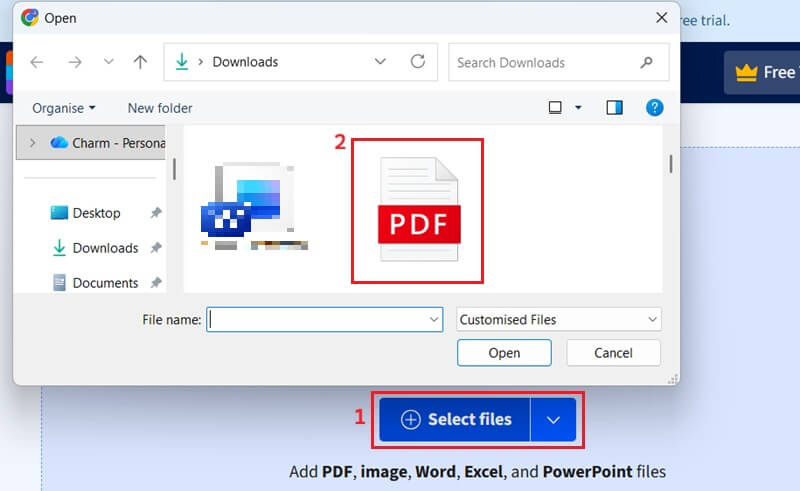
Step 3 Compress PDF
After the upload is complete, select either "Basic compression" for standard reduction or "Strong compression" for maximum file size decrease (if subscribed). Then, click the "Compress" option to initiate the compression process.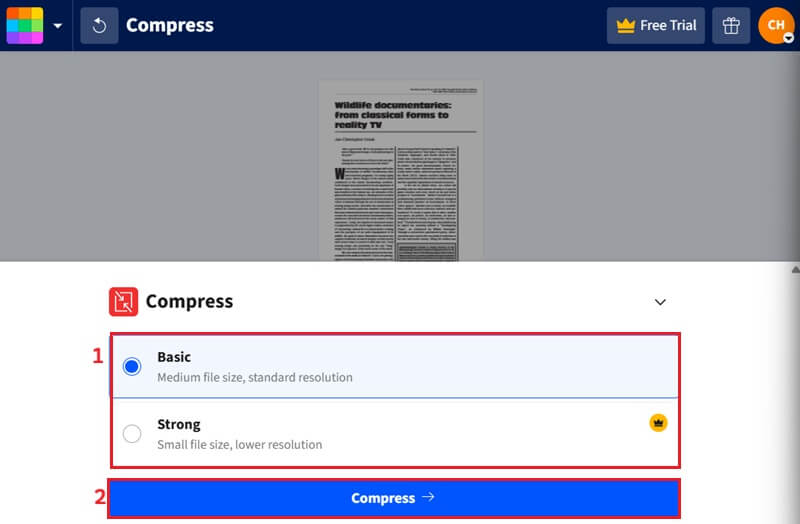
Step 4 Save Compressed PDF
Once the compression is complete, you will see the compression level and the reduced file size. Then, you can choose to download or export it in a different file format. You can also share or edit the file.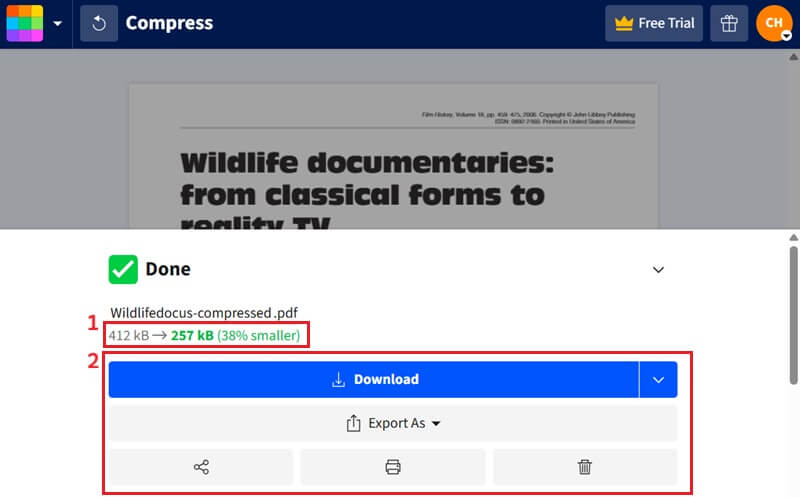
2. ILovePDF
ILovePDF is another reliable online tool you can use to compress PDF files efficiently. Similar to Smallpdf, it helps reduce file size while maintaining a reasonable level of quality for sharing and storage. It offers multiple compression levels to suit different needs. The extreme compression option produces the smallest file size, but at the expense of lower quality. High compression balances reduced size with acceptable clarity, while the recommended compression provides good quality with optimized size. Meanwhile, less compression maintains higher quality while reducing size. In addition to compression, iLovePDF lets you edit PDF content without Adobe by adding text, images, and more. It also includes useful features such as merging, splitting, and converting PDFs. To reduce PDF file size without Acrobat, see the steps below.
Step 1 Upload File
Navigate to the ILovePDF website on your browser. Then, select "Compress PDF" from the multiple file management options. On the compressor page, click the "Select PDF File" to add your PDF document.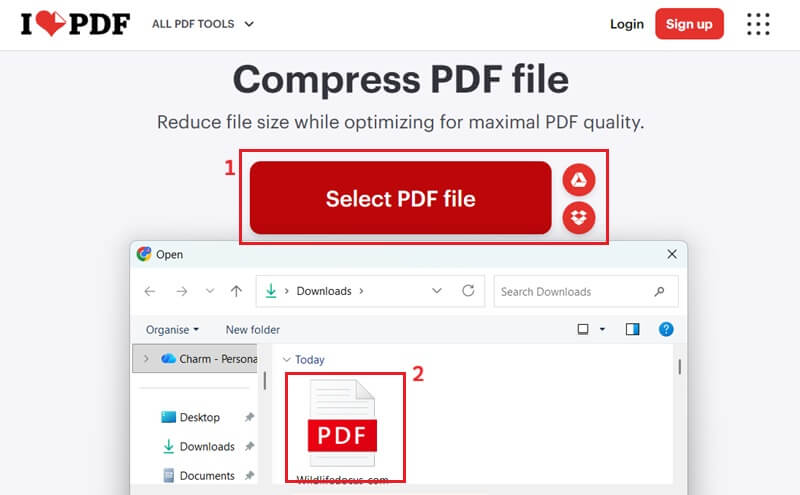
Step 2 Reduce PDF File Size
After the file is uploaded, choose your desired compression level. Make sure to select the option that best balances file size reduction with quality preservation for your specific application. Finally, shrink the PDF file by clicking the "Compress PDF" button.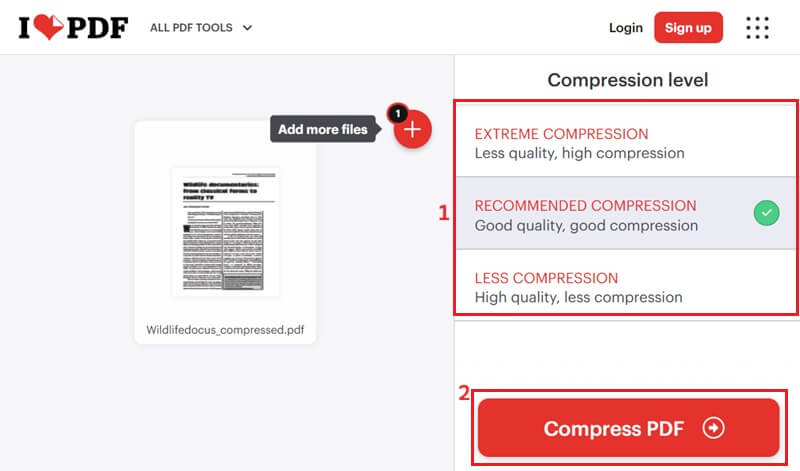
Step 3 Download Compressed PDF
Wait until the conversion process is done. Once the compression process is complete, the file will be automatically saved to your computer. If it's not downloaded automatically, you can click the "Download compressed PDF" option.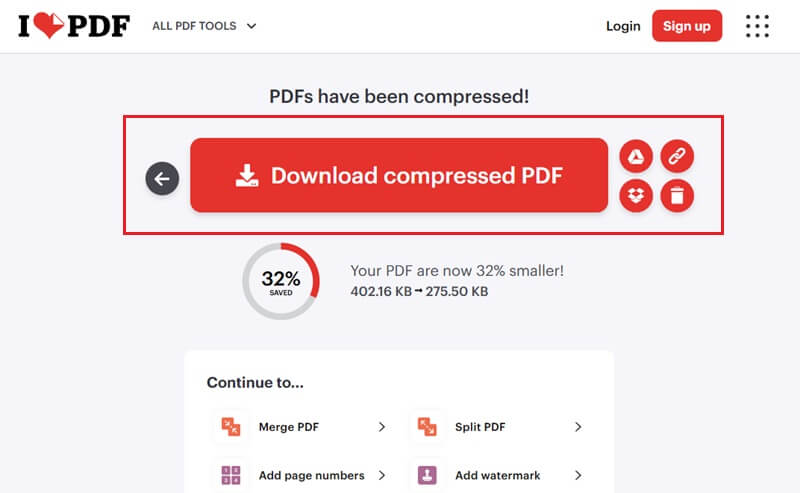
3. PDFCandy
Next on the list is PDFCandy, another online tool that offers a range of features. Its compression tool effectively compress PDF without Acrobat, allowing users to reduce file sizes. This means users can optimize their documents for quicker sharing and storage without compromising essential content integrity. Like the other online tools, it also allows you to compress PDFs in 2 levels. The recommended compression balances the compression and quality of your PDF file. On the other hand, the maximum compression significantly reduces the file size, which may result in a slight reduction in document quality. Furthermore, this tool also enables you to sign secured PDFs, edit various elements, and convert PDFs to and from numerous formats. Moreover, it allows you to compress files without logging in, and once the file is compressed, you can easily upload it to your Dropbox or Google Drive.
Step 1 Drop the PDF Document
To initiate the compression process, launch the PDFCandy page and navigate to the "Compress PDF" tool. Then, hit it to be redirected to the compression interface. Here, drag and drop your PDF document into the designated area.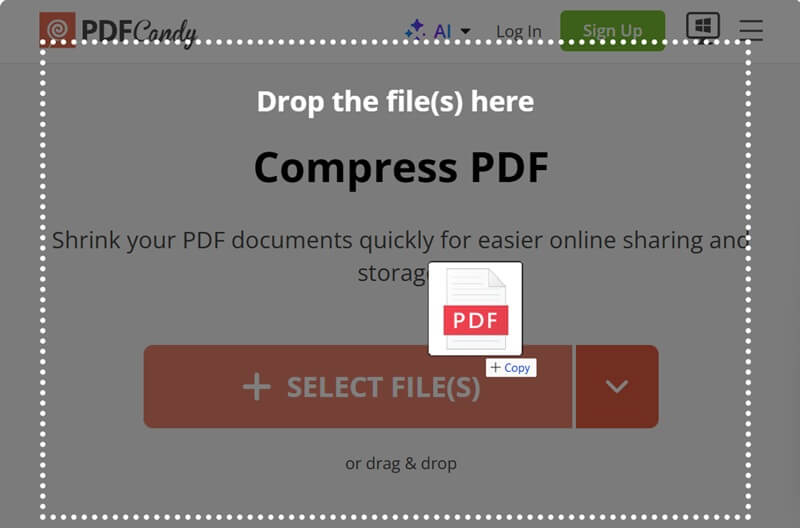
Step 2 Compress Your File
After your PDF is uploaded, click the "Gear" icon to adjust the compression level. From here, select the compression level you want to apply. After that, smash the "Compress" button to initiate the compression process.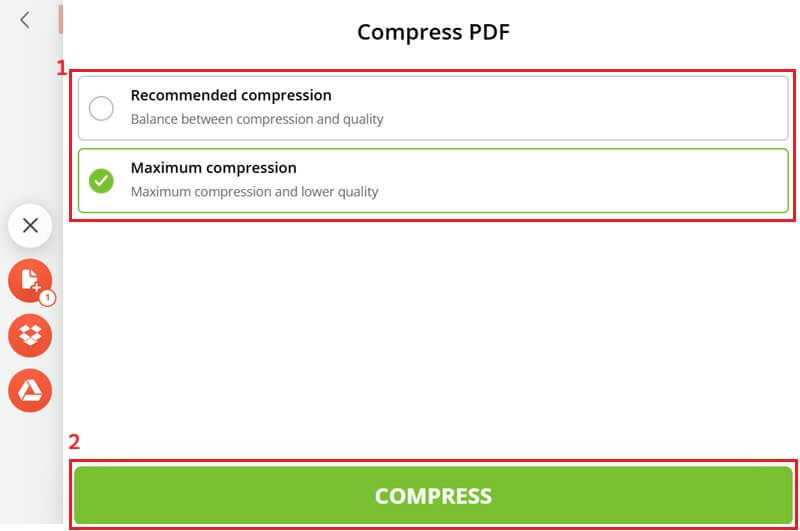
Step 3 XXX
Once the compression is complete, click the "Download file" option to save the optimized PDF to your device. You can also decide to upload it directly to your Dropbox. Alternatively, save the file to Google Drive for easy cloud access and storage.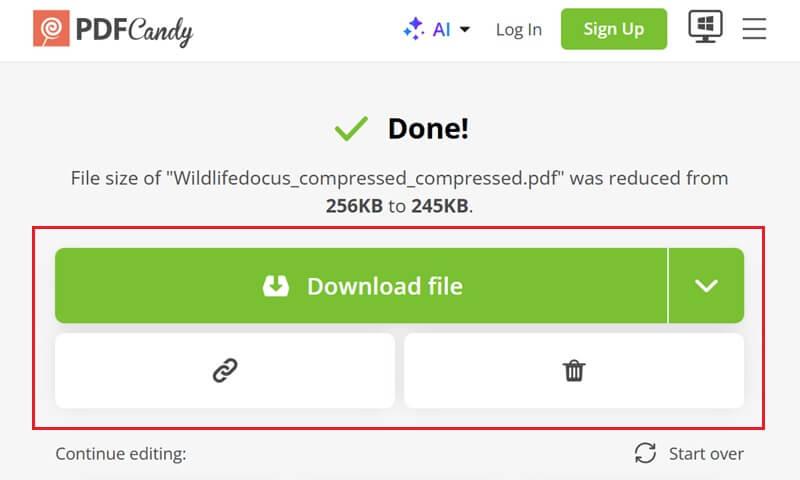
4. AcePDF
Last but not least is the AcePDF Editor. This desktop software offers comprehensive PDF tools, including editing, conversion, and compression. Unlike online tools, AcePDF provides a more robust, secure environment for handling sensitive documents offline. It enables you to reduce PDF file size without Acrobat, without worrying about potential data breaches. With this tool, you have full control over the compression level for your documents. It provides a manual option on how you want to compress your PDF files. You can just slide or type in the compression percentage, allowing precise optimization of file size versus quality. Moreover, it allows you to process multiple PDF files simultaneously, which is particularly beneficial for large-scale document management tasks. It also enables you to convert protected PDFs to Word, Excel, and PowerPoint. To know how to reduce a PDF file size without Acrobat, refer to the guide below.
Try it for Free
Step 1 Install the PDF Editor
First, download the AcePDF installer package by clicking the correct download button for your operating system. Once the file is saved, open it from your Downloads folder to begin the installation. Follow the on-screen setup prompts, and the program will launch automatically after installation is complete.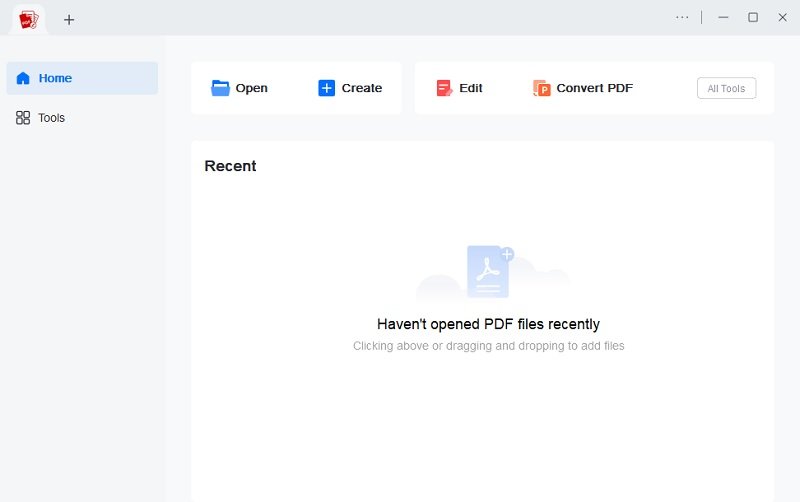
Step 2 Upload PDF Document
Upon launching AcePDF, navigate to the “Tools” option located on the main interface and click on it. Look for the "Compress" tool within the panel. Once you click the "Compress" option, it will automatically open your file explorer to upload your image.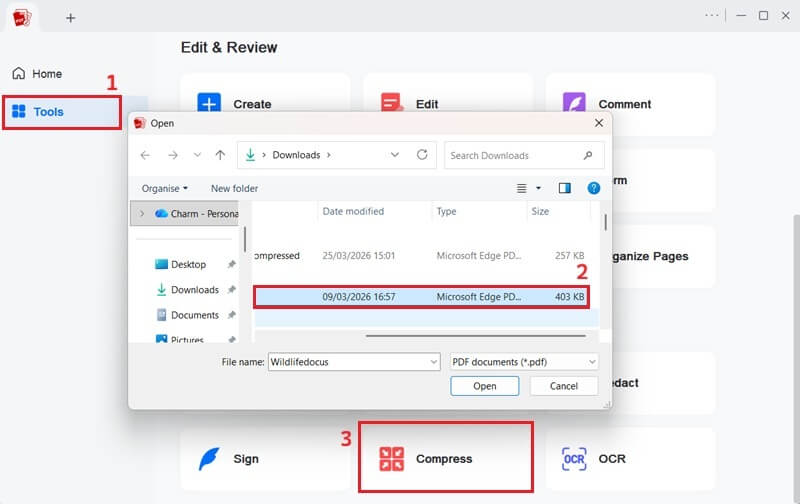
Step 3 Compress PDF
After that, the PDF document will be uploaded to the tool and will display the file name of your document. On the lower part of the compressor, slide the slider or manually input the percentage of the compressor level. Then, proceed by clicking the "Compress" option.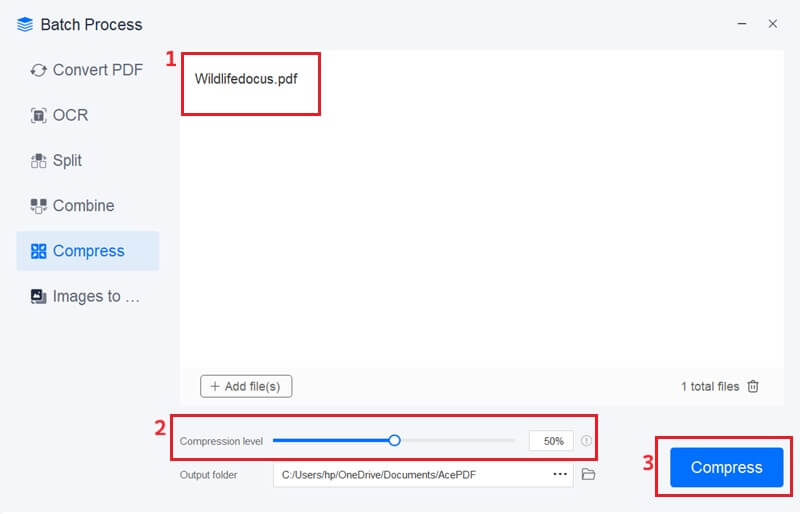
Step 4 Check the Compressed File
Once compression is complete, the file will be automatically saved to your output folder. Here you can check the size of your PDF. Double-clicking the file lets you view the compressed file.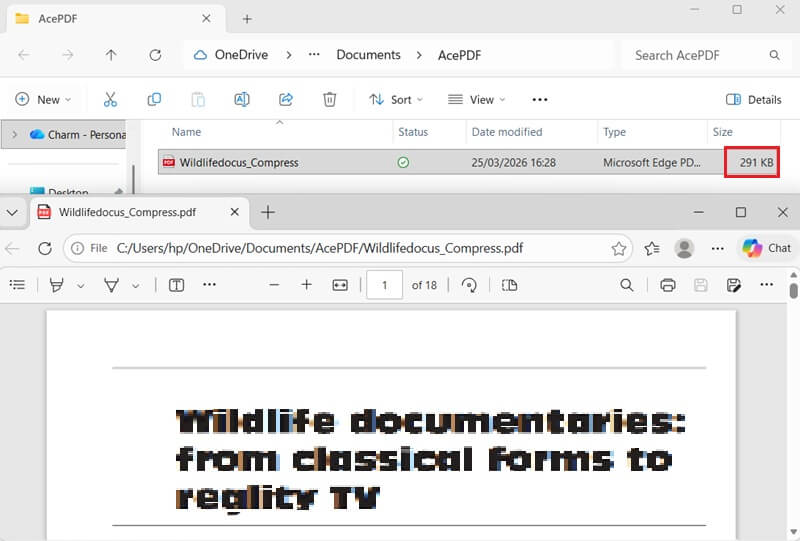
Tips for Practical PDF Compression
Below are some helpful recommendations you can follow to get the best results when you reduce PDF file size without Acrobat:
- Keep a copy of the original file: Before making any modifications, always save a backup. This way, you can return to the original version if the compressed file loses quality.
- Balance file size and readability: While smaller files are easier to share, too much compression can make text blurry or images unclear. Therefore, aim for a good balance between size and quality.
- Remove unnecessary elements first: If possible, delete extra images, unused pages, or embedded fonts before compression. As a result, the file size will be reduced more effectively.
- Use batch compression for multiple files: If you have many PDFs, batch processing can save time. Instead of compressing files one by one, you can handle them all at once efficiently.
Frequently Asked Questions
Can I compress PDFs without losing quality?
Yes, you can compress a PDF without Acrobat while still maintaining good quality. However, it’s important to note that some compression may slightly reduce image clarity, especially in high-resolution files. To minimize this, choose a balanced or low compression setting instead of extreme options. This approach helps reduce file size while keeping text sharp and visuals clear.

Is online compression safe for confidential PDFs?
In most cases, reliable online tools use encryption to protect your files during upload and processing. Additionally, many platforms automatically delete your documents after a short period to ensure privacy. However, if you are working with highly sensitive or confidential files, it is better to use offline software like AcePDF. This way, you have full control over your data and reduce potential security risks.
How much can a PDF be compressed?
The amount of compression depends largely on the PDF file's content. For instance, PDFs with many images or scanned pages can often be reduced by 50% or even more. On the other hand, text-based documents usually have smaller reductions since they are already optimized. Therefore, results may vary, but compression can still significantly improve file manageability.
Can I compress scanned PDFs?
Yes, scanned PDFs can definitely be compressed, and they often benefit the most from this process. Since these files often contain large amounts of image data, compression tools can effectively reduce their size. Moreover, using tools with OCR, such as AcePDF, can help maintain text readability while optimizing images. As a result, you get a smaller file that is still easy to view and share.
Conclusion
To sum up, you can compress a PDF without Acrobat by using online tools or desktop software. Online tools are quick and manageable to use, while desktop programs give you more control and security. Choose the option that works best for you. If you prefer an offline tool, AcePDF is a good choice, as it offers a simple interface and flexible compression settings. It helps you reduce file sizes without risking your data. If you want a quick and secure way to manage PDFs, give AcePDF a try and see how it works for you.
| Tool | File Security | Best For | Cons |
|---|---|---|---|
| Smallpdf | Files deleted after processing | Beginners who need fast, simple compression with minimal setup | Strong compression requires Pro version; limited free usage |
| ILovePDF | Secure processing + auto delete | Users who want an all-in-one PDF tool with flexible compression options | Interface can feel busy; some features restricted in free version |
| PDFCandy | Secure but cloud-based | Users looking for a wide range of PDF tools with basic compression needs | Requires internet; fewer advanced compression controls |
| AcePDF | Fully offline, high security | Professionals handling large or sensitive files who need full control and offline security | Requires installation; uses device storage and system resources |