 When you have many image files, it can be hard to keep them neat and easy to share. For example, sending several JPG files one by one can take time and cause confusion. Because of this, many people choose to merge JPG files into one PDF. This method helps you combine all images into a single file, making it easier to organize and send. Moreover, merging JPG files into a single PDF keeps your images in the correct order and reduces file clutter. This also makes your files look more professional and easier to handle. In this article, we will show you how you can merge JPG files into one PDF using simple steps. In addition, good file management helps you save time and keep your documents in order. As a result, you can quickly find and share your files when needed.
Combine Multiple JPG to One PDF with AcePDF
Combining JPG files into one PDF is easy and smooth with AcePDF. It helps you merge several JPG into one PDF without stress, making file organization much simpler. This PDF editor has a clean and user-friendly design, so you won’t feel confused while using it. In addition, it works fast, which is helpful when you have many images to combine. Moreover, AcePDF is not limited to merging tasks. You can also convert scanned PDFs to a Word document, allowing you to edit text from scanned files with ease. It also enables you to split PDF files by page range and page count, so you can extract specific sections as needed. Besides, it lets you add text, a signature, and a stamp to your images, so you can customize and secure your PDF documents.
Try it for Free
Step 1 Install JPG Merger
To begin, download and install the AcePDF application onto your device. You can do this by clicking on the download button above this step guide. Then, it will automatically launch once the installation is complete, allowing you to proceed with the merging process.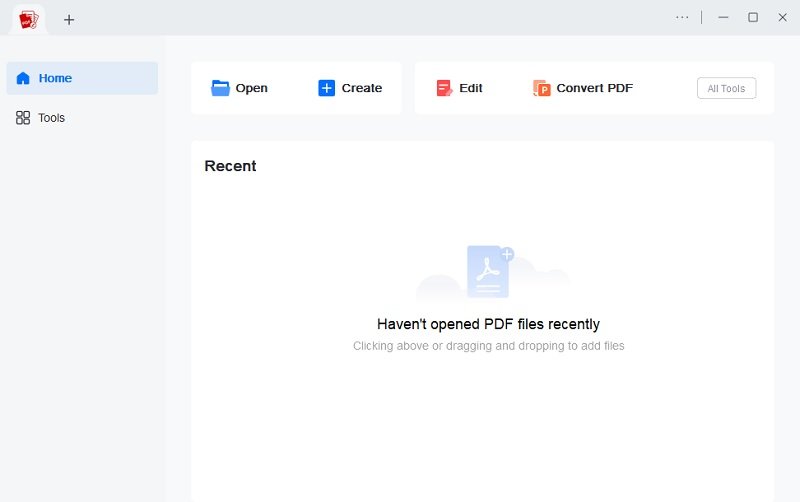
Step 2 Create A PDF File
Once AcePDF is open, navigate to the "Create" option. Then, click it, and choose the "Create a blank file" option. This action creates a new, empty PDF document that serves as the canvas for consolidating your JPG images.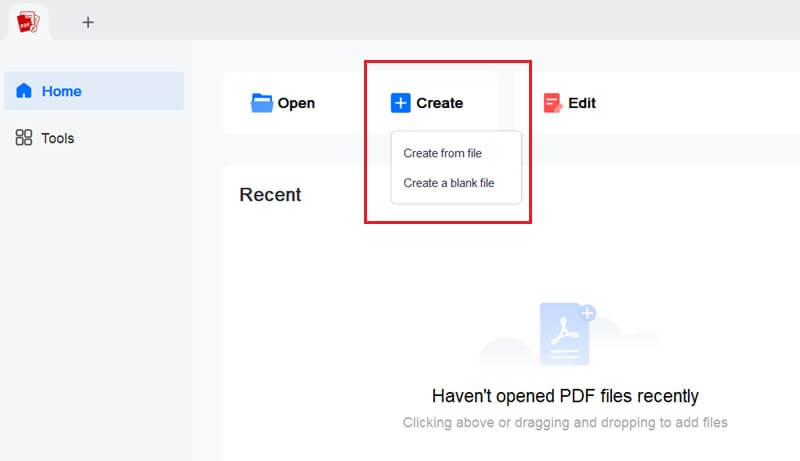
Step 3 Insert Images
From the newly created blank PDF, select the "Edit" option. Then, you will see the "Add Image" option. Click it and insert JPG files, which will be automatically converted and embedded into the PDF document.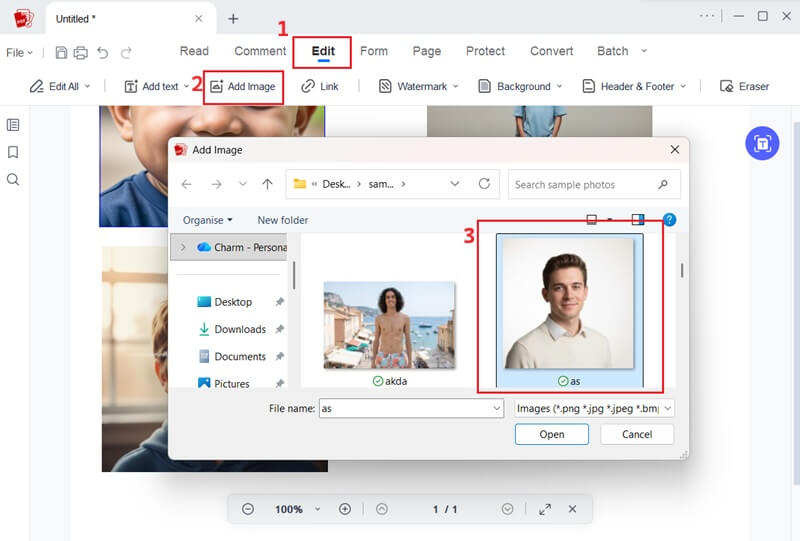
Step 4 Save File
Upon completing the insertion of all desired JPG images, proceed to save the newly created PDF file. To do this, access the "File" menu, select "Save As", and name your file. Then, click "Save" to save the combined JPG images as a single PDF file.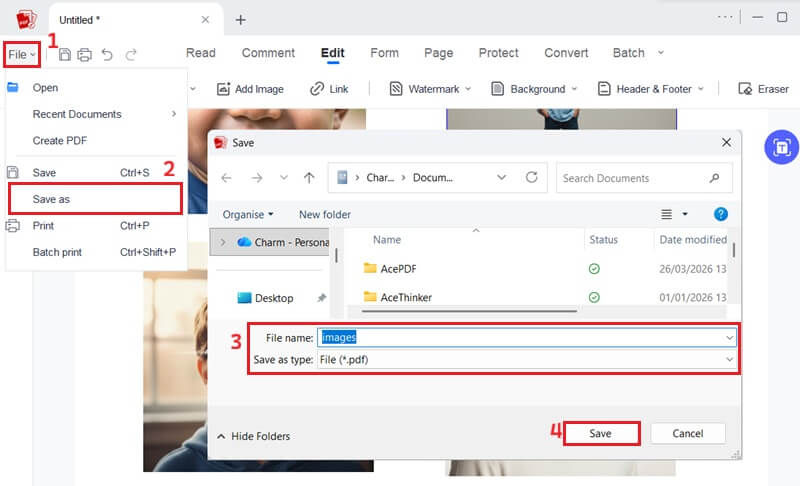
Convert Multiple JPG to One PDF Online
If you don't want to install anything on your device, PDFAid is a simple option to try. It lets you turn multipleJPG to single PDF directly from your browser, so you can work anytime with ease. In addition, the tool is easy to use, which is helpful for beginners. Moreover, it offers more than just file merging. You can also draw, add text to your images, and make quick edits without extra software. You can also stamp and add links, which is helpful for documents that need details or references. Another great feature is the ability to compress PDFs without Acrobat. As a result, you can reduce file sizes and share documents faster. Nevertheless, you have to create an account and subscribe to access its premium for $24.9/month to download the file.
Step 1 Upload JPG Files
To initiate the process, access your web browser. After that, go to the PDFAid website, create an account, and subscribe to its premium service for full functionality. Then, locate and click the "Upload to merge" button, and pick the pictures you wish to combine.
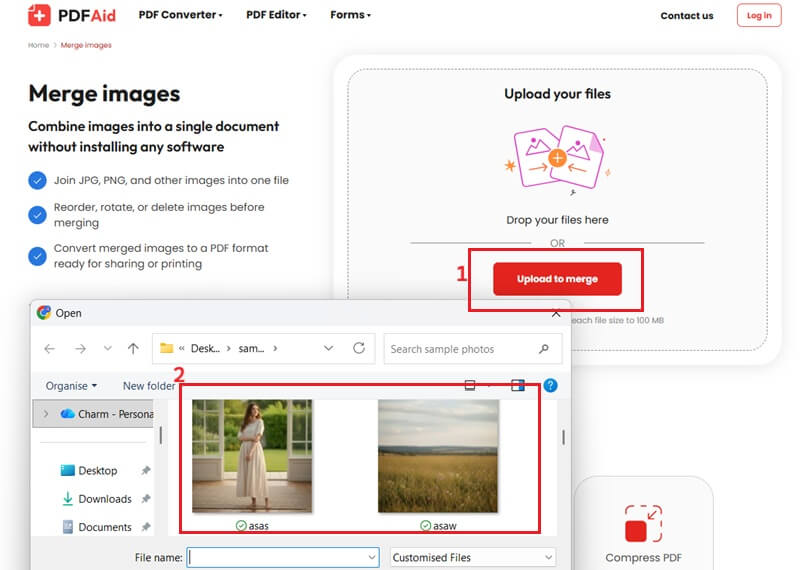
Step 2 Merge Image to PDF
Once all images are selected, click the "Open" option to upload them to the online tool. Afterward, you will see them in the tool's interface, and they will be converted to a PDF file. Next, click the "Merge PDF" option to open the merging interface.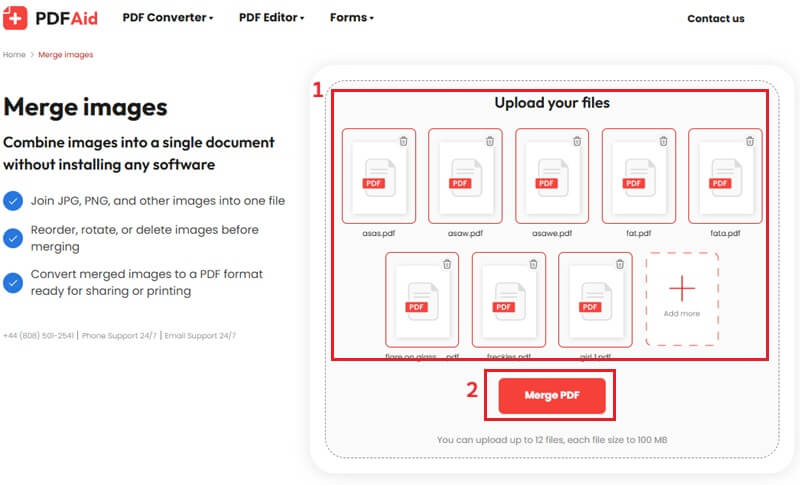
Step 3 Download PDF File
From there, you can arrange the order of the combined JPG files by dragging and dropping them into your desired sequence. Then, click the "Done" option in the right corner of the interface, and a dialogue box will appear. Choose PDF as an output format, then confirm by selecting "Download" to save your consolidated document.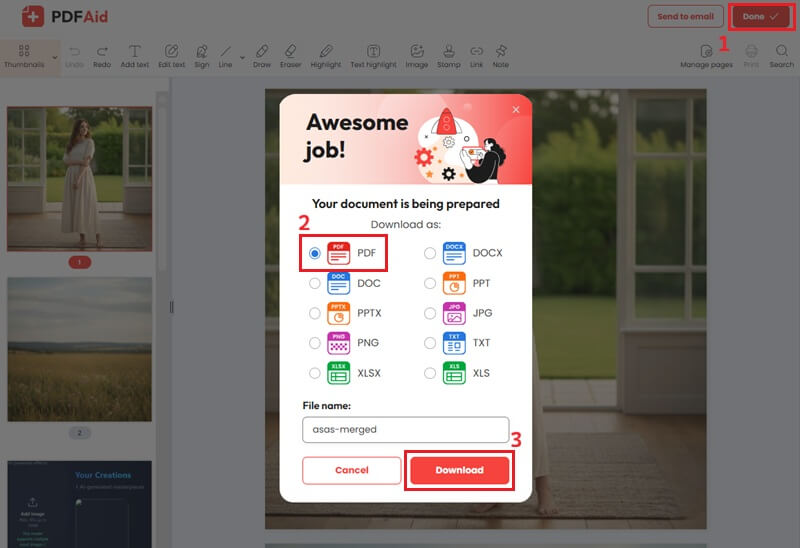
Convert Multiple JPG to One PDF with Preview
For macOS users, the built-in Preview app offers a simple way to combine images into a PDF on Mac without installing extra tools. It comes pre-installed, so you can easily access it anytime. Because of this, managing multiple JPG files becomes easier and more organized. In addition, Preview lets you arrange and adjust your images before saving them as a single PDF file. This helps you keep everything in the correct order and ensures a clean final result. You can also make small changes, such as rotating images, if needed. Moreover, using Preview saves time and keeps your files in one place. Overall, Preview is a reliable and convenient choice if you want a quick and easy way to combine images on your Mac.
User Guide:
- First, go to the folder where your JPG images are saved on your computer. Then, select the images you want to combine by clicking on them. To make it easier, hold the Ctrl key while clicking to highlight multiple images at once.
- After that, right-click on any of the selected images and choose "Open With" from the context menu. Then, select “Preview” to open them all within the application. Once opened in Preview, the images will appear as thumbnails in the sidebar.
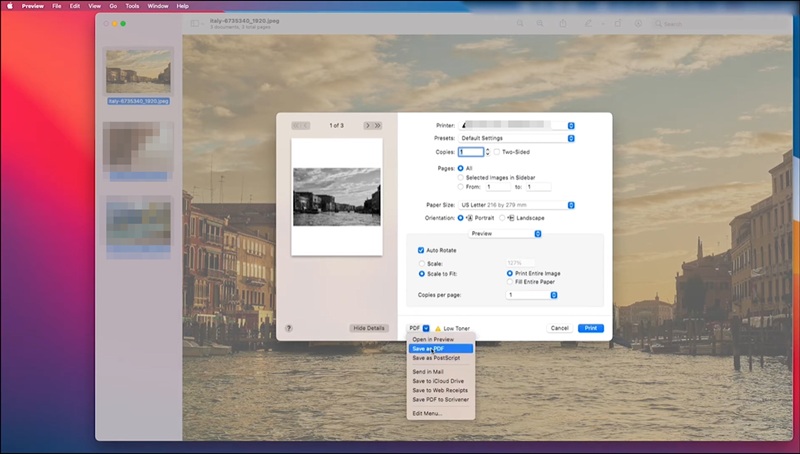
- Here, you can reorder the images by dragging and dropping the thumbnails. Then, click the "File" option and click "Print." In the "Print" option, you will find a dropdown menu labeled "PDF" at the bottom left. From this menu, select "Save as PDF" and rename the PDF to save it on your computer.
Frequently Asked Questions
Can I merge JPG files of different resolutions?
Yes, you can merge JPG files even if they have different resolutions. Nonetheless, the final PDF may show some images clearer than others. In addition, the layout can look uneven if the sizes are very different. To get better results, use images of similar quality.

How do I ensure the quality of the merged PDF?
To maintain high quality, use high-resolution JPG files before merging. Also, avoid compressing the images too much during the process. As a result, your PDF will look clear and sharp. It is also helpful to check the output settings if available.
Are there any limitations to the size of JPG files for merging?
Yes, some tools may have limits on file size or the number of photographs you can upload. However, many desktop tools like AcePDF can handle larger files compared to online tools. Because of this, you may need to reduce the file size or split your images. It's best to check the tool’s limits before starting.
Conclusion
In conclusion, merging JPG files into one PDF helps keep your files organized, easy to share, and simple to manage. It also improves file order and reduces clutter, making documents look more professional. Additionally, tools like AcePDF, PDFAid, and Preview give you different ways to complete the task based on your needs. You can choose either an offline or an online option, depending on what you prefer. By using these methods, you’ll make managing your files easier and handle your images more efficiently with less hassle.
| Tool | Pros | Cons | Best For |
|---|---|---|---|
| AcePDF | Easy to use and fast; lets you merge files and also edit or convert other formats |
Not available on Linux operating system | Users who want a full PDF solution with extra tools |
| PDFAid | Works online without install; can draw, add text, stamp |
Depends on internet | Quick online merging and light edits |
| Preview | Free on Mac; simple way to combine and adjust images |
Only on Mac; fewer advanced features | Mac users who just want to combine image |