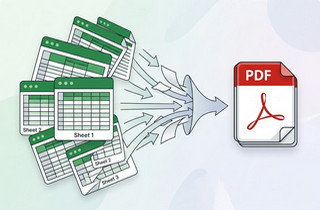
 If you have an Excel workbook with many sheets, you might want to share them all at once without sending several files. Saving multiple Excel sheets as a single PDF makes it easier to share reports, presentations, or summaries with colleagues, clients, or teachers. Instead of opening each sheet and saving it separately, you can combine everything into one organized PDF that’s ready to view or print. Many people find this process tricky. Since Excel does not clearly show how to save multiple sheets together, saving them one by one can be time-consuming and confusing. You might also lose formatting or end up with pages out of order. In this article, we’ll walk you through four different ways to save multiple Excel sheets as one PDF. Each method is explained step by step, so you can choose the one that works best for you and make the process quick and stress-free.
Recommended Way to Save Excel Sheets into One PDF
The first method you can use to manage and organize your documents is through AcePDF. It is a reliable tool that can handle various PDF tasks with ease. It allows you to combine Excel sheets to PDF, helping you organize multiple spreadsheets into one clean file. This process maintains the formatting of your files, ensuring that the layouts, fonts, and spacing remain consistent after conversion. Apart from that, this PDF editor also lets you split PDF documents into multiple files, which is useful when you need to separate sections for sharing. Additionally, it enables you to edit the content, add text, or highlight important information in your spreadsheet files. With this tool, you can make quick adjustments directly within your documents, giving you more control over your files. Here’s how you can create PDFs from multiple spreadsheets.
Try it for Free
Step 1 Download PDF Editor
To start, click on the download buttons provided above. After that, install the PDF editor on your device by following the simple setup instructions. Once installed, you can start using the PDF editor right away to manage and edit your PDFs with ease.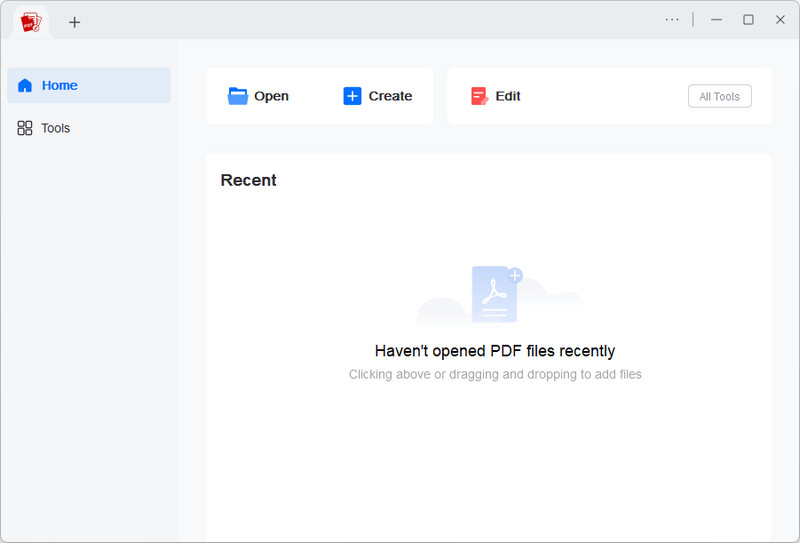
Step 2 Convert Spreadsheet to PDF
On the tool’s interface, drag and drop the spreadsheets you want to combine. Once uploaded, the tool automatically converts them into a PDF file. Afterward, save them as a copy so you can still keep the original spreadsheet.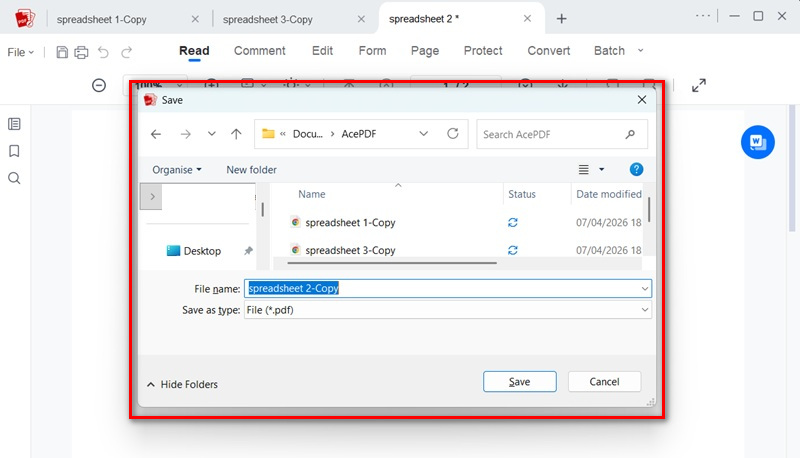
Step 3 Combine PDFs
Next, since the spreadsheets are now saved as PDFs, click the “Batch” option on the toolbar. Then, click the “Combine” option on the menu and upload the converted spreadsheet as a PDF. Once uploaded, click the “Merge” option to process them.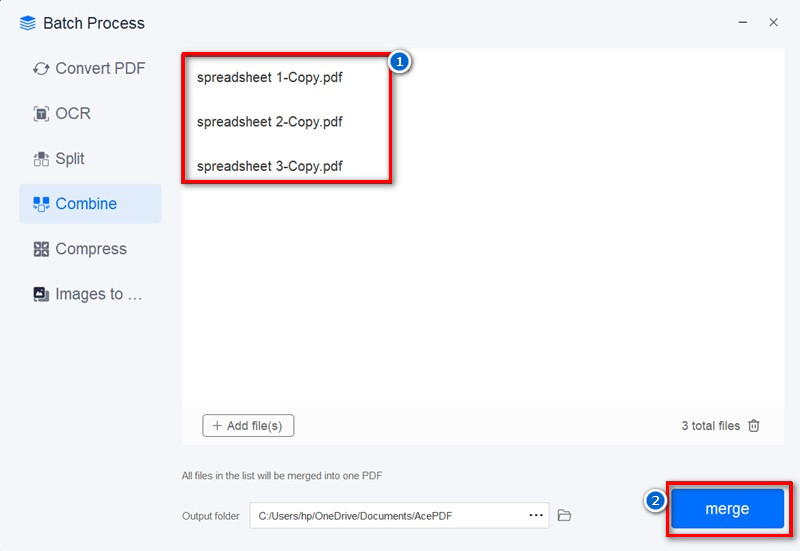
Step 4 Review the Combined PDF
Wait until the merging process is done, as it only takes a few seconds. When it's done, a dialogue box will appear on your screen. Here, you can double-click on the “Combine” PDF file to review your document.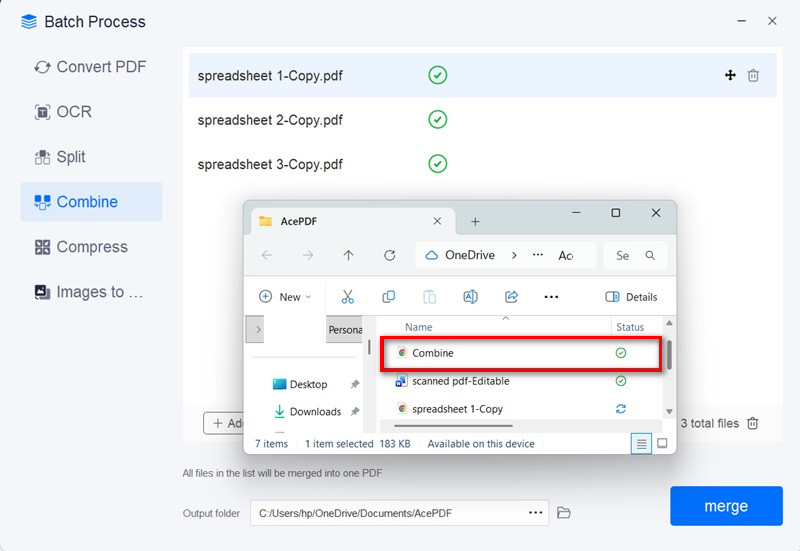
Manual Method to Merge Excel Sheets into Single PDF
If you prefer a manual method for saving multiple sheets as a single PDF, you can use the Shift and Ctrl keys. These keys help you choose more than one sheet at the same time inside your Excel file. The Ctrl key is useful when you want to pick specific sheets that are not next to each other. You simply click each sheet while holding Ctrl, and Excel will group them together. On the other hand, the Shift key is helpful when the sheets you need are placed in order. It lets you select a continuous range, from the first sheet to the last one you want. Once the sheets are grouped, Excel treats them as one set. This makes it easier to save them all into a single PDF file, and the output still keeps the same table format as your Excel sheets. See how to do this below.
Step 1 Select Excel Sheets
First, open your Excel file with multiple sheets. Then, select the sheets you prefer. If the sheets are next to each other, click the first sheet, hold the Shift key, then click the last to select all in between. On the other hand, if the sheets you need are not next to each other, hold the Ctrl key and click each sheet you want to select.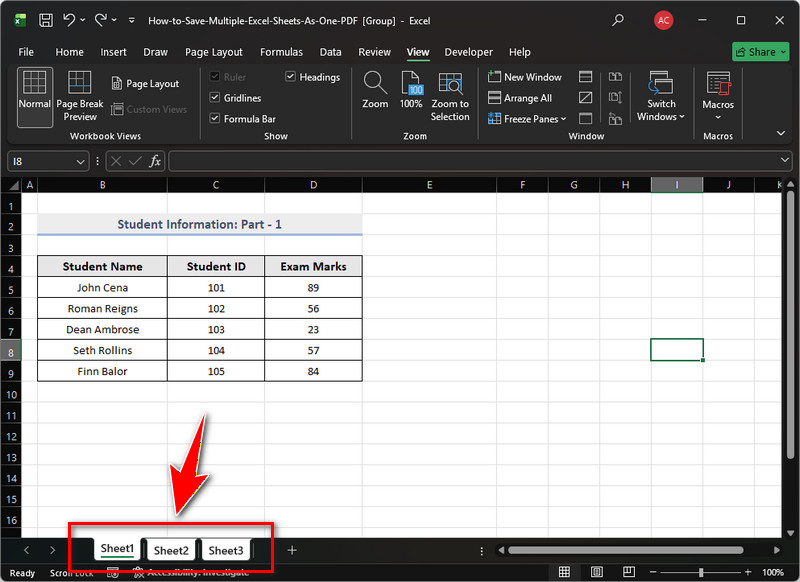
Step 2 Save or Export the Sheets
Next, go to the “File” option and click “Save As.” Then, choose an output folder for the PDF. After that, click the “Save as Type” menu, select “PDF” as output format, and click “Save.”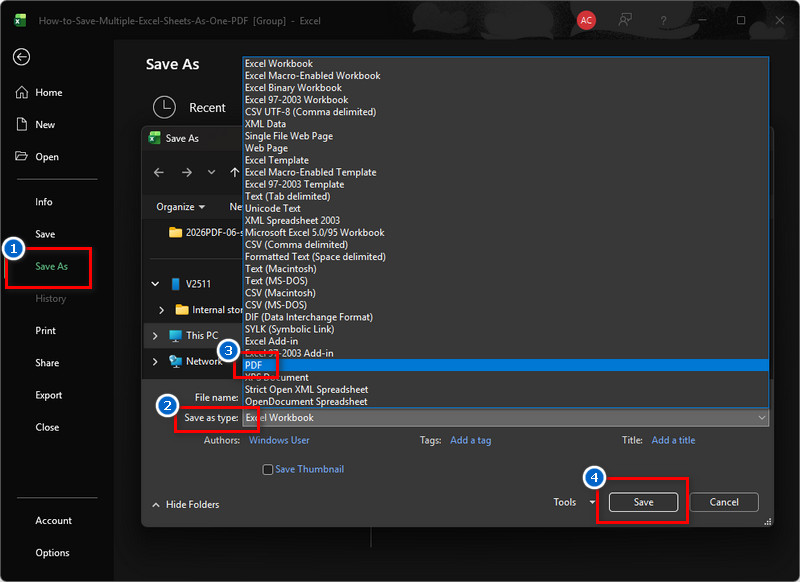
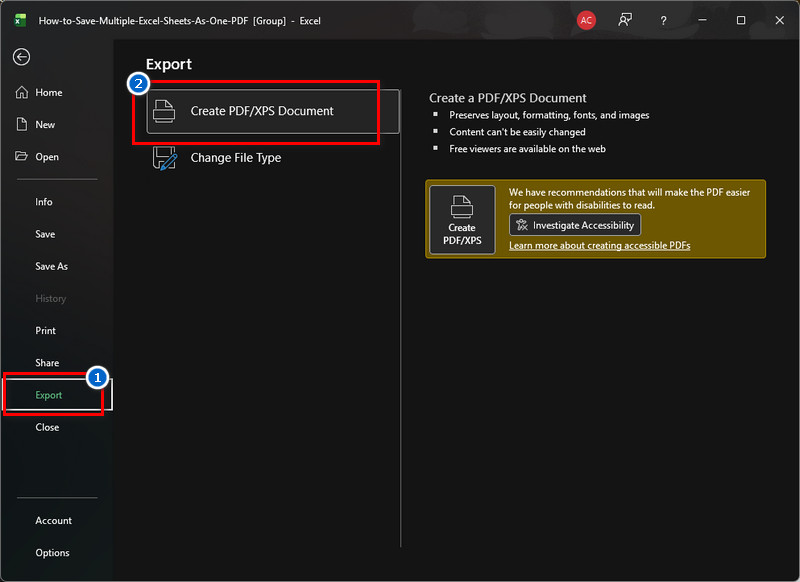
On the other hand, you can also choose the “Export” option to save multiple Excel sheets as one PDF. From there, double-click the “Create PDF/XPS Document" option, and a new menu will appear. Here, the output format is already set as PDF; all you have to do is click the “Publish” button to save the file.
Step 3 Preview the PDF
Now, locate the PDF file you created in File Explorer. From there, open the file in your preferred PDF viewer to check if all selected sheets are included. Lastly, review the layout and page order to make sure everything looks correct.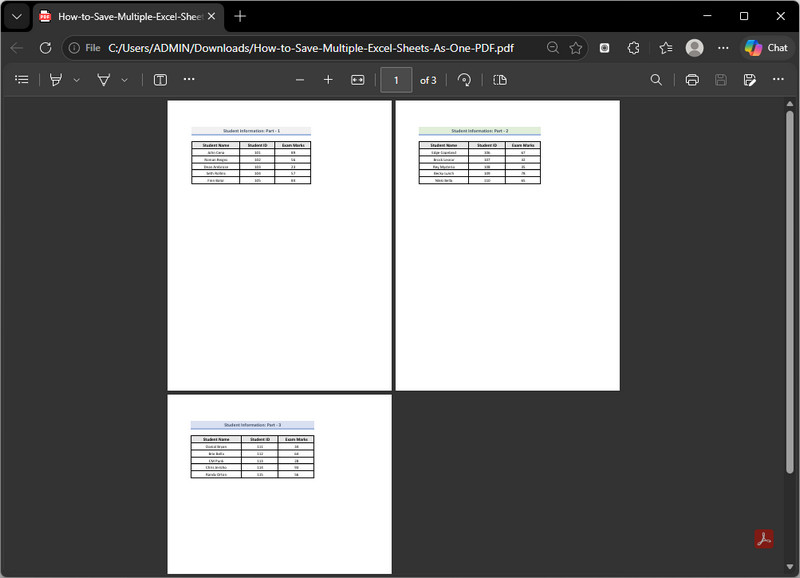
Use Excel’s Built in Print to PDF Feature
Another way to create one PDF from multiple sheets is to use the built-in Print to PDF feature in Excel. This method is simple because it uses the same print settings you would normally use on paper, but saves everything as a PDF instead. It also gives you more control over how your file will look, especially if you plan to print a double-sided PDF later. Moreover, the output looks clean and organized, similar to how your sheets appear in print preview. In fact, tables, columns, and rows are kept in place, and each sheet is arranged into pages in the correct order. You can also keep headers, gridlines, and spacing, so the file is easy to read. Overall, the final PDF looks professional and ready for sharing, printing, or presenting without losing the original Excel layout. Below, we provide a detailed guide on how to do it.
Step 1 Open Excel Workbook
Begin by opening the Excel workbook you have in Microsoft Excel. Once opened, go to the “File” tab and select the “Print” option. Here, you will see the printing settings.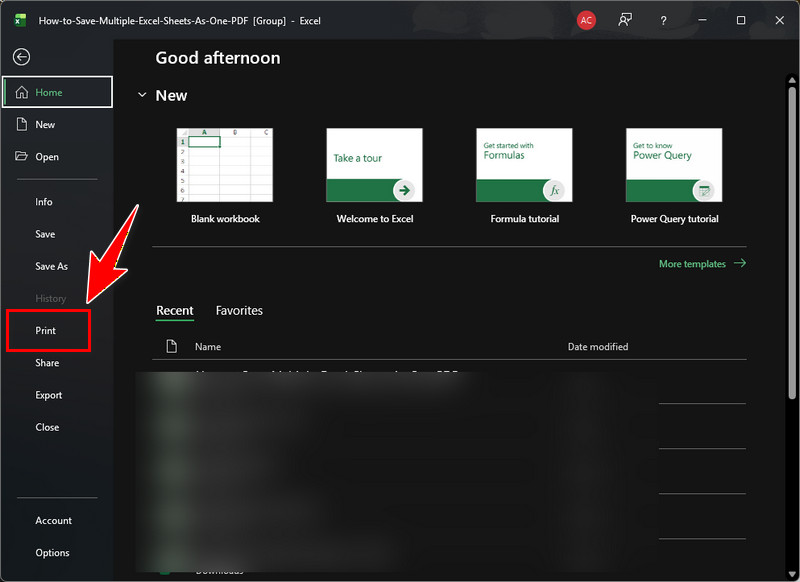
Step 2 Modify Print Settings
Next, click the dropdown menu under the “Printer” option and choose the "Microsoft Print to PDF” option. Then, choose “Print Entire Workbook” under the Settings menu to select all the Excel sheets. You can also adjust page orientation, margins, and scaling to make sure the content fits well on each page.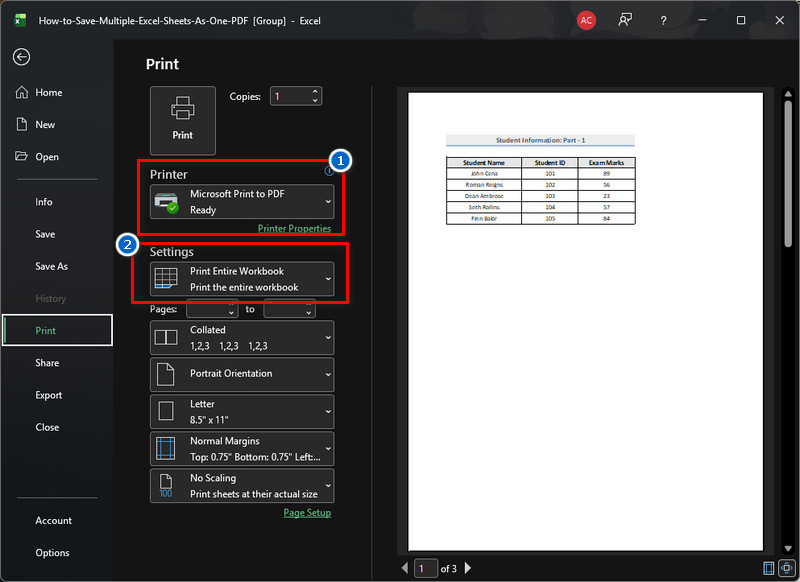
Step 3 Print Excel as PDF
Once everything is set, click “Print,” then choose where you want to save the file on your computer. After that, enter a file name, then click “Save” to create the PDF. Finally, open the file to check that all sheets are included and properly arranged.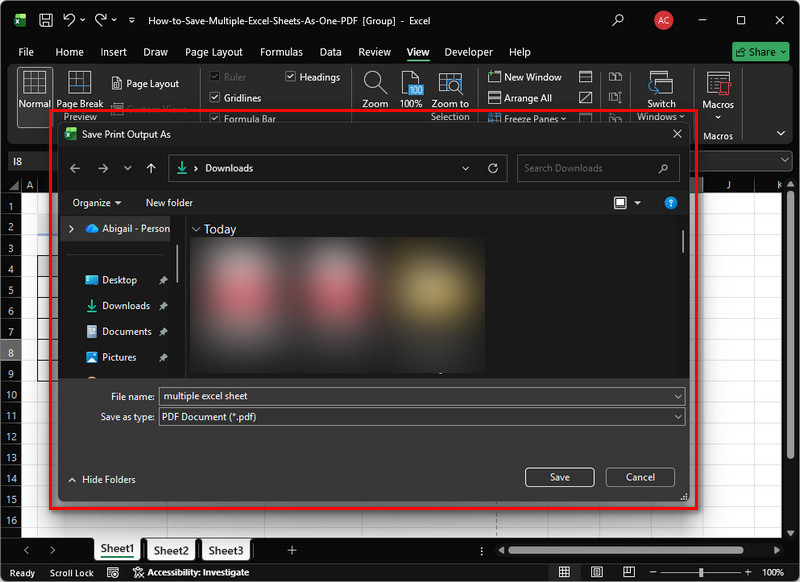
Generate PDF from Excel Sheets Using VBA
Generating a PDF from Excel sheets using VBA is a great way to save time and improve efficiency. VBA, or Visual Basic for Applications, is Excel’s built-in programming tool that allows you to create small programs, called macros, to perform tasks automatically. To use VBA, you need to write or use specific code that tells Excel exactly what to do. With the right code, you can quickly convert Excel sheets to single PDF file with sheet selection. Additionally, VBA gives you more control over the output. You can choose what sheet order you prefer, including headers and footers, and adjust page layout settings such as orientation, scaling, and margins. More than that, VBA can also help convert bank statement PDFs to Excel, allowing you to automate data extraction and organize it neatly. See the guide below on how to use VBA to save multiple sheets in one PDF.
Step 1 Enable the Developer Tab
Since the Developer tab is not enabled by default, you need to enable it first. To do it, open the Excel worksheet and go to the “File” tab. From there, navigate to “Options” and locate the “Customize Ribbon” tab. Under the Main tabs, tick the Developer box to enable it.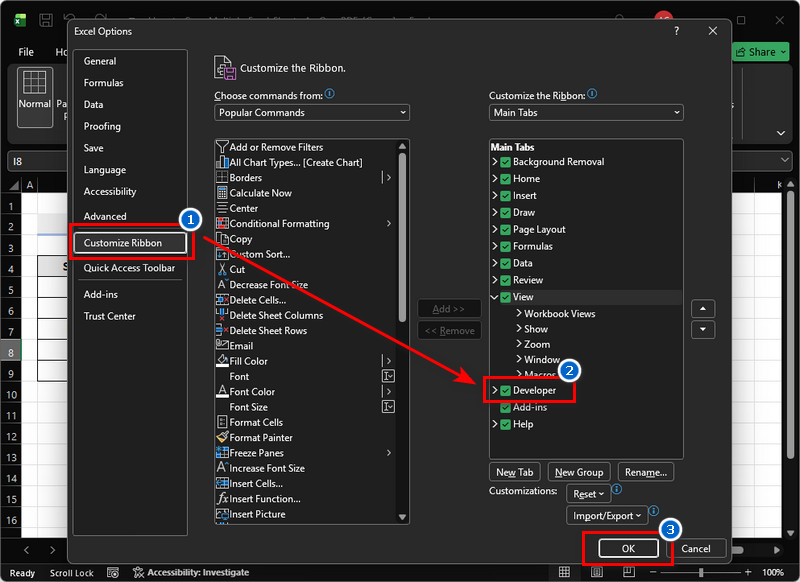
Step 2 Open VBA Editor
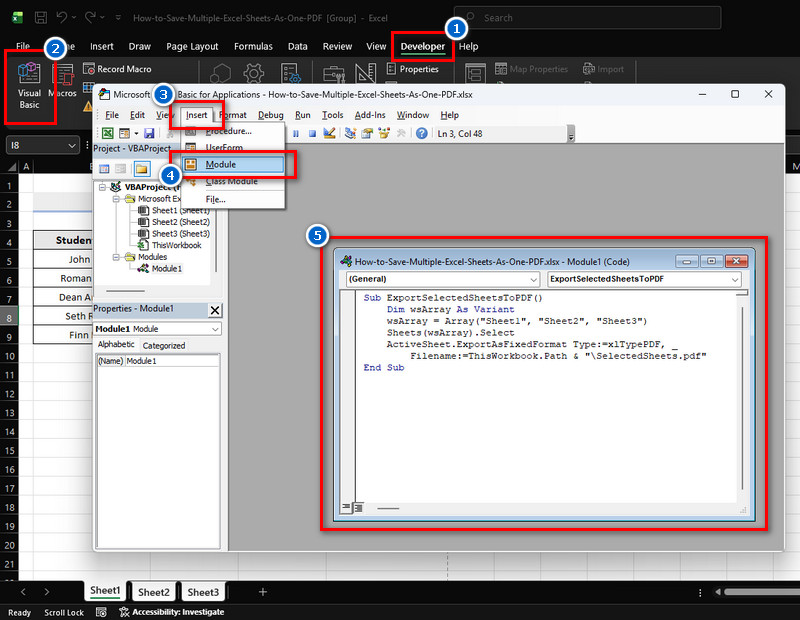
Once the Developer is enabled, click it, then select “Visual Basic” to open the VBA Editor. Then, go to “Insert” and choose “Module” to create a new space for your code. Here, you can paste or write the macro that will handle your task. After that, save the script and close the window.Sample code:
Sub ExportSelectedSheetsToPDF()
Dim wsArray As Variant
wsArray = Array("xxx", "xxx", "xxx")
Sheets(wsArray).Select
ActiveSheet.ExportAsFixedFormat Type:=xlTypePDF, _
Filename:=ThisWorkbook.Path & "\SelectedSheets.pdf"
End Sub
Step 3 Run the Macro
Now, click on the “Macros” option next to “Visual Basic” in the Developer tab. In the Macro window, select the macro you want to run. In this case, the script is named “ExportSelectedSheetsToPDF,” which appears as the first line of your VBA code. Once you click “Run,” the macro automatically saves a PDF in the same folder as your Excel file, including all the sheets you selected.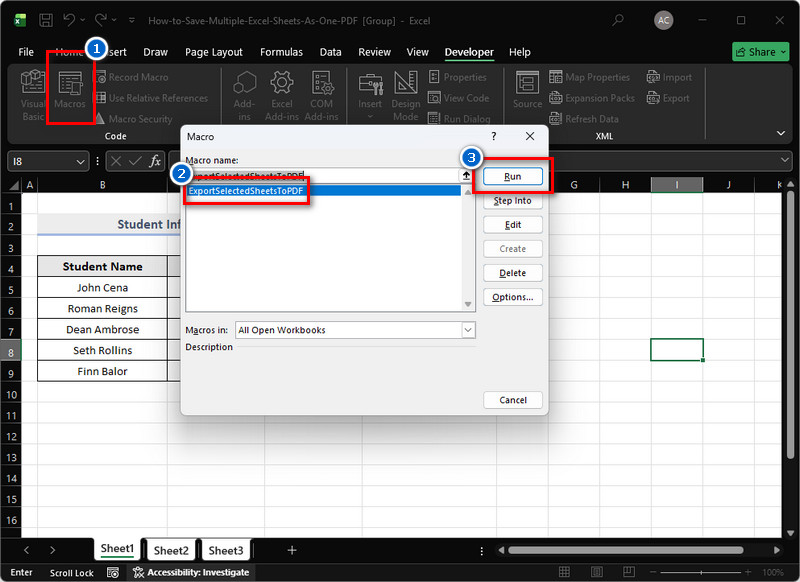
Frequently Asked Questions
Can I rearrange the order of sheets in a PDF?
Yes, you can rearrange the order of sheets in a PDF depending on the method you use. With the manual method, you can drag sheets to your preferred order or use Ctrl to select sheets in the order you want, and Excel will save the PDF following that sequence. In the Print to PDF method, you can adjust the page order in the print settings before creating the PDF. With VBA, the macro can specify the sheet order so the PDF is saved exactly as needed. Using AcePDF, you can drag and drop pages before or after merging sheets to rearrange them without changing the original Excel file.

Can multiple sheets be saved to one PDF on Excel Online or Google Sheets?
Yes, multiple sheets can be saved to one PDF in both Excel Online and Google Sheets, but the process is slightly different. In Excel Online, you can hold Ctrl (or Cmd on Mac) and click the sheet tabs you want to include, then go to File > Export > Download as PDF, or select “Entire workbook” or the selected sheets. In Google Sheets, use File > Print, change the export option from “Current Sheet” to “Workbook,” choose PDF as the format, and click Export. This way, all the sheets you selected are saved together in a single PDF file.
Does AcePDF support all spreadsheet formats, like .xls, .xlsx, and .csv?
Yes, AcePDF can open and convert .xls, .xlsx, and .csv files. You can merge multiple sheets from these formats into one PDF. This makes it easy to combine different types of spreadsheets into a single document.
Conclusion
In conclusion, combining multiple Excel sheets into a single PDF is a simple way to share, print, or archive your work without sending multiple files. It preserves all tables, charts, and formatting, making your PDF look professional and easy to read. To complete this process, you can choose the manual method for full control over which sheets to include and their order, or use automated methods such as VBA or AcePDF to save time, especially for repetitive tasks. Each method is useful depending on what you need and how comfortable you are, so trying both ways helps you see which works best for you. Overall, learning how to save multiple Excel sheets as one PDF makes it much easier to manage and share your data.
| Feature / Method | AcePDF | Manual Method | Print to PDF | VBA |
|---|---|---|---|---|
| Ease of Use | Very easy, drag-and-drop sheets | Moderate, requires selecting sheets | Easy, uses built-in Excel print options | Moderate, requires writing or using code |
| Merging Different File Types | Can combine different spreadsheet formats | Only works within one workbook | Only works within one workbook | Can be programmed to handle multiple formats |
| Advanced Features | Page rearranging, splitting PDF pages, and more | None beyond sheet selection | None beyond print settings | Can include custom headers, footers, or conditional logic |
| Best For | Quick merging with flexibility | Simple, small tasks | Quick export of few sheets | Repeated tasks, large files, custom workflows |