 Spotify is a leading music streaming service that lets you listen to millions of songs, playlists, and podcasts whenever you want. With a premium plan, you can stream music online or download tracks to listen offline. However, some people want to record Spotify music for more flexibility. For instance, you might want to save a song for a personal project, keep audio for offline use without restrictions, or use short clips for editing and creating content. Recording can also be useful if you need a specific audio format that Spotify does not offer. In this guide, you'll find easy and safe ways to record Spotify music. We'll show you simple steps to maintain good audio quality while ensuring you use the music legally.
Record Songs from Spotify with Aqua Demo
Aqua Demo is a screen recorder for Windows and Mac. In addition to being a screen recorder, this tool could be used for other purposes. One of these is its Audio Recorder option. The tool allows recording audio on a computer, including from your microphone. You can record them both or individually. When you use this tool to record Spotify to MP3, you can choose what audio quality, sample rate, and channels you prefer before recording. In fact, aside from MP3, Aqua Demo also supports multiple audio formats, including M4A, WMA, AAC, OPUS, FLAC, and WAV. Moreover, you can choose the sound device in its Settings, letting you select the exact audio source for recording and avoid unwanted sounds. You can also adjust the volume before and during recording to achieve a sound level without distortion. See the steps below for using Aqua Demo.
Try it for Free
Step 1 Get the Spotify Recorder
To start, you need to get the Aqua Demo’s file installer first. To do this, go to its official website and click the free download button there. Or, you can click one of the provided buttons above, depending on your computer. After that, proceed to the installation and follow all the prompts to finish.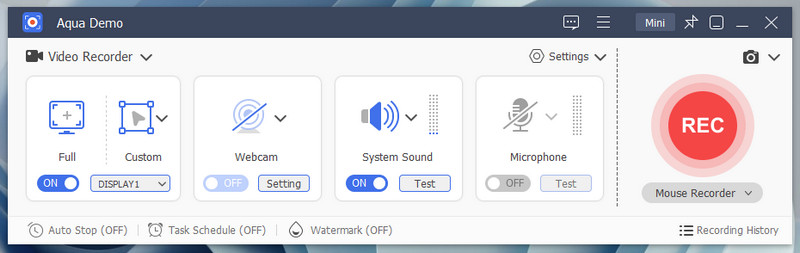
Step 2 Set Up Audio Recorder
In the tools interface, click the dropdown icon next to Video Recorder and select Audio Recorder. Then go to Sound Settings and set up your preferred settings. You can choose the output format, codec, quality, sample rate, channel count, and output directory. Next, click the Sound Settings to choose the system sound device you prefer and adjust the volume if needed.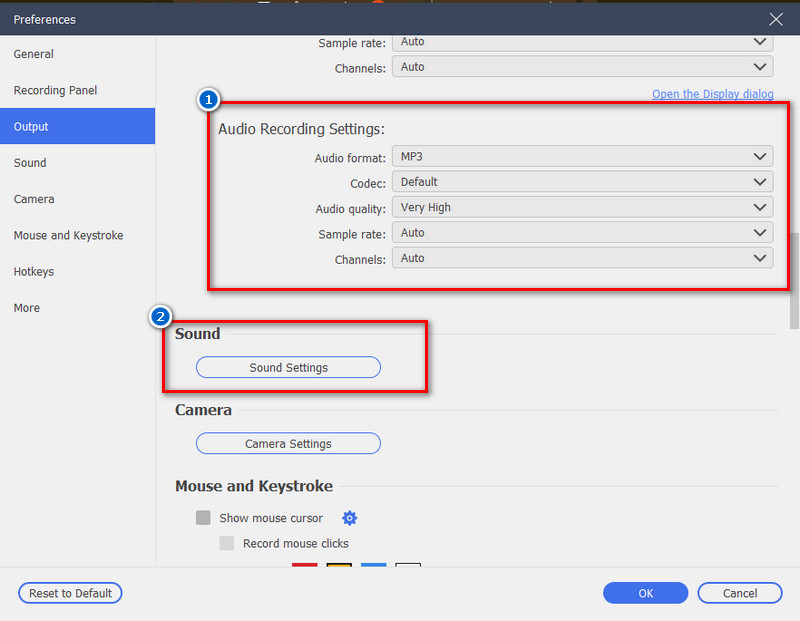
Step 3 Start to Record Spotify Music
When you’re ready, go to the Spotify app and find the music you want to record. Once you find it, go back to Aqua Demo and click the REC button. After a 3-second countdown, play the music and let the tool capture the audio. When the song finishes, click the Stop button to end the recording.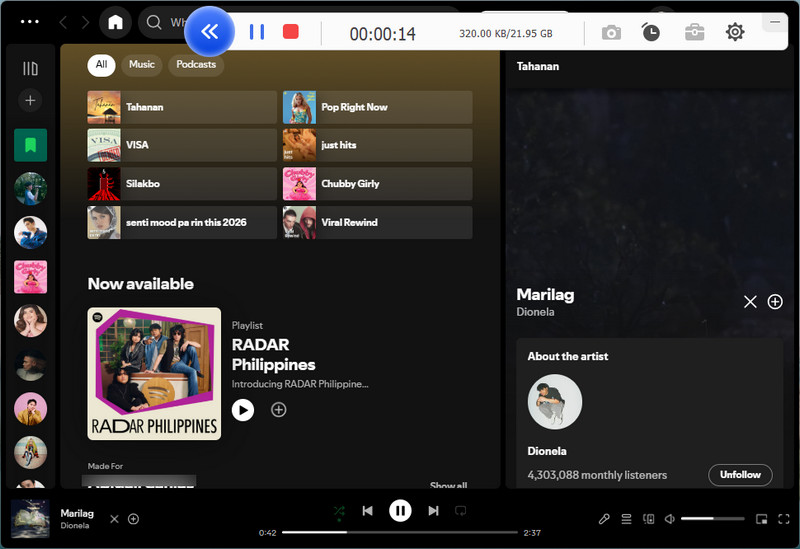
Step 4 Playback the Recorded Music
Once the recording ends, a preview window will appear on your screen. From there, you can play the recorded music and trim the unnecessary start and end sections if needed. Lastly, close the tool and locate the recorded music in the set folder under Settings, since the tool automatically saves the recordings.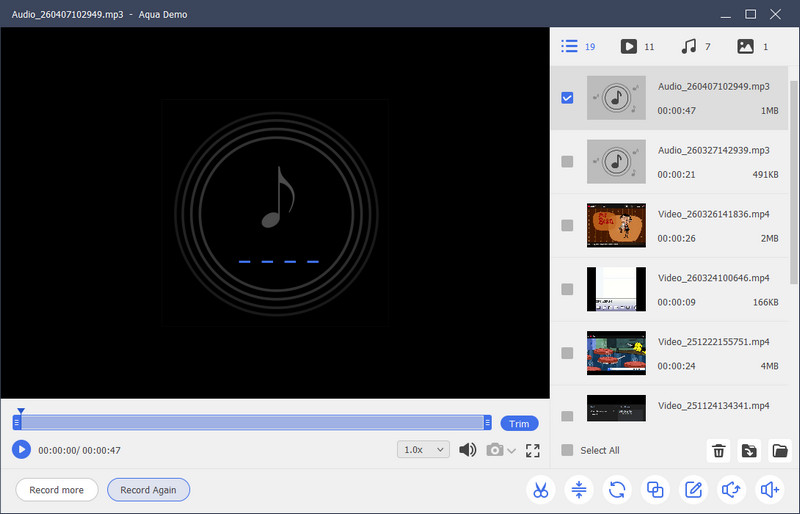
Record Spotify Music with Audacity
Audacity is an open-source recorder and editor for audio that you can use to record music from Spotify. It lets you record multiple tracks at once, with each source saved as a separate track, which is perfect for podcast recording on a Mac. However, this is possible if your computer supports multiple inputs. This means that if you’re using a basic setup (such as a single built-in microphone), you may be limited to a single input at a time. Despite that, Audacity can deliver clear audio quality without compression and supports a range of sample rates and bit depths. Furthermore, you can choose system sound as a recording source and switch between speakers, headphones, or other devices. Moreover, Audacity supports export formats like WAV, MP3, AIFF, FLAC, and more. Below, we provide a detailed guide to using Audacity.
Step 1 Install Spotify Recorder Software
Go to the official website of Audacity and download the installer there. Once downloaded, locate the file and start the installation process. Make sure to follow all the wizard prompts for successful installation. Once done, the tool will open automatically.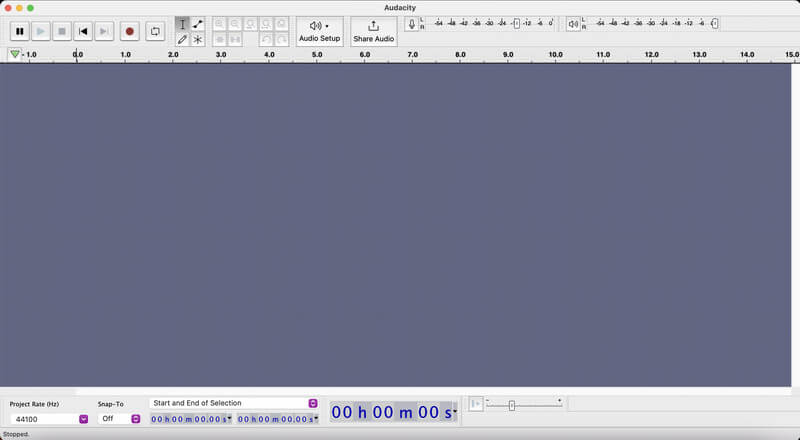
Step 2 Set Up Audacity and Start Recording
In the tool’s interface, click the Audio Setup tab to see the audio input settings. Next, set the Audio Host to “Windows WASAPI” on Windows and “Core Audio” on Mac. Then, select your speakers or headphones that match your computer output as the recording device. Next, click the Record button and go to Spotify and play the song you want to record.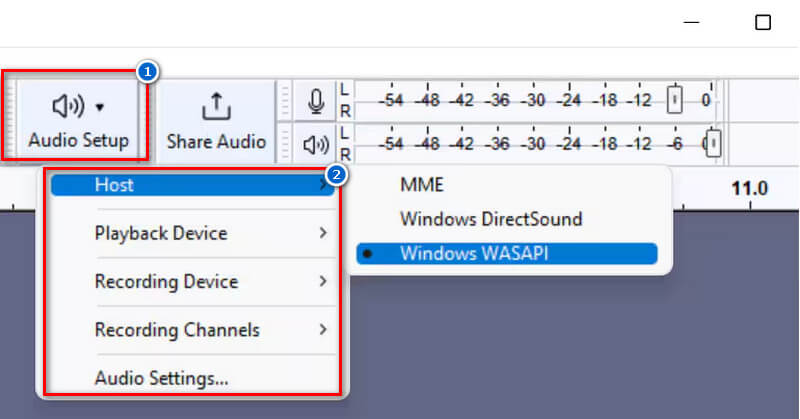
Step 3 Stop and Export Recording
Once finished, go back to Audacity and click Stop. After that, you can trim the unwanted parts of the beginning and end if needed. Lastly, export the file by selecting File > Export, then choose your preferred format, such as MP3 or WAV. Your recorded Spotify audio will then be saved on your computer.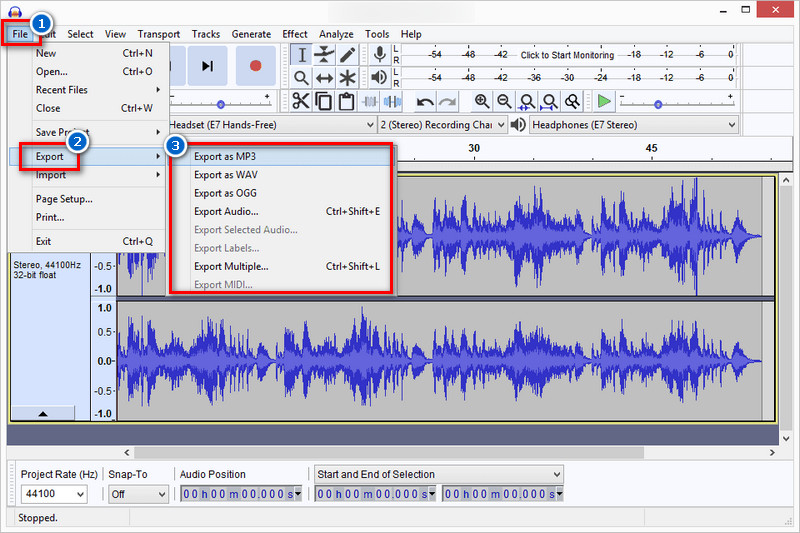
Capture Spotify Audio with Audfree Spotify Music Converter
Audfree Spotify Music Converter is a tool that is designed specifically to download and convert Spotify music. It lets you easily download songs, playlists, albums, podcasts, and audiobooks. In fact, even if your Spotify account is free or you’re a premium user, you can download any songs using this tool. In addition, Audfree supports multiple audio formats, including MP3, FLAC, WAV, AAC, M4A, AIFF, and more, making Spotify music playable across different devices. Moreover, the tool maintains original sound quality during conversion and lets you convert multiple songs at once. However, the tool is not entirely free; if you use a free trial version, the songs will not be fully converted, and you will only get part of the track. To unlock all features, you need a subscription that costs $14.95-$99.95. See the guide below.
Step 1 Download and Install Audfree
First, download and install AudFree Spotify Music Converter on your Windows or Mac PC. Next, open the file and follow the prompts to complete the installation. Once installed, open the tool and log in to your Spotify account. Next, click the Menu icon and go to Preferences. Here, choose the output format, sample rate, channel, bitrate, and more before starting.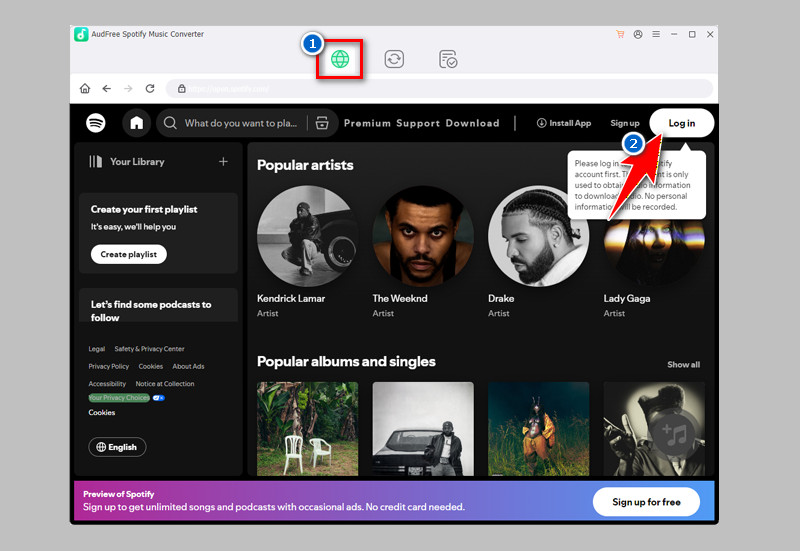
Step 2 Find Music and Add to List
After signing in, search for the music or playlist you want to download. Once found, click the music icon on the right side, and you will see all songs in the playlist. Then, tick the box for the songs you don’t want to download. Afterward, click the “Add to List” button to load the files.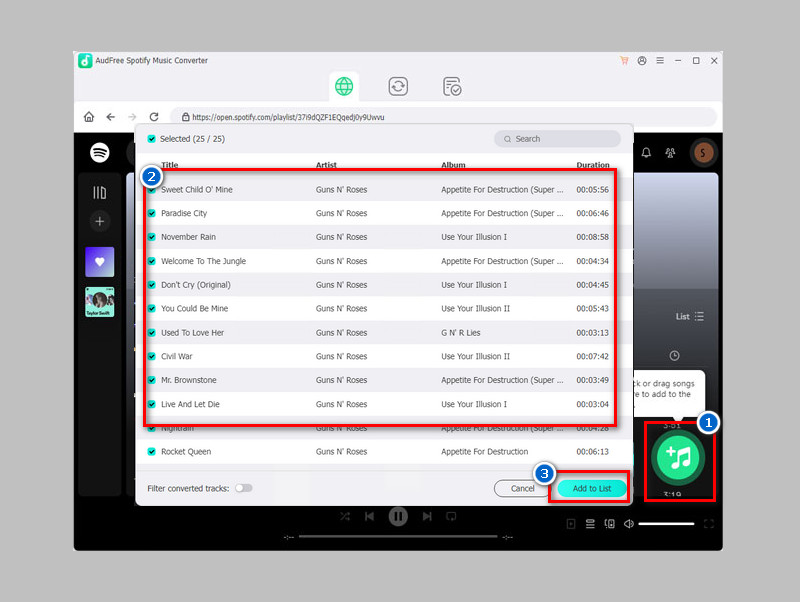
Step 3 Download Spotify Music
Next, click the Convert button in the bottom-right corner, and the tool will start converting and downloading the Spotify music. Once downloaded, navigate to the Downloaded tab, and from there, you can play the songs using the tool's built-in player. Finally, locate the output folder, and you can now play Spotify music offline.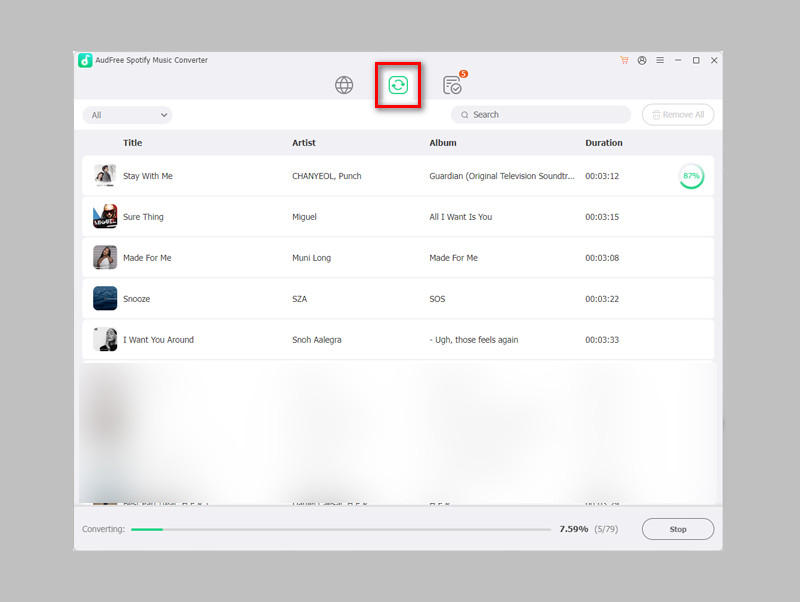
Listen Offline on Spotify Without Recording Methods
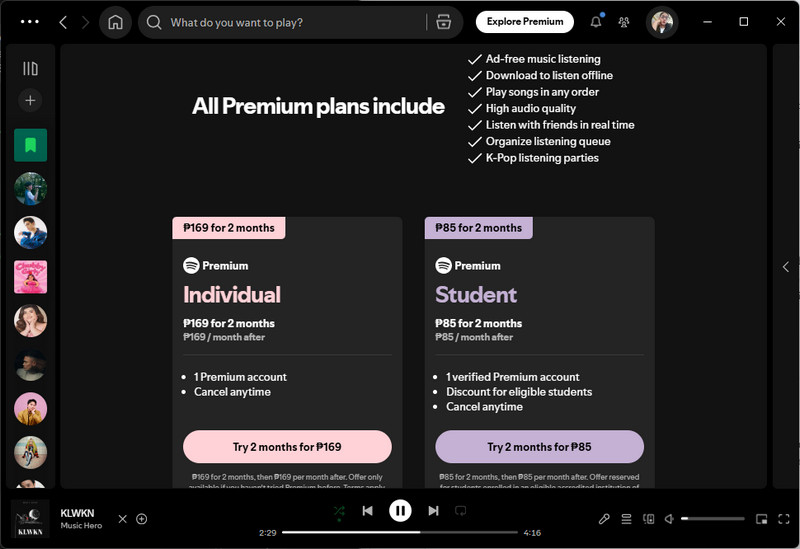
Premium Spotify users can download and listen to songs offline. This works on phones, tablets, and computers.
There are different subscription options, and each one includes offline listening:
- Individual – $12.99/month (1 account)
- Duo – $18.99/month (2 accounts for people living together)
- Family – $21.99/month (up to 6 accounts)
- Student – $6.99/month (for eligible students)
To use offline mode, you just tap the download button on a playlist or album. The songs will be saved in the app, so you can play them without an internet connection.
Limitations
Spotify’s download feature is helpful, but it has some limits.
- First, downloaded songs only work inside the Spotify app. This means that you cannot move them to other apps or save them as MP3 files.
- Second, you still need to go online at least once every 30 days to keep your downloads active.
- Third, if your Premium subscription ends, you lose access to all downloaded music.
- Lastly, some songs may not be available for download due to licensing restrictions. So even with Premium, not every track can be saved for offline use.
Conclusion
To sum up, you can record Spotify music without a premium subscription using the right tools. Aqua Demo is great for simple recording with flexible settings, while Audacity works well for users who want more control and editing features. Meanwhile, AudFree Spotify Music Converter is ideal for faster downloads and format conversion. If you only need offline listening, Spotify Premium is still the easiest option. Whatever method you choose, remember to follow copyright rules and use recorded music only for personal use.
| Features | Aqua Demo | Audacity | Audfree | Spotify Premium |
|---|---|---|---|---|
| Ease of Use | Easy | Moderate | Easy | Very easy |
| Audio Quality Control | Adjustable before recording | Adjustable during/after | Custom settings before conversion | Fixed (based on streaming quality) |
| Additional Features | It has task recording scheduler | Advanced editing (cut, noise reduction, effects) | Preserves ID3 tags automatically | Download entire playlists quickly |
| Free to Use | With free trial | Yes | With free trial | With free trial |