menu

Video Masking – Remove Object Area from Video

The tool helps you hide, highlight, or isolate specific areas in a video for cleaner edits, creative effects, and focused visual storytelling. If you’re a content creator, educator, marketer, or editor who needs precise control over video elements while improving overall editing quality and presentation, this Video Masking online tool is for you.

Draw, Hide, and Refine Every Frame with Precision Editing

draw to mask selection tool

Draw-to-Mask Selection Tool

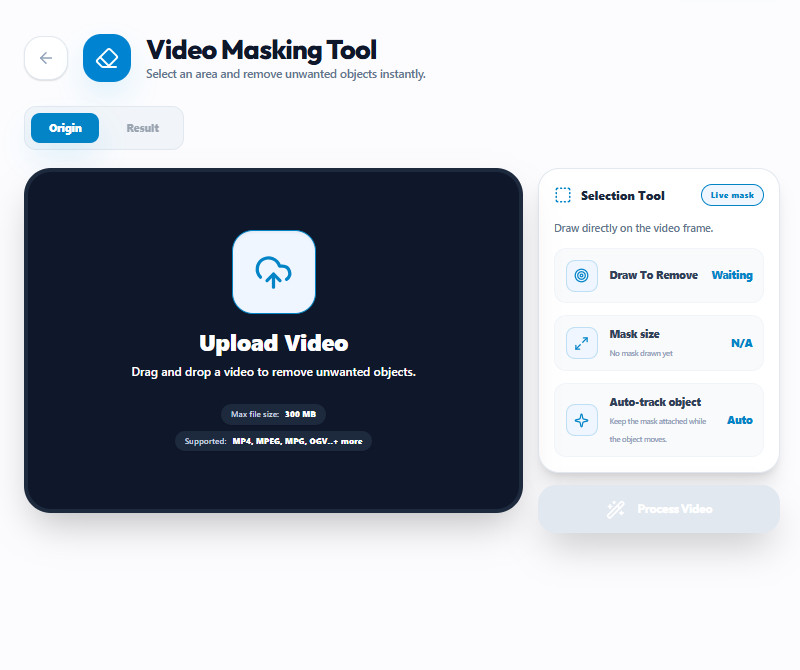
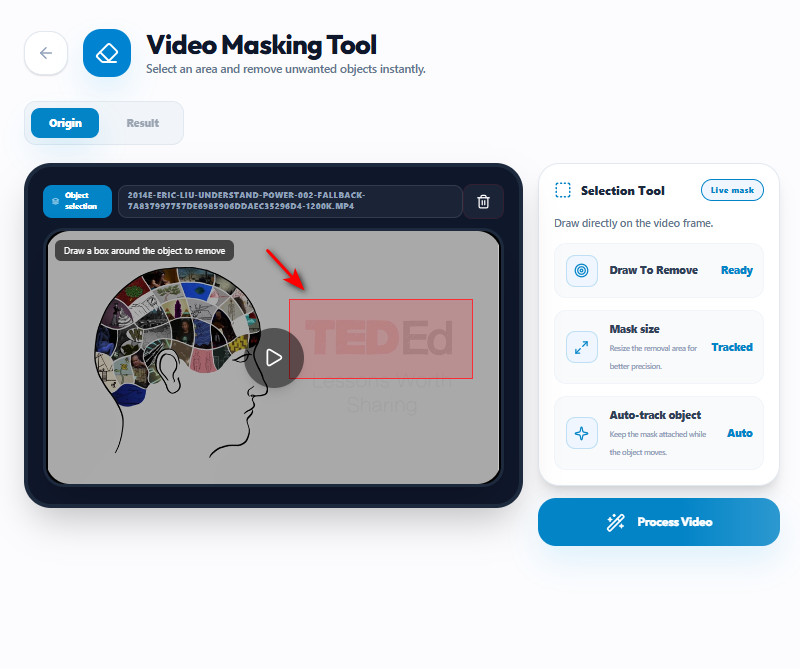
Our tool lets you create a video mask by simply drawing a box around any area or object you want to hide, highlight, or isolate. This intuitive approach eliminates the need for complex settings, allowing you to quickly select subjects such as faces, text, logos, or background elements with a simple drag. It is especially useful for editing tutorials, social media clips, product videos, and recorded footage that require specific details to be cleaned up or emphasized. Once selected, the mask applies to the chosen area when you click the process video button, helping you achieve a polished, focused visual result. This makes video masking faster, simpler, and more accessible to all skill levels.

Blur and Pixelation Effects

Protect privacy and hide sensitive details by applying a video mask. This feature will blur or pixelate faces, license plates, private documents, usernames, addresses, logos, chat messages, and other confidential information that should not appear clearly on screen. It is especially useful for creators making reaction videos, educational content, interviews, gameplay clips, security footage, or public recordings where privacy is a concern. Instead of removing the entire scene, you can apply the effect to a selected area, keeping the rest of the video visible and professional-looking. With this feature, creators can protect personal information while keeping their videos clean, safe, and ready for sharing online.

blur and pixelation effect
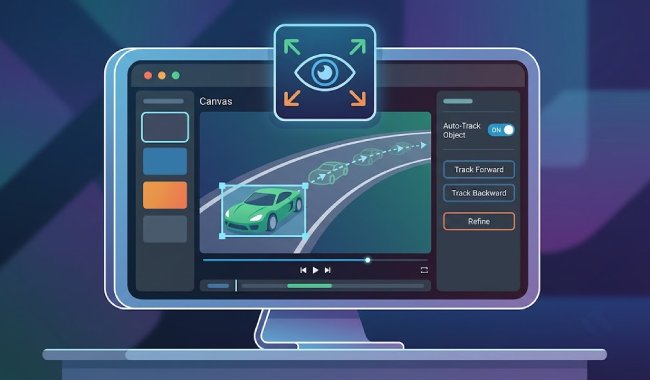
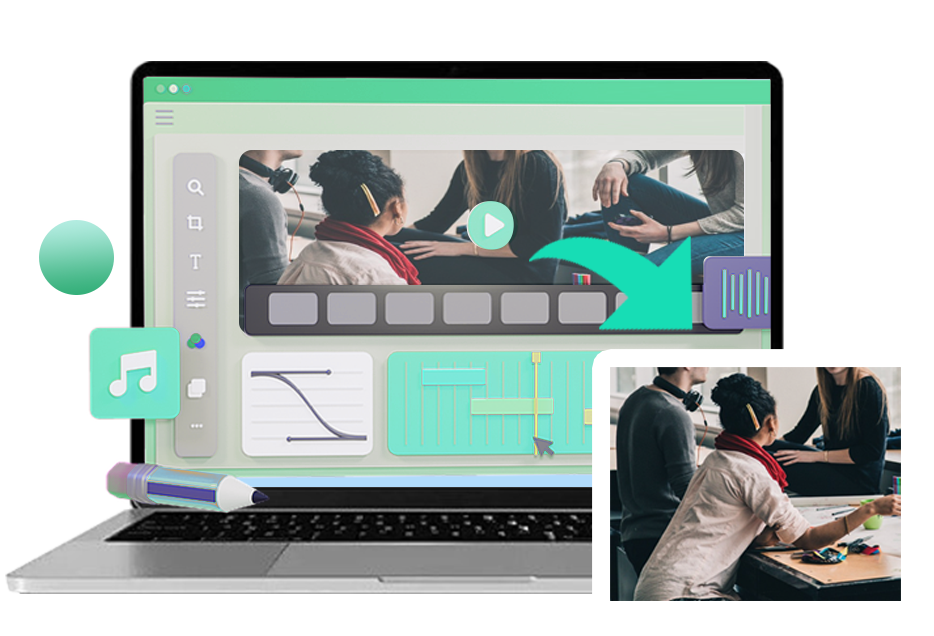
auto track object

Auto-Track Object

With this tool, you can ensure that your video mask stays perfectly attached to moving subjects throughout the entire clip. Instead of manually adjusting the mask frame by frame, the tool tracks movement for smoother, more accurate editing results. This is especially helpful for fast-moving scenes, walking subjects, vehicles, sports clips, or product demonstrations where the focus constantly shifts. It allows creators to save time while maintaining a cleaner, more professional edit without complicated motion-tracking software. The tool also improves editing efficiency while making dynamic videos look more polished and visually consistent.

Browser-Based Editing Without Installation
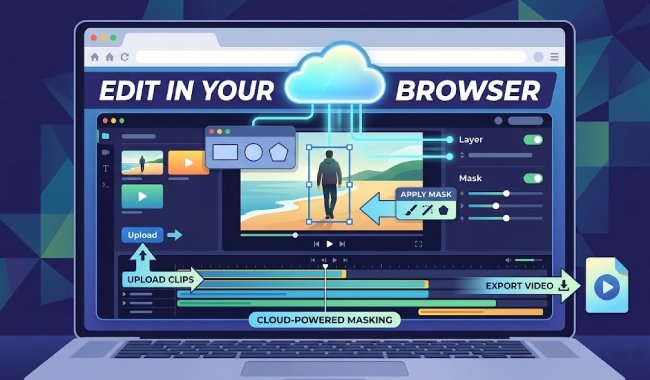
Mask video directly online without downloading heavy software or setting up complicated programs on their device. You can upload clips, apply masking effects, and export finished videos in just a few steps. Because everything works online, it also helps save device storage and avoids compatibility issues that often happen with desktop editing applications. The platform makes it easier to work on projects anywhere with an internet connection, whether at home, in the office, or while traveling. This simple online editing experience lets you create cleaner, more professional videos without the technical setup required by advanced video editing tools.

browser based editing without installation
How to Use the Video Masking Tool Easily?

  • 01
    Add Your Video
    Visit the Video Masking tool in your browser, such as Chrome or Firefox. Then, click the "Upload Video" button to upload your video. Make sure the video does not exceed 300 MB to ensure a successful upload.
  • 02
    Draw Selection Area
    Next, use the draw-to-select feature to outline the area or object you want to hide, blur, or highlight in your video. Simply drag your cursor to create a box around faces, text, logos, or any unwanted elements in the frame. Since you can't adjust the box size, you need to keep creating boxes until you hit the perfect spot.
  • 03
    Apply Mask Effect
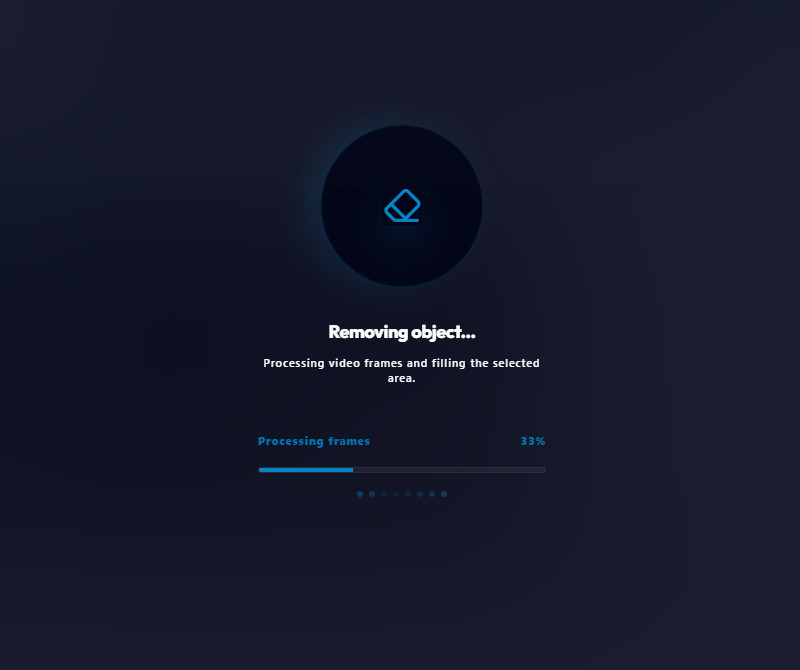
    Afterward, click the "Process Video" button, and the tool starts processing your video. During this, the tool applies the selected mask effect across the entire video based on your chosen area. This ensures that the hidden or blurred region stays consistent from start to finish.
  • 04
    Export Your Video
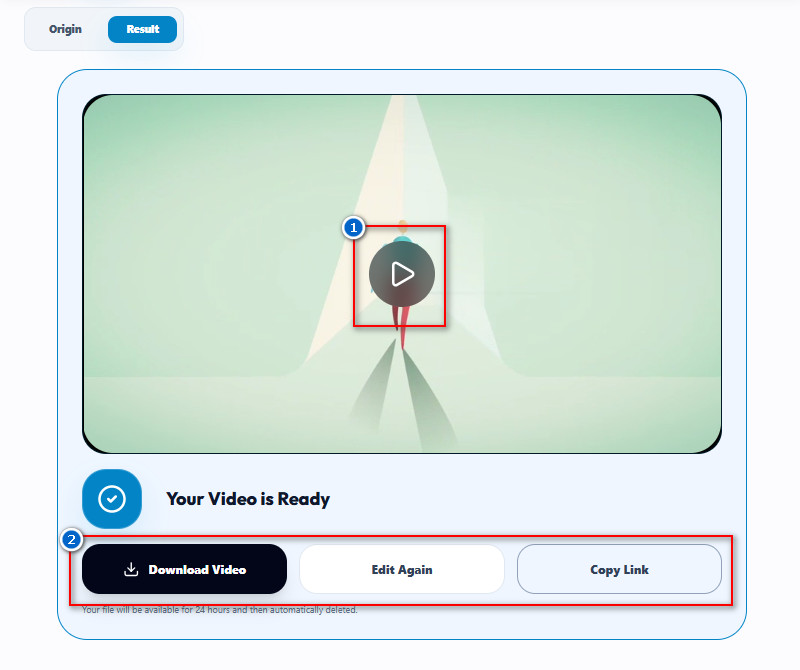
    Once done, you can preview the result to check if everything looks good. If not, you can re-edit; if you are already satisfied, click the "Download Video" button, and the masked video will be saved in MP4 format. You can also click "Copy Link" to share the video via a link.
add your video
draw selection area
apply mask effect
export your video

Recommended Tools You May Like

Edit videos for common tasks like resizing, cutting, and improving visuals. They are designed for quick, simple editing without advanced skills.
"Used this Video Masking tool to blur sensitive brand details before posting online. The masking stays stable even in moving clips. Makes content approval faster."
Alyssa Cruz, Social Media Manager
2026-06-05
iiiii
iiiii

"This tool helps hide sensitive details in interview clips. The blur effect is clean and adjustable. Makes footage safer to publish."
Miguel Herrera, Documentary Assistant
2026-05-01
iiiii
iiiii

"I handle multiple projects and use masking to clean up privacy. The browser tool works smoothly without installation. It helps me meet tight deadlines."
Nicole Torres, Freelance Video Editor
2026-04-13
iiiii
iiiii

"Blurring faces and logos in public footage before uploading is now easier with this Video Masking tool. The auto-tracking keeps the mask in place. Saves a lot of time on manual editing. "
Lovely Dela Pena, YouTube Creator
2026-03-28
iiiii
iiiii

"I use masking to hide account details in screen recordings. The browser-based tool works without setup. It makes demo videos safer to share."
Markus Villanueva, App Demo Creator
2026-04-19
iiiii
iiiii

"I use it to blur house numbers and private property details. The result looks clean and natural. It works well for listing videos."
Ronald Garcia, Real Estate Videographer
2026-06-12
iiiii
iiiii

Why Choose Us

Frequently Asked Questions

Are there different types of video masking?

Yes, there are different types of video masking used for different editing purposes. Some masking tools are designed to hide sensitive information by applying blur or pixelation effects to selected areas in the video. Other masking methods focus on isolating a person or object from the background for effects, cutouts, or background replacement. There are also motion-tracking masks that automatically follow moving objects throughout the video. Our tool mainly focuses on privacy-style masking, allowing users to draw over specific areas and apply blur or pixelation effects to hide faces, license plates, screens, or private details. This makes it useful for content creators, businesses, and everyday users who want a simple way to protect sensitive information in videos.

Can I blur faces or sensitive information in a video?

Yes, the tool lets you blur or pixelate selected areas of a video. This is useful for hiding faces, license plates, screens, documents, or private information. You can simply draw over the area they want to hide before applying the effect. The masked area stays visible while the sensitive details remain hidden. It helps protect privacy when sharing videos online. The process is simple and does not require advanced editing skills.

Does the masking effect stay on moving objects?

The tool can apply masking effects to selected areas in the video, but tracking performance may depend on the movement and video quality. Slow or predictable movement usually gives better results. Very fast motion or sudden scene changes may require manually repositioning the mask. This helps you maintain accurate coverage of sensitive content. It is useful for videos with people, screens, or moving objects. The feature helps make privacy editing easier and faster.

What types of videos can I use with the masking tool?

The masking tool works with many types of videos, including vlogs, interviews, tutorials, gameplay clips, webinars, and social media content. It is useful for both personal and professional editing projects. You can hide private information before uploading videos online. The tool also helps improve compliance when sharing public content. Different video formats can be uploaded for masking and export. This makes the tool flexible for everyday use.

Will the masked area stay hidden after exporting the video?

Yes, the blur or pixelation effect is preserved in the exported video after processing. This means the hidden area will remain protected when the file is downloaded or shared online. You do not need to apply the effect again after export. The final video keeps the masking effect permanently in place from start to finish. This helps ensure privacy protection across different platforms. It is useful for social media, presentations, and shared recordings.

acethinker wind cut logo AceThinker Wind Cut

Turn Raw Clips into Great Videos

wind cut banner
Back to Top
Contact Us
Learning Center