 PDF files are widely used for sharing documents because they maintain the layout and content across devices. Nonetheless, some PDF files are set to read-only, which means you cannot make changes easily. This can be frustrating, especially when you need to update text, fix errors, or add new details. For this reason, it is important to know how to edit read-only PDF files using diverse methods. In this article, we will walk you through simple and practical ways to edit these files. You will learn to make changes in your PDF files using various approaches. Whether you are working on school files, business documents, or personal forms, these methods can help you save time and effort. By the end, you will have a clear idea of how to edit read-only PDF with ease.
What Are Read-Only PDFs?
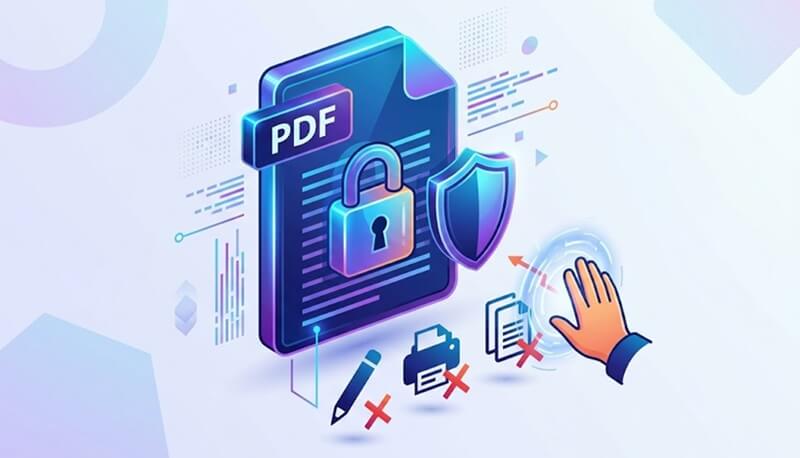
A read-only PDF is a file that is protected to prevent users from making changes. In most cases, the creator adds this restriction to keep the content safe and unchanged. For instance, companies may lock contracts, forms, or reports to avoid unwanted edits. In other cases, the file may be set to read-only due to permissions or security settings.
Because of this, users can view the document but cannot edit text, images, or layout directly. While this helps protect important information, it can also make simple tasks harder. That is why understanding how read-only PDFs work is important before trying to edit them. This is crucial for protecting your documents; it can also come with limitations. Here are common limitations of read-only PDFs:
Limitations of Read-Only PDFs
- You cannot edit or update the text directly.
- Adding or removing images is not allowed.
- Copying content may be restricted or blocked.
- Filling out forms can be limited or disabled.
- Making quick corrections becomes difficult.
- You may need extra steps or tools to unlock the file.
Ways to Make a Read Only PDF Editable
You have a few good options for editing read-only PDF files. Here are some methods you can use to convert these documents to editable formats. Each has its own benefits, so pick the method that best fits your needs.
Method 1: Make a Read-Only PDF to Editable PDF with OCR Feature
Some read-only PDFs cannot be edited because they are saved as image-based files. In that line, dedicated PDF editors like AcePDF provide a comprehensive suite of tools to convert PDF read-only to editable files. One of these features is the PDF editor's OCR option. This functionality enables converting scanned documents or read-only PDFs to editable formats. This process utilizes optical character recognition to transform image-based text into editable digital content. Additionally, this PDF editor supports a wide range of languages, including English, Portuguese, Spanish, German, and more. Apart from that, it enables you to sign secure PDF documents to certify their authenticity. Here's how to use AcePDF to convert a read-only PDF to an editable one.
Try it for Free
Step 1 Obtain the PDF Editor
The initial process is to acquire the AcePDF installer. You can do this by smashing the download button above. Afterward, run the installer and go through all the prompts to fully install the PDF editor. Then, the AcePDF will automatically open on your system.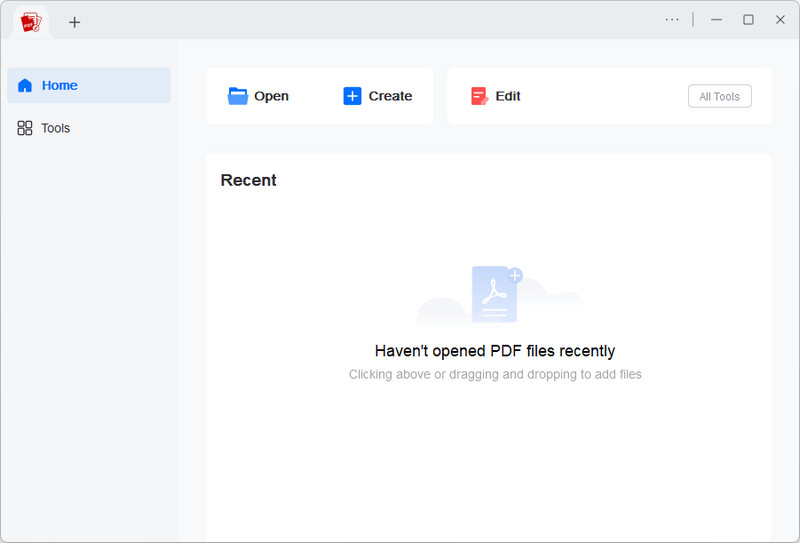
Step 2 Upload the Read-Only PDF
Next, on the tool's interface, click the "Tools" menu. From here, find and click the "OCR" tool. This will open a new window where you can upload the read-only PDF file you wish to convert.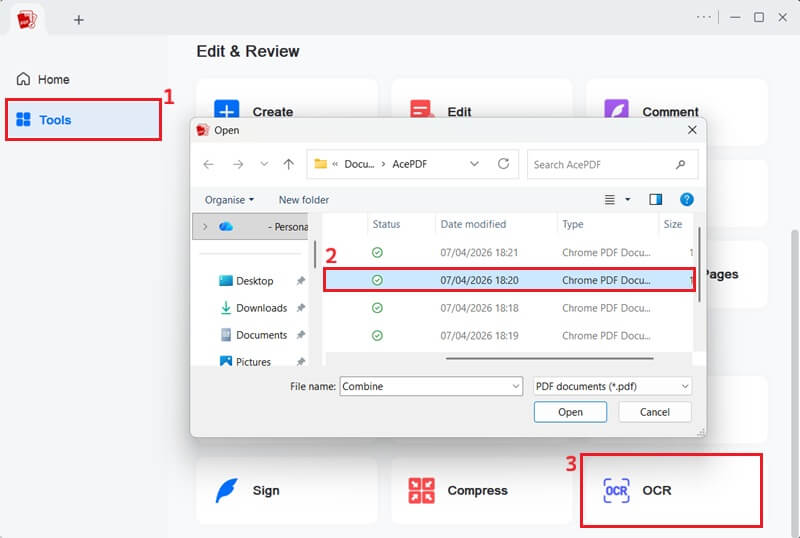
Step 3 Perform OCR on the Document
After uploading, modify the conversion settings as needed. You can select the "Recognition mode" and "Language" for accurate character recognition. Then, you can also select what type of format you want the output to be. Finally, click the "Recognize" button to convert read-only PDF to edit.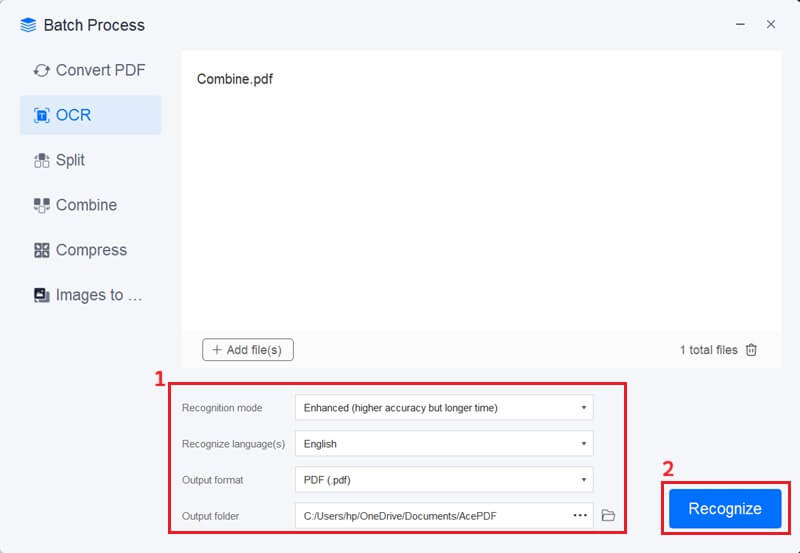
Step 4 Edit the PDF Document
Once the conversion process is done, the file will be saved in the output folder. Double-clicking it opens the editable PDF in the AcePDF interface. Then, click the "Edit" option to start editing your PDF.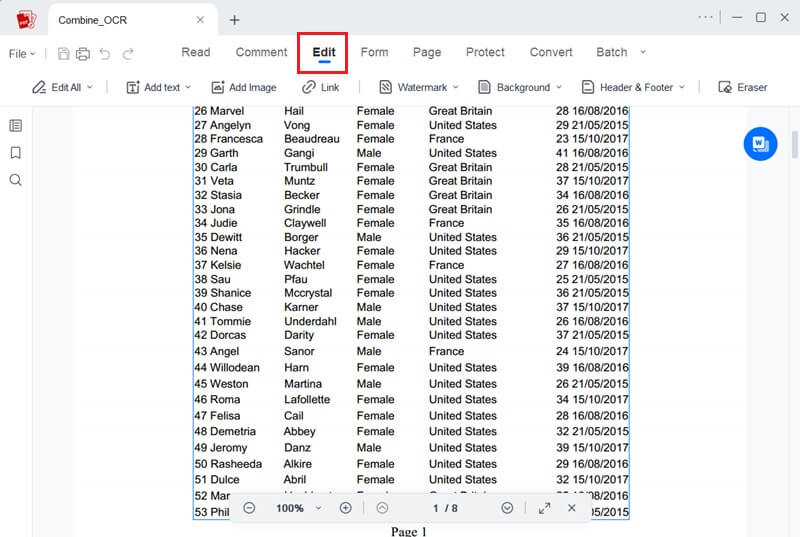
Method 2: Edit Read-Only PDFs by Bypassing Editing Restrictions
Some read-only PDFs can be opened but not edited due to the owner's restrictions. This often occurs when security settings within the PDF prevent modification, deletion, or extraction of content, while still allowing users to view it. The good news is that AcePDF also lets you bypass this restriction. This process is easy, as it simply involves accessing your file on the AcePDF platform and utilizing its built-in functionalities. This method is particularly useful if you also want to add text, images, or other elements to a document. It also enables you to find fonts from PDF and manage other document properties. Additionally, you can merge and split PDF files for a more easy workflow. Below is the process on how to convert read-only PDF to editable PDF with AcePDF.
Step 1 Add the PDF File
If you already have AcePDF on your device, launch it; if not, you have to download it first. Then, on the main interface, click "Open" to access your file explorer. Once it's open, choose the read-only PDF document you wish to make editable.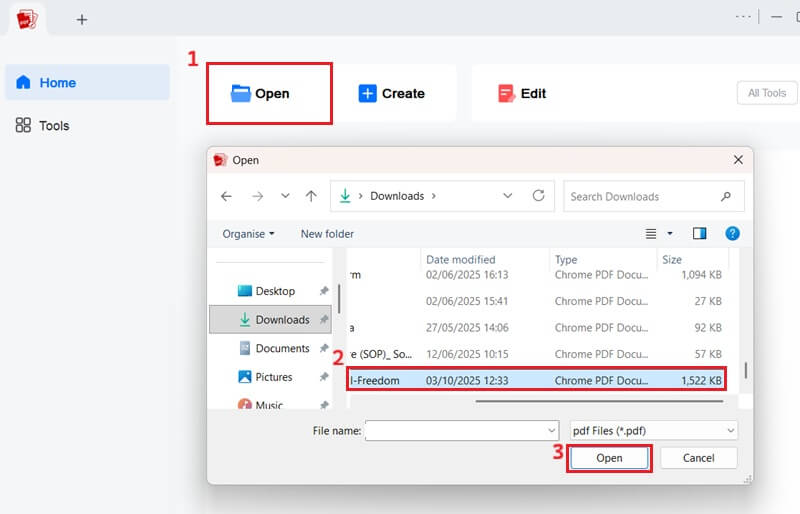
Step 2 Edit PDF File
Once the PDF is open in the tool, hit the "Edit" button on the menu bar. Then, you will see different options to modify your PDF on the toolbar. You can then start editing your document by adding or removing text, images, or other features as required.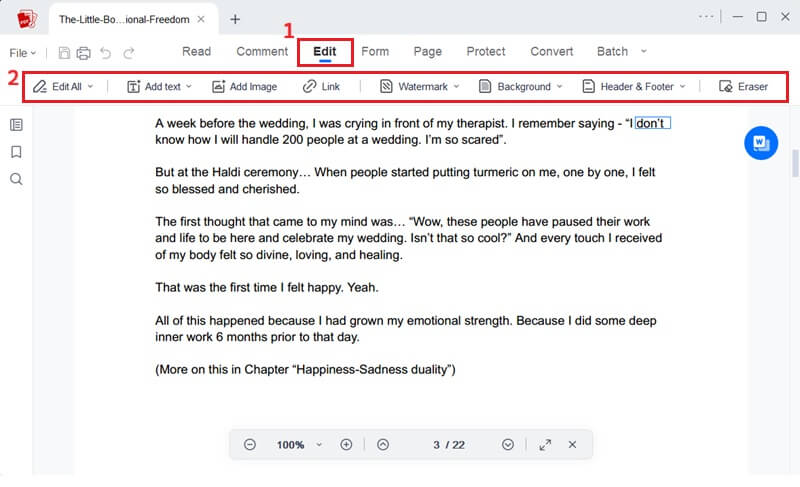
Step 3 Save PDF Document
Once all your desired changes have been made, you can save your newly edited PDF file. Access and click the "File" option, and select the "Save as" option. Then you will see the name of the PDF file with a copy tag. You can change it if you want to rename the document. Finally, hit the "Save" button to keep the modifications you made to your documents.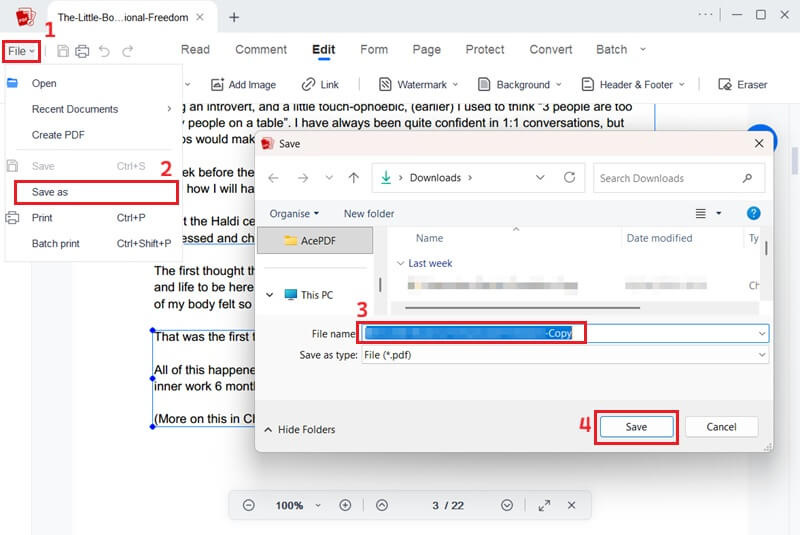
Method 3: Convert Read-Only PDF to Editable Online
Another effective way to make a read-only PDF editable is to convert it to a Word document. That said, AceThinker PDF to Word Converter is a great choice for this task. It lets you accurately convert your PDFs to editable Word files while keeping the original formatting and layout. Similarly, it allows you to convert your PDF documents to other file formats, such as Excel, PowerPoint, text, and more. On top of that, it enables you to transform your PDF documents into other file formats, such as HTML and images. And since it works online, you don’t have to download or install anything to convert read-only files. Here's how to convert read-only PDF to editable document online.
Step 1 Insert PDF Document
First, access your web browser and navigate to the AceThinker PDF to Word Converter website. Here, you can click the "Choose Your File" option. Then, locate and select the read-only PDF file from your local storage to upload it to the online converter.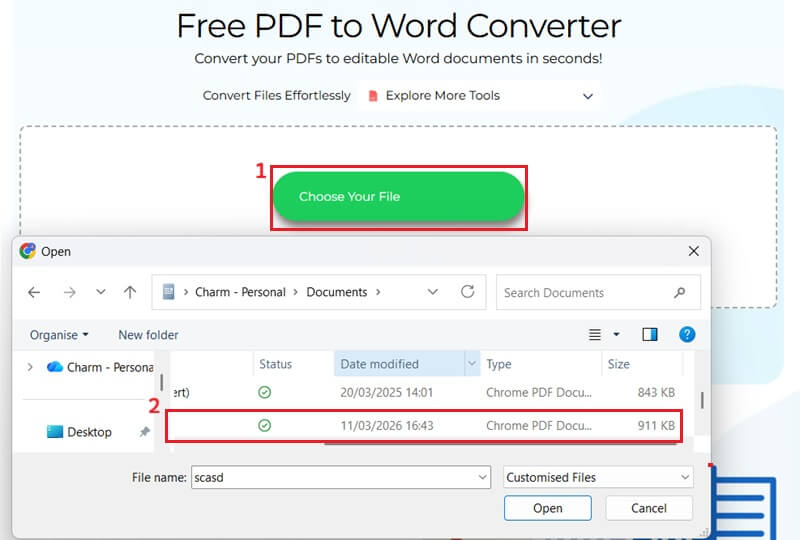
Step 2 Initiate the Conversion Process
Once your read-only PDF file is uploaded, the online tool will present you with the different options for conversion. From this selection, choose the "PDF to Doc" option to transform it into an editable Word document. After that, click the "Select Format" green button to start the process.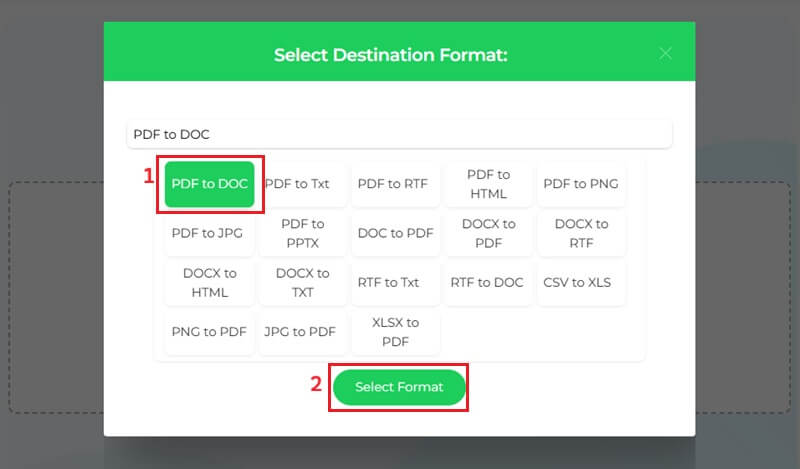
Step 3 Download the Converted File
Wait until the PDF conversion is done; it only takes a few seconds. Then, a dialog box will appear. From here, click the "Download Document" option to save your newly converted file. Now, you can edit the Word document as needed.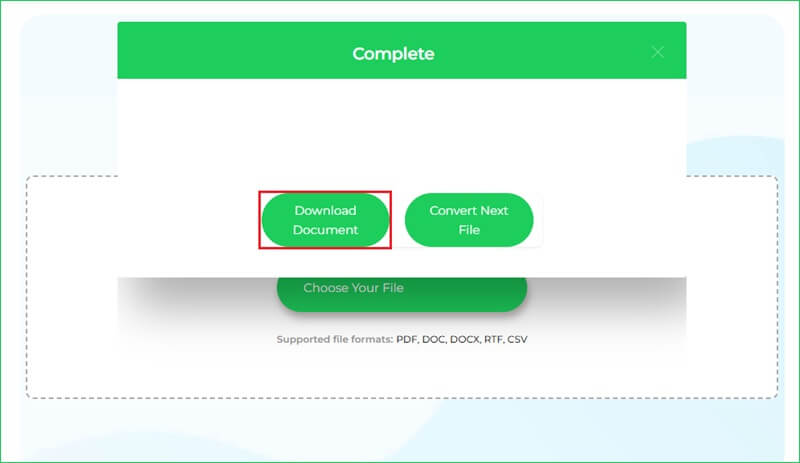
Method 4: Edit the Read-Only PDF Using Google Docs
If you want an easy way to edit a read-only PDF, try opening it in Google Docs. Google Docs can convert your PDF into an editable file, so you can quickly change the text. It even works with scanned or image-based PDFs by pulling out the text for you to edit. Since everything happens online, you don’t have to install any software. Just upload your PDF to Google Drive, open it with Google Docs, and you can start editing right away. This is handy for quick changes, especially if you use different devices. However, keep in mind that the layout may not always look the same, especially if your file has complex designs, tables, or graphics. Here’s how to make a read-only PDF editable on Google Docs.
User Guide:
- Start by opening your browser and going to Google Apps. Then, sign in to your Google account and select "Drive" from the applications menu. Once in Google Drive, upload the read-only PDF document by dragging and dropping it into the Drive window or by clicking the "+ New" button and choosing the "File Upload" option.
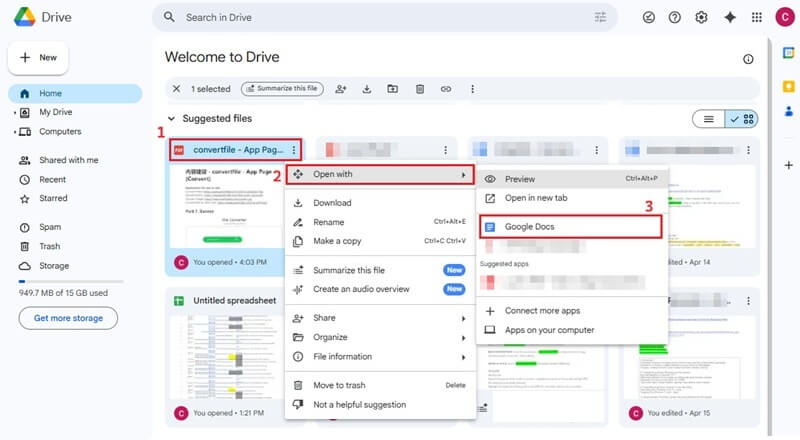
- Once the upload is complete, locate the PDF in your Google Drive, right-click it, select "Open with," and choose "Google Docs." This will open your document in Google Docs and automatically convert it to an editable version.
- After opening the PDF in Google Docs, you can start making changes. You can edit text, remove parts, adjust the formatting, or add new content. After finishing, save your work and download the file again as a PDF.
Method 5: Convert Read-Only PDF to Editable in Google Drive
Another way to handle a read-only PDF is by using the auto-convert feature in Google Drive. This option lets you turn PDF files into editable documents as soon as they are uploaded. This method streamlines the workflow for users who frequently upload PDFs and need immediate editing capabilities. In addition, this method is easy to use and works on different devices. You can upload your file, let it convert automatically, and edit it anytime you need. Below is a simple guide to enabling this feature in Google Drive and automatically converting your PDF documents to editable formats.
User Guide:
- First, open your browser and go to Google Drive. Subsequently, click the gear icon in the top-right corner and choose "Settings" to open the menu.
- Next, stay on the General tab and scroll down to the "Uploads" section. After that, check the box that says "Convert uploads to Google Docs editor format." This will turn on the auto-convert feature.
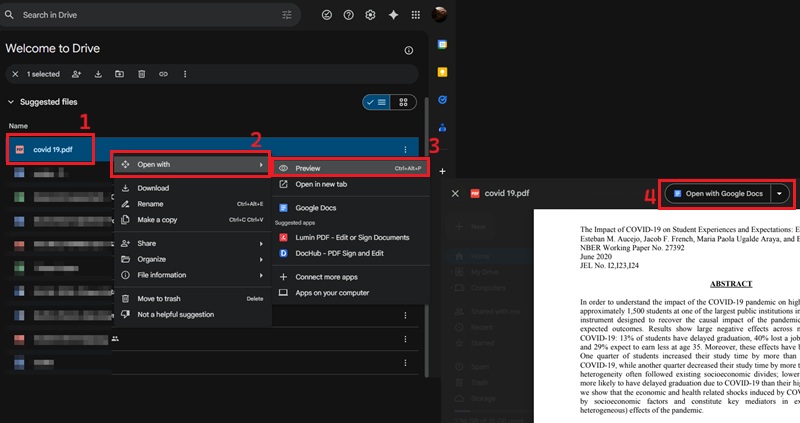
- Now, go back and upload your read-only PDF file to Google Drive. Once the file is uploaded, right-click on it and pick "Open with," then choose “Preview.” Afterward, click “Open with Google Docs” to convert it into an editable file. Finally, you can start editing the document right away.
Conclusion
Editing a read-only PDF is possible when you use the right method. As discussed, you can use a dedicated PDF editor like AcePDF to remove restrictions and convert the file to another format. You can also open it in tools like Google Docs and Google Drive. Each method has its own use, depending on your file and needs. Therefore, it is best to try different options to edit read-only PDF files and see what works for you. By doing so, you can easily update your documents and handle read-only PDFs without stress.
| Method | Best For | Limitations |
|---|---|---|
| Using OCR Feature | Scanned PDFs or image-based files | OCR may misread text, needs cleanup |
| Bypassing Editing Restrictions | Protected PDFs with restrictions | May not work on strongly secured files |
| Using Online Converter | Quick edits without installing tools | File size limits, privacy concerns |
| Utilizing Google Docs | Simple text editing | Formatting may break |
| Converting in Google Drive | Basic editing within Google ecosystem | Limited layout accuracy and features |