 Hyperlinks are an important part of PDF documents. They help you quickly jump to another page, open a website, or access more information without scrolling through the whole file. Many people use links in PDFs for reports, eBooks, guides, and business documents because they make navigation faster and easier. However, some hyperlinks not working in PDF. It's like when you click a link, nothing happens, or it takes you to the wrong place. This can waste time and make the document harder to use, especially if you rely on those links for important information. It can also create a bad experience for readers, clients, or students who expect everything to work smoothly. In this guide, we will explain why hyperlinks stop working in PDFs and how you can fix them using simple methods.
Why My Hyperlinks are Not Working in PDF
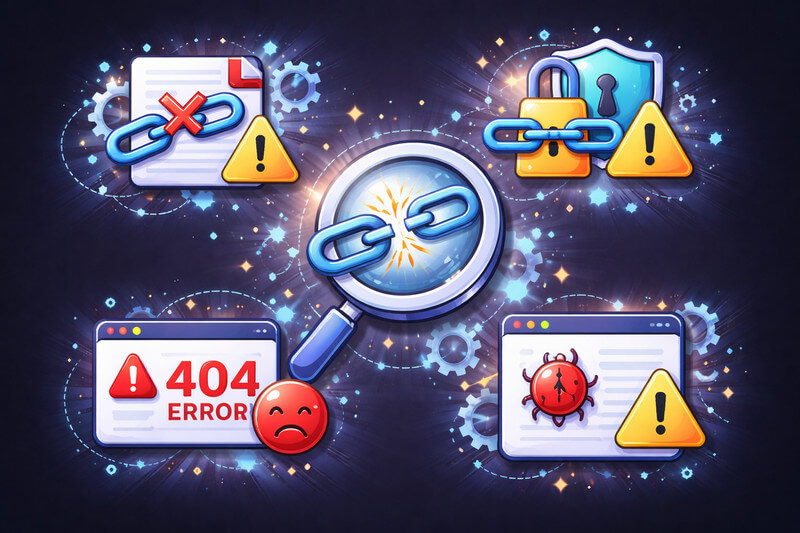
Hyperlinks in PDFs can stop working for different reasons. Some issues are simple, while others depend on how the file was created or opened. Below are the most common causes, explained simply.
- Outdated PDF Reader or Software: An old PDF reader may not support all hyperlink features.
- Incorrect Hyperlink Formatting: If the link is not added correctly, it may not be clickable. Even small formatting mistakes can break the link.
- Issues with File Conversion: When converting files, like Word to PDF, links can sometimes get lost. This happens when the conversion settings are not properly configured.
- Invalid or Broken URL: If the link points to a wrong or deleted website, it will not work.
- Security Restrictions in PDF: Some PDFs have security settings that block links. These restrictions can prevent users from opening hyperlinks.
- Links Not Embedded Properly: Sometimes text looks like a link but is not actually clickable. This happens when the link is not properly embedded.
- PDF Opened in Browser Issues: Opening a PDF in a browser can cause link problems. Some browsers do not fully support all PDF features.
- Corrupted PDF File: If the PDF file is damaged, links may stop working.
Quick Fixes for PDF Links Not Working
After knowing the causes, you can now try some quick fixes to solve the problem. These simple methods can help restore broken links and make your PDF work properly again. You do not need advanced skills; just follow the easy steps to fix the issue.
| Method | What It Does | When to Use It |
|---|---|---|
| Fix Incorrect Hyperlink Formatting | Corrects broken or wrong link setup in the PDF | When links are not clickable or set incorrectly |
| Use “Save As” or “Export” Instead of Print to PDF | Keeps links active during file creation | When creating PDF from Word, Excel, or PowerPoint |
| Change Default PDF Viewer | Uses a better app to open PDFs with full link support | When links don’t work in browser or old reader |
| Check if PDF File is Corrupted | Finds and fixes damaged PDF files | When PDF has errors or missing features |
| Check Security Restrictions | Removes limits that block clickable links | When PDF is locked or read-only |
Method 1. Fix Incorrect Hyperlink Formatting
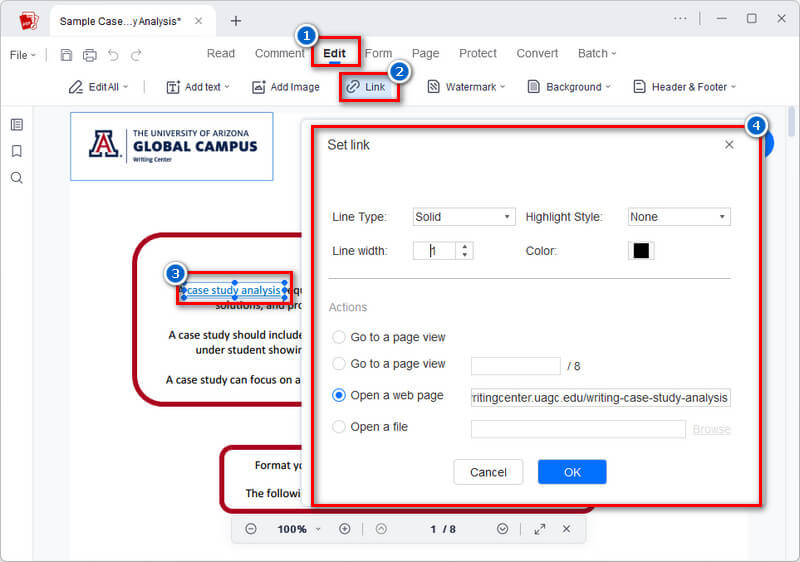
Incorrect hyperlink formatting is a common reason links do not work in PDFs. To fix this, check if the link is properly embedded. Make sure the text is set as a clickable hyperlink, not just plain text.
- Verify that the URL includes “http://” or “https://” at the beginning.
- If the link is missing or incorrect, delete it and add it again using the link tool.
- Check that the clickable area covers the correct text.
Method 2. Use “Save As” or “Export” Instead
Print to PDF is usually used to save documents as PDFs. However, this method treats the file as a printed copy, so interactive elements such as hyperlinks may not work. This is a common reason a hyperlink doesn’t work in PDF, even if it still looks clickable.
That is why it is better to use “Save As” or “Export to PDF” instead. These options keep the original features of the document, including working hyperlinks. This helps make sure your links stay active and function properly in the PDF.
Here’s a simple guide you can follow:
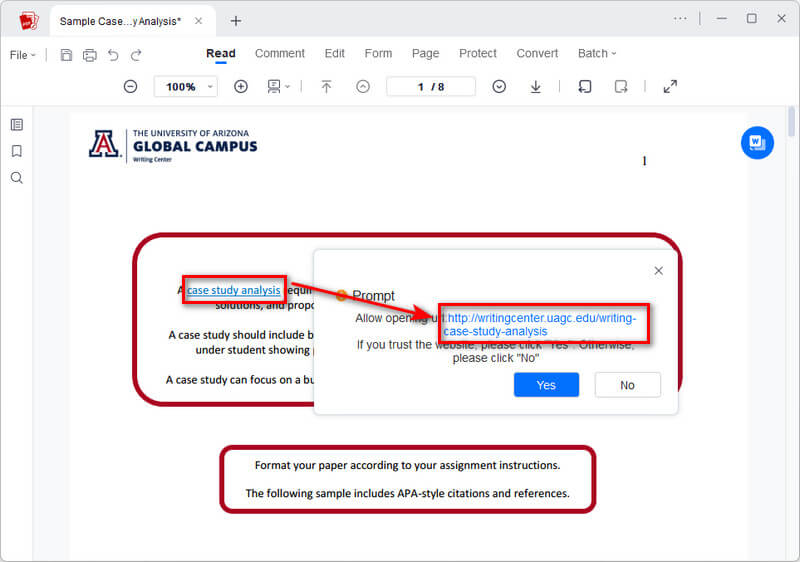
- Word to PDF: Go to “File” → “Save As” → choose “PDF” as the format.
- Excel and PowerPoint: Go to “File” → “Export” → select “Create PDF/XPS” or go to “File” → “Save As” → choose a folder → select “PDF” as the output format.
- Google Docs: Click “File” → “Download” → choose “PDF (.pdf).”
Method 3. Change or Update PDF Viewer
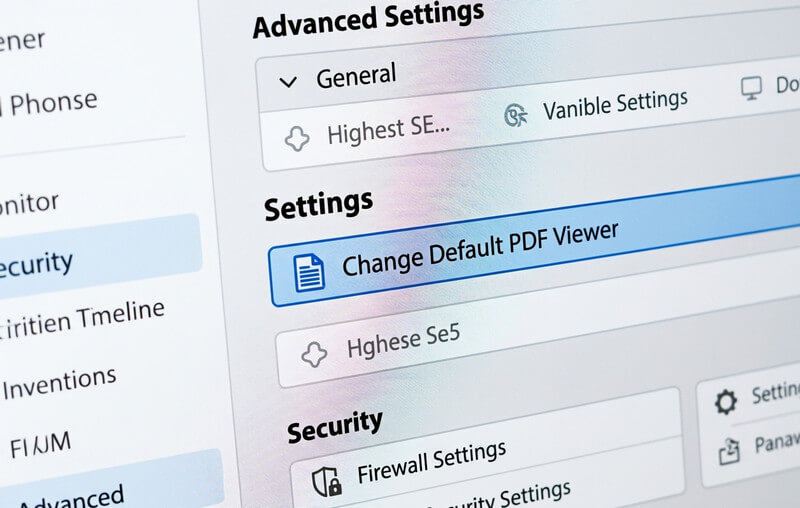
Sometimes hyperlinks do not work because your PDF viewer is outdated or has limited features. Some built-in viewers, especially in browsers, cannot fully support clickable links. This can cause issues where links do nothing when you click them.
To fix this, try to change the default PDF viewer to a more reliable app. A good PDF reader can properly recognize and open hyperlinks without errors. You should also update your PDF viewer to the latest version to avoid compatibility problems.
Using a better or updated viewer can fix many cases where hyperlinks in PDFs are not working. This is a simple solution that often works quickly.
Method 4. Check if the PDF File is Corrupted
A corrupted PDF file is one of the reasons why hyperlinks in PDF documents not working. When a file is damaged, some of its data may be missing or corrupted, including links. Even if the PDF opens, certain features, such as hyperlinks, may not work properly.
This problem can happen during downloading, saving, or transferring the file. For example, if the download process is interrupted, the file may not be saved correctly. As a result, links may not open or may appear as plain text.
To check, try opening the file in another PDF reader and see if it works. Or download the file again with a strong internet connection. If the issue continues, the file may be corrupted. Fixing or recreating the PDF can help restore working hyperlinks.
Method 5. Check Security Restrictions
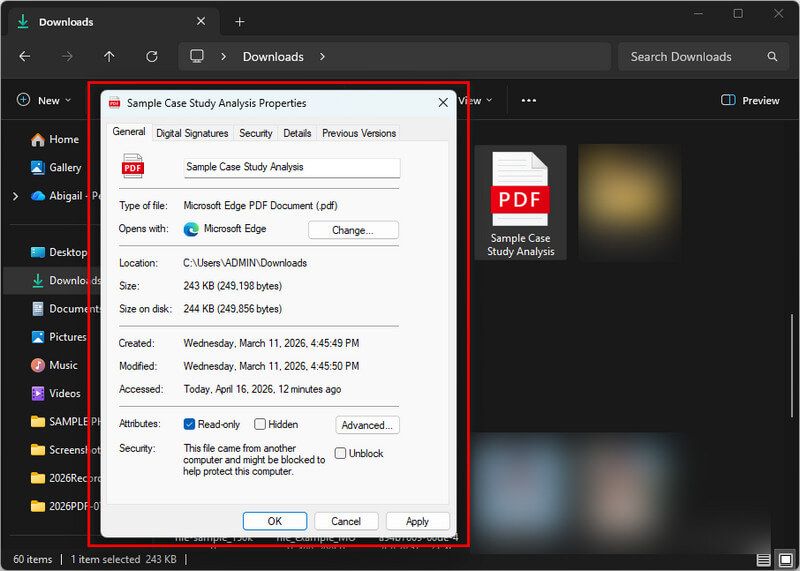
Sometimes, the owner of the PDF documents sets restrictions, such as making the PDF read-only or blocking editing and clicking links. This is to protect the document from changes or copying.
However, these security settings can prevent hyperlinks from working properly in the file. Even if the links are correct, you may still be unable to open them due to these restrictions.
To fix this, you can check the document properties or ask the owner for an unlocked version. If you have permission, you can remove the restrictions using a PDF editor.
Recommended Tool to Add, Remove, and Edit Links in PDF
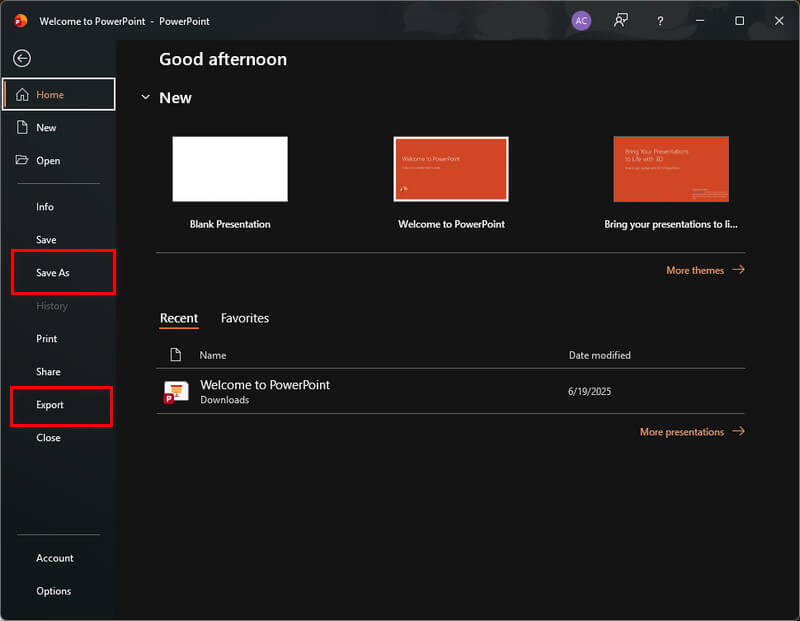
AcePDF is a simple PDF editor that lets you easily manage and fix hyperlinks. It lets you edit, add, and remove links in just a few clicks. The tool lets you change the URL or destination of an existing hyperlink, which is helpful when the link formatting is incorrect. In fact, if you want to open the existing link, it will prompt you to confirm that you trust the embedded link/site before opening. This will tell us whether the link formatting is correct and working properly, since you can already see the link provided. Additionally, you can delete broken or non-working hyperlinks in your PDF easily to avoid confusion. Furthermore, of course, since you can edit and remove hyperlinks, you can also add hyperlinks using AcePDF. You can embed clickable hyperlinks, such as pages, websites, or external resources, into any text or image in your PDF. Overall, you can manage all hyperlinks with this tool without advanced technical skills.
Try it for Free
FAQs About Hyperlinks Not Working in PDF
Why do my hyperlinks sometimes work and sometimes not in PDFs?
This usually happens because of differences in the PDF reader or device you are using. Additionally, some apps or browsers do not fully support all link types. It can also depend on how the PDF was created or if the links were added correctly.

How do I fix broken hyperlinks in my PDF document?
First, check that the hyperlink is correct and has been properly added to the PDF. You can use a PDF editor to check and reinsert the hyperlink. Also, try updating your PDF reader or opening the file in a different app.
Can I create hyperlinks in PDFs using software other than Adobe Acrobat?
Yes, you can create hyperlinks using tools like AcePDF. It lets you easily add, remove, and edit links in your document. This is also a good option if you want a simple, affordable alternative to Adobe Acrobat.
Conclusion
In conclusion, hyperlinks not working in PDF can happen for many reasons, such as incorrect formatting, file conversion issues, outdated PDF readers, security settings, or corrupted files. These problems can stop links from opening or working properly, making documents harder to use. Luckily, there are easy troubleshooting methods you can try, such as updating your PDF reader, using “Save As” or “Export” instead of Print to PDF, checking the link format, and recreating broken PDFs. Changing the default PDF viewer or removing security restrictions is also helpful. By applying these troubleshooting steps, you can fix most hyperlink issues. Always follow best practices when creating PDFs to make sure your links work correctly and provide a better experience for readers.