menu

Free Meeting Audio Recorder Online

Record meeting audio and video clearly with a browser-based audio recorder for meetings. Capture discussions, save recordings, and review meeting audio easily anytime.
Start Recording Instantly

Configure your session and record with one click.

Popular Ways to Record Meeting Audio

Capture clear meeting audio with simple tools for recording and saving.

groups

Capture Team Meetings and Daily Check-ins

Record internal meetings to keep track of updates, assigned tasks, and key decisions. This helps teams stay aligned even if someone misses the live discussion.
video_call

Save Client Conversations and Business Calls

Record client calls to preserve feedback, requirements, and agreements in detail. It makes follow-ups clearer and reduces the risk of missing important instructions.
document_search

Document Interviews for Easier Review

Record interviews so answers can be reviewed more accurately after the conversation. This helps hiring teams compare candidates fairly and make more informed decisions.
keep

Keep Training Sessions and Knowledge Sharing Calls

Record workshops and training sessions so important lessons can be revisited anytime. You can also capture the microphone and system sound to improve clarity and make playback easier to understand.

How to Record Meeting Audio in Your Browser

Follow the easy steps to capture audio and voice from any meeting.

  • 1

    Configure Meeting Audio Inputs

    Select your microphone, system audio, or both to capture meeting discussions clearly in the browser. This keeps voices and shared audio aligned for accurate playback.

  • 2

    Capture Meeting Audio in Real Time

    Start recording instantly to capture discussions, updates, and key meeting points as they happen. This preserves clear audio for review and follow-up.

  • 3

    Review Recording Clarity

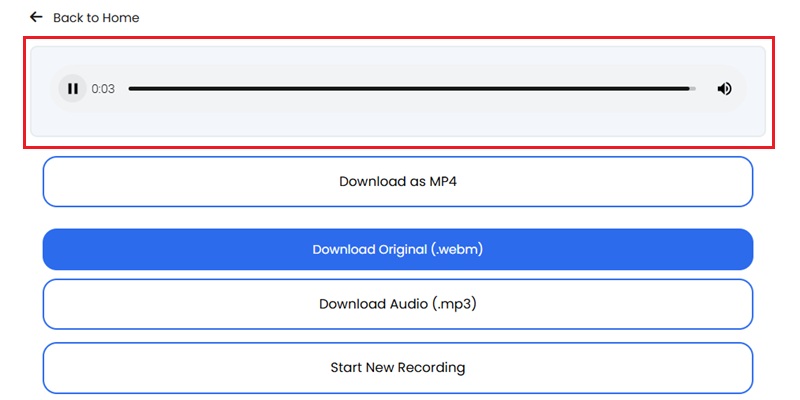
    Review the recorded audio to check playback quality and confirm key points are captured clearly. This helps keep meeting recordings accurate and easy to revisit.

  • 4

    Export Share-Ready Meeting Audio

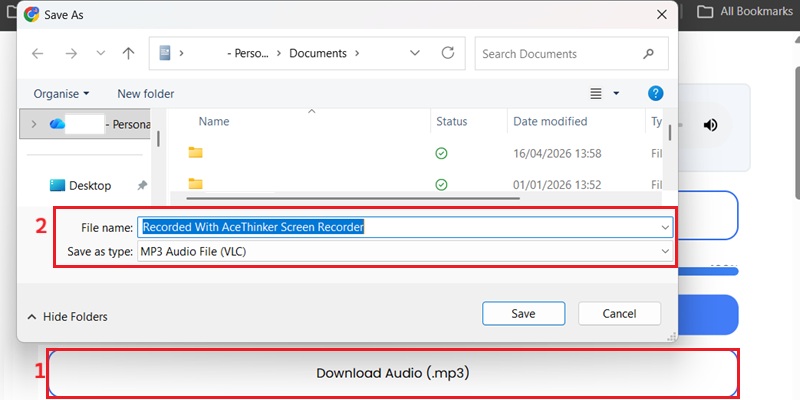
    Save the recording in a share-ready format for team review, collaboration, and follow-up. This keeps meeting audio ready for distribution after each session.
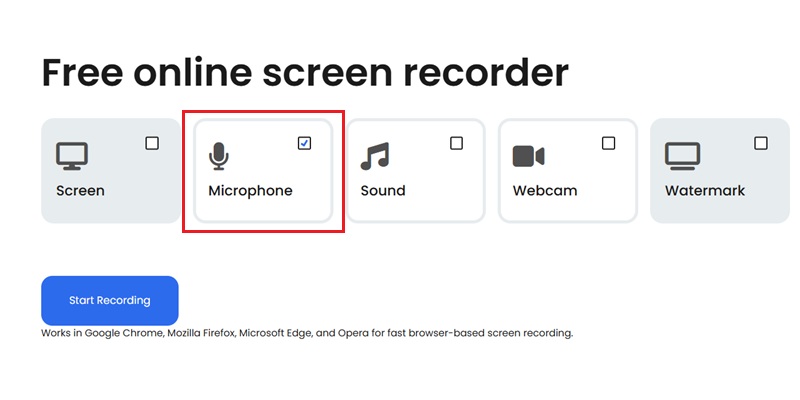
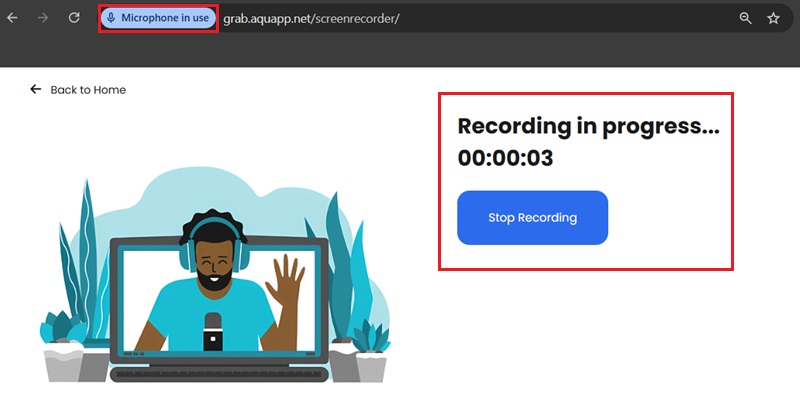
Configure Meeting Audio Inputs
Capture Meeting Audio
Review the recorded audio
Save the recording

Why Use a Meeting Audio Recorder

Capture meetings, discussions, and calls to review important details later.

safety_check

Keep Meeting Audio Private and Secure

Record meeting audio directly on your device so sensitive conversations stay private. This gives teams a safer way to save discussions without sending recordings to external servers.

voice_chat

Capture Every Voice More Clearly

Record clear meeting audio so each speaker is easier to hear and review later. This helps keep discussions, updates, and decisions understandable even in longer group conversations.

fact_check

Review and Refine Meeting Audio Faster

Save meeting audio and revisit important conversations whenever needed. You can also utilize the built-in noise cancellation to balance voice levels and make recordings easier to review afterward.

space_bar

Record Longer Meetings with Consistent Clarity

Capture extended meetings with steady audio from start to finish. This helps keep voices clear during interviews, team calls, training sessions, and longer discussions.

Conference Audio Fidelity: 320kbps Recording & 48kHz Synchronization

graphic_eq

Capture Meeting Conversations with Clear Voice Separation

AceThinker uses a Bit-Perfect Audio Processing Engine to preserve vocal clarity, speech separation, and tonal balance during online meetings. Our waveform analysis confirms reduced distortion and stable voice frequencies across multi-speaker recordings. This ensures clear playback for documentation, interviews, and remote collaboration.

bar_chart_4_bars

Technical Metrics

We validate every meeting recording with industry-standard audio metadata to ensure that speech remains intelligible, complete, and analysis-ready—especially for transcription and meeting-minute extraction.

  • check_circle
    Bitrate: Up to 320kbps CBR
  • check_circle
    Sampling Rate: 48kHz
  • check_circle
    Voice Accuracy: 99.2% transcription-ready
  • check_circle
    Waveform Integrity: Bit-perfect

Comparison Chart

Feature Online Audio Recorder Desktop Audio Recorder Otter.ai
Installation No download required — start instantly Requires software installation No installation — works directly in browser
Accessibility Works in any browser, anytime Limited to installed device Accessible across devices
Convenience One-click recording, no setup needed Setup and configuration needed Automatic recording
Recording Capabilities Essential tools for quick recordings Advanced editing and controls Recording with transcription and basic AI summaries
Best For Fast, everyday meeting recording Professional or complex projects Meetings, interviews, and note-taking
Start Recording Get Pro Version Learn More

Start Recording Meeting Audio Instantly

Record meeting audio online directly in your browser. No installation is required, and you can capture meetings anytime with clear, professional-quality voice recordings.
Frequently Asked Questions

How do I record both my voice and other participants in a meeting?expand_more

To record both your voice and other participants in a meeting, make sure your screen recorder is set to capture both microphone input and system audio. This allows your voice and the meeting audio to be recorded simultaneously. For long meeting recordings, use Aqua Demo and change Video Recorder to Audio Recorder mode. Next, enable both the Microphone and Speaker/System Sound options in the audio settings. Then adjust the volume balance in Sound Settings so your voice and the meeting audio are neither too loud nor too soft relative to each other. In using the Online Screen Recorder, enable System Sound and Microphone, then start the recording.

Why does my meeting recording only capture my microphone but not speaker audio?expand_more

Your meeting recording may only capture your microphone because the system audio (speaker sound) was not enabled or properly selected in the recording settings. This usually happens when only the microphone input is active, so the recorder captures your voice but not the meeting audio from other participants. Before recording, open Aqua Demo and ensure the System Sound option is enabled in the audio settings. Also, confirm that the correct output device is selected so the meeting audio is being routed to the recorder. If you are using headphones or a Bluetooth device, try switching to speakers since some setups block system sound capture.

What browser permissions should I allow before recording meeting audio?expand_more

Before recording meeting audio, you should allow the browser to access your microphone, speaker/audio output (if prompted by the meeting platform), and screen sharing permissions. These permissions ensure that both your voice and the meeting audio are properly captured during recording. When you join a meeting, check the browser’s address bar and allow access when prompts appear for the microphone and sound. Also, make sure the meeting platform, such as Google Meet, Zoom Web, or a similar service, is allowed to use your microphone in your browser settings. If screen recording is required, enable screen sharing permission as well so Online Screen Recorder can capture the full meeting session without missing audio or video.

Can I record Zoom, Teams, or Google Meet audio without installing desktop software?expand_more

Yes, you can use the AceThinker Online Screen Recorder to record audio from Zoom, Teams, or Google Meet. To do that, visit the online screen recorder at https://grab.aquapp.net/screenrecorder/. Next, enable system sound and microphone audio along with the screen (the recorder can only record with the screen, not audio-only). After that, click the “Start Recording” and select the meeting window like Zoom, Google Meet, or Teams. Don’t forget to enable the “Also share tab audio” before clicking the “Share” button. The tool will then start to record your meeting, and after the meeting, click the “Stop Sharing" and go back to the recorder and click the “Stop Recording” to fully end. Finally, preview the recording and download it in the MP3 format to save the audio only.

How can I improve quiet, noisy, or uneven meeting audio after recording?expand_more

You can improve quiet, noisy, or uneven meeting audio after recording by using the AI Voice Isolator. It helps separate clear speech from background noise such as fan sounds, echo, keyboard clicks, and other distractions. Simply upload the recorded meeting audio and click the “Isolate” button. The tool will then start removing the background noise from the recorded audio and enhancing the clarity of the speaker’s voice. Once the process is finished, preview the output to check if the voice sounds clear and balanced. However, the result may vary depending on how strong the background noise is in the original recording, so heavily distorted audio may not be fully restored.

Record Meeting Audio Online in One Click

Capture meeting audio directly in your browser with no installation required. Start instantly and save clear recordings anytime.

Back to Top
Contact Us
Learning Center