menu

Screen Recorder for Business Videos and Presentations

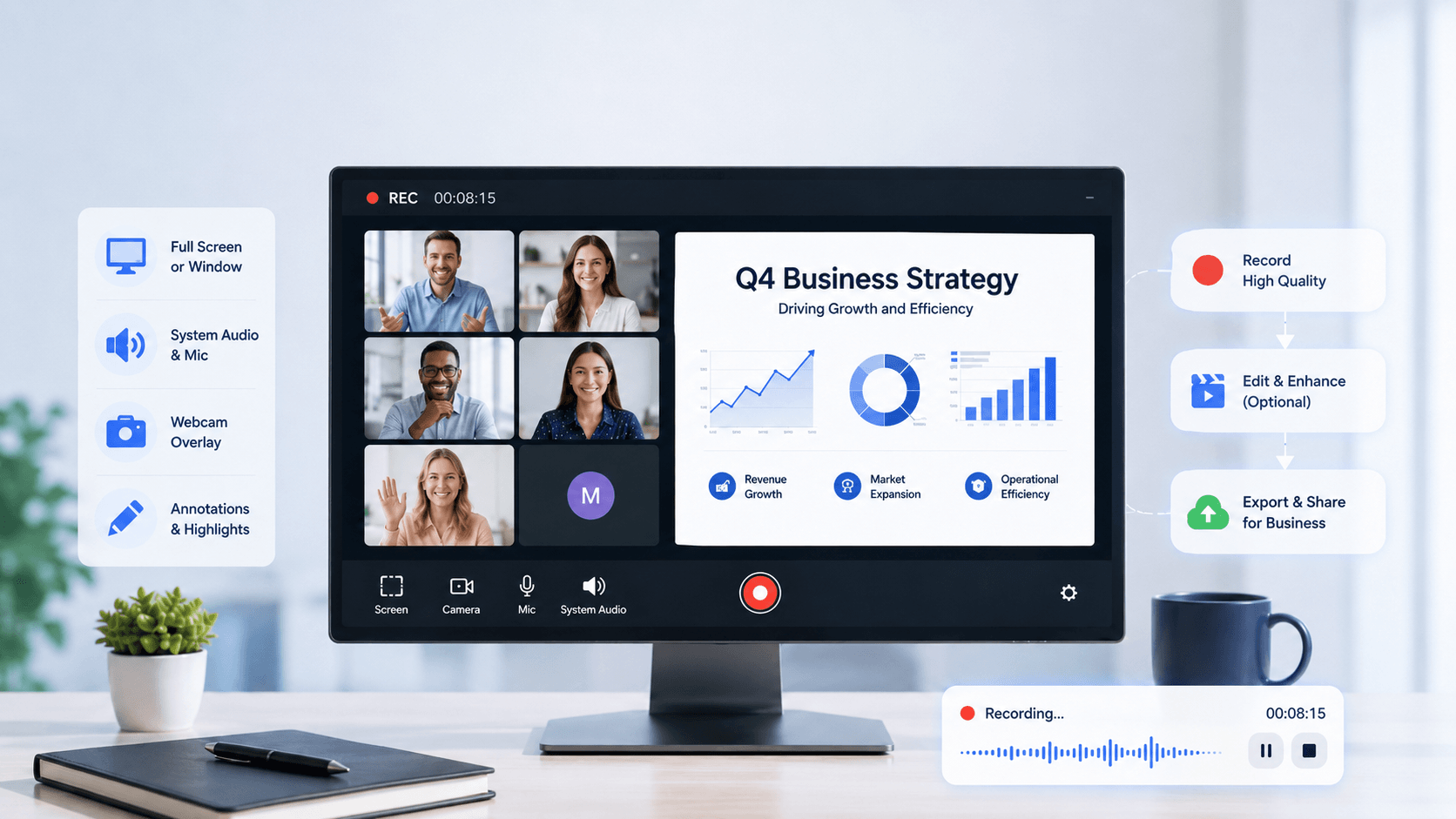
Effortlessly record online meetings, presentations, and team collaborations with a professional screen recorder. Capture, share, and manage videos to improve communication and productivity across teams.
Start Recording Instantly

Configure your session and record with one click.

Popular Ways Businesses Use This Recorder

Record meetings, tutorials, and presentations with clear, high-quality video.

groups

Record Client Presentations with Full Control

Capture product demos and sales presentations in high-resolution clarity, ensuring every detail is visible to your audience. Deliver concise, client-ready recordings that help prospects understand your solution and make faster decisions.
center_focus_weak

Build Scalable Training & Knowledge Libraries

Record onboarding sessions and internal tutorials once, then reuse them across teams. Create structured, easy-to-follow content that improves consistency and reduces repetitive training efforts.
bookmark_star

Present with Professional Visual Quality

Record your screen in HD resolution, ensuring slides, dashboards, and product interfaces remain sharp and easy to follow. Maintain a polished, professional standard across all business communications.
share

Record Securely for Business Use

Capture presentations and internal content locally, keeping sensitive business data on your device. Avoid risks associated with cloud-based recording or external uploads.

How to Record Business Videos and Meetings

Check the steps to capture all types of video for business users easily.

  • 1

    Stage Your Professional Environment Before Capture

    Prepare your digital workspace by pre-loading slides and dashboards before the session begins.

  • 2

    Configure Capture Inputs for Business Content

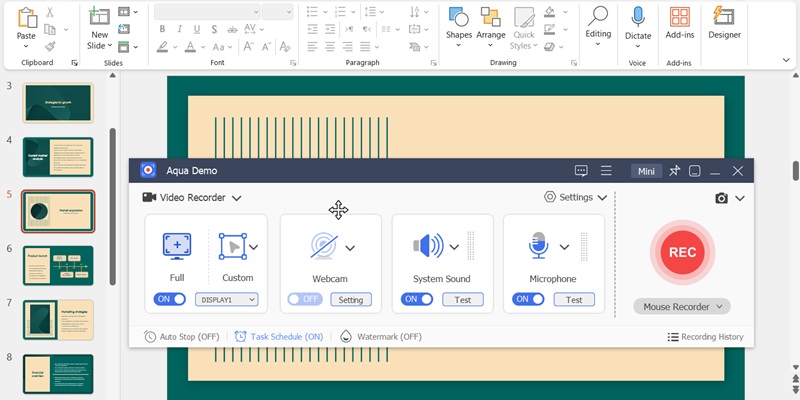
    Define the recording region and calibrate your input matrix (screen, audio, and webcam) to match your specific workflow.

  • 3

    Execute Real-Time Professional Documentation

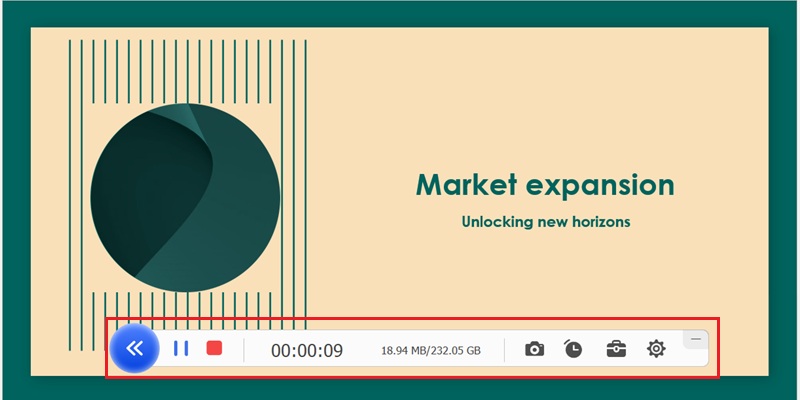
    Activate the capture engine once settings are verified to document meetings or presentations in real time.

  • 4

    Audit Asset Accuracy and Deploy Exports

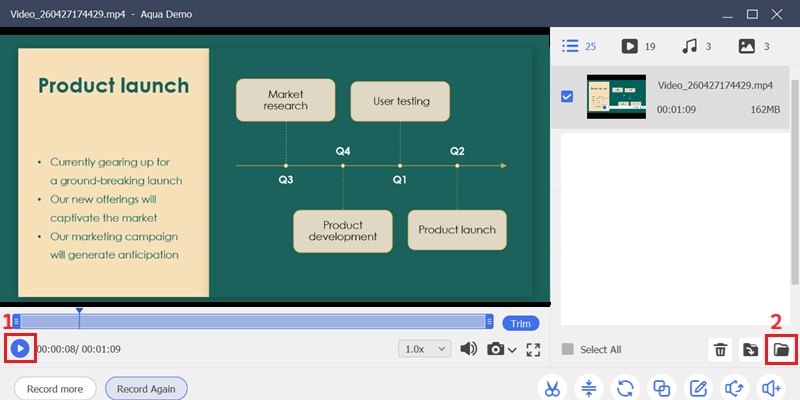
    Validate the recording in the preview monitor to verify audio-sync and content completeness. Once confirmed, export in a standardized format.
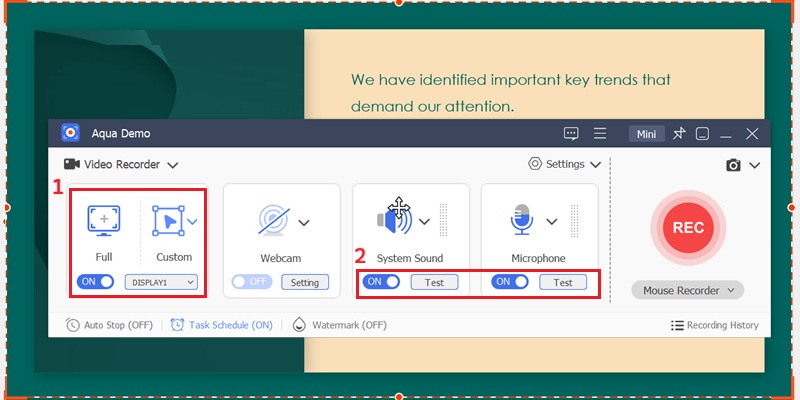
Stage Environment
Configure Capture Input
record video
Validate the recording

Why Businesses Need Screen Recording Software

Screen recording helps teams easily capture meetings, training, and presentations.

adaptive_audio_mic

Stable Recording for Long Business Sessions

Record extended meetings, webinars, and presentations with a zero-lag recording engine. Optimized performance ensures smooth capture without dropped frames or interruptions.

video_file

All-in-One Capture: Screen, Audio & Webcam

Record your screen, microphone, system audio, and webcam simultaneously in one session. Create complete business presentations without switching tools or managing separate files.

album

High-Resolution, Client-Ready Output

Capture in HD video and high-bitrate audio, ensuring your recordings look sharp and sound clear for professional use across presentations and documentation.

badge

Record, Edit, and Share in One Workflow

Capture your content and prepare it for delivery without leaving the page. Trim or finalize recordings instantly and export ready-to-use videos for presentations or sharing.

4K UHD Recording at Stable 60 FPS with Zero-Latency Capture

capture

Record Video for Business Use with Confidence

Capture every pixel with enterprise-grade clarity. Our screen recorder preserves fine UI details, charts, and presentation visuals in 4K UHD while maintaining stable 60 FPS output during demanding business tasks such as webinars, virtual meetings, and software walkthroughs.

bar_chart_4_bars

Technical Metrics

We quantify business excellence through uncompromised security protocols and performance data. Every recording is processed locally to ensure enterprise-level privacy and data sovereignty.

  • check_circle
    Max Resolution: 4K UHD
  • check_circle
    Security Protocol: AES-256 Encryption
  • check_circle
    Encoding Standard: H.265 / HEVC

Comparison Chart

Feature Basic Recorder Pro Screen Recorder
Video Quality Standard recording quality HD and 4K professional output
Recording Control Limited recording settings Advanced multi-source capture controls
Audio Options Basic microphone input System audio and microphone recording
Productivity Tools Limited post-recording features Advanced editing, export, and organization tools
Best For Casual or occasional recording Business communication and professional production
Start Recording Get Pro Version

Instantly Record Business Video Demos

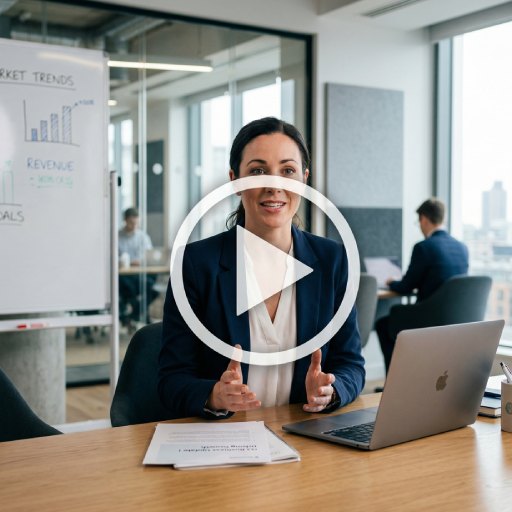
Record business videos with a all-in-one video recorder. Perfect for teams to capture meetings, presentations, and client demos quickly and efficiently.
Frequently Asked Questions

How can I record a product demo or software walkthrough for a client?expand_more

Recording a product demo helps explain software features more clearly to clients and team members. To do it, download and install the Aqua Demo on your computer. After that, launch it and adjust the recording area to ensure it covers the product or software. Then, enable the microphone audio option to add narration for the product demo. Once everything is set, start the recording and use the annotation tools to highlight important buttons, steps, or features as you demonstrate the software. This helps clients follow your walkthrough more clearly. After recording, stop the recording, trim unnecessary sections, and save the final file in MP4 format.

How do I record the screen and microphone together for a business training video?expand_more

Recording both screen and microphone is useful for creating clearer and more engaging business training videos. Open Aqua Demo and select Video Recorder mode. Enable the microphone and disable System Sound if you only need your voice for training narration. Then choose the screen or application window and start recording your training session. For quick recording, you can also use the Online Screen Recorder. Enable Screen + Microphone, then select the training window or browser tab before clicking Start Recording. Remember to run a short test first to confirm your voice is clear and properly recorded. Also, avoid very long, unplanned sessions to keep training recordings focused and structured, making them easier to review and edit later.

How can I avoid showing private desktop information during a business recording?expand_more

To avoid exposing personal or confidential information, record only the software window or browser tab needed for the presentation. If you choose to record the whole screen, close email apps, private tabs, and desktop notifications before starting the session. Also, after recording, preview the selected recording source carefully to confirm that only the intended content is visible. Accidentally switching windows during recording may still expose hidden information.

Why does my business screen recording look blurry when showing text?expand_more

Business screen recordings usually look blurry when the recording resolution is lower than the screen resolution or when the video is heavily compressed after export. Text becomes especially difficult to read if the recording is captured in low quality, resized incorrectly, or uploaded using settings that reduce sharpness. To avoid this, set the resolution to very high (1080p) to keep spreadsheet text, dashboards, and software interfaces readable in the Aqua Demo. Also, you can zoom in on the important text or interface to focus on it and avoid blurriness.

What should I do after recording to trim, convert, or compress the file for sharing?expand_more

After recording business content using Aqua Demo, review the recording and remove the unnecessary start and end points. After that, check the video file size and see if it is too large; if so, use a video compression tool to reduce it. Alternatively, you can convert the video to MP4 format for better compatibility when sharing through email, cloud storage, messaging apps, or business platforms. Before sending the final recording, make sure the compressed or converted version still preserves important details, especially if the video contains spreadsheets, reports, dashboards, presentations, or small interface text.

Create Professional Business Recordings with Ease

Record meetings, demos, and training videos in high-quality output using a Pro screen recording tool for business use. Improve workflow efficiency with reliable recording features.

Back to Top
Contact Us
Learning Center