





menu
Home

PDF Tools

Organize PDF
Updated

Organize PDFs for Clearer, Faster Workflows

Merge, split, reorder, and delete pages to structure your documents exactly how you need them. Use our quick online organizer for simple edits or AcePDF Pro for advanced multi-document management and full page control.
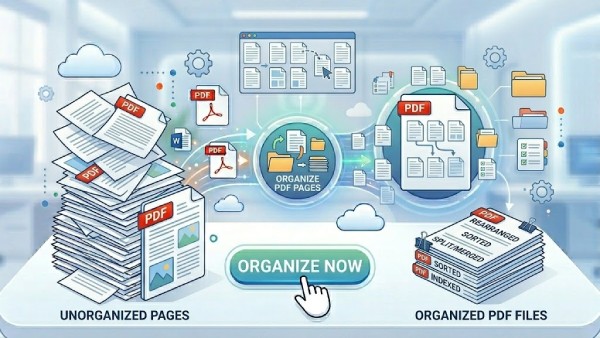
organize PDF
Trusted by Professionals
Used daily by creators, businesses, and teams around the world.
Secure Process
reliable and secure PDF processing to keep your data protected.
Works Online & Desktop
Organize and manage PDFs seamlessly on web and desktop devices.
StackSocial Commerce
Backed by thousands of positive customer reviews on StackSocial.

Overview of the PDF Organization Capabilities

Rearrange, split, extract, and clean up your PDF files to keep your documents neat, structured, and ready for any business or personal project.

merge
Merge PDFs
Combine multiple PDF files into a single organized document.
language AcePDF Pro
arrow_split
Split PDF
Separate pages or sections into individual PDF documents.
language AcePDF Pro
order_approve
Reorder Pages
Rearrange PDF pages to improve document flow and structure.
picture_as_pdf AcePDF Pro
chip_extraction
Extract Pages
Save online the selected PDF pages as a new document file.
language AcePDF Pro
delete
Delete Pages
Remove unwanted pages to simplify and clean documents.
picture_as_pdf AcePDF Pro
crop_rotate
Rotate Pages
Correct page orientation for easier reading and printing.
language AcePDF Pro

Convert PDFs Directly in Your Browser Online

Choose Your PDF Organization Workflow

Organize and prepare PDF files for structured access, study, and sharing. Streamline document arrangement and cleanup for better usability and workflow efficiency.
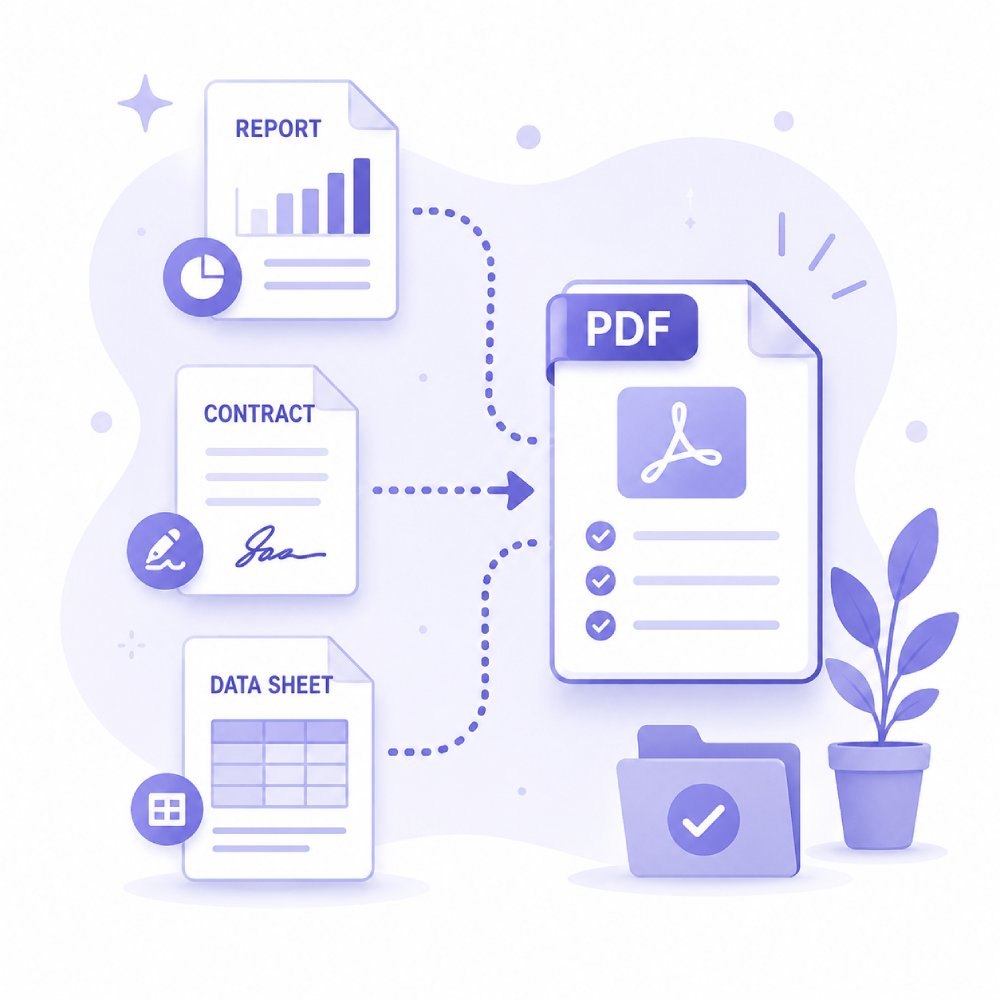
Organize PDF for Work

Organize business PDFs by rearranging pages, merging files, and structuring documents for clearer workflows. Ideal for managing reports, contracts, and internal work files efficiently.
Business reportsContractsInvoicesProject portfolios
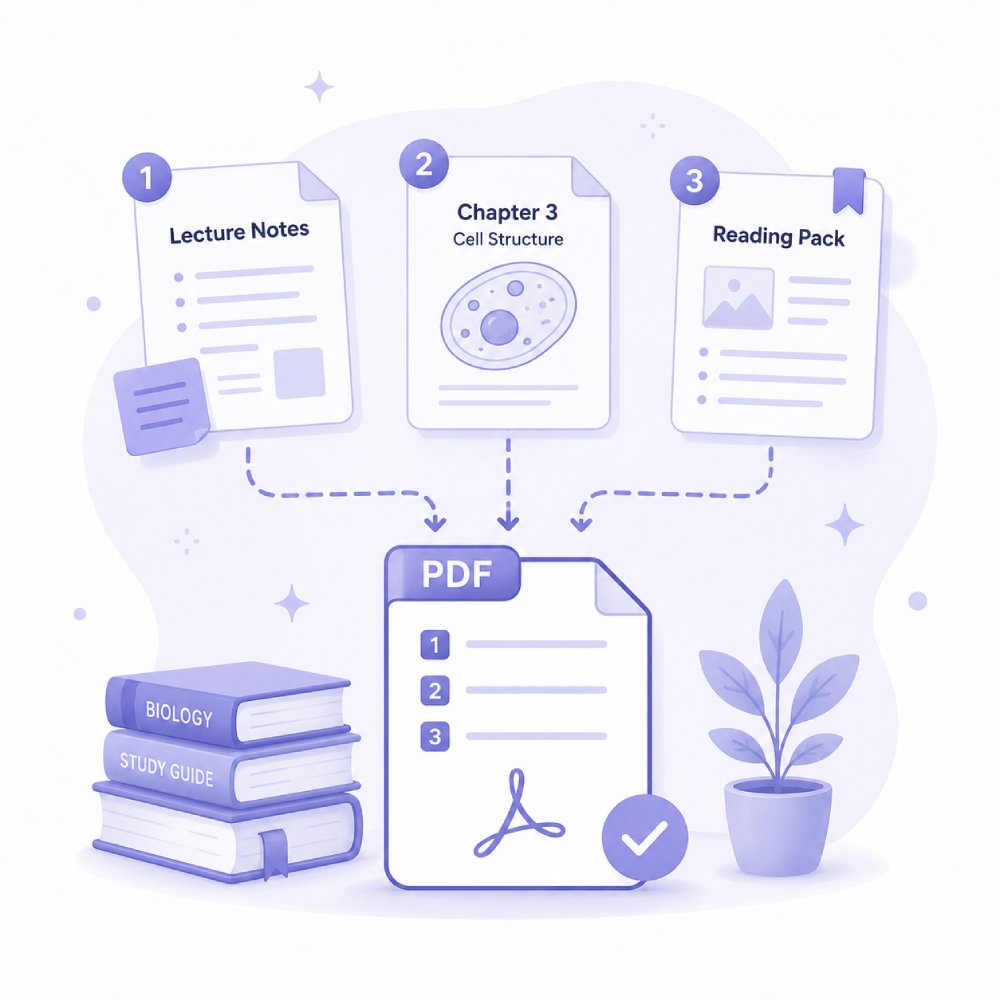
Organize PDF for Study

Structure academic PDFs like notes, modules, and research materials for efficient study and revision. Helps students keep learning materials well-organized and easy to review.
Study guidesLecture notesTextbooksResearch papers
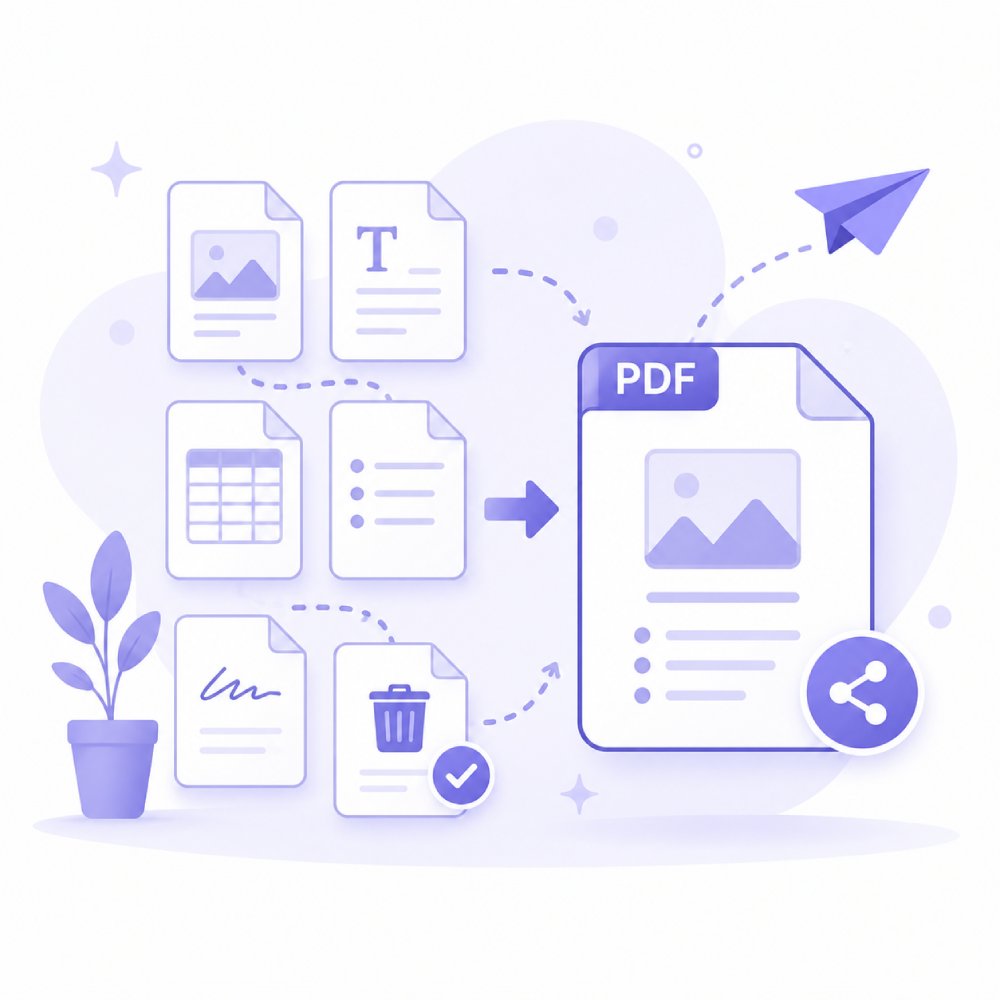
Organize PDF for Sharing

Optimize and arrange PDF files for smooth sharing via email, cloud storage, or messaging platforms. Ensures documents are clean, properly structured, and ready for distribution.

Email attachmentsPresentationsMedia kitsClient deliverables

How to Structure Your PDF More Effectively

Select the organization workflow that helps arrange your documents for easier use.

1

Review How Your PDF Needs to Be Organized

Start by identifying the changes you want to make. You may need to rearrange pages, combine multiple PDFs, split large documents, rotate pages, or remove unnecessary content.

2

Select the Organization Tool That Fits Your Task

Select the organization method that best fits your task. Use page management tools to reorder content, merge files into a single document, or split PDFs into smaller, easier-to-manage files.

3

Finalize Your Document Structure

After organizing your PDF, review the page order and document layout. Save the updated file and prepare it for sharing, archiving, printing, or further editing.

Why Organize PDF Documents?

Transform chaos into clarity with PDF organizer for every situation.

  • Prepare for Printing or Submission
  • Create Business Documents
  • Organize eBooks
  • Sort Invoices and Records

Prepare Files for Printing or Submission

Organizing your PDFs before printing or submitting makes sure the pages are in the right order and properly formatted. This helps you avoid mistakes, save time, and present documents that look professional and are easy to read.

Prepare for Printing or Submission

Create Structured Business Documents

When you organize PDFs, you can arrange reports, proposals, or contracts in a clear way. Well-structured business documents are easier to review, share, and manage. This helps your team stay productive and makes it easier for clients to understand the information.
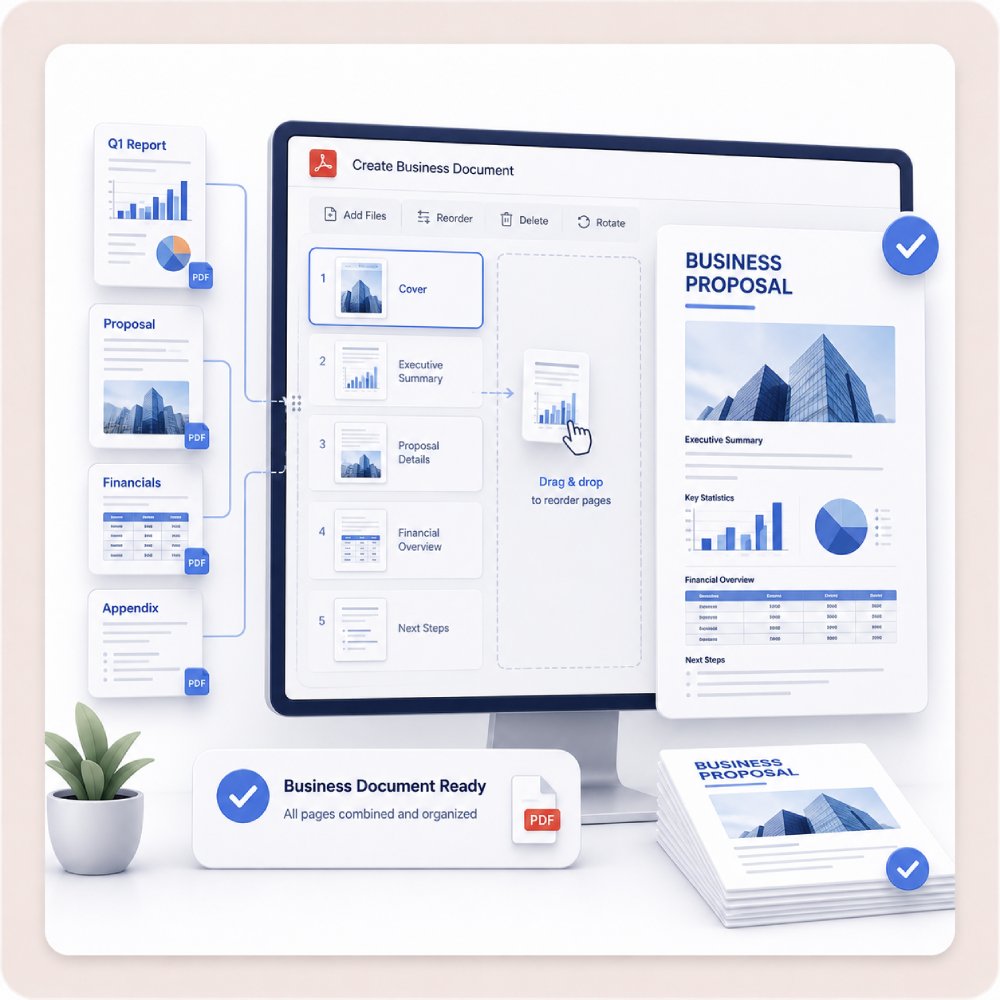
Create Business Documents

Organize eBooks or Digital Reading Files

Sort, merge, or split your PDFs to keep your eBooks and reading materials organized. This makes it easier to find chapters, read in the right order, and manage your digital library.
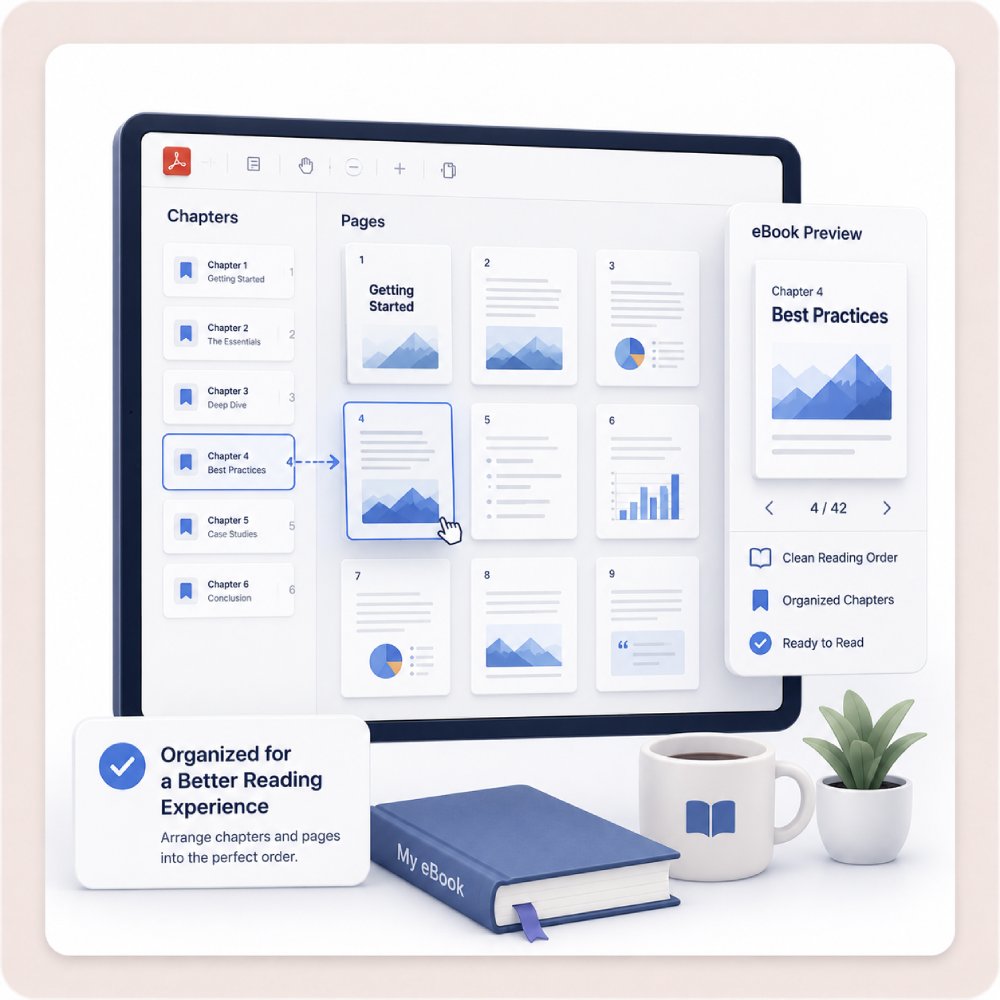
Organize eBooks

Sort Invoices and Financial Records

When you organize your PDF invoices and financial documents, it becomes easier to track expenses, reconcile accounts, and quickly find records. This reduces confusion and keeps your important data secure and easy to access.
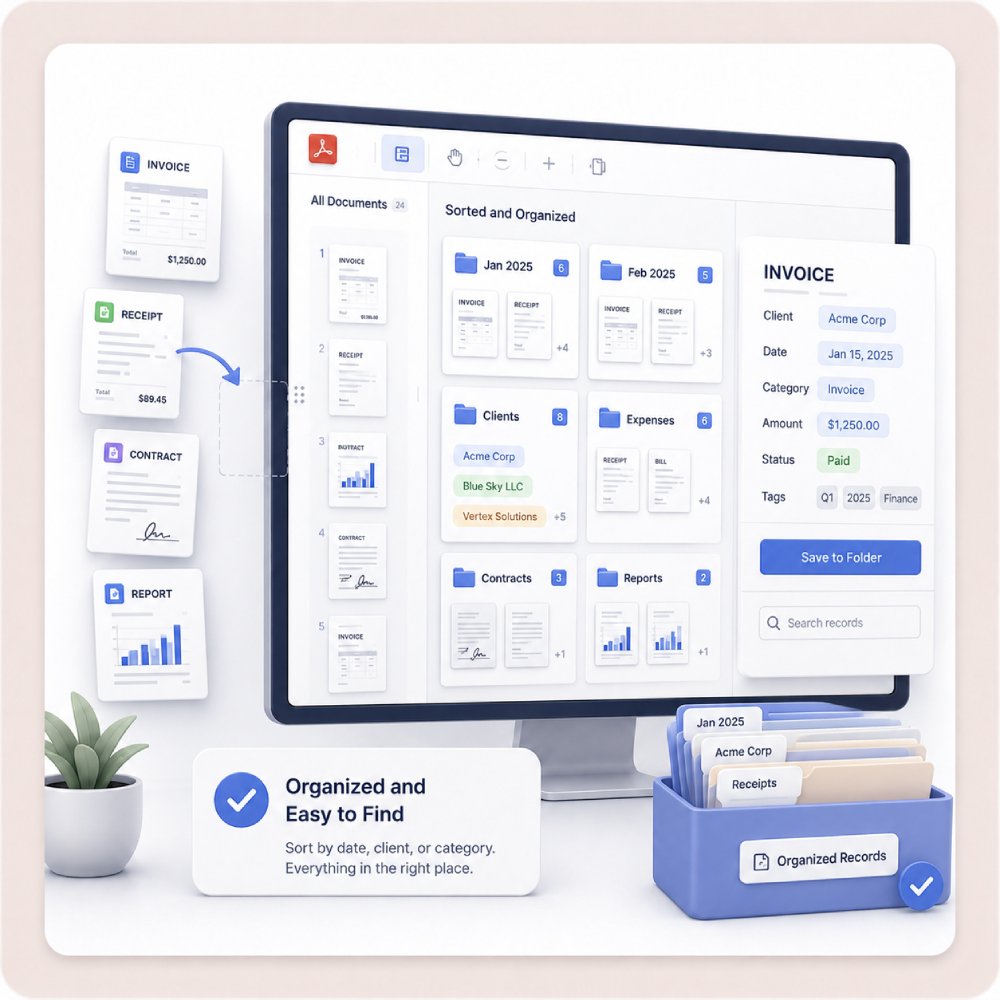
Sort Invoices and Records

Frequently Asked Questions

How can I reorder, delete, or rotate pages without rebuilding the whole document?expand_more

If your PDF contains pages that are out of order, upside down, or no longer needed, you do not have to recreate the entire file. You will only need the AcePDF page management tool. Simply open the tool, then go to the Tools tab, and choose Organize Pages. After that, upload the unorganized file you have, then drag pages to change their order, remove unwanted pages, or rotate individual pages to the correct orientation. These actions let you organize the document while keeping the rest of the content unchanged. After making your edits, review the page sequence and layout to confirm everything looks correct. Then save the changes as a new PDF copy so you can keep the original version intact. Remember, before deleting pages, it is a good idea to keep a backup of the original file, since removed pages may be difficult to recover after saving.

What should I use if I need to merge several PDFs into one clean document?expand_more

If you need to merge several PDFs into one clean document, use the Combine feature in AcePDF. This desktop workflow combines multiple PDF files while keeping the documents organized. For example, if you have a cover page PDF, a report PDF, and an appendix PDF, you can add all three files to the Combine tool and arrange them in the correct order before merging. After reviewing the page sequence, create the merged file and save it as a new PDF. This helps ensure that all sections appear in the right order and are contained in a single document. For best results, keep the original files as backups in case you need to make changes later.

Can I split a large PDF into smaller files by chapter, client, or document section?expand_more

Yes. You can use the Split feature in AcePDF to divide a large PDF into smaller files based on page ranges, chapters, clients, or other document sections. Simply open the PDF in AcePDF, select the Split tool, and choose the pages you want to extract into separate files. For example, a 100-page report can be split into individual chapter PDFs, or a combined client document can be separated into one file per client. After splitting, save each file with a clear name that reflects its content, such as "Chapter 1," "Chapter 2," or the client's name. This makes the files easier to organize, share, and find later. For very large documents, the AcePDF is recommended, as it offers more reliable PDF management and processing tools.

How can I prepare a messy PDF packet for review or approval?expand_more

You can prepare a messy PDF packet for review by organizing and cleaning it in AcePDF before sharing it with others. Start by removing unnecessary pages, such as duplicates, blank pages, or outdated content. Next, reorder the pages and sections so the document follows a clear, logical structure for reviewers. If feedback or clarification is needed, you can add comments, highlights, or other annotations directly to the PDF. Once the document is organized and reviewed, save or export a new copy as a review-ready PDF. AcePDF helps with document organization and annotation, but it does not perform automated legal, compliance, or approval reviews of the content itself.

What mistakes should I avoid before sending an organized PDF to others?expand_more

Before sharing an organized PDF, review it carefully in AcePDF to make sure everything is in the correct order. Check that the page sequence is accurate and that no important pages are missing or duplicated. Look for blank pages, incorrectly rotated pages, or formatting issues that may affect readability. You should also review the document for any hidden or sensitive information that should be removed before distribution. After making final adjustments, save or export a new copy of the PDF to ensure all changes are included. If your workflow requires additional security and you can use AcePDF's Protect feature, consider applying password protection before sending the file to others.

Ready to Organize Your PDF?

Get the PDF organizer to manage complex documents, restructure pages effortlessly, and streamline your workflow. Organize, merge, and edit PDFs faster for professional results every time.

Free trial. No credit card required.

Back to Top
Contact Us
Learning Center