




menu
Home

PDF Tools

PDF OCR
Updated

OCR PDF for Scans, Images, and Unsearchable Documents

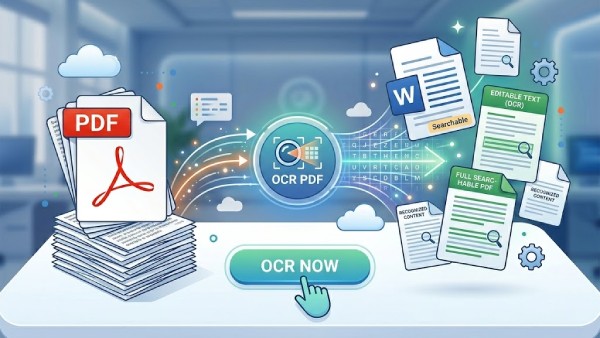
Turn scanned papers, photos, and locked PDFs into fully editable and searchable text. Choose our online OCR tool for quick extractions or AcePDF Pro for batch processing, multi-language recognition, and advanced layout preservation.
ocr PDF
Trusted by Professionals
Used daily by creators, businesses, and teams worldwide.
Secure Process
Your files are protected with reliable and secure PDF handling.
Works Online & Desktop
Recognize and convert text seamlessly on web and desktop devices.
StackSocial Commerce
Trusted by thousands of customers through StackSocial reviews.

PDF OCR Capabilities Overview

Extract, convert, and recognize text from scanned materials, images, and unselectable documents, then prepare them for editing, searching, archiving, or business workflows.

scan
OCR Scanned PDFs
Transform flattened, non-selectable scanned documents into fully editable text files.
language AcePDF Pro
imagesmode
OCR Images to Text
Extract text from JPG, PNG, screenshots, or receipts into editable text.
language Online / Pro
language
OCR Multiple Languages
Detect and process text across dozens of international languages with pinpoint accuracy.
picture_as_pdf AcePDF Pro
list_alt
Batch OCR Processing
Convert whole folders of scanned documents or multi-page books in a single click.
language AcePDF Pro
document_search
Create Searchable PDFs
Add an invisible, searchable text layer over your scans while maintaining the original look.
picture_as_pdf AcePDF Pro
browse
Retain Layout & Formatting
Keep original paragraphs, columns, fonts, and graphics intact during text extraction.
language AcePDF Pro

Recognize and Extract Text from Image with OCR Online

Choose Your PDF OCR Workflow

Convert scanned PDFs and images into searchable, editable text using OCR. Ideal for digitizing documents for study, work, and record-keeping.
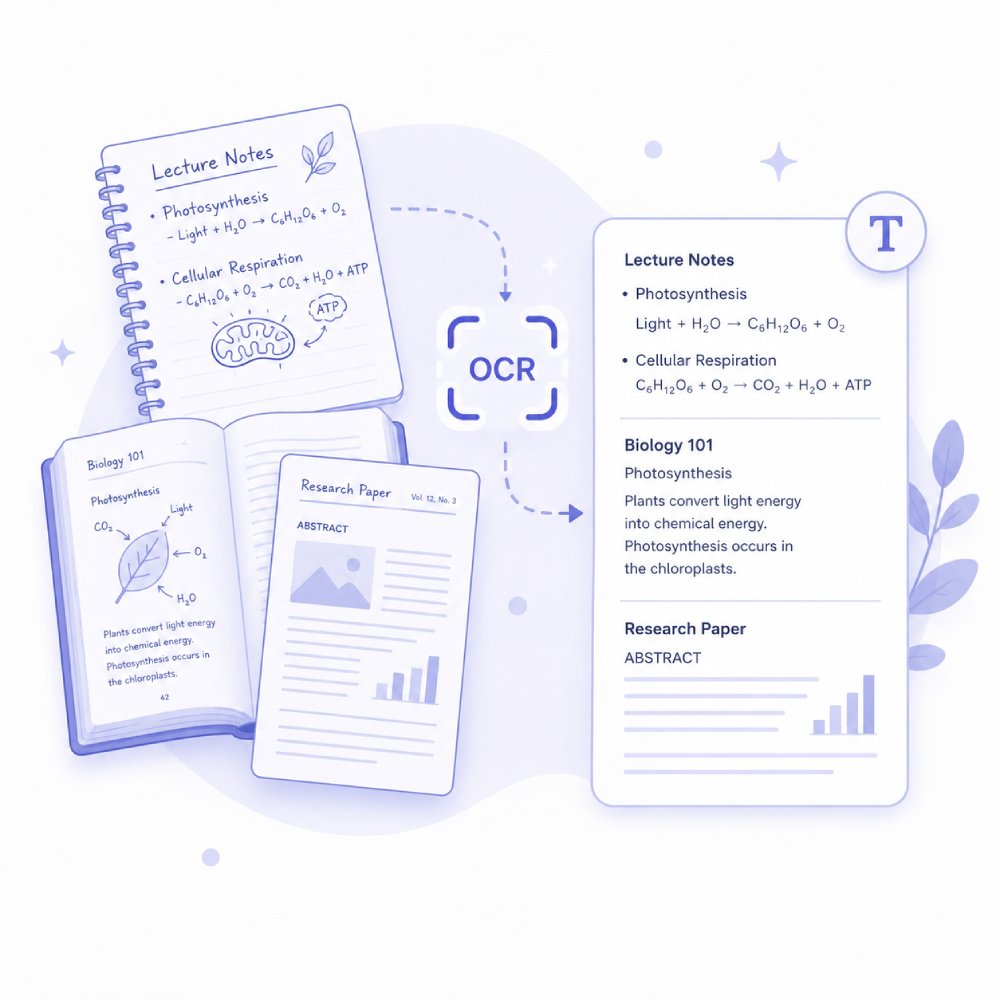
OCR for Study & Research

Convert lecture notes, textbooks, and research materials from scanned PDFs into editable text. Helps students and researchers quickly search, copy, and organize study content.
Research papersLibrary scansTextbooksHistorical archives
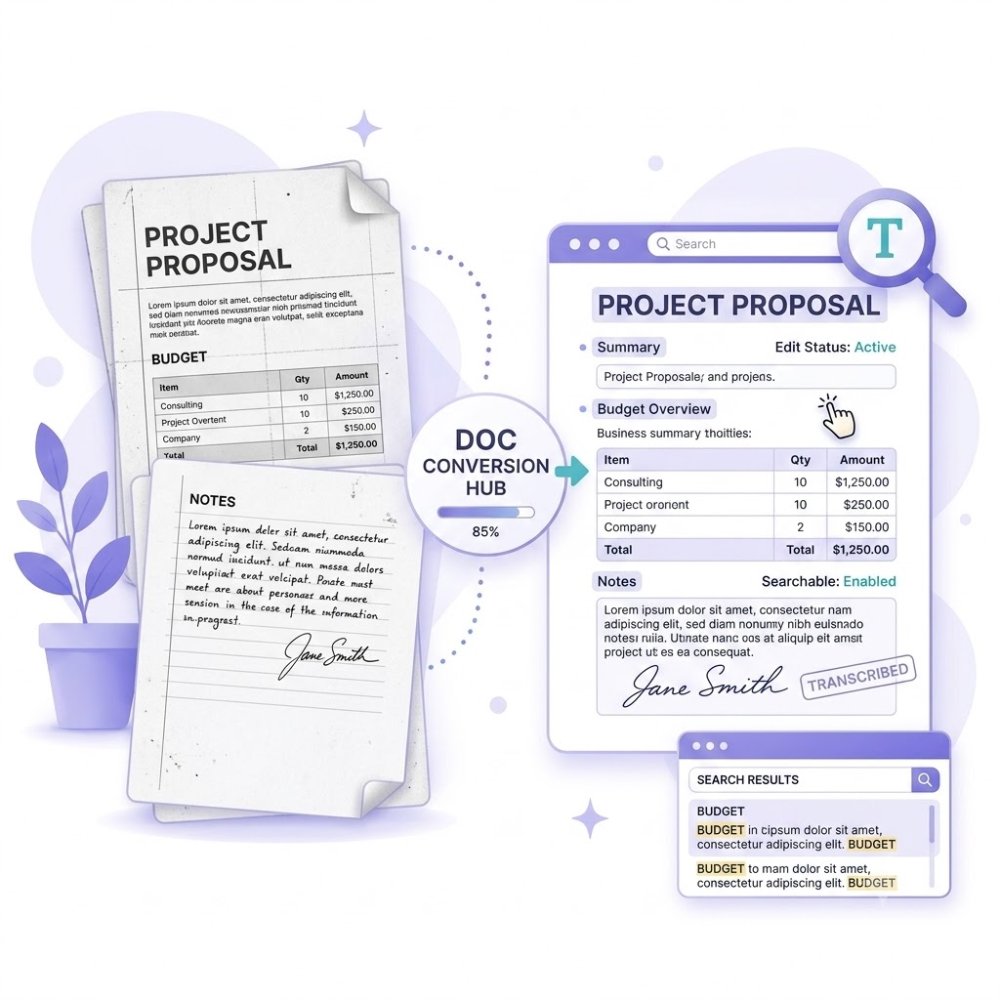
OCR for Work Documents

Convert scanned work documents into editable, searchable files for easy updates and reuse. Ideal for reports, memos, and internal documentation digitization.
Contracts & LegalMeeting minutesLegacy filesCorporate reports
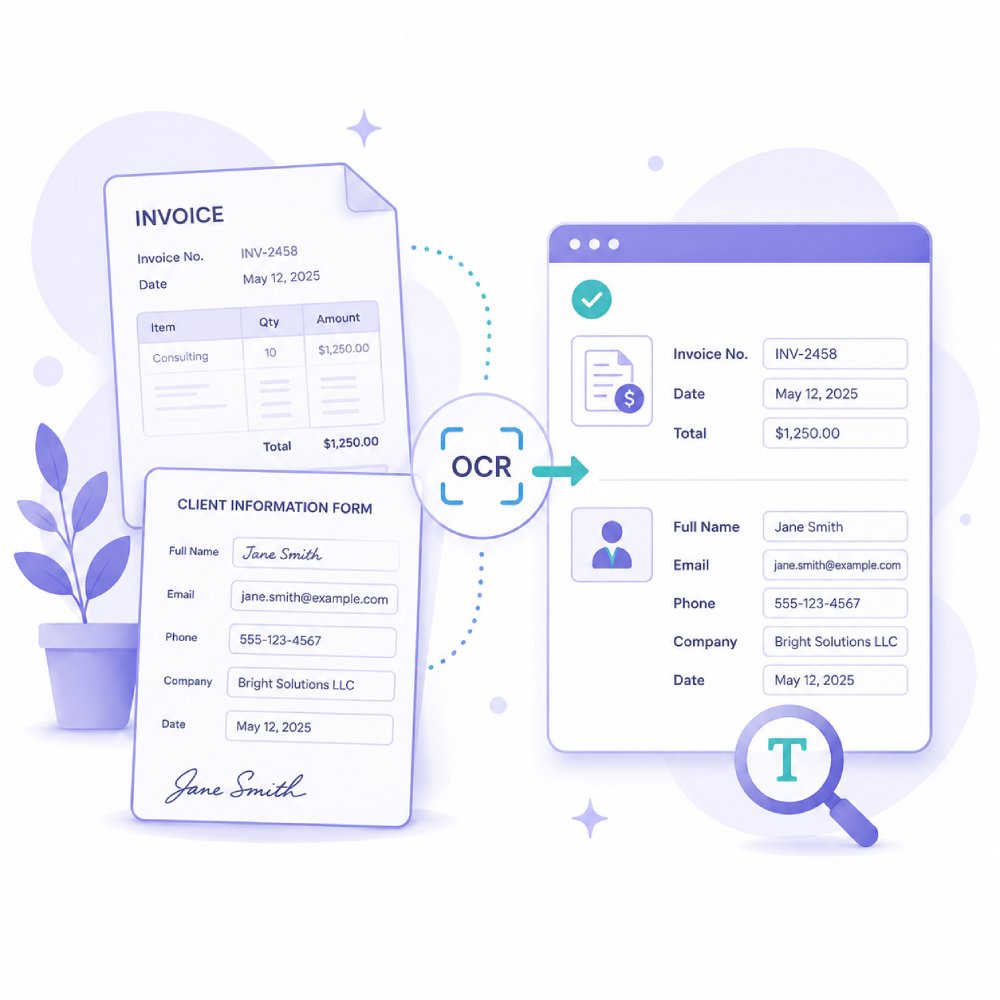
OCR for Receipts and Invoices

Use OCR to convert receipts and invoices into editable text for tracking and record-keeping. Simplifies expense management and the digitization of financial documents.

Expense receiptsVendor invoicesBilling statementsTax documents

How to Turn Scanned PDFs into Usable Content

Choose the OCR workflow that helps you unlock and work with text inside scanned documents.

1

Select the File You Need to Read

Start with a scanned PDF, image-based document, or photo containing text. OCR works best when the content is clear and readable.

2

Choose the OCR Workflow That Fits Your Needs

Use online OCR for quick text extraction from individual images, or choose the Pro workflow for advanced editing, batch processing, or greater control over the output.

3

Continue with Editing or Conversion

Once the text has been recognized, review the results and decide what to do next. You can edit the content, search within the document, convert it to another format, or save it for sharing and archiving.

Why Use OCR for Your PDF?

Apply OCR whenever you need to unlock text from scanned pages or image-based PDFs.

  • Digitize Printed Documents
  • Edit Scanned Contracts
  • Extract Data from Forms
  • Process Receipts and Bills

Digitize Printed Documents

PDF OCR lets you turn paper documents into editable digital files. This makes it easy to store, search, and share important information without keeping physical copies. You can organize your documents better and access them whenever you need.
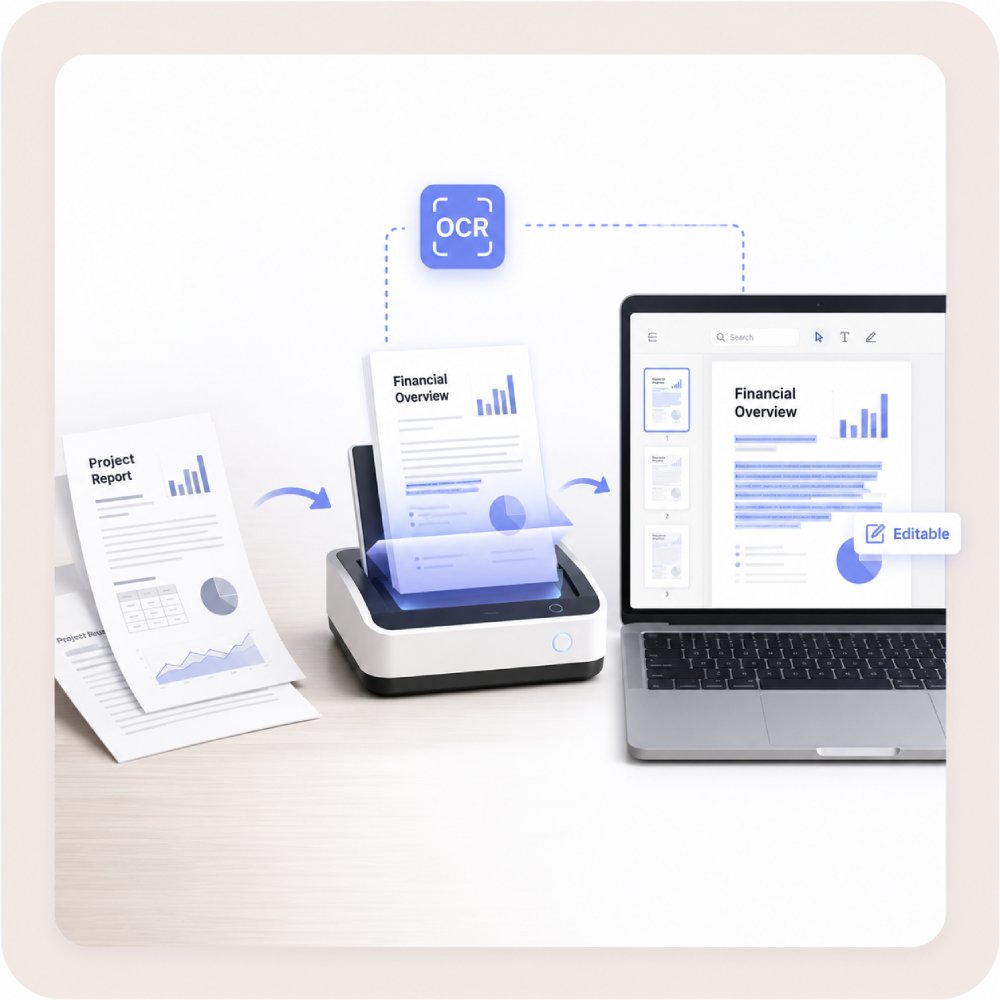
Digitize Printed Documents

Edit Scanned Contracts

If you have scanned contracts that need editing, convert them into editable text. This allows you to update terms, fix details, or reuse content easily. It saves time and removes the need to retype long legal documents from scratch.
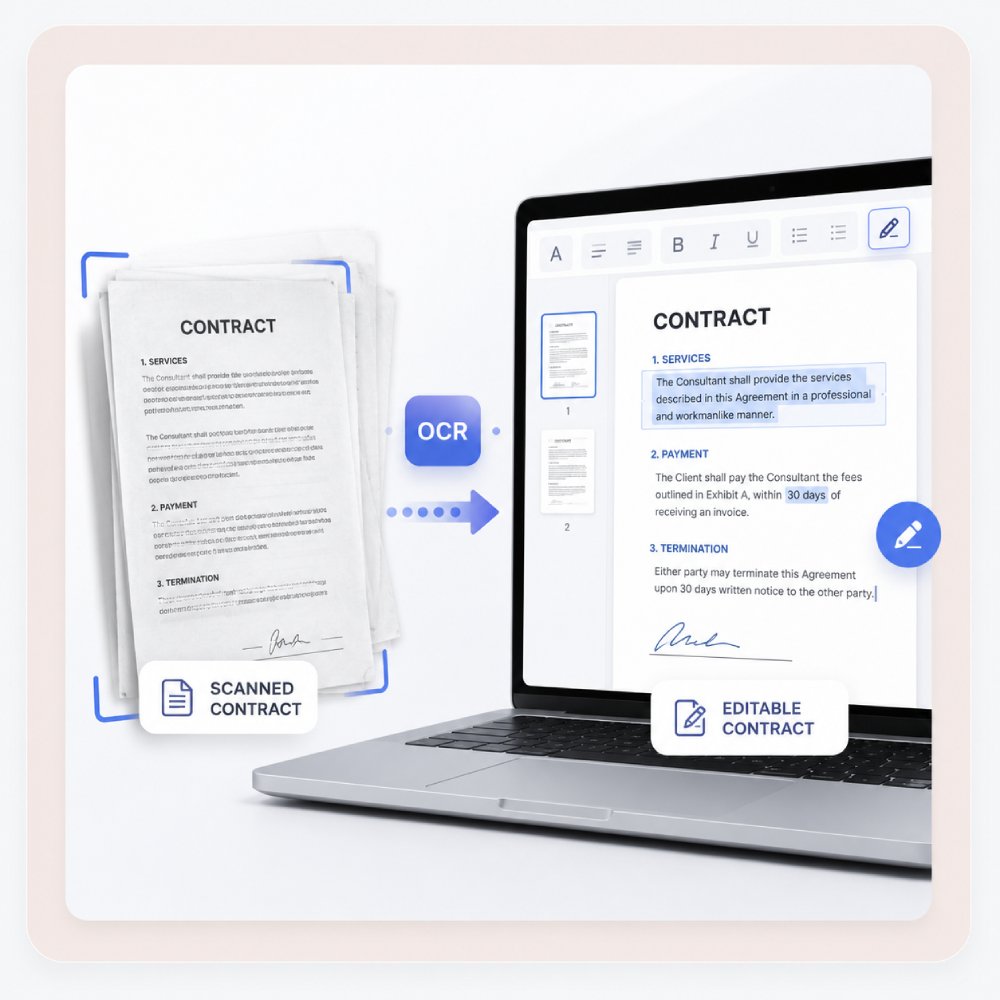
Edit Scanned Contracts

Extract Data from Forms

PDF OCR can extract information from scanned forms, such as names, dates, and other details. This makes data entry and recordkeeping easier and reduces manual work in the office.
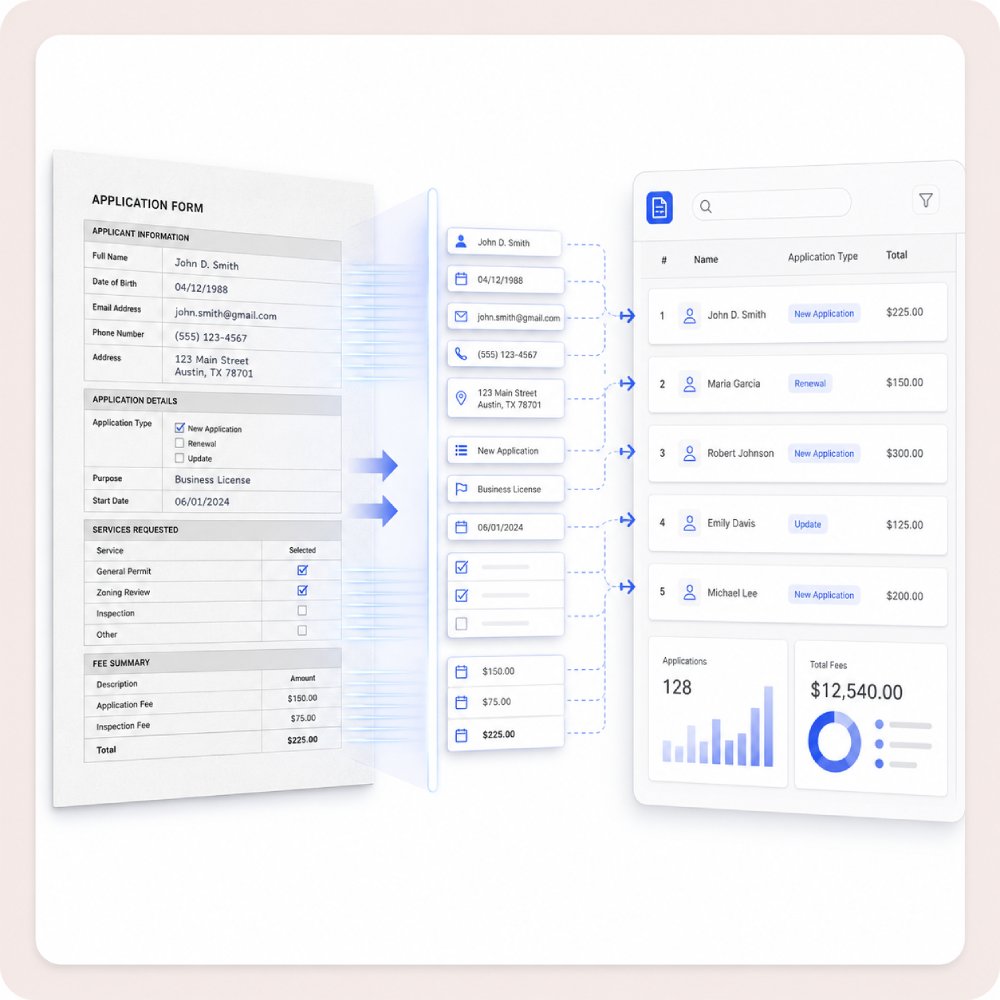
Extract Data from Forms

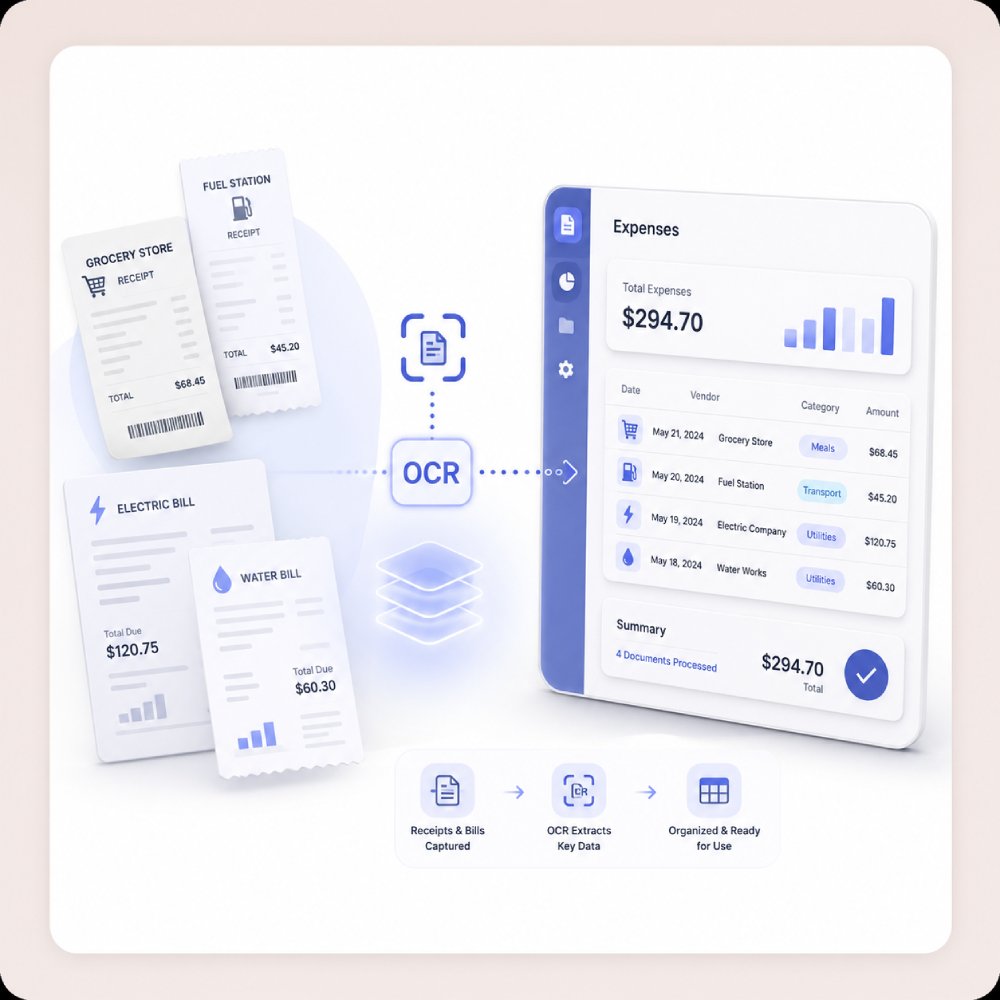
Process Receipts and Bills

PDF OCR lets you turn receipts and bills into digital text. This helps you track expenses, organize your financial records, and store important information without piles of paper. It simplifies and improves the accuracy of budgeting and accounting.
Process Receipts and Bills

Frequently Asked Questions

How do I know whether my PDF needs OCR?expand_more

If you cannot highlight, copy, search, or select text inside the PDF, it is likely a scanned or image-based document. In this case, the text exists only as an image, so PDF readers cannot recognize the content. Running OCR (Optical Character Recognition) converts the text in the image into machine-readable text that can be searched, copied, and edited. There are two ways to do OCR, depending on your preference. The Onine OCR PDF Tool is best for quick OCR tasks that you want to complete directly in your browser without installing software. It is useful when you need to extract text from a few scanned PDFs and want a simple workflow. On the other hand, AcePDF is a more complete PDF solution that includes OCR along with additional PDF management features. After recognizing text, you can continue editing, organizing, annotating, converting, or managing the document within the same application.

What should I do if OCR misses words or breaks the layout?expand_more

OCR is not always perfect, especially when the source document has quality issues. Missed words, incorrect characters, or formatting problems are often caused by low-resolution scans, blurry images, skewed pages, handwriting, faded text, or complex layouts with tables and multiple columns. If the OCR results are inaccurate, try rescanning the document at a higher quality setting and ensure the pages are clear, properly aligned, and free of shadows or marks. Running OCR again on a cleaner version of the document can often improve the results. AcePDF includes an advanced OCR feature that can help recognize text from scanned and image-based PDFs while preserving document usability. It also provides editing and review tools, making it easier to correct OCR errors, adjust formatting, and refine the document before sharing or saving the final version.

Can OCR handle invoices, receipts, forms, or contracts?expand_more

Yes, OCR can recognize and extract printed text from invoices, receipts, forms, contracts, and other scanned documents. The Onine OCR PDF Tool is useful for quickly extracting text, but it focuses on text recognition and may not preserve tables, form fields, or the original document layout. For structured documents, always review the extracted content to make sure important information is captured correctly. AcePDF includes advanced OCR capabilities in both Standard and Enhanced modes, allowing you to choose the option that best suits your document quality and accuracy needs. It also supports multiple OCR languages, including English, Spanish, French, German, Japanese, Korean, and more, making it useful for multilingual documents. After OCR, you can review, edit, and manage the PDF within the same application. Since layouts and formatting can vary, manual checking is still recommended, especially for tables, forms, and financial records.

How do I OCR a PDF before converting it to Word or Excel?expand_more

If your PDF is scanned or image-based, it is best to run OCR before converting it to Word or Excel. OCR recognizes the text in the document and makes it searchable, selectable, and easier to convert into editable formats. For a simple workflow, use the Onine OCR PDF Tool to extract the text, then use the Online PDF Converter to convert the file to Word or Excel. If you need a more comprehensive document workflow, AcePDF can handle both OCR and PDF conversion in a single application. It lets you recognize text, review the results, and convert the PDF to formats like Word or Excel without switching between tools. This can help streamline the process, especially when working with larger or more complex documents.

What language or quality limitations should editors mention for online OCR?expand_more

Editors should clearly explain that OCR accuracy depends on document quality. Blurry scans, low-resolution images, handwriting, skewed pages, and complex layouts can reduce recognition accuracy and may require manual review. The Onine OCR PDF Tool currently supports English only, so users working with documents in other languages should not expect reliable results. For multilingual documents, AcePDF may be a better option because it supports multiple OCR languages, including English, Spanish, French, German, Japanese, Korean, and more. Regardless of the tool used, users should always review the OCR output to verify that important text has been recognized correctly.

Extract Text from PDFs with OCR

Get AcePDF editor to instantly convert scanned PDF into editable PDF for faster and more efficient workflows.

Free trial. No credit card required.

Back to Top
Contact Us
Learning Center