




menu
Home

PDF Tools

Edit PDF
Updated

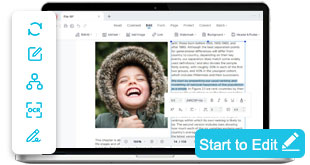
Edit PDFs for Text, Images, and Page Layouts

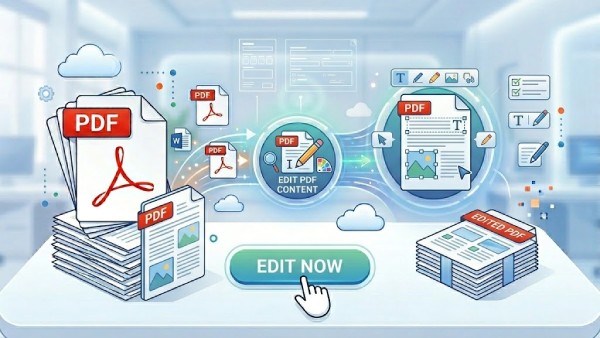
Modify text, adjust images, rearrange pages, and add annotations directly within your PDF files. Choose our online PDF editor for quick tweaks or AcePDF Pro for full-scale editing, OCR text modification, page merging, and absolute document control.
edit PDF
Trusted by Professionals
Used daily by creators, businesses, and teams worldwide to modify critical files.
Secure Processing
Your files are protected with reliable and secure PDF handling during edits.
Works Online & Desktop
Edit text, images, and pages seamlessly on both web and desktop devices.
StackSocial Commerce
Trusted by thousands of customers through highly-rated StackSocial reviews.

PDF Editing Capabilities Overview

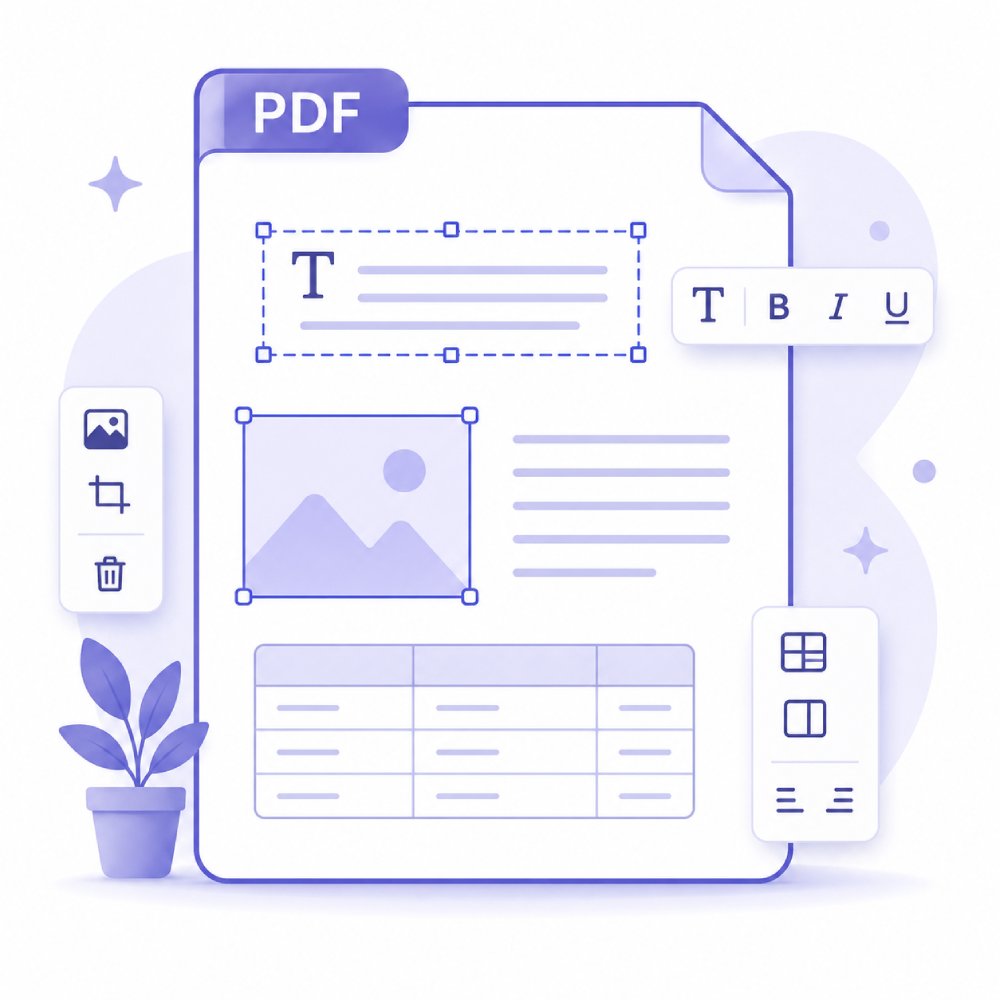
Modify PDF content from text blocks, images, layouts, forms, and scanned materials, then prepare them for sharing, signing, archiving, or business use.

library_books
Edit PDF Text
Update existing text without recreating the original document.
language AcePDF Pro
imagesmode
Edit PDF Images
Replace, resize, or reposition images directly within PDFs.
language AcePDF Pro
comment
Annotate & Mark Up
Review documents with highlights, notes, and annotations.
picture_as_pdf AcePDF Pro
format_image_left
Fill PDF Forms
Complete and update interactive PDF forms digitally.
language AcePDF Pro
document_search
Edit Scanned Text
Use OCR to unlock and make text selectable and editable.
picture_as_pdf OCR / Pro
transition_fade
Redact Sensitive Content
Black out confidential numbers, text lines, or private signatures.
language AcePDF Pro

Convert PDF Files Online in Browser

Choose Your PDF Editing Workflow

Modify text, images, pages, and layouts in PDF files. Keep documents accurate, organized, and ready for sharing or printing.
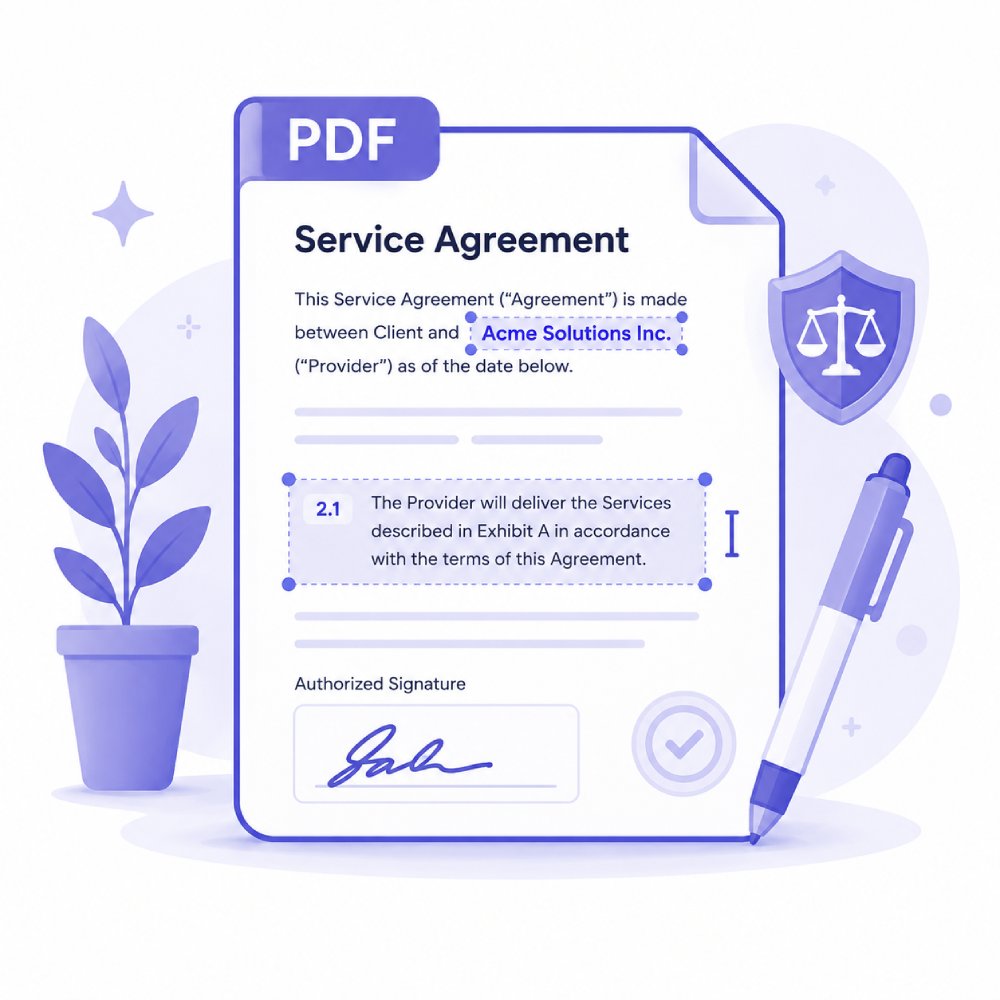
Edit Business Contracts Files
Edit PDF Contracts

Edit and refine contract documents with precise text adjustments, clause updates, and formatting tools. Ideal for legal teams, HR departments, and business professionals managing agreements.
Legal clausesEmployment termsAgreement drafts
Edit Document Content

Modify and update business documents with flexible editing tools for text, images, and formatting. Suitable for reports, proposals, invoices, and everyday office documentation workflows across teams.
Project proposalsInvoices detailsBusiness reports
Review and Annotate PDFs

Enable collaborative PDF review with highlighting, comments, stamps, and markup tools. Perfect for feedback cycles, document approvals, and team collaboration in legal, academic, and business environments.

Add commentsHighlight keysApprove draft documents

How to Plan Your PDF Editing Task

Choose the editing approach that best matches the changes you need to make.

1

Start with Your PDF File

Choose the PDF you want to work on. You can open a document from your device, cloud storage, or recently used files, depending on where your file is saved.

2

Pick the Editing Task You Need

Decide what you want to do with your PDF. You can edit text, replace or insert images, adjust layout elements, or make quick corrections depending on your goal.

3

Finish by Saving or Exporting Your File

After editing, choose how you want to complete your file. You can save changes, export in another format, compress the PDF, or prepare it for sharing, printing, or storage.

Smart PDF Editing for Every Scenario

Explore the most common user cases for PDF editing.

  • Update Marketing Materials
  • Edit Educational Documents
  • Fix Financial Reports
  • Create Project Proposals or Plans

Update Marketing Materials

With our PDF editor, you can quickly edit brochures, flyers, and presentations by changing text, images, or layout. This helps your marketing materials look fresh and professional. This makes them ready to share with clients or use in campaigns.

Update Marketing Materials

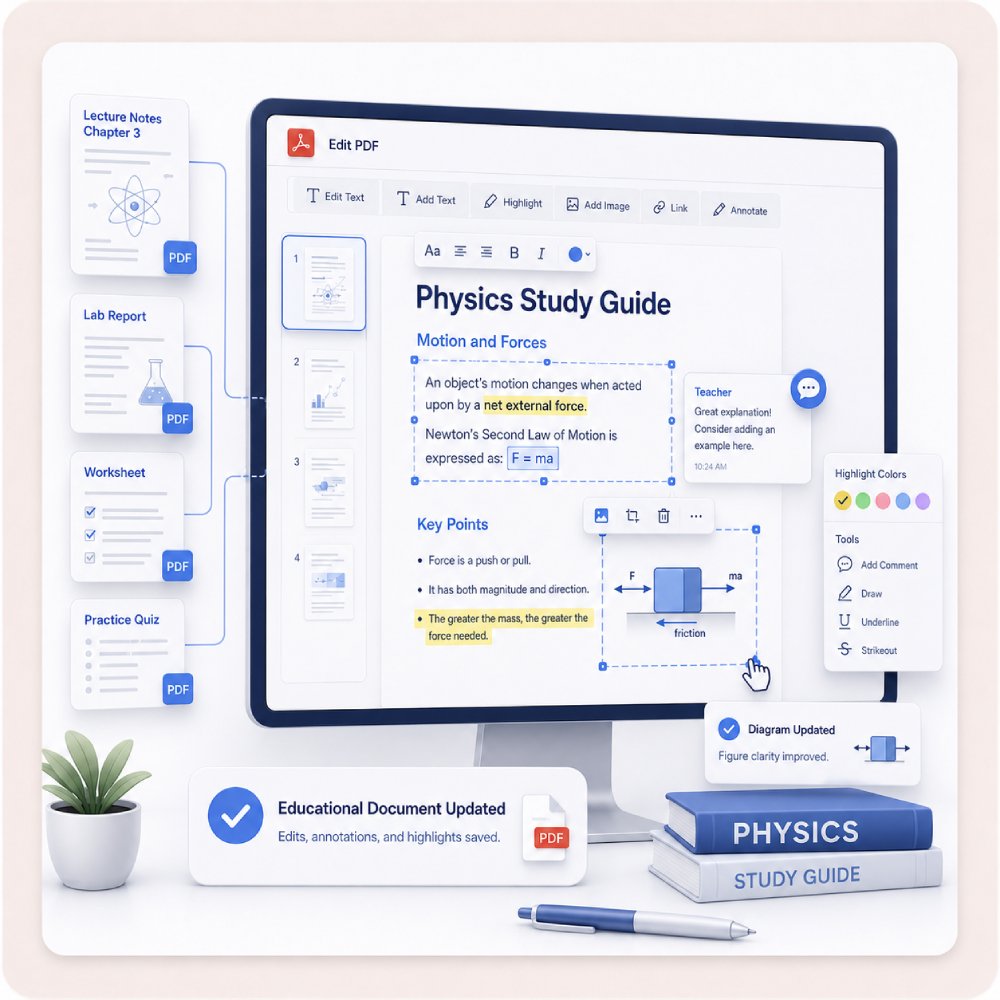
Edit Educational Documents

Easily modify worksheets, study guides, or reports by updating text and adjusting layouts. As a result, your documents are clear, organized, and easy to use, whether for teaching, learning, or submitting assignments on time.
Edit Educational Documents

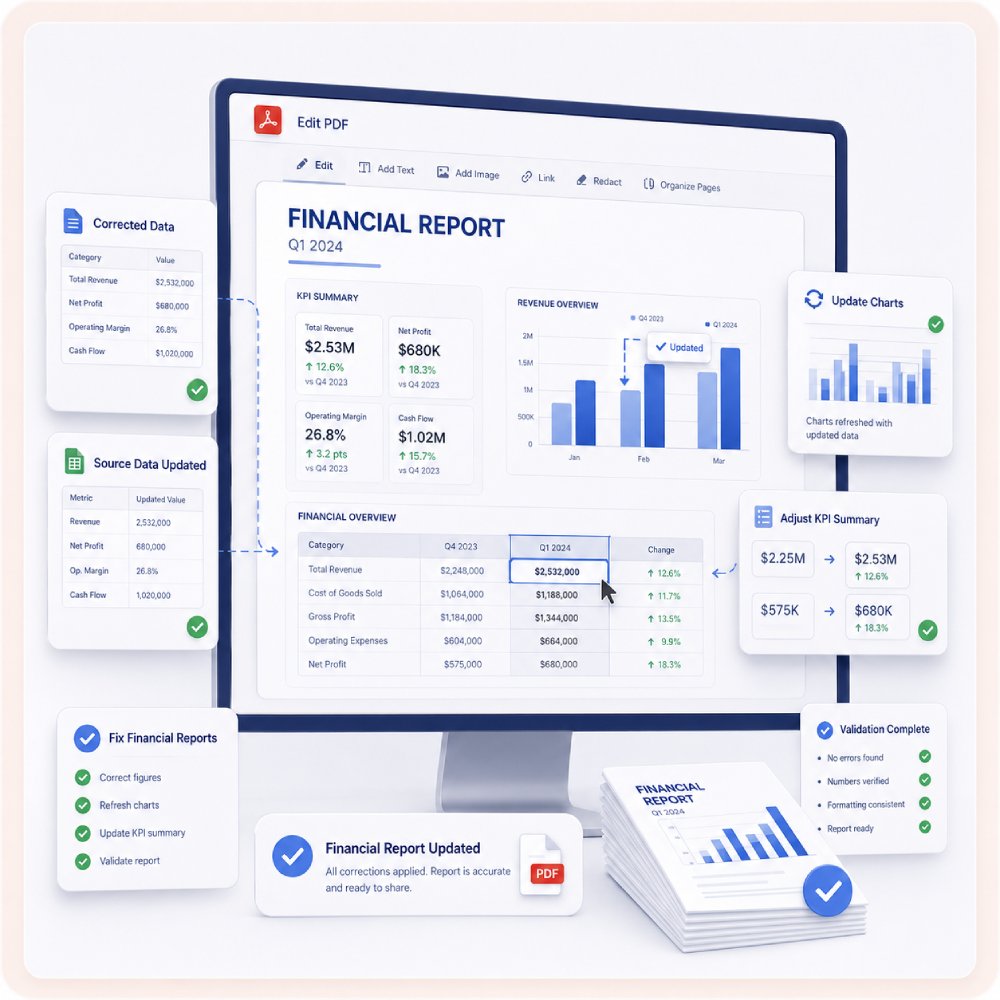
Fix Financial Reports

You can also edit invoices, budgets, or statements by adjusting text, tables, and layouts. This keeps your financial documents accurate, well-organized, and easy to read, helping you share them with colleagues or clients efficiently.
Fix Financial Reports

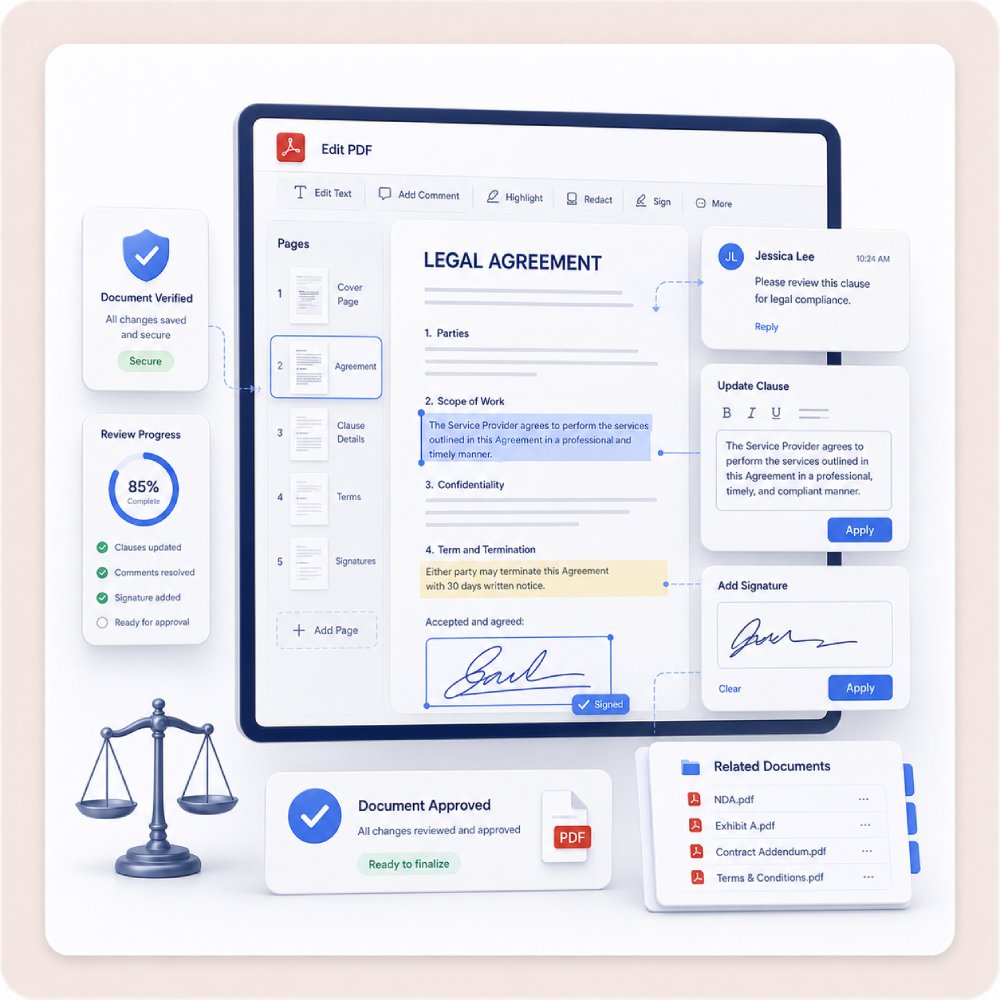
Manage Legal Papers

Quickly update contracts, agreements, or forms with precise text and layout changes. This ensures your legal documents remain professional, accurate, and ready for use in any official or business setting.
Manage Legal Papers

Frequently Asked Questions

How can I edit text or images inside an existing PDF?expand_more

To edit text or images in a PDF, open the file in AcePDF and go to the Edit tab. From there, you can select and modify text, replace or resize images, and update links where supported by the document. After making your changes, save the file as a new copy to preserve the original version. If the PDF was created from a scan or image, the text may not be directly editable because it is stored as an image rather than actual text. In that case, run OCR (Optical Character Recognition) first to convert the scanned content into editable text. Once OCR is complete, you can review the results and continue editing the document within AcePDF.

What should I do if my PDF is scanned and I cannot select the text?expand_more

If you cannot select, copy, or search the text in your PDF, the document is likely a scanned or image-based PDF. In this case, you need to use OCR (Optical Character Recognition) to recognize the text and convert it to a searchable, selectable format. The Onine OCR PDF Tool is a good option for quickly extracting text from scanned PDFs, especially when you only need the text content. If you want to continue editing, converting, or managing the document after OCR, AcePDF provides a more complete workflow with built-in OCR and PDF editing tools. Once the text has been recognized, you can review and modify the document as needed. Keep in mind that OCR accuracy depends on factors such as scan quality, image resolution, page alignment, and document complexity, so it is always a good idea to review the results for any recognition errors.

Can I annotate, highlight, or comment on a PDF for review?expand_more

Yes. AcePDF includes annotation and review tools that allow you to mark up PDFs without changing the original content. Simply open your PDF in AcePDF and go to the Comment tab. From there, you can access tools such as Highlight, Comments, Callouts, Sticky Notes, Stamps, and other markup options to provide feedback or collaborate on document reviews. These tools are useful for reviewing contracts, reports, drafts, forms, and other documents that require comments or revisions. Once you have finished reviewing the PDF, you can save the changes or create a separate review copy to share with others while keeping the original document intact.

How do I edit a PDF contract, invoice, or business document safely?expand_more

When editing a contract, invoice, or other business document in AcePDF, make a backup copy of the original file before making any changes. Open the PDF, go to the Edit tab, and update the text, images, or other elements that need revision. After editing, carefully review the document to ensure that no important content, formatting, page numbering, or layout has been altered unintentionally. If the PDF is scanned, run OCR first so the text can be edited accurately. Once you are satisfied with the changes, save or export the updated document as a new file to preserve the original version. Before sharing or finalizing the document, confirm that the revised content is correct with the appropriate reviewer, manager, client, or document owner, especially for important business records and agreements.

Can I remove or replace text, images, or distracting elements in a PDF?expand_more

Yes. In AcePDF, you can directly edit a PDF by selecting text, images, or objects and then removing, replacing, or adjusting them using the Edit tools. This allows you to clean up documents, update outdated content, or replace images while keeping the overall layout intact, where supported. However, this depends on how the PDF was created. If the PDF is image-based or flattened, for example, a scanned document, the content may not be directly editable. In those cases, you may need to run OCR first to recognize the text, or some elements may not be cleanly editable even after OCR. Always review the final output to ensure spacing, layout, and formatting remain consistent after making changes.

Unlock Full PDF Editing with AcePDF

Download AcePDF Editor to access complete editing tools, advanced workflow features, and professional-grade capabilities for text, images, layouts, and document management.

Free trial. No credit card required.

Back to Top
Contact Us
Learning Center