menu
Home

AI Tools

AI Image Editor
wand_shine Multiple AI Models Supported

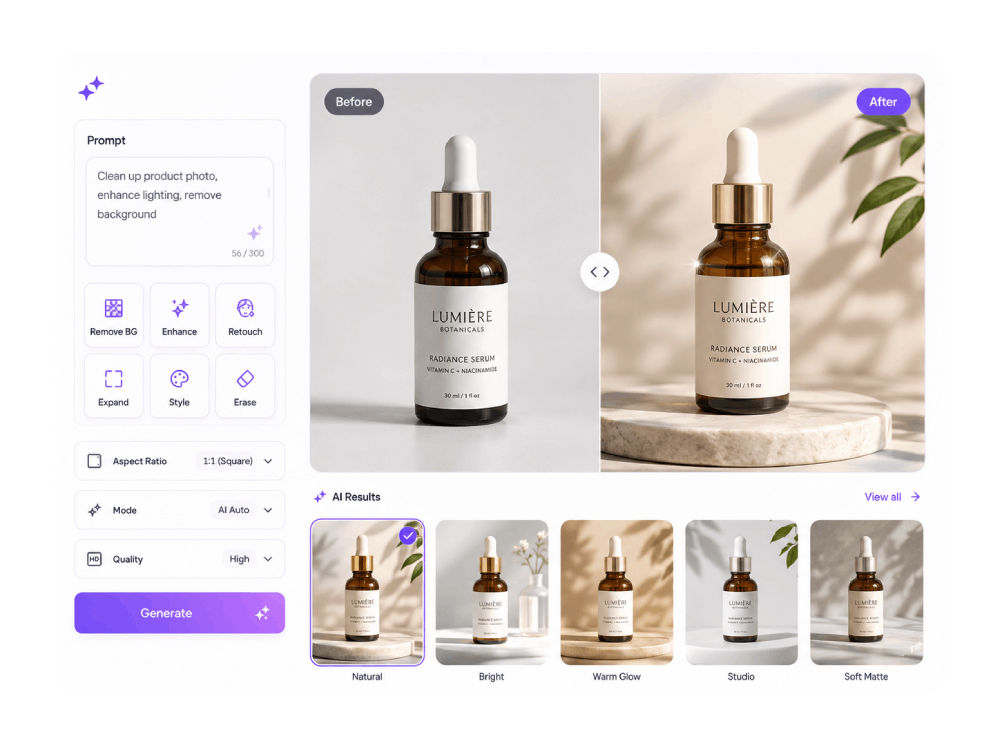
AI Image Editor for Fast, Practical Photo Edits

Remove backgrounds, erase unwanted objects, enhance image quality, retouch portraits, and prepare photos for ecommerce, social media, and marketing in seconds.
ai image generator

Choose the Right AI Image Editing Workflow

Different photos need different edits. Pick the workflow that matches your goal and start with the right tools.
add_shopping_cart
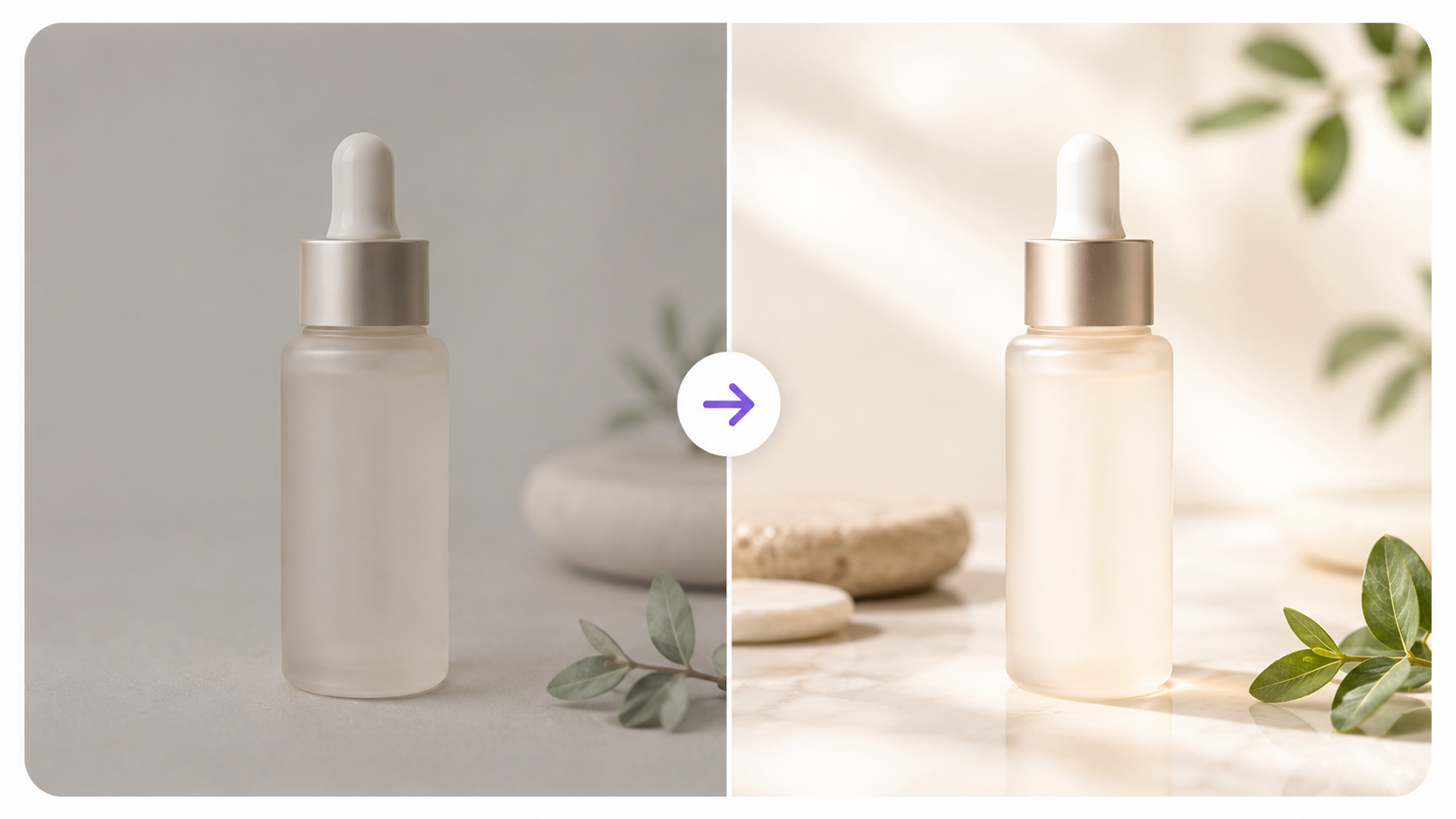
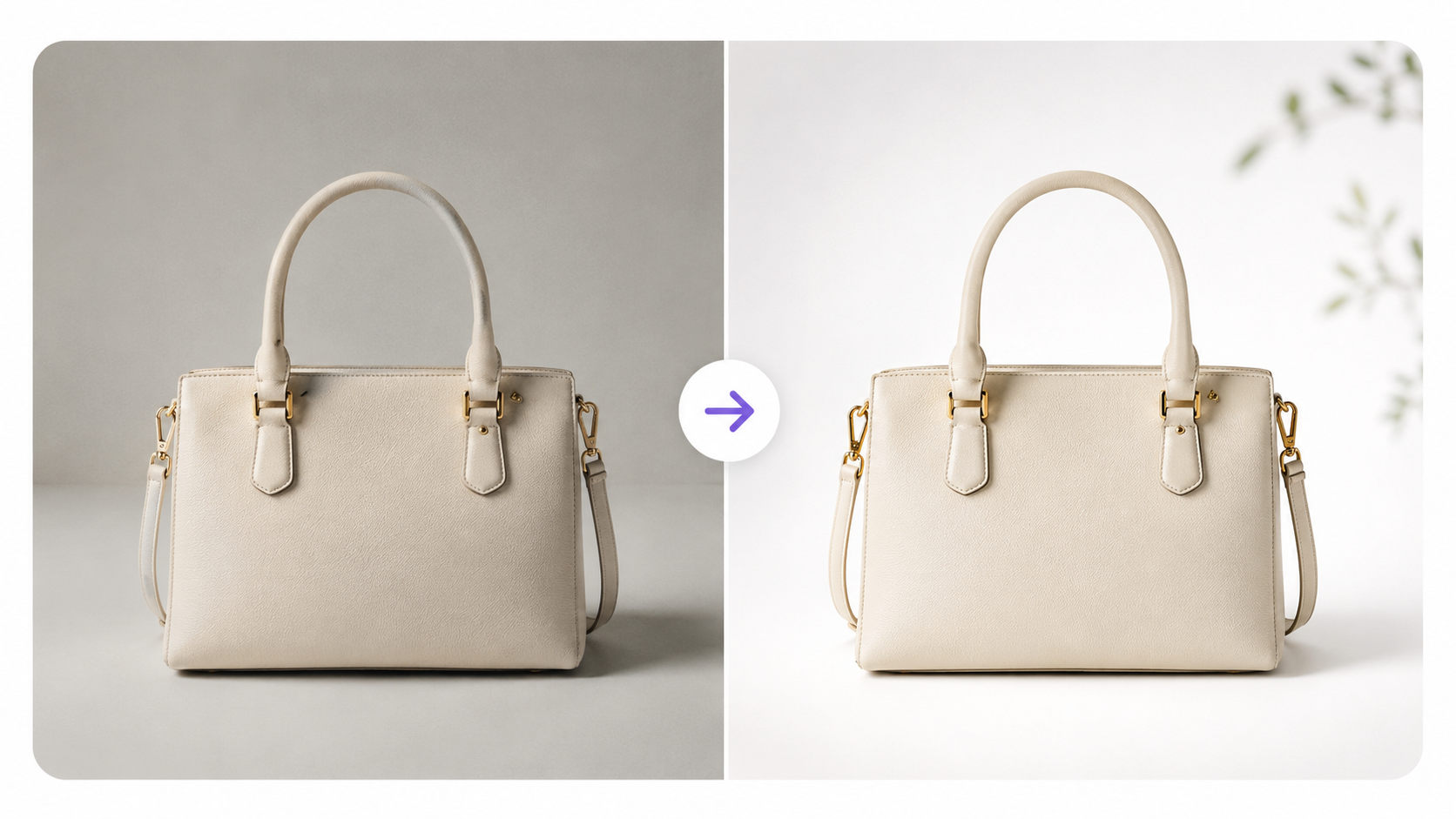
Ecommerce Product Photos
Remove backgrounds, clean product images, enhance details, and prepare listing-ready visuals.
Ecommerce Product Photos
thumb_up
Social Media Visuals and Posts
Retouch selfies, resize visuals, apply filters, and create polished posts for social platforms.
Social Media Visuals
campaign
Marketing & Campaign Images
Improve image quality, polish brand assets, enhance colors, and prepare visuals for ads or landing pages.
Marketing & Campaign Images
wand_stars
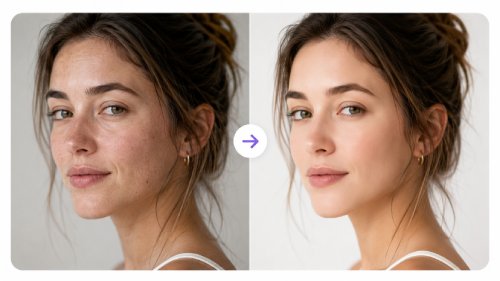
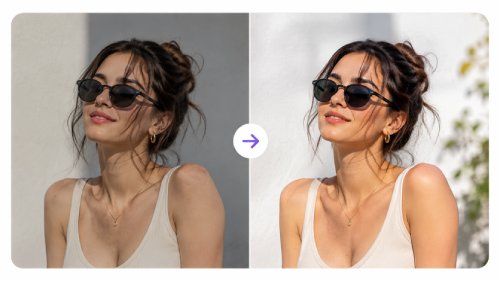
Portrait & Personal Retouching
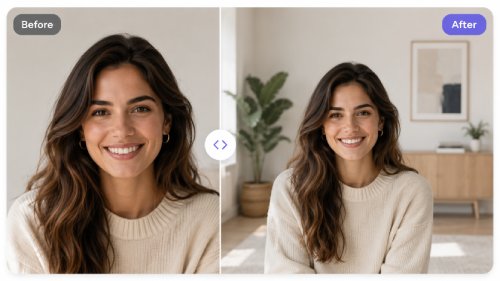
Smooth skin, improve lighting, remove distractions, and create natural-looking portrait edits in minutes.
Portrait & Personal Retouching
person
Best For

Online stores, product listings, Amazon, Shopify

Instagram, TikTok, Facebook, YouTube, Pinterest

Ads, banners, landing pages, email campaigns

Portraits, headshots, lifestyle and personal photos

star
Key Features
  • check_circle Background removal
  • check_circle Product enhancement
  • check_circle Shadow & reflection
  • check_circle Resize & crop
  • check_circle Filters & effects
  • check_circle Text & stickers
  • check_circle Image enhancement
  • check_circle Color grading
  • check_circle Brand consistency
  • check_circle Blemish removal
  • check_circle Skin smoothing
  • check_circle Lighting correction
pie_chart
Typical Results

Clean, consistent product images that increase trust and sales.

Engaging visuals that get more likes, shares and saves.

High-quality images that improve ad performance and brand impact.

Natural-looking portraits with flawless, professional results.

schedule
Time to Result
bolt
bolt
bolt
bolt
Very Fast
bolt
bolt
bolt
bolt
Very Fast
bolt
bolt
Fast
bolt
bolt
Fast

Most Popular Image Editing Tools

Enhance, restore, and refine images with powerful AI tools designed for everyday editing and creative projects.
background_replace
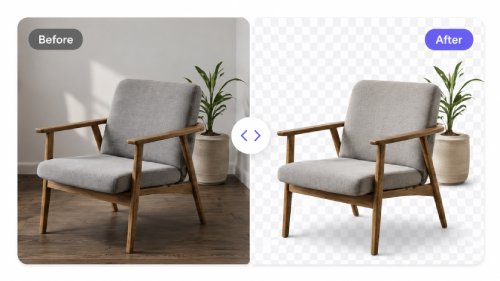
AI Background Remover
Quickly remove backgrounds to make your images look clean.
AI Background Remover
ink_eraser
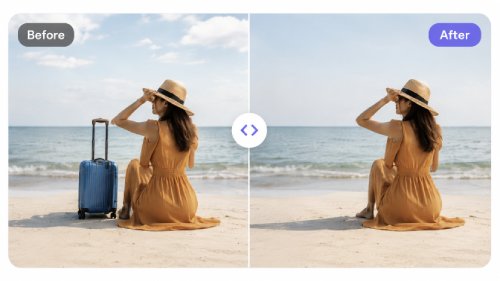
AI Object Remover
Easily erase unwanted objects or distractions from your photos.
AI Object Remover
upgrade
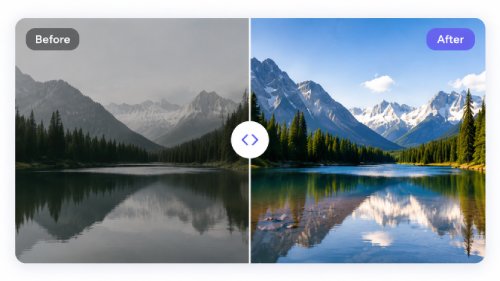
AI Photo Enhancer
Make your images clearer, sharper, and higher quality.
AI Photo Enhancer
build_circle
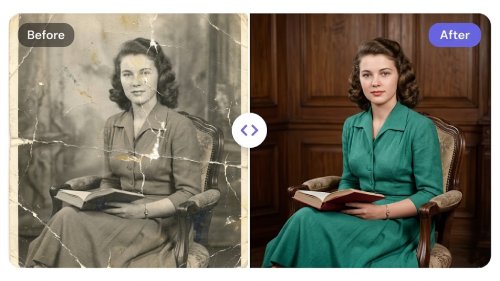
AI Old Photo Restoration
Bring faded, damaged, or old photos back to life.
AI Old Photo Restoration
arrows_outward
AI Image Extender
Add more space to your images without losing their original look.
AI Image Extender
wand_shine
AI Filters & Effects
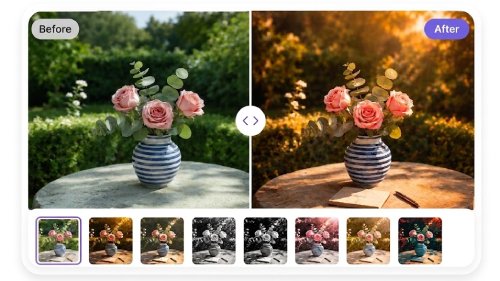
Apply creative styles and visual effects to your images.
AI Filters & Effects
100% Secure
Your images are safe with us
Lightning Fast
Edit images in seconds
High Quality Output
Professional results every time

How AI Image Editing Works

Improve image quality, remove distractions, and transform photos quickly using an easy AI-powered workflow.

  • 01
    select_check_box

    Choose Your Editing Goal

    Decide whether you want to remove a background, erase an object, enhance image quality, retouch a portrait, or prepare photos for a specific use case.

  • 02
    image_arrow_up

    Upload Your Image

    Add the photo you want to edit. Different tools may support product images, portraits, screenshots, social visuals, or marketing assets.

  • 03
    wand_stars

    Apply the Right AI Tool

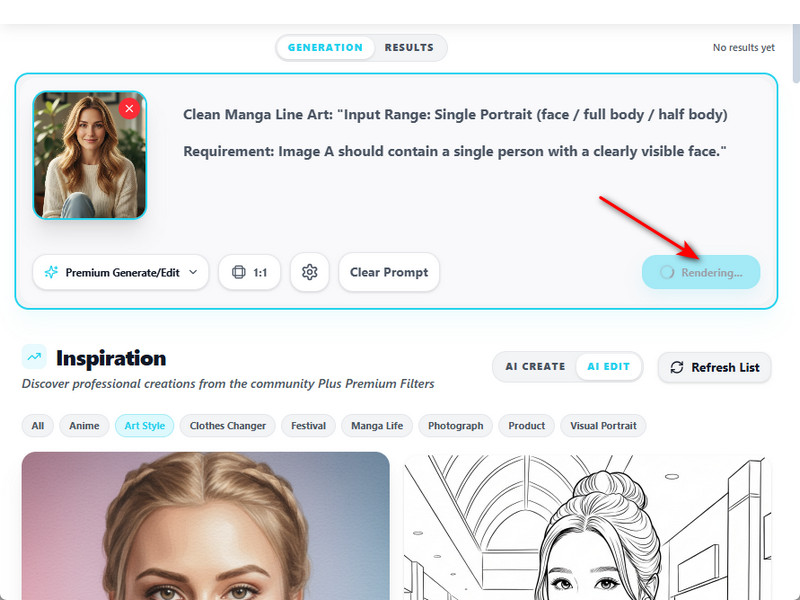
    Let AI process the image based on your selected task, such as background removal, object cleanup, photo enhancement, or portrait retouching.

  • 04
    download_for_offline

    Download or Continue Editing

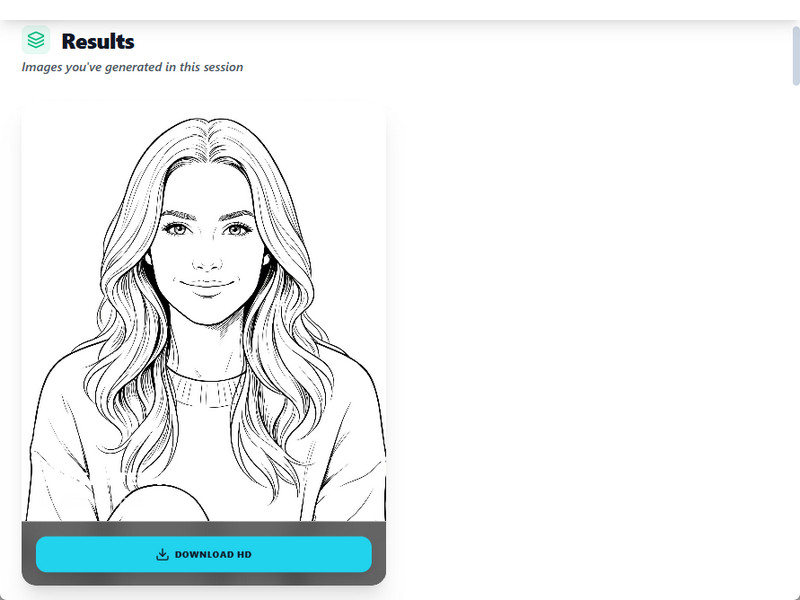
    Save the result or move to another related tool for further changes, such as changing the background, extending the image, or applying filters.
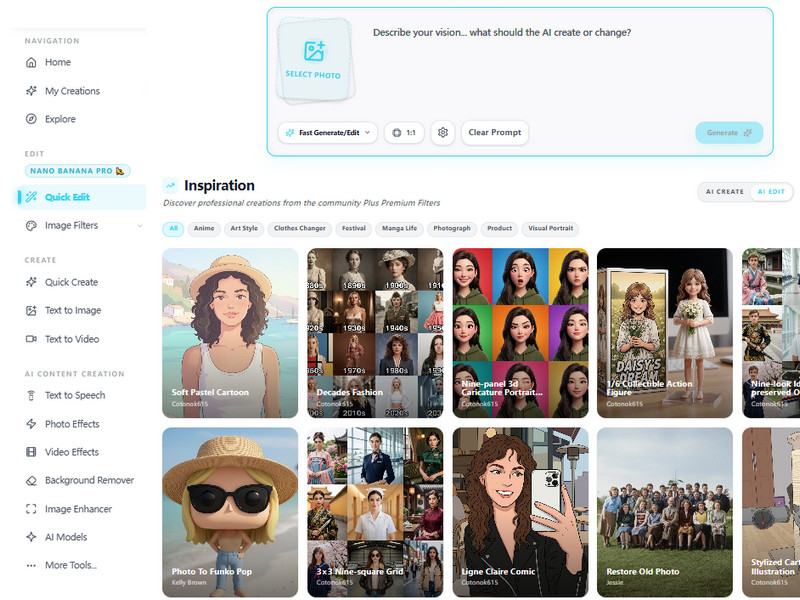
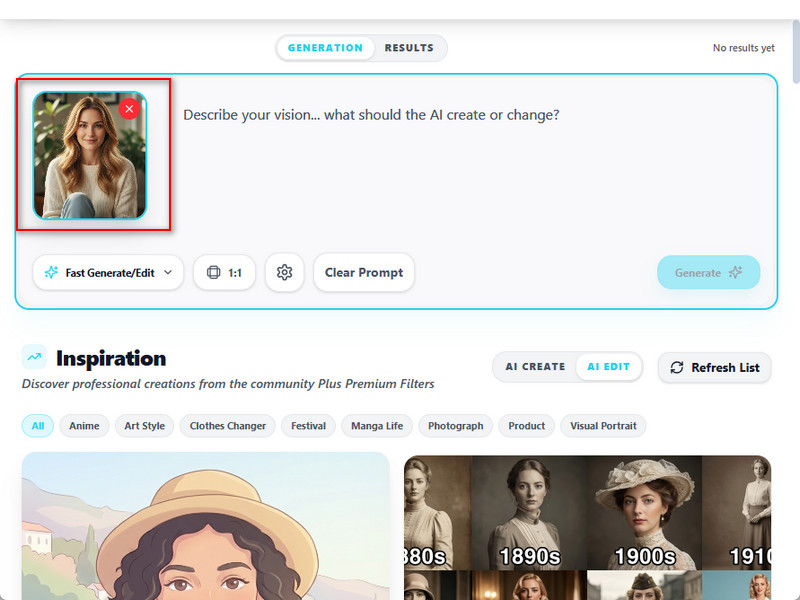
Upload Your Photo

Inspiration Gallery

Browse a curated collection of AI-powered image edits, creative transformations, and enhancement examples.
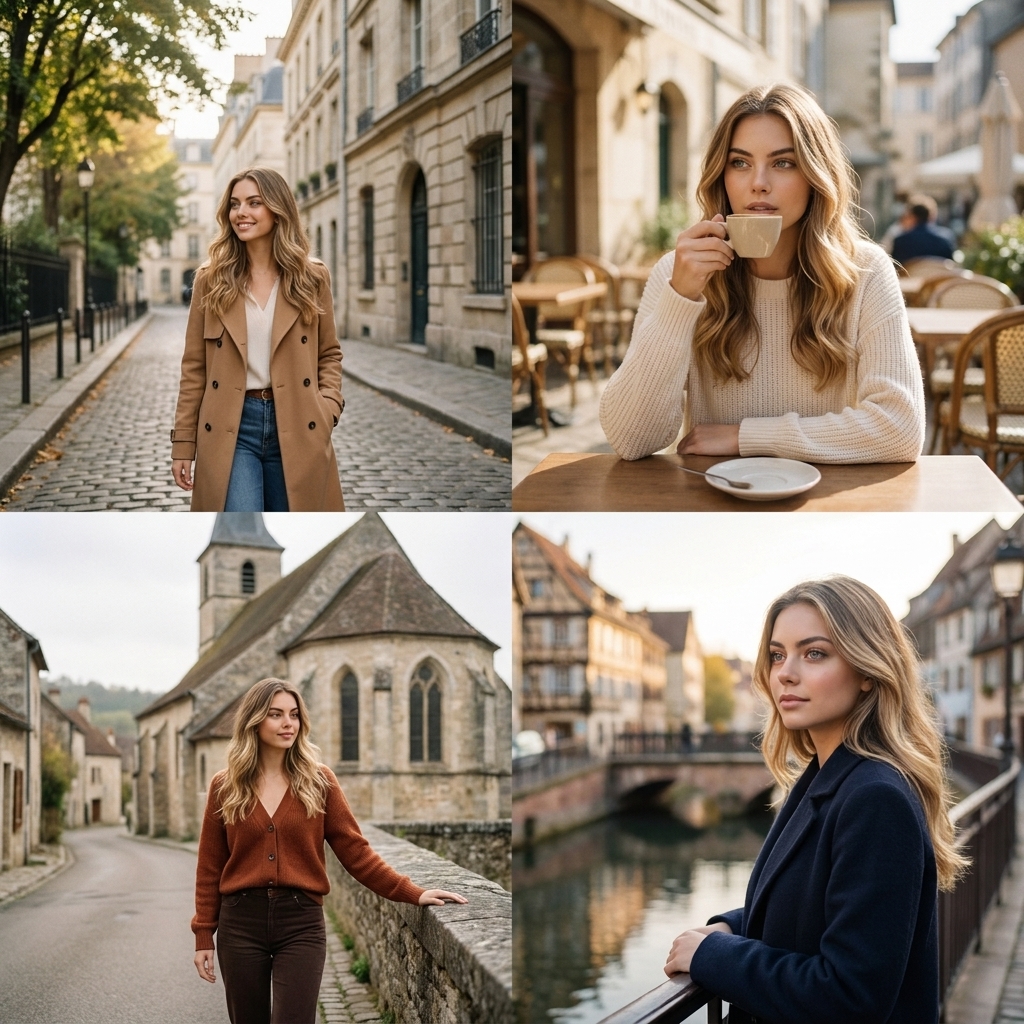
French Travel
French Travel
Cinematic Premium Ad
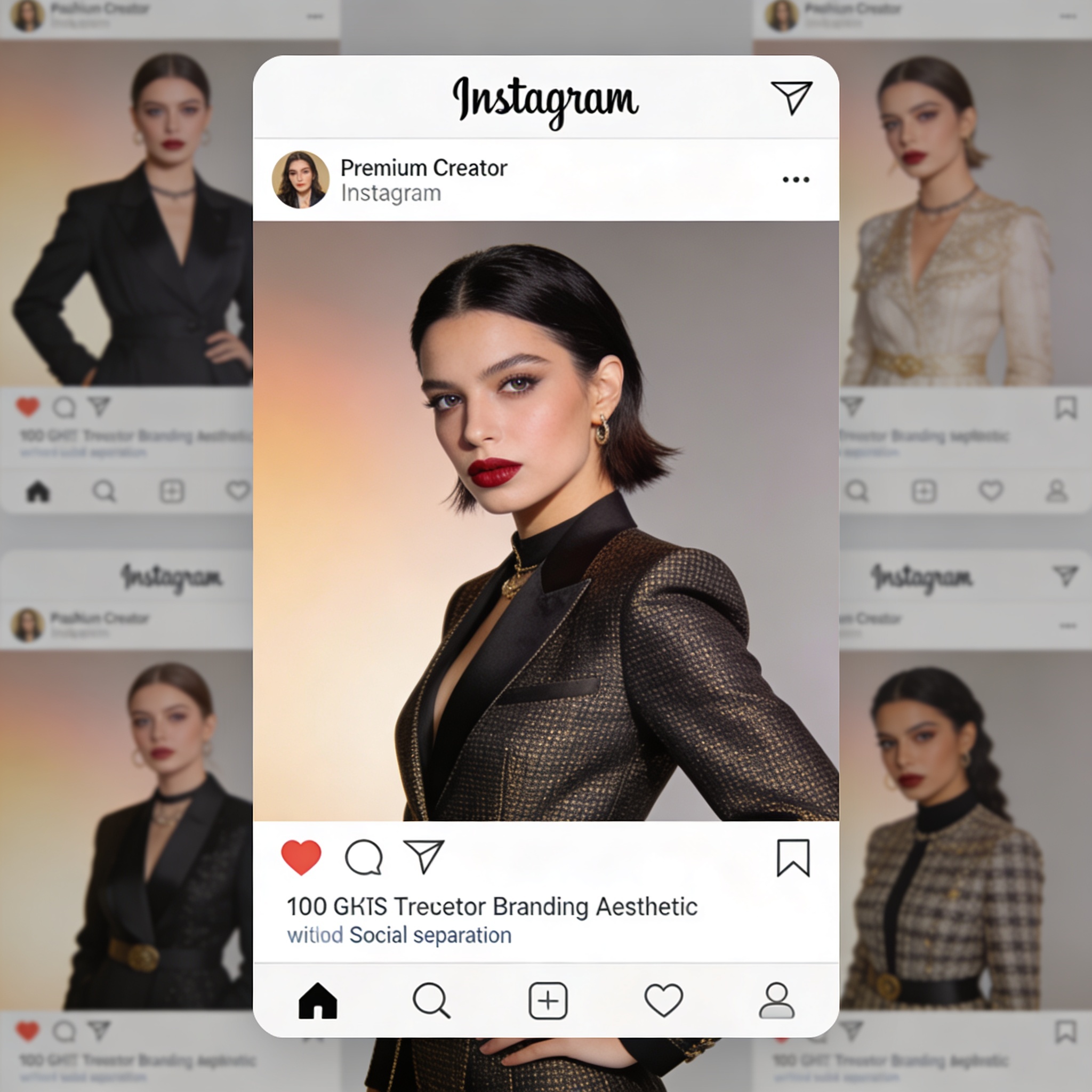
Instagram Creator Post
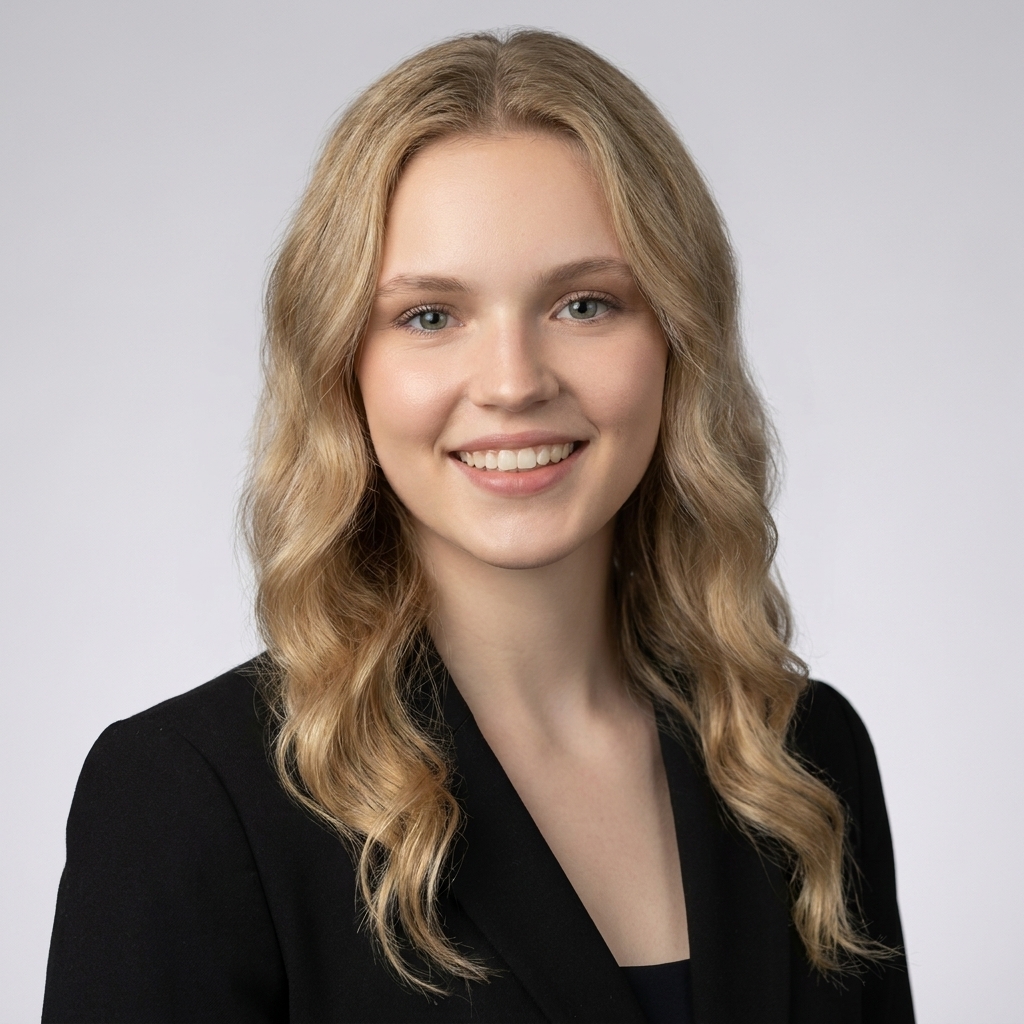
Professional Studio Headshot
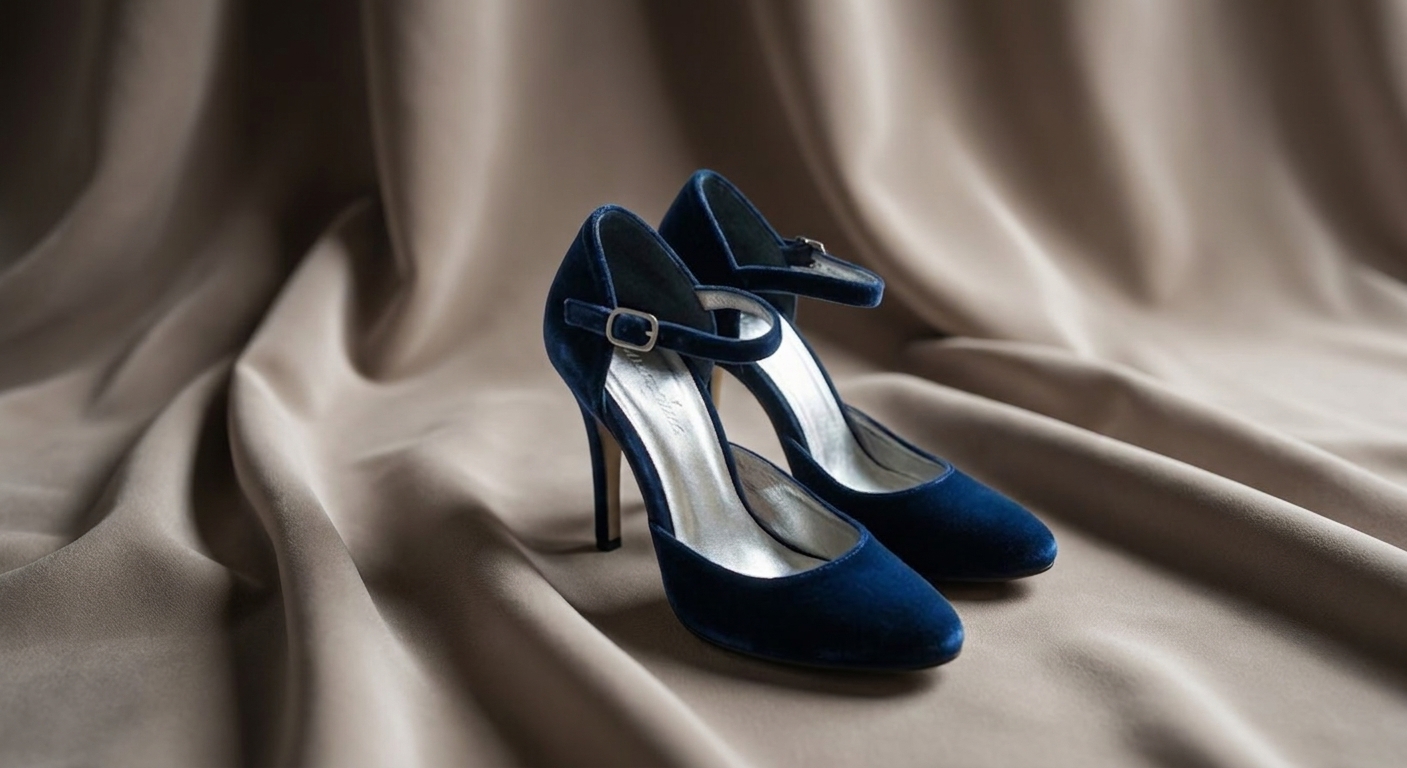
Luxury Fabric Backdrop
Social Campaign Photo Cleanup
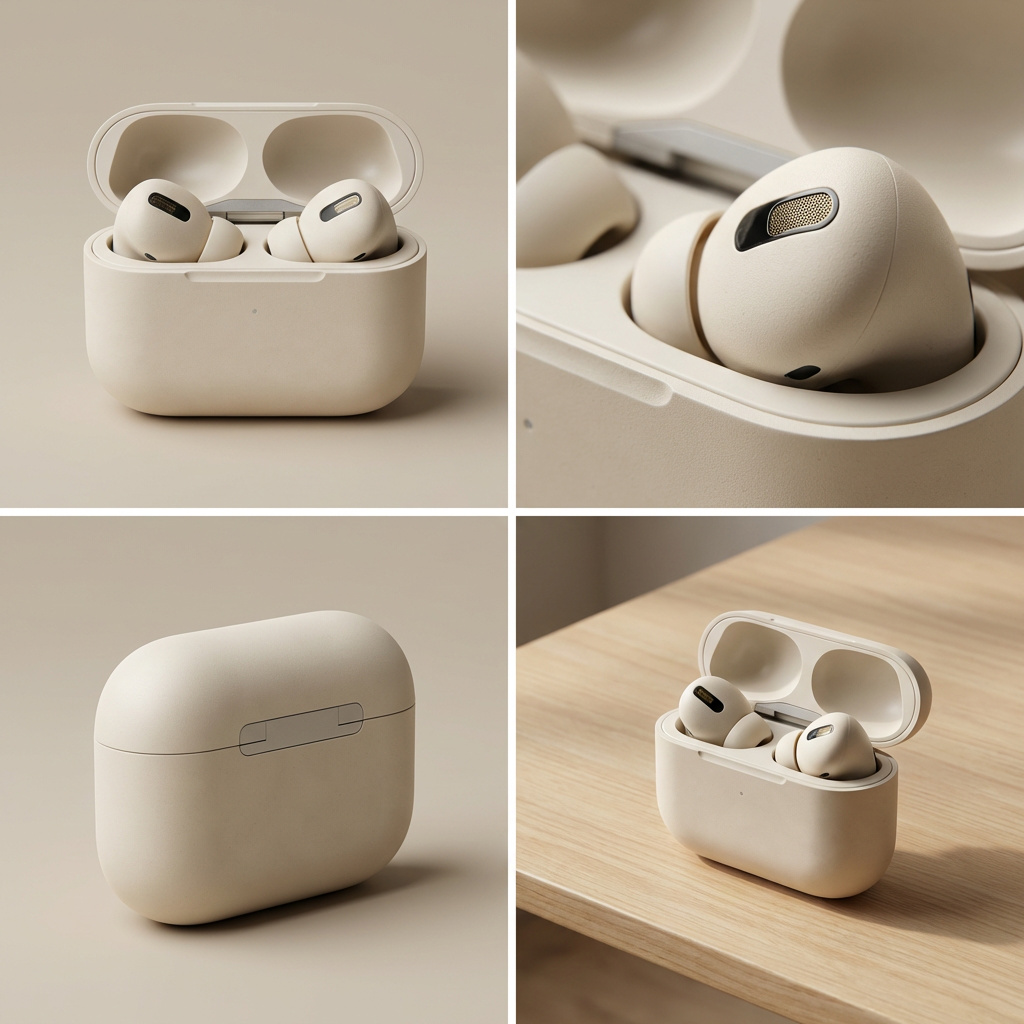
Product Quad View
Product Quad View
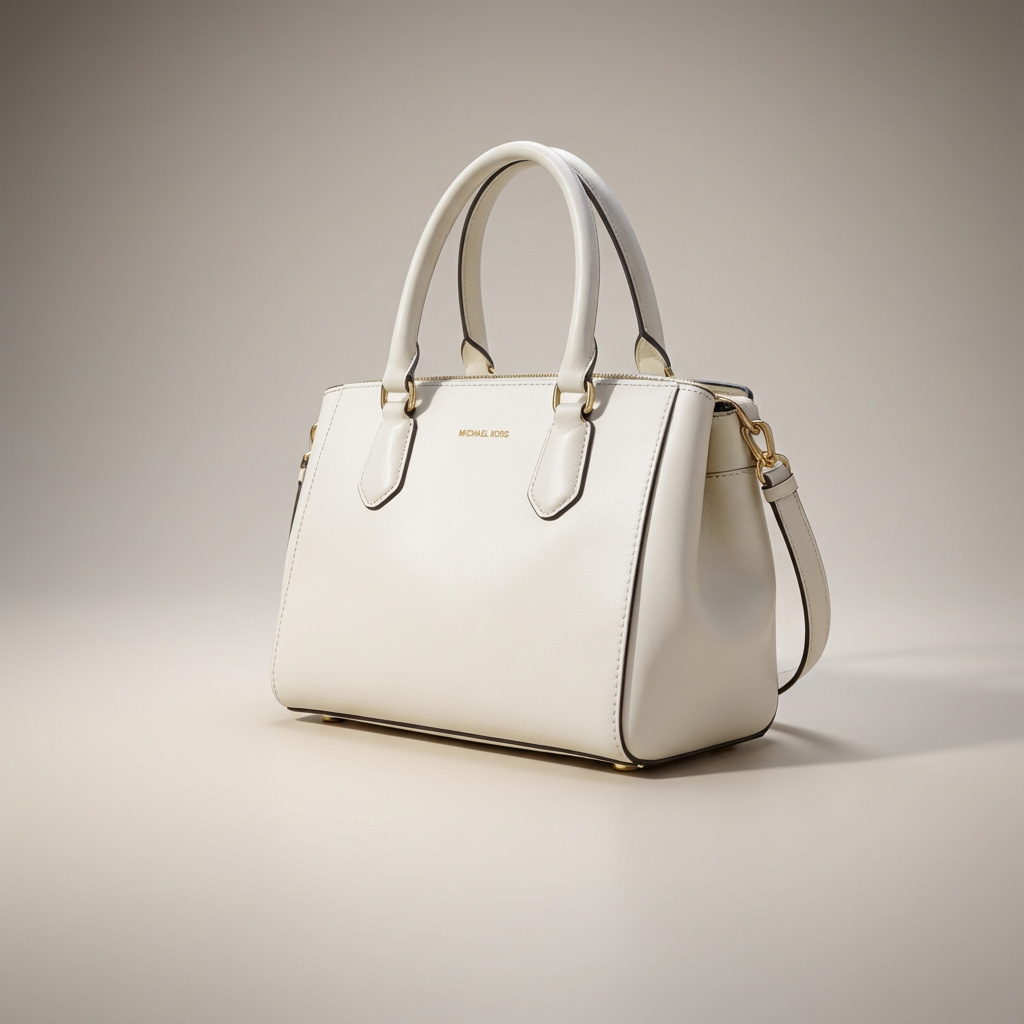
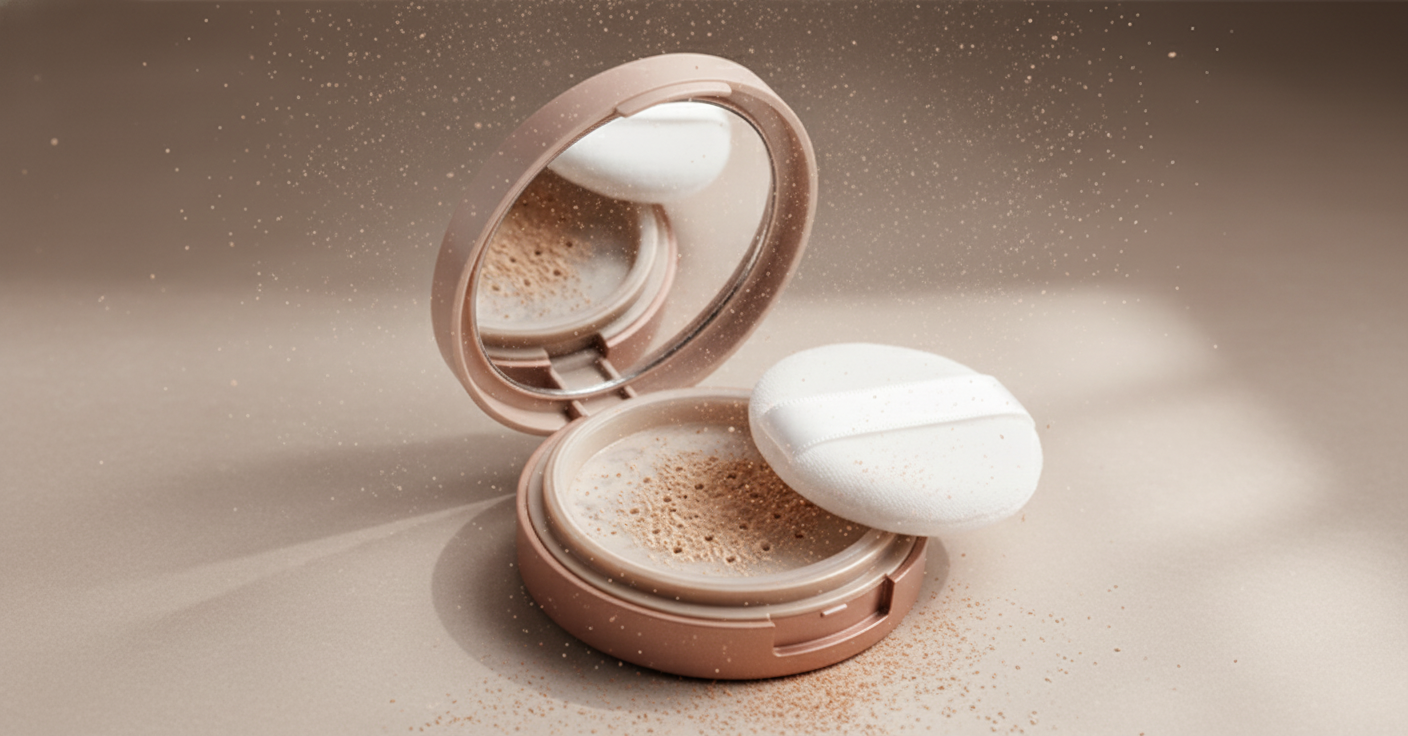
Neutral Gradient Studio

Built for Real Image Editing Tasks

Use AI image editing tools to clean, enhance, retouch, and prepare visuals for practical work and creative projects.

shopping_cart

Online Sellers

Clean product photos, remove backgrounds, improve details, and prepare marketplace-ready listing images.

diversity_4

Social Creators

Retouch selfies, apply filters, resize visuals, and create polished content for Instagram, TikTok, Facebook, and Pinterest.

campaign

Marketing Teams

Enhance campaign visuals, polish brand images, improve image quality, and prepare assets for ads, landing pages, and email campaigns.

account_circle

Personal Users

Improve portraits, remove unwanted objects, restore old photos, and make everyday images look cleaner and more natural.

Why Choose Imivo AI Image Editor?

speed_2
Fast Al Editing
Remove backgrounds, retouch portraits, and enhance images in seconds.
auto_awesome_motion
Multiple Editing Workflow
Handle ecommerce photos, social visuals, marketing assets, and portrait retouching in oneplace.
high_quality
High-Quality Results
Produce cleaner, sharper, and more polished images for real use cases.
ad
No Complex Skills Needed
Start editing from your browser without complicated software or setup.

Frequently Asked Questions

How can I remove a background from a product photo, portrait, or social image?expand_more

If the background distracts from the subject or does not fit your intended use, upload the image to AI Background Remover and let the tool automatically detect and separate the main subject from the surrounding background. You can also enter a prompt to specify whether you want a transparent background, a product cutout, or a clean subject extraction for a specific use case. The tool can generate a transparent PNG suitable for e-commerce listings, marketing materials, profile photos, or design projects. After removing the background, you can use the AI Image Editor to crop the image, apply filters, add text, insert graphics, or place watermarks before exporting the final design. This workflow works best when the subject is clearly separated from the background.

How do I replace the background without changing the main subject?expand_more

When you want to place a person, product, or object into a new environment while keeping the original subject intact, upload the image to AI Background Changer and choose the background type you want. Depending on your requirements, you can pick options such as regular product, premium product, lifestyle, and other scene styles, or enter a custom prompt to describe a specific setting, mood, or visual concept. The tool preserves the main subject while creating a new background that better aligns with product marketing, advertising, social media content, or promotional materials. After generating the new scene, you can use the AI Image Editor to crop the image, apply filters, add text, insert graphics, or prepare the design for publishing. For the most natural-looking results, choose backgrounds with lighting, perspective, and scale that closely match the original image.

Can I remove unwanted objects, text, or watermarks from an image?expand_more

If your image contains unwanted objects, text overlays, logos, or other visual distractions, you can use AI Object Remover to clean up the image. Simply upload the image, highlight the area you want to remove using the adjustable brush tool, and let the AI generate replacement content that blends with the surrounding background. For watermarks, you can use AI Watermark Remover when you own the image or have permission to modify it. This workflow is useful for product photos, social media content, marketing materials, presentations, and creative projects where unwanted elements distract from the main subject. The quality of the results depends on the size of the removed area and the complexity of the surrounding background, so detailed patterns, overlapping objects, or crowded scenes may require additional edits. Users should only remove watermarks, branding, logos, or ownership marks when they have the legal right to edit the image.

How can I improve a blurry, dark, or low-quality image before using it online?expand_more

Low-resolution photos, blurry images, and poorly lit pictures can appear less professional when used online or in marketing materials. Upload the image to AI Photo Enhancer to improve sharpness, clarity, color balance, brightness, and overall image quality. Depending on the desired output quality, you can select an upscale option such as Auto, 2X, or 4X to enhance the image resolution while maintaining as much detail as possible. Once the enhancement is complete, you can export the image in PNG, JPEG, or WebP format for use across websites, online stores, social media platforms, and digital campaigns. For additional edits, such as cropping, applying filters, adding text, or other design adjustments, you can continue working in the AI Image Editor. This workflow is especially useful for product photos, portraits, marketing graphics, and content that needs a cleaner, higher-quality appearance. While AI enhancement can improve existing details and overall image quality, it cannot fully restore information that is missing, heavily blurred, or never captured in the original photo.

Can I restore an old or damaged photo with AI?expand_more

Old photographs often suffer from fading, scratches, discoloration, noise, and reduced clarity due to age, storage conditions, or repeated scanning. To restore these images, upload the photo, open the Quick Edit feature, and select AI Old Photo Restoration from the Inspiration options. The tool analyzes the image and helps repair visible damage while improving overall photo quality. For additional improvements, you can use AI Photo Enhancer to increase sharpness, enhance contrast, and refine details for a cleaner final result. This workflow is ideal for preserving family portraits, historical photographs, scanned prints, and personal archives that have deteriorated over time. While AI can significantly improve the appearance of old or damaged photos, it cannot guarantee complete historical accuracy or perfectly reconstruct facial features, missing areas, or severely damaged sections that lack sufficient visual information.

Start Editing Image with AI Today

Join over 2 million creators using Vision Hub to bring their wildest imaginations to life. No credit card required to start.

Back to Top
Contact Us
Learning Center